PingOne
PingOne for Enterprise is an identity-as-a-service (IDaaS) and single sign-on (SSO) platform. It allows enterprises to give their users federated access to applications. In this guide, we integrate the PingOne IdP to authenticate users into the Wazuh platform.
Learn how to create administrator and read-only roles on PingOne and map them with Wazuh in the sections below.
Setup PingOne single sign-on with administrator role
Follow these steps to integrate PingOne IdP with Wazuh for single sign-on and grant administrator role to the authenticated PingOne users on the Wazuh platform:
PingOne Configuration
Create an account in Ping Identity. Request a free trial if you don't have a paid license.
Go to PingOne and sign in with your Ping Identity account.
Create an application.
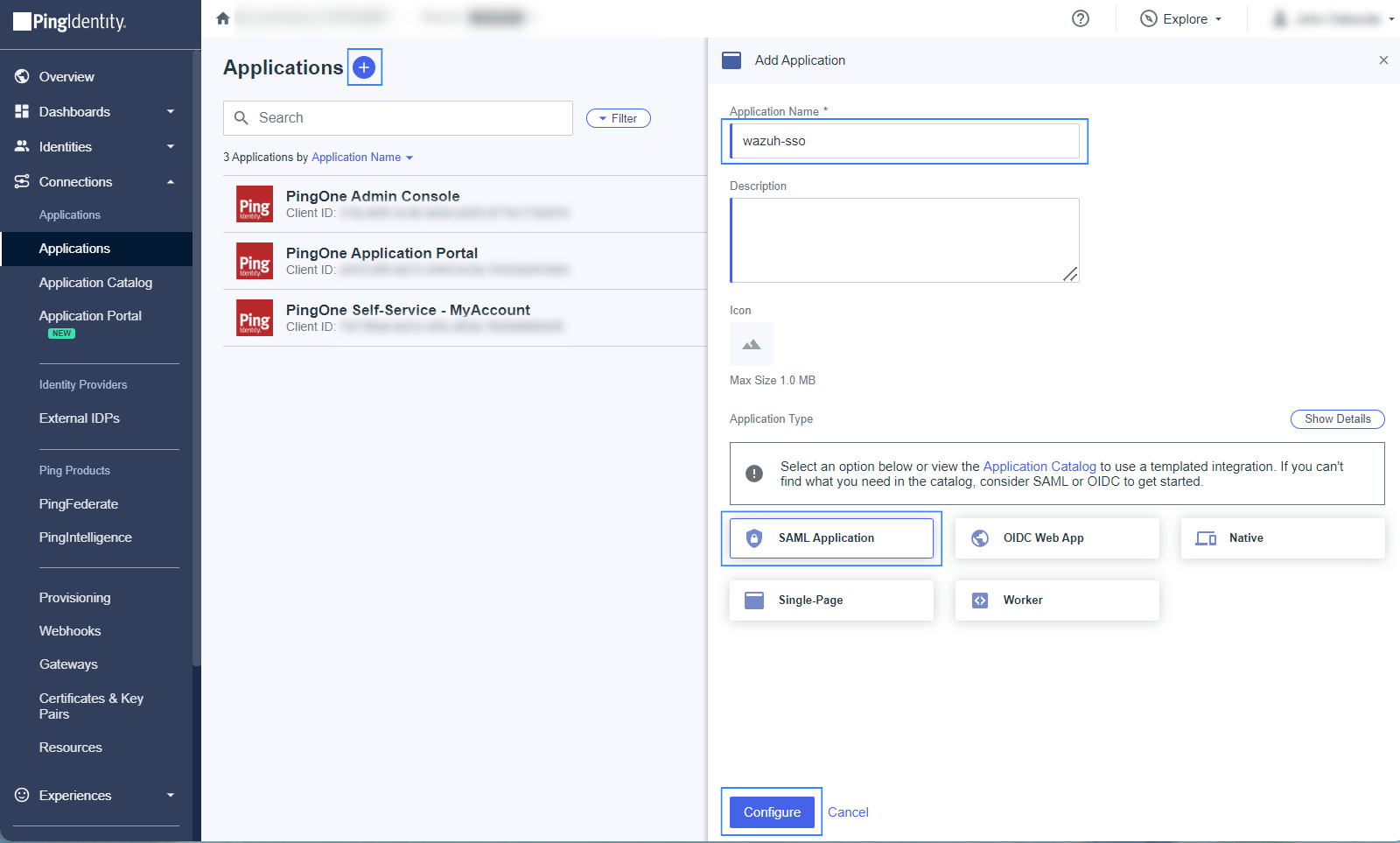
Navigate to Applications > Applications > Add Application and give it a name. In our case, the name is
wazuh-sso.Proceed to the Choose Application Type section, and select SAML Application > Configure.
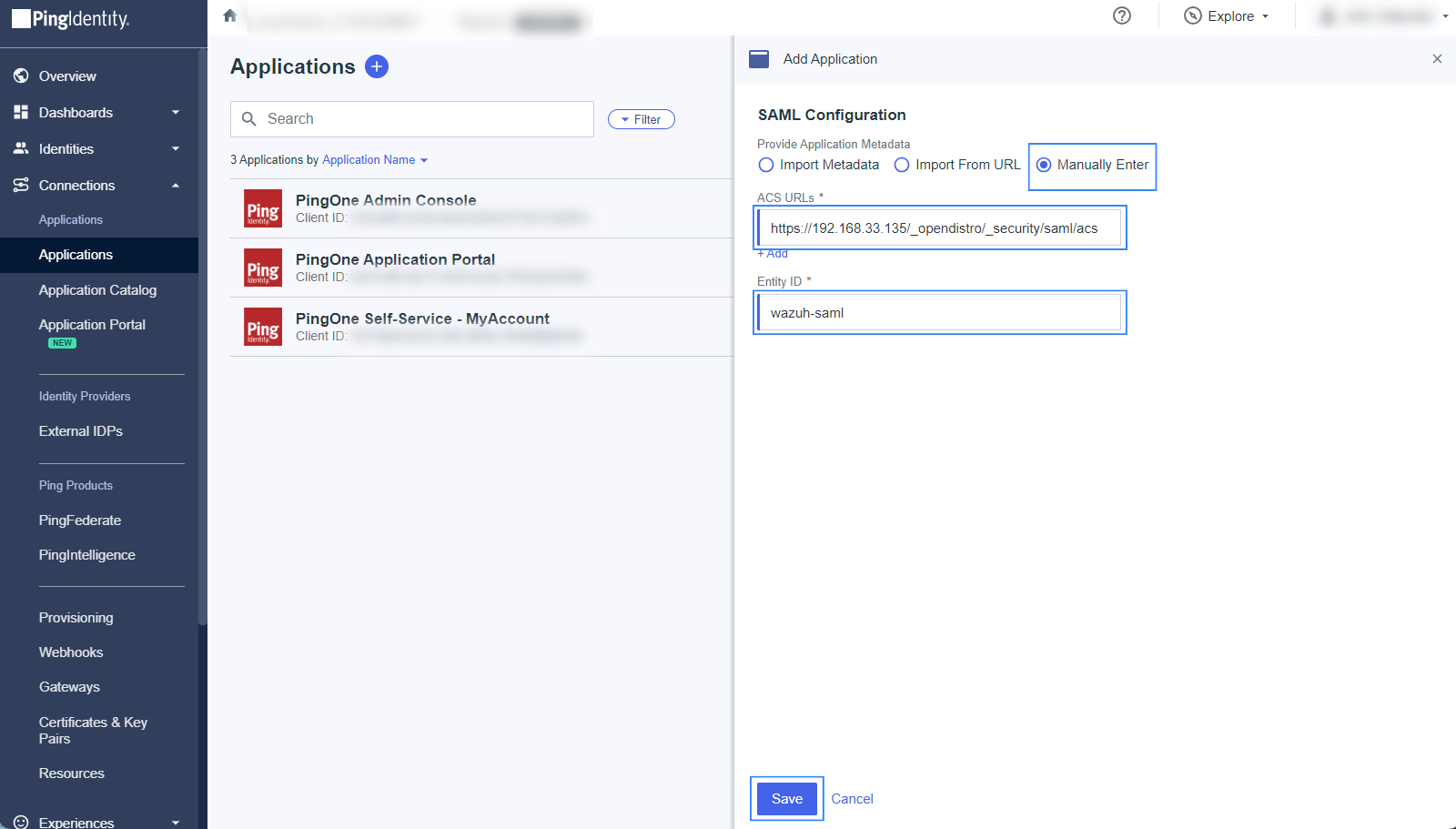
Select Manually Enter on the SAML Configuration section and add the following configuration, replacing
<WAZUH_DASHBOARD_URL>with the corresponding value:ACS URLs:
https://<WAZUH_DASHBOARD_URL>/_opendistro/_security/saml/acsEntity ID:
wazuh-saml
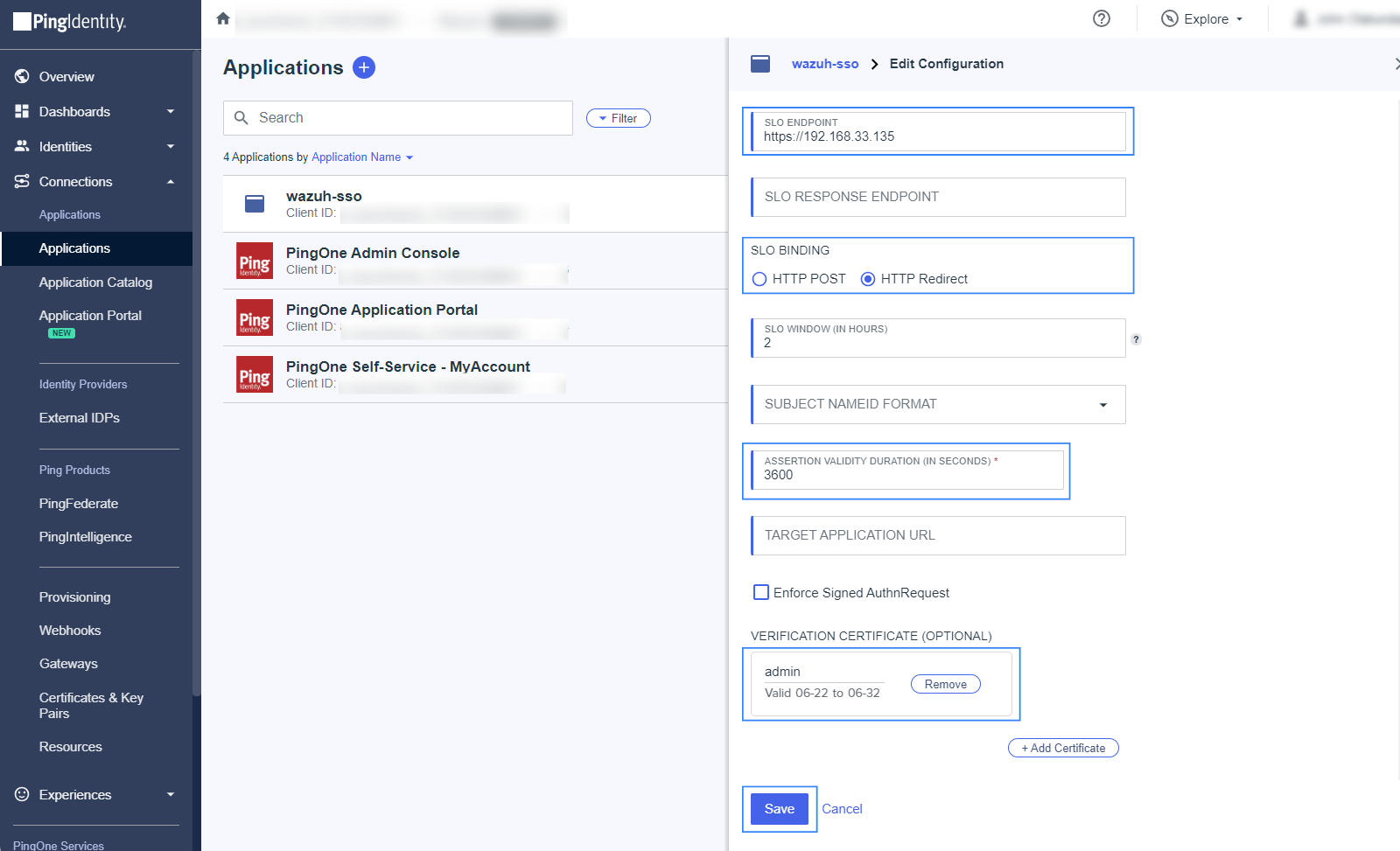
On the Configuration tab, click on the edit icon and add the following information:
SLO ENDPOINT:
https://<WAZUH_DASHBOARD_URL>/SLO BINDING:
HTTP RedirectASSERTION VALIDITY DURATION:
3600(for 1 hour token validity)VERIFICATION CERTIFICATE: Upload a certificate containing a public key that is associated with a private key to be used for signing. If you do not have a certificate signed by a trusted Certificate Authority, you may use a self-signed certificate.
Run the command below on the Wazuh indexer instance to generate a new unencrypted 2048‑bit RSA private key and a self‑signed certificate valid for 365 days.
# openssl req -x509 -newkey rsa:2048 -keyout private.key -out certificate.pem -days 365 -nodes
Upload the
certificate.pemfile as the VERIFICATION CERTIFICATE in PingOne. The full path of theprivate.keywill be used later in the Wazuh indexer configuration file/etc/wazuh-indexer/opensearch-security/config.ymlas thesp.signature_private_key_filepathparameter. This is necessary as all the logout requests must be signed.
Click on the Attribute Mappings tab, select the edit icon, click on Add and insert the following configuration:
Roles=Group Names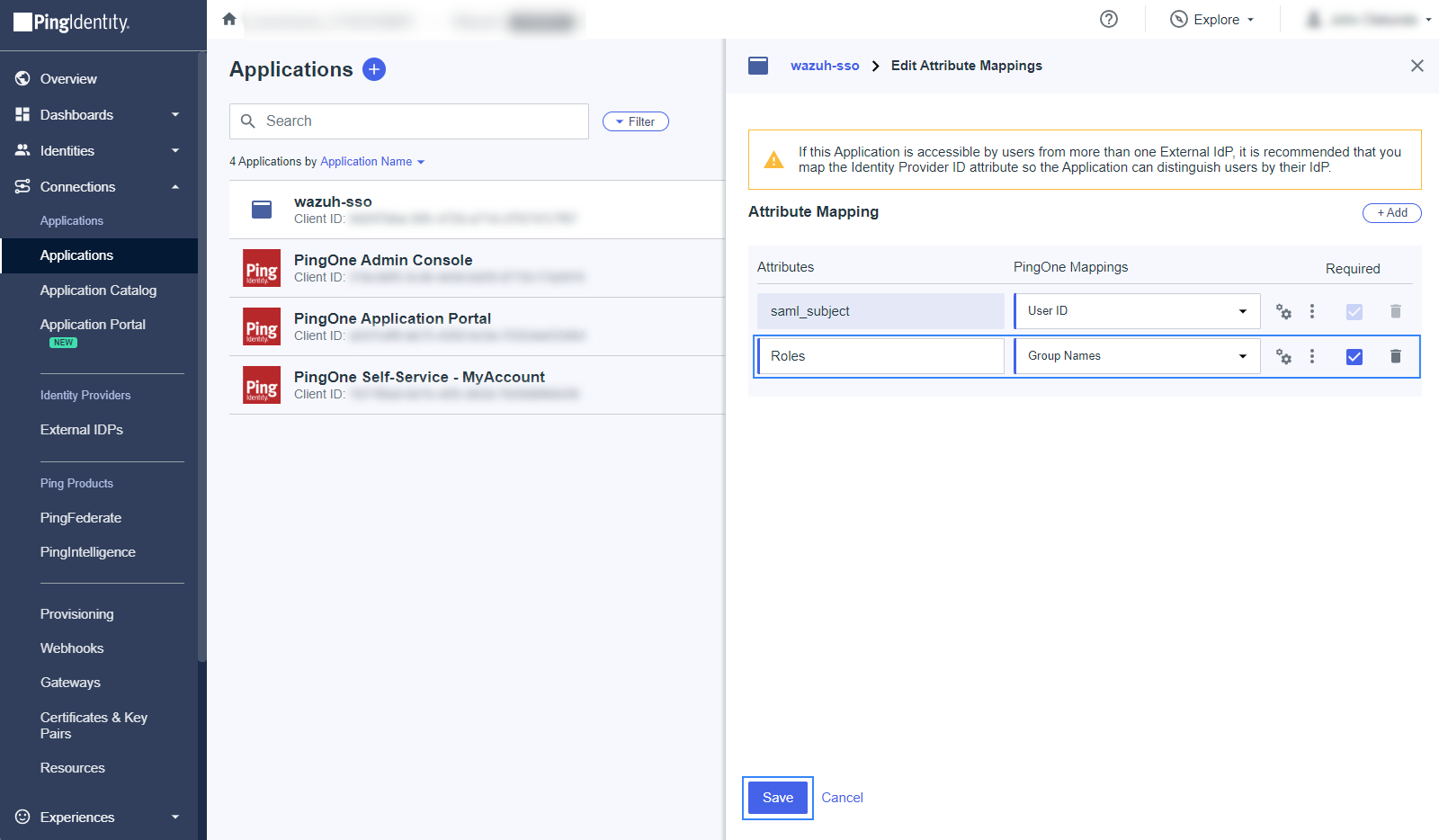
The
Rolesattribute will be used later as theroles_keyin the Wazuh indexer configuration file.Click on the Required checkbox, and click on Save.
Create a group and assign users.
Navigate to Directory > Groups, and click on the + sign. Select the name of the Group, in this case,
wazuh-admins.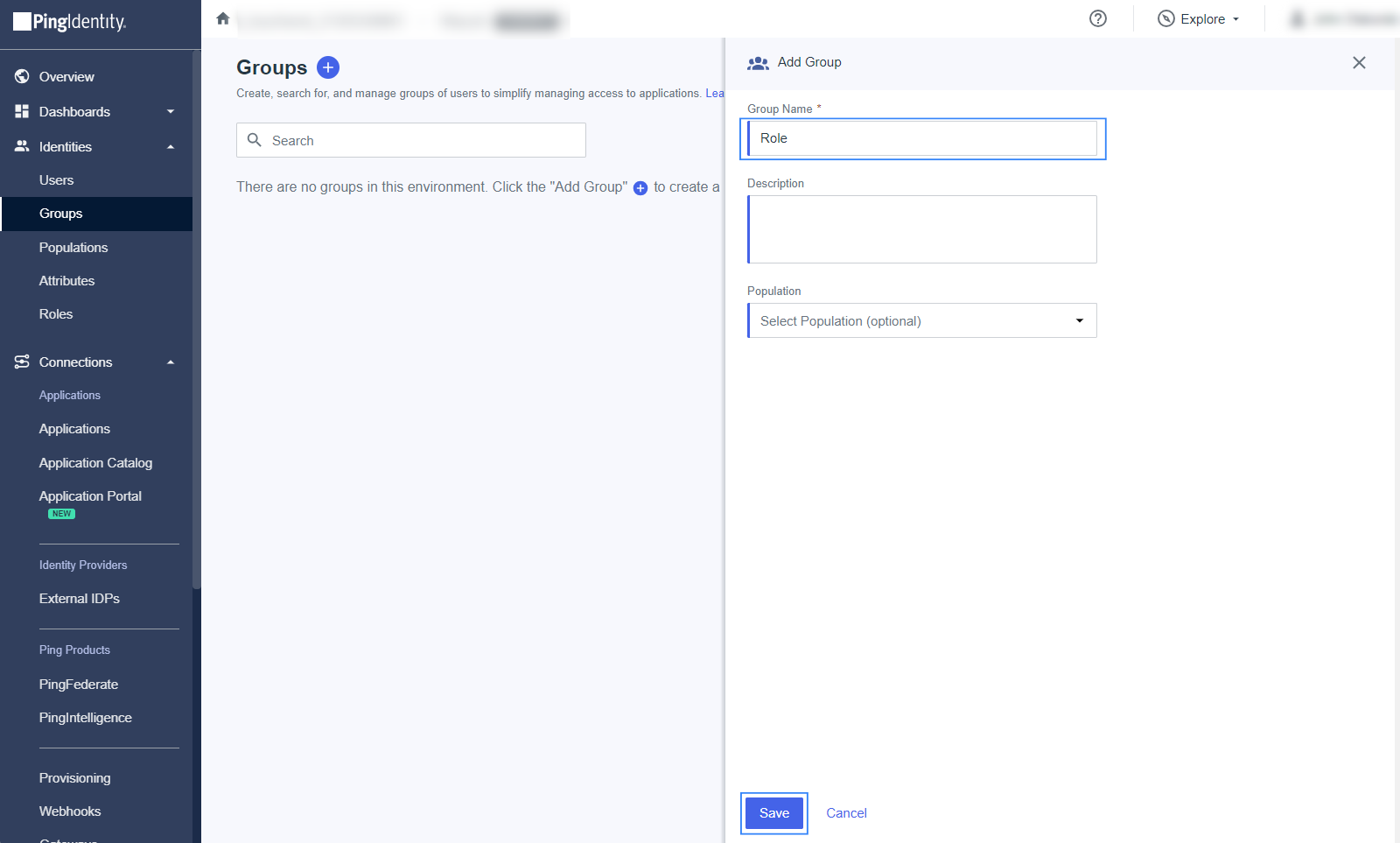
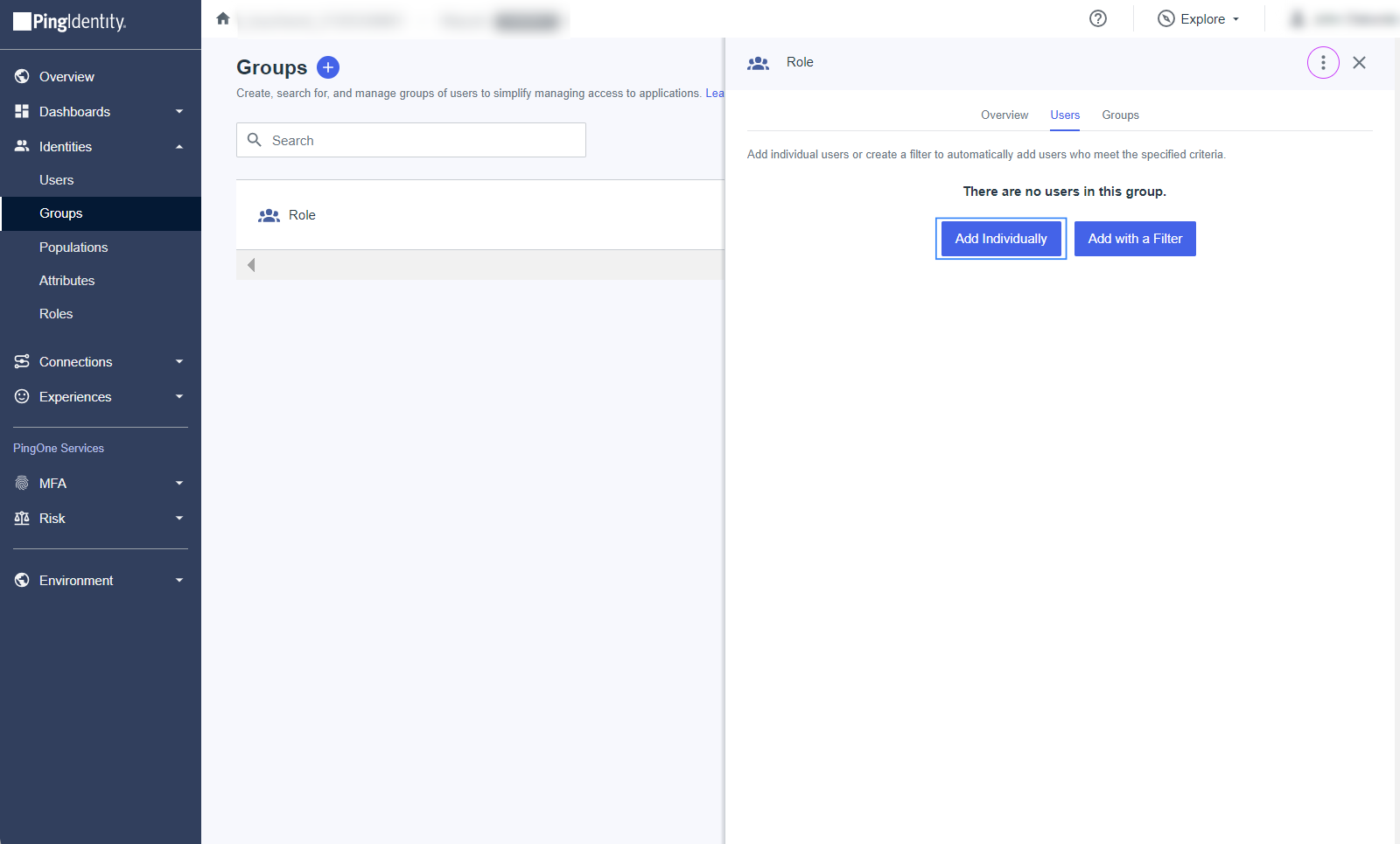
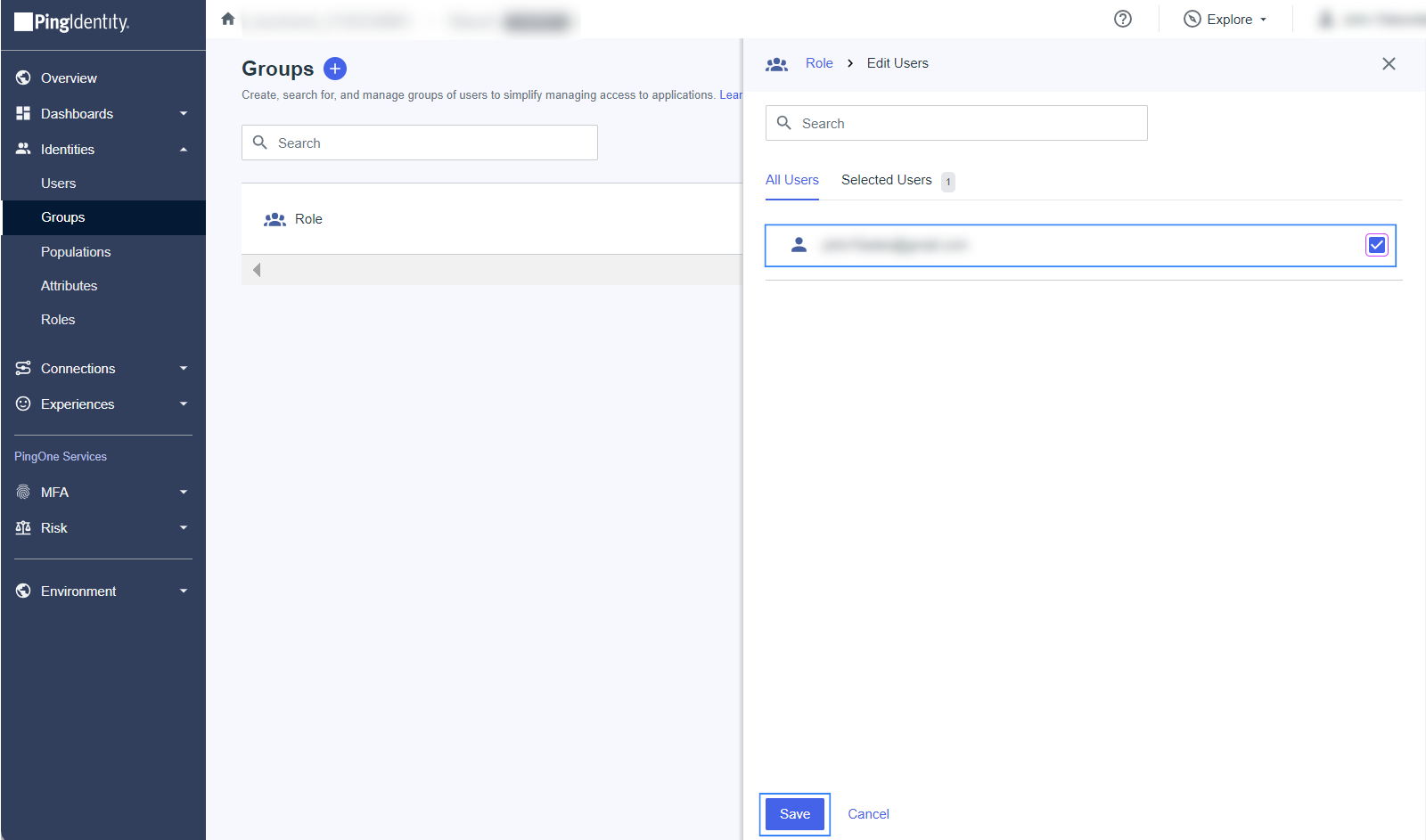
To assign users, open the created Group, go to the Users tab and select Add Individually. Add all the members that must log in to the Wazuh dashboard, and click on Save when done.
Activate the application and note the necessary parameters.
Navigate to Application > Applications, and enable the application.
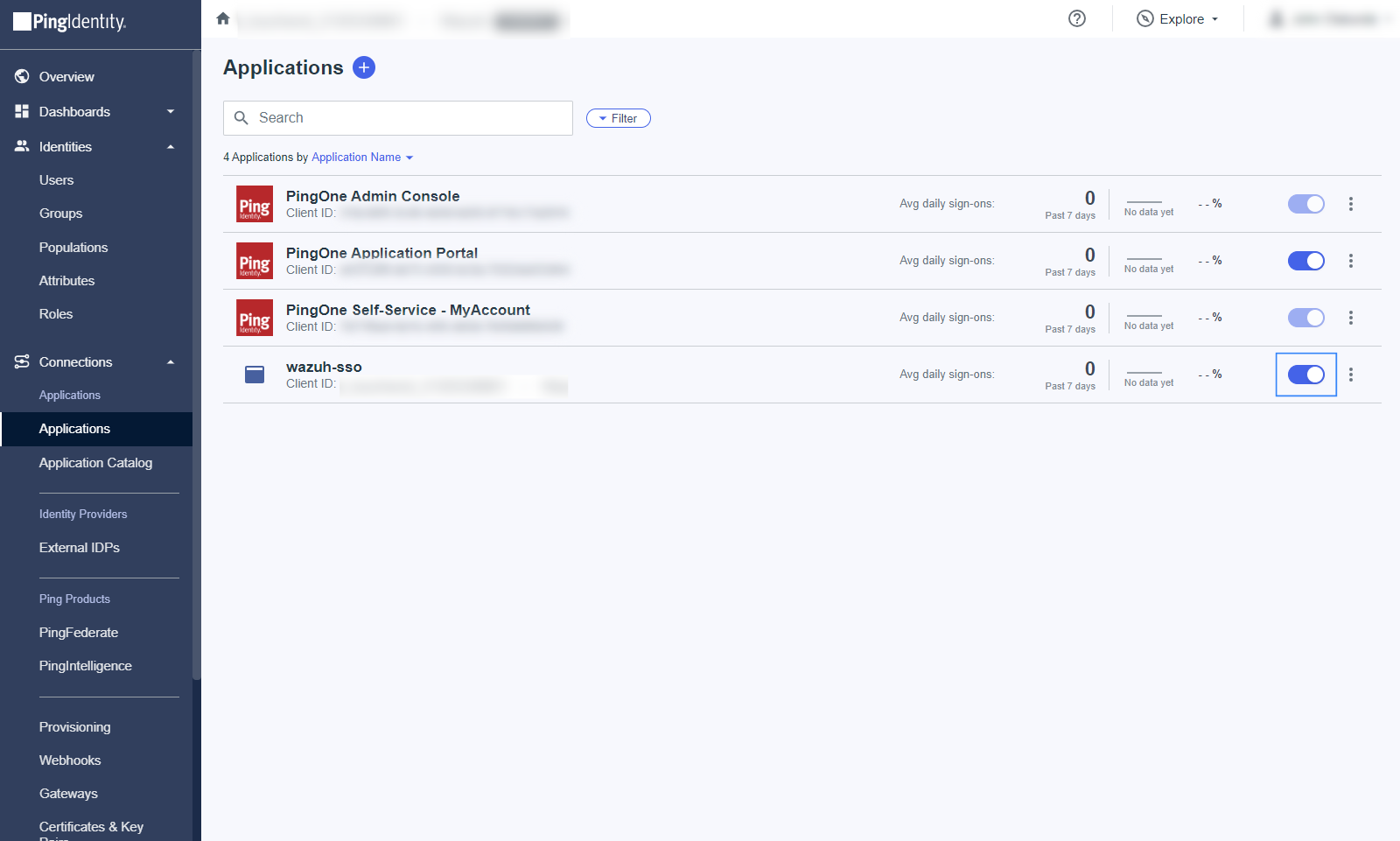
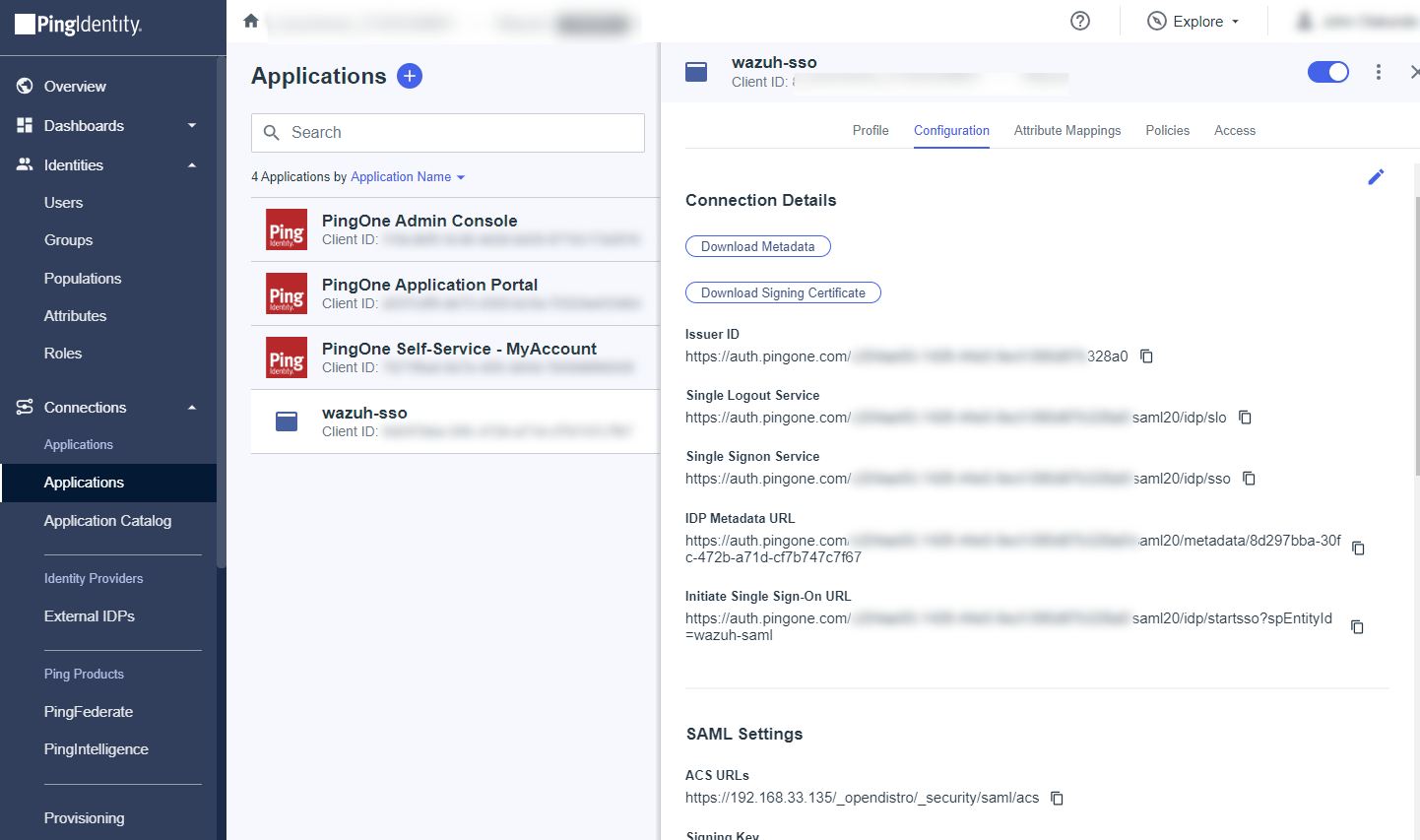
Take note of the following parameters from the overview page of the application, this will be used in the next step:
ISSUER ID: It'll be in the form "https://auth.pingone.com/..."
IDP METADATA URL: It’ll be in the form "https://auth.pingone.com/..."
Wazuh indexer configuration
Edit the Wazuh indexer security configuration files. We recommend that you back up these files before you carry out the configuration.
Backup the existing Wazuh indexer security configuration files:
# /usr/share/wazuh-indexer/bin/indexer-security-init.sh --options "-backup /etc/wazuh-indexer/opensearch-security -icl -nhnv"
Generate a 64-character long random key using the following command.
openssl rand -hex 32The output will be used as the
exchange_keyin the/etc/wazuh-indexer/opensearch-security/config.ymlfile.Place the private key file within the
/etc/wazuh-indexer/opensearch-security/directory. Set the file ownership towazuh-indexerusing the following command. Replace<PRIVATE_KEY>with your private key.# chown wazuh-indexer:wazuh-indexer /etc/wazuh-indexer/opensearch-security/<PRIVATE_KEY>
Edit the
/etc/wazuh-indexer/opensearch-security/config.ymlfile and change the following values:Set the
orderinbasic_internal_auth_domainto0and thechallengeflag tofalse.Include a
saml_auth_domainconfiguration under theauthcsection similar to the following:
    authc:
...
      basic_internal_auth_domain:
        description: "Authenticate via HTTP Basic against internal users database"
        http_enabled: true
        transport_enabled: true
        order: 0
        http_authenticator:
          type: "basic"
          challenge: false
        authentication_backend:
          type: "intern"
      saml_auth_domain:
        http_enabled: true
        transport_enabled: false
        order: 1
        http_authenticator:
          type: saml
          challenge: true
          config:
            idp:
              metadata_url: IDP METADATA URL
              entity_id: ISSUER ID
            sp:
              entity_id: wazuh-saml
              signature_private_key_filepath: /etc/wazuh-indexer/opensearch-security/<PRIVATE_KEY>
              forceAuthn: true
            kibana_url: https://<WAZUH_DASHBOARD_URL>
            roles_key: Roles
            exchange_key: 'b1d6dd32753374557dcf92e241.......'
        authentication_backend:
          type: noop
Ensure to change the following parameters to their corresponding value:
idp.metadata_urlidp.entity_idsp.entity_idsp.signature_private_key_filepathkibana_urlroles_keyexchange_key
Run the
securityadminscript to load the configuration changes made in theconfig.ymlfile.# export JAVA_HOME=/usr/share/wazuh-indexer/jdk/ && bash /usr/share/wazuh-indexer/plugins/opensearch-security/tools/securityadmin.sh -f /etc/wazuh-indexer/opensearch-security/config.yml -icl -key /etc/wazuh-indexer/certs/admin-key.pem -cert /etc/wazuh-indexer/certs/admin.pem -cacert /etc/wazuh-indexer/certs/root-ca.pem -h localhost -nhnv
The
-hflag specifies the hostname or the IP address of the Wazuh indexer node. Note that this command uses localhost, set your Wazuh indexer address if necessary.The command output must be similar to the following:
Security Admin v7
Will connect to localhost:9200 ... done
Connected as "CN=admin,OU=Wazuh,O=Wazuh,L=California,C=US"
OpenSearch Version: 2.19.4
Contacting opensearch cluster 'opensearch' and wait for YELLOW clusterstate ...
Clustername: wazuh-cluster
Clusterstate: GREEN
Number of nodes: 1
Number of data nodes: 1
.opendistro_security index already exists, so we do not need to create one.
Populate config from /home/wazuh-user
Will update '/config' with /etc/wazuh-indexer/opensearch-security/config.yml
   SUCC: Configuration for 'config' created or updated
SUCC: Expected 1 config types for node {"updated_config_types":["config"],"updated_config_size":1,"message":null} is 1 (["config"]) due to: null
Done with success
Edit the
/etc/wazuh-indexer/opensearch-security/roles_mapping.ymlfile and change the following values:Map the Group (
wazuh-admins) that is in PingOne to theall_accessrole in Wazuh indexer:all_access: reserved: true hidden: false backend_roles: - "admin" - "wazuh-admins" description: "Maps admin to all_access"
Run the
securityadminscript to load the configuration changes made in theroles_mapping.ymlfile.# export JAVA_HOME=/usr/share/wazuh-indexer/jdk/ && bash /usr/share/wazuh-indexer/plugins/opensearch-security/tools/securityadmin.sh -f /etc/wazuh-indexer/opensearch-security/roles_mapping.yml -icl -key /etc/wazuh-indexer/certs/admin-key.pem -cert /etc/wazuh-indexer/certs/admin.pem -cacert /etc/wazuh-indexer/certs/root-ca.pem -h localhost -nhnv
The
-hflag specifies the hostname or the IP address of the Wazuh indexer node. Note that this command uses localhost, set your Wazuh indexer address if necessary.The command output must be similar to the following:
Security Admin v7
Will connect to localhost:9200 ... done
Connected as "CN=admin,OU=Wazuh,O=Wazuh,L=California,C=US"
OpenSearch Version: 2.19.4
Contacting opensearch cluster 'opensearch' and wait for YELLOW clusterstate ...
Clustername: wazuh-cluster
Clusterstate: GREEN
Number of nodes: 1
Number of data nodes: 1
.opendistro_security index already exists, so we do not need to create one.
Populate config from /home/wazuh-user
Will update '/rolesmapping' with /etc/wazuh-indexer/opensearch-security/roles_mapping.yml
   SUCC: Configuration for 'rolesmapping' created or updated
SUCC: Expected 1 config types for node {"updated_config_types":["rolesmapping"],"updated_config_size":1,"message":null} is 1 (["rolesmapping"]) due to: null
Done with success
Wazuh dashboard configuration
Verify that
run_asis set totruein the/usr/share/wazuh-dashboard/data/wazuh/config/wazuh.ymlconfiguration file. This is required to create a role mapping in the Wazuh dashboard, ensuring the backend role provided by the IdP is correctly mapped to the corresponding Wazuh role.hosts: - default: url: https://localhost port: 55000 username: wazuh-wui password: "<WAZUH_WUI_PASSWORD>" run_as: true
Click ☰ to open the menu on the Wazuh dashboard, go to Server management > Security, and then Roles mapping to open the page.
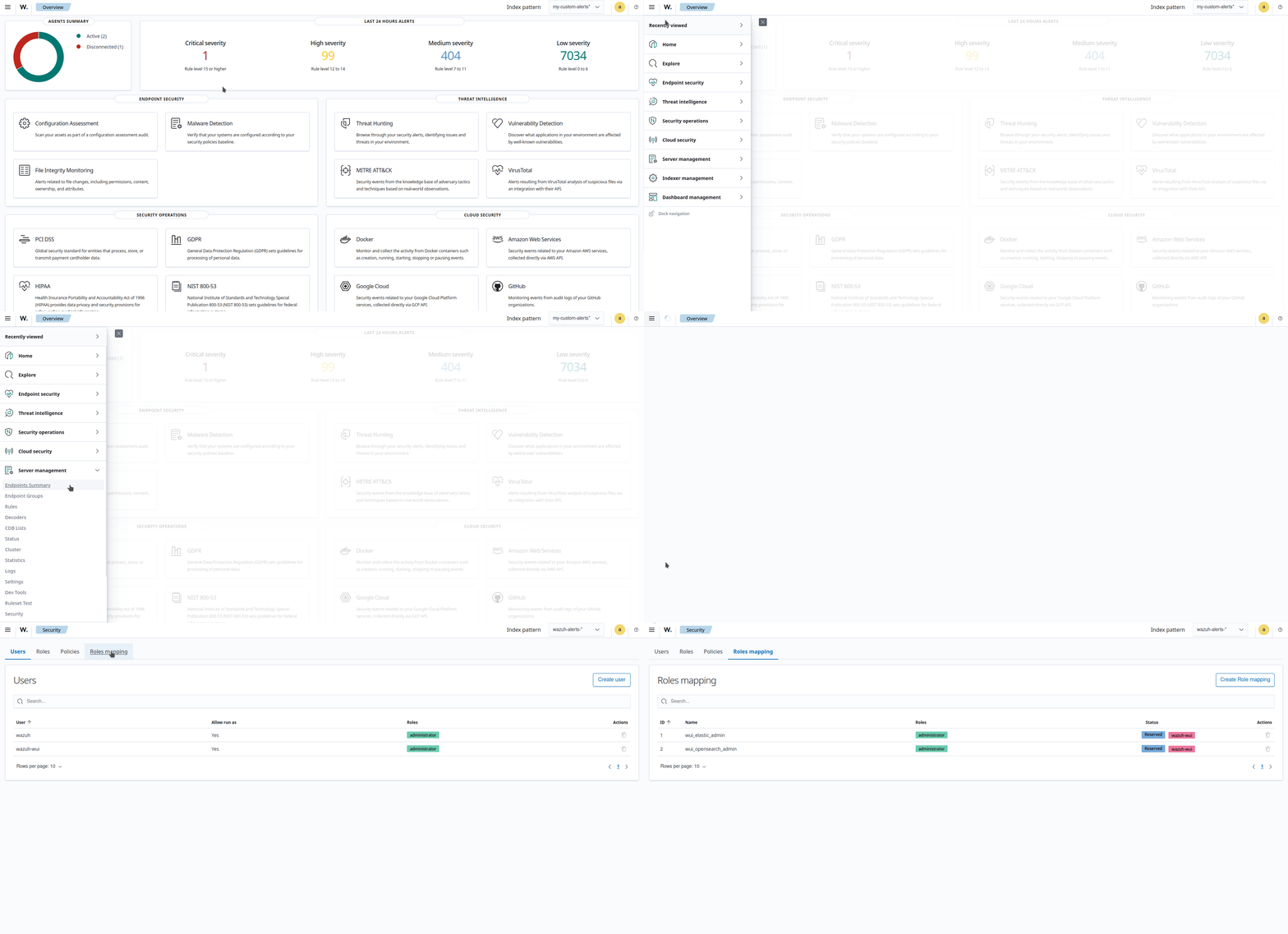
Click Create Role mapping and complete the empty fields with the following parameters:
Role mapping name: Assign a name to the role mapping.
Roles: Select
administrator.Custom rules: Click Add new rule to expand this field.
User field:
backend_rolesSearch operation:
FINDValue: Assign the name you gave to your group in PingOne configuration, in our case, this is
wazuh-admins.Click Save role mapping to save and map the backend role with Wazuh as administrator.
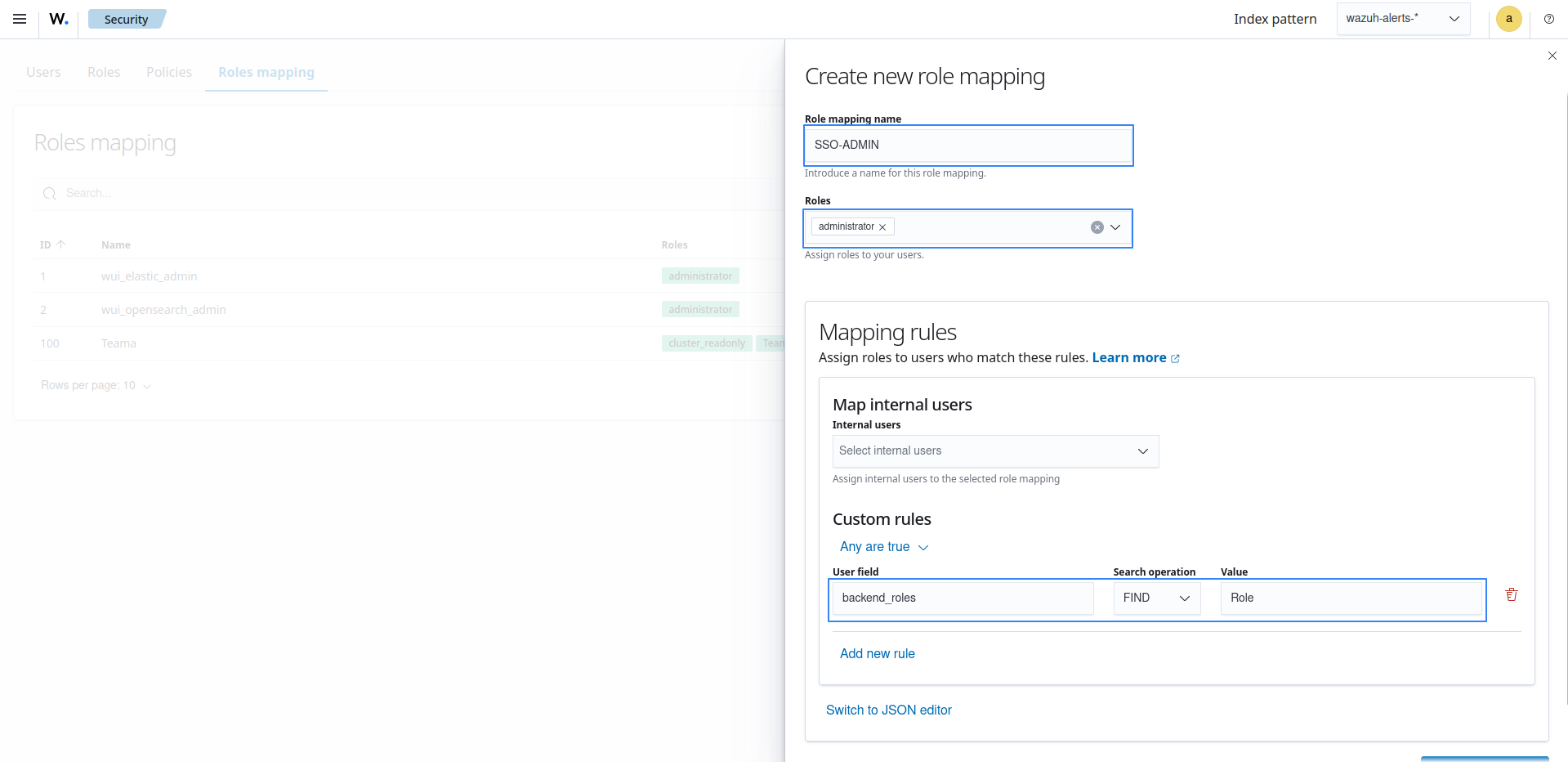
Edit the Wazuh dashboard configuration file. Add these configurations to
/etc/wazuh-dashboard/opensearch_dashboards.yml. We recommend that you back up these files before you carry out the configuration.opensearch_security.auth.multiple_auth_enabled: true opensearch_security.auth.type: ["basicauth","saml"] server.xsrf.allowlist: ["/_opendistro/_security/saml/acs", "/_opendistro/_security/saml/logout", "/_opendistro/_security/saml/acs/idpinitiated"]
Restart the Wazuh dashboard service using this command.
# systemctl restart wazuh-dashboard
Test the configuration. To test the configuration, go to your Wazuh dashboard URL and log in with your Ping One account.
Setup PingOne single sign-on with read-only role
Follow these steps to integrate PingOne IdP with Wazuh for single sign-on and grant read-only role to the authenticated PingOne users on the Wazuh platform:
PingOne Configuration
Create an account in Ping Identity. Request a free trial if you don't have a paid license.
Go to PingOne and sign in with your Ping Identity account.
Create an application.
Navigate to Applications > Applications > Add Application and give it a name. In our case, the name is
wazuh-sso.Proceed to the Choose Application Type section, and select SAML Application > Configure.
Select Manually Enter on the SAML Configuration section and add the following configuration, replacing
<WAZUH_DASHBOARD_URL>with the corresponding value:ACS URLs:
https://<WAZUH_DASHBOARD_URL>/_opendistro/_security/saml/acsEntity ID:
wazuh-saml
On the Configuration tab, click on the edit icon and add the following information:
SLO ENDPOINT:
https://<WAZUH_DASHBOARD_URL>/SLO BINDING:
HTTP RedirectASSERTION VALIDITY DURATION:
3600(for 1 hour token validity)VERIFICATION CERTIFICATE: Upload a certificate containing a public key that is associated with a private key to be used for signing. If you do not have a certificate signed by a trusted Certificate Authority, you may use a self-signed certificate.
Run the command below on the Wazuh indexer instance to generate a new unencrypted 2048‑bit RSA private key and a self‑signed certificate valid for 365 days.
# openssl req -x509 -newkey rsa:2048 -keyout private.key -out certificate.pem -days 365 -nodes
Upload the
certificate.pemfile as the VERIFICATION CERTIFICATE in PingOne. The full path of theprivate.keywill be used later in the Wazuh indexer configuration file/etc/wazuh-indexer/opensearch-security/config.ymlas thesp.signature_private_key_filepathparameter. This is necessary as all the logout requests must be signed.
Click on the Attribute Mappings tab, select the edit icon, click on Add and insert the following configuration:
Roles=Group Names
The
Rolesattribute will be used later as theroles_keyin the Wazuh indexer configuration file.Click on the Required checkbox, and click on Save.
Create a group and assign users.
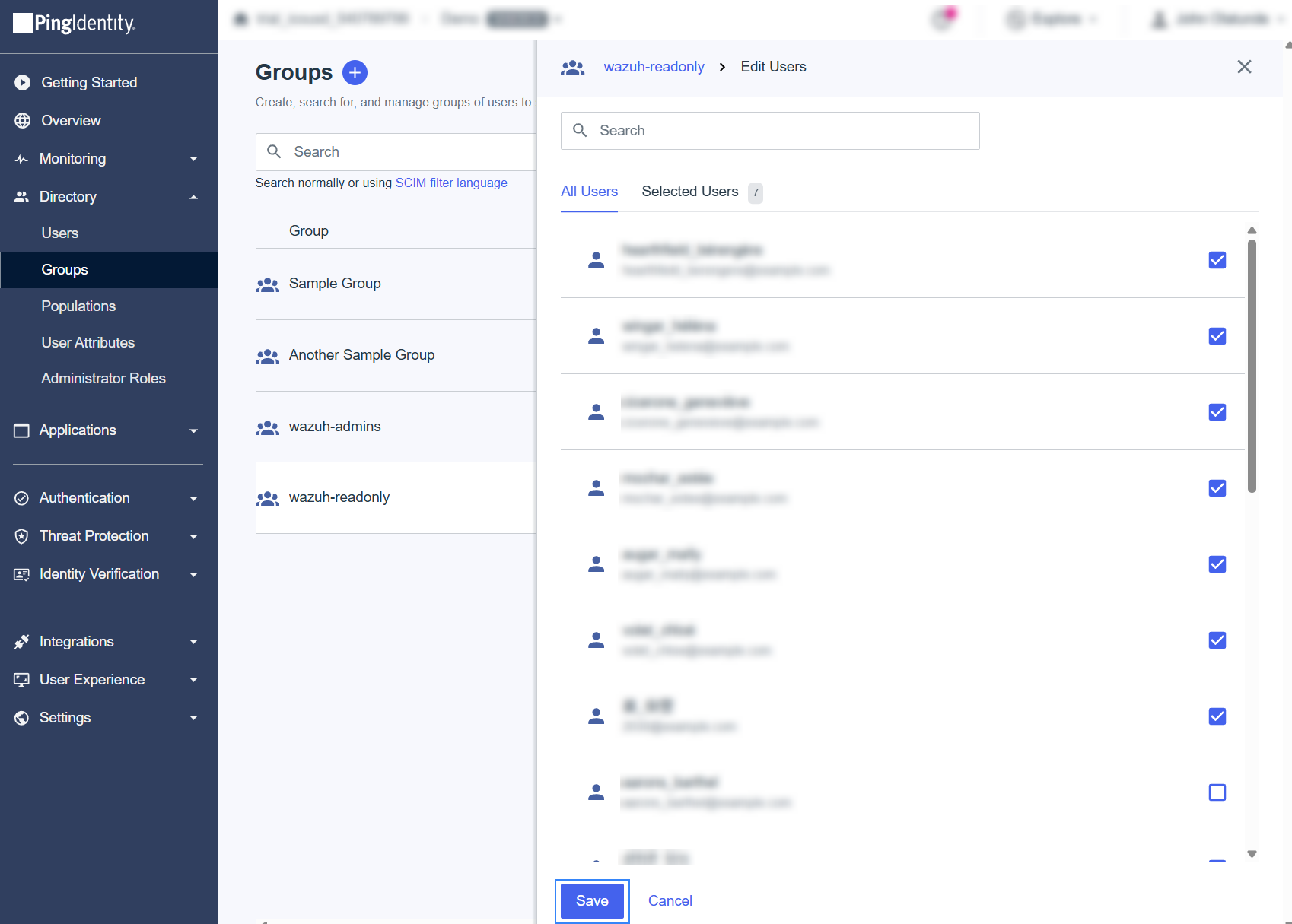
Navigate to Directory > Groups, and click on the + sign. Select the name of the Group, in this case,
wazuh-readonly.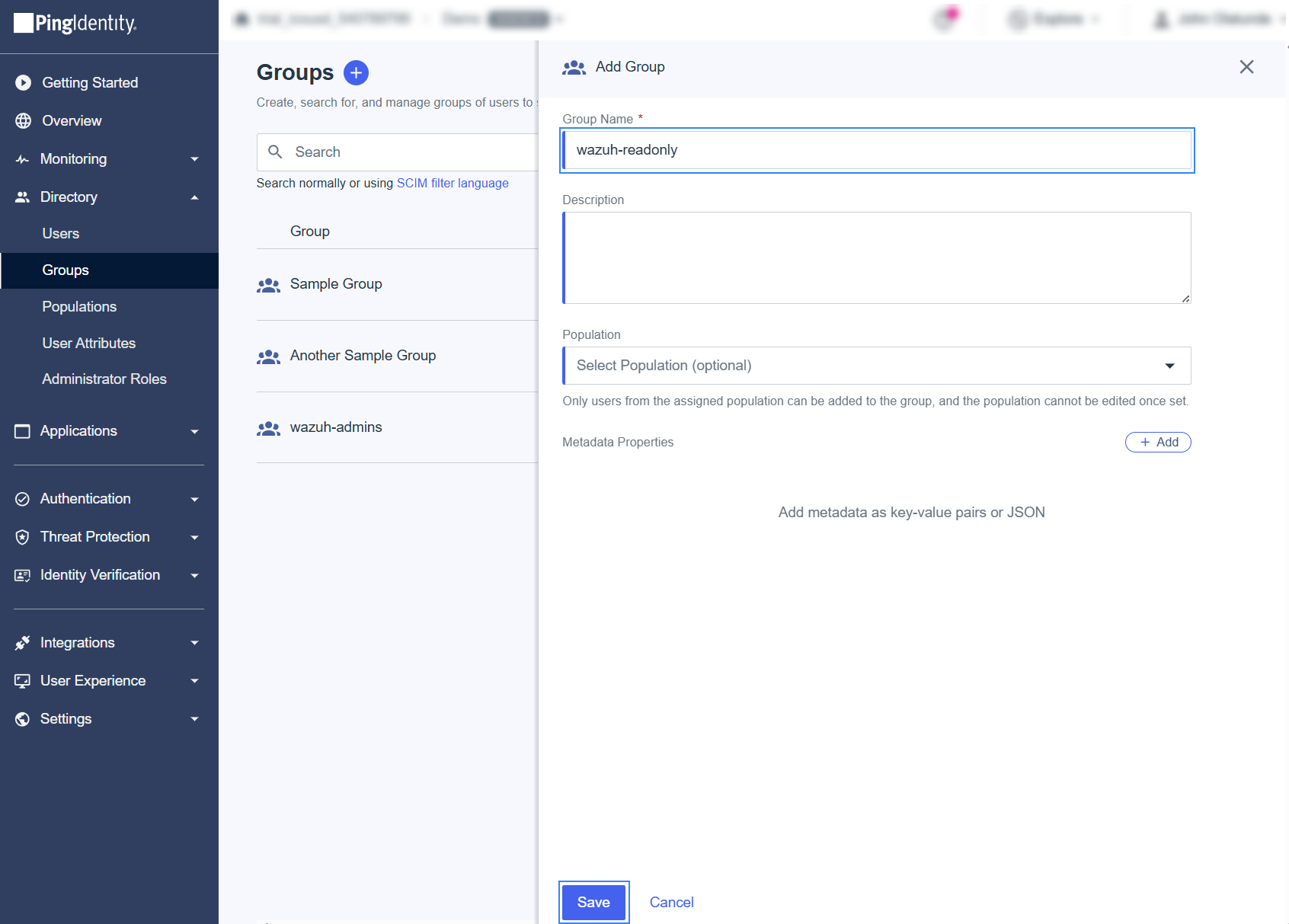
To assign users, open the created Group, go to the Users tab and select Add Individually. Add all the members that must log in to the Wazuh dashboard, and click on Save when done.
Activate the application and note the necessary parameters.
Navigate to Application, select Applications, and enable the application.
Take note of the following parameters from the overview page of the application, this will be used in the next step:
ISSUER ID: It'll be in the form "https://auth.pingone.com/..."
IDP METADATA URL: It’ll be in the form "https://auth.pingone.com/..."
Wazuh indexer configuration
Edit the Wazuh indexer security configuration files. We recommend that you back up these files before you carry out the configuration.
Backup the existing Wazuh indexer security configuration files:
# /usr/share/wazuh-indexer/bin/indexer-security-init.sh --options "-backup /etc/wazuh-indexer/opensearch-security -icl -nhnv"
Generate a 64-character long random key using the following command.
openssl rand -hex 32The output will be used as the
exchange_keyin the/etc/wazuh-indexer/opensearch-security/config.ymlfile.Place the private key file within the
/etc/wazuh-indexer/opensearch-security/directory. Set the file ownership towazuh-indexerusing the following command. Replace<PRIVATE_KEY>with your private key.# chown wazuh-indexer:wazuh-indexer /etc/wazuh-indexer/opensearch-security/<PRIVATE_KEY>
Edit the
/etc/wazuh-indexer/opensearch-security/config.ymlfile and change the following values:Set the
orderinbasic_internal_auth_domainto0and thechallengeflag tofalse.Include a
saml_auth_domainconfiguration under theauthcsection similar to the following:
    authc:
...
      basic_internal_auth_domain:
        description: "Authenticate via HTTP Basic against internal users database"
        http_enabled: true
        transport_enabled: true
        order: 0
        http_authenticator:
          type: "basic"
          challenge: false
        authentication_backend:
          type: "intern"
      saml_auth_domain:
        http_enabled: true
        transport_enabled: false
        order: 1
        http_authenticator:
          type: saml
          challenge: true
          config:
            idp:
              metadata_url: IDP METADATA URL
              entity_id: ISSUER ID
            sp:
              entity_id: wazuh-saml
              signature_private_key_filepath: /etc/wazuh-indexer/opensearch-security/<PRIVATE_KEY>
              forceAuthn: true
            kibana_url: https://<WAZUH_DASHBOARD_URL>
            roles_key: Roles
            exchange_key: 'b1d6dd32753374557dcf92e241.......'
        authentication_backend:
          type: noop
Ensure to change the following parameters to their corresponding value:
idp.metadata_urlidp.entity_idsp.entity_idsp.signature_private_key_filepathkibana_urlroles_keyexchange_key
Run the
securityadminscript to load the configuration changes made in theconfig.ymlfile.# export JAVA_HOME=/usr/share/wazuh-indexer/jdk/ && bash /usr/share/wazuh-indexer/plugins/opensearch-security/tools/securityadmin.sh -f /etc/wazuh-indexer/opensearch-security/config.yml -icl -key /etc/wazuh-indexer/certs/admin-key.pem -cert /etc/wazuh-indexer/certs/admin.pem -cacert /etc/wazuh-indexer/certs/root-ca.pem -h localhost -nhnv
The
-hflag specifies the hostname or the IP address of the Wazuh indexer node. Note that this command uses localhost, set your Wazuh indexer address if necessary.The command output must be similar to the following:
Security Admin v7
Will connect to localhost:9200 ... done
Connected as "CN=admin,OU=Wazuh,O=Wazuh,L=California,C=US"
OpenSearch Version: 2.19.4
Contacting opensearch cluster 'opensearch' and wait for YELLOW clusterstate ...
Clustername: wazuh-cluster
Clusterstate: GREEN
Number of nodes: 1
Number of data nodes: 1
.opendistro_security index already exists, so we do not need to create one.
Populate config from /home/wazuh-user
Will update '/config' with /etc/wazuh-indexer/opensearch-security/config.yml
   SUCC: Configuration for 'config' created or updated
SUCC: Expected 1 config types for node {"updated_config_types":["config"],"updated_config_size":1,"message":null} is 1 (["config"]) due to: null
Done with success
Wazuh dashboard configuration
Create a new role mapping for the backend role.
Follow these steps to create a new role mapping, and grant read-only permissions to the backend role.
Log into the Wazuh dashboard as administrator.
Click the upper-left menu icon ☰ to open the options, go to Indexer management > Security, and then Roles to open the roles page.
Click Create role, complete the empty fields with the following parameters, and then click Create to complete the task.
Name: Assign a name to the role.
Cluster permissions:
cluster_composite_ops_roIndex:
*Index permissions:
readTenant permissions:
global_tenantand select the Read only option.
Select the newly created role.
Select the Mapped users tab and click Manage mapping.
Under Backend roles, add the name of the group you created in PingOne and click Map to confirm the action. In our case, the backend role is
wazuh-readonly.
Verify that
run_asis set totruein the/usr/share/wazuh-dashboard/data/wazuh/config/wazuh.ymlconfiguration file. This is required to create a role mapping in the Wazuh dashboard, ensuring the backend role provided by the IdP is correctly mapped to the corresponding Wazuh role.hosts: - default: url: https://localhost port: 55000 username: wazuh-wui password: "<WAZUH_WUI_PASSWORD>" run_as: true
Click ☰ to open the menu on the Wazuh dashboard, go to Server management > Security, and then Roles mapping to open the page.
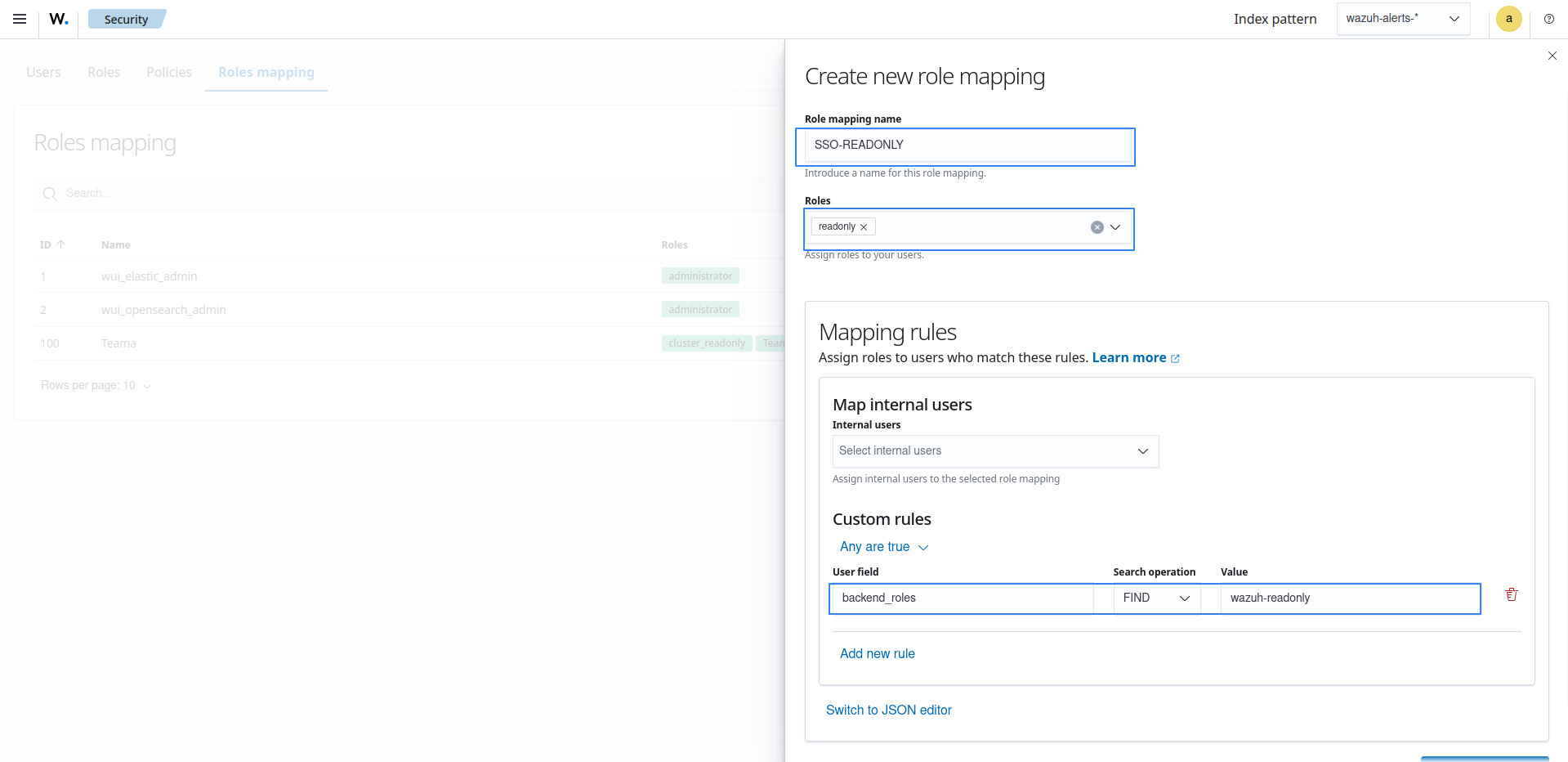
Click Create Role mapping and complete the empty fields with the following parameters:
Role mapping name: Assign a name to the role mapping.
Roles: Select
readonly.Custom rules: Click Add new rule to expand this field.
User field:
backend_rolesSearch operation:
FINDValue: Assign the name you gave to your group in PingOne configuration, in our case, this is
wazuh-readonly.Click Save role mapping to save and map the backend role with Wazuh as read-only.
Edit the Wazuh dashboard configuration file. Add these configurations to
/etc/wazuh-dashboard/opensearch_dashboards.yml. We recommend that you back up these files before you carry out the configuration.opensearch_security.auth.multiple_auth_enabled: true opensearch_security.auth.type: ["basicauth","saml"] server.xsrf.allowlist: ["/_opendistro/_security/saml/acs", "/_opendistro/_security/saml/logout", "/_opendistro/_security/saml/acs/idpinitiated"]
Restart the Wazuh dashboard service.
# systemctl restart wazuh-dashboard
Test the configuration. To test the configuration, go to your Wazuh dashboard URL and log in with your Ping One account.