Wazuh agent
The Wazuh agent is multi-platform and runs on the endpoints that you want to monitor. It communicates with the Wazuh manager, sending data in near real-time through an encrypted and authenticated channel.
The Wazuh agent was developed considering the need to monitor a wide variety of different endpoints without impacting their performance. It runs on the most popular operating systems. For the supported versions, see Requirements.
The Wazuh agent provides key features to enhance your system's security.
Log collector |
Command execution |
File integrity monitoring (FIM) |
Security configuration assessment (SCA) |
System inventory |
Malware detection |
Active response |
Container security |
Cloud security |
Before you install a Wazuh agent, create an enrollment token on the Wazuh manager, as described in Prerequisite below. Then select your operating system and follow the instructions.



In a large environment with many servers or endpoints, automation tools such as SCCM or Ansible can make the deployment easier.
Note
The Wazuh agent is compatible with a Wazuh manager of the same version or later.
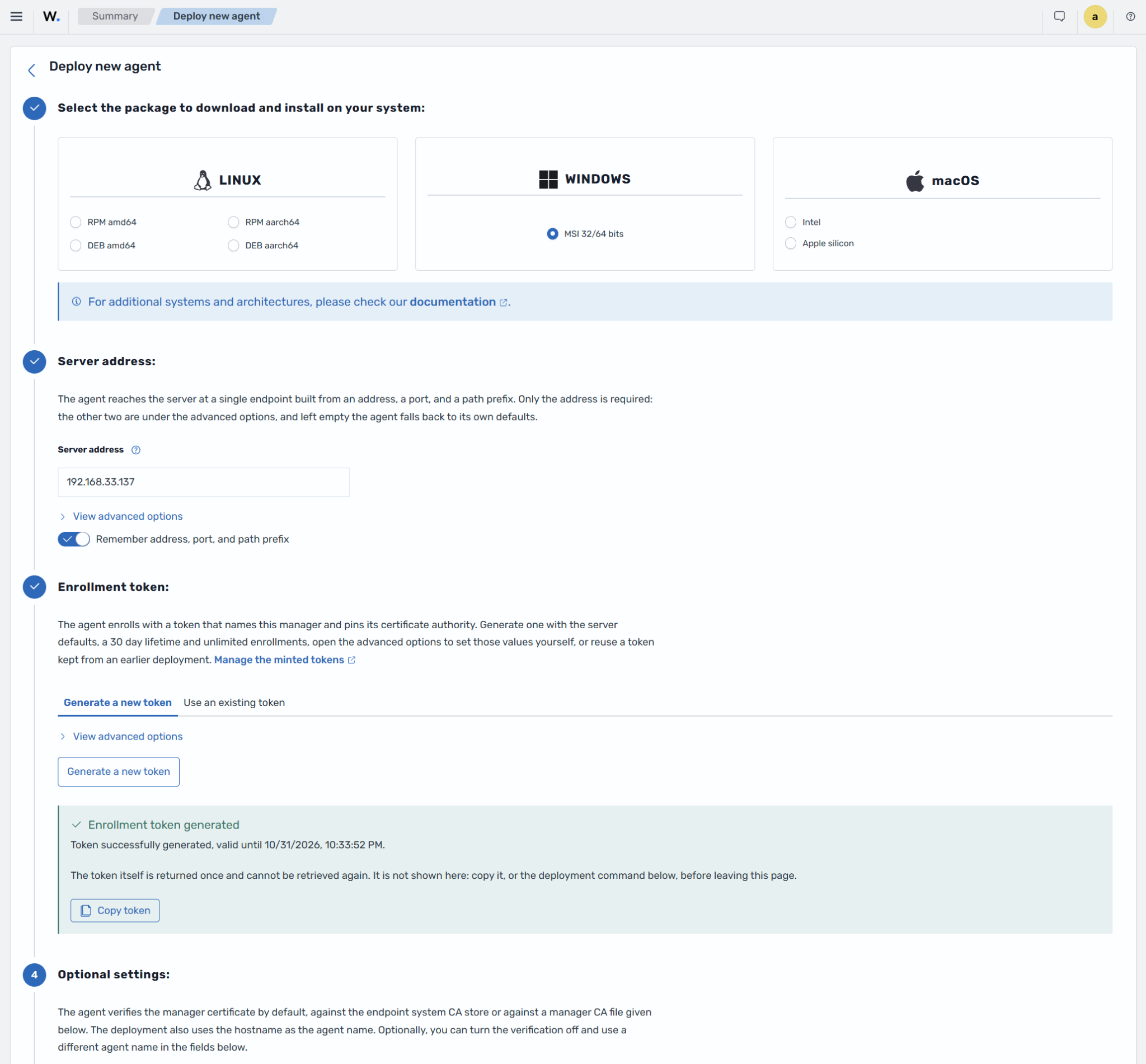
You can also deploy a new agent following the instructions in the Wazuh dashboard. Go to Agents management > Summary and click Deploy new agent.
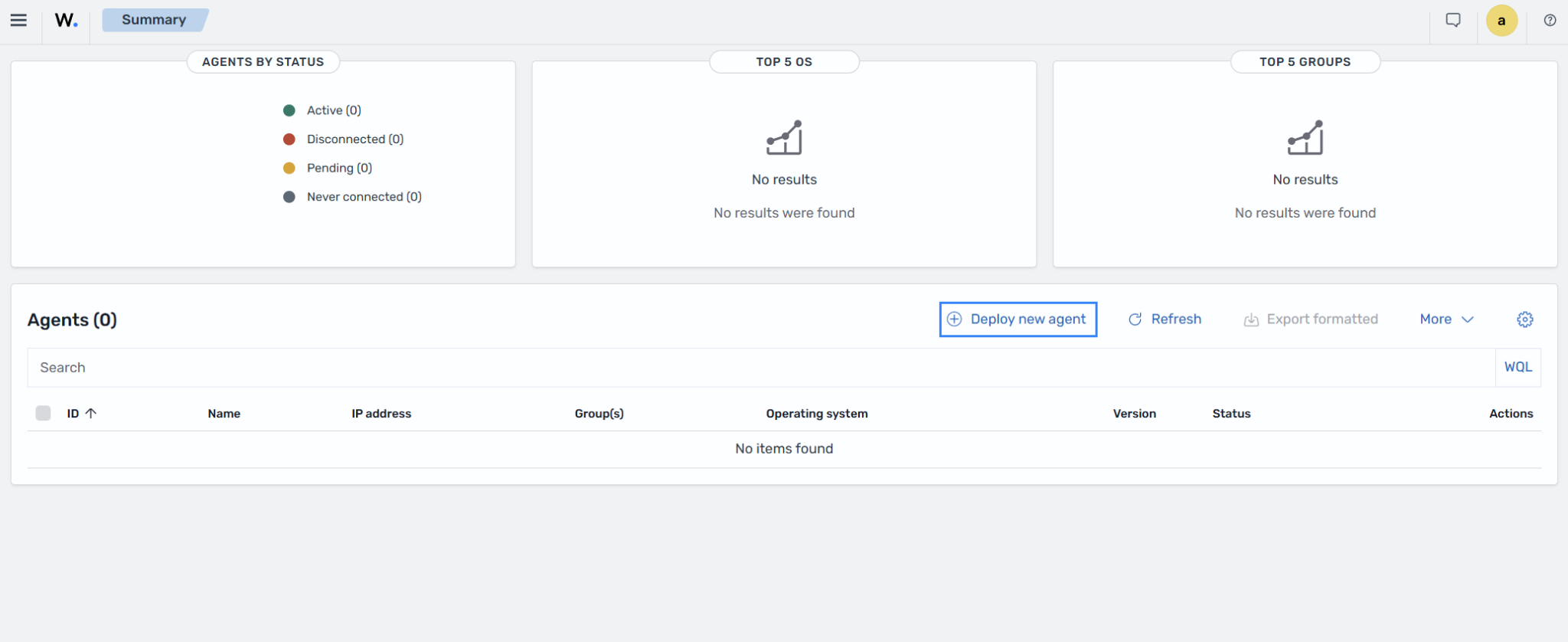
Then follow the steps on the Wazuh dashboard to deploy a new agent. The wizard also generates the enrollment token.
Prerequisite
During enrollment, the Wazuh agent authenticates to the Wazuh manager using an enrollment token. The token tells the agent which Wazuh manager to trust and lets it enroll. Create the token on the Wazuh manager. In a cluster, create it on the master node. A worker node can't create it. The agent connects only to the address of its token. To spread agents across the nodes of a cluster, use a token for a load balancer address, as Agent connection address describes. The endpoint must reach the Wazuh manager on port 1517/TCP, which Wazuh 5.x agents use for enrollment and communication.
Generate the enrollment token
Complete the following steps on the Wazuh manager master node to generate the enrollment token.
List the addresses that agents can use to reach the Wazuh manager:
# openssl x509 -in /etc/wazuh-manager/certs/remoted.pem -noout -ext subjectAltName
The list depends on how you installed the Wazuh manager. After an assisted installation, it holds the node name, its
ipanddnsvalues inconfig.yml, and any address added with-as|--agent-san. After a step-by-step installation, it holds the same values from the certificates tool'sconfig.yml, and any address added with-as. After the Quickstart, it holds the server's host name, its fully qualified domain name, and its IP addresses. In every case, it also holdslocalhost,127.0.0.1, and::1. A token for any other address fails withERROR 9025: Enrollment token refused: address not in certificate SAN.Run the following command to create an enrollment token. Replace
<WAZUH_MANAGER_ADDRESS>with an address from that list that the endpoints can resolve and reach. With an IP address, enrollment works, but the Wazuh manager logs a warning. Use a DNS name if agents must verify the Wazuh manager by name or its IP address can change.If an address that agents use isn't in the list, add it to the Wazuh manager certificate first, as Agent connection address describes. Examples are a load balancer, a NAT address, or a public name.
# /var/wazuh-manager/bin/wazuh-manager-authd --create-enrollment-token --address <WAZUH_MANAGER_ADDRESS>
The command output looks similar to this:
eyJ2ZXIiO***********TM3IiwicGluIjoiWThMTGU5SHVpM3RMZ0xL****************WZyIs0tem5ERVI0Qm9NSVR********dNRXcifQ
id: 6WKOJawvF--znDE***IQ
endpoint: 192.168.33.137
expires: 2026-11-01T02:49:26Z (1793501366)
pin: 63c2cb7bd1******6cd8ea****02158
credential: yes
The token is the long line starting with
eyJ. Theid,endpoint,expires,pin, andcredentiallines describe the token. The command displays the token only once. By default, tokens are valid for 30 days and can enroll any number of agents. Treat the token like a password.To limit its validity or usage, add
--ttl <DURATION>,--max-uses <N>, or both, for example--ttl 24h.To save the token to a file that only root can read, run the command this way instead. Only the token goes to the file.
# (umask 077 && /var/wazuh-manager/bin/wazuh-manager-authd --create-enrollment-token --address <WAZUH_MANAGER_ADDRESS> > <TOKEN_FILE_PATH>)
List existing tokens with:
# /var/wazuh-manager/bin/wazuh-manager-authd --list-enrollment-tokens
Revoke a token with:
# /var/wazuh-manager/bin/wazuh-manager-authd --revoke-enrollment-token <TOKEN_ID>
Replace
<TOKEN_ID>with the token'sidvalue.You can also create, list, and revoke tokens in the Wazuh dashboard, under Agents management > Enrollment tokens. Click Create token, enter an address from the list, and click Create. The dashboard shows the token only once.
Copy the token. You pass it as
WAZUH_ENROLLMENT_TOKENwhen you install the Wazuh agent, as the section for your operating system describes. The installation doesn't start the Wazuh agent. The agent enrolls with the Wazuh manager when it first starts.
Note
To enroll a Wazuh agent that already has a key, for example, after you move it to another Wazuh manager, see Re-enrolling a Wazuh agent.
Re-enrolling a Wazuh agent
If a Wazuh agent already has a key, wazuh-agent-auth refuses a new token with "this agent already has a key". You see the refusal when you move the agent to another Wazuh manager or after you reinstall the central components. Deleting the agent on the Wazuh manager doesn't clear the key, because the check reads the agent's own client.keys file.
If the Wazuh manager still lists the agent, remove it there first, as Remove agents describes. Otherwise, the Wazuh manager refuses the enrollment with Duplicate name.
To enroll the agent again, run these commands on the endpoint. Replace <ENROLLMENT_TOKEN> with a token from Generate the enrollment token, and <TOKEN_FILE_PATH> with a file path, for example /root/wazuh-token or C:\wazuh-token.txt. On Linux and macOS, the command that creates the file waits for the token. Paste it, press Enter, and then press Ctrl+D.
# systemctl stop wazuh-agent
# (umask 077 && cat > <TOKEN_FILE_PATH>)
# /var/ossec/bin/wazuh-agent-auth --force-enroll --token-file <TOKEN_FILE_PATH>
# rm -f <TOKEN_FILE_PATH>
# systemctl start wazuh-agent
# launchctl bootout system /Library/LaunchDaemons/com.wazuh.agent.plist
# (umask 077 && cat > <TOKEN_FILE_PATH>)
# /Library/Ossec/bin/wazuh-agent-auth --force-enroll --token-file <TOKEN_FILE_PATH>
# rm -f <TOKEN_FILE_PATH>
# launchctl bootstrap system /Library/LaunchDaemons/com.wazuh.agent.plist
Run these commands in an administrator PowerShell:
> Stop-Service WazuhSvc
> Set-Content -Path "<TOKEN_FILE_PATH>" -Value '<ENROLLMENT_TOKEN>' -Encoding ascii
> & "C:\Program Files (x86)\ossec-agent\wazuh-agent-auth.exe" --force-enroll --token-file "<TOKEN_FILE_PATH>"
> Remove-Item "<TOKEN_FILE_PATH>"
> Start-Service WazuhSvc
On Windows, you can also use Manage > Enroll in the agent GUI. It asks you to confirm that the agent gets a new ID.
The agent gets a new ID and the new CA, and keeps its name.