HIPAA § 164.308(a)(5)(ii)(B) - Protection from malicious software
The HIPAA § 164.308(a)(5)(ii)(B) requirement states, "Procedures for guarding against, detecting, and reporting malicious software."
This requirement mandates covered entities and business associates to implement policies and procedures for guarding against, detecting, and reporting malicious software.
Wazuh supports this requirement by providing several capabilities that support malware detection. They include the following:
Malware detection dashboard
Threat detection ruleset
Rootkit detection
The Wazuh malware detection capability helps meet this requirement using out-of-the-box rules, threat intelligence enrichments, and key-value databases (KVDBs).
Use case: Rootkit detection
In this example, the Wazuh Rootcheck component detects abnormal behavior on monitored endpoints, including potential rootkits and other indicators of compromise. This supports HIPAA § 164.308(a)(5)(ii)(B) by detecting malicious software that can compromise the security of systems and electronic protected health information. Follow these steps to detect the Diamorphine rootkit on an Ubuntu 26.04 endpoint.
Configuration
Follow these steps on the Ubuntu 26.04 endpoint to emulate rootkit-like process-hiding behavior. The Wazuh agent runs a Rootcheck scan based on the set <frequency> and detects the rootkit behavior.
Switch to the root user and refresh package lists:
$ sudo su
# apt update
Install the packages required for building the rootkit:
# apt -y install gcc git make linux-headers-$(uname -r)
For this proof of concept, configure the Wazuh agent to run Rootcheck scans every 2 minutes. In the
/var/ossec/etc/ossec.conffile, set the frequency option in the<rootcheck>section to 120:<rootcheck> <disabled>no</disabled> <check_dev>yes</check_dev> <check_sys>yes</check_sys> <check_pids>yes</check_pids> <check_ports>yes</check_ports> <check_if>yes</check_if> <!-- Frequency that rootcheck is executed - every 12 hours by default --> <frequency>120</frequency> <skip_nfs>yes</skip_nfs> <ignore>/var/lib/containerd</ignore> <ignore>/var/lib/docker/overlay2</ignore> </rootcheck>
Restart the Wazuh agent to apply the changes:
# systemctl restart wazuh-agent
Attack emulation
Perform the following steps on the monitored Ubuntu 26.04 endpoint to emulate the attack:
Fetch the Diamorphine rootkit source code from GitHub:
# git clone https://github.com/m0nad/Diamorphine
Navigate to the Diamorphine directory and compile the source code:
# cd Diamorphine
# make
If
makefails with'PROC_ROOT_INO' undeclared, your kernel renamed that symbol. Runsed -i 's/PROC_ROOT_INO/PROCFS_ROOT_INO/g' diamorphine.cand runmakeagain.Load the rootkit kernel module:
# insmod diamorphine.ko
If you receive the error
insmod: ERROR: could not insert module diamorphine.ko: Invalid parameters, restart the Ubuntu endpoint and try again. Sometimes it takes several tries for the module to load.Run the kill signal
63to any PID to unhide the Diamorphine kernel module. By default, Diamorphine hides itself, so thelsmodcommand does not list it. Replace<PID>with any number. The target process does not need to exist. Try it out:# lsmod | grep diamorphine # kill -63 <PID> # lsmod | grep diamorphine
The first
lsmodcommand returns no output because Diamorphine hides itself. After thekill -63command, the secondlsmodcommand returns output similar to this:diamorphine 16384 0
Run the following commands to see how the
rsyslogdprocess is first visible and then no longer visible. This rootkit allows you to hide selected processes from thepscommand. Sending a kill signal31hides or unhides any process:# ps auxw | grep rsyslogd | grep -v grep
The command output looks similar to this:
syslog 1371 0.0 0.0 220548 5292 ? Ssl 15:15 0:00 /usr/sbin/rsyslogd -n -iNONE
# kill -31 <PID_OF_RSYSLOGD>
# ps auxw | grep rsyslogd | grep -v grep
Replace
<PID_OF_RSYSLOGD>with the PID retrieved from the previous command.The last command returns no output because the process is hidden. The next Rootcheck scan triggers a finding about the
rsyslogdprocess, which the Diamorphine rootkit hides.Wait at least 2 minutes, the
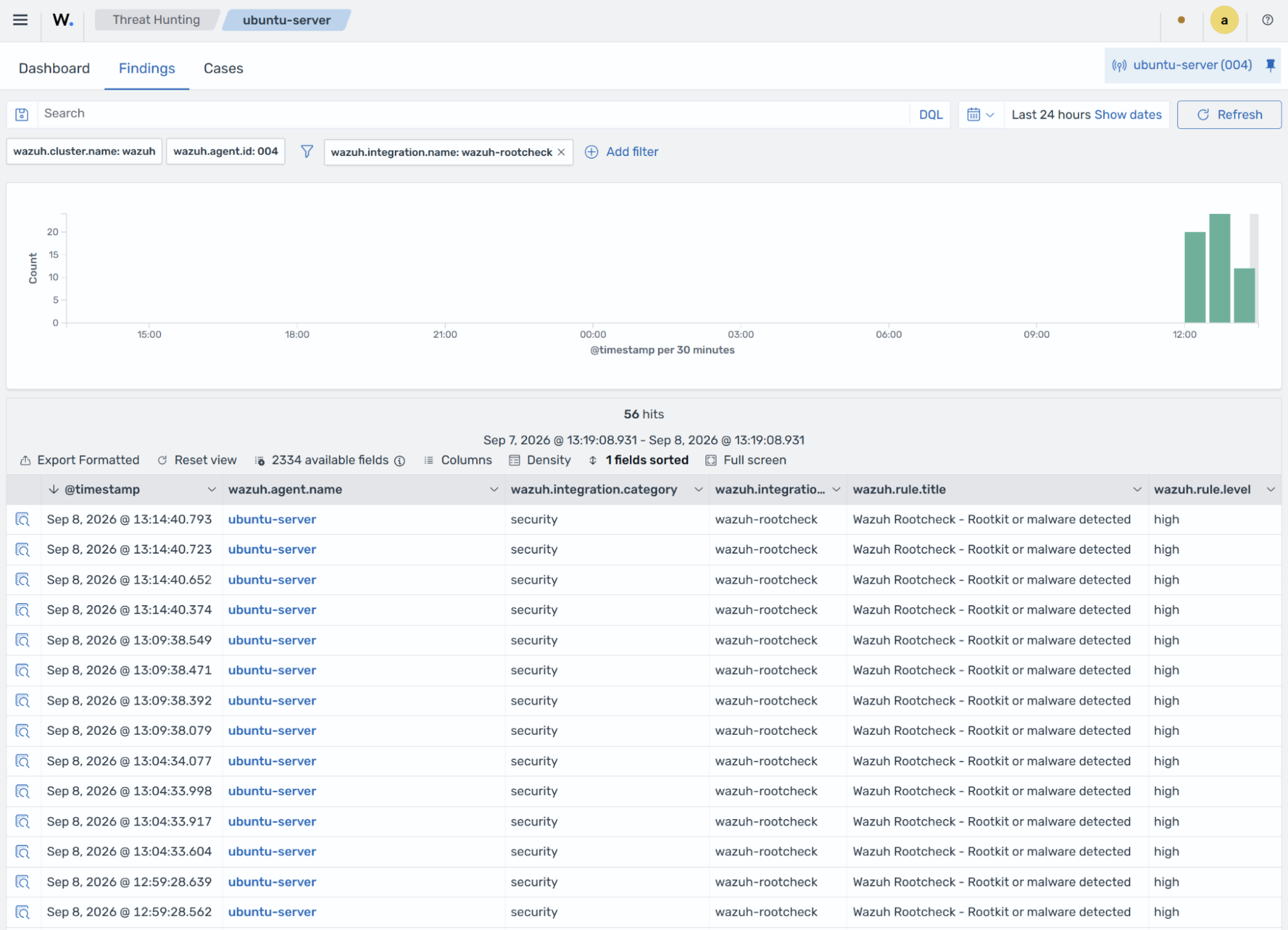
<frequency>value you set in the<rootcheck>section, for the next Rootcheck scan to run. Then, navigate to Threat intelligence > Threat Hunting and use thewazuh.integration.name: wazuh-rootcheckfilter to confirm that the finding about the hidden process exists. Unload the rootkit only after the finding appears, because unloading it makes the hidden process visible again.Unload the rootkit kernel module:
# rmmod diamorphine
Navigate to the Threat intelligence > Threat Hunting dashboard and add the following filter in the search bar to query the findings:
wazuh.integration.name: wazuh-rootcheck