Monitoring Docker events
Docker automates the deployment of different applications inside software containers. The Wazuh module for Docker identifies security incidents across containers and alerts in real time. In this use case, you configure Wazuh to monitor Docker events on an Ubuntu endpoint hosting Docker containers. See Monitoring Docker environments to learn more about monitoring Docker.
Infrastructure
Endpoint |
Description |
|---|---|
Ubuntu 24.04 |
This is the Docker host where you create and delete containers. |
Configuration
Perform the following steps to install Docker on the Ubuntu endpoint and configure Wazuh to monitor Docker events.
Install Python and pip:
$ sudo apt install -y python3 python3-pip
Install Docker:
$ curl -sSL https://get.docker.com | sh
Install the Python Docker library and other dependencies:
$ sudo apt remove python3-urllib3
$ sudo pip3 install docker==7.1.0 urllib3==1.26.20 requests==2.32.2 --break-system-packages
Note
This command modifies the default externally managed Python environment. See the PEP 668 description for more information. To prevent the modification, you can run
pip3 install --upgrade pipwithin a virtual environment. You must update the Docker/var/ossec/wodles/docker/DockerListenerscript shebang with your virtual environment interpreter, for example,#!</path/to/your/virtual/environment>/bin/python3.Some Ubuntu distributions have
urllib3already installed using Debian packages. Uninstall and reinstall with the method above. Before you confirm the removal, check the packages thataptlists. Removingpython3-urllib3also removes the packages that depend on it, such ascloud-initandpython3-boto3.Start and enable the Docker service:
$ sudo systemctl start docker.service
$ sudo systemctl enable docker.service
Edit the Wazuh agent configuration file
/var/ossec/etc/ossec.confand add this block to enable thedocker-listenermodule:<ossec_config> <wodle name="docker-listener"> <interval>5m</interval> <attempts>5</attempts> <run_on_start>yes</run_on_start> <disabled>no</disabled> </wodle> </ossec_config>
Restart the Wazuh agent to apply the changes:
$ sudo systemctl restart wazuh-agent
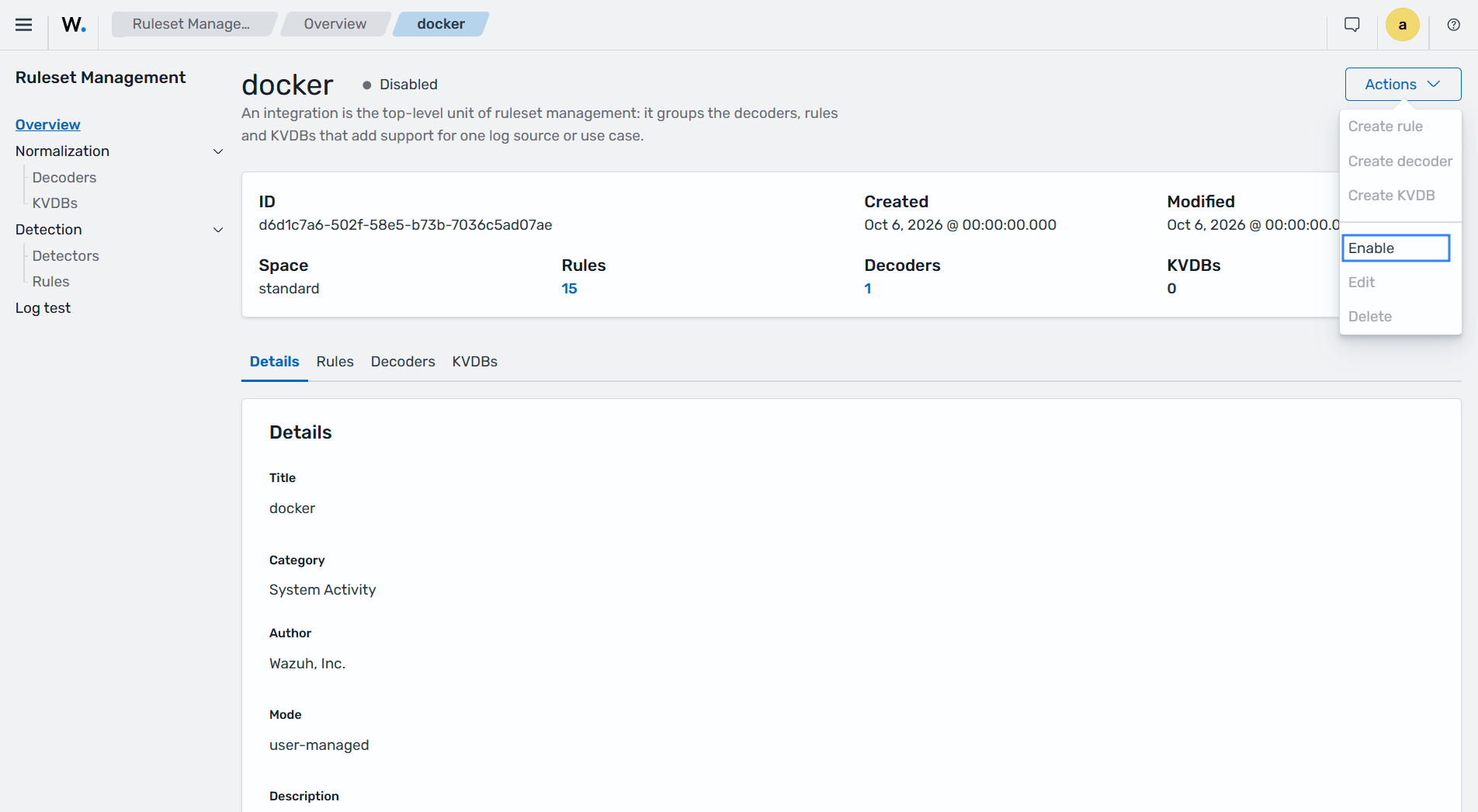
Perform the following steps on the Wazuh dashboard to enable the docker integration.
Navigate to Ruleset management > Overview.
Enter
dockerin the search box and select the docker integration.Click the docker integration name to open it, then click Actions and select Enable.
Test the configuration
Perform several Docker activities, such as pulling a Docker image, running a container, running additional Docker commands, and deleting the container.
Pull an image, such as the NGINX image, and run a container:
$ sudo docker pull nginx
$ sudo docker run -d -P --name nginx_container nginx
$ sudo docker exec -it nginx_container cat /etc/passwd
$ sudo docker exec -it nginx_container /bin/bash
$ exit
Stop and remove the container:
$ sudo docker stop nginx_container
$ sudo docker rm nginx_container
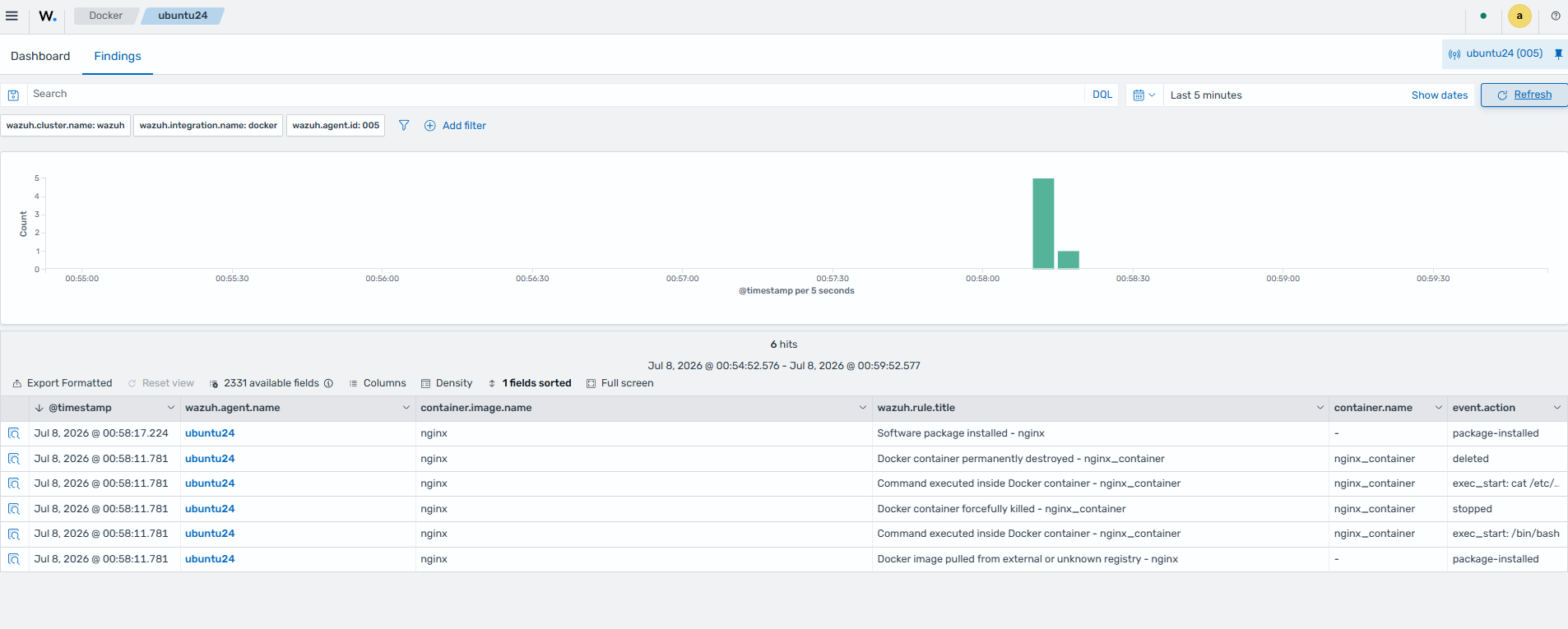
Visualize the findings
You can visualize the findings on the Wazuh dashboard. Go to Cloud security > Docker and select Findings.