Monitoring GitHub audit logs
Organization administrators use GitHub audit logs to review the actions that members perform within their organization. Each log includes details such as the user who performs the action, the nature of the action, and the timestamp of its execution. The Wazuh module for GitHub enables the collection of audit logs from GitHub through its API. Wazuh initiates an HTTP GET request to the GitHub API endpoint /orgs/{org}/audit-log to collect the audit logs. For further details, refer to the GitHub REST API documentation.
Requirements for monitoring GitHub audit logs
You need the following requirements on GitHub to access the audit logs with Wazuh.
GitHub organization: You can only view audit logs for GitHub organizations.
GitHub Enterprise Cloud subscription: Only organizations with a GitHub Enterprise Cloud subscription can use the GitHub audit log REST API.
Create a GitHub personal access token
Perform the following steps on GitHub to generate the required personal access token. This access token is required to read audit logs.
Sign in to GitHub with an account that is an owner of the organization.
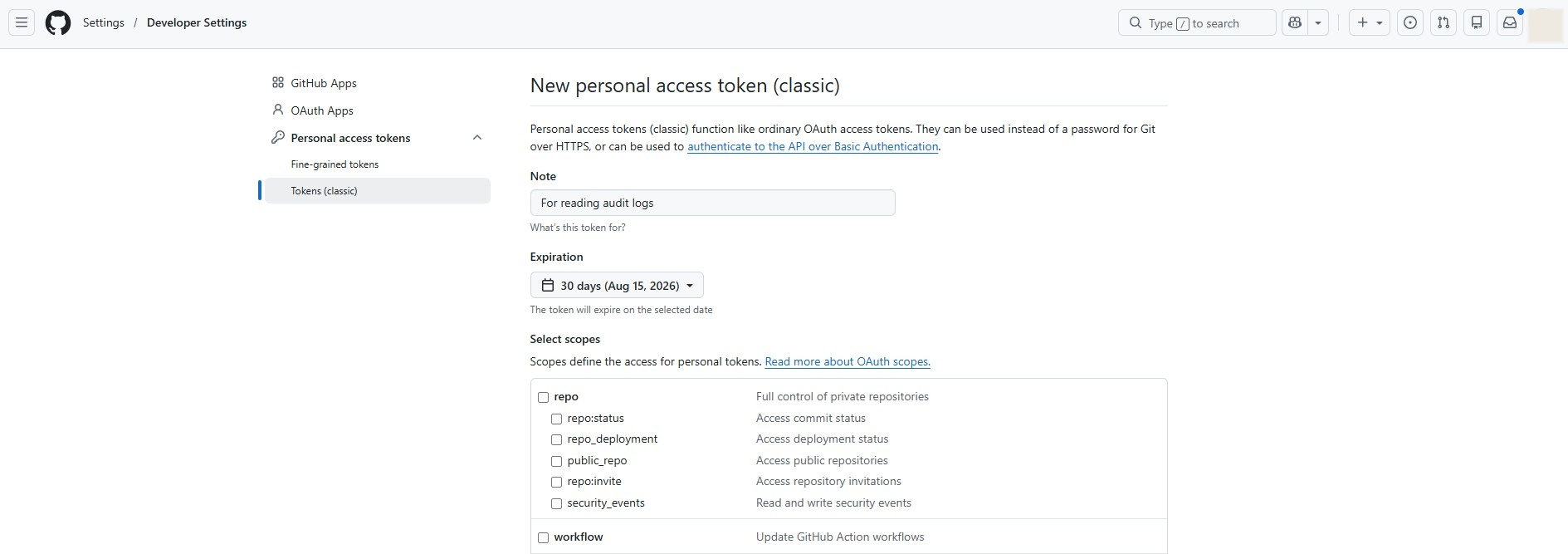
Navigate to https://github.com/settings/tokens/new to create a new personal access token (classic).
Include a descriptive note for the personal access token, and select an expiration time.
Scroll down, select
read:audit_log, and click Generate token.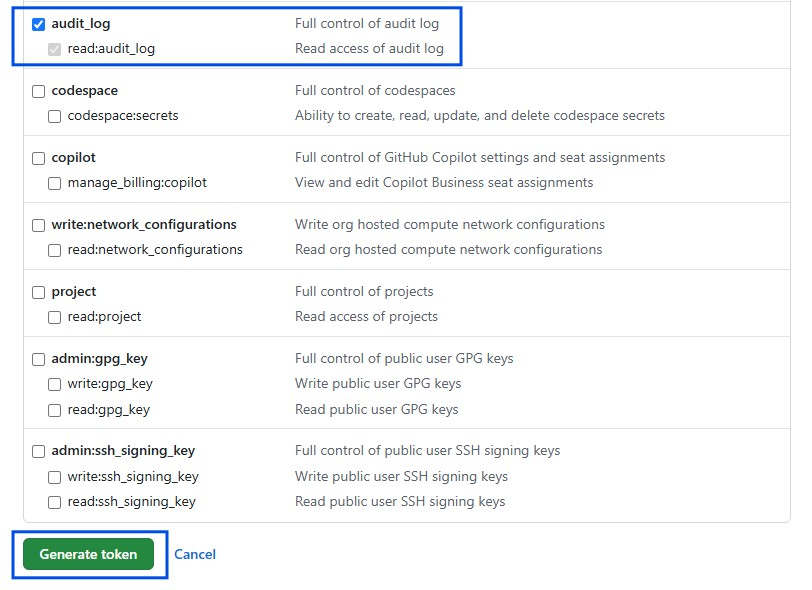
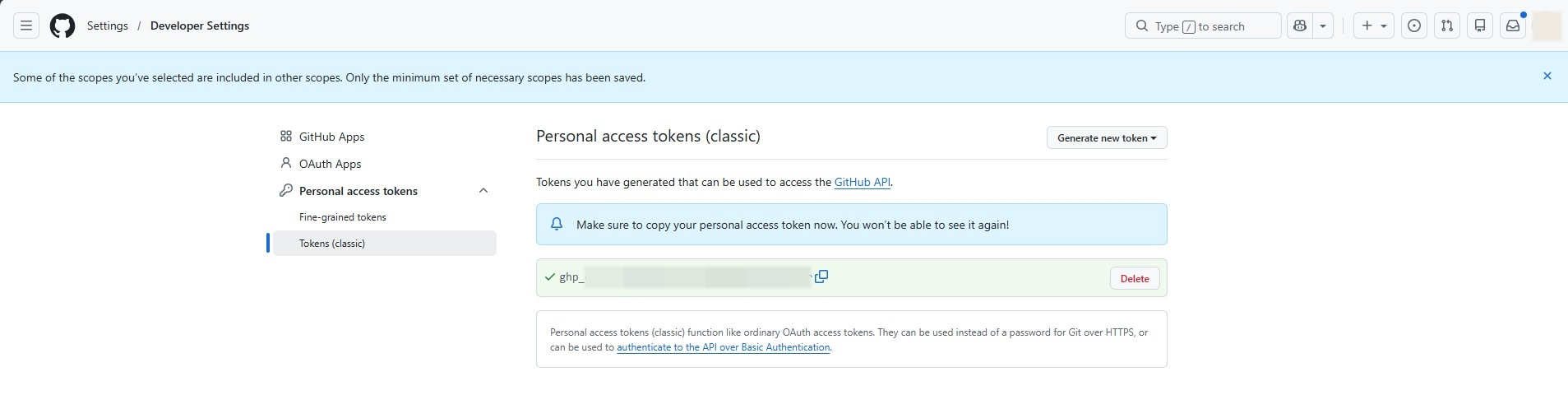
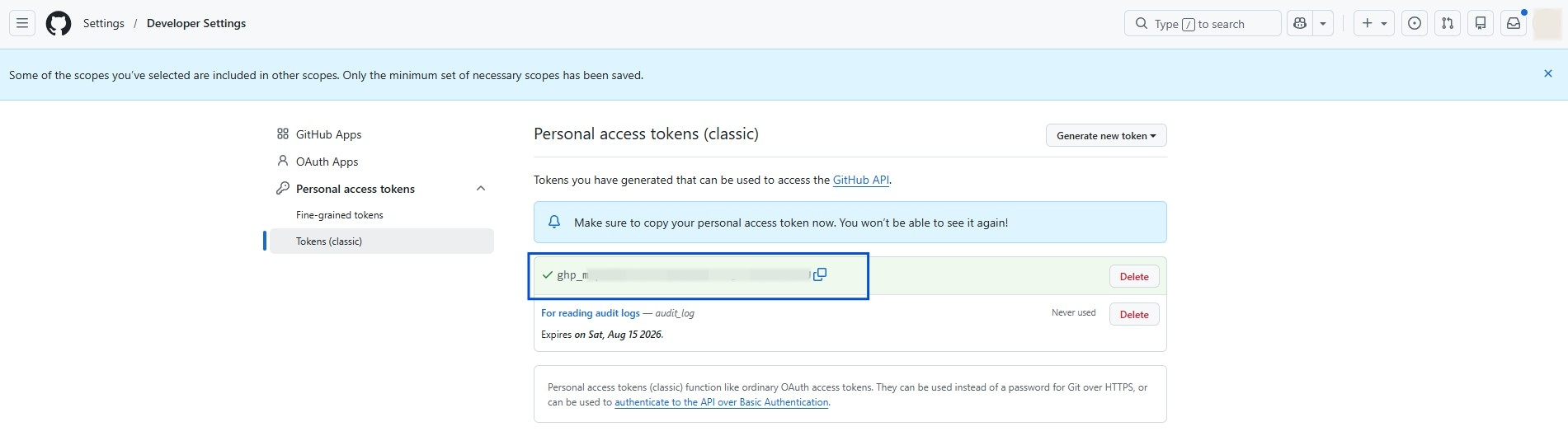
Copy the newly generated personal access token. Save the token in a secure location, because you need it to configure the Wazuh module for GitHub.
Configure the Wazuh module for GitHub
Perform the following steps to allow Wazuh to monitor, collect, and analyze the GitHub audit logs. The Wazuh module for GitHub runs on the Wazuh agent. The Wazuh manager does not run the module.
Before you configure the module, enable the github integration in the standard ruleset on the Wazuh dashboard. The integration ships disabled. Until you enable it, the Wazuh manager receives the GitHub events but does not classify or index them. Events that arrive while the integration is disabled are not processed again after you enable it. To enable it, open Ruleset management > Overview on the Wazuh dashboard, make sure you are in the Standard space, search for github, click github, and then click Actions > Enable.
Append the following configuration to the
/var/ossec/etc/ossec.conffile on the Wazuh agent.<ossec_config> <github> <enabled>yes</enabled> <interval>10m</interval> <time_delay>30s</time_delay> <curl_max_size>1M</curl_max_size> <only_future_events>yes</only_future_events> <api_auth> <org_name><ORG_NAME></org_name> <api_token><API_TOKEN></api_token> </api_auth> <api_parameters> <event_type>all</event_type> </api_parameters> </github> </ossec_config>
Where:
<enabled>: Enables the Wazuh module for GitHub. The default value isyes, and the allowed values areyesandno.<interval>: Defines the time interval between each execution of the Wazuh module for GitHub. The default value is1m. The value is a positive number with an optional time unit suffix: s (seconds), m (minutes), h (hours), d (days), or w (weeks). A value without a suffix is in seconds. Use a value greater than0. With0, the module queries the GitHub API continuously.<time_delay>: Specifies the delay time of the scan with respect to the current time. The default value is30s. The value uses the same format as<interval>.<curl_max_size>: Specifies the maximum size allowed for the GitHub API response. The default value is1M. The value is a positive number with an optional unit suffix in uppercase or lowercase: B (bytes), K (kilobytes), M (megabytes), or G (gigabytes). The minimum value is1K.<only_future_events>: When set toyes, the Wazuh module for GitHub collects only events generated after you start the Wazuh agent. When set tono, the module resumes from the last event it collected before the Wazuh agent stopped. On its first run, the module has no saved position and starts at the current time. The default value isyes, and the allowed values areyesandno.<api_auth>: This block configures the credentials for authentication with the GitHub REST API. The module requires at least one<api_auth>block. Each block requires the<org_name>and<api_token>tags, and neither tag can be empty.<org_name>: Name of your GitHub organization. The allowed value is any string.<api_token>: Personal access token to authenticate with the GitHub API. The allowed value is any string.
<api_parameters>: This block configures the internal options in the GitHub REST API. One sub-configuration block within<api_parameters>is<event_type>.<event_type>: Specifies the event types Wazuh collects. The available event types are web and git events. The default value for this configuration block isall, to collect both web and git events. Allowed values areall,web, andgit.
Restart the Wazuh agent service to apply the changes:
# systemctl restart wazuh-agent
To confirm that the module started, check the Wazuh agent log:
# grep "github" /var/ossec/logs/ossec.log
The output includes the
Module GitHub started.message. On the first start, and on every start when<only_future_events>isyes, the module saves the current time as its starting point and sends its first query to GitHub one<interval>later. Each run of the module sends one request to the GitHub API for each organization and event type, plus one request for each additional page of 100 events. If a request fails, for example because GitHub rejects the token or applies its API rate limit, the module keeps its starting point and queries the same time window again on the next run. After three consecutive failures for the same organization and event type, the Wazuh agent log shows aSending GitHub internal messagewarning that includes the GitHub response, such asBad credentials.
Monitoring multiple GitHub organizations
You can monitor multiple GitHub organizations with Wazuh by specifying the organization credentials in individual <api_auth> sections. For example, the following <github> block monitors two organizations named organization1 and organization2. Place it inside <ossec_config> in the /var/ossec/etc/ossec.conf file on the Wazuh agent, and then restart the Wazuh agent.
<github>
  <enabled>yes</enabled>
  <interval>10m</interval>
  <time_delay>30s</time_delay>
  <curl_max_size>1M</curl_max_size>
  <only_future_events>yes</only_future_events>

  <api_auth>
    <org_name>organization1</org_name>
    <api_token><API_TOKEN></api_token>
  </api_auth>

  <api_auth>
    <org_name>organization2</org_name>
    <api_token><API_TOKEN></api_token>
  </api_auth>

  <api_parameters>
    <event_type>git</event_type>
  </api_parameters>
</github>
Where:
<API_TOKEN>is the personal access token with theread:audit_logscope for each organization.
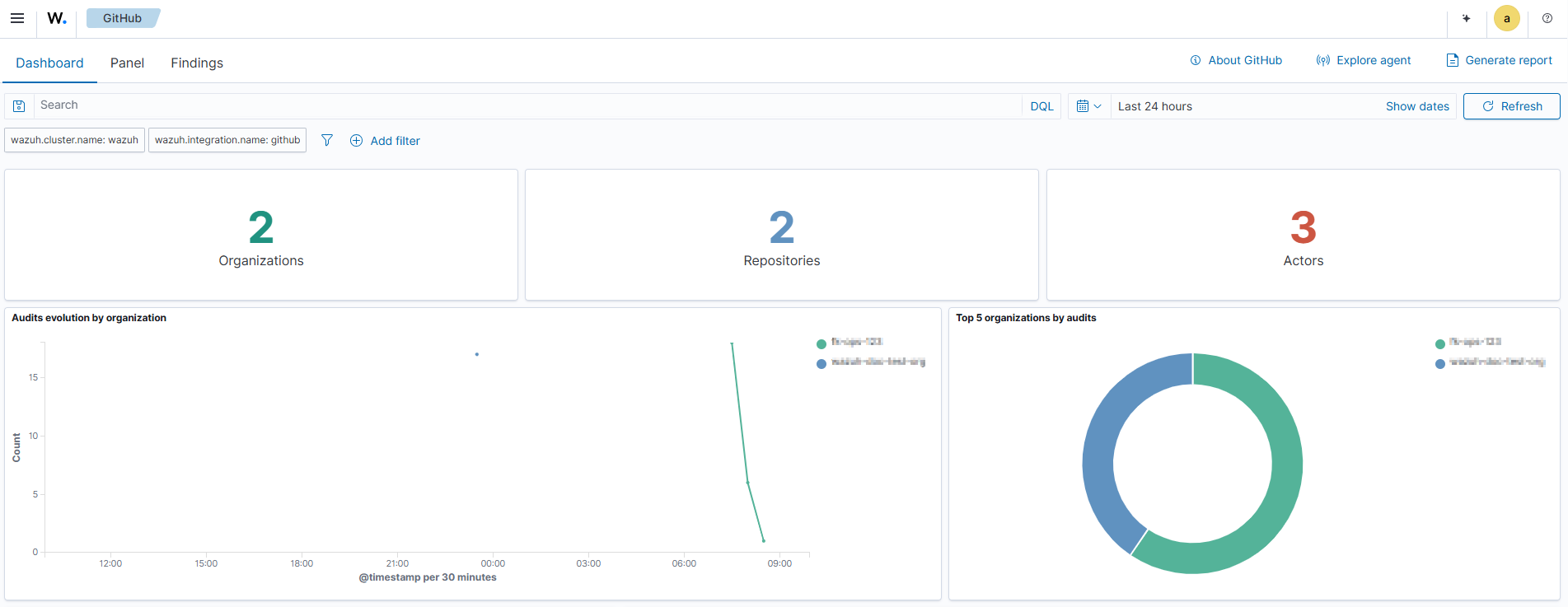
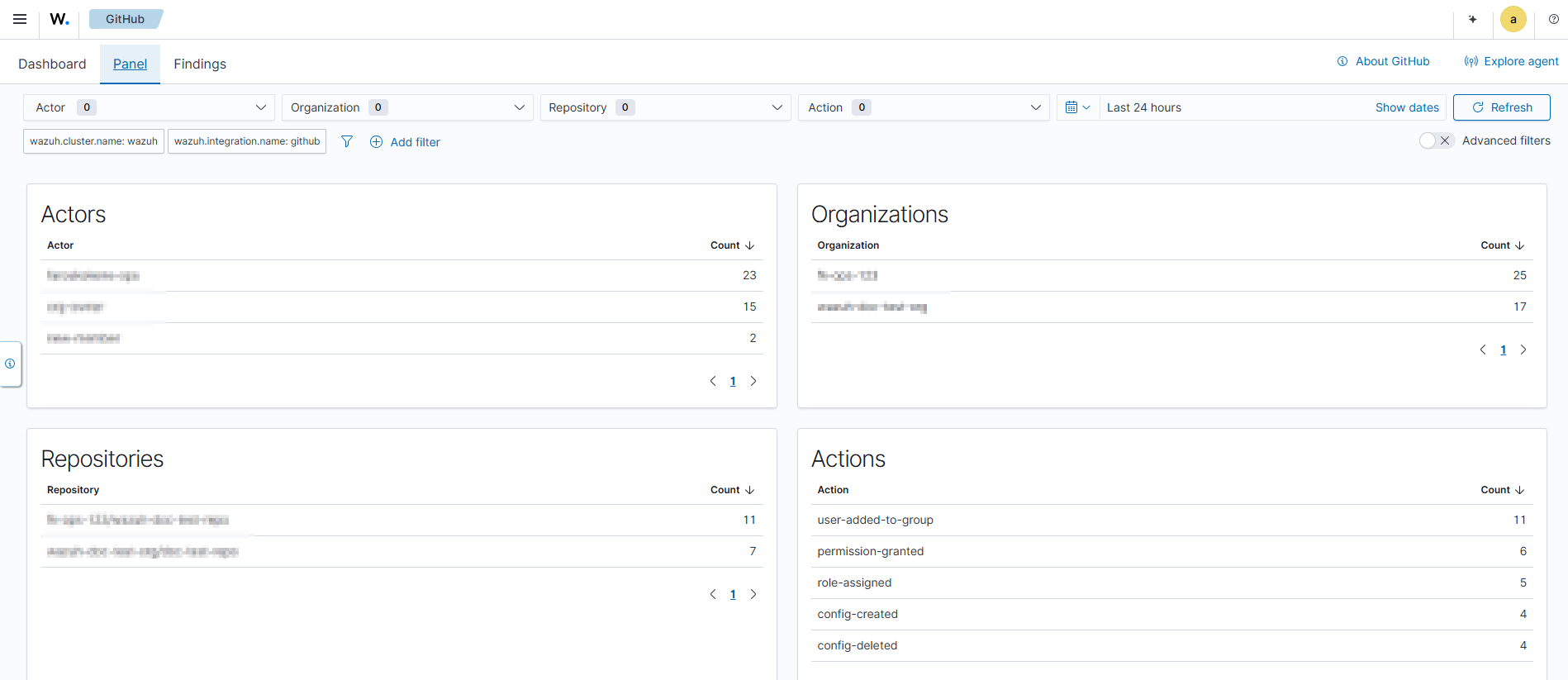
After the module collects events, the GitHub module of the Wazuh dashboard shows them on the Dashboard and Panel tabs.
Use cases
The following use cases show how Wazuh detects changes to organization members and repositories. You make each change with the GitHub REST API, and then view the findings on the Wazuh dashboard.
Requirements
Configure the Wazuh module for GitHub as described in Monitoring GitHub audit logs.
An Ubuntu 24.04 endpoint with curl installed.
Create a token for the use cases
The use cases need a GitHub personal access token with the admin:org, repo, and delete_repo scopes. You use this token with the GitHub REST API to make changes that generate Wazuh findings.
Warning
The use cases invite members, change roles, and delete a repository and a team. Run them only on a test organization.
Perform the following steps on GitHub to create the API token:
Navigate to https://github.com/settings/tokens/new, add a note for the token, select your desired expiration time, and then select the
repoandadmin:orgscopes.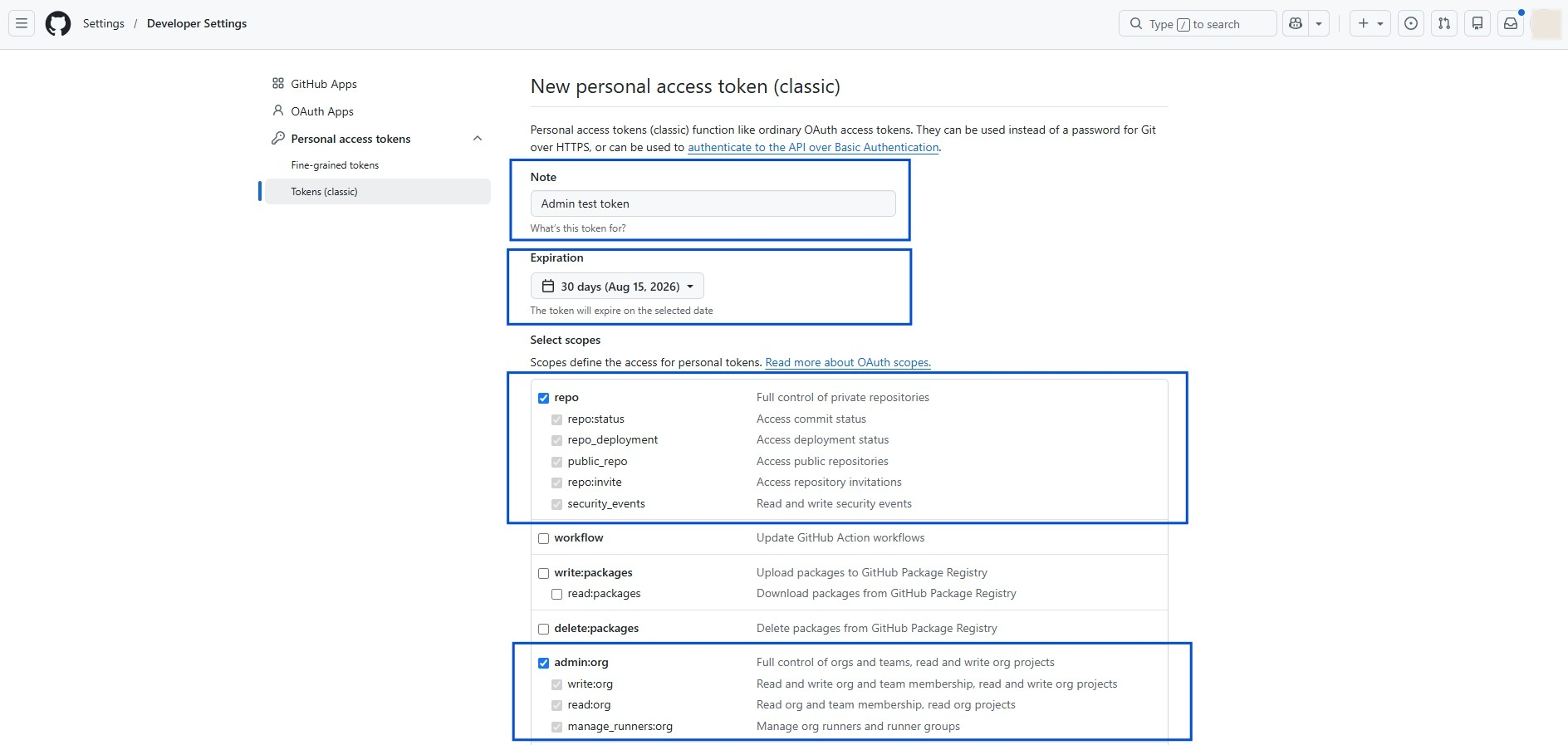
Scroll to the bottom of the page, then select the
delete_reposcope and click Generate token.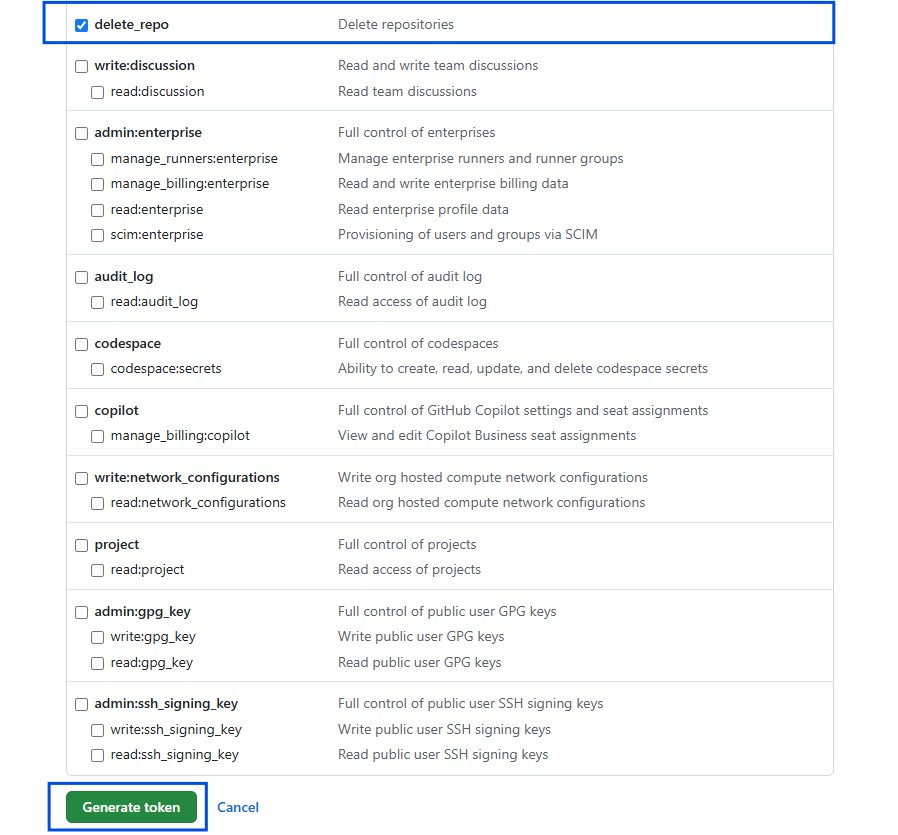
Copy the newly generated personal access token.
Ubuntu endpoint
Detecting manipulation of organization members
Invite a member
Perform the following steps to invite a member to your organization.
Run the following command on the Ubuntu endpoint:
$ curl -L \
  -X POST \
  -H "Accept: application/vnd.github+json" \
  -H "Authorization: Bearer <API_TOKEN>" \
  -H "X-GitHub-Api-Version: 2026-03-10" \
  https://api.github.com/orgs/<ORG_NAME>/invitations \
  -d '{"email":"<USER_EMAIL>","role":"direct_member"}'
Where:
<API_TOKEN>is the GitHub personal access token created within theadmin:orgscope.<ORG_NAME>is your organization's name.<USER_EMAIL>is the email address of the user you want to invite.
Sample output:
{
  "id": 2,
  "node_id": "kgDOCifghnx1",
  "login": null,
  "email": "jack@github.com",
  "role": "direct_member",
  "created_at": "2026-07-16T13:53:19.000+02:00",
  "failed_at": null,
  "failed_reason": null,
  "inviter": {
    "login": "other_user",
    "id": 2,
    "node_id": "kgDOCifghnx1",
    "avatar_url": "https://avatars.githubusercontent.com/u/x?v=4",
    "gravatar_id": "",
    "url": "https://api.github.com/users/other_user",
    "html_url": "https://github.com/other_user",
    "followers_url": "https://api.github.com/users/other_user/followers",
    "following_url": "https://api.github.com/users/other_user/following{/other_user}",
    "gists_url": "https://api.github.com/users/other_user/gists{/gist_id}",
    "starred_url": "https://api.github.com/users/other_user/starred{/owner}{/repo}",
    "subscriptions_url": "https://api.github.com/users/other_user/subscriptions",
    "organizations_url": "https://api.github.com/users/other_user/orgs",
    "repos_url": "https://api.github.com/users/other_user/repos",
    "events_url": "https://api.github.com/users/other_user/events{/privacy}",
    "received_events_url": "https://api.github.com/users/other_user/received_events",
    "type": "User",
    "user_view_type": "public",
    "site_admin": false
  },
  "team_count": 1,
  "invitation_teams_url": "https://api.github.com/organizations/2/invitations/1/teams",
  "invitation_source": "member"
}
Go to the invited member’s mailbox and accept the invite.
Promote a member to administrator
The administrator role gives a member full administrative access to the organization. GitHub records the role change in the organization audit log.
Run the following command to promote a member of your organization to the role of an administrator:
$ curl -L \
  -X PUT \
  -H "Accept: application/vnd.github+json" \
  -H "Authorization: Bearer <API_TOKEN>" \
  -H "X-GitHub-Api-Version: 2026-03-10" \
  https://api.github.com/orgs/<ORG_NAME>/memberships/<MEMBER_USERNAME> \
  -d '{"role":"admin"}'
Where:
<API_TOKEN>is the GitHub personal access token created within theadmin:orgscope.<ORG_NAME>is your organization's name.<MEMBER_USERNAME>is the username of the user you want to promote.
Sample output:
{
  "url": "https://api.github.com/orgs/other_user-org/memberships/other_user1",
  "state": "active",
  "role": "admin",
  "organization_url": "https://api.github.com/orgs/other_user-org",
  "user": {
    "login": "other_user1",
    "id": 2,
    "node_id": "kgDOCifghnx1",
    "avatar_url": "https://avatars.githubusercontent.com/u/2?v=4",
    "gravatar_id": "",
    "url": "https://api.github.com/users/other_user1",
    "html_url": "https://github.com/other_user1",
    "followers_url": "https://api.github.com/users/other_user1/followers",
    "following_url": "https://api.github.com/users/other_user1/following{/other_user}",
    "gists_url": "https://api.github.com/users/other_user1/gists{/gist_id}",
    "starred_url": "https://api.github.com/users/other_user1/starred{/owner}{/repo}",
    "subscriptions_url": "https://api.github.com/users/other_user1/subscriptions",
    "organizations_url": "https://api.github.com/users/other_user1/orgs",
    "repos_url": "https://api.github.com/users/other_user1/repos",
    "events_url": "https://api.github.com/users/other_user1/events{/privacy}",
    "received_events_url": "https://api.github.com/users/other_user1/received_events",
    "type": "User",
    "user_view_type": "public",
    "site_admin": false
  },
  "direct_membership": true,
  "enterprise_teams_providing_indirect_membership": [],
  "organization": {
    "login": "other_user-org",
    "id": 2,
    "node_id": "kgDOCifghnx1",
    "url": "https://api.github.com/orgs/other_user-org",
    "repos_url": "https://api.github.com/orgs/other_user-org/repos",
    "events_url": "https://api.github.com/orgs/other_user-org/events",
    "hooks_url": "https://api.github.com/orgs/other_user-org/hooks",
    "issues_url": "https://api.github.com/orgs/other_user-org/issues",
    "members_url": "https://api.github.com/orgs/other_user-org/members{/member}",
    "public_members_url": "https://api.github.com/orgs/other_user-org/public_members{/member}",
    "avatar_url": "https://avatars.githubusercontent.com/u/305824220?v=4",
    "description": null
  }
}
Create a team
Teams group organization members and control their access to repositories. GitHub records the new team in the organization audit log.
Run the following command to create a new team in your organization:
$ curl -L -X POST -H "Accept: application/vnd.github+json" -H "X-GitHub-Api-Version: 2026-03-10" \
     -H "Authorization: Bearer <API_TOKEN>" \
     -d '{"name": "<NEW_TEAM_NAME>"}' \
     "https://api.github.com/orgs/<ORG_NAME>/teams"
Where:
<NEW_TEAM_NAME>is the name of the new team.<API_TOKEN>is the GitHub personal access token created within theadmin:orgscope.<ORG_NAME>is your organization's name.
Sample output:
{
  "name": "Org managers",
  "id": 2,
  "node_id": "kgDOCifghnx1",
  "slug": "org-managers",
  "description": null,
  "privacy": "secret",
  "notification_setting": "notifications_enabled",
  "url": "https://api.github.com/organizations/3/team/7",
  "html_url": "https://github.com/orgs/other_user/teams/org-managers",
  "members_url": "https://api.github.com/organizations/3/team/1/members{/member}",
  "repositories_url": "https://api.github.com/organizations/7/team/9/repos",
  "type": "organization",
  "organization_id": 5,
  "permission": "pull",
  "created_at": "2026-07-16T12:53:24Z",
  "updated_at": "2026-07-16T12:53:24Z",
  "members_count": 1,
  "repos_count": 0,
  "organization": {
    "login": "other_user",
    "id": 6,
    "node_id": "kgDOCifghnx1",
    "url": "https://api.github.com/orgs/other_user",
    "repos_url": "https://api.github.com/orgs/other_user/repos",
    "events_url": "https://api.github.com/orgs/other_user/events",
    "hooks_url": "https://api.github.com/orgs/other_user/hooks",
    "issues_url": "https://api.github.com/orgs/other_user/issues",
    "members_url": "https://api.github.com/orgs/other_user/members{/member}",
    "public_members_url": "https://api.github.com/orgs/other_user/public_members{/member}",
    "avatar_url": "https://avatars.githubusercontent.com/u/5?v=4",
    "description": null,
    "is_verified": false,
    "has_organization_projects": true,
    "has_repository_projects": true,
    "public_repos": 0,
    "public_gists": 0,
    "followers": 0,
    "following": 0,
    "html_url": "https://github.com/other_user",
    "created_at": "2026-07-16T11:46:25Z",
    "updated_at": "2026-07-16T11:46:25Z",
    "archived_at": null,
    "type": "Organization"
  },
  "parent": null
}
View the member findings
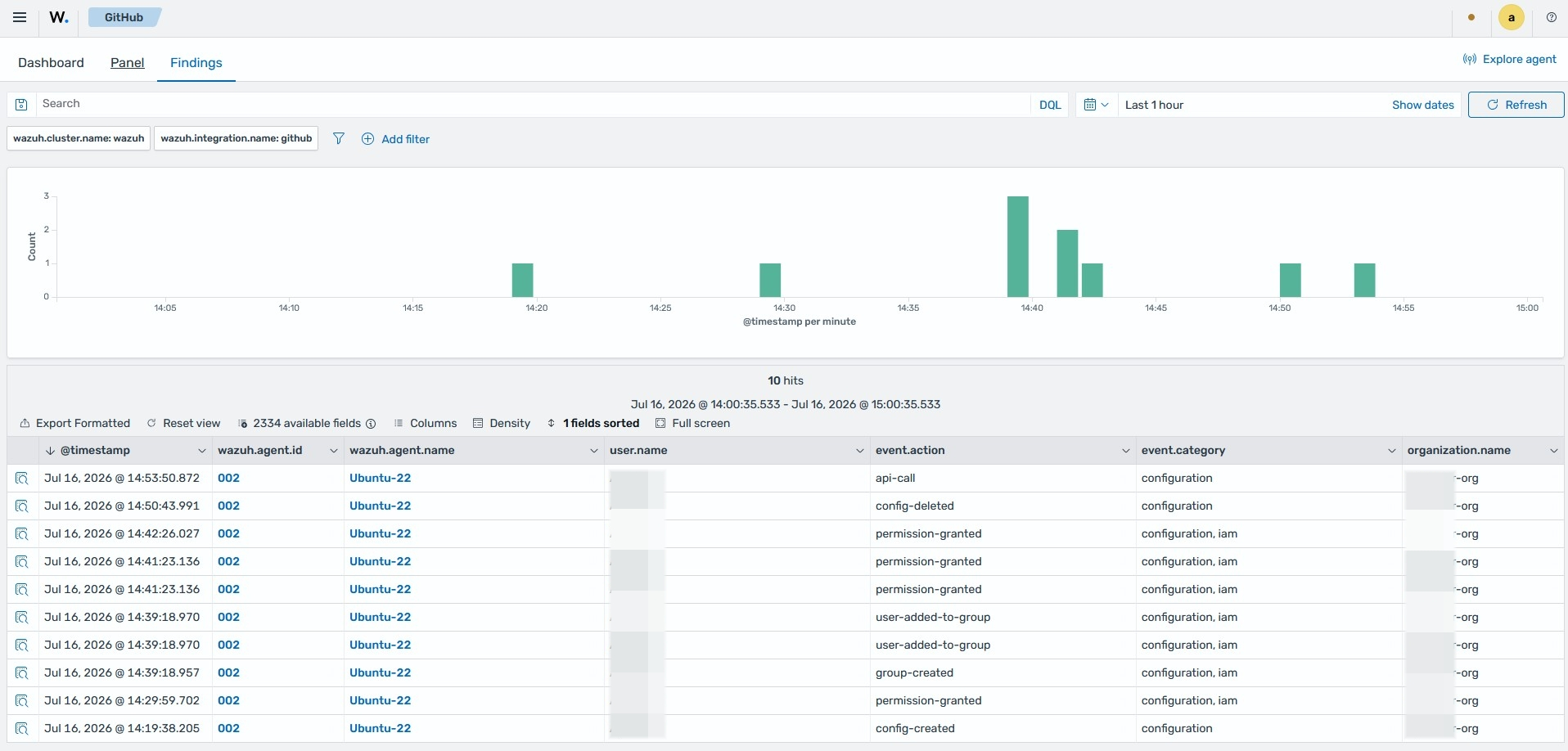
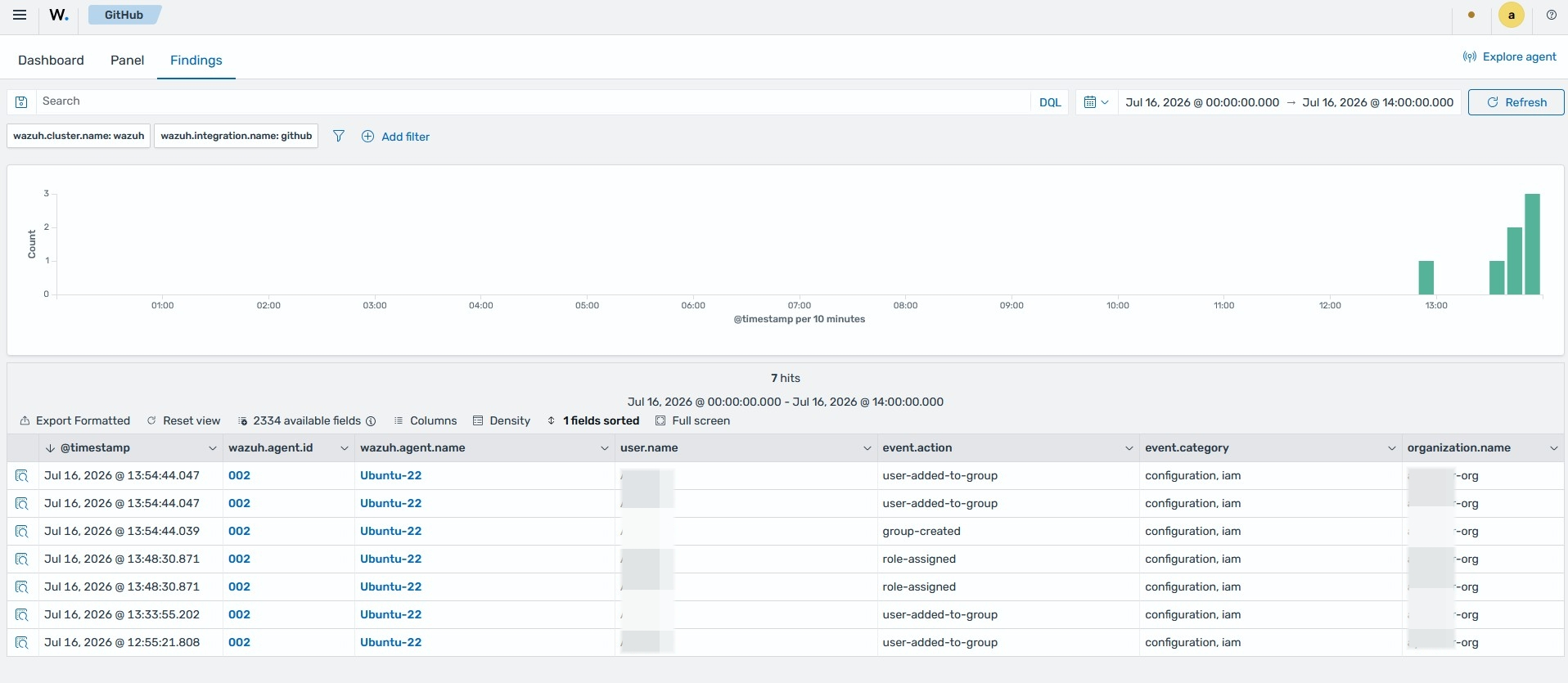
The Wazuh dashboard shows the findings that Wazuh generates from the previous actions on the monitored GitHub organization.
Click the menu icon, then navigate to Cloud security > GitHub.
Switch to the Findings tab.
Detecting changes to a repository
Create a repository
GitHub records each new repository in the organization audit log.
Run the following command to create a new repository:
$ curl -L \
  -X POST \
  -H "Accept: application/vnd.github+json" \
  -H "Authorization: Bearer <API_TOKEN>" \
  -H "X-GitHub-Api-Version: 2026-03-10" \
  https://api.github.com/orgs/<ORG_NAME>/repos \
  -d '{"name":"<NEW_REPO_NAME>","description":"<REPO_DESCRIPTION>"}'
Where:
<API_TOKEN>is the GitHub personal access token created within thereposcope.<ORG_NAME>is your organization name.<NEW_REPO_NAME>is the name of the repository you want to create.<REPO_DESCRIPTION>is the description of the repository you want to create.
Sample output:
{
  "id": 5,
  "node_id": "kgDoCifgonx1",
  "name": "Repo",
  "full_name": "other_user/Repo",
  "private": false,
  "owner": {
    "login": "other_user",
    "id": 5,
    "node_id": "kgDoCifgonx1",
    "avatar_url": "https://avatars.githubusercontent.com/u/30?v=4",
    "gravatar_id": "",
    "url": "https://api.github.com/users/other_user",
    "html_url": "https://github.com/other_user",
    "followers_url": "https://api.github.com/users/other_user/followers",
    "following_url": "https://api.github.com/users/other_user/following{/other_user}",
    "gists_url": "https://api.github.com/users/other_user/gists{/gist_id}",
    "starred_url": "https://api.github.com/users/other_user/starred{/owner}{/repo}",
    "subscriptions_url": "https://api.github.com/users/other_user/subscriptions",
    "organizations_url": "https://api.github.com/users/other_user/orgs",
    "repos_url": "https://api.github.com/users/other_user/repos",
    "events_url": "https://api.github.com/users/other_user/events{/privacy}",
    "received_events_url": "https://api.github.com/users/other_user/received_events",
    "type": "Organization",
    "user_view_type": "public",
    "site_admin": false
  },
  "html_url": "https://github.com/other_user/Repo",
  "description": "This is your first repository",
  "fork": false,
  "url": "https://api.github.com/repos/other_user/Repo",
  "forks_url": "https://api.github.com/repos/other_user/Repo/forks",
  "keys_url": "https://api.github.com/repos/other_user/Repo/keys{/key_id}",
  "collaborators_url": "https://api.github.com/repos/other_user/Repo/collaborators{/collaborator}",
  "teams_url": "https://api.github.com/repos/other_user/Repo/teams",
  "hooks_url": "https://api.github.com/repos/other_user/Repo/hooks",
  "issue_events_url": "https://api.github.com/repos/other_user/Repo/issues/events{/number}",
  "events_url": "https://api.github.com/repos/other_user/Repo/events",
  "assignees_url": "https://api.github.com/repos/other_user/Repo/assignees{/user}",
  "branches_url": "https://api.github.com/repos/other_user/Repo/branches{/branch}",
  "tags_url": "https://api.github.com/repos/other_user/Repo/tags",
  "blobs_url": "https://api.github.com/repos/other_user/Repo/git/blobs{/sha}",
  "git_tags_url": "https://api.github.com/repos/other_user/Repo/git/tags{/sha}",
  "git_refs_url": "https://api.github.com/repos/other_user/Repo/git/refs{/sha}",
  "trees_url": "https://api.github.com/repos/other_user/Repo/git/trees{/sha}",
  "statuses_url": "https://api.github.com/repos/other_user/Repo/statuses/{sha}",
  "languages_url": "https://api.github.com/repos/other_user/Repo/languages",
  "stargazers_url": "https://api.github.com/repos/other_user/Repo/stargazers",
  "contributors_url": "https://api.github.com/repos/other_user/Repo/contributors",
  "subscribers_url": "https://api.github.com/repos/other_user/Repo/subscribers",
  "subscription_url": "https://api.github.com/repos/other_user/Repo/subscription",
  "commits_url": "https://api.github.com/repos/other_user/Repo/commits{/sha}",
  "git_commits_url": "https://api.github.com/repos/other_user/Repo/git/commits{/sha}",
  "comments_url": "https://api.github.com/repos/other_user/Repo/comments{/number}",
  "issue_comment_url": "https://api.github.com/repos/other_user/Repo/issues/comments{/number}",
  "contents_url": "https://api.github.com/repos/other_user/Repo/contents/{+path}",
  "compare_url": "https://api.github.com/repos/other_user/Repo/compare/{base}...{head}",
  "merges_url": "https://api.github.com/repos/other_user/Repo/merges",
  "archive_url": "https://api.github.com/repos/other_user/Repo/{archive_format}{/ref}",
  "downloads_url": "https://api.github.com/repos/other_user/Repo/downloads",
  "issues_url": "https://api.github.com/repos/other_user/Repo/issues{/number}",
  "pulls_url": "https://api.github.com/repos/other_user/Repo/pulls{/number}",
  "milestones_url": "https://api.github.com/repos/other_user/Repo/milestones{/number}",
  "notifications_url": "https://api.github.com/repos/other_user/Repo/notifications{?since,all,participating}",
  "labels_url": "https://api.github.com/repos/other_user/Repo/labels{/name}",
  "releases_url": "https://api.github.com/repos/other_user/Repo/releases{/id}",
  "deployments_url": "https://api.github.com/repos/other_user/Repo/deployments",
  "created_at": "2026-07-16T13:18:11Z",
  "updated_at": "2026-07-16T13:18:11Z",
  "pushed_at": "2026-07-16T13:18:11Z",
  "git_url": "git://github.com/other_user/Repo.git",
  "ssh_url": "git@github.com:other_user/Repo.git",
  "clone_url": "https://github.com/other_user/Repo.git",
  "svn_url": "https://github.com/other_user/Repo",
  "homepage": null,
  "size": 0,
  "stargazers_count": 0,
  "watchers_count": 0,
  "language": null,
  "has_issues": true,
  "has_projects": true,
  "has_wiki": true,
  "has_pages": false,
  "has_discussions": false,
  "forks_count": 0,
  "mirror_url": null,
  "archived": false,
  "disabled": false,
  "open_issues_count": 0,
  "license": null,
  "allow_forking": true,
  "is_template": false,
  "web_commit_signoff_required": false,
  "has_pull_requests": true,
  "pull_request_creation_policy": "all",
  "topics": [],
  "visibility": "public",
  "forks": 0,
  "open_issues": 0,
  "watchers": 0,
  "default_branch": "main",
  "permissions": {
    "admin": true,
    "maintain": true,
    "push": true,
    "triage": true,
    "pull": true
  },
  "allow_squash_merge": true,
  "allow_merge_commit": true,
  "allow_rebase_merge": true,
  "allow_auto_merge": false,
  "delete_branch_on_merge": false,
  "allow_update_branch": false,
  "squash_merge_commit_message": "COMMIT_MESSAGES",
  "squash_merge_commit_title": "COMMIT_OR_PR_TITLE",
  "merge_commit_message": "PR_TITLE",
  "merge_commit_title": "MERGE_MESSAGE",
  "custom_properties": {},
  "organization": {
    "login": "other_user",
    "id": 4,
    "node_id": "O_kgDOEjqB3A",
    "avatar_url": "https://avatars.githubusercontent.com/u/34?v=4",
    "gravatar_id": "",
    "url": "https://api.github.com/users/other_user",
    "html_url": "https://github.com/other_user",
    "followers_url": "https://api.github.com/users/other_user/followers",
    "following_url": "https://api.github.com/users/other_user/following{/other_user}",
    "gists_url": "https://api.github.com/users/other_user/gists{/gist_id}",
    "starred_url": "https://api.github.com/users/other_user/starred{/owner}{/repo}",
    "subscriptions_url": "https://api.github.com/users/other_user/subscriptions",
    "organizations_url": "https://api.github.com/users/other_user/orgs",
    "repos_url": "https://api.github.com/users/other_user/repos",
    "events_url": "https://api.github.com/users/other_user/events{/privacy}",
    "received_events_url": "https://api.github.com/users/other_user/received_events",
    "type": "Organization",
    "user_view_type": "public",
    "site_admin": false
  },
  "network_count": 0,
  "subscribers_count": 0
}
Add a team to a repository
A team that you add to a repository gets the permission level that you set. GitHub records the permission change in the organization audit log.
Run the following commands to list teams and add a team to your repository:
List the teams in your organization and note the
slugof the team you want to add.$ curl -L -H "Accept: application/vnd.github+json" -H "Authorization: Bearer <API_TOKEN>" -H "X-GitHub-Api-Version: 2026-03-10" "https://api.github.com/orgs/<ORG_NAME>/teams"
Add the team to your repository using its slug.
$ curl -L -X PUT -H "Accept: application/vnd.github+json" -H "X-GitHub-Api-Version: 2026-03-10" \
     -H "Authorization: Bearer <API_TOKEN>" \
     -d '{"permission": "push"}' \
     "https://api.github.com/orgs/<ORG_NAME>/teams/<TEAM_SLUG>/repos/<ORG_NAME>/<REPO_NAME>"
Where:
<API_TOKEN>is the GitHub personal access token created within theadmin:orgscope.<TEAM_SLUG>is the teamslug, shown in the slug field of the previous command's output.<ORG_NAME>is your organization's name.<REPO_NAME>is the name of the repository you want to add a team to.
Grant a team administrator access to a repository
Administrator access gives team members full control of the repository. GitHub records the permission change in the organization audit log.
Run the following command to grant members of your team administrator privileges on the repository:
$ curl -L -H "X-GitHub-Api-Version: 2026-03-10" \
  -H "Authorization: Bearer <API_TOKEN>" \
  -X PUT \
  -H "Accept: application/vnd.github+json" \
  https://api.github.com/orgs/<ORG_NAME>/teams/<TEAM_SLUG>/repos/<ORG_NAME>/<REPO_NAME> \
  -d '{"permission":"admin"}'
Where:
<API_TOKEN>is the GitHub personal access token created within theadmin:orgscope.<ORG_NAME>is your organization's name.<TEAM_SLUG>is the slug of the team.<REPO_NAME>is the name of the repository whose team access you want to manage.
Delete the repository
GitHub records repository deletion in the organization audit log.
Warning
Run this command only on the test repository that you created for this use case. The command deletes the repository and its contents.
Run the following command to delete a repository in your organization:
$ curl -L \
  -X DELETE \
  -H "Accept: application/vnd.github+json" \
  -H "Authorization: Bearer <API_TOKEN>" \
  -H "X-GitHub-Api-Version: 2026-03-10" \
  https://api.github.com/repos/<ORG_NAME>/<REPO_NAME>
Where:
<API_TOKEN>is the GitHub personal access token created within thedelete_reposcope.<ORG_NAME>is your organization's name.<REPO_NAME>is the name of the repository you want to delete from your organization.
Delete the team
GitHub records team deletion in the organization audit log.
Run the following command to delete the team you created:
$ curl -L \
  -X DELETE \
  -H "Accept: application/vnd.github+json" \
  -H "Authorization: Bearer <API_TOKEN>" \
  -H "X-GitHub-Api-Version: 2026-03-10" \
  https://api.github.com/orgs/<ORG_NAME>/teams/<TEAM_SLUG>
Where:
<API_TOKEN>is the GitHub personal access token created within theadmin:orgscope.<ORG_NAME>is your organization's name.<TEAM_SLUG>is the slug of the team.
View the repository findings
The Wazuh dashboard shows the findings that Wazuh generates from the previous actions on the monitored GitHub organization.
Click the menu icon, then navigate to Cloud security > GitHub.
Switch to the Findings tab.