Detectors
Detectors evaluate normalized events against a defined set of rules to identify relevant security activity and potential threats. They run at scheduled intervals, continuously processing indexed events. When an event matches a rule during execution, the detector generates a finding, which is then displayed in the Wazuh dashboard for investigation and analysis.
Detectors fall outside the space promotion logic because they can only be under the custom or standard space. Wazuh includes several built-in detectors that run predefined rule sets out of the box at configured intervals, enabling organizations to begin monitoring for common threats immediately. Users can also create and customize their own detectors, defining detection logic and execution schedules to meet their security, operational, and compliance requirements.
Creating custom detectors
Follow the steps below to create a custom detector:
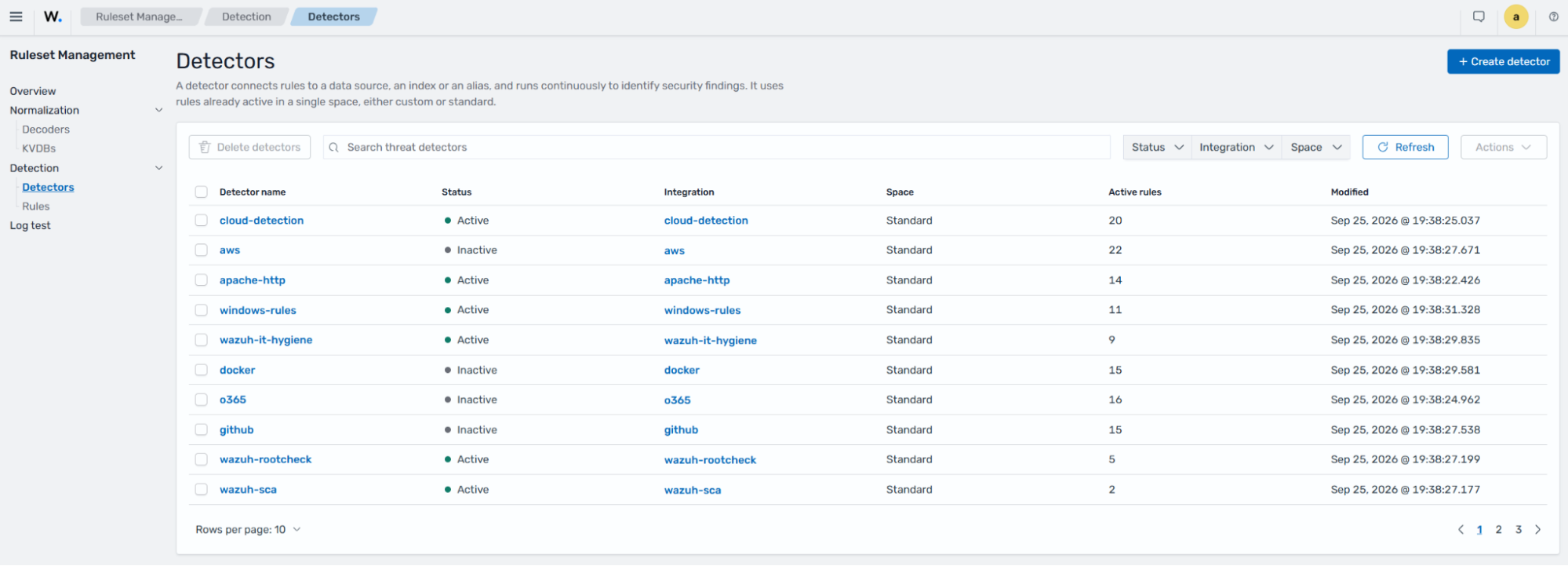
Navigate to Ruleset management > Detection > Detectors and click on Create Detector.
Enter a name for the detector and select a data source.
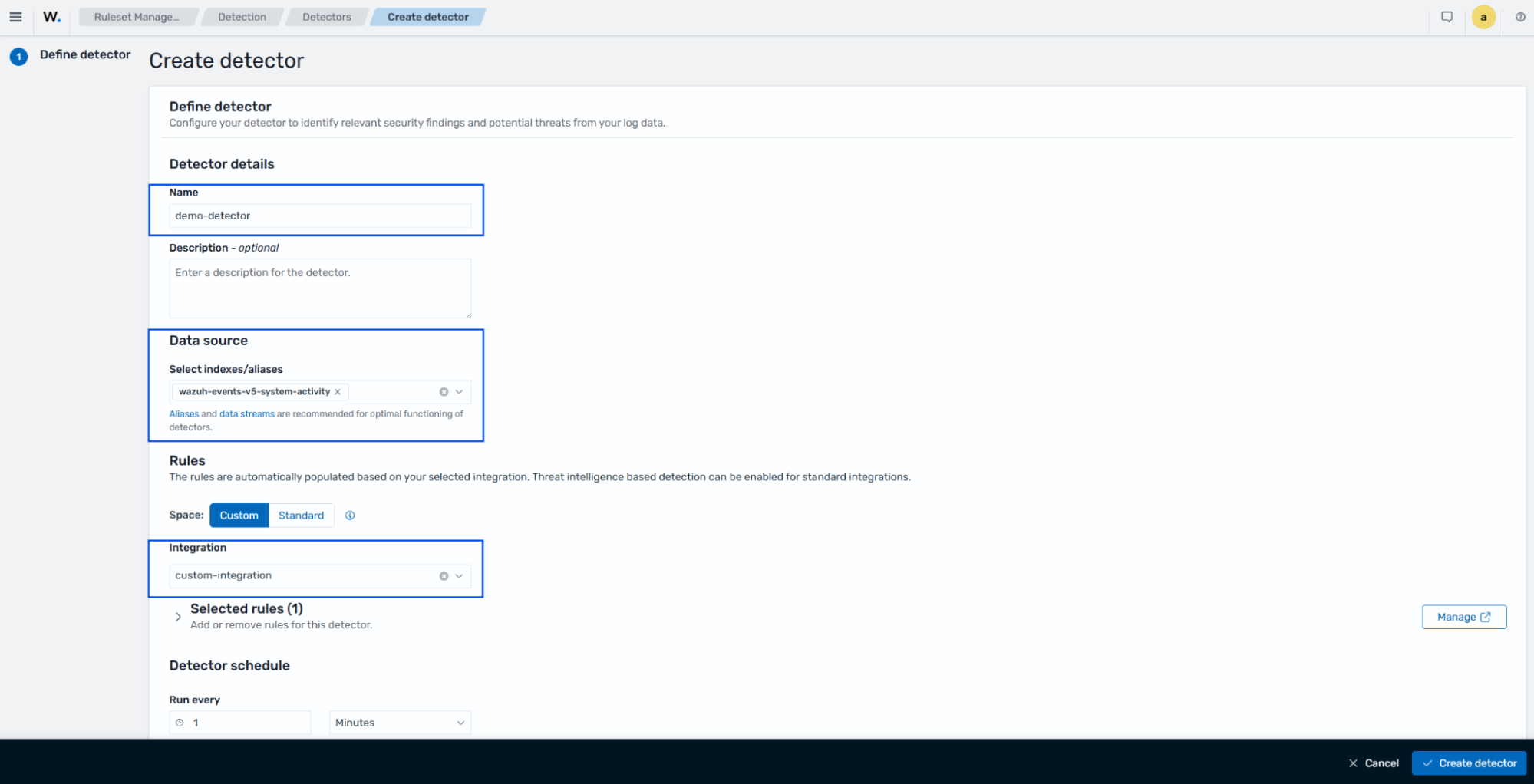
Select the indices you want the detector to monitor, a Space (in our case Custom), and an Integration. You can include or exclude which rules the detector covers.
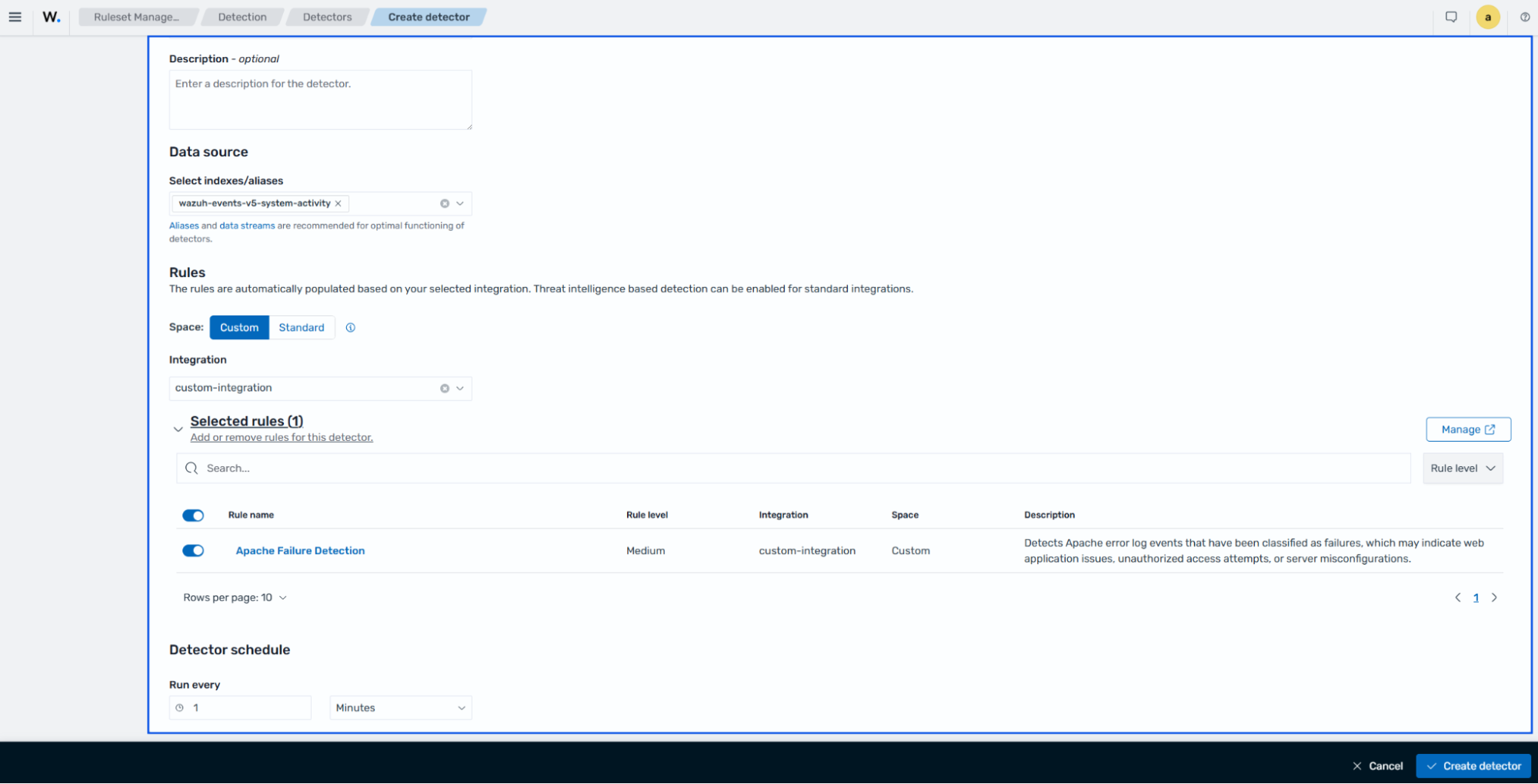
The detector schedule specifies the frequency you prefer your detector to execute.
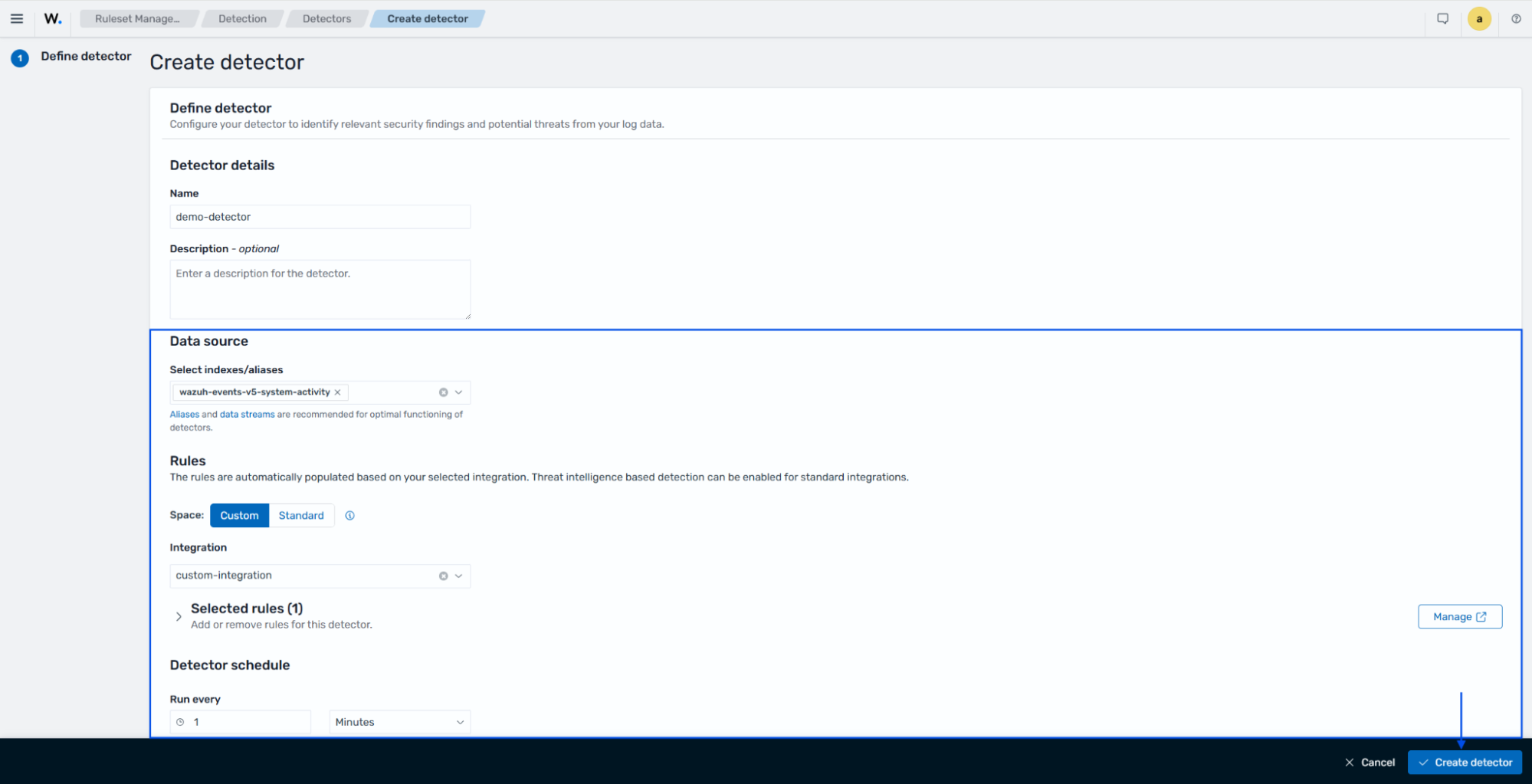
Click on Create detector to save the detector.
Disabling or tuning a Standard rule
Standard content is read-only because Wazuh continuously syncs it from the CTI feed (see Space), so you cannot edit or disable a Standard rule directly. To stop it from generating findings, exclude it through a detector instead.
To silence a specific Standard rule:
Go to Ruleset management > Detection > Rules, set the space selector to Standard, and open the rule you want to silence. Note its Integration field, content in the standard space can have more than one similarly named integration (for example,
windowsandwindows-rules), so confirm you have the right one before proceeding.Go to Ruleset management > Detection > Detectors, apply a filter for content in the standard space, and open the detector that covers that integration.
From the detector's Actions menu, select Stop detector.
Back on the Detectors page, click Create Detector.
Configure the new detector using the same indices and integration as the one you stopped.
In Selected rules, choose which rules from standard space you want active, and leave out the rule you want to silence. The Space control in this panel selects which space's rules you're browsing to choose from, it does not set where the new detector is saved.
Click Create detector. Wazuh automatically saves it to the custom space.
Example: Silencing a rule that is generating false positives
Suppose the standard windows integration's "Event log cleared via command line" rule is generating false positives in your environment. You cannot disable it, so you replace the detector that runs it:
Go to Ruleset management > Detection > Detectors and set the space selector to Standard. Search and select the
windowsdetector, then select Stop detector from its Actions menu.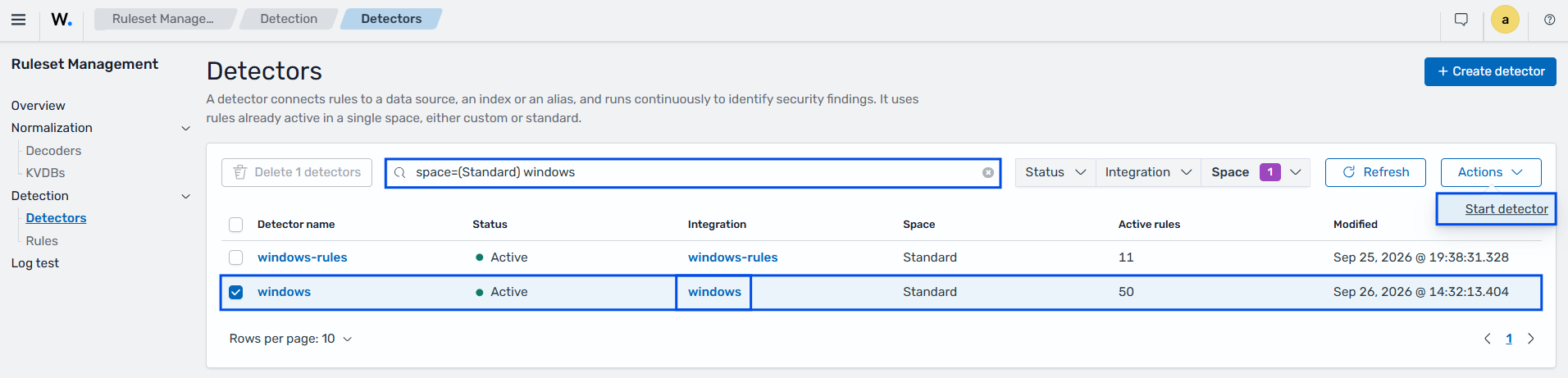
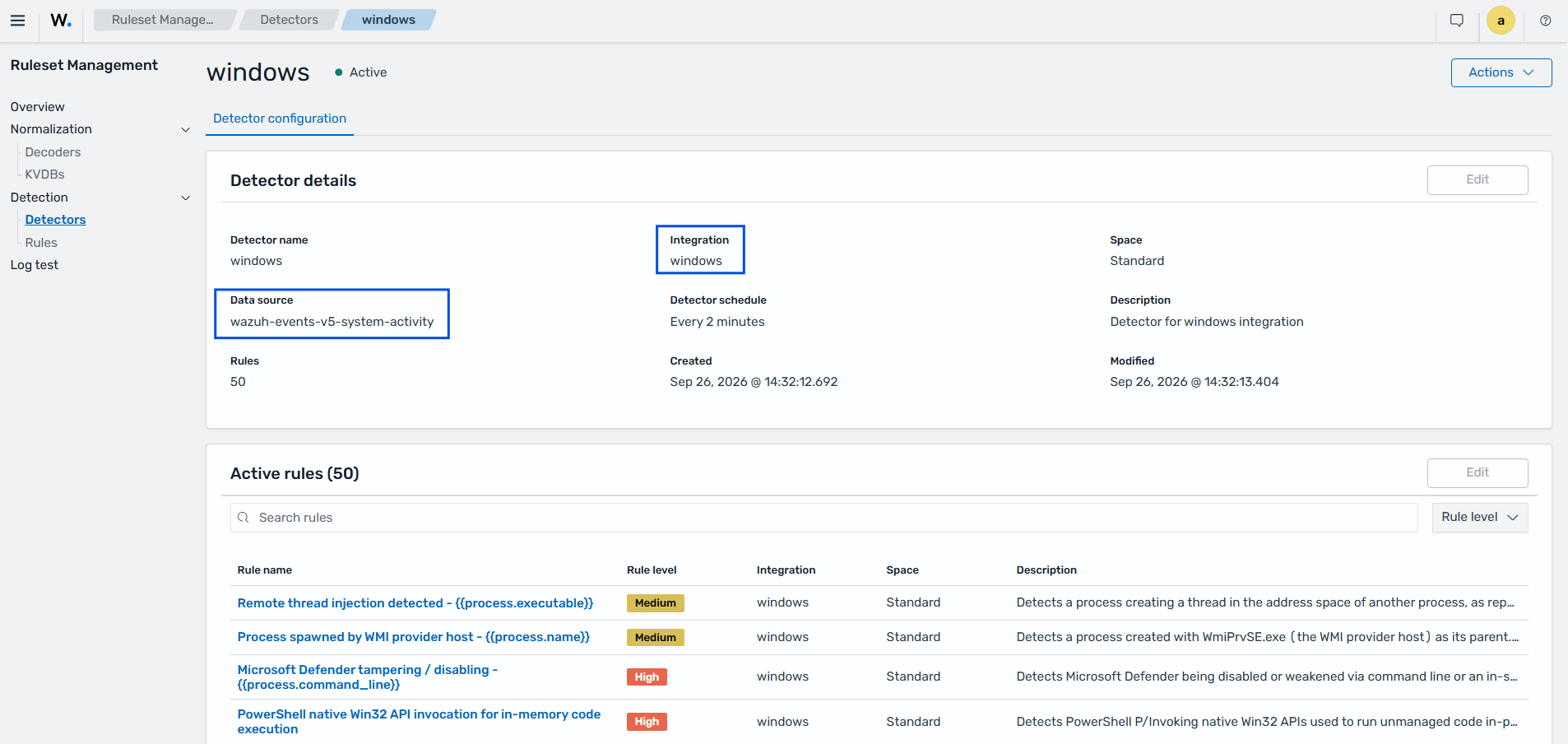
Note the Data source and the Integration as they will be used in the next step.
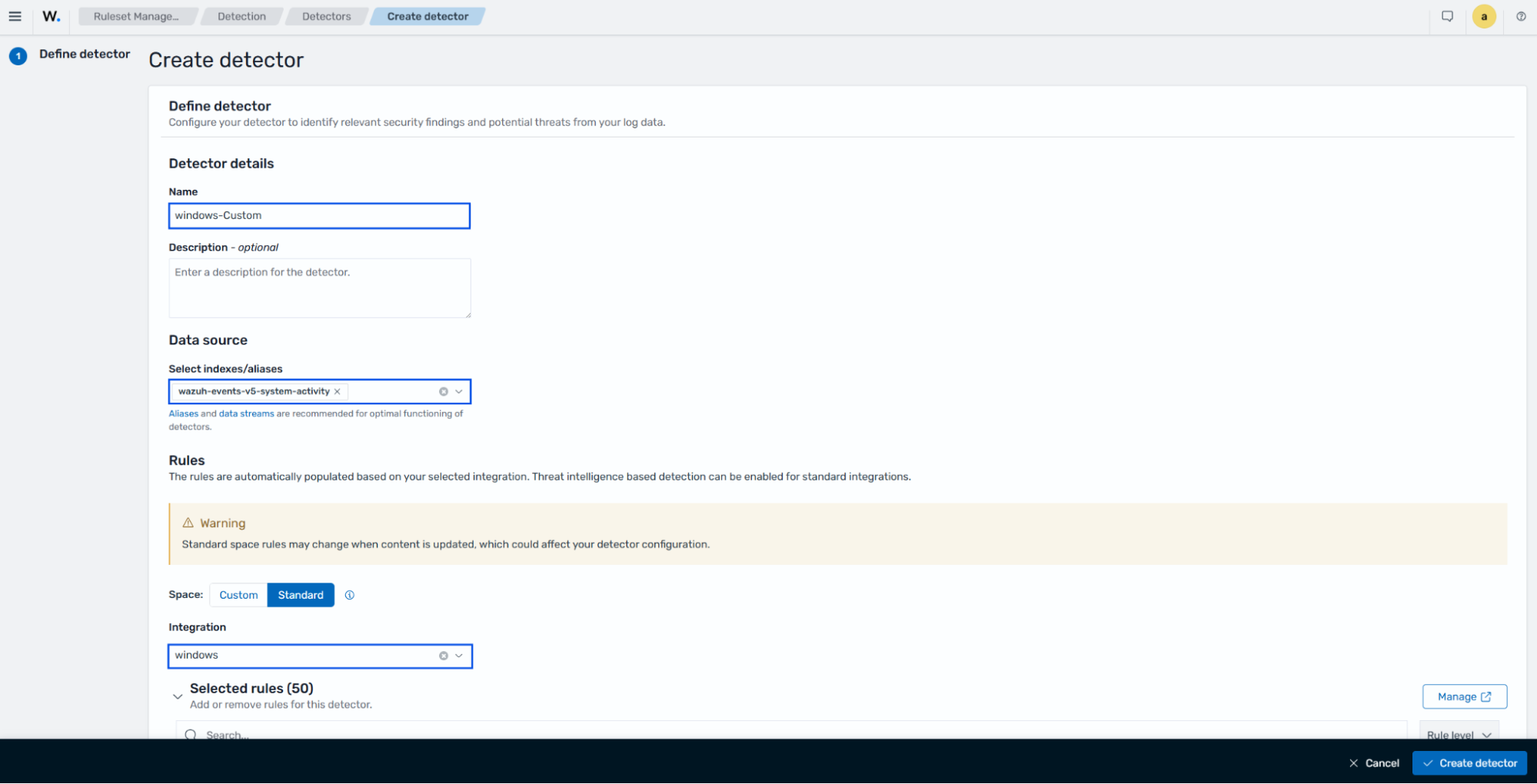
Click Create Detector and configure a new detector on the same index and integration. This example uses the following parameters:
Name: windows-Custom
Data source (index): wazuh-events-v5-system-activity
Integration: windows
In Selected rules, keep every rule from Standard space selected and deselect "Event log cleared via command line".
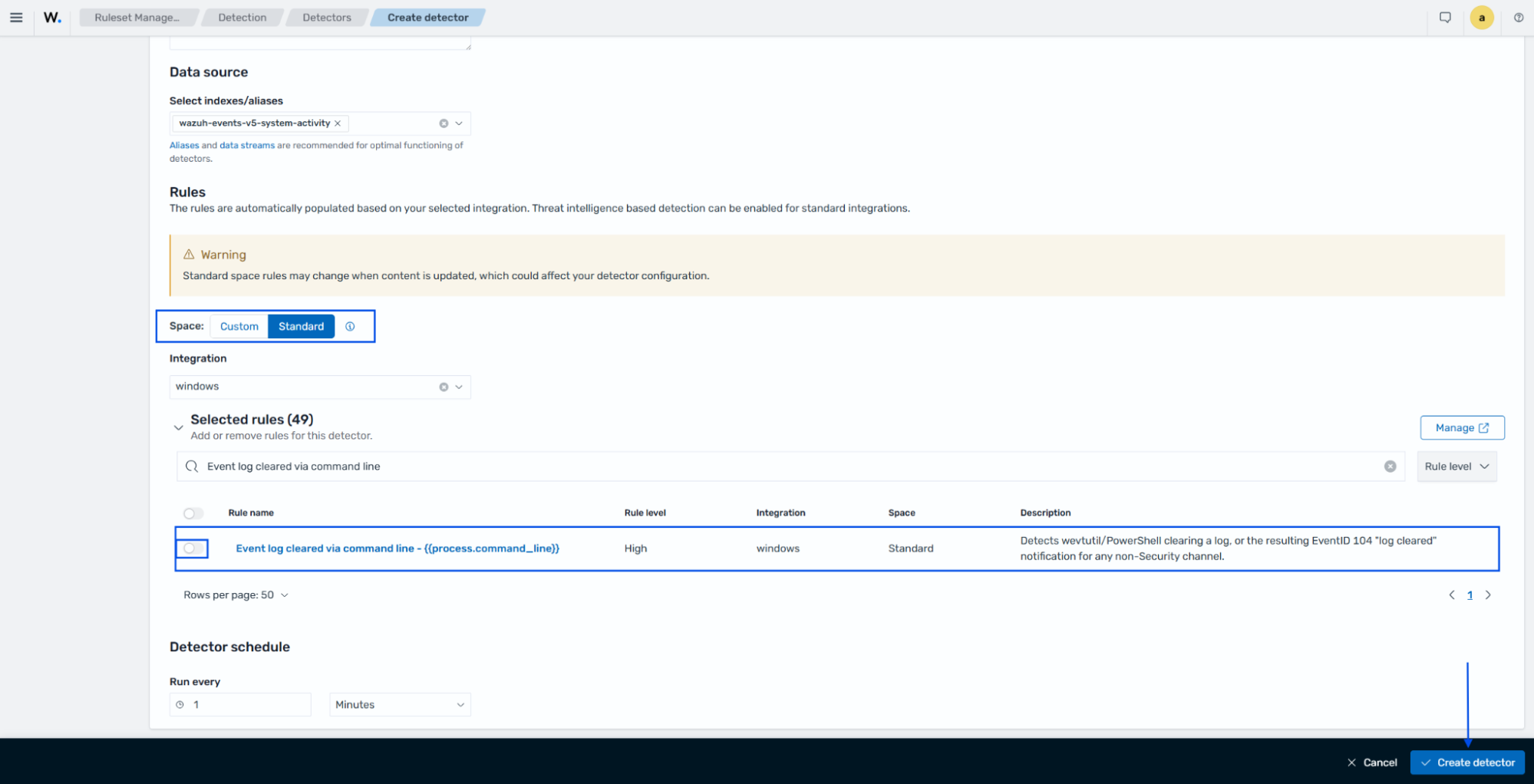
Click Create detector.
The new detector runs in Custom space without that rule, while the original stays intact in Standard space and keeps receiving CTI updates.
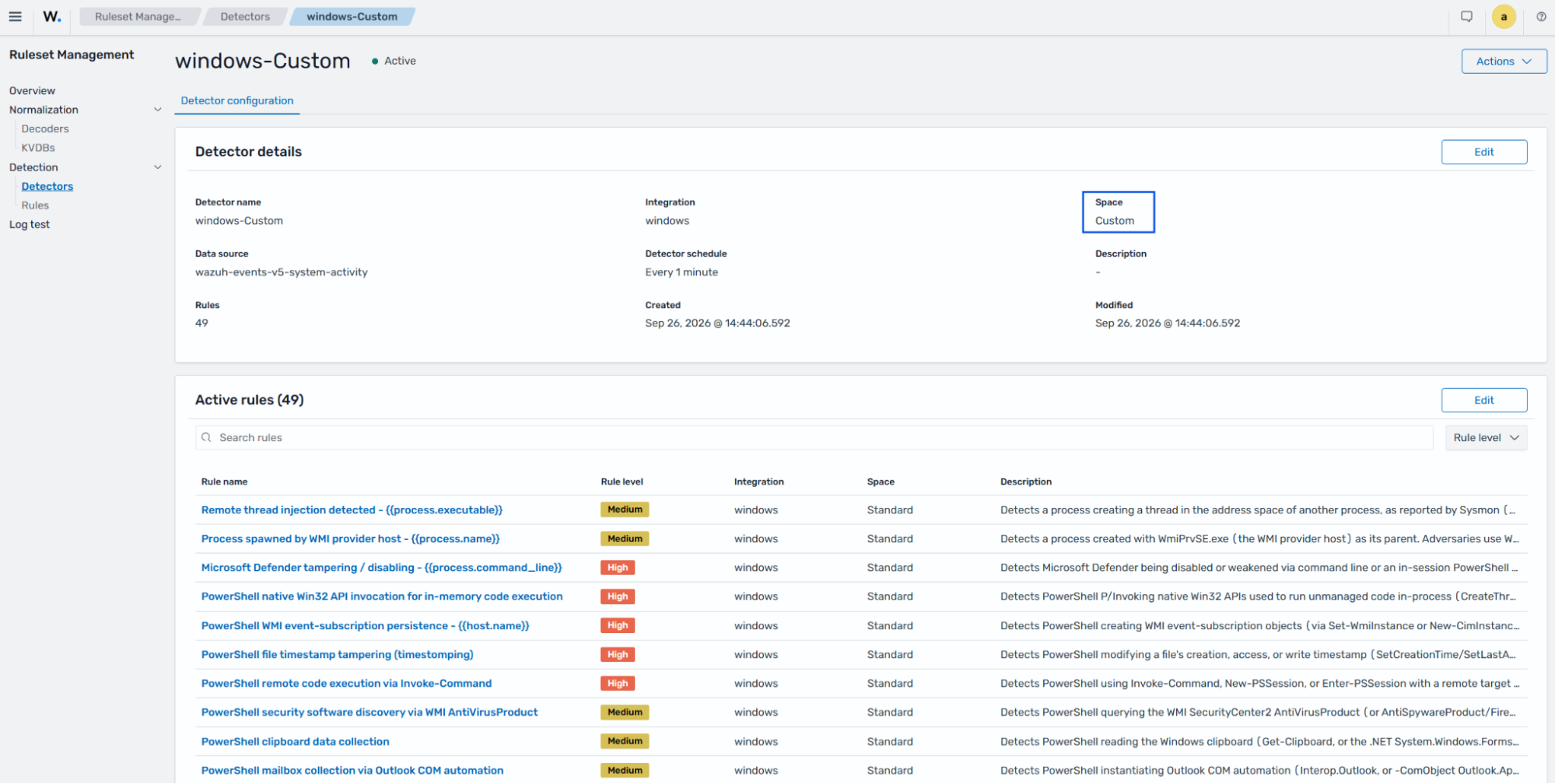
This separation keeps your customizations safe: only content in standard space updates automatically from CTI, while content in custom space stays unchanged.