Detecting hidden processes
Rootkit detection helps identify stealthy, kernel-level compromises that evade standard system monitoring tools. The Wazuh Rootcheck module performs periodic scans on a monitored endpoint to detect signs of rootkits, hidden processes, and other host-based anomalies. In this use case, we show how Wazuh detects hidden processes created by a rootkit on a Linux endpoint. You deploy a kernel-mode rootkit on an Ubuntu endpoint. This rootkit hides itself from the kernel module list. It also hides selected processes from the ps utility. However, Wazuh detects it using the setsid(), getpid(), and kill() system calls.
Infrastructure
Endpoint |
Description |
|---|---|
Ubuntu 24.04 |
On this endpoint, download, compile, and load a rootkit. Then configure the Wazuh Rootcheck module for anomaly detection. |
Configuration
Perform the following steps on the Ubuntu endpoint to emulate rootkit-like process-hiding behavior. The Wazuh agent runs a Rootcheck scan based on the set <frequency> and detects the rootkit behavior.
Switch to the root user and update the package lists:
$ sudo su
# apt update
Install the packages required for building the rootkit:
# apt -y install gcc git make linux-headers-$(uname -r)
For this use case, configure the Wazuh agent to run rootcheck scans every 2 minutes. In the
/var/ossec/etc/ossec.conffile, set thefrequencyoption in the<rootcheck>section to120:<rootcheck> <disabled>no</disabled> <check_dev>yes</check_dev> <check_sys>yes</check_sys> <check_pids>yes</check_pids> <check_ports>yes</check_ports> <check_if>yes</check_if> <!-- rootcheck execution frequency - every 12 hours by default --> <frequency>120</frequency> <skip_nfs>yes</skip_nfs> </rootcheck>
Restart the Wazuh agent to apply the changes:
# systemctl restart wazuh-agent
Attack emulation
Perform the following steps on the monitored Ubuntu 24.04 endpoint:
Fetch the Diamorphine rootkit source code from GitHub:
# git clone https://github.com/m0nad/Diamorphine
Navigate to the Diamorphine directory and compile the source code:
# cd Diamorphine
# make
Newer kernels rename PROC_ROOT_INO to PROCFS_ROOT_INO. If make fails with a PROC_ROOT_INO error, update the source code and compile again:
# sed -i 's/PROC_ROOT_INO/PROCFS_ROOT_INO/g' diamorphine.c
# make
Load the rootkit kernel module:
# insmod diamorphine.ko
The Diamorphine kernel-level rootkit is now installed on the Ubuntu endpoint.
Note
Depending on the environment, the module sometimes fails to load or function properly. If you receive the error
insmod: ERROR: could not insert module diamorphine.ko: Invalid parametersin the last step, restart the Linux endpoint and try again. It might take several tries.Send the kill signal
63to the PID of any process running on the Ubuntu endpoint. This unhides the Diamorphine rootkit. By default, Diamorphine hides itself, so it does not appear in the output of thelsmodcommand. Try it out:# lsmod | grep diamorphine # kill -63 509 # lsmod | grep diamorphine
The command output looks similar to this:
diamorphine 13155 0
The first lsmod command returns no output, and the second one shows the Diamorphine module. In the case of Diamorphine, any kill signal
63sent to any process, whether it exists or not, toggles the Diamorphine kernel module to hide or unhide.Run the following commands to see how the
rsyslogdprocess is first visible and then no longer visible. This rootkit allows you to hide selected processes from thepscommand. Sending a kill signal31hides or unhides any process:# ps auxw | grep rsyslogd | grep -v grep
The command output looks similar to this:
root 732 0.0 0.7 214452 3572 ? Ssl 14:53 0:00 /usr/sbin/rsyslogd -n
# kill -31 <PID_OF_RSYSLOGD>
# ps auxw | grep rsyslogd | grep -v grep
Replace
<PID_OF_RSYSLOGD>with the PID retrieved from the previous command.
The last command returns no output. The next Rootcheck scan runs and generates a finding about the
rsyslogdprocess, which was hidden with the Diamorphine rootkit.
Visualize the findings
You can visualize the findings in the Wazuh dashboard. To do this:
Navigate to the Threat intelligence > Threat Hunting dashboard and add the following filter in the search bar to query the findings.
wazuh.integration.name: wazuh-rootcheck
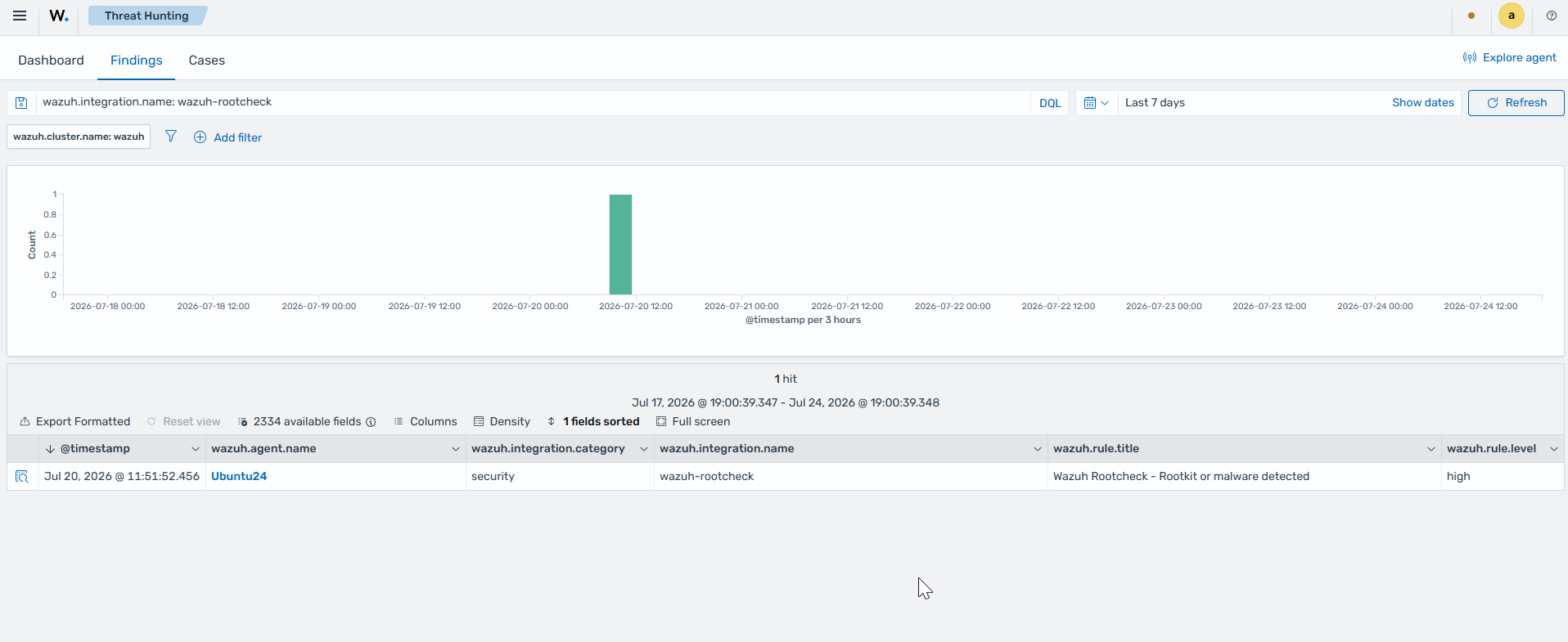
Click the magnifying glass icon to view the details of the findings.
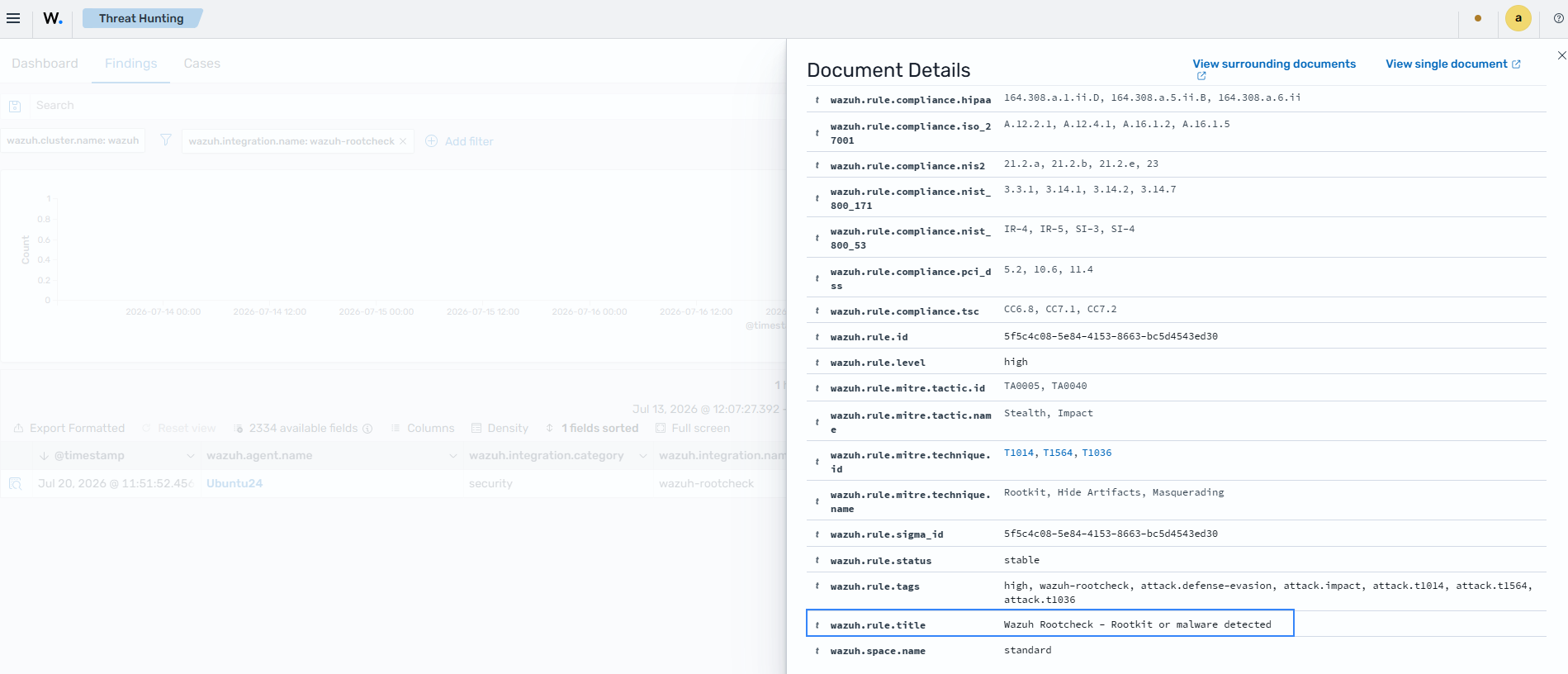
If you run the same kill -31 command as before against rsyslogd, the rsyslogd process becomes visible again. The subsequent rootcheck scan no longer generates findings about this event.