Wazuh agent connection
This section highlights different methods to verify the connection status between a Wazuh agent and the Wazuh manager. It also discusses how to check the Wazuh agent connection to the Wazuh manager and verify the synchronization status of the Wazuh agent. These sections are outlined below:
Checking connection with the Wazuh manager
There are different ways to check the connection status between a Wazuh agent and the Wazuh manager. They include navigating the Wazuh dashboard, querying the Wazuh manager API, and reading the Wazuh agent state file. This guide highlights the different methods and contains steps to verify the network communication between a Wazuh agent and the Wazuh manager.
Using the Wazuh dashboard
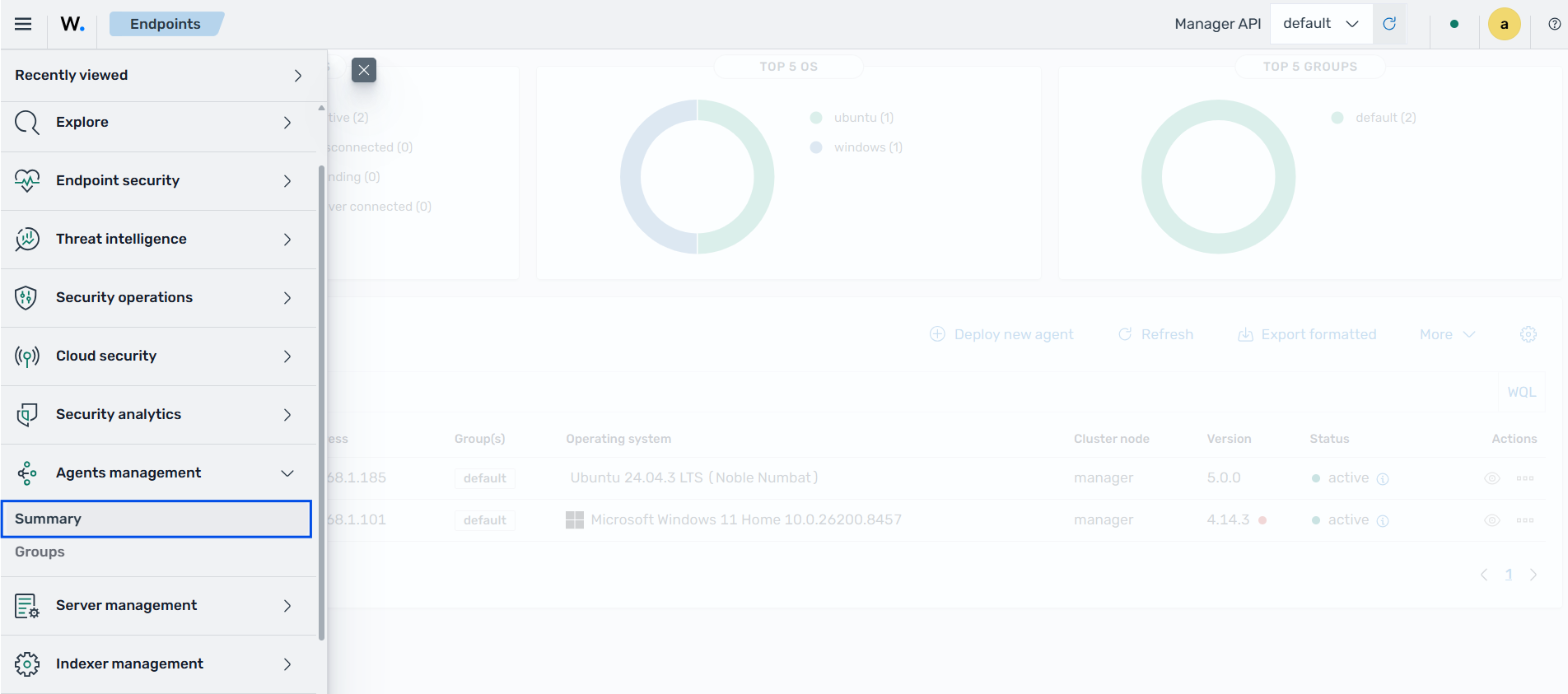
You can check the connection status of a Wazuh agent by selecting Summary under Agents management on the Wazuh dashboard.
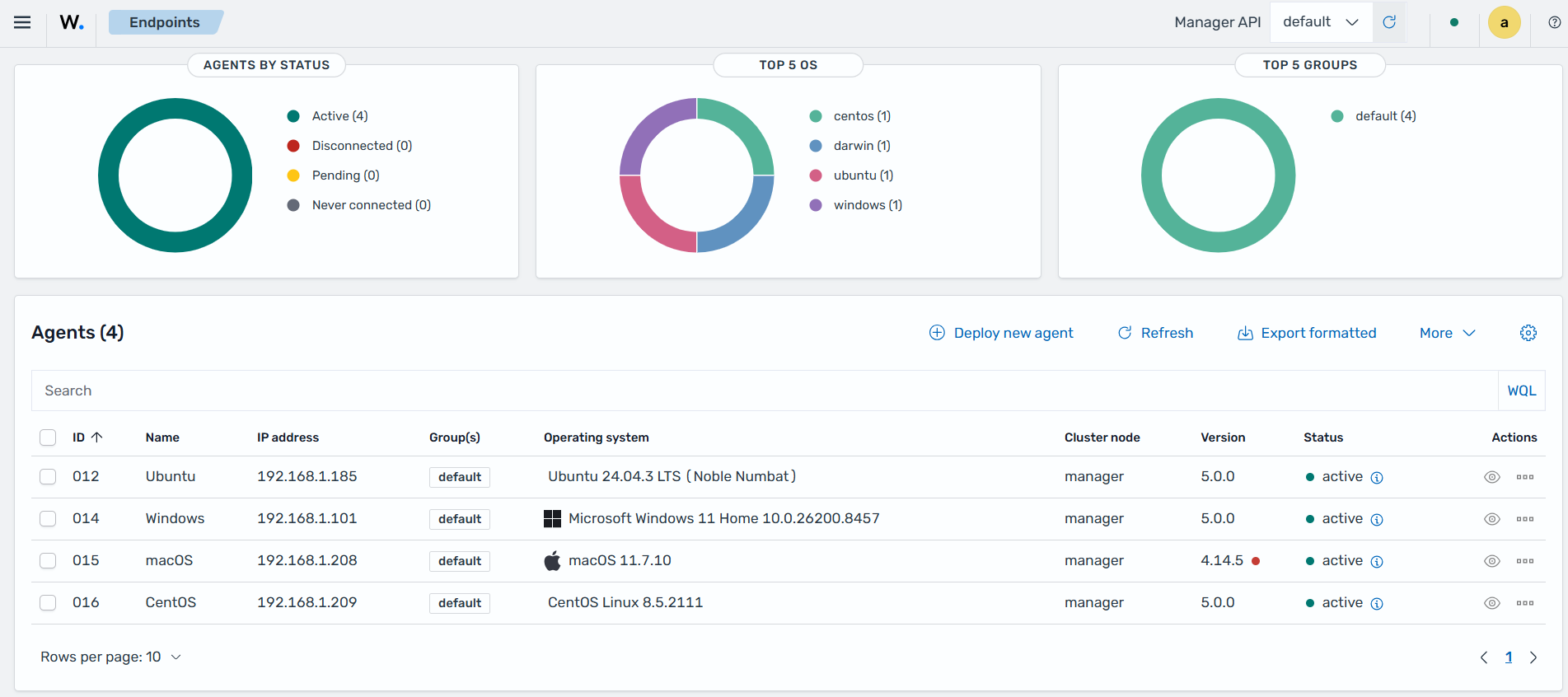
This option displays the Endpoints dashboard with a list of all enrolled Wazuh agents. The list includes the connection status of each Wazuh agent. The Wazuh dashboard also displays a summary with the number of Wazuh agents found for each possible agent connection status: Active, Disconnected, Pending, or Never connected.
Using the Wazuh manager API
You can check the status of a Wazuh agent by sending a request to the Wazuh manager API. This action is performed on the Wazuh manager.
GET /agents?agents_list=<WAZUH_AGENT_ID>
Output
{
  "data": {
    "affected_items": [
      {
        "os": {
          "arch": "x86_64",
          "major": "",
          "minor": "",
          "name": "Amazon Linux",
          "platform": "amzn",
          "type": "linux",
          "version": "2023"
        },
        "status": "active",
        "registerIP": "any",
        "group": [
          "default"
        ],
        "status_code": 0,
        "ip": "172.31.20.55",
        "version": "v5.0.0",
        "lastKeepAlive": "2026-09-03T17:41:55+00:00",
        "id": "001",
        "name": "agent5",
        "dateAdd": "2026-09-03T13:39:57+00:00"
      }
    ],
    "total_affected_items": 1,
    "total_failed_items": 0,
    "failed_items": []
  },
  "message": "All selected agents information was returned",
  "error": 0
}
Reading the local wazuh-agentd.state file
You can read the /var/ossec/var/run/wazuh-agentd.state file found in the endpoint to check the status of the connection. The Wazuh agent keeps reporting its connection status in this file as follows:
pending: Waiting for acknowledgement from the Wazuh manager about the connection established.disconnected: No acknowledgement signal received in the last 60 seconds or lost connection.connected: The Wazuh agent connected to the Wazuh manager in the last 10 seconds.
To check the current status and verify the connection of the Wazuh agent to the Wazuh manager, run the following command on the endpoint:
$ sudo grep ^status /var/ossec/var/run/wazuh-agentd.state
Output
status='connected'
> Select-String -Path 'C:\Program Files (x86)\ossec-agent\wazuh-agent.state' -Pattern "^status"
Output
C:\Program Files (x86)\ossec-agent\wazuh-agent.state:7:status='connected'
# sudo grep ^status /Library/Ossec/var/run/wazuh-agentd.state
Output
status='connected'
Checking network communication
Wazuh agent communication with the Wazuh manager requires outbound connectivity from the Wazuh agent to the Wazuh manager on port 1517/TCP (HTTPS) by default. Wazuh 4.x agents use port 1514/TCP instead.
The Wazuh agent sends short HTTPS requests to the Wazuh manager instead of keeping a connection open, so recent connections usually appear in the TIME-WAIT state. Run the following commands on the Wazuh agent to verify that it reaches the Wazuh manager. The remote address must match the Wazuh manager IP address.
# ss -tan '( dport = :1517 )'
The command output looks similar to this:
State     Recv-Q Send-Q Local Address:Port   Peer Address:Port
TIME-WAIT 0      0      192.168.71.11:33432 192.168.71.15:1517
TIME-WAIT 0      0      192.168.71.11:33868 192.168.71.15:1517
# nc -zv <WAZUH_MANAGER_ADDRESS> 1517
The command output looks similar to this:
Connection to 192.168.71.15 1517 port [tcp/*] succeeded!
> Get-NetTCPConnection -RemotePort 1517
The command output looks similar to this:
LocalAddress  LocalPort RemoteAddress RemotePort    State
------------  --------- ------------- ----------    -----
192.168.71.14     54811 192.168.71.15       1517 TimeWait
192.168.71.14     54810 192.168.71.15       1517 TimeWait
> Test-NetConnection <WAZUH_MANAGER_ADDRESS> -Port 1517
The command output looks similar to this:
ComputerName     : 192.168.71.15
RemotePort       : 1517
TcpTestSucceeded : True
# netstat -an -p tcp | grep '\.1517 '
The command output looks similar to this:
tcp4       0      0  192.168.72.2.50176     192.168.71.15.1517     TIME_WAIT
tcp4       0      0  192.168.72.2.50177     192.168.71.15.1517     TIME_WAIT
# nc -zv <WAZUH_MANAGER_ADDRESS> 1517
The command output looks similar to this:
Connection to 192.168.71.15 port 1517 [tcp/vpac] succeeded!
To confirm that the Wazuh agent is connected, check its status as described in Reading the local wazuh-agentd.state file.
Search for errors or warnings in the corresponding agent log files for troubleshooting purposes.
Linux/Unix:
/var/ossec/logs/ossec.logWindows:
C:\Program Files (x86)\ossec-agent\ossec.logmacOS:
/Library/Ossec/logs/ossec.log
To learn more, see the troubleshooting section.
Checking the synchronization status of Wazuh agents group configuration
Synchronization ensures the Wazuh agent has the latest security configurations and data for consistent monitoring. To check the synchronization status of the group configuration for agents, you can use the Wazuh dashboard.
Using the Wazuh dashboard
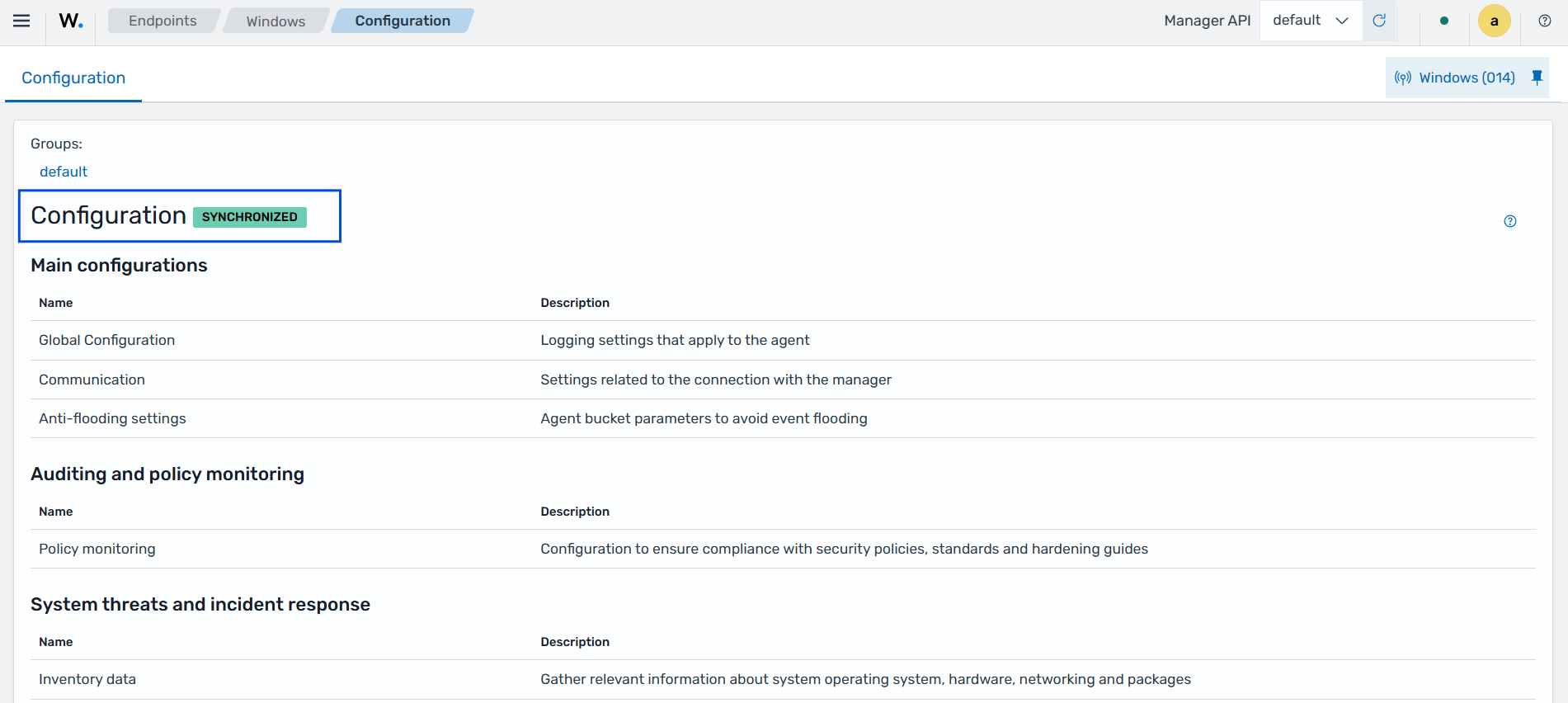
Navigate to the Agents management > Summary tab in the Wazuh dashboard. Select an agent and click on Configuration. The image below shows the Wazuh agent configuration. The Reported N minutes ago label at the top shows when the Wazuh agent last reported its configuration to the Wazuh manager. Click Refresh to request the current configuration from the Wazuh agent.