Use cases
This section shows some custom SCA use cases for various operating systems. We provide detailed steps on how to replicate these use cases. The results of a new policy appear in the Inventory tab at the next SCA synchronization, usually 5 to 15 minutes after the Wazuh agent restarts. A finding appears in the Findings tab when a check result changes in a later scan. SCA synchronization runs every 5 minutes by default, set by <interval> in the <synchronization> block of the <sca> configuration, and the first one after a restart can take longer. To confirm that it ran, look for SCA synchronization finished successfully in the Wazuh agent log.
Prerequisites
You need the following deployment to test the use cases defined in this section:
A Wazuh manager: Follow the instructions in the quickstart guide to set up a Wazuh manager.
Monitored endpoint(s): Deploy any or all of the following endpoints, install a Wazuh agent on each of them and enroll them to the Wazuh manager.
An Ubuntu 24.04 endpoint.
A Windows 11 endpoint.
A macOS 12 endpoint.
The use cases covered in this section include Detecting a keyword in a file and Detecting a running process.
Detecting a keyword in a file
In this use case, we demonstrate how you can configure Wazuh SCA to detect the presence of a keyword in a file. We monitor a file testfile.txt for the phrase password_enabled: yes. The Wazuh SCA module marks the check as Failed when it detects the pattern in the file.
Ubuntu endpoint
Take the following steps on your Ubuntu endpoint to create the file /usr/share/testfile.txt and monitor it with the Wazuh SCA module:
Create the test file and add some text to it, including the phrase
password_enabled: yes:# printf "config_file\nsecond line of configuration\npassword_enabled: yes\n" > /usr/share/testfile.txt
Verify that the file has been created:
# cat /usr/share/testfile.txt
You should get output similar to the following:
config_file
second line of configuration
password_enabled: yes
Create a new directory to save your custom policy files:
# mkdir /var/ossec/etc/custom-sca-files/
Create a new SCA policy file
/var/ossec/etc/custom-sca-files/keywordcheck.ymland add the following content to it:policy: id: "keyword_check" file: "keywordcheck.yml" name: "SCA use case: Keyword check" description: "Guidance for checking for a keyword or phrase in files on Ubuntu endpoints." references: - https://documentation.wazuh.com/current/user-manual/capabilities/sec-config-assessment/index.html - https://documentation.wazuh.com/current/user-manual/capabilities/sec-config-assessment/how-to-configure.html#creating-custom-sca-policies requirements: name: "Check that the desired file exists on the monitored endpoints" description: "Requirements for running the SCA scans against endpoints with testfile.txt on them." condition: any rules: - 'f:/usr/share/testfile.txt' checks: - id: 100000 name: "Ensure password is disabled in the test configuration file" description: "Password is enabled in the test configuration file." rationale: "Password is considered weak for the custom test application. Threat actors can brute-force your password." remediation: "Disable password by setting the value of the password_enabled option to no." condition: none rules: - 'f:/usr/share/testfile.txt -> r:^password_enabled: yes$'
We create a requirement to ensure that the policy runs only if the file
/usr/share/testfile.txtexists on the endpoint.Check ID
100000scans the file/usr/share/testfile.txtto find a line that is exactlypassword_enabled: yes. Thenonecondition ensures that the check fails if a match is found.
Optionally, change the ownership of the file to the
wazuhuser and group that the Wazuh agent creates. The SCA module runs as root, so it can read the policy file without this step:# chown wazuh:wazuh /var/ossec/etc/custom-sca-files/keywordcheck.yml
Enable the policy file by adding the following lines to the
<ossec_config>block of the Wazuh agent configuration file at/var/ossec/etc/ossec.conf:<sca> <policies> <policy enabled="yes">/var/ossec/etc/custom-sca-files/keywordcheck.yml</policy> </policies> </sca>
Restart the Wazuh agent to apply the changes and to run the new SCA check:
# systemctl restart wazuh-agent
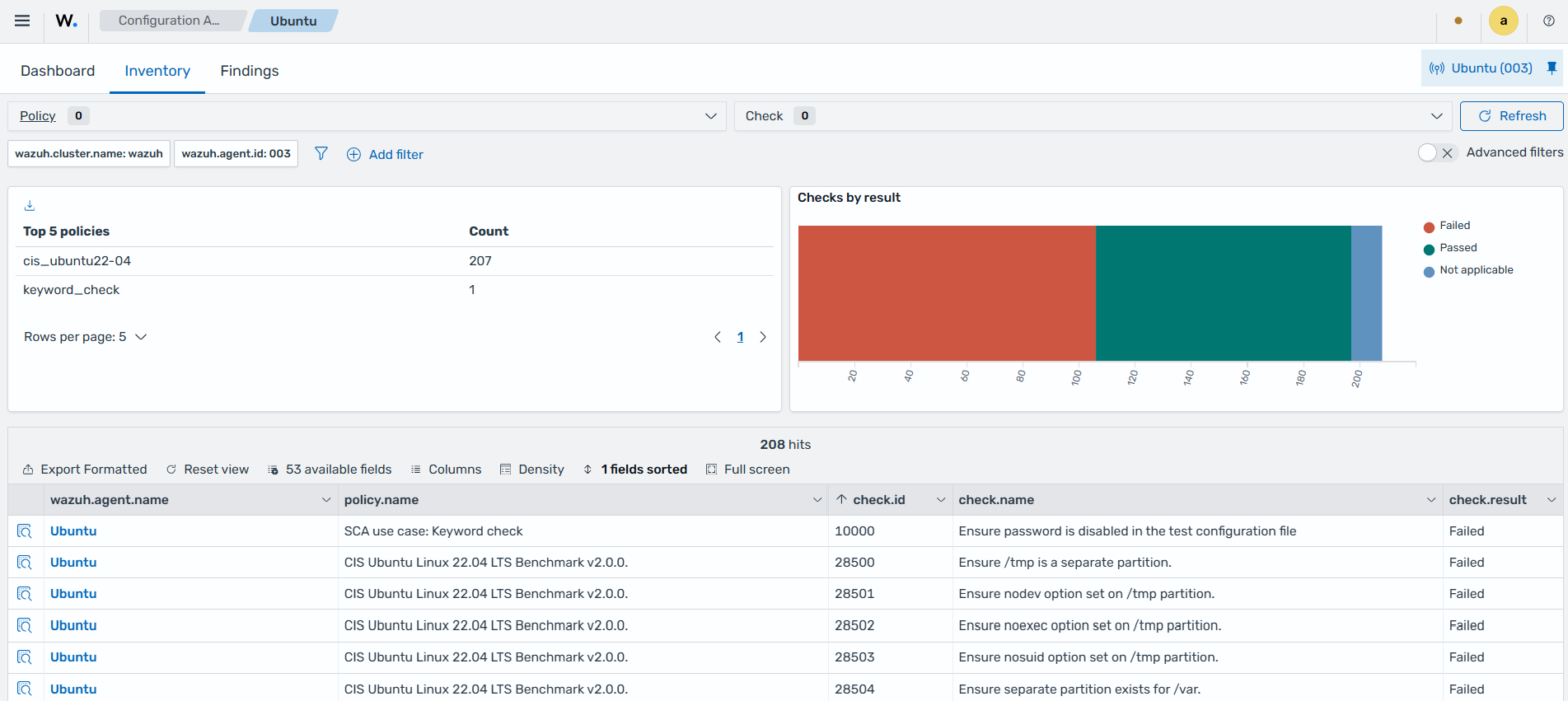
On the Wazuh dashboard, navigate to Endpoint security > Configuration Assessment > Inventory and select the Ubuntu endpoint to view the custom SCA check result. Check 100000 shows Failed, because the file contains the phrase. The result appears at the next SCA synchronization, usually 5 to 15 minutes after the Wazuh agent restarts.
Windows endpoint
Take the following steps on your Windows endpoint to create the file C:\Program Files\testfile.txt and monitor it with the Wazuh SCA module:
Run PowerShell as an administrator and create the test file and add some text to it, including the keyword
password_enabled: yes:> New-Item "C:\Program Files\testfile.txt" -ItemType File -Value "config_file`nsecond line of configuration`npassword_enabled: yes"
Verify that the file has been created:
> Get-Content "C:\Program Files\testfile.txt"
You should get output similar to the following:
config_file
second line of configuration
password_enabled: yes
Create a new directory to save your custom policy files:
> New-Item "C:\Program Files (x86)\ossec-agent\custom-sca-files" -itemType Directory
Open Notepad as an administrator, create a new SCA policy file with the following content and save it as
C:\Program Files (x86)\ossec-agent\custom-sca-files\keywordcheck.yml:policy: id: "keyword_check_windows" file: "keywordcheck.yml" name: "SCA use case: Keyword check" description: "Guidance for checking for a keyword or phrase in files on Windows." references: - https://documentation.wazuh.com/current/user-manual/capabilities/sec-config-assessment/index.html - https://documentation.wazuh.com/current/user-manual/capabilities/sec-config-assessment/how-to-configure.html#creating-custom-sca-policies requirements: name: "Check that the desired file exists on the monitored endpoints" description: "Requirements for running the SCA scans against endpoints with testfile.txt on them." condition: any rules: - 'f:C:\Program Files\testfile.txt' checks: - id: 100001 name: "Ensure password is disabled in the test configuration file" description: "Password is enabled in the test configuration file." rationale: "Password is considered weak for the custom test application. Threat actors can brute-force your password." remediation: "Disable password by setting the value of the password_enabled option to no." condition: none rules: - 'f:C:\Program Files\testfile.txt -> r:^password_enabled: yes$'
We create a requirement to ensure that the policy runs only if the file
C:\Program Files\testfile.txtexists on the endpoint.Check ID
100001scans the fileC:\Program Files\testfile.txtto find a line that is exactlypassword_enabled: yes. Thenonecondition ensures that the check fails if a match is found.
Enable the policy file by adding the following lines to the
<ossec_config>block of the Wazuh agent configuration file atC:\Program Files (x86)\ossec-agent\ossec.conf:<sca> <policies> <policy enabled="yes">C:\Program Files (x86)\ossec-agent\custom-sca-files\keywordcheck.yml</policy> </policies> </sca>
Restart the Wazuh agent to apply the changes and to run the new SCA check:
> Restart-Service -Name wazuh
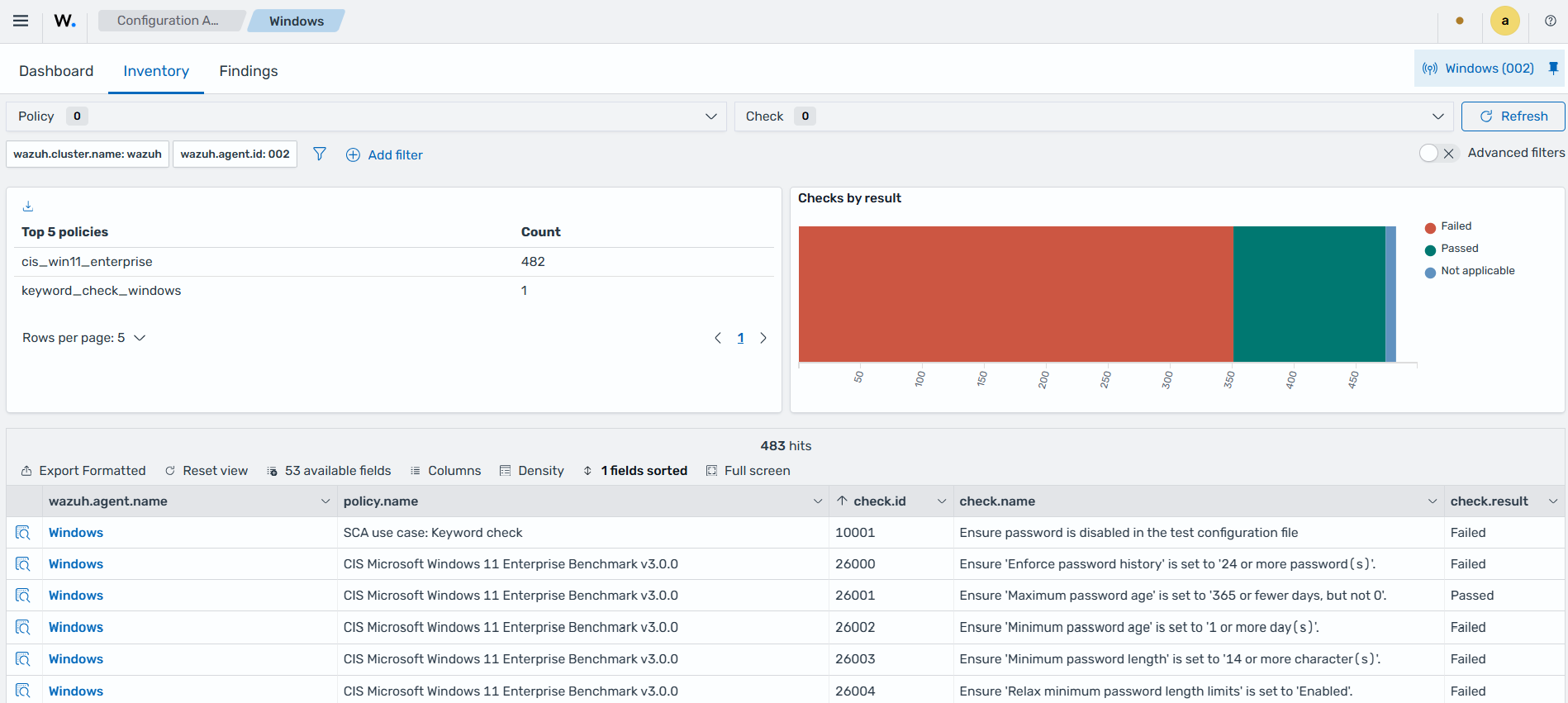
On the Wazuh dashboard, navigate to Endpoint security > Configuration Assessment > Inventory and select the Windows endpoint to view the custom SCA check result. Check 100001 shows Failed, because the file contains the phrase. The result appears at the next SCA synchronization, usually 5 to 15 minutes after the Wazuh agent restarts.
macOS endpoint
Take the following steps on your macOS endpoint to create the file /usr/local/testfile.txt and monitor it with the Wazuh SCA module:
Create the test file and add some text to it, including the phrase
password_enabled: yes:# printf "config_file\nsecond line of configuration\npassword_enabled: yes\n" > /usr/local/testfile.txt
Verify that the file has been created:
# cat /usr/local/testfile.txt
You should get output similar to the following:
config_file
second line of configuration
password_enabled: yes
Create a new directory to save your custom policy files:
# mkdir /Library/Ossec/etc/custom-sca-files/
Create a new SCA policy file
/Library/Ossec/etc/custom-sca-files/keywordcheck.ymland add the following content to it:policy: id: "keyword_check" file: "keywordcheck.yml" name: "SCA use case: Keyword check" description: "Guidance for checking for a keyword or phrase in files on macOS endpoints." references: - https://documentation.wazuh.com/current/user-manual/capabilities/sec-config-assessment/index.html - https://documentation.wazuh.com/current/user-manual/capabilities/sec-config-assessment/how-to-configure.html#creating-custom-sca-policies requirements: name: "Check that the desired file exists on the monitored endpoints" description: "Requirements for running the SCA scans against endpoints with testfile.txt on them." condition: any rules: - 'f:/usr/local/testfile.txt' checks: - id: 100002 name: "Ensure password is disabled in the test configuration file" description: "Password is enabled in the test configuration file." rationale: "Password is considered weak for the custom test application. Threat actors can brute-force your password." remediation: "Disable password by setting the value of the password_enabled option to no." condition: none rules: - 'f:/usr/local/testfile.txt -> r:^password_enabled: yes$'
We create a requirement to ensure that the policy runs only if the file
/usr/local/testfile.txtexists on the endpoint.Check ID
100002scans the file/usr/local/testfile.txtto find a line that is exactlypassword_enabled: yes. Thenonecondition ensures that the check fails if a match is found.
Enable the policy file by adding the following lines to the
<ossec_config>block of the Wazuh agent configuration file at/Library/Ossec/etc/ossec.conf:<sca> <policies> <policy enabled="yes">/Library/Ossec/etc/custom-sca-files/keywordcheck.yml</policy> </policies> </sca>
Restart the Wazuh agent to apply the changes and to run the new SCA check:
# /Library/Ossec/bin/wazuh-control restart
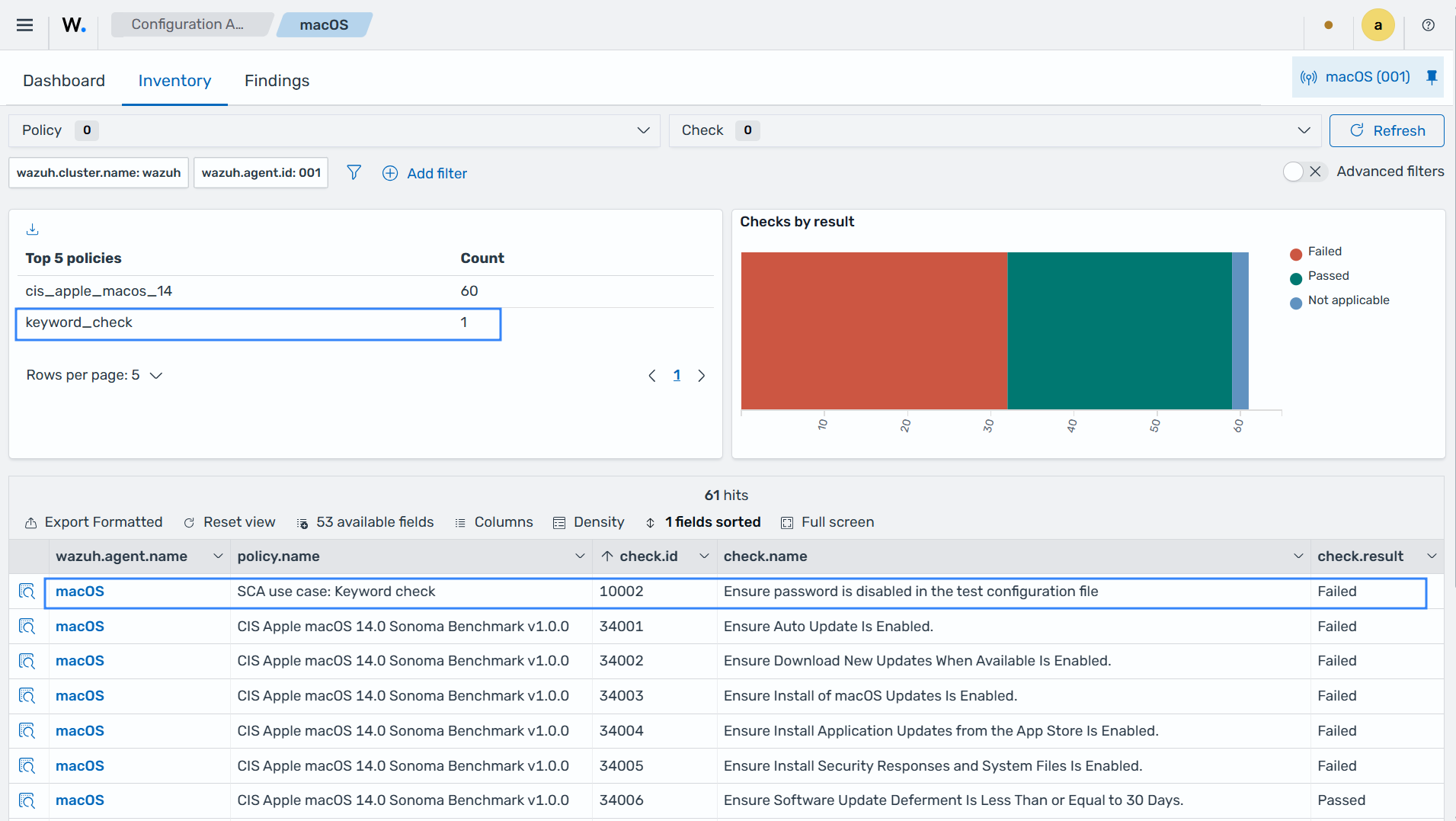
On the Wazuh dashboard, navigate to Endpoint security > Configuration Assessment > Inventory and select the macOS endpoint to view the custom SCA check result. Check 100002 shows Failed, because the file contains the phrase. The result appears at the next SCA synchronization, usually 5 to 15 minutes after the Wazuh agent restarts.
Detecting a running process
In this use case, we demonstrate how to detect running processes with the Wazuh SCA module.
Ubuntu endpoint
Netcat is a networking utility that can open connections, transfer data, and listen on TCP and UDP ports. Because it can be used to establish backdoor access or unauthorized network listeners, threat actors often abuse it after compromising a system.
The following steps show how to configure the Wazuh SCA module to detect running Netcat processes and simulate this activity:
Create a new directory to save your custom policy files:
# mkdir -p /var/ossec/etc/custom-sca-files/
Create a new SCA policy file
/var/ossec/etc/custom-sca-files/processcheck.ymland add the following content to it:policy: id: "process_check" file: "processcheck.yml" name: "SCA use case to detect running processes" description: "Guidance for checking running processes on Linux endpoints." references: - https://documentation.wazuh.com/current/user-manual/capabilities/sec-config-assessment/index.html - https://documentation.wazuh.com/current/user-manual/capabilities/sec-config-assessment/how-to-configure.html#creating-custom-sca-policies requirements: name: "Check that the SSH service and password-related files are present on the system" description: "Requirements for running the SCA scan against the Unix based systems policy." condition: any rules: - "f:$sshd_file" - "f:/etc/passwd" - "f:/etc/shadow" variables: $sshd_file: /etc/ssh/sshd_config checks: - id: 100003 name: "Ensure that netcat is not running on your endpoint" description: "Netcat is running on your endpoint." rationale: "Threat actors can use netcat to open ports on your endpoints or to connect to remote servers." remediation: "Kill the netcat process if confirmed to be malicious after further investigation." condition: none rules: - 'p:nc' - 'p:netcat'
We create a requirement so that the policy runs only on Unix-like endpoints. The requirement checks for the presence of the
/etc/ssh/sshd_config,/etc/passwd, and/etc/shadowfiles, and passes if any of them is found./etc/passwdand/etc/ssh/sshd_configalso exist on macOS, so use the policy in the macOS endpoint section on macOS endpoints.Check ID
100003scans the endpoint for processes namedncornetcat. Thenonecondition ensures that the check fails if a match is found.
Optionally, change the ownership of the file to the
wazuhuser and group that the Wazuh agent creates. The SCA module runs as root, so it can read the policy file without this step:# chown wazuh:wazuh /var/ossec/etc/custom-sca-files/processcheck.yml
Enable the policy file by adding the following lines to the
<ossec_config>block of the Wazuh agent configuration file at/var/ossec/etc/ossec.conf:<sca> <policies> <policy enabled="yes">/var/ossec/etc/custom-sca-files/processcheck.yml</policy> </policies> </sca>
Install netcat if you don’t have it on your endpoint:
# apt install netcat-openbsd
Run netcat on a new terminal and let the listener run:
# netcat -l 4444
Restart the Wazuh agent to apply the changes and to run the new SCA check:
# systemctl restart wazuh-agent
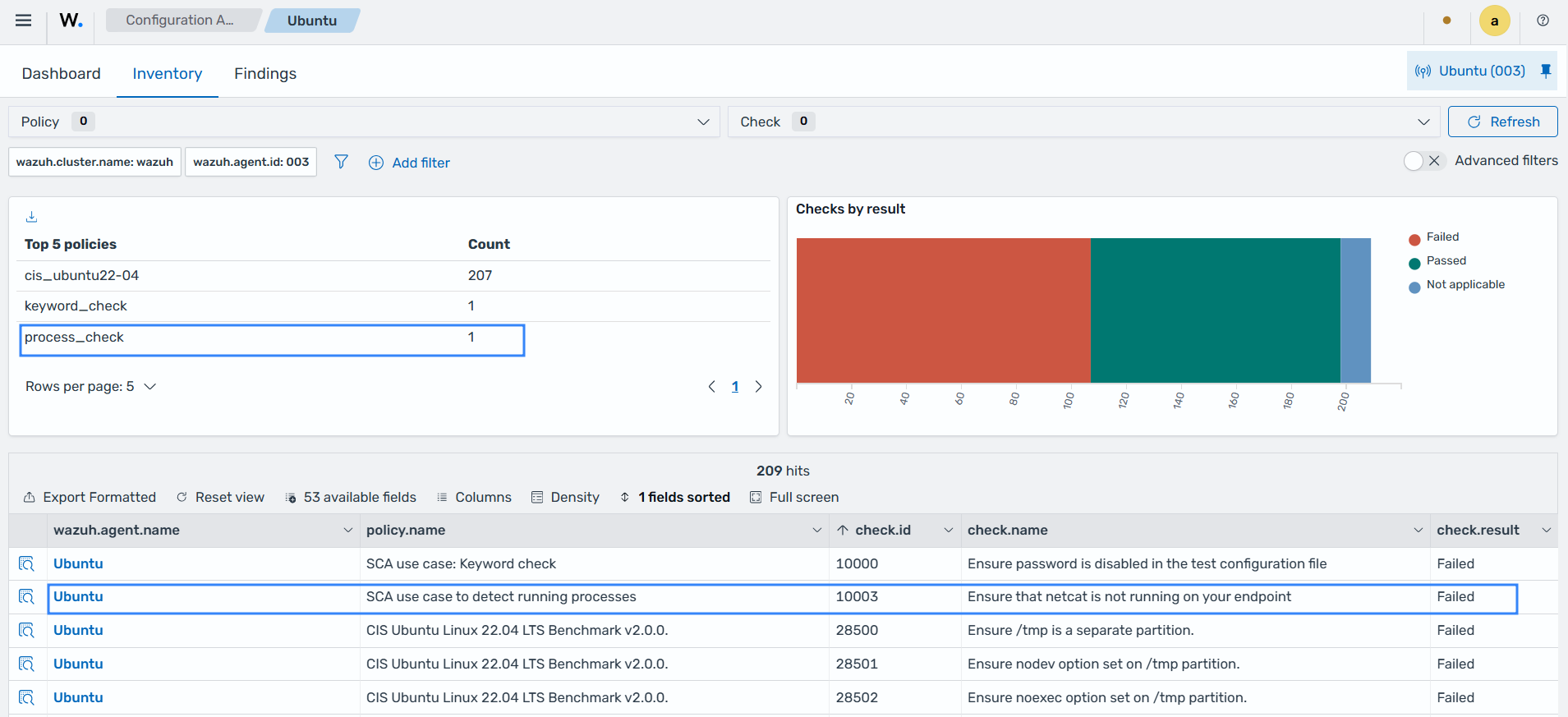
On the Wazuh dashboard, navigate to Endpoint security > Configuration Assessment > Inventory and select the Ubuntu endpoint to view the custom SCA check result. Check 100003 shows Failed while netcat is running. The result appears at the next SCA synchronization, usually 5 to 15 minutes after the Wazuh agent restarts.
Windows endpoint
Standard users rarely run PowerShell. Threat actors may take advantage of the living-off-the-land attack tactic via PowerShell. Take the following steps to configure the Wazuh SCA module to detect PowerShell processes and simulate an attack:
Run CMD as an administrator and create a new directory to save your custom policy files:
> mkdir "C:\Program Files (x86)\ossec-agent\custom-sca-files"
Open Notepad as an administrator, create a new SCA policy file with the following content and save it as
C:\Program Files (x86)\ossec-agent\custom-sca-files\processcheck.yml:policy: id: "process_check" file: "processcheck.yml" name: "SCA use case to detect running processes" description: "Guidance for checking running PowerShell processes on Windows 10 endpoints." references: - https://documentation.wazuh.com/current/user-manual/capabilities/sec-config-assessment/index.html - https://documentation.wazuh.com/current/user-manual/capabilities/sec-config-assessment/how-to-configure.html#creating-custom-sca-policies requirements: name: "Check that the Windows platform is Windows 10" description: "Requirements to check if it's a Windows 10 (or Windows 11) machine" condition: all rules: - 'r:HKLM\SOFTWARE\Microsoft\Windows NT\CurrentVersion -> ProductName -> r:^Windows 10' checks: - id: 100004 name: "Ensure PowerShell is not running on the endpoint" description: "PowerShell is running on the endpoint." rationale: "PowerShell should be used by only the system administrators. Threat actors can leverage PowerShell for living-off-the-land attacks." remediation: "Disable PowerShell for non-admins." condition: none rules: - 'p:powershell.exe'
We create a requirement to ensure that the policy runs only on Windows 10 and Windows 11 endpoints. The requirement checks the registry key
HKLM\SOFTWARE\Microsoft\Windows NT\CurrentVersionfor the valueWindows 10. On Windows 11,ProductNamestill starts withWindows 10, for exampleWindows 10 Pro, so the requirement matches both.Check ID
100004scans the endpoint for processes namedpowershell.exe. Thenonecondition ensures that the check fails if a match is found.
Enable the policy file by adding the following lines to the
<ossec_config>block of the Wazuh agent configuration file atC:\Program Files (x86)\ossec-agent\ossec.conf:<sca> <policies> <policy enabled="yes">C:\Program Files (x86)\ossec-agent\custom-sca-files\processcheck.yml</policy> </policies> </sca>
Open a second command prompt and run the following command to spawn a hidden PowerShell process. This is a dummy PowerShell process that sleeps for 300 seconds (5 minutes), enough time for you to restart the Wazuh agent for the SCA scan to run.
> powershell -windowstyle hidden -command Start-Sleep -Seconds 300
Note
The
-windowstyle hiddenoption hides the console window, so the command prompt seems to close while PowerShell keeps running in the background for 300 seconds. Restart the Wazuh agent within these 5 minutes: the SCA scan runs when the Wazuh agent starts, so it finds the PowerShell process.Run the following commands on CMD as an Administrator to restart the Wazuh agent:
> NET STOP Wazuh
> NET START Wazuh
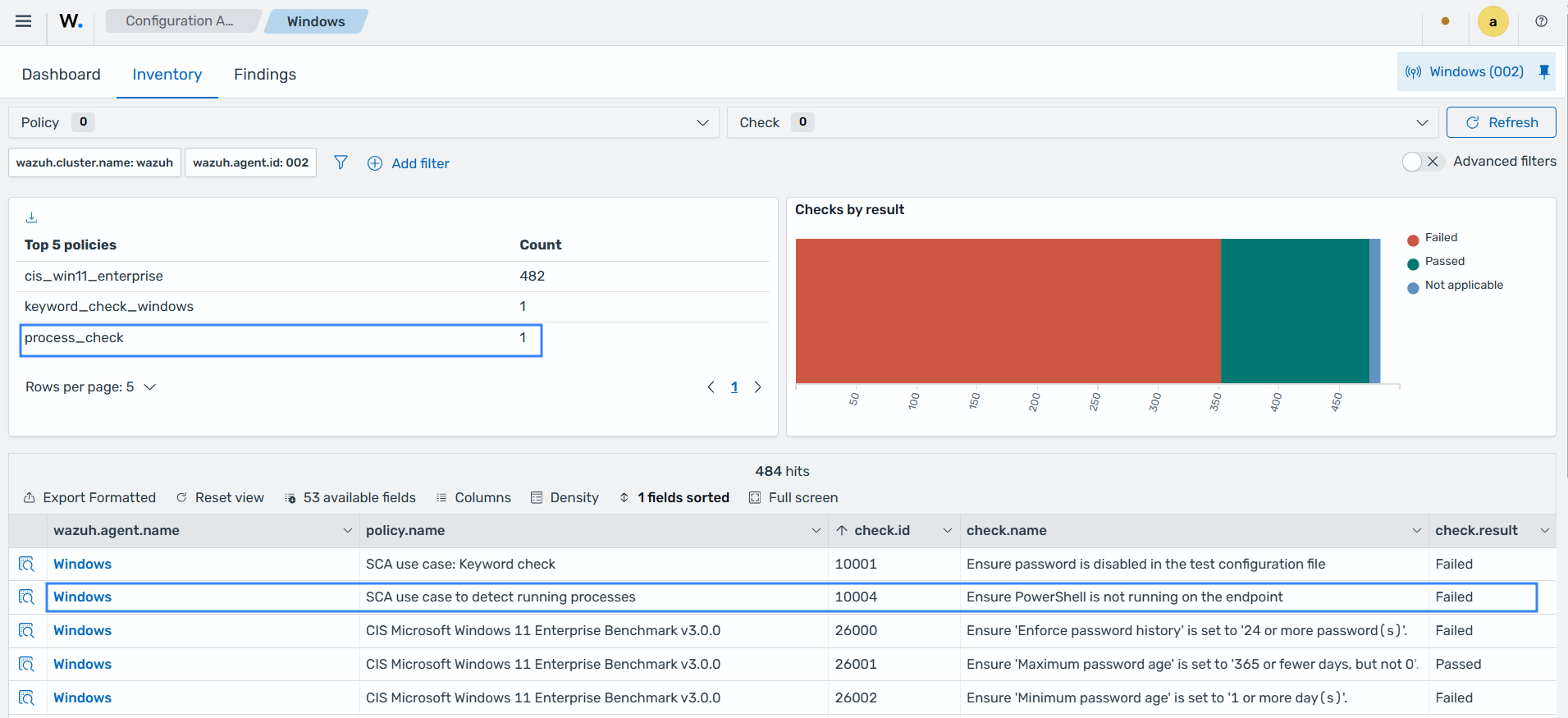
On the Wazuh dashboard, navigate to Endpoint security > Configuration Assessment > Inventory and select the Windows endpoint to view the custom SCA check result. Check 100004 shows Failed while the PowerShell process is running. The result appears at the next SCA synchronization, usually 5 to 15 minutes after the Wazuh agent restarts.
macOS endpoint
Netcat is a networking utility that can open connections, transfer data, and listen on TCP and UDP ports. Because it can be used to establish backdoor access or unauthorized network listeners, threat actors often abuse it after compromising a system.
The following steps show how to configure the Wazuh SCA module to detect running Netcat processes and simulate this activity:
Create a new directory to save your custom policy files:
# mkdir /Library/Ossec/etc/custom-sca-files/
Create a new SCA policy file
/Library/Ossec/etc/custom-sca-files/processcheck.ymland add the following content to it:policy: id: "process_check" file: "processcheck.yml" name: "SCA use case to detect running processes" description: "Guidance for checking running processes on mac endpoints." references: - https://documentation.wazuh.com/current/user-manual/capabilities/sec-config-assessment/index.html - https://documentation.wazuh.com/current/user-manual/capabilities/sec-config-assessment/how-to-configure.html#creating-custom-sca-policies requirements: name: "Check macOS" description: "Requirements to verify that the endpoint is macOS." condition: any rules: - 'c:sw_vers -> r:^ProductName:\t*\s*macOS' checks: - id: 100005 name: "Ensure that netcat is not running on your endpoint" description: "Netcat is running on your endpoint." rationale: "Threat actors can use netcat to open ports on your endpoints or to connect to remote servers." remediation: "Kill the netcat process if confirmed to be malicious after further investigation." condition: none rules: - 'c:sh -c "ps -e -o command | grep -E \"^(nc|netcat) .*((-.*l.+[0-9]{1,5})|([0-9]{1,5}.*-.*l))\"" -> r:nc'
We create a requirement to ensure that the policy runs only on macOS endpoints. The requirement runs the
sw_verscommand to check if the output contains the stringProductName: macOS.Check ID
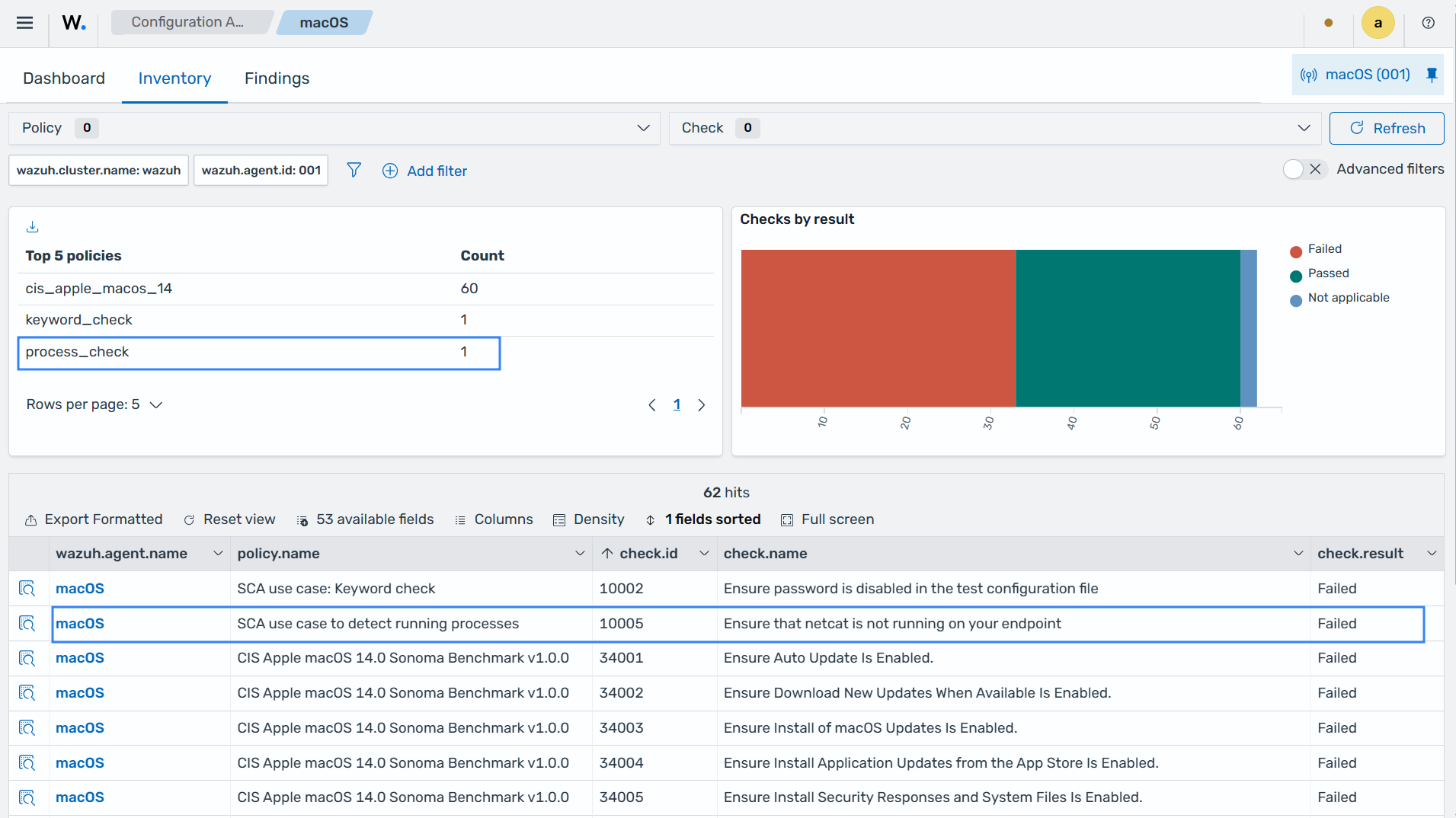
100005runs a command which spawns a shell to run thepsutility to view all running processes. The command uses thegreputility to filter the output of thepscommand for patterns of thenetcatprocess. Thenonecondition ensures that the check fails if a match is found. The regular expression matchesncornetcatstarted with the-l(listen) option and a port number. Thegrepandshprocesses don't match, because their command lines don't start withncornetcat.
Enable the policy file by adding the following lines to the
<ossec_config>block of the Wazuh agent configuration file at/Library/Ossec/etc/ossec.conf:<sca> <policies> <policy enabled="yes">/Library/Ossec/etc/custom-sca-files/processcheck.yml</policy> </policies> </sca>
Run netcat on a new terminal and let the listener run:
# nc -l 4444
Restart the Wazuh agent to apply the changes and to run the new SCA check:
# /Library/Ossec/bin/wazuh-control restart
On the Wazuh dashboard, navigate to Endpoint security > Configuration Assessment > Inventory and select the macOS endpoint to view the custom SCA check result. Check 100005 shows Failed while netcat is running. The result appears at the next SCA synchronization, usually 5 to 15 minutes after the Wazuh agent restarts.