Detecting a Cross-Site Scripting (XSS) attack
Web attack detection helps identify malicious activity targeting web applications and meet regulatory compliance requirements. Wazuh analyzes web server access logs collected from a monitored endpoint to detect suspicious request patterns such as injection attempts, malformed input, and known attack signatures in URLs, query parameters, and form fields. This use case detects web-based attacks on an Apache web server running on an Ubuntu endpoint by simulating a Cross-Site Scripting (XSS) attack and observing the resulting findings.
Infrastructure
Endpoint |
Description |
|---|---|
Ubuntu 24.04 |
Victim endpoint running an Apache web server. |
RHEL 9.0 |
Attacker endpoint that sends a malicious HTTP request to the victim's web server. |
Configuration
Ubuntu endpoint
Perform the following steps to install an Apache web server and monitor its logs with the Wazuh agent.
Update local packages and install the Apache web server:
$ sudo apt update
$ sudo apt install apache2
If a firewall is enabled, modify it to allow external access to web ports. Skip this step if the firewall is disabled:
$ sudo ufw app list
$ sudo ufw allow 'Apache'
$ sudo ufw status
Check that the Apache web server is running:
$ sudo systemctl status apache2
Add the following lines to the Wazuh agent
/var/ossec/etc/ossec.confconfiguration file. This sets the Wazuh agent to monitor the access logs of your Apache server:<ossec_config> <localfile> <log_format>apache</log_format> <location>/var/log/apache2/access.log</location> </localfile> </ossec_config>
Restart the Wazuh agent to apply the configuration changes:
$ sudo systemctl restart wazuh-agent
Attack emulation
Perform the following attack emulation from the RHEL endpoint.
Replace <WEBSERVER_IP_ADDRESS> with the Ubuntu IP address and execute the following command from the attacker endpoint:
$ curl -A "Mozilla/5.0 (Windows NT 10.0; Win64; x64) AppleWebKit/537.36" "http://<WEBSERVER_IP_ADDRESS>/index.html?q=<script>document.cookie</script>"
Visualize the findings
You can visualize the findings in the Wazuh dashboard. To do this, go to Threat intelligence > Threat Hunting, select Findings, and add the filter below in the search bar to query the findings.
event.dataset:apache-access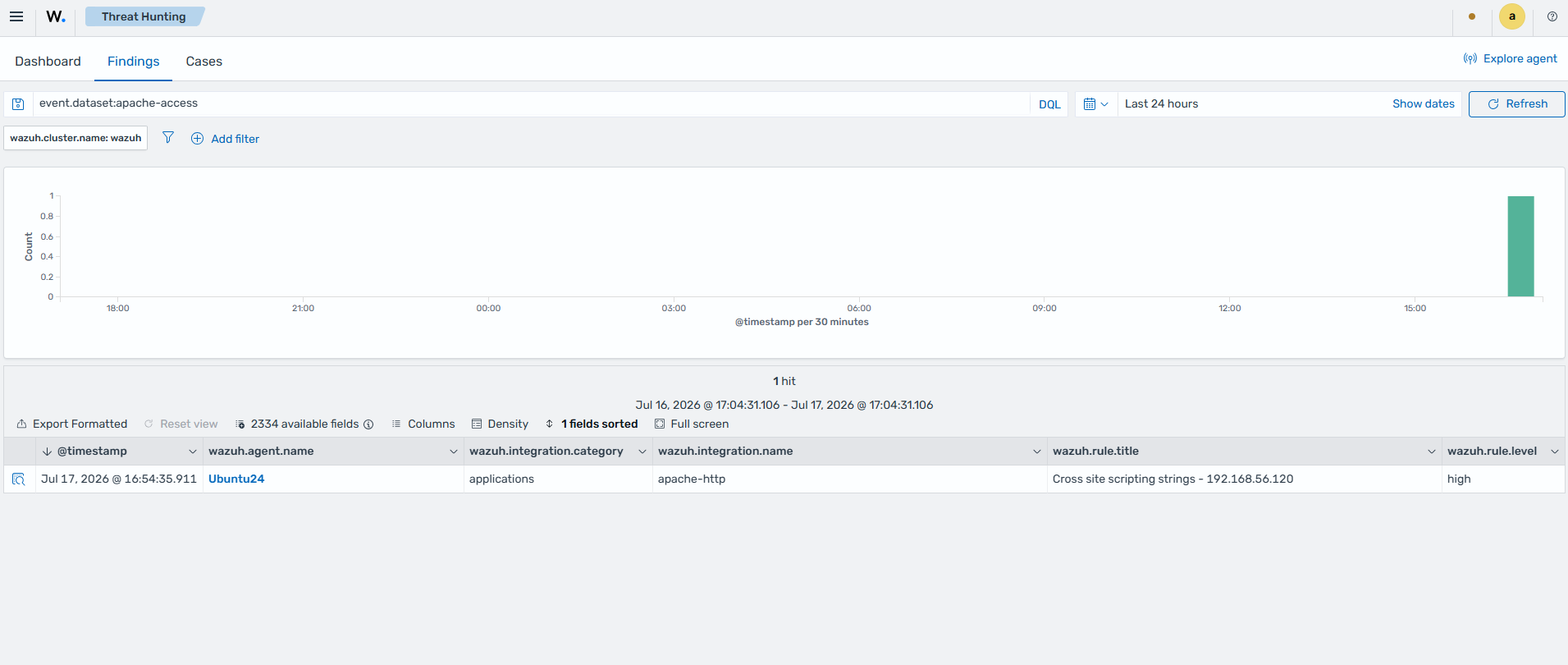
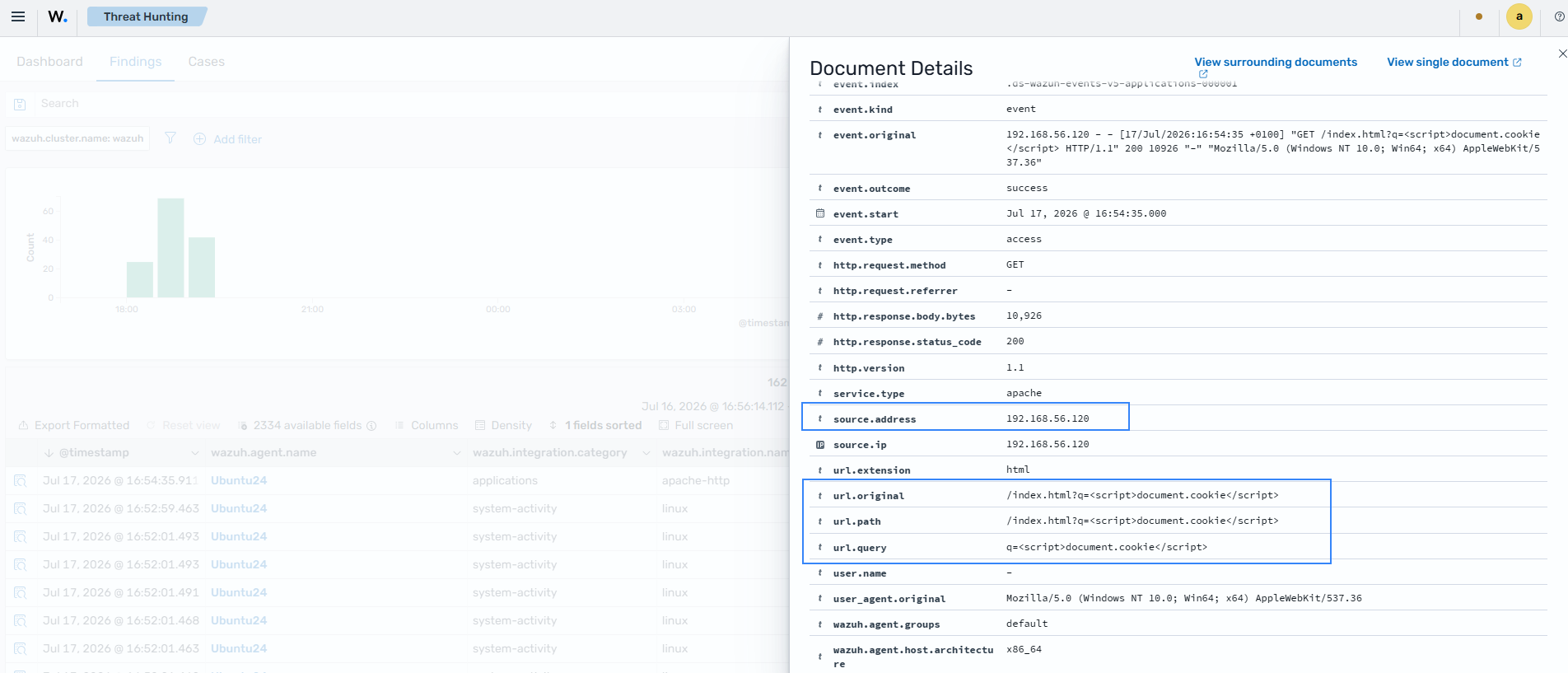
Expand the finding to see other information contained in the malicious payload, such as the URL path and query.