Configuring SSL certificates on the Wazuh dashboard with NGINX
NGINX is an open source software for web serving, reverse proxying, caching, load balancing, and media streaming. It provides improved performance optimization during SSL decryption, better utilization, and complete end-to-end encryption of the Wazuh dashboard server. NGINX can be installed directly on the endpoint hosting the Wazuh dashboard or on a separate endpoint outside of the Wazuh cluster. However, for this use case, NGINX is installed on the Wazuh dashboard node.
Install and configure the Let’s Encrypt SSL certificate using NGINX on a Wazuh dashboard by following the step-by-step instructions below.
Setting up NGINX as a reverse proxy
Installing the NGINX software on the Wazuh dashboard
Install NGINX:
# yum install epel-release
# yum install nginx
# apt-get update
# apt-get install nginx
Start NGINX and verify the status is active:
# systemctl start nginx
# systemctl status nginx
Open ports 80 (HTTP) and 443 (HTTPS):
# systemctl start firewalld
# firewall-cmd --permanent --add-port=443/tcp
# firewall-cmd --permanent --add-port=80/tcp
# ufw allow 443
# ufw allow 80
Configure the proxy and the certificates
Install snap:
# yum install epel-release
# yum upgrade
# yum install snapd
# systemctl enable --now snapd.socket
# ln -s /var/lib/snapd/snap /snap
# apt-get update
# apt-get install snapd
# snap install core; snap refresh core
Install certbot
# yum remove certbot
# snap install --classic certbot
# apt remove certbot
# snap install --classic certbot
Configure a symbolic link to the certbot directory:
# ln -s /snap/bin/certbot /usr/bin/certbot
Edit the
/etc/wazuh-dashboard/opensearch_dashboards.ymlfile and change only theserver.portsetting from 443 to another available port number, for example 8443. Leave every other line as installed:server.host: 0.0.0.0 server.port: 443 opensearch.hosts: https://localhost:9200 opensearch.ssl.verificationMode: full #opensearch.username: #opensearch.password: opensearch.requestHeadersAllowlist: ['securitytenant', 'Authorization'] opensearch_security.multitenancy.enabled: false opensearch_security.readonly_mode.roles: ['kibana_read_only'] server.ssl.enabled: true server.ssl.key: '/etc/wazuh-dashboard/certs/dashboard-key.pem' server.ssl.certificate: '/etc/wazuh-dashboard/certs/dashboard.pem' opensearch.ssl.certificateAuthorities: ['/etc/wazuh-dashboard/certs/indexer-ca.pem'] uiSettings.overrides.defaultRoute: /app/wz-home # Session expiration settings opensearch_security.session.ttl: 900000 opensearch_security.session.keepalive: true # Define the Wazuh server hosts wazuh_core.hosts: default: url: https://localhost port: 55000 username: wazuh-internal-client run_as: true ca: '/etc/wazuh-dashboard/certs/manager-ca.pem'
On APT systems, remove the NGINX default site with the
unlinkcommand. Then create the/etc/nginx/conf.d/wazuh.conffile:# unlink /etc/nginx/sites-enabled/default # cd /etc/nginx/conf.d # touch wazuh.conf
Edit
/etc/nginx/conf.d/wazuh.confand add the following configuration.server { listen 80 default_server; server_name <YOUR_DOMAIN_NAME>; location / { proxy_pass https://<WAZUH_DASHBOARD_IP_ADDRESS>:<PORT_NUMBER>; proxy_set_header Host $host; } }
Replace the following:
<YOUR_DOMAIN_NAME>with your domain name.<WAZUH_DASHBOARD_IP_ADDRESS>with your Wazuh dashboard IP address.<PORT_NUMBER>with your new port number.
Restart the Wazuh dashboard and NGINX:
# systemctl restart wazuh-dashboard
# systemctl restart nginx
Use certbot to generate an SSL certificate:
# certbot --nginx -d <YOUR_DOMAIN_NAME>
Check that NGINX is properly configured and verify that you have the same configuration in the
/etc/nginx/conf.d/wazuh.conffile with the sample below:server { server_name <YOUR_DOMAIN_NAME>; location / { proxy_pass https://<WAZUH_DASHBOARD_IP_ADDRESS>:<PORT_NUMBER>; proxy_set_header Host $host; } listen 443 ssl; # managed by Certbot ssl_certificate /etc/letsencrypt/live/<YOUR_DOMAIN_NAME>/fullchain.pem; # managed by Certbot ssl_certificate_key /etc/letsencrypt/live/<YOUR_DOMAIN_NAME>/privkey.pem; # managed by Certbot include /etc/letsencrypt/options-ssl-nginx.conf; # managed by Certbot ssl_dhparam /etc/letsencrypt/ssl-dhparams.pem; # managed by Certbot } server { if ($host = <YOUR_DOMAIN_NAME>) { return 301 https://$host$request_uri; } # managed by Certbot listen 80 default_server; server_name <YOUR_DOMAIN_NAME>; return 404; # managed by Certbot }
Restart the NGINX service:
# systemctl restart nginx
Access the Wazuh dashboard via the configured domain name.
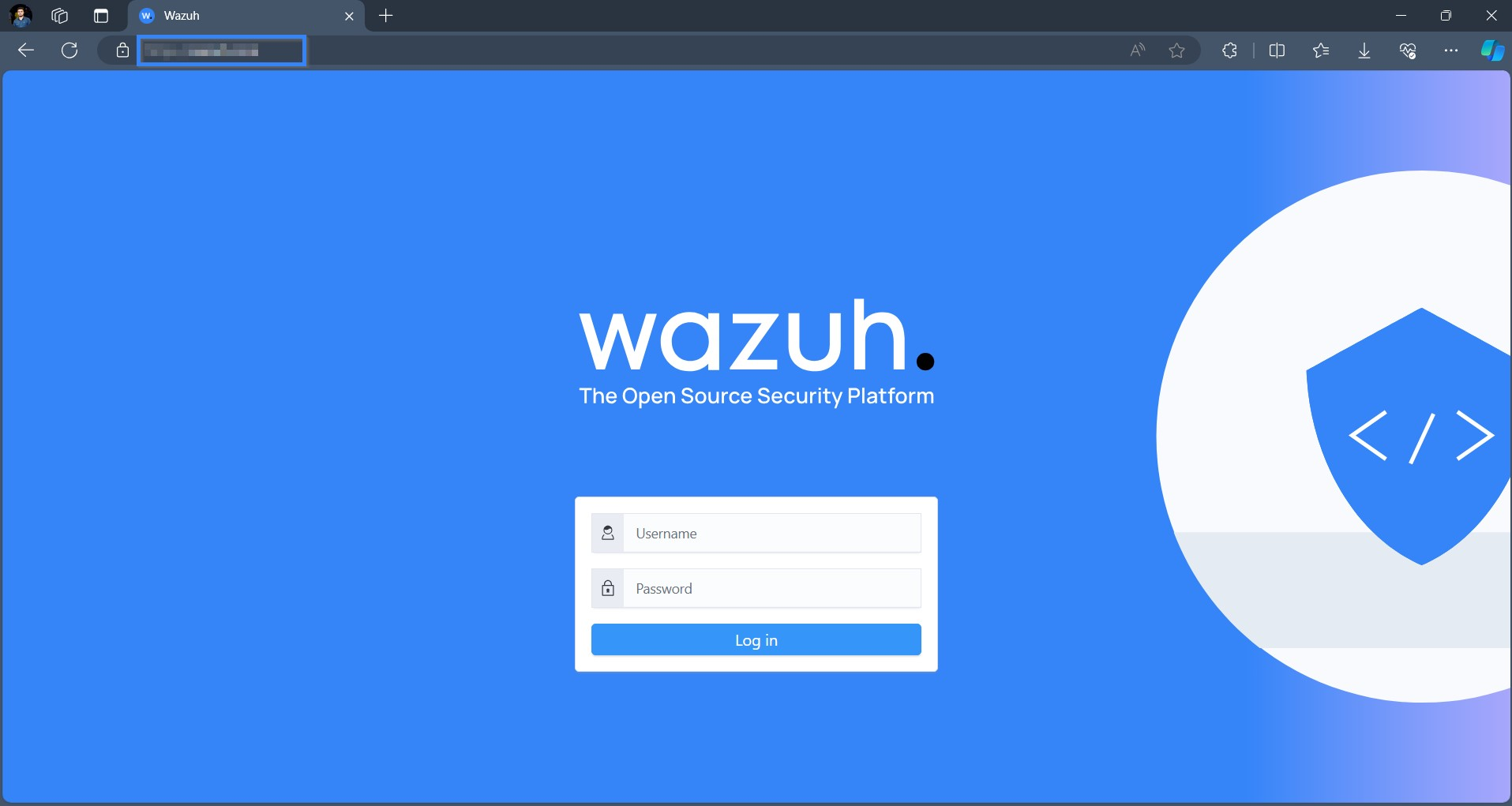
The NGINX server has been configured, and the Let’s Encrypt certificate installation is active on the Wazuh dashboard. You can proceed to access it by using the configured domain name.