Vulnerability detection
The Wazuh Vulnerability Detection module identifies vulnerabilities in applications and operating systems running on monitored endpoints. This use case shows how Wazuh detects unpatched Common Vulnerabilities and Exposures (CVEs) on the monitored endpoint. For more information on this capability, check the Vulnerability detection section of the Wazuh documentation.
Infrastructure
Endpoint |
Description |
|---|---|
Ubuntu 24.04 |
The Wazuh Vulnerability Detection module scans this Linux endpoint for vulnerabilities in the operating system and installed applications. |
Note
Vulnerabilities tagged with the description unimportant do not appear on the Wazuh dashboard. Visit the Wazuh CTI page for more information. The Compatibility matrix shows the operating systems officially supported by the Vulnerability Detection module.
Configuration
The Wazuh Vulnerability Detection module is enabled by default, and it generates findings when new vulnerabilities are detected or when existing vulnerabilities are resolved through package updates, removal, or system upgrades.
Wazuh dashboard
Perform the following steps on the Wazuh dashboard to confirm that the Wazuh Vulnerability Detection module is enabled and properly configured.
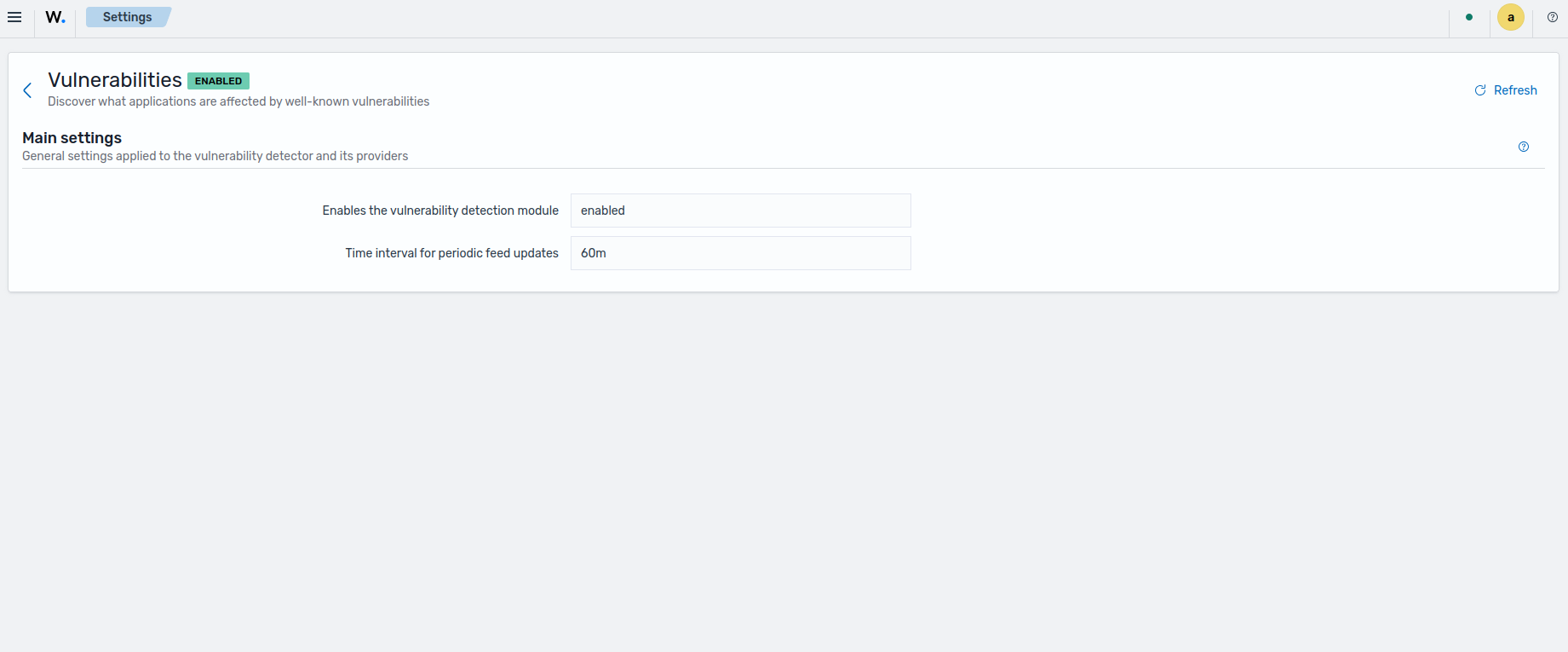
Navigate to Server management > Settings > Vulnerabilities and check that Vulnerability detection is enabled.
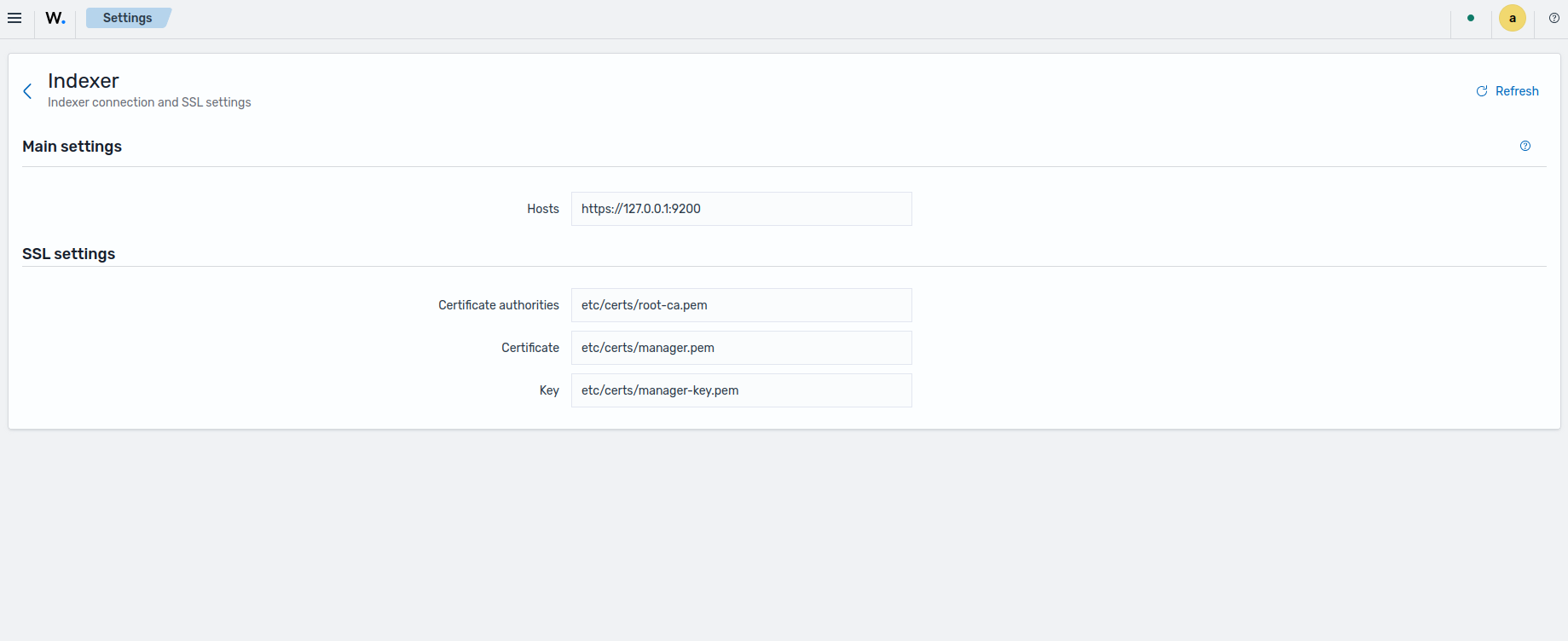
Navigate to Server management > Settings > Indexer and check that the Wazuh indexer connection is properly configured:
Test the configuration
The time it takes to detect vulnerabilities depends on the <interval> value in the Syscollector module, configured in the /var/ossec/etc/ossec.conf file on the Ubuntu endpoint. For this test, we use 10 minutes.
Reduce the Syscollector module interval from
1hto10min the/var/ossec/etc/ossec.conffile of the Ubuntu endpoint:<!-- System inventory --> <wodle name="syscollector"> <disabled>no</disabled> <interval>10m</interval> <scan_on_start>yes</scan_on_start> <hardware>yes</hardware> <os>yes</os> <network>yes</network> <packages>yes</packages> <ports all="yes">yes</ports> <processes>yes</processes> <users>yes</users> <groups>yes</groups> <services>yes</services> <browser_extensions>yes</browser_extensions> <!-- Database synchronization settings --> <synchronization> <enabled>yes</enabled> <interval>5m</interval> <integrity_interval>24h</integrity_interval> </synchronization> </wodle>
Restart the Wazuh agent on the Ubuntu endpoint to apply the configuration changes:
$ sudo systemctl restart wazuh-agent
Visualize the vulnerabilities
Visualize the detected vulnerabilities on the Wazuh dashboard. To see a list of active vulnerabilities, perform the following steps:
Run the following commands on the Ubuntu endpoint to install the vulnerable OpenSSH 9.6 packages:
Warning
These commands downgrade openssh-server and restart it. If you are connected to the endpoint over SSH, your session can drop. Run them from the console, or keep a second session open. First check that the version is still in the repository:
apt-cache policy openssh-server | grep 9.6p1-3ubuntu13$ sudo apt update $ sudo apt install --allow-downgrades openssh-client=1:9.6p1-3ubuntu13 openssh-sftp-server=1:9.6p1-3ubuntu13 openssh-server=1:9.6p1-3ubuntu13
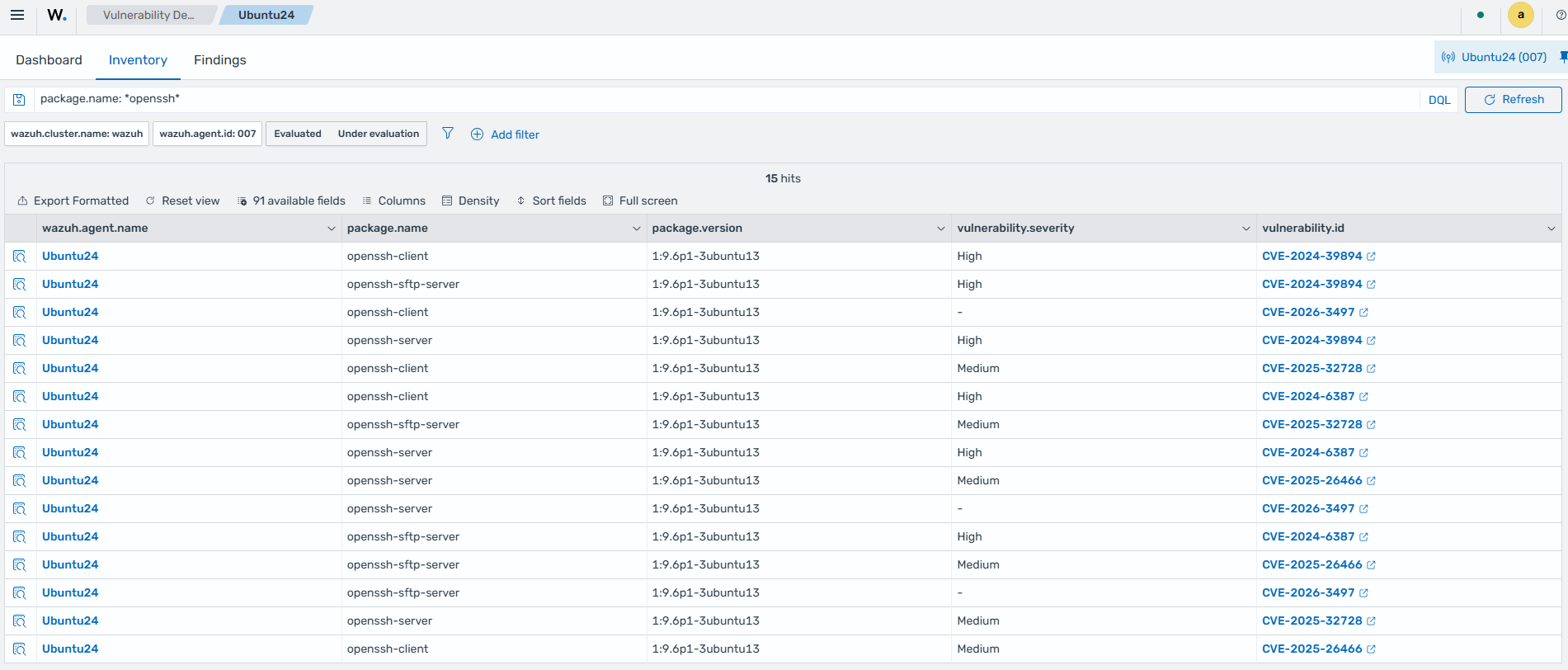
Go to Threat intelligence > Vulnerability Detection and select the Inventory tab.
Wait up to 15 minutes. The Wazuh agent reports the package change at its next Syscollector scan, every 10 minutes with this configuration, and synchronizes it within the next 5 minutes. Use the Package name filter to select the
opensshpackages, then click Refresh. This shows the vulnerabilities that affect the OpenSSH 9.6 packages.Note
Not all vulnerabilities added to or removed from the inventory generate findings. This depends on the event source. See Findings generation for more details.
Run the following command on the Ubuntu endpoint to update the vulnerable packages to a fixed version:
$ sudo apt install --only-upgrade openssh-server openssh-client openssh-sftp-server
After updating the vulnerable packages, wait up to 15 minutes. The agent reports the package change at its next Syscollector scan (every 10 minutes with this configuration) and synchronizes it within the next 5 minutes (the <synchronization> interval). Then, visit the Wazuh dashboard to view the generated findings.
Go to Threat intelligence > Vulnerability Detection and select the Findings tab.
Apply the following filter:
package.name: *openssh* AND event.action: vulnerability-resolved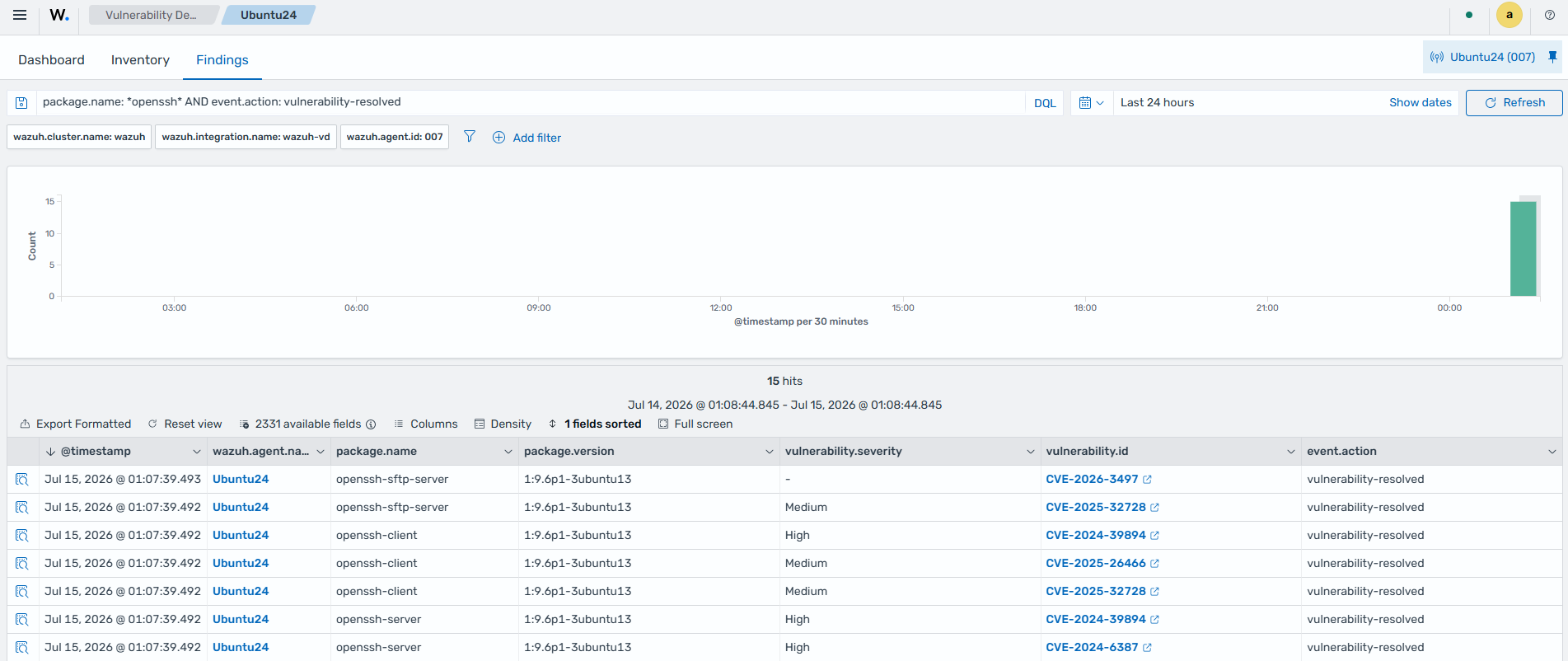
Viewing vulnerability data on Wazuh CTI
Wazuh Cyber Threat Intelligence (CTI) is an online platform that provides detailed information about vulnerabilities, including severity scores, affected packages, and references to vendor advisories and fixes. You can use it to gain deeper context into vulnerabilities detected on your endpoints. To access Wazuh CTI from the Wazuh dashboard, do the following:
Navigate to Threat intelligence > Vulnerability Detection and select Inventory.
Locate the vulnerability you want to investigate and click it to open the vulnerability details panel.
In the details panel, click the CVE identifier in the
vulnerability.idfield. This opens the Wazuh CTI portal at https://cti.wazuh.com in a new browser tab, displaying detailed information about the selected vulnerability.
On the Wazuh CTI portal, you can view the following information about a vulnerability:
CVE identifier: the unique ID assigned to the vulnerability.
CVSS score and severity rating: indicates the criticality of the vulnerability.
Affected software and versions: lists the packages and versions impacted by the vulnerability.
Description: a summary of the vulnerability and its potential impact.
References: links to vendor advisories, patches, and fixed releases that help you remediate the vulnerability.
You can also search for any vulnerability directly on the Wazuh CTI portal by entering its CVE identifier in the search bar.