Configuring SSL certificates on the Wazuh dashboard with Let’s Encrypt
You can configure a Let’s Encrypt certificate for the Wazuh dashboard with the certbot client. Follow the instructions below to install and configure a Let’s Encrypt certificate on an All-In-One Wazuh installation consisting of the Wazuh manager, the Wazuh indexer, and the Wazuh dashboard. In a clustered environment, apply the instructions on each Wazuh dashboard node.
The process is divided into three stages:
Installing and configuring the certbot client.
Configuring Let’s Encrypt certificates on the Wazuh dashboard.
Configuring auto-renewal of the certificates.
Installing and configuring the certbot client
Install certbot
Install snap:
The certbot snap provides an easy way to ensure you have the latest version of certbot with features like automated certificate renewal preconfigured.
# yum install epel-release
# yum install snapd
# systemctl enable --now snapd.socket
# ln -s /var/lib/snapd/snap /snap
# apt-get update
# apt-get install snapd
Confirm the installed snap is the latest:
# snap install core; snap refresh core
core 16-2.61.4-20240607 from Canonical✓ installed
snap "core" has no updates available
Install certbot:
# snap install --classic certbot
Run the following command to link the certbot from the snap directory to the user directory:
# ln -s /snap/bin/certbot /usr/bin/certbot
Configure certbot to generate a Let’s Encrypt SSL certificate
Open ports 80 (HTTP) and 443 (HTTPS):
# systemctl start firewalld
# firewall-cmd --permanent --add-port=443/tcp
# firewall-cmd --permanent --add-port=80/tcp
# firewall-cmd --reload
# ufw allow 443
# ufw allow 80
Generate the Let’s Encrypt certificate:
# certbot certonly --standalone -d <YOUR_DOMAIN_NAME>
Where:
--standalone: Instructs certbot to handle cryptographic challenges using its built-in web server.-d: Specifies the Wazuh dashboard Fully Qualified Domain Name (FQDN).<YOUR_DOMAIN_NAME>: Your FQDN.
Confirm that the certificates are generated:
# ls -la /etc/letsencrypt/live/<YOUR_DOMAIN_NAME>/
The output of the command generally returns the following:
cert.pem
chain.pem
fullchain.pem
privkey.pem
README
Where:
README: contains information about the certificate files.privkey.pem: This is the private key for the certificate.fullchain.pem: This is the SSL certificate, bundled with all intermediate certificates.
Configuring Let’s Encrypt SSL certificates on the Wazuh dashboard
Install the generated Let’s Encrypt certificate and private key as the Wazuh dashboard certificate files in
/etc/wazuh-dashboard/certs. Theinstallcommand copies the files that the/etc/letsencrypt/live/<YOUR_DOMAIN_NAME>/links point to, and sets the owner and mode that the Wazuh dashboard requires:# install -m 0640 -o root -g wazuh-dashboard /etc/letsencrypt/live/<YOUR_DOMAIN_NAME>/fullchain.pem /etc/wazuh-dashboard/certs/dashboard.pem # install -m 0640 -o root -g wazuh-dashboard /etc/letsencrypt/live/<YOUR_DOMAIN_NAME>/privkey.pem /etc/wazuh-dashboard/certs/dashboard-key.pem
Keep the
server.sslsettings in/etc/wazuh-dashboard/opensearch_dashboards.ymlas installed. They already point to these files, so you change nothing in this file.Restart the Wazuh dashboard service:
# systemctl restart wazuh-dashboard
The Let’s Encrypt certificate installation on the Wazuh dashboard is now ready, and you can proceed to access it by using the configured fully qualified domain name.
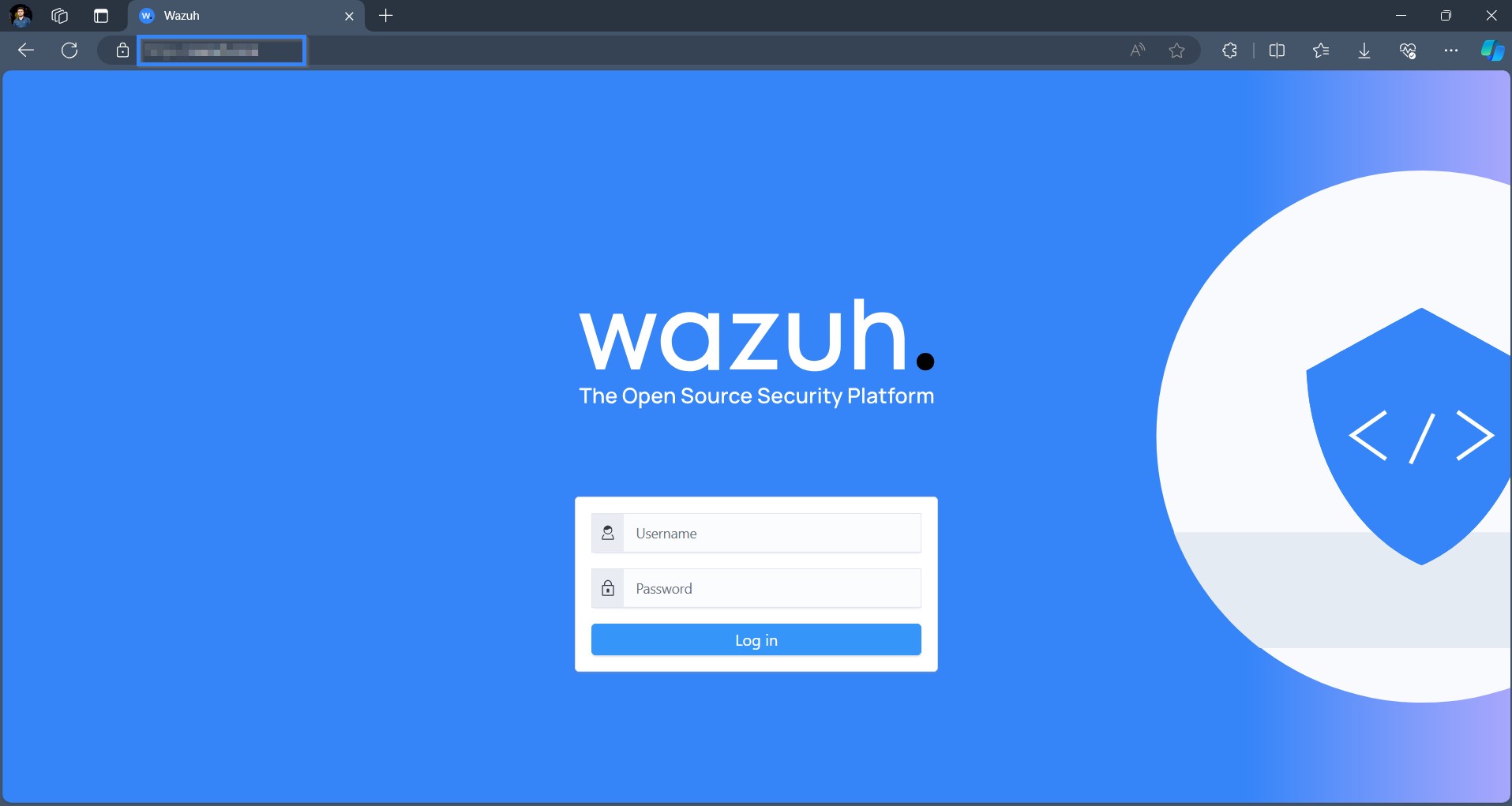
Configuring auto-renewal of the certificates
The generated Let’s Encrypt certificates are valid for ninety days. The certbot snap renews the certificate with the systemd timer snap.certbot.renew.timer. The timer runs twice a day and renews the certificate 30 days before it expires. Run systemctl list-timers snap.certbot.renew.timer to see it.
Also, we append a renewal hook, renew_hook, to the configuration. It installs the renewed certificate and key for the Wazuh dashboard and restarts it, because the Wazuh dashboard uses copies of the files.
Configure the renew_hook using the following steps
Edit the domain configuration file at
/etc/letsencrypt/renewal/<YOUR_DOMAIN_NAME>.confand add the renewal hook at the end of the file:# renew_before_expiry = 30 days version = 1.32.0 archive_dir = /etc/letsencrypt/archive/<YOUR_DOMAIN_NAME> cert = /etc/letsencrypt/live/<YOUR_DOMAIN_NAME>/cert.pem privkey = /etc/letsencrypt/live/<YOUR_DOMAIN_NAME>/privkey.pem chain = /etc/letsencrypt/live/<YOUR_DOMAIN_NAME>/chain.pem fullchain = /etc/letsencrypt/live/<YOUR_DOMAIN_NAME>/fullchain.pem # Options used in the renewal process [renewalparams] account = pa269247c1c3c97ec12ka01fa0f456bb authenticator = standalone server = https://acme-v02.api.letsencrypt.org/directory key_type = rsa renew_hook = install -m 0640 -o root -g wazuh-dashboard /etc/letsencrypt/live/<YOUR_DOMAIN_NAME>/fullchain.pem /etc/wazuh-dashboard/certs/dashboard.pem && install -m 0640 -o root -g wazuh-dashboard /etc/letsencrypt/live/<YOUR_DOMAIN_NAME>/privkey.pem /etc/wazuh-dashboard/certs/dashboard-key.pem && systemctl restart wazuh-dashboard
Test the renewal hook by running the command below:
# certbot renew --dry-run
The output looks like this:
Saving debug log to /var/log/letsencrypt/letsencrypt.log
- - - - - - - - - - - - - - - - - - - - - - - - - - - - - - - -
Processing /etc/letsencrypt/renewal/<YOUR_DOMAIN_NAME>.conf
- - - - - - - - - - - - - - - - - - - - - - - - - - - - - - - -
Simulating renewal of an existing certificate for <YOUR_DOMAIN_NAME>
- - - - - - - - - - - - - - - - - - - - - - - - - - - - - - - - - - - - - - - -
Congratulations, all simulated renewals succeeded:
/etc/letsencrypt/live/<YOUR_DOMAIN_NAME>/fullchain.pem (success)
- - - - - - - - - - - - - - - - - - - - - - - - - - - - - - - -