macOS
Follow these steps to enroll a macOS endpoint through the Wazuh agent configuration method.
Launch the terminal, obtain root access, edit the Wazuh agent configuration file
/Library/Ossec/etc/ossec.conf, and make the following changes:Add the Wazuh manager IP address or fully qualified domain name (FQDN). The setting depends on the Wazuh agent version:
Wazuh 5.0 agents:
<ossec_config>
  <agent>
    <manager>
      <endpoint><WAZUH_MANAGER_IP_ADDRESS></endpoint>
    </manager>
  </agent>
</ossec_config>
Wazuh 4.x agents:
<ossec_config>
  <client>
    <server>
      <address><WAZUH_MANAGER_IP_ADDRESS></address>
      ...
    </server>
  </client>
</ossec_config>
This setting allows the Wazuh agent to connect to the Wazuh manager and request a client key automatically.
Note
(4.x only) If you have a Wazuh manager cluster, you can add multiple
<server>sections that point to the worker nodes. Refer to pointing agents to the cluster (Failover mode) for more information.(Optional) Add enrollment parameters.
Wazuh 5.0 agents:
<ossec_config>
  <agent>
    <enrollment>
      <agent_name>EXAMPLE_NAME</agent_name>
      <groups>GROUP1,GROUP2,GROUP3</groups>
      ...
    </enrollment>
  </agent>
</ossec_config>
Wazuh 4.x agents:
<ossec_config>
  <client>
    ...
    <enrollment>
      <agent_name>EXAMPLE_NAME</agent_name>
      <groups>GROUP1,GROUP2,GROUP3</groups>
      ...
    </enrollment>
  </client>
</ossec_config>
These optional enrollment parameters provide the Wazuh agent with specific information during enrollment. Some common enrollment parameters are:
<agent_name>EXAMPLE_NAME</agent_name>: Specifies the name that the Wazuh agent uses during enrollment. If you do not configure this setting, the Wazuh agent uses the endpoint hostname.<groups>GROUP1,GROUP2,GROUP3</groups>: Specifies the groups that the Wazuh agent joins during enrollment. An agent group is a collection of Wazuh agents that share the same configuration. The Wazuh manager pushes configuration settings to Wazuh agents that belong to the same group. Enrollment fails if you specify a group that does not exist. Create the required group on the Wazuh manager before you use the<groups>setting. For more information, see Grouping agents.
More optional enrollment parameters and their usage are provided in the client configuration reference.
Restart the Wazuh agent to make the changes effective:
# /Library/Ossec/bin/wazuh-control restart
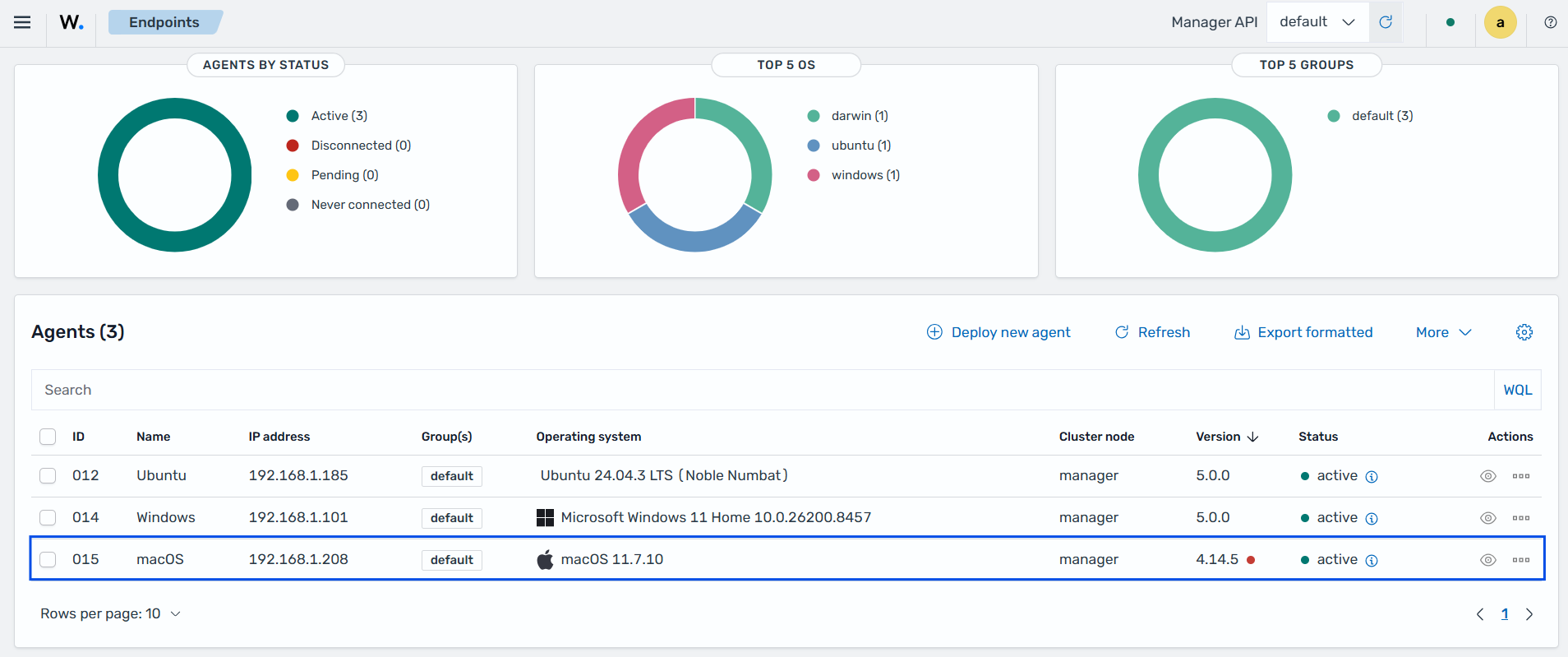
Click on the upper-left menu icon and navigate to Agents management > Summary on the Wazuh dashboard to check for the newly enrolled Wazuh agent and its connection status. If the enrollment was successful, the Wazuh dashboard displays an interface similar to the image below.