Wazuh RBAC - How to create and map internal users
Wazuh Role-Based Access Control (RBAC) allows access to Wazuh resources based on the roles and policies assigned to the users. It is an easy-to-use administration system that enables the management of users' or entities' permissions to the system resources.
The Wazuh platform includes an internal user database for authentication. It can also be used alongside an external authentication system, such as SAML, LDAP, or Active Directory. Learn how to create and map Wazuh users in these sections.
Creating and setting a Wazuh admin user
Follow these steps to create an internal user, create a new role mapping, and give administrator permissions to the user.
Log in to the Wazuh dashboard as an administrator.
Click the upper-left menu icon ☰ to open the options, go to Indexer management > Security, and then Internal users to open the internal users' page.
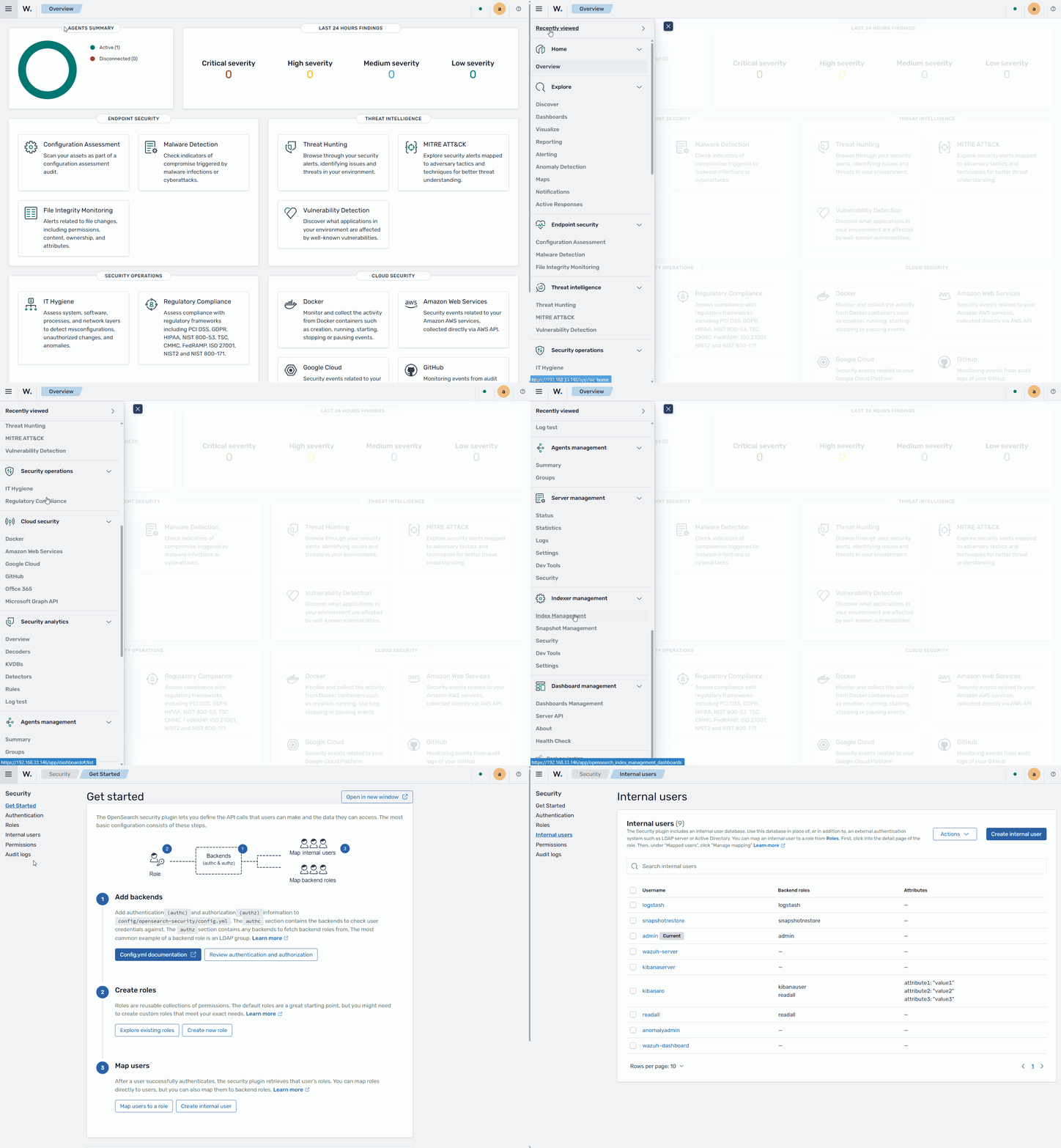
Click Create internal user, provide a username and password, type
adminas the Backend role, and click Create to complete the action.To map the user with Wazuh, follow these steps:
Click the upper-left menu icon ☰ to open the menu on the Wazuh dashboard, go to Server management > Security, and then Roles mapping to open the page.
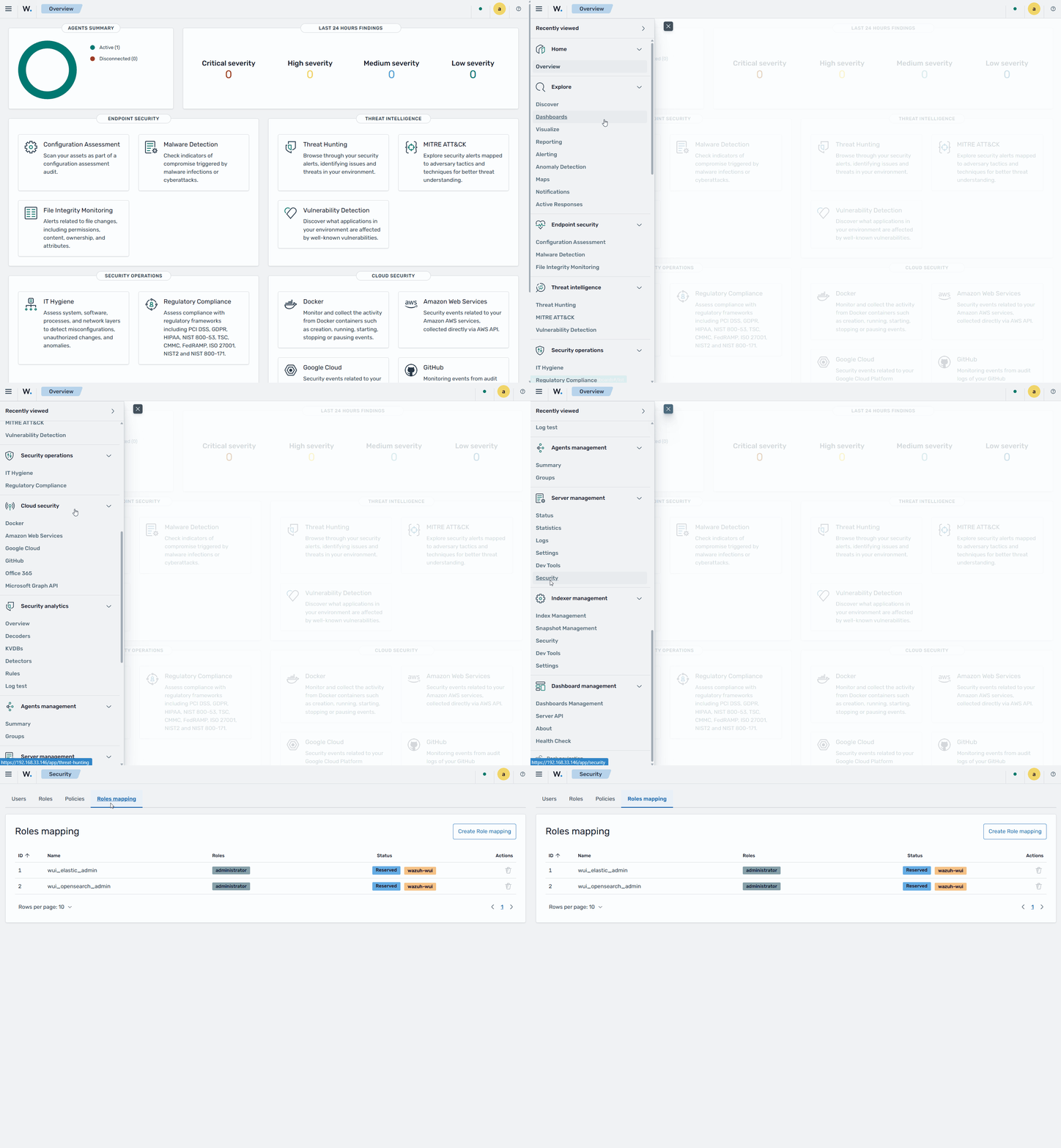
Click Create Role mapping and complete the empty fields with the following parameters:
Role mapping name: Assign a name to the role mapping.
Roles: Select
administrator.Internal users: Select the internal user created previously.
Click Save role mapping to save and map the user with Wazuh as administrator.
The
run_asvalue is enabled by default, but verify that it is set totruein the/etc/wazuh-dashboard/opensearch_dashboards.ymlconfiguration file for role mapping to take effect.Restart the Wazuh dashboard service and clear your browser cache and cookies.
# systemctl restart wazuh-dashboard
Creating and setting a Wazuh read-only user
Follow these steps to create an internal user, create a new role mapping, and give read-only permissions to the user.
Log in to the Wazuh dashboard as an administrator.
Click the upper-left menu icon ☰ to open the options, go to Indexer management > Security, and then Internal users to open the internal users' page.
Click Create internal user, provide a username and password, and click Create to complete the action.
To map the user to the appropriate role, follow these steps:
Click the upper-left menu icon ☰ to open the options, go to Indexer management > Security, and then Roles to open the roles page.
Click Create role, complete the empty fields with the following parameters, and then click Create to complete the task.
Name: Assign a name to the role.
Cluster permissions:
cluster_composite_ops_roIndex:
*Index permissions:
read
Select the Mapped users tab and click Manage mapping.
Add the user you created in the previous steps and click Map to confirm the action.
To map the user with Wazuh, follow these steps:
Click ☰ to open the menu on the Wazuh dashboard, go to Server management > Security, and then Roles mapping to open the page.
Click Create Role mapping and complete the empty fields with the following parameters:
Role mapping name: Assign a name to the role mapping.
Roles: Select
readonly.Internal users: Select the internal user created previously.
Click Save role mapping to save and map the user with Wazuh as read-only.
The
run_asvalue is enabled by default, but verify that it is set totruein the/etc/wazuh-dashboard/opensearch_dashboards.ymlconfiguration file for role mapping to take effect.Restart the Wazuh dashboard service and clear your browser cache and cookies.
# systemctl restart wazuh-dashboard
Creating an internal user and mapping it to Wazuh
Follow these steps to create an internal user and map it to a role of your choice.
Log in to the Wazuh dashboard as an administrator.
Click the upper-left menu icon ☰ to open the options, go to Indexer management > Security, and then Internal users to open the internal users' page.
Click Create internal user, provide a username and password, and click Create to complete the action.
To map the user to a given role, follow these steps:
Click the upper-left menu icon to open the options, select Security, and then Roles to open the roles page.
Select the Mapped users tab and click Manage mapping.
Add the user you created in the previous steps and click Map to confirm the action.
To map the user with Wazuh, follow these steps:
Click ☰ to open the menu on the Wazuh dashboard, go to Server management > Security, and then Roles mapping to open the page.
Click Create Role mapping and complete the empty fields with the following parameters:
Role mapping name: Assign a name to the role mapping.
Roles: Select the Wazuh roles that you want to map the user to.
Internal users: Select the internal user created previously.
Wazuh includes an extensive list of default policies and roles. Additionally, you can create custom policies and roles to suit your needs.
Click Save role mapping to save and map the user with Wazuh.
The
run_asvalue is enabled by default, but verify that it is set totruein the/etc/wazuh-dashboard/opensearch_dashboards.ymlconfiguration file for role mapping to take effect.Restart the Wazuh dashboard service and clear your browser cache and cookies.
# systemctl restart wazuh-dashboard