Configuration
Wazuh uses the Command module to run and monitor commands, executables, and scripts on Windows, Linux, and macOS endpoints. You can configure the module locally on each endpoint or centrally from the Wazuh dashboard, using the configuration file that suits your use case.
The Command module provides the following features:
Checksum verification: It verifies the integrity of every executed system binary or script by comparing its hash against predefined MD5, SHA1, and SHA256 values. This procedure ensures that the binary has not been altered or replaced.
Encrypted communication: Wazuh encrypts all messages exchanged between the Wazuh manager and agents using AES. The Wazuh agents therefore send every command output securely to the Wazuh manager.
Scheduling execution: You can configure the Command module to run commands on endpoints in the following schedules:
Immediately after the Wazuh agent starts
At specific time intervals (
interval)On a particular day of the month (
day) represented by the day's numberOn a specific day of the week (
wday) represented by the day's nameAt a particular time (
time) of the day represented in the formathh:mm
A standard Command module configuration block looks like this:
<wodle name="command">
  <disabled>no</disabled>
  <tag><COMMAND_NAME></tag>
  <command><COMMAND_OR_PATH_TO_SCRIPT></command>
  <interval>1d</interval>
  <ignore_output>no</ignore_output>
  <run_on_start>yes</run_on_start>
  <timeout>0</timeout>
  <verify_sha256><SHA256_HASH></verify_sha256>
</wodle>
In this configuration, replace the following:
<COMMAND_NAME>with a descriptive name for the command<COMMAND_OR_PATH_TO_SCRIPT>with the command or script<SHA256_HASH>with the SHA256 hash of the command or script
Configuration options
The table below shows the configuration options available for the Command module.
Options |
Default value |
Allowed values |
Description |
Note |
|---|---|---|---|---|
Main options |
||||
|
no |
yes, no |
Disables the Command module when set to |
|
|
N/A |
Characters set |
Tags the command with a descriptive name in the command output. |
|
|
Command Path to a binary Path to a script |
Specifies the path to a command, binary, or script to execute. |
Commands and scripts must be on local file systems. UNC network paths or mapped network drives are not supported. |
|
|
no |
yes, no |
Specifies whether the output of a command is ignored. When this option is set
to |
|
|
N/A |
A positive number |
Specifies the time (in seconds) for each command to wait for the completion
of its execution. When this option is set to |
|
|
N/A |
MD5 checksum |
Verifies the MD5 sum of the binary or the script to be executed against this value. If the checksum does not match, the command output is ignored. |
Verifies only the first argument of the command option if you passed two or more arguments. |
|
N/A |
SHA1 checksum |
Verifies the SHA1 sum of the binary or the script to be executed against this value. If the checksum does not match, the command output is ignored. |
Verifies only the first argument of the command option if you passed two or more arguments. |
|
N/A |
SHA256 checksum |
Verifies the SHA256 sum of the binary or the script to be executed against this value. If the checksum does not match, the command output is ignored. |
Verifies only the first argument of the command option if you passed two or more arguments. |
|
no |
yes, no |
Runs the command defined even if the checksum does not match. When set to
|
|
Scheduling options |
||||
|
yes |
yes, no |
Runs the configured command immediately when the Wazuh service starts. |
|
|
2s |
A positive number that should contain a suffix character indicating a time unit, such as, s (seconds), m (minutes), h (hours), d (days), M (months). |
Specifies how often a defined command executes. |
|
|
N/A |
Day of the month [1..31] |
Day of the month to run the configured command. |
When the |
|
N/A |
Day of the week:
|
Day of the week to run the configured command. This option is not compatible
with the |
When the |
|
N/A |
Time of day [hh:mm] |
Time of the day to run the configured command. It has to be represented in
the format |
When only the |
Configuration files
You can configure Wazuh agents to run and monitor the output of commands using one of the following ways:
Local configuration file on the Wazuh agent
Centralized configuration file on the Wazuh manager
The local configuration file
You can configure the commands to run and monitor in the local configuration file of individual Wazuh agents on an endpoint. Use this file to manage the configuration of specific endpoints.
The table below shows the location of the Wazuh agent configuration file on each supported endpoint.
Endpoint |
Location |
|---|---|
Windows |
|
Linux |
|
macOS |
|
The centralized configuration file
Use the centralized configuration file to manage a group of monitored endpoints remotely. The Wazuh manager distributes the commands to monitor to the Wazuh agents through the Remoted daemon. You can enable this functionality by adding the commands to the centralized configuration (agent.conf) file using the Wazuh dashboard.
By default, the Wazuh agents cannot accept remote commands configured on the Wazuh manager. Remote command execution is disabled on Wazuh agents for security reasons. You must explicitly configure Wazuh agents to accept remote commands from the Wazuh manager.
Add the setting below to the local_internal_options.conf file of the Wazuh agent on every monitored endpoint to accept remote command:
wazuh_command.remote_commands=1
Warning
Enable remote command execution with caution, as this action authorizes the Wazuh user to run commands with elevated privileges on the monitored endpoint.
The table below shows the location of the Wazuh agent local_internal_options.conf file on each supported endpoint.
Endpoint |
Location |
|---|---|
Windows |
|
Linux |
|
macOS |
|
The configurations below show how to enable and disable remote command execution on Linux endpoints.
Note
You must restart the Wazuh agent to apply the changes.
To enable the Wazuh agent to accept remote commands from the Wazuh manager, add the configuration below to the
/var/ossec/etc/local_internal_options.conffile on the Linux endpoint:wazuh_command.remote_commands=1
To disable remote command execution after enabling it, remove the configuration from the
/var/ossec/etc/local_internal_options.conffile or set its value to 0:wazuh_command.remote_commands=0
Example configuration
The Command module configuration consists of the command or script, its status, the execution interval, and the script checksum. You can apply the configuration centrally on the Wazuh manager or locally on the monitored endpoints.
To monitor the current user logged into a Linux endpoint, perform the steps below to configure the Command module.
Linux endpoint
Append the configuration below to the Wazuh agent
/var/ossec/etc/ossec.conffile to configure the command execution and forward its output to the Wazuh manager:<ossec_config> <wodle name="command"> <disabled>no</disabled> <tag>who-user</tag> <command>whoami</command> <interval>2m</interval> <run_on_start>yes</run_on_start> <timeout>10</timeout> </wodle> </ossec_config>
In this example,
The
who-uservalue in the<tag>option identifies the log. This tag helps you create a custom decoder that matches and processes the log correctly.The
whoamivalue in the<command>option specifies the command that the Command module executes.The value
2min the<interval>option specifies that the Command module executes the configured command every 2 minutes.
Note
You can use the centralized configuration file to distribute this setting across multiple monitored endpoints.
Restart the Wazuh agent to apply the changes:
# systemctl restart wazuh-agent
Wazuh dashboard
Wazuh must analyze the command output to generate findings on the Wazuh dashboard. Perform the steps below to create a detection rule to analyze the event received from the monitored Linux endpoint.
Navigate to Security Analytics > Overview and perform the following to create an integration:
Select the space Draft
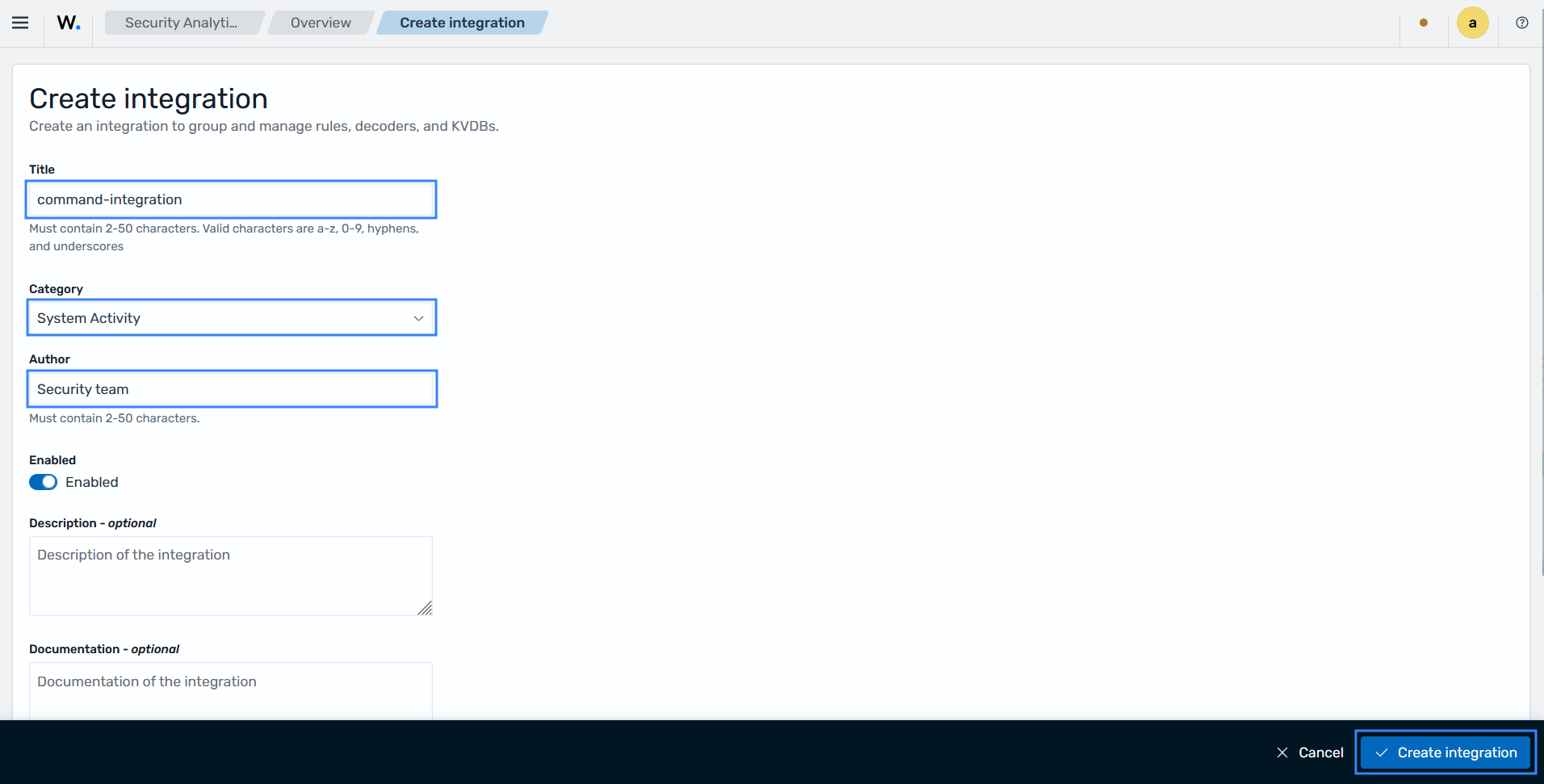
Under Integrations, click Actions > Create and fill in the required fields and click Create integration:
Title: command-integration
Category: System Activity
Author: Security team
Navigate to Security Analytics > Detection > Rules and perform the following to create a detection rule.
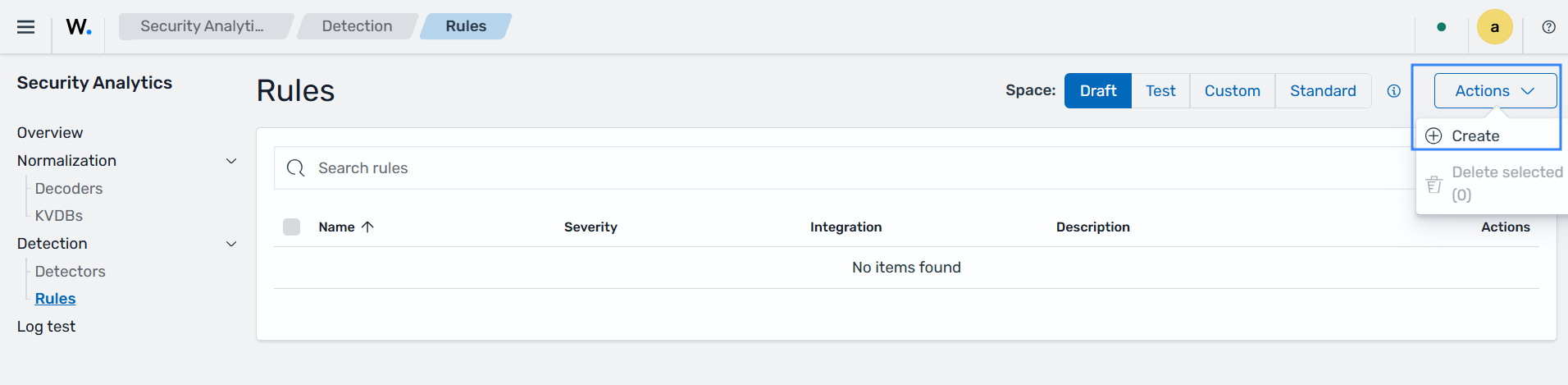
Select the space Draft
Click Actions > Create, select the YAML Editor, choose the integration
command-integration, paste the detection rule shown below, and click Create rule:id: 047c0a8a-806e-4ce4-991d-9ba9bea5c730 logsource: product: command-integration tags: [] falsepositives: [] level: informational status: experimental enabled: true detection: condition: Selection_1 Selection_1: process.name|re: - whoami metadata: title: Wazuh CM - The currently logged in user is {{process.io.text}} author: Security team lead description: Detects the system user currently logged in references: - '' documentation: '' supports: - '' modified: '2026-07-16T10:33:14Z' mitre: technique: id: - T1033 name: - System Owner/User Discovery
Navigate to Security Analytics > Overview, select the space Draft, and click Actions > Promote to promote the detection rule to the
Testspace.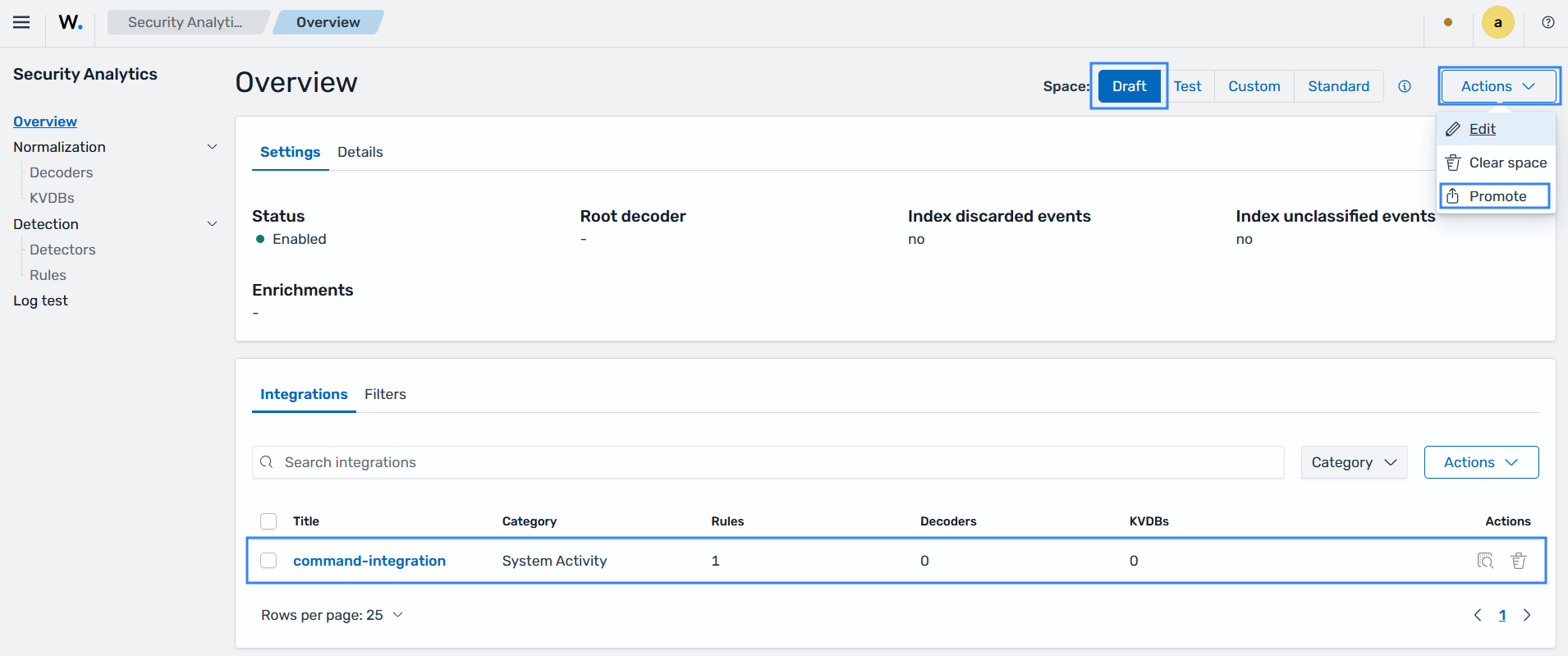
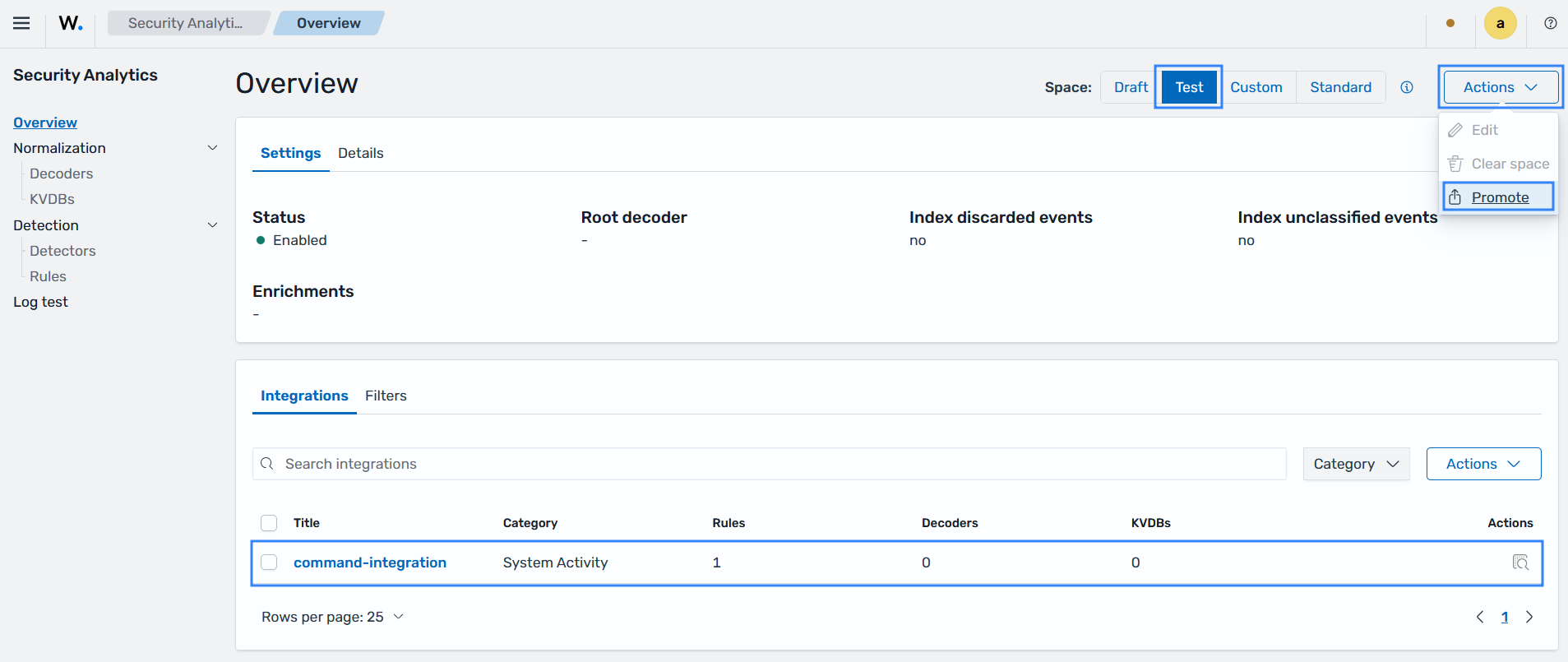
Navigate to Security Analytics > Overview, select the space Test, and click Actions > Promote to promote the detection rule to the Custom space.
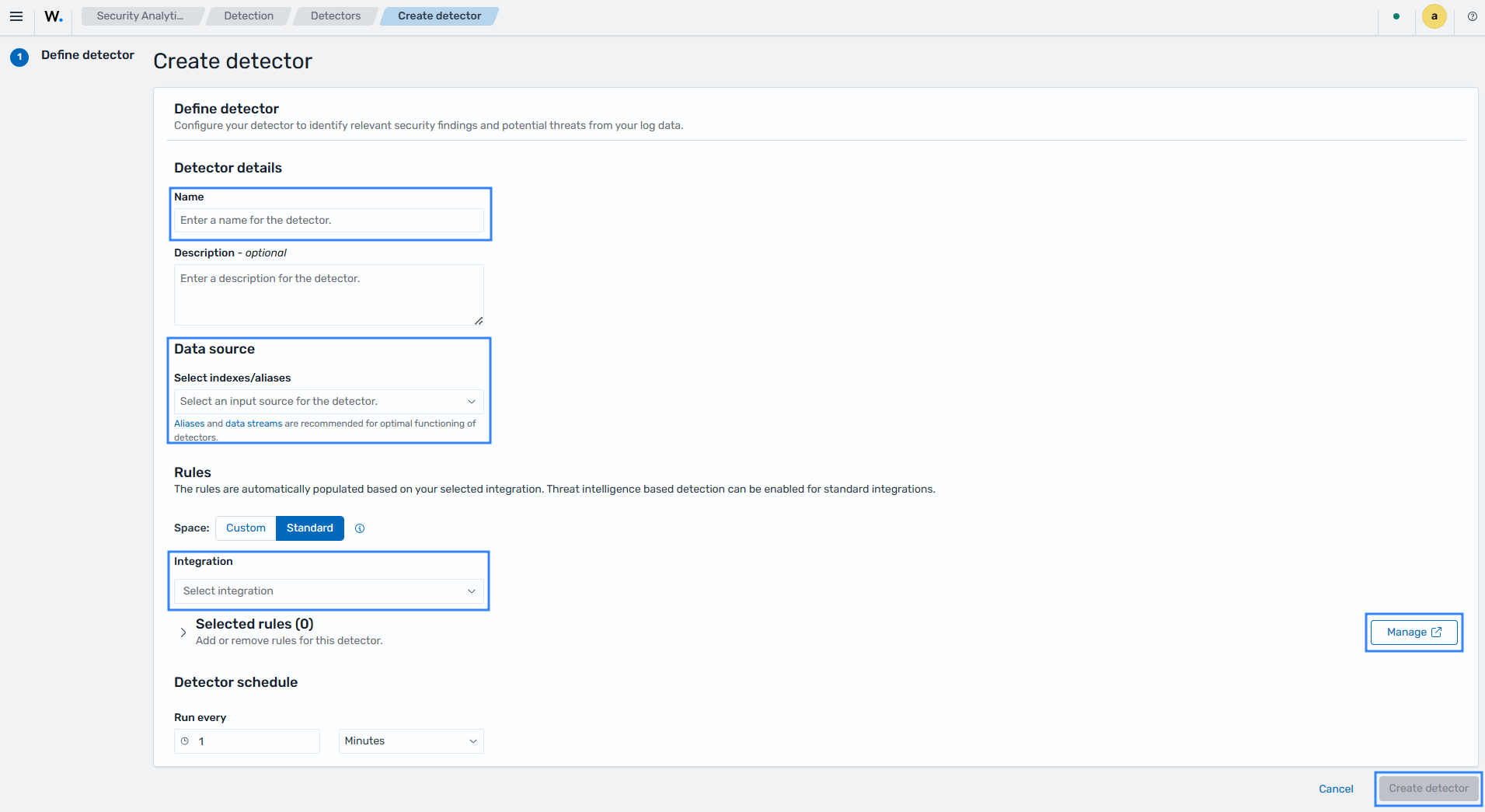
Navigate to Security Analytics > Detection > Detectors to create a detector that applies the detection rule and generates findings.
Click Create detector, fill the required fields, and click Create detector:
Name: wazuh-command-detector
Select indexes/aliases: wazuh-events-v5-system-activity (this must match the integration category you configured earlier,
System Activity)Space: Custom
Integration: command-integration
Run every: 2 minutes.
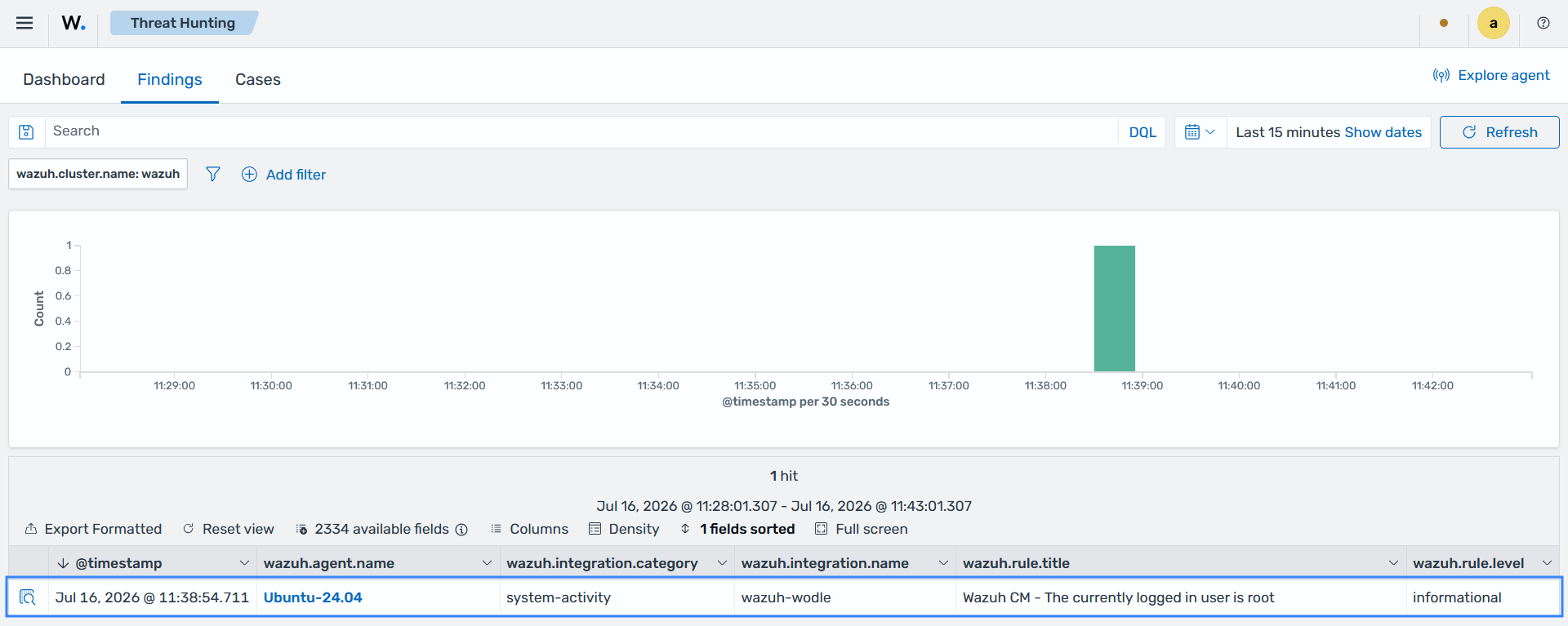
Navigate to Threat Intelligence > Threat Hunting > Findings to view the generated finding as shown below:
Click the Inspect document details button at the far left of the finding to view the details. You can see details including the executed command, its output, and more.
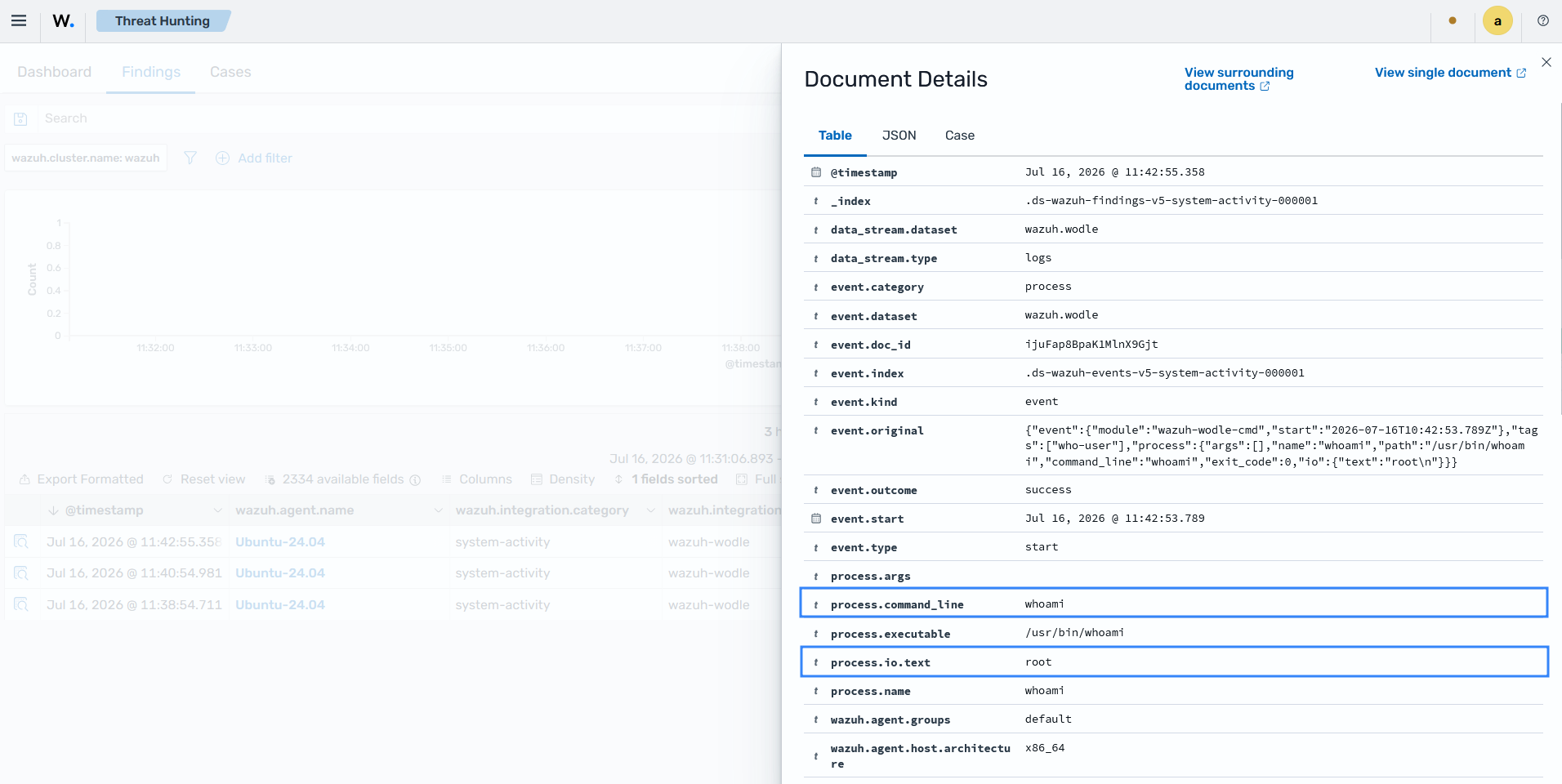
Below is the full JSON data of the generated finding. The command output looks similar to this:
{
  "_index": ".ds-wazuh-findings-v5-system-activity-000001",
  "_id": "lDuHap8BpaK1MlnXo2hy",
  "_score": null,
  "_source": {
    "wazuh": {
      "cluster": {
        "node": "node01",
        "name": "wazuh"
      },
      "protocol": {
        "location": "command",
        "queue": 49
      },
      "agent": {
        "host": {
          "hostname": "Ubuntu2404",
          "os": {
            "name": "Ubuntu",
            "type": "linux",
            "version": "24.04.3 LTS (Noble Numbat)",
            "platform": "ubuntu"
          },
          "architecture": "x86_64"
        },
        "name": "Ubuntu-24.04",
        "groups": [
          "default"
        ],
        "id": "002",
        "version": "v5.0.0"
      },
      "integration": {
        "name": "wazuh-wodle",
        "decoders": [
          "decoder/core-wazuh-message/0",
          "decoder/wazuh-wodle/0"
        ],
        "category": "system-activity"
      },
      "rule": {
        "sigma_id": "41ca4dd7-c9c2-47bd-8e07-4b905775a23e",
        "level": "informational",
        "mitre": {
          "technique": {
            "name": [
              "System Owner/User Discovery"
            ],
            "id": [
              "T1033"
            ]
          }
        },
        "id": "41ca4dd7-c9c2-47bd-8e07-4b905775a23e",
        "title": "Wazuh CM - The currently logged in user is root\n",
        "tags": [
          "informational",
          "command-integration"
        ],
        "status": "experimental"
      },
      "event": {
        "id": "154b6776-af25-46e5-b1a8-8af38c2c9ac2"
      },
      "space": {
        "name": "standard"
      }
    },
    "process": {
      "args": [],
      "io": {
        "text": "root\n"
      },
      "name": "whoami",
      "command_line": "whoami",
      "executable": "/usr/bin/whoami"
    },
    "@timestamp": "2026-07-16T10:42:55.358Z",
    "event": {
      "original": "{\"event\":{\"module\":\"wazuh-wodle-cmd\",\"start\":\"2026-07-16T10:42:53.789Z\"},\"tags\":[\"who-user\"],\"process\":{\"args\":[],\"name\":\"whoami\",\"path\":\"/usr/bin/whoami\",\"command_line\":\"whoami\",\"exit_code\":0,\"io\":{\"text\":\"root\\n\"}}}",
      "kind": "event",
      "start": "2026-07-16T10:42:53.789Z",
      "index": ".ds-wazuh-events-v5-system-activity-000001",
      "category": [
        "process"
      ],
      "type": [
        "start"
      ],
      "dataset": "wazuh.wodle",
      "doc_id": "ijuFap8BpaK1MlnX9Gjt",
      "outcome": "success"
    },
    "data_stream": {
      "type": "logs",
      "dataset": "wazuh.wodle"
    }
  },
  "fields": {
    "event.start": [
      "2026-07-16T10:42:53.789Z"
    ],
    "@timestamp": [
      "2026-07-16T10:42:55.358Z"
    ]
  },
  "sort": [
    1784198575358
  ]
}