Use cases
The following use cases show practical applications of visualizing system inventory data for security operations on the Wazuh dashboard.
Use case 1: Resource monitoring
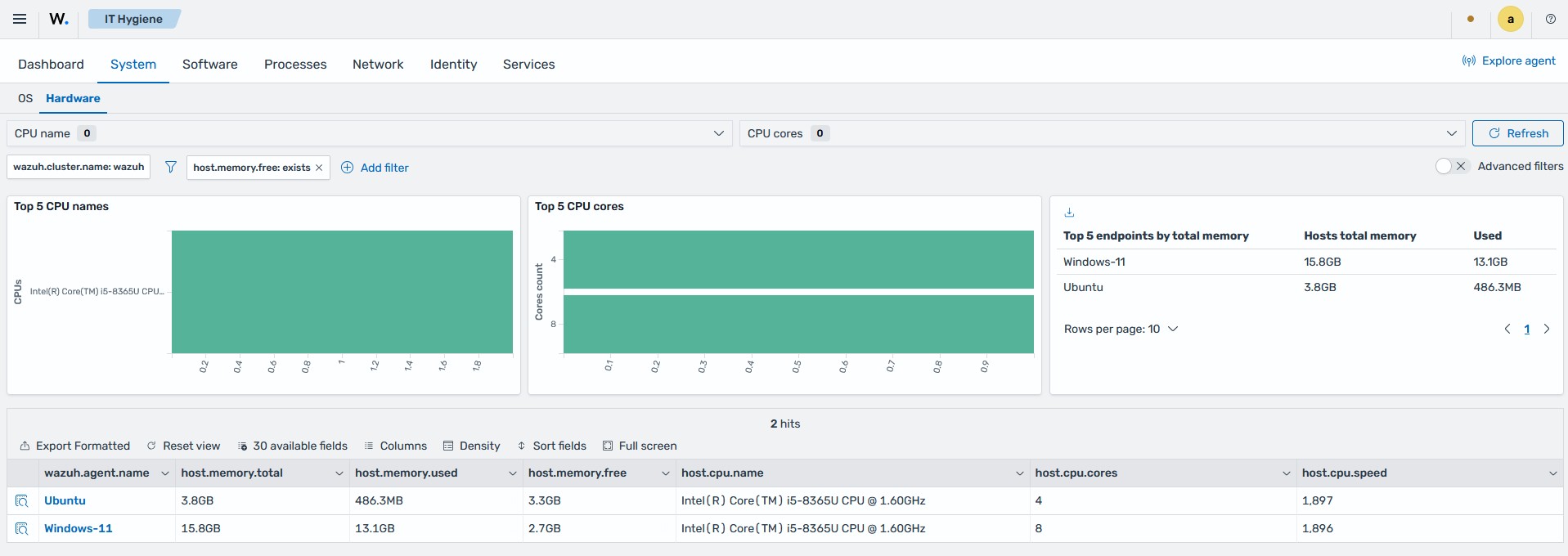
Monitor memory usage across all endpoints to assess system performance and find devices with low available memory.
Click the menu icon, then navigate to Security operations > IT Hygiene.
Select the System tab and then Hardware.
Click + Add filter and configure it as follows:
Field:
host.memory.freeOperator:
exists
Use case 2: Vulnerability management
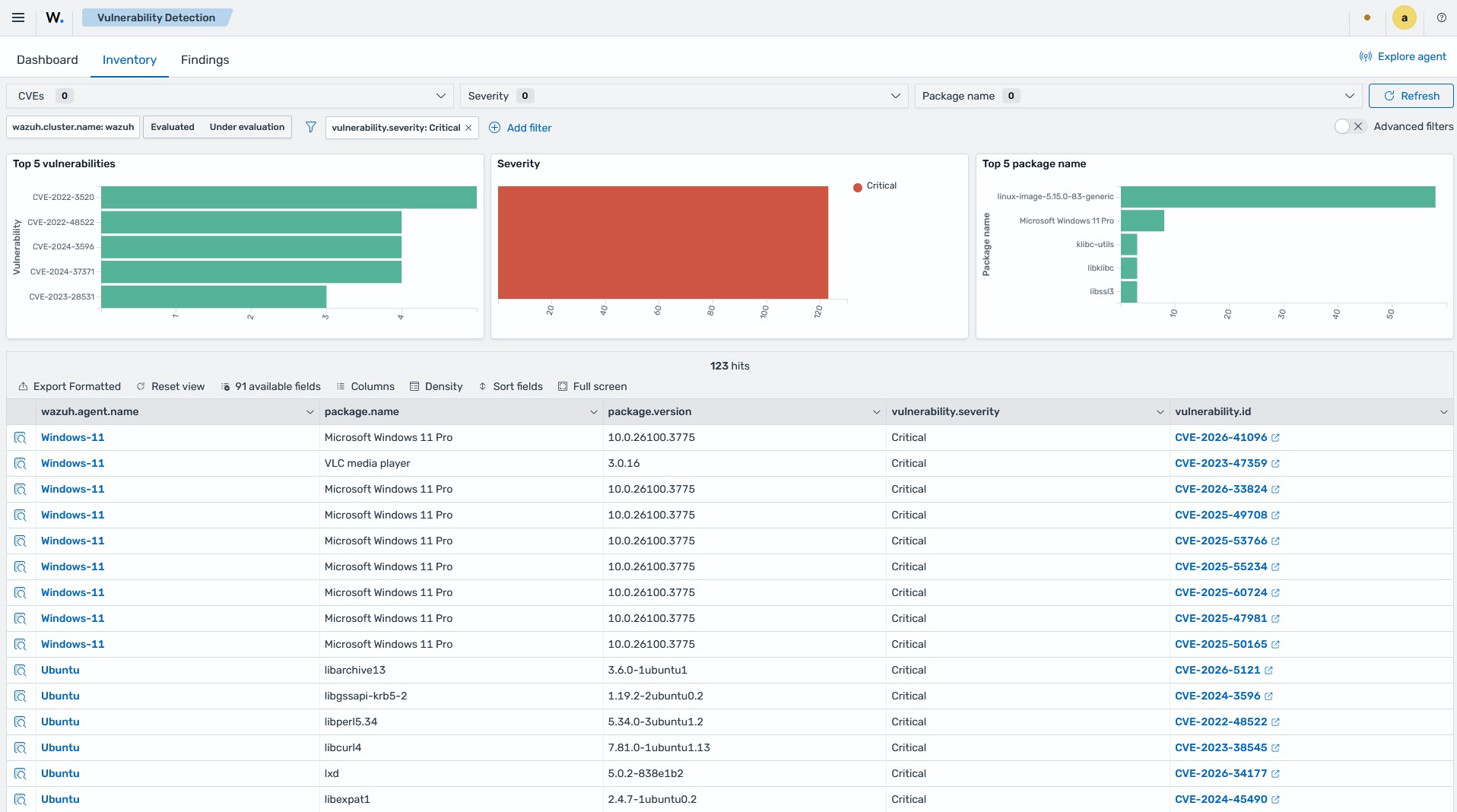
Identify endpoints with critical vulnerabilities in your environment and use the system inventory to locate every endpoint running the affected software.
Click the menu icon, then navigate to Threat intelligence > Vulnerability Detection.
Switch to the Inventory tab.
Click + Add filter and configure it as follows:
Field:
vulnerability.severityOperator:
isValue:
Critical
The filtered view lists the vulnerable packages and the endpoints where they are installed.
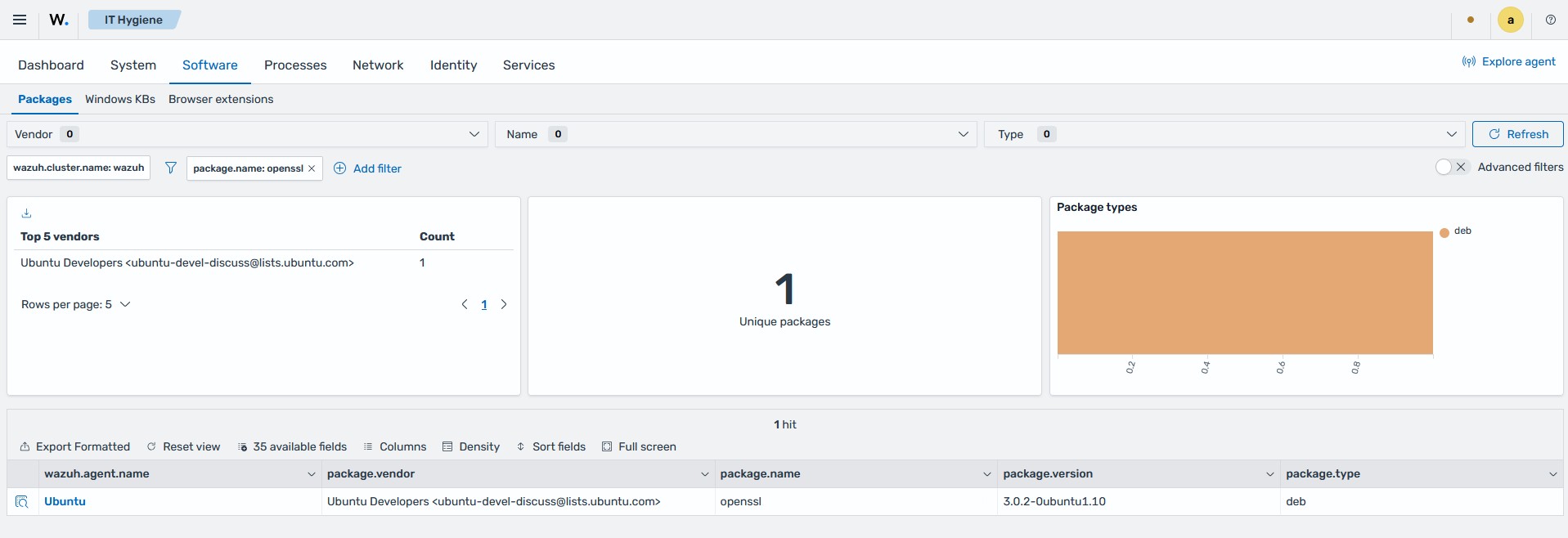
Note the name of an affected package. Click the menu icon, then navigate to Security operations > IT Hygiene.
Select the Software tab and then Packages.
Click + Add filter and configure it as follows:
Field:
package.nameOperator:
isValue:
openssl. The name of the affected package.
Update or uninstall the vulnerable software packages.
Use case 3: Detecting new software installations
Identify new software installed across your fleet to catch potential unauthorized or shadow-IT applications shortly after they appear.
Click the menu icon, then navigate to Threat intelligence > Threat Hunting.
Switch to the Findings tab.
Click + Add filter and configure it as follows:
Field:
wazuh.rule.titleOperator:
isValue:
Wazuh IT Hygiene - Item created
Add a second filter:
Field:
event.actionOperator:
isValue:
package-installed
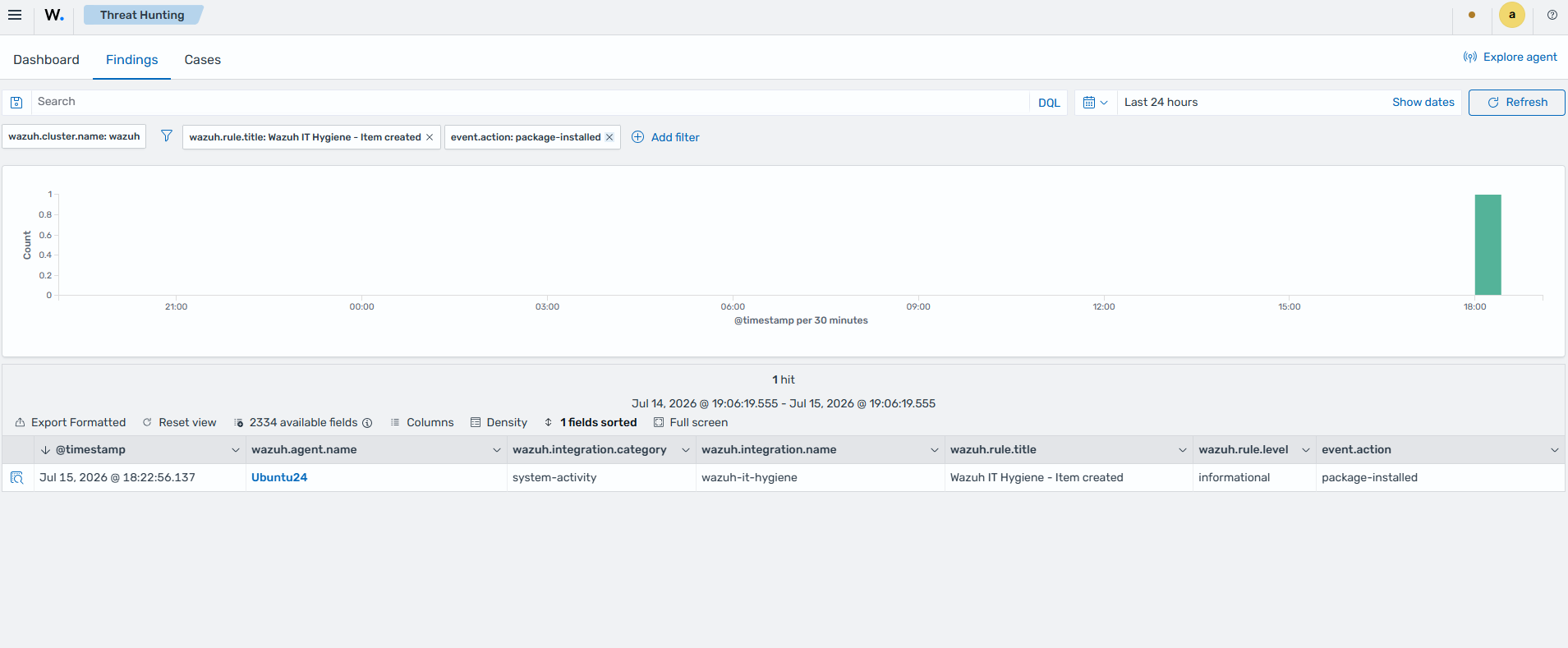
The filtered view lists every package installation across your fleet as it is detected, including the endpoint, the package name, and the installation time.
To see the full installation history of a specific package, note its name and pivot to Security operations > IT Hygiene > Software > Packages, then filter on
package.name.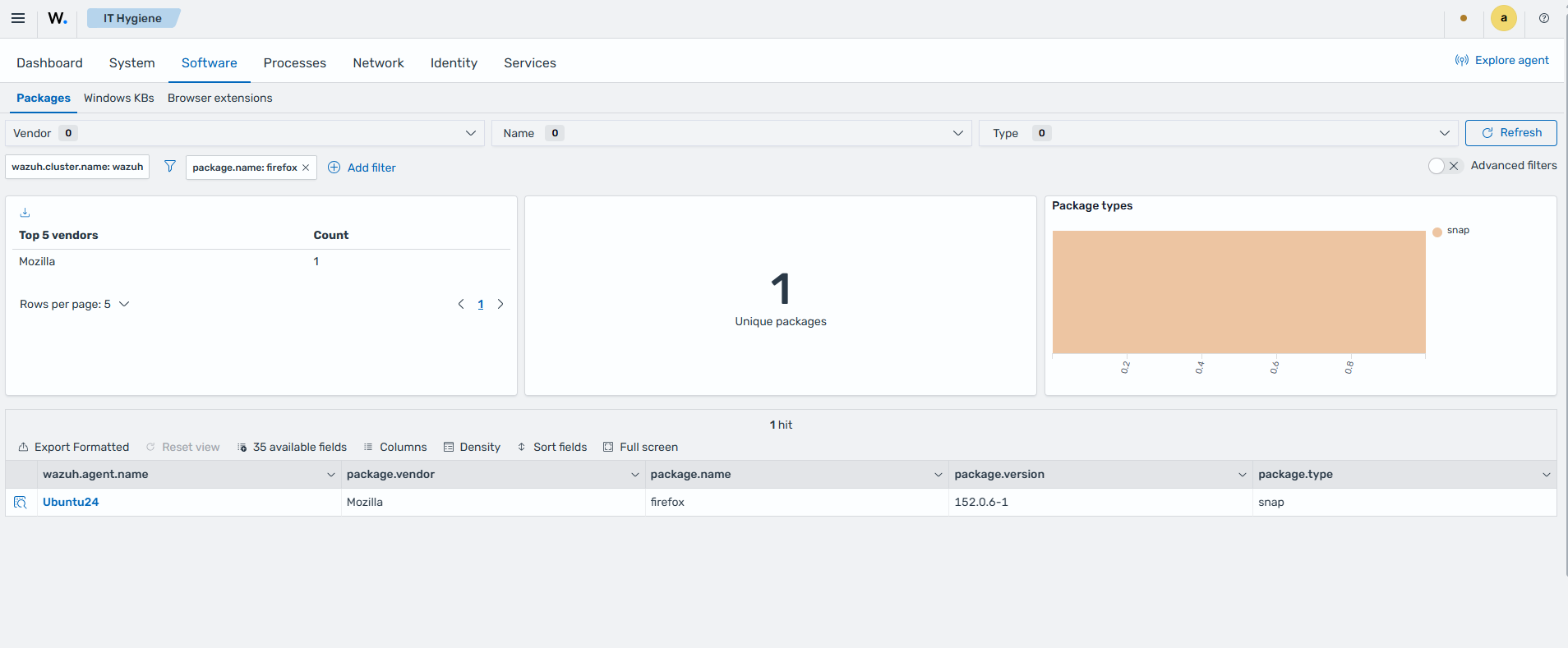
Use case 4: Auditing privileged account hygiene
Review user accounts for unexpected privileged group membership.
Click the menu icon, then navigate to Security operations > IT Hygiene.
Select the Identity tab and then Groups.
Click + Add filter and configure it as follows:
Field:
group.nameOperator:
isValue: A group name associated with administrative access in your environment. In this case
Administrators
The filtered view shows every account which is a member of the
Administratorsgroup.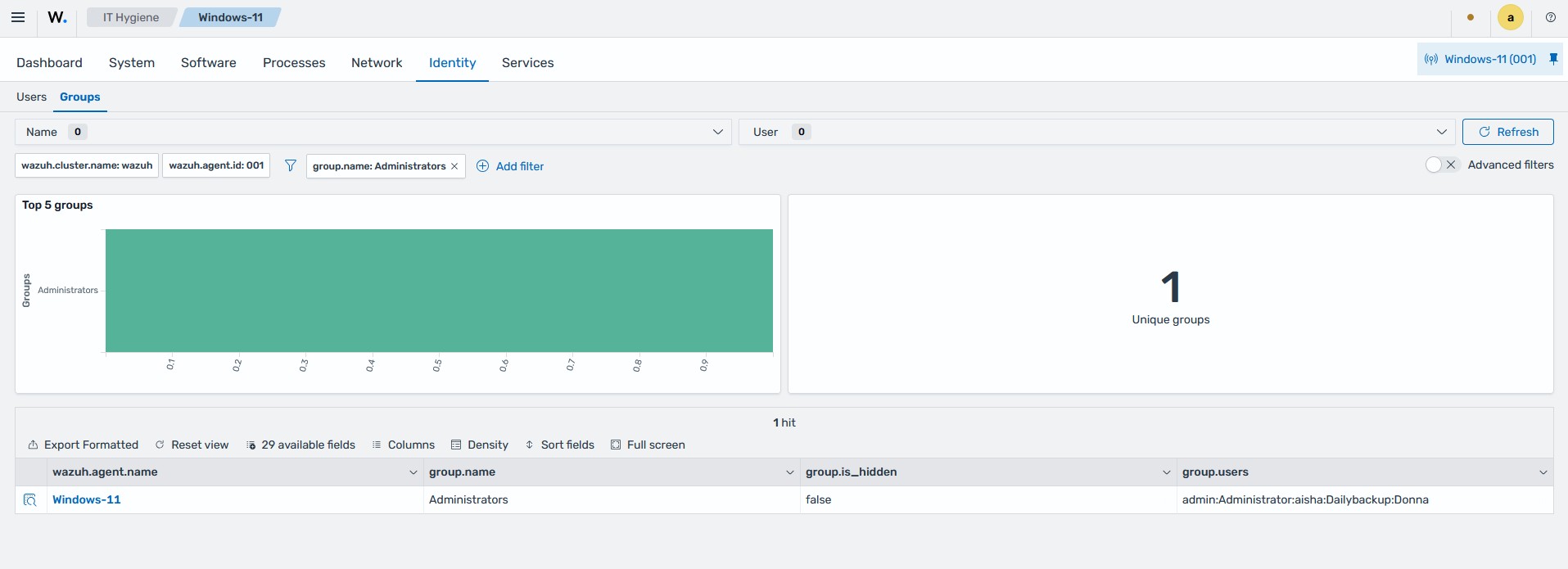
Use case 5: Reviewing open ports and attack surface
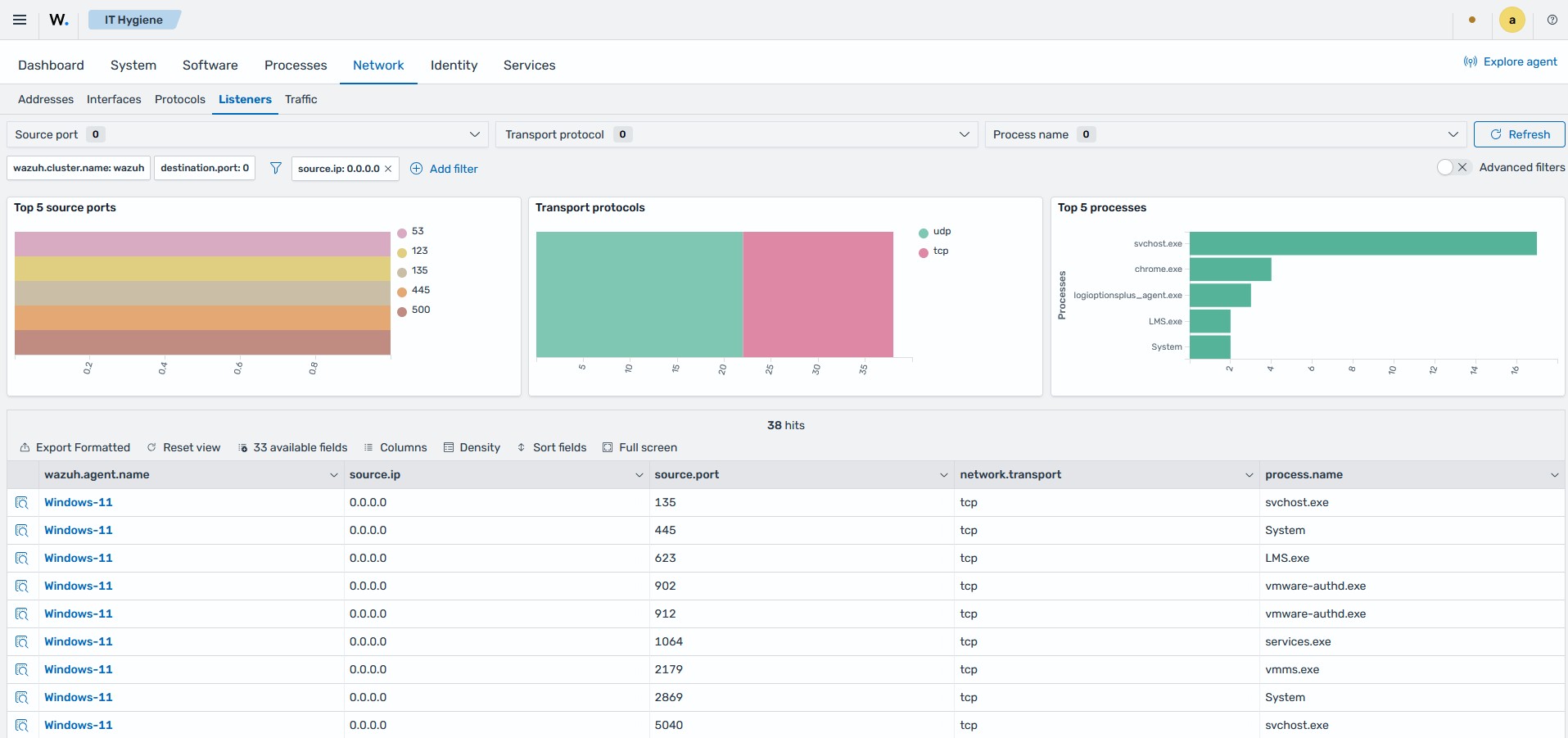
Find endpoints with unexpected listening services to reduce your attack surface.
Click the menu icon, then navigate to Security operations > IT Hygiene.
Select the Network tab and then Listeners.
Click + Add filter and configure it as follows:
Field:
source.ipOperator:
isValue:
0.0.0.0
The filtered view shows every listening socket bound to all network interfaces, rather than only localhost, across your fleet. Sockets bound this way are reachable from other machines on the network and deserve closer review.