Monitoring running processes
In this use case, we configure the Command module locally to run a script that monitors running processes on a Windows endpoint. Then, we create custom decoders and a detection rule to generate findings whether a particular process is running.
Configuration
We configure the Command module to monitor running processes on a monitored Windows endpoint and generate a finding if the Notepad.exe process is running.
Windows endpoint
Perform the following steps to configure the Command module to run a batch script on the Windows endpoint.
Create a batch script named
process-check.batin theC:\Program Files\folder and add the content below. The script lists running processes on Windows endpoints and prints the outputprocess-check: WARNING notepad.exe is runningwhen Notepad is running.@echo off set "PROCESS=notepad.exe" tasklist /FI "IMAGENAME eq %PROCESS%" 2>NUL | find /I "%PROCESS%" >NUL if %ERRORLEVEL%==0 ( echo process-check: WARNING %PROCESS% is running )
Get the SHA256 hash of the
C:\Program Files\process-check.batscript using the PowerShell command below:> certutil -hashfile "C:\Program Files\process-check.bat" SHA256
Append the configuration below to the Wazuh agent
C:\Program Files (x86)\ossec-agent\ossec.conffile. Replace<SHA256_HASH>with the hash of the script.<ossec_config> <wodle name="command"> <disabled>no</disabled> <tag>process-check</tag> <command>"C:\Program Files\process-check.bat"</command> <interval>2m</interval> <run_on_start>yes</run_on_start> <timeout>10</timeout> <verify_sha256><SHA256_HASH></verify_sha256> </wodle> </ossec_config>
Where:
The
"C:\Program Files\process-check.bat"value in the<command>option is the command the Command module executes.The
2mvalue in the<interval>option specifies that the Command module executes the configured command every 2 minutes.
Restart the Wazuh agent to apply the changes using PowerShell with administrator privileges:
> Restart-Service -Name wazuh
Wazuh dashboard
Perform the steps below to create a custom decoder and rule to analyze the event received from the monitored Windows endpoint. If you haven't already done so, perform step 1 of the Wazuh dashboard section under Example configuration.
Navigate to Security Analytics > Detection > Rules and perform the following to create a detection rule.
Select the space Draft
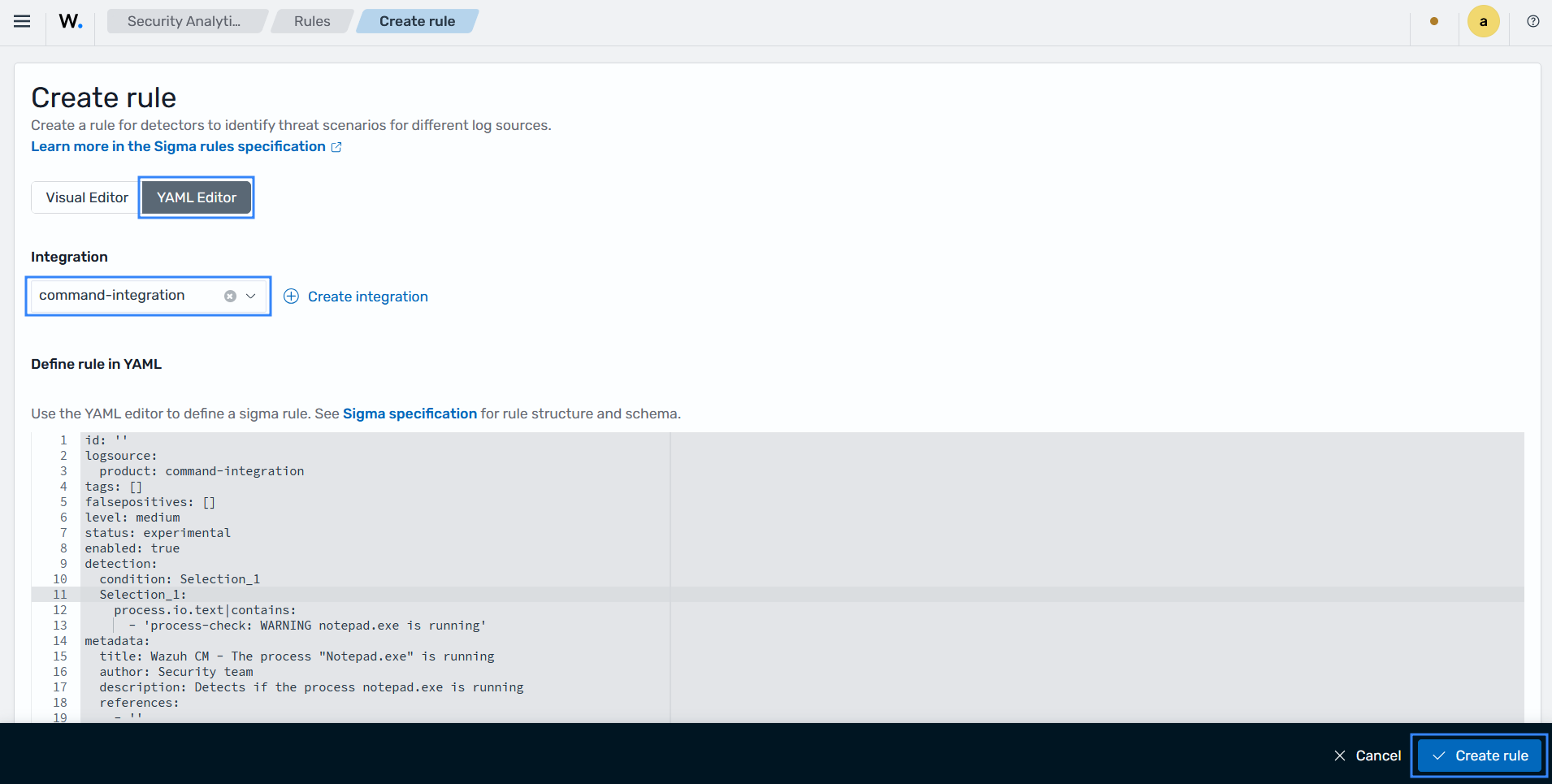
Click Actions > Create, select the YAML Editor, choose the integration
command-integration, paste the detection rule shown below, and click Create rule:id: fe516c10-998f-4c62-9f8a-c2889716be6b logsource: product: command-integration tags: [] falsepositives: [] level: medium status: experimental enabled: true detection: condition: Selection_1 Selection_1: process.io.text|contains: - 'process-check: WARNING notepad.exe is running' metadata: title: Wazuh CM - The process "Notepad.exe" is running author: Security team description: Detects if the process notepad.exe is running references: - '' documentation: '' supports: - '' modified: '2026-07-16T11:24:38Z'
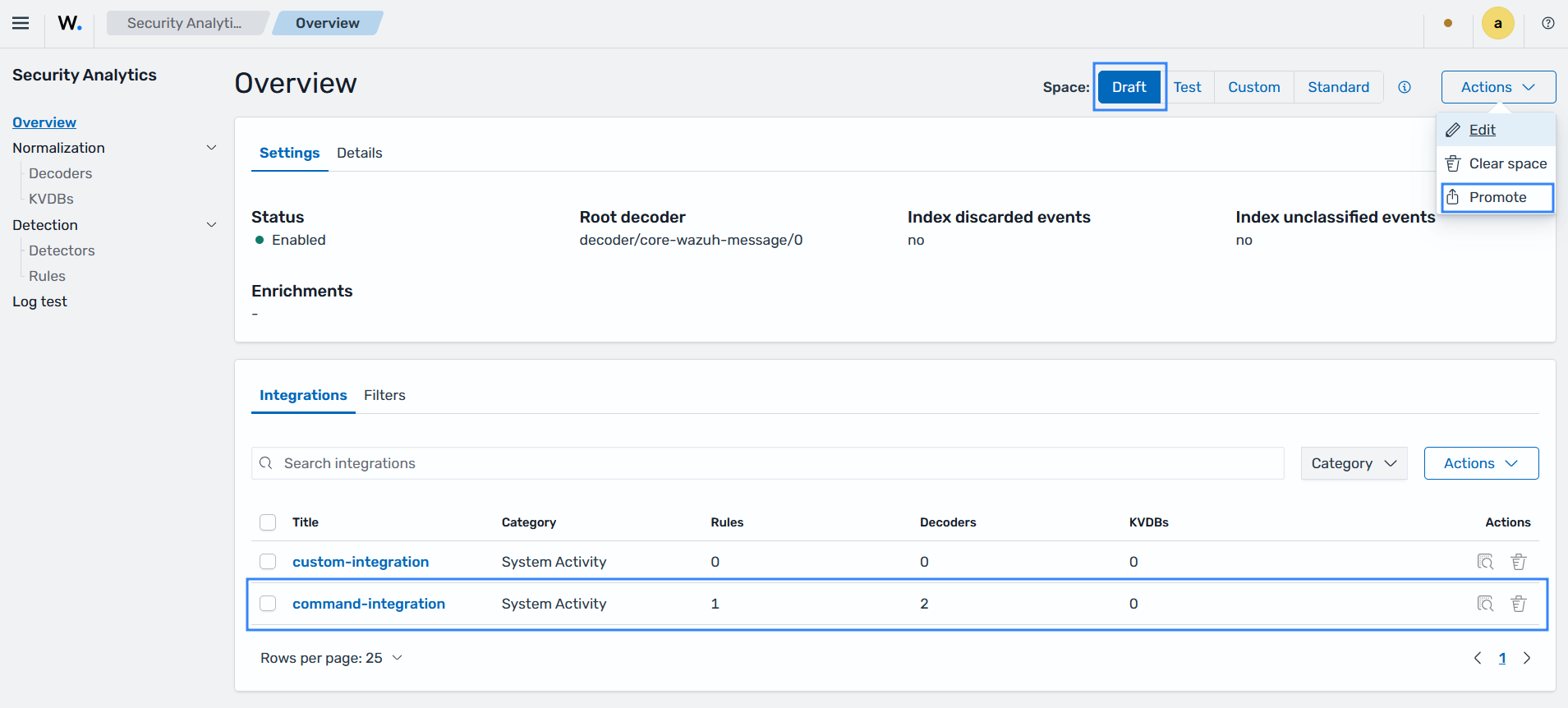
Navigate to Security Analytics > Overview, select the space Draft and click Actions > Promote to promote the detection rule to the Test space.
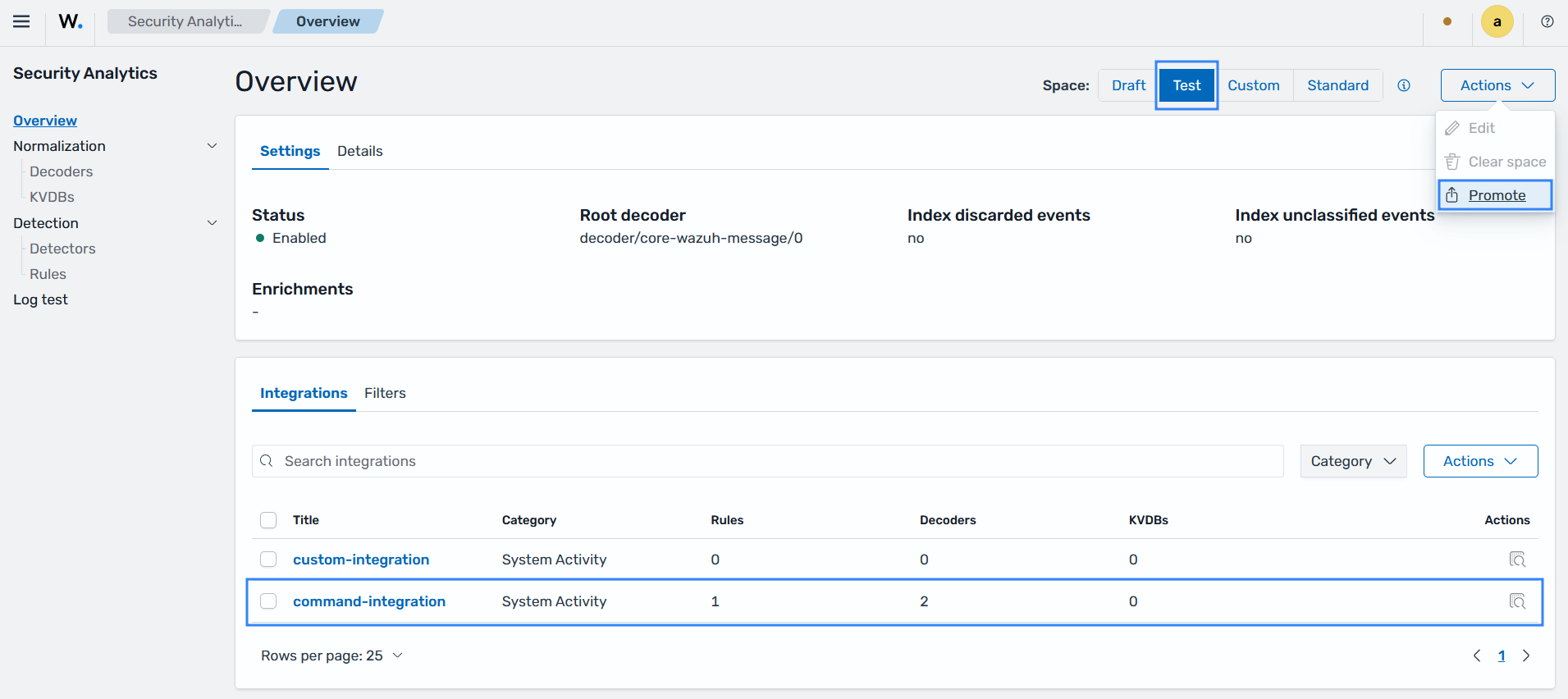
Navigate to Security Analytics > Overview, select the space Test, and click Actions > Promote to promote the detection rule to the Custom space.
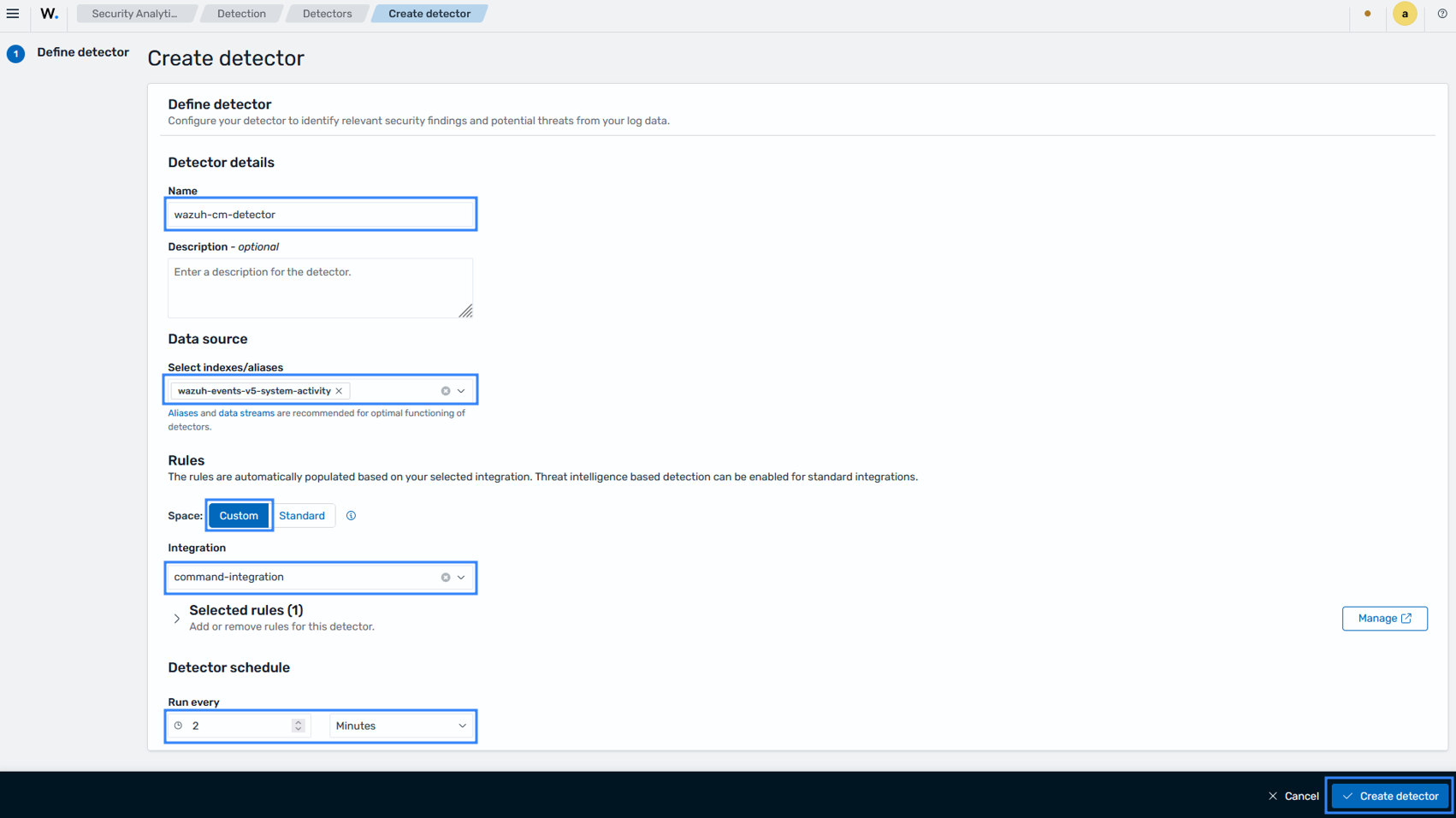
Navigate to Security Analytics > Detection > Detectors to create a detector that applies the detection rule and generates findings.
Click Create detector, fill the required fields, and click Create detector:
Name: wazuh-process-detector
Select indexes/aliases: wazuh-events-v5-system-activity (this must match the integration category you configured earlier,
System Activity)Space: Custom
Integration: command-integration
Run every: 1 minute.
Test the configuration
Launch the Notepad application on the monitored Windows endpoint to trigger the detection of the process.
Visualize the findings
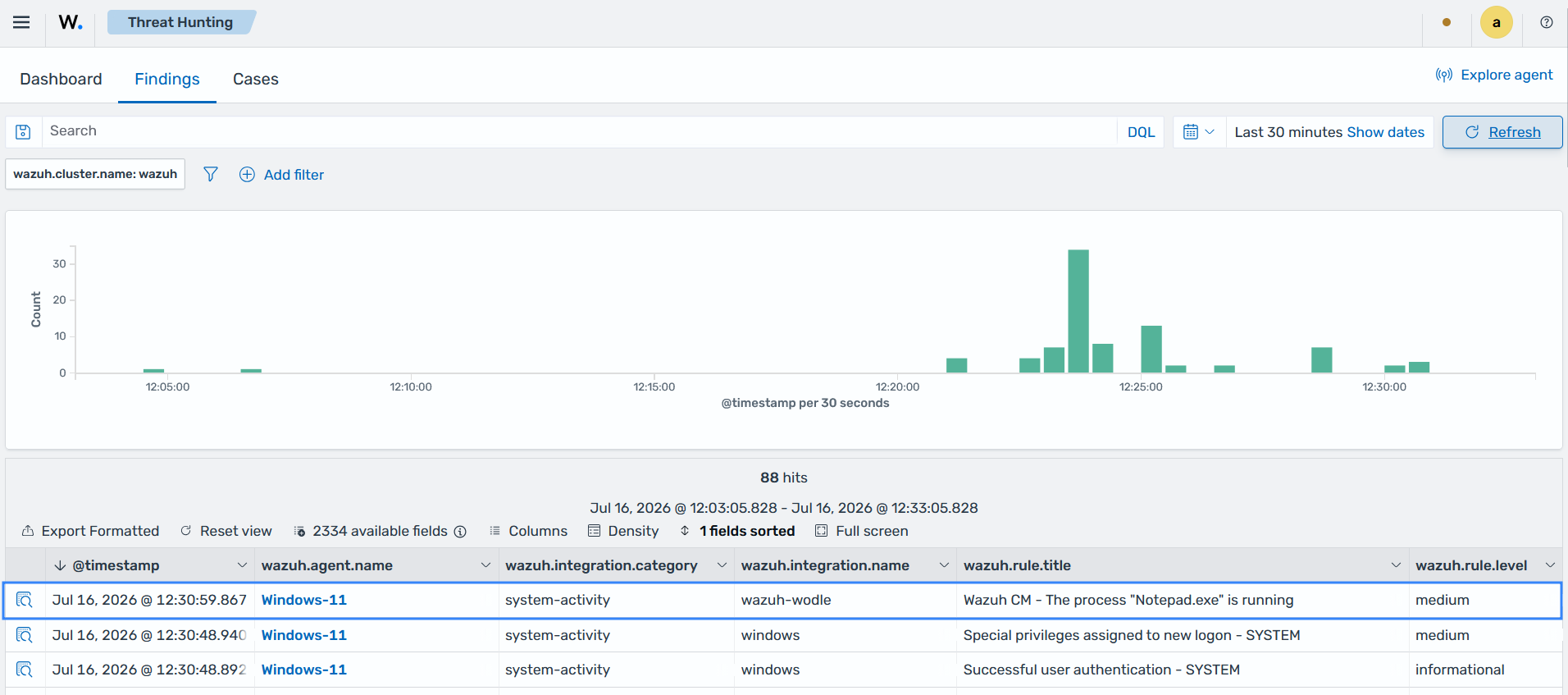
Navigate to Threat Intelligence > Threat Hunting > Findings on the Wazuh dashboard to view the generated finding: