Windows Registry monitoring
The Windows Registry is a vital part of the Windows operating system. It is a database that stores configuration information for programs and hardware installed on Microsoft Windows operating systems. When you install a program, Windows creates a new subkey in the registry. This subkey contains information such as the program location, version, and startup instructions.
An unauthorized or unexpected change to the registry might result in system instability, application failures, and security breaches. Attackers might modify registry keys to execute malicious code or to maintain persistence on the system. In addition, legitimate software and system updates might also modify the registry. It is essential to track these changes to ensure system stability and security.
The Wazuh FIM module scans the Windows Registry periodically and triggers a finding when it detects changes in the entries.
How it works
The Wazuh File Integrity Monitoring (FIM) module runs on the Wazuh agent, monitoring Windows Registry entries through scheduled scans to detect additions, modifications, and deletions at fixed intervals. While the default configuration provides basic monitoring, you can customize the FIM settings to specify which Windows Registry entries to monitor based on your environment's requirements.
The FIM module stores checksums and other attributes of monitored Windows Registry entries in a dedicated database on the endpoint. During scans, it compares current values against previously stored ones to identify changes, then reports them to the Wazuh manager, which processes and forwards them to the Wazuh indexer. If an event matches a detection rule, Wazuh generates a security finding.
The FIM module maintains dedicated databases on both the monitored endpoint and the Wazuh manager. The agent uses a local SQLite database to store the current state of monitored Windows Registry entries, located at C:\Program Files (x86)\ossec-agent\queue\fim\db on Windows.
The Wazuh manager keeps a synchronized copy of each agent's FIM database. The wazuh-db daemon manages a separate database per registered agent, identified by agent ID and stored in /var/wazuh-manager/queue/db. During synchronization, the Wazuh agent sends updated Windows Registry metadata, such as checksums and attribute changes, to its database on the manager, ensuring FIM-related API queries return accurate, up-to-date information.
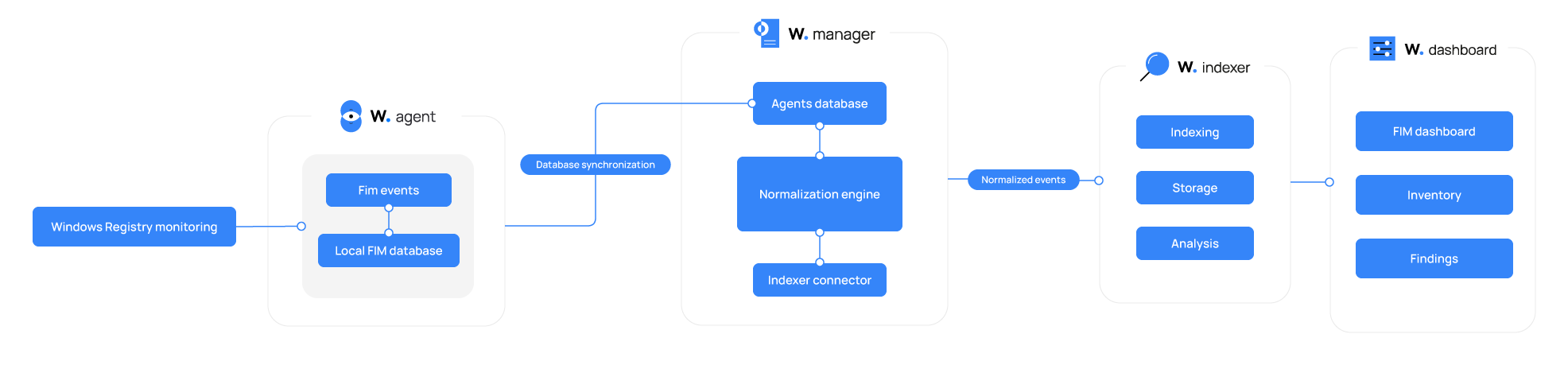
The Wazuh manager processes the Windows Registry events it receives from the Wazuh agents using the Wazuh normalization engine. The normalization engine converts the events into JSON documents that conform to the Wazuh Common Schema (WCS). The indexer connector component on the Wazuh manager then securely forwards the normalized events to the Wazuh indexer for indexing, storage, and threat detection.
Configuration
To configure the FIM module, specify the registry keys that FIM must monitor for creation, modification, and deletion. You can do this similarly to how you list directories and files, but using the label <windows_registry> instead.
You can modify the default FIM configuration on the C:\Program Files (x86)\ossec-agent\ossec.conf configuration file of the Wazuh agent to specify the Windows Registry keys to monitor. You can also configure this capability remotely by using centralized configuration.
The FIM module supports several configuration options for monitoring Windows Registry entries. For example, you can enable all the basic checks with the check_all attribute, or find the information about the specific change made to a registry entry with the report_changes attribute. You can find a list of all the supported attributes and options in the windows_registry section of the documentation.
In this guide, you can see different configuration options that you can apply to monitor the Windows Registry.
Record Windows Registry attributes
You can specify the Windows Registry keys to monitor using the windows_registry option. This option supports several attributes. This section explains the following attributes.
check_all: The allowed values for thecheck_alloption areyesandno. This option is enabled by default. Records:Registry size
Last modification date
MD5, SHA-1, and SHA-256 hash sums
check_sum: Records the MD5, SHA-1, and SHA-256 hashes of the Windows Registry values. The allowed values for thecheck_sumoption areyesandno.check_mtime: Thecheck_mtimeoption allows the FIM module to record the modification time of the Windows Registry keys and values. The allowed values for thecheck_mtimeoption areyesandno.
The following example shows how to configure different attribute checks for monitored Windows Registry keys:
Record the last modification date and all the hashes of the
HKEY_LOCAL_MACHINE\Software\Classes\batfile\TestKey1registry key.Disable the recording of hashes (MD5, SHA-1, and SHA-256) of the
HKEY_LOCAL_MACHINE\Software\Classes\batfile\TestKey2registry key.Disable the recording of the modification time of the
HKEY_LOCAL_MACHINE\Software\Classes\batfile\TestKey3registry key.
Edit the
C:\Program Files (x86)\ossec-agent\ossec.confconfiguration file:<syscheck> <windows_registry>HKEY_LOCAL_MACHINE\Software\Classes\batfile\TestKey1</windows_registry> <windows_registry check_sum="no">HKEY_LOCAL_MACHINE\Software\Classes\batfile\TestKey2</windows_registry> <windows_registry check_mtime="no">HKEY_LOCAL_MACHINE\Software\Classes\batfile\TestKey3</windows_registry> </syscheck>
Restart the Wazuh agent using PowerShell to apply the changes:
> Restart-Service -Name WazuhSvc
Recursion level
You can configure the maximum recursion level allowed for a Windows Registry entity with the recursion_level option of the windows_registry option. The allowed values for this option are any integer between 0 and 512.
Note
This 512 limit applies specifically to <windows_registry> (Windows Registry monitoring). The recursion_level attribute for <directories> is different and supports a lower range. See Recursion level.
Follow these steps to set the recursion_level of HKEY_LOCAL_MACHINE\SYSTEM\Setup to 3.
Edit the
C:\Program Files (x86)\ossec-agent\ossec.confconfiguration file and add the configuration below:<syscheck> <windows_registry recursion_level="3">HKEY_LOCAL_MACHINE\SYSTEM\Setup</windows_registry> </syscheck>
After setting the recursion level, restart the Wazuh agent to apply the configuration:
> Restart-Service -Name WazuhSvc
When using the following registry structure and recursion_level="3", FIM generates findings for Subkey_3 and all registry subkeys or values up to HKEY_LOCAL_MACHINE\SYSTEM\Setup\level_1\level_2\level_3\ but not for any registry subkeys or values deeper than level_3.
HKEY_LOCAL_MACHINE\SYSTEM\Setup
├── Subkey_0
└── level_1
    ├── Subkey_1
    └── level_2
        ├── Subkey_2
        └── level_3
            ├── Subkey_3
            └── level_4
                ├── Subkey_4
                └── level_5
                    └── Subkey_5
To disable the recursion and generate findings only for the registry values in the monitored registry, you need to set the recursion_level value to 0.
Wazuh sets recursion_level to the default value defined by syscheck.default_max_depth in the internal options configuration file.
Reporting changes in registry values
To report the exact content changed in a Windows Registry value, you can configure the FIM module with the report_changes option of the windows_registry option. The allowed values are yes and no, and the supported registry value types are:
REG_SZREG_MULTI_SZREG_DWORDREG_DWORD_BIG_ENDIAN
You must use the report_changes option with caution. Wazuh copies every single monitored file to a C:\Program Files (x86)\ossec-agent\queue\diff\registry, and this increases storage usage.
Follow these steps to configure the FIM module to report changes made to HKEY_LOCAL_MACHINE\SYSTEM\Setup key.
Open Registry Editor and create a subkey named
Custom Keyunder theHKEY_LOCAL_MACHINE\SYSTEM\Setupregistry key.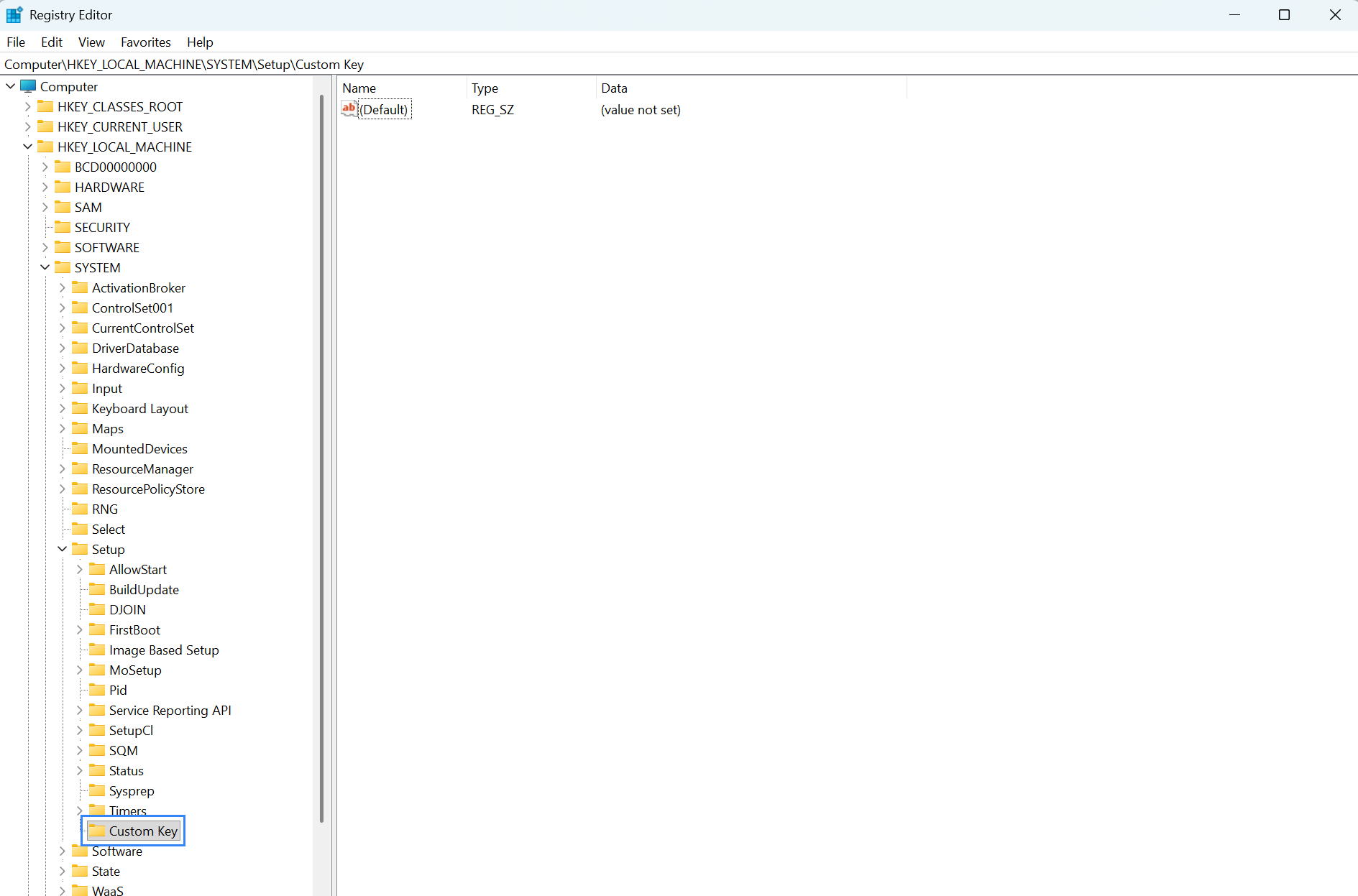
Edit the
C:\Program Files (x86)\ossec-agent\ossec.confconfiguration file and add the configuration below:<syscheck> <frequency>300</frequency> <windows_registry report_changes="yes">HKEY_LOCAL_MACHINE\SYSTEM\Setup</windows_registry> </syscheck>
Note
The
frequencyoption is a global setting that defines the scan interval for all registry keys monitored in scheduled mode.Restart the Wazuh agent to apply the configuration:
> Restart-Service -Name WazuhSvc
Modify the
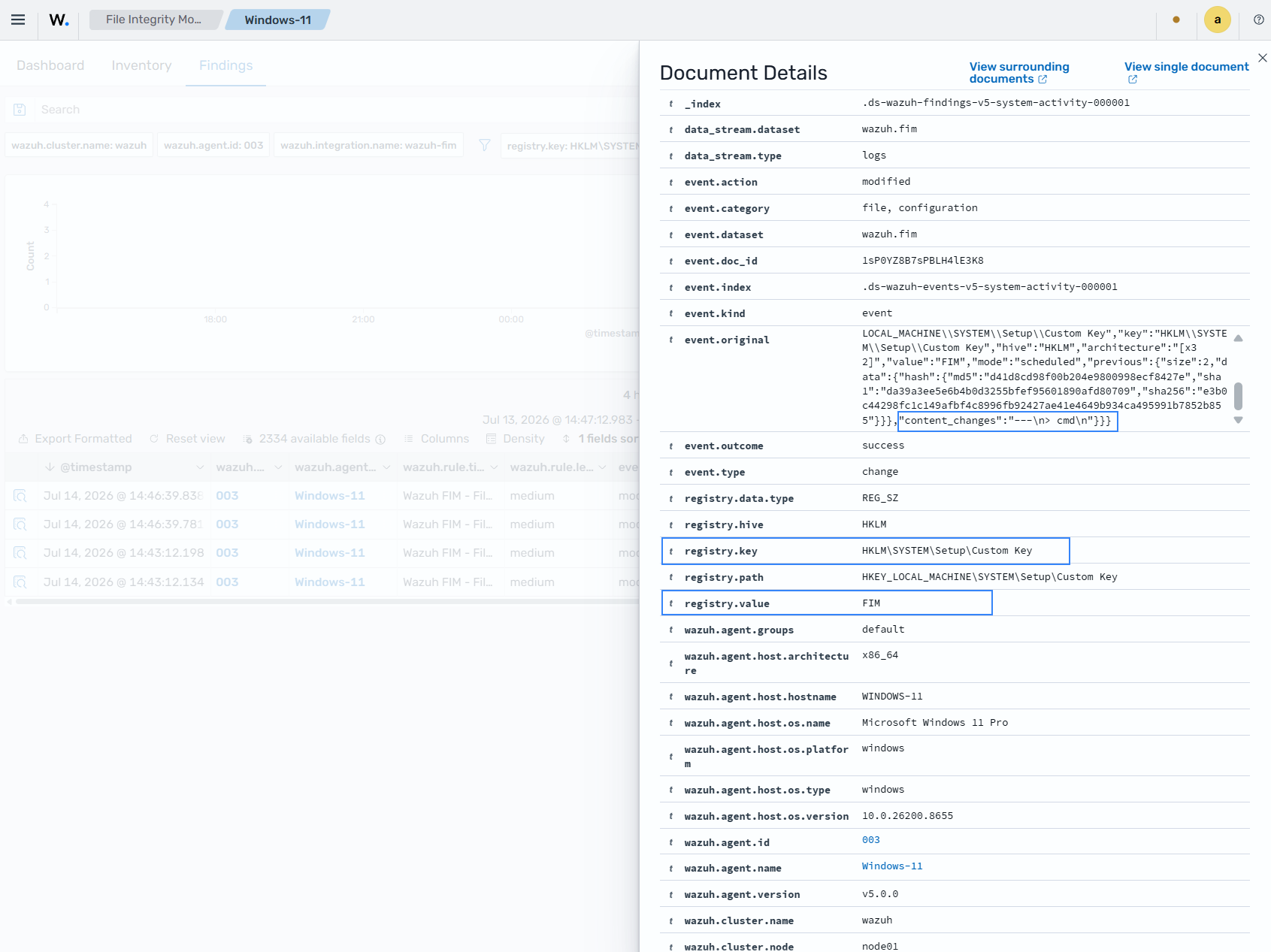
Custom Keysubkey and add a new string valueFIMand datacmd.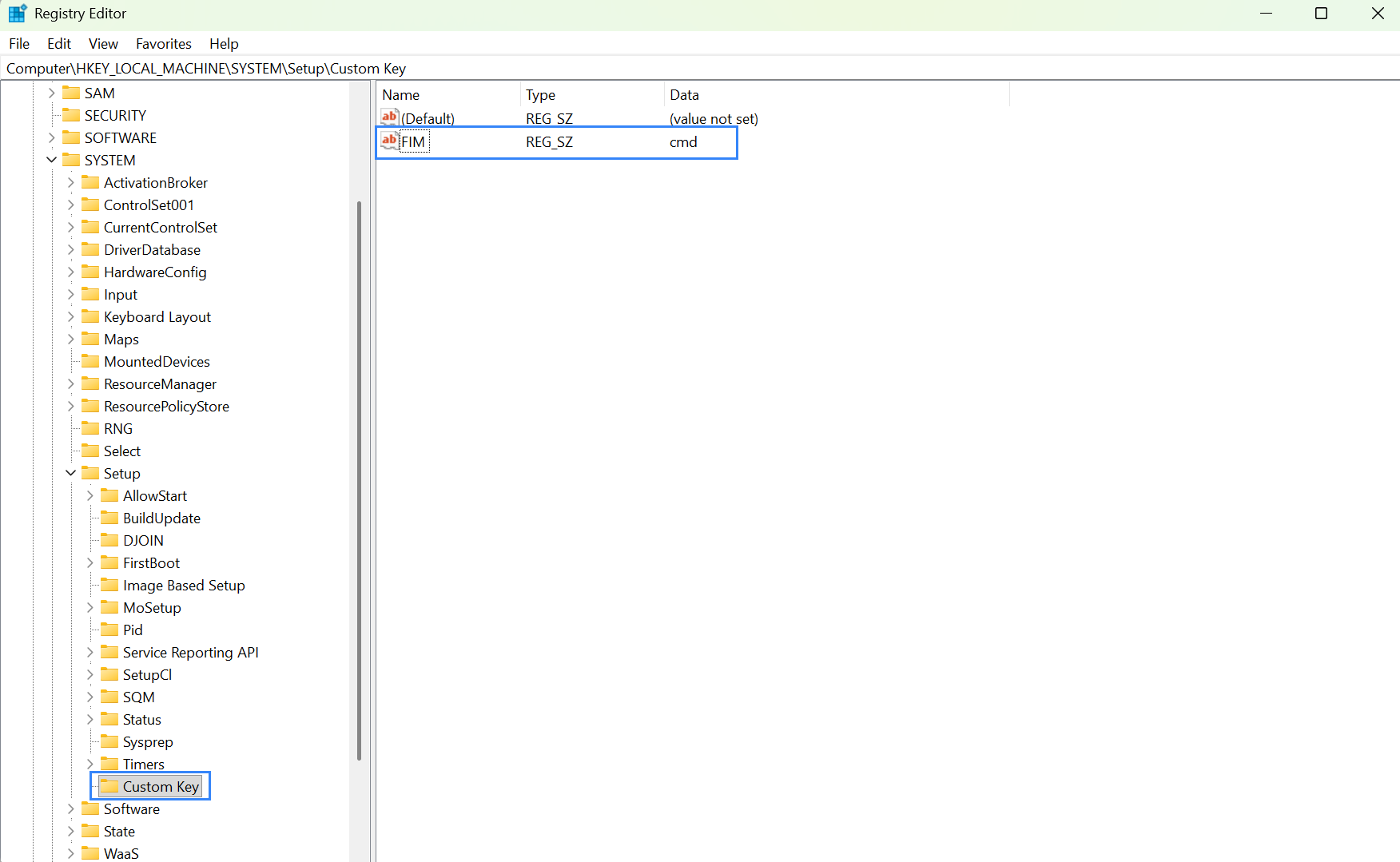
Wait for 5 minutes, which is the time configured for the FIM scan.
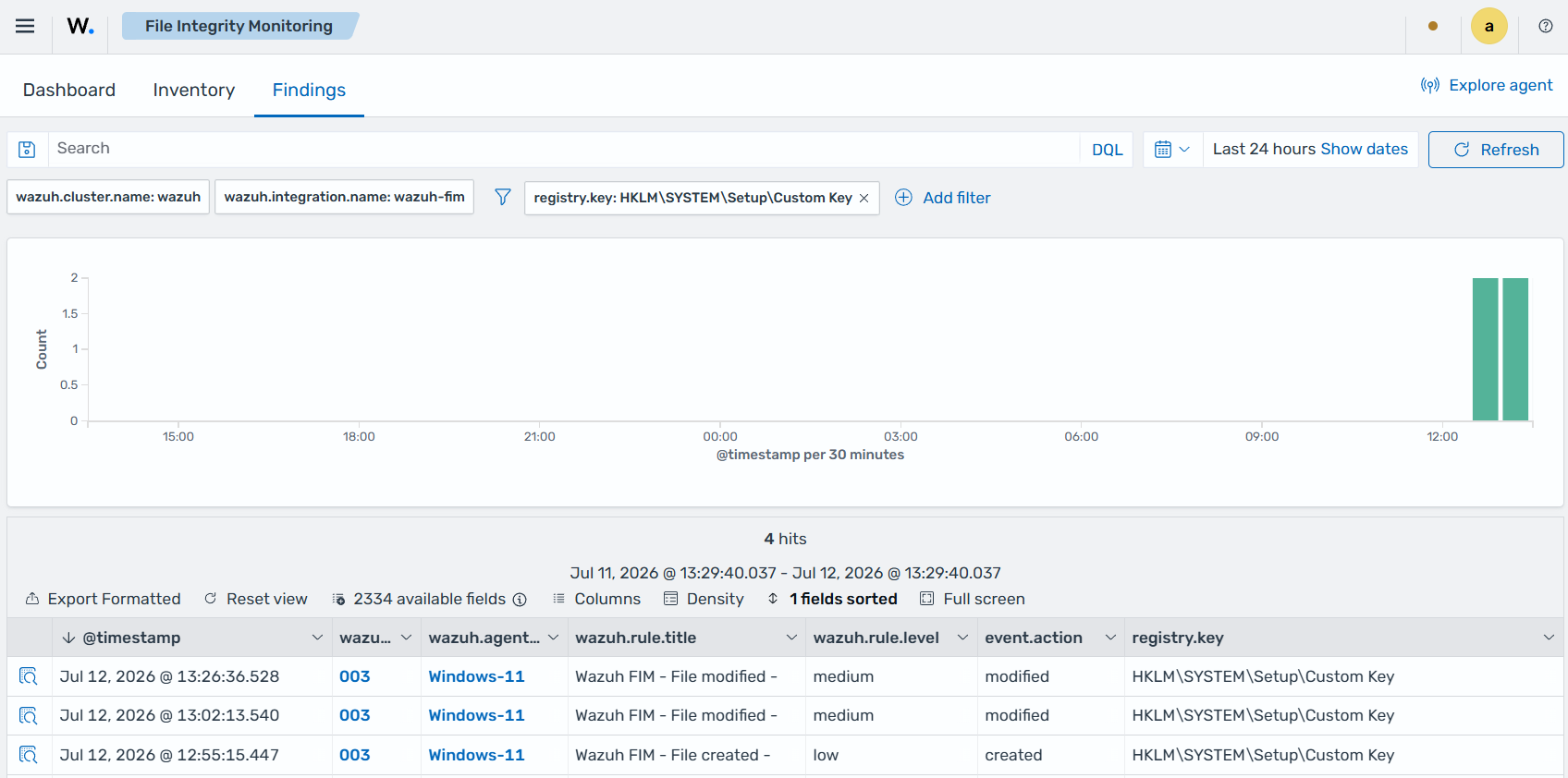
Navigate to Endpoint security → File Integrity Monitoring → Findings on the Wazuh dashboard to view the finding generated when the FIM module detects a modification of the monitored registry value.
Expand the finding to see the changed fields.
Adding exclusions
You can configure the FIM module to ignore certain Windows Registry keys with the registry_ignore option. It allows declaring only a single Windows Registry entry. However, you can specify multiple lines to declare multiple registry entries.
Follow these steps to configure the FIM module to ignore the HKEY_LOCAL_MACHINE\Security\Policy and any Windows Registry entry that matches the simple regex pattern \Enum$ from FIM results.
Add this configuration to the
C:\Program Files (x86)\ossec-agent\ossec.confconfiguration file of the Wazuh agent:<syscheck> <registry_ignore>HKEY_LOCAL_MACHINE\Security\Policy</registry_ignore> <registry_ignore type="sregex">\Enum$</registry_ignore> </syscheck>
Restart the Wazuh agent to apply the configuration:
> Restart-Service -Name WazuhSvc
Use case: Detect malware persistence in Windows Registry
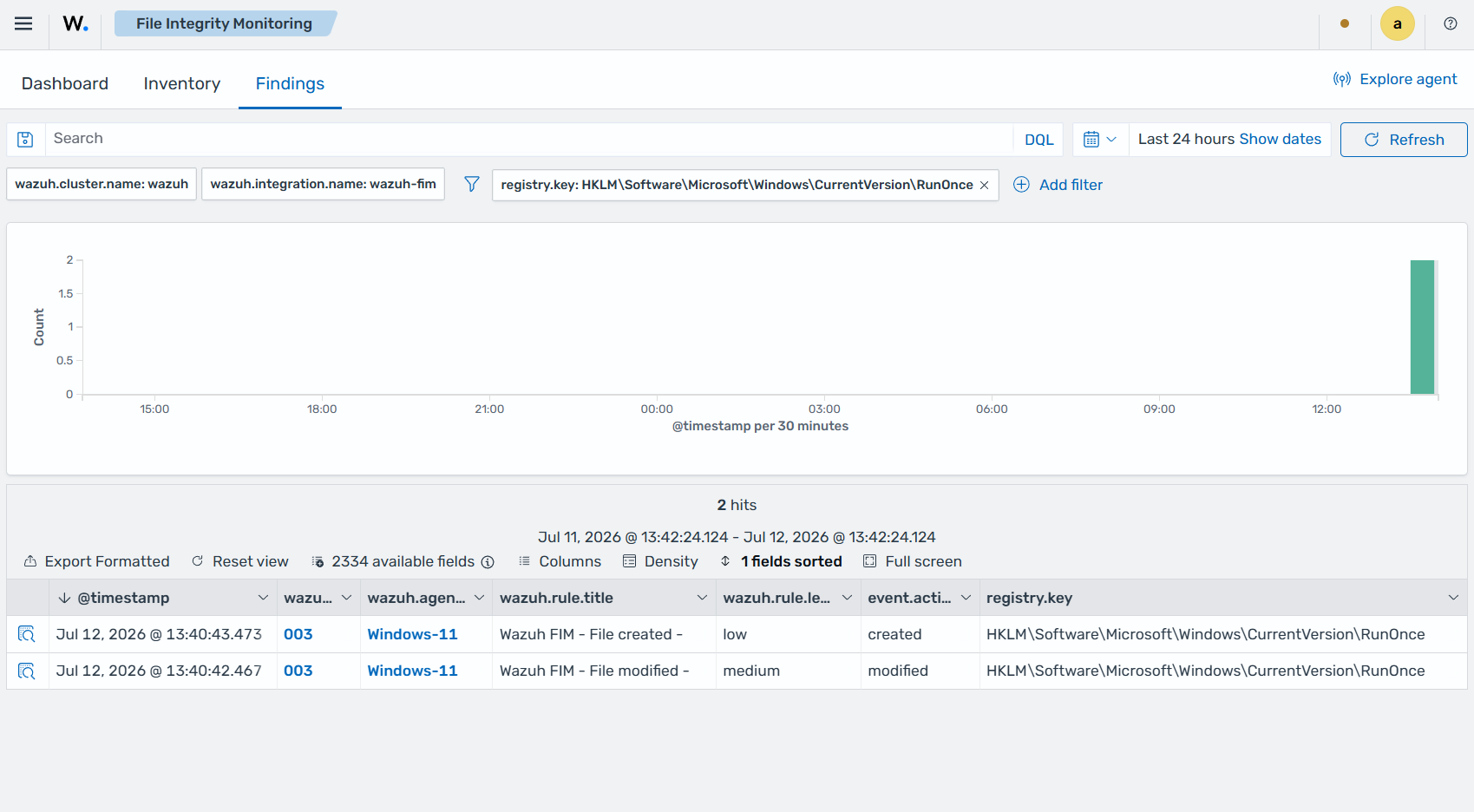
Malware persistence in the Windows Registry is a technique attackers use to ensure their malicious program runs every time the system starts or restarts. The malicious program is commonly added to the "Run" and "RunOnce" keys in the Registry.
With the Wazuh FIM module, you can detect suspicious or unknown programs added to the startup registry keys and remove them before they cause harm to your system.
Use case description
Endpoint |
Description |
|---|---|
Windows 11 |
The FIM module monitors startup registry keys on this endpoint. |
Configuration
Wazuh monitors the startup registry keys by default, without requiring any special user action or configuration. The FIM module's default scan frequency is 43200 seconds (12 hours), so changes to these keys might not generate a finding for up to 12 hours.
Modify the frequency option in the following configuration of the C:\Program Files (x86)\ossec-agent\ossec.conf file to lower the scan frequency to 300 seconds (5 minutes) for this use case:
<syscheck>
  <frequency>300</frequency>
  <windows_registry arch="both">HKEY_LOCAL_MACHINE\Software\Microsoft\Windows\CurrentVersion\Run</windows_registry>
  <windows_registry arch="both">HKEY_LOCAL_MACHINE\Software\Microsoft\Windows\CurrentVersion\RunOnce</windows_registry>
</syscheck>
Test the configuration
Note
You must carry this out in a sandbox environment. Delete the added registry keys after running the test.
Open Registry Editor, then add the string value name
DemoValueand registry value datacmdto theHKEY_LOCAL_MACHINE\Software\Microsoft\Windows\CurrentVersion\Runkey.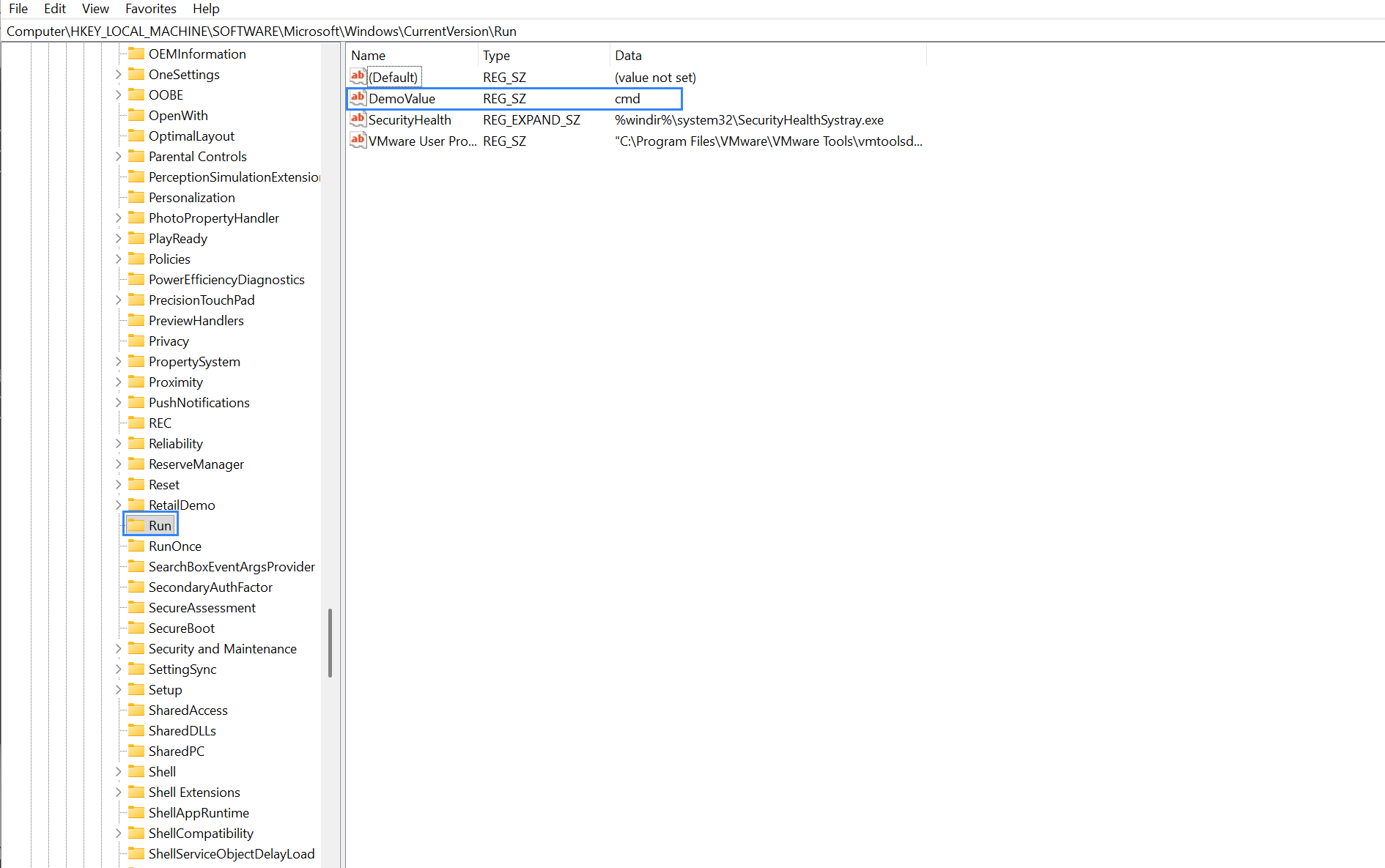
Open Registry Editor, then add the string value name
DemoValueand registry value datacmdto theHKEY_LOCAL_MACHINE\Software\Microsoft\Windows\CurrentVersion\RunOnceregistry key.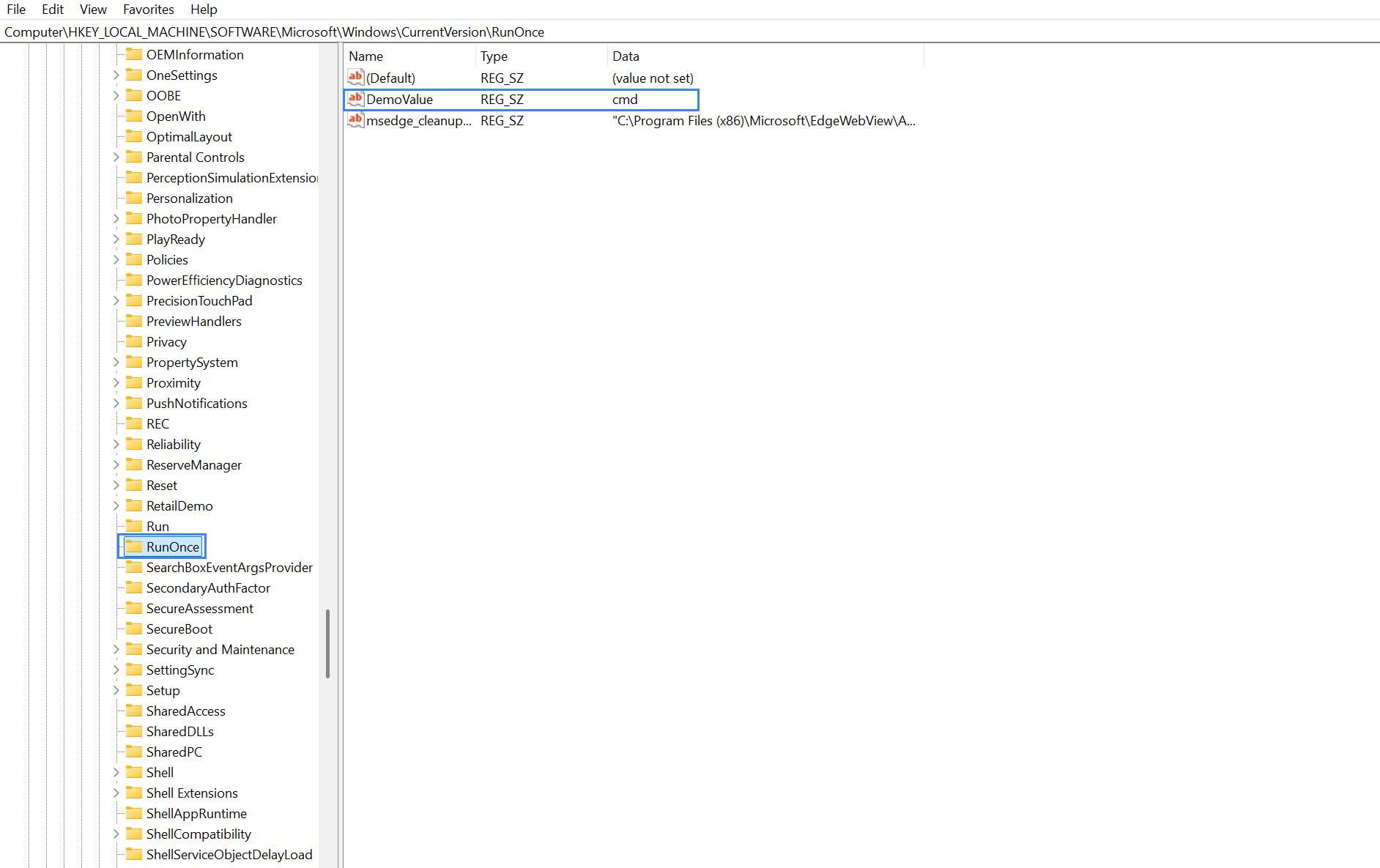
Wait for 5 minutes, which is the time configured for the FIM scan.
Visualize the finding
Navigate to Endpoint security → File Integrity Monitoring → Findings on the Wazuh dashboard to view the finding generated when the FIM module detects changes in the Windows startup registries.