Setting up custom branding
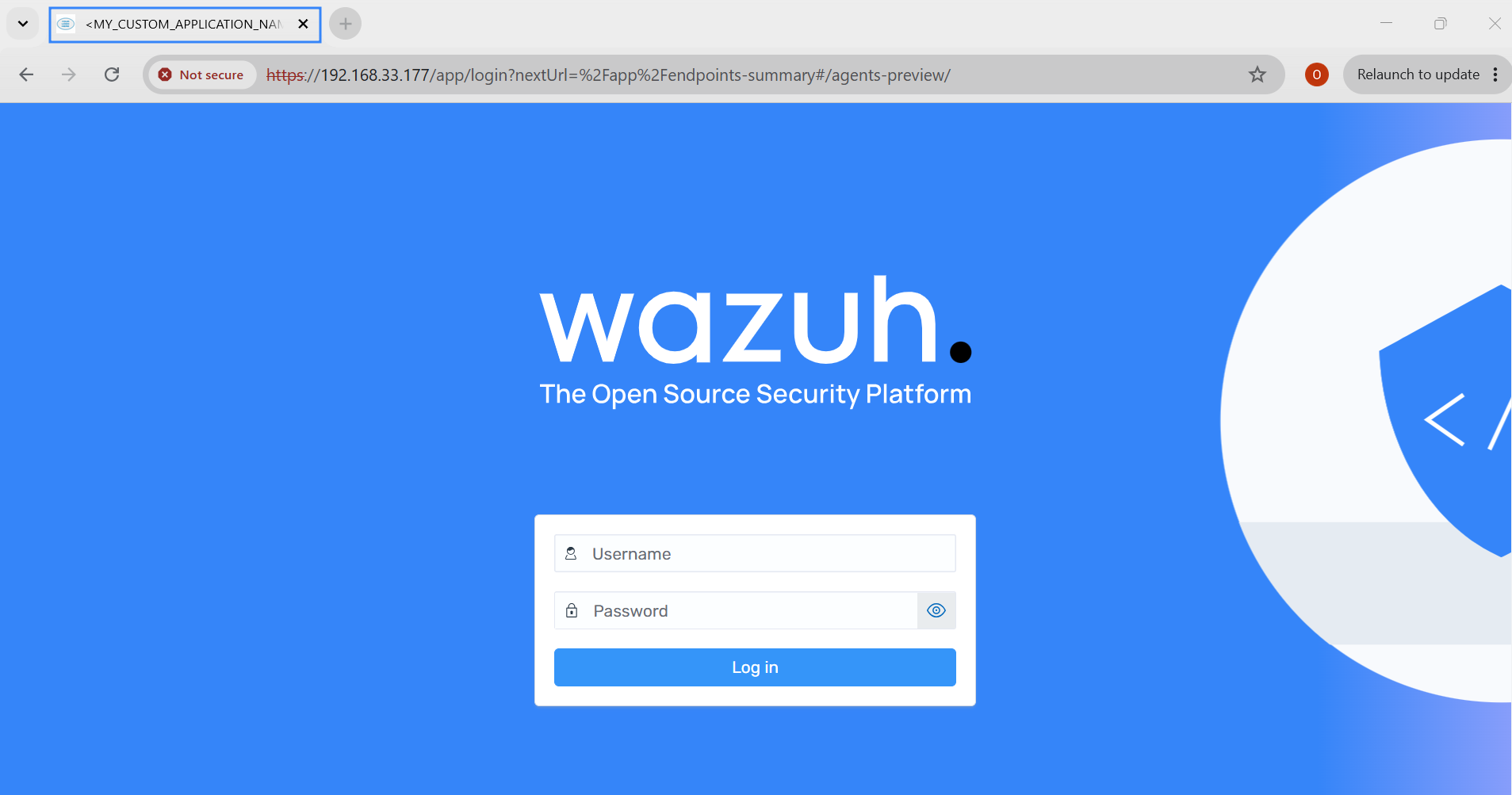
Wazuh supports custom branding, allowing organizations to customize the appearance of the Wazuh dashboard to match their corporate identity. Users can replace the default Wazuh logos and some texts displayed on the loading screen, login page, and dashboard interface with custom logos.
This section of the documentation covers the configuration of the following custom branding options in the Wazuh dashboard:
Custom logos on the Wazuh dashboard
Loading logos
Perform the following actions to customize the global App loading logo.
Edit
opensearch_dashboards.yml. You can find this file in the following locations:/usr/share/wazuh-dashboard/config/for Docker installations./etc/wazuh-dashboard/
Add the URLs of your default and dark theme logos.
opensearchDashboards.branding:
   loadingLogo:
      defaultUrl: "<URL_TO_CUSTOM_LOGO>"
      darkModeUrl: "<URL_TO_CUSTOM_LOGO>"
Replace
<URL_TO_CUSTOM_LOGO>with the URL to your custom logo.Restart the Wazuh dashboard service:
# systemctl restart wazuh-dashboard
Wazuh dashboard home logo
Perform the following to customize the Wazuh dashboard home logo in the top header.
Edit
opensearch_dashboards.yml. You can find this file in the following locations:/usr/share/wazuh-dashboard/config/for Docker installations./etc/wazuh-dashboard/
Add the URLs of your default and dark theme logos.
opensearchDashboards.branding:
   mark:
      defaultUrl: "<URL_TO_CUSTOM_LOGO>"
      darkModeUrl: "<URL_TO_CUSTOM_LOGO>"
Replace
<URL_TO_CUSTOM_LOGO>with the URL to your custom logo. If you are customizing only the default theme logo, remove thedarkModeUrlline from the configuration.Restart the Wazuh dashboard service:
# systemctl restart wazuh-dashboard

Wazuh dashboard login
Perform the following actions to customize the Wazuh dashboard login page.
Edit
opensearch_dashboards.yml. You can find this file in the following locations:/usr/share/wazuh-dashboard/config/for Docker installations./etc/wazuh-dashboard/
Add the URLs of your default and dark theme logos.
opensearch_security.ui.basicauth:
  login:
    title: '<MY_CUSTOM_TITLE>' # Define the title, displayed under the logo
    subtitle: '<MY_CUSTOM_SUBTITLE>' # Define a subtitle
    showbrandimage: true # Enable or disable if the logo should be displayed
    brandimage: '<URL_TO_CUSTOM_LOGO>' # Customize the logo
Where:
title: Defines the title displayed below the logo.subtitle: Defines the subtitle displayed below the title.showBrandImage: Enables or disables the display of the logo.brandImage: Specifies the logo image to display.
Replace
<URL_TO_CUSTOM_LOGO>with the URL to your custom logo.Restart the Wazuh dashboard service:
# systemctl restart wazuh-dashboard

Application title and favicon
Perform the following actions to customize the application title and favicon.
Edit
opensearch_dashboards.yml. You can find this file in the following locations:/usr/share/wazuh-dashboard/config/for Docker installations./etc/wazuh-dashboard/
Add the URLs of your default and dark theme logos.
opensearchDashboards.branding:
  applicationTitle: '<MY_CUSTOM_APPLICATION_NAME>'
  faviconUrl: '<URL_TO_CUSTOM_LOGO>'
Where:
applicationTitle: Defines the application name.faviconUrl: Specifies the favicon image to display.
Replace
<URL_TO_CUSTOM_LOGO>with the URL to your custom logo.Restart the Wazuh dashboard service:
# systemctl restart wazuh-dashboard