Wazuh agent
The Wazuh agent is multi-platform and runs on the endpoints that you want to monitor. It communicates with the Wazuh manager, sending data in near real-time through an encrypted and authenticated channel.
The Wazuh agent was developed considering the need to monitor a wide variety of different endpoints without impacting their performance. It is supported on the most popular operating systems, and it requires 35 MB of RAM on average.
The Wazuh agent provides key features to enhance your system’s security.
Log collector |
Command execution |
File integrity monitoring (FIM) |
Security configuration assessment (SCA) |
System inventory |
Malware detection |
Active response |
Container security |
Cloud security |
To install a Wazuh agent, select your operating system and follow the instructions.



If you are deploying Wazuh in a large environment, with a high number of servers or endpoints, keep in mind that this deployment might be easier using automation tools such as SCCM or Ansible.
Note
Compatibility between the Wazuh agent and the Wazuh manager is guaranteed when the Wazuh manager version is later than or equal to that of the Wazuh agent.
You can also deploy a new agent following the instructions in the Wazuh dashboard. Go to Agents management > Summary, and click on Deploy new agent.
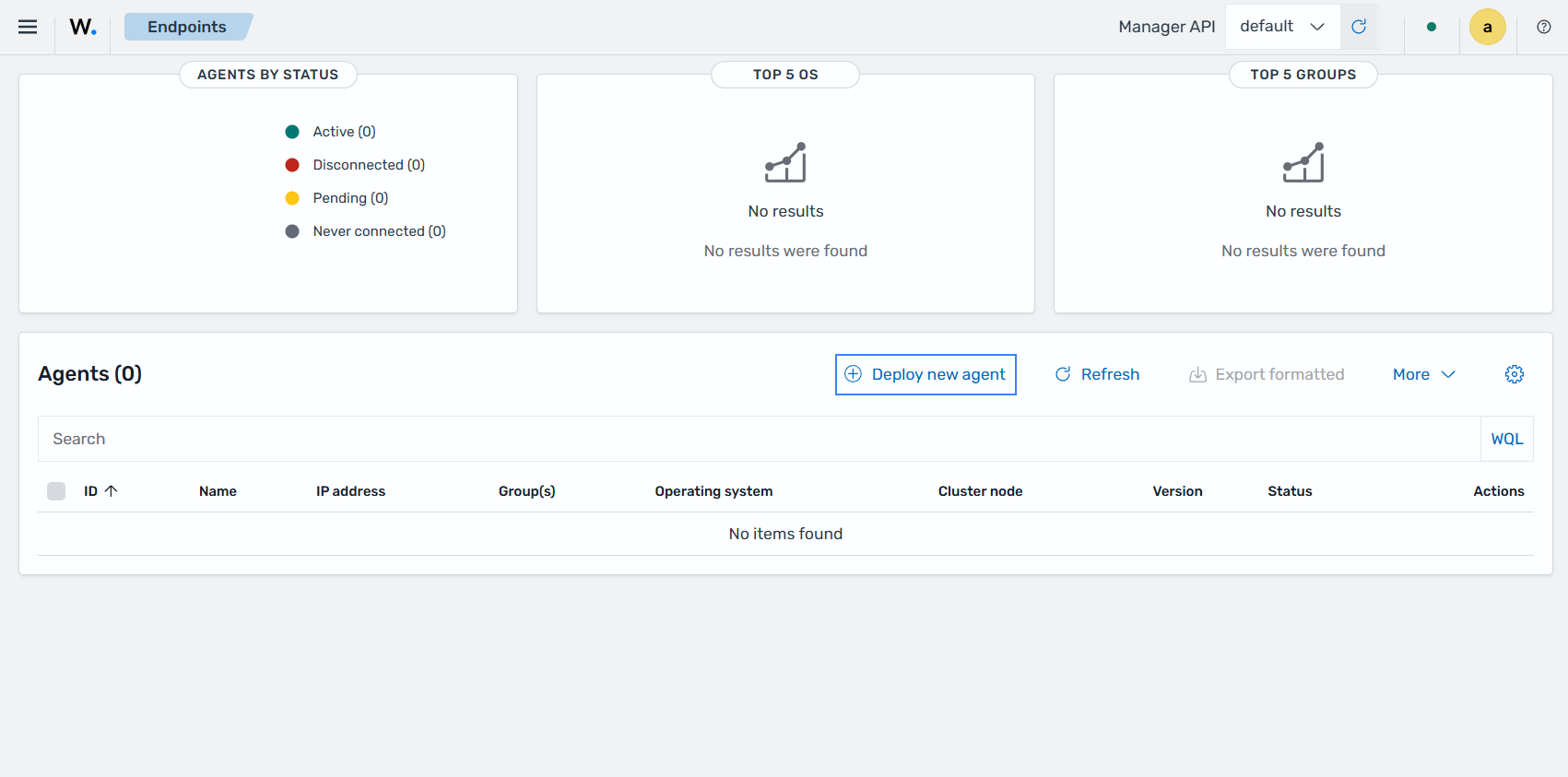
Then follow the steps on the Wazuh dashboard to deploy a new agent.
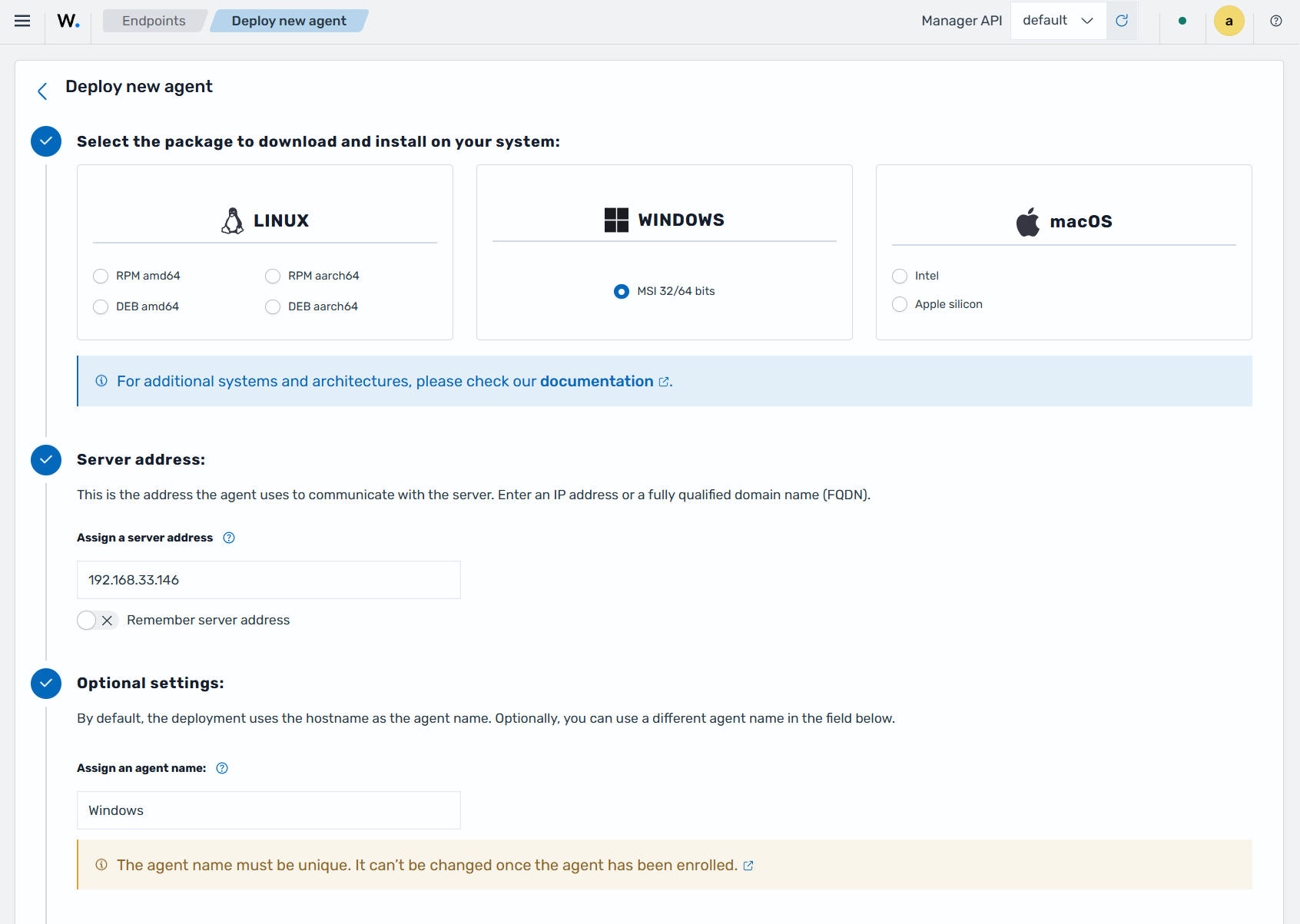
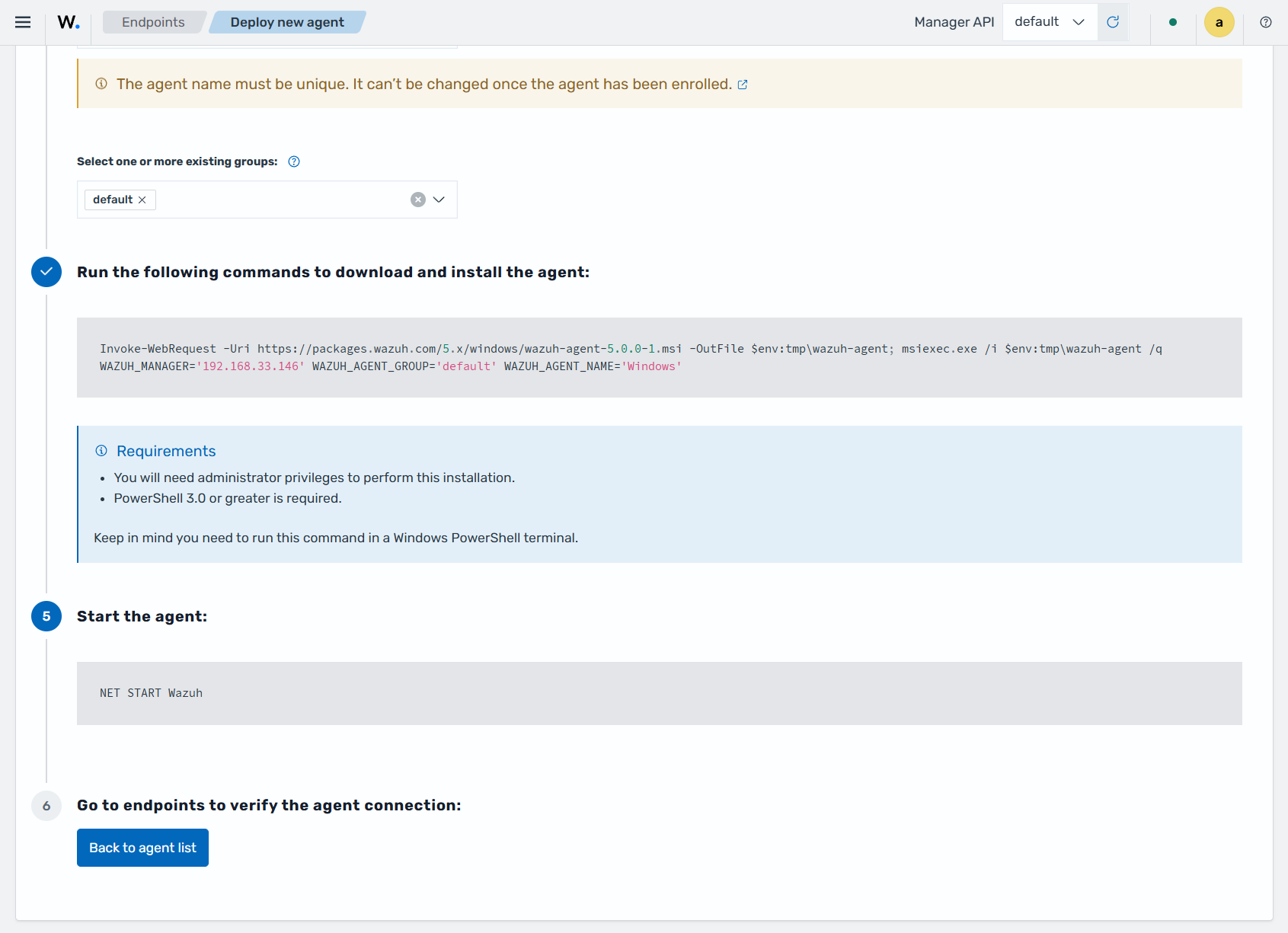
Requirements
During enrollment, the Wazuh agent authenticates to the Wazuh manager using a shared password. The Wazuh manager accepts the enrollment request only if the agent provides the configured password. For more information see Enroll Wazuh agents with password authentication.
To enroll a Wazuh agent using password authentication, complete the following steps on the Wazuh manager:
Verify that the
<auth>section of the Wazuh manager configuration file/var/wazuh-manager/etc/wazuh-manager.conf, contains the configuration highlighted below.<auth> <use_password>yes</use_password> </auth>
Run the following command to view the enrollment password generated by the Wazuh manager. Wazuh agents use this password during the enrollment process to authenticate with the Wazuh manager:
# cat /var/wazuh-manager/etc/authd.pass
The command output looks similar to this:
f96d957cb68e94512eae3f5063b649b7
Once the above prerequisites are met, you can enroll the Wazuh agent by following the steps for the OS running on the endpoints where the Wazuh agent is installed.