Managing Wazuh CTI
You can configure and manage Wazuh CTI to control how CTI content is synchronized and accessed in your Wazuh environment. This section describes how to configure CTI synchronization, perform administrative operations using the Wazuh Content Manager API, and manage your Wazuh CTI subscription.
Configuring Wazuh CTI
You can configure how the Content Manager connects to Wazuh CTI and synchronizes content with the Wazuh environment. The Content Manager configuration uses settings with the plugins.content_manager prefix.
These settings are optional and are not included in the /etc/wazuh-indexer/opensearch.yml file by default. Add only the settings that you want to configure. Unless otherwise specified, restart the Wazuh indexer after modifying the configuration for the changes to take effect.
The following table shows the Content Manager settings related to Wazuh CTI synchronization:
Setting |
Type |
Default |
Description |
|---|---|---|---|
|
Integer |
60 |
Defines the interval, in minutes, between scheduled synchronization cycles. The allowed range is 10 to 1440. |
|
Boolean |
true |
Specifies whether the Content Manager
checks for content updates when it
starts. The allowed value is |
|
Boolean |
true |
Enables or disables scheduled content
synchronization. The allowed value is
|
|
Boolean |
true |
Enables or disables manual
synchronization through the Content
Manager API. The allowed value is
|
|
Long |
10 |
Defines the timeout, in seconds, for requests to the Wazuh CTI service. The allowed range is 10 to 50. |
|
Integer |
1000 |
Defines the maximum number of documents included in each bulk indexing operation during synchronization. The allowed range is 10 to 1000. |
|
Integer |
5 |
Defines the maximum number of bulk indexing operations that Content Manager can run concurrently. The allowed range is 1 to 5. |
Configuring synchronization interval
By default, the Content Manager checks for CTI content updates every 60 minutes. You can modify the synchronization interval using the plugins.content_manager.catalog.sync_interval setting.
For example, the following configuration changes the synchronization interval to 1440 minutes, or 24 hours:
plugins.content_manager.catalog.sync_interval: 1440
Set the value according to how frequently you want the Content Manager to check for available CTI content updates. The allowed range is 10 to 1440 minutes.
Restart the Wazuh indexer after modifying this setting.
# systemctl restart wazuh-indexer
Configuring synchronization performance
Content Manager uses bulk indexing operations to store synchronized CTI content in the Wazuh indexer. You can adjust the number of documents processed in each bulk operation and the number of bulk operations that run concurrently.
The plugins.content_manager.max_items_per_bulk setting controls the maximum number of documents included in each bulk indexing request:
plugins.content_manager.max_items_per_bulk: 1000
The allowed range is 10 to 1000.
The plugins.content_manager.max_concurrent_bulks setting controls the maximum number of bulk operations that can run concurrently:
plugins.content_manager.max_concurrent_bulks: 5
The allowed range is 1 to 5.
In environments with limited resources, you can reduce these values to limit resource usage during content synchronization. For example:
plugins.content_manager.max_items_per_bulk: 100
plugins.content_manager.max_concurrent_bulks: 2
Reducing these values can decrease the resource usage associated with synchronization but can increase the time required to process large content updates.
Restart the Wazuh indexer after modifying this setting.
# systemctl restart wazuh-indexer
Configuring an offline deployment
A Wazuh environment without internet connectivity cannot retrieve subsequent content updates from the Wazuh CTI service. However, the Wazuh Content Manager can initialize supported CTI content from the snapshot packaged with the installed Wazuh indexer. This allows Wazuh to use the packaged CTI content while disconnected.
To prevent the Content Manager from repeatedly attempting operations that require connectivity to Wazuh CTI, disable synchronization on startup and scheduled synchronization:
plugins.content_manager.catalog.update_on_start: false
plugins.content_manager.catalog.update_on_schedule: false
If your Wazuh installation also has the Wazuh version update check enabled, disable it:
plugins.content_manager.telemetry.enabled: false
Restart the Wazuh indexer after modifying this setting.
# systemctl restart wazuh-indexer
Warning
The packaged snapshot reflects the CTI content included with the installed Wazuh version. To receive updated content, restore connectivity to the Wazuh CTI service and re-enable the applicable synchronization options.
Wazuh indexer API
You can access Content Manager endpoints through the Wazuh indexer API to perform administrative operations related to Wazuh CTI. These operations include triggering an immediate content synchronization, checking the synchronization state, and managing the Wazuh CTI subscription.
The following examples use the Wazuh indexer API. Replace <WAZUH_INDEXER_IP>, <WAZUH_INDEXER_USERNAME>, and <WAZUH_INDEXER_PASSWORD> with your Wazuh indexer credentials.
Triggering a content synchronization
The Content Manager synchronizes CTI content automatically according to the configured synchronization schedule. You can also trigger an immediate synchronization without waiting for the next scheduled cycle.
Run the following request:
$ curl -k -u <WAZUH_INDEXER_USERNAME>:<WAZUH_INDEXER_PASSWORD> \
  -X POST "https://<WAZUH_INDEXER_IP>:9200/_plugins/_content_manager/update"
{
  "message": "The update request has been accepted for processing.",
  "status": 202
}
The 202 status indicates that the Content Manager accepted the synchronization request for processing. The operation runs asynchronously, so the response does not indicate that synchronization has completed.
The following table shows other responses that the request can return:
Status |
Description |
|---|---|
|
Content Manager accepted the synchronization request for processing. |
|
A content synchronization is already in progress. |
|
On-demand synchronization is disabled. |
On-demand synchronization must also be enabled through the plugins.content_manager.catalog.update_on_demand setting. If this option is disabled, the Content Manager rejects manual synchronization requests.
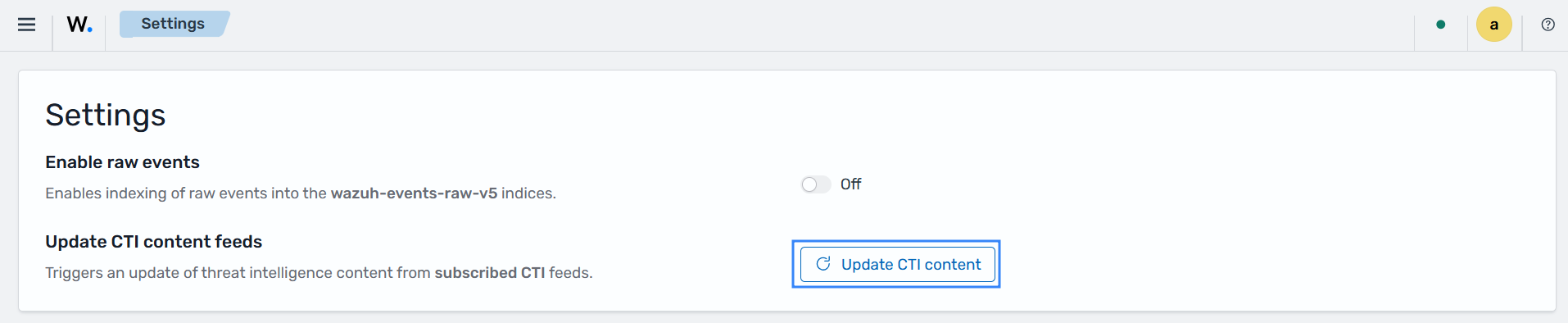
You can also perform this action using the Update CTI content feature or the Dev tools console on the Wazuh dashboard.
To use the Update CTI content feature, navigate to Indexer management > Settings, then click on Update CTI content.
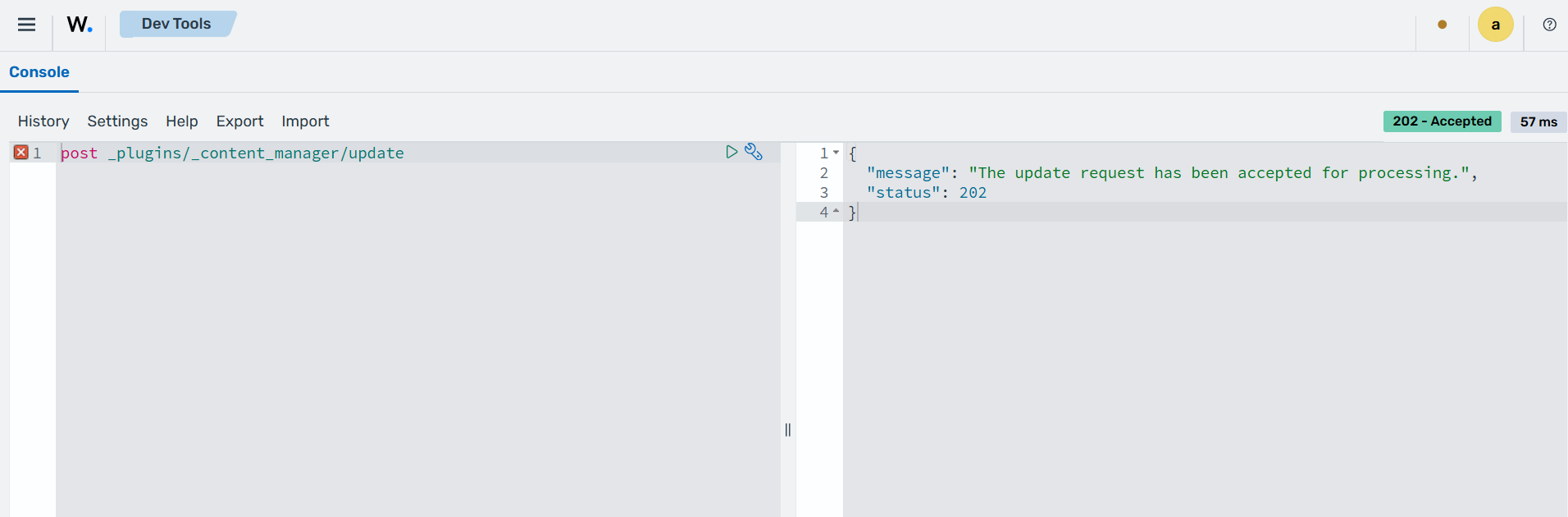
To request a content synchronization using the Dev tools console, navigate to Indexer management > Dev tools, then send the post request below.
post _plugins/_content_manager/update
Checking synchronization status
The Wazuh Content Manager maintains synchronization information independently for each CTI content category. You can inspect this information to determine the current synchronization status and compare the locally synchronized content with the content available from Wazuh CTI.
Run the following request:
$ curl -k -u <WAZUH_INDEXER_USERNAME>:<WAZUH_INDEXER_PASSWORD> \
  "https://<WAZUH_INDEXER_IP>:9200/.wazuh-cti-consumers/_search?pretty"
{
  "took": 1,
  "timed_out": false,
  "_shards": {
    "total": 1,
    "successful": 1,
    "skipped": 0,
    "failed": 0
  },
  "hits": {
    "total": {
      "value": 3,
      "relation": "eq"
    },
    "max_score": 1.0,
    "hits": [
      {
        "_index": ".wazuh-cti-consumers",
        "_id": "cti:catalog:consumer:ruleset",
        "_score": 1.0,
        "_source": {
          "name": "public-ruleset-5",
          "context": "rc1-t1-ruleset-5",
          "type": "cti:catalog:consumer:ruleset",
          "resource": "https://api.pre.cloud.wazuh.com/api/v1/catalog/contexts/rc1-t1-ruleset-5/consumers/public-ruleset-5",
          "is_public": true,
          "status": "ready",
          "local_offset": 1230,
          "remote_offset": 1230
        }
      },
      {
        "_index": ".wazuh-cti-consumers",
        "_id": "cti:catalog:consumer:iocs",
        "_score": 1.0,
        "_source": {
          "name": "public-iocs-5",
          "context": "t1-iocs-5",
          "type": "cti:catalog:consumer:iocs",
          "resource": "https://api.pre.cloud.wazuh.com/api/v1/catalog/contexts/t1-iocs-5/consumers/public-iocs-5",
          "is_public": true,
          "status": "ready",
          "local_offset": 255096,
          "remote_offset": 255096
        }
      },
      {
        "_index": ".wazuh-cti-consumers",
        "_id": "cti:catalog:consumer:vulnerabilities",
        "_score": 1.0,
        "_source": {
          "name": "public-vulnerabilities-5",
          "context": "t1-vulnerabilities-5",
          "type": "cti:catalog:consumer:vulnerabilities",
          "resource": "https://api.pre.cloud.wazuh.com/api/v1/catalog/contexts/t1-vulnerabilities-5/consumers/public-vulnerabilities-5",
          "is_public": true,
          "status": "ready",
          "local_offset": 595699,
          "remote_offset": 595699
        }
      }
    ]
  }
}
You can also perform this action using the Dev tools console on the Wazuh dashboard. Navigate to Indexer management > Dev tools, then send the request below.
get .wazuh-cti-consumers/_search?pretty
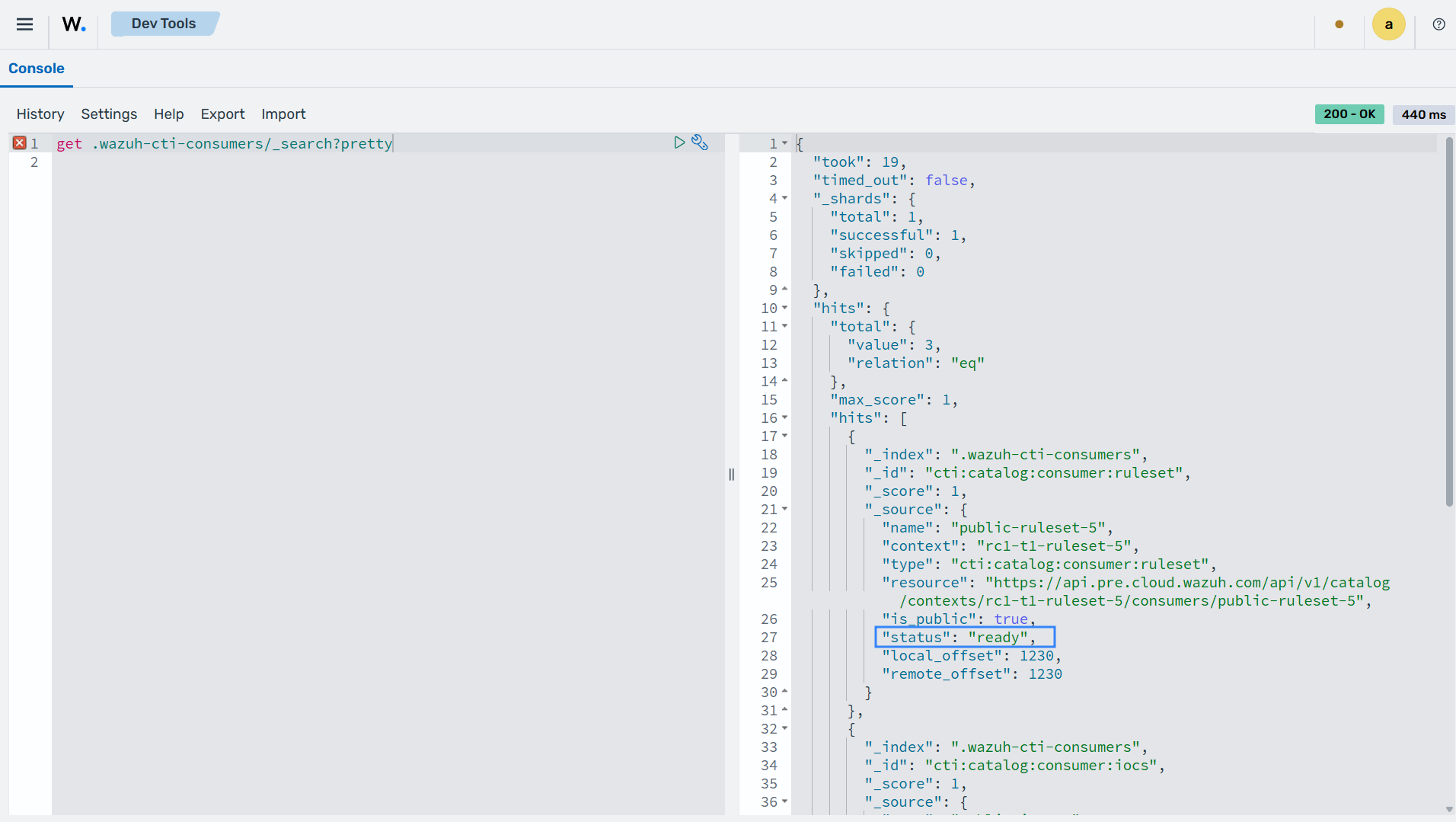
The response contains the synchronization state for the CTI content categories, including information such as the category type, synchronization status, and local and remote offsets.
Use the status field to determine the state of a content category:
Status |
Description |
|---|---|
|
Synchronization is complete, and the content is available for use. |
|
A synchronization operation is currently in progress. |
|
The previous synchronization attempt was interrupted by an error. |
You can also compare the local and remote synchronization offsets:
local_offsetequalsremote_offset: The content category is synchronized with the available CTI content.local_offsetis lower thanremote_offset: Newer content is available, and the content category requires synchronization.local_offsetis0: The content category has not completed its initial synchronization and requires snapshot initialization.
If a content category remains in the running state for an extended period or reports a failed status, check the Wazuh indexer logs /var/log/wazuh-indexer/wazuh-cluster.log for Content Manager synchronization errors.
Note
The .wazuh-cti-consumers index is an internal system index. Use it to inspect synchronization state for administrative and troubleshooting purposes.