Detecting a Cross-Site Scripting (XSS) attack
Web attack detection helps identify malicious activity targeting web applications and meet regulatory compliance requirements. Wazuh analyzes web server access logs collected from a monitored endpoint to detect suspicious request patterns such as injection attempts, malformed input, and known attack signatures in URLs, query parameters, and form fields. This use case detects web-based attacks on an Apache web server running on an Ubuntu endpoint by simulating a Cross-Site Scripting (XSS) attack and observing the resulting findings.
Infrastructure
Endpoint |
Description |
|---|---|
Ubuntu 24.04 |
Victim endpoint running an Apache web server. |
RHEL 9.0 |
This attacker endpoint sends a malicious HTTP request to the victim's web server. |
Configuration
Ubuntu endpoint
Perform the following steps to install an Apache web server and monitor its logs with the Wazuh agent.
Update local packages and install the Apache web server:
$ sudo apt update
$ sudo apt install apache2
If a firewall is enabled, modify it to allow external access to web ports. Skip this step if the firewall is disabled:
$ sudo ufw app list
$ sudo ufw allow 'Apache'
$ sudo ufw status
Check that the Apache web server is running:
$ sudo systemctl status apache2
Add the following lines to the Wazuh agent
/var/ossec/etc/ossec.confconfiguration file. This sets the Wazuh agent to monitor the access logs of your Apache server:<localfile> <log_format>syslog</log_format> <location>/var/log/apache2/access.log</location> </localfile>
Restart the Wazuh agent to apply the configuration changes:
$ sudo systemctl restart wazuh-agent
Attack emulation
We performed the following attack emulation from the RHEL 9.0 endpoint:
Replace <WEBSERVER_IP_ADDRESS> with the Ubuntu IP address and execute the following command from the attacker endpoint:
$ curl -A "Mozilla/5.0 (Windows NT 10.0; Win64; x64) AppleWebKit/537.36" "http://<WEBSERVER_IP_ADDRESS>/index.html?q=<script>document.cookie</script>"
Visualize the findings
You can visualize the findings in the Wazuh dashboard. To do this, go to the Threat Hunting module and add the filters below in the search bar to query the findings.
event.dataset:apache-access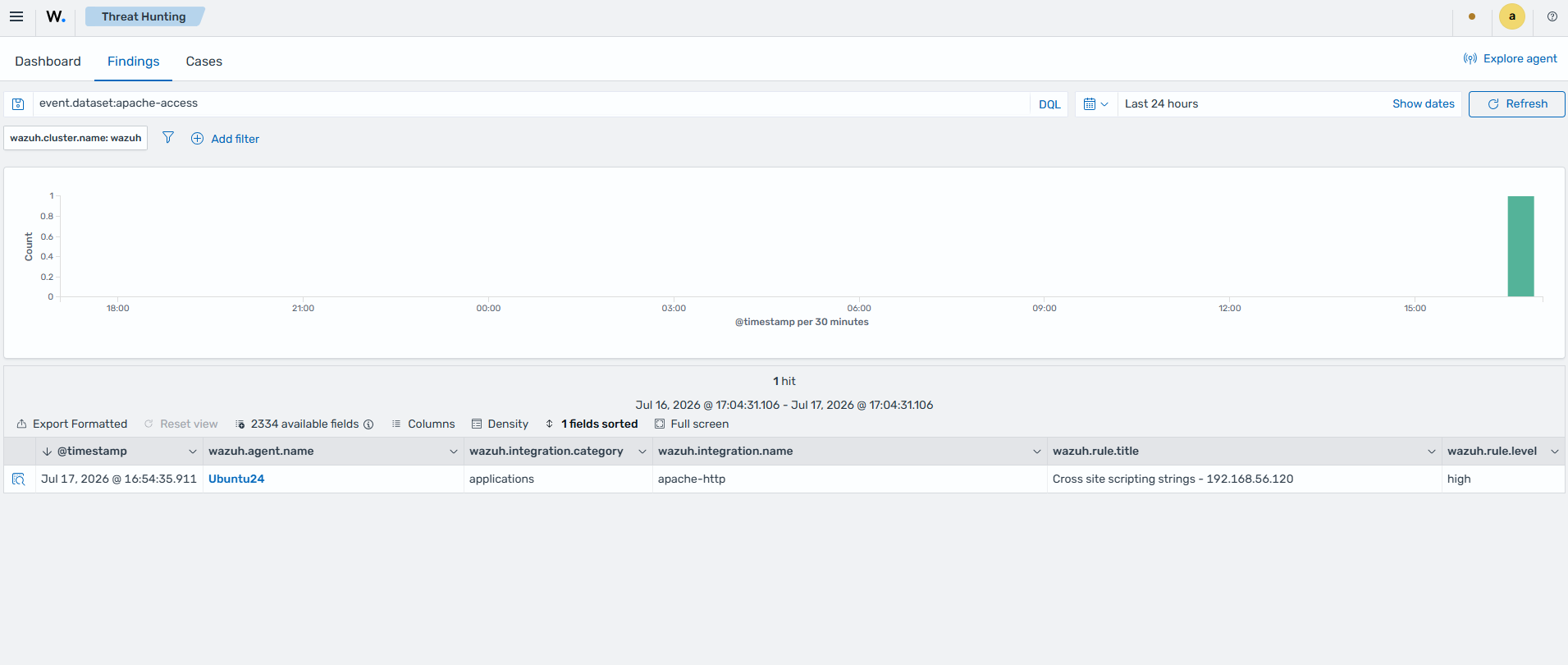
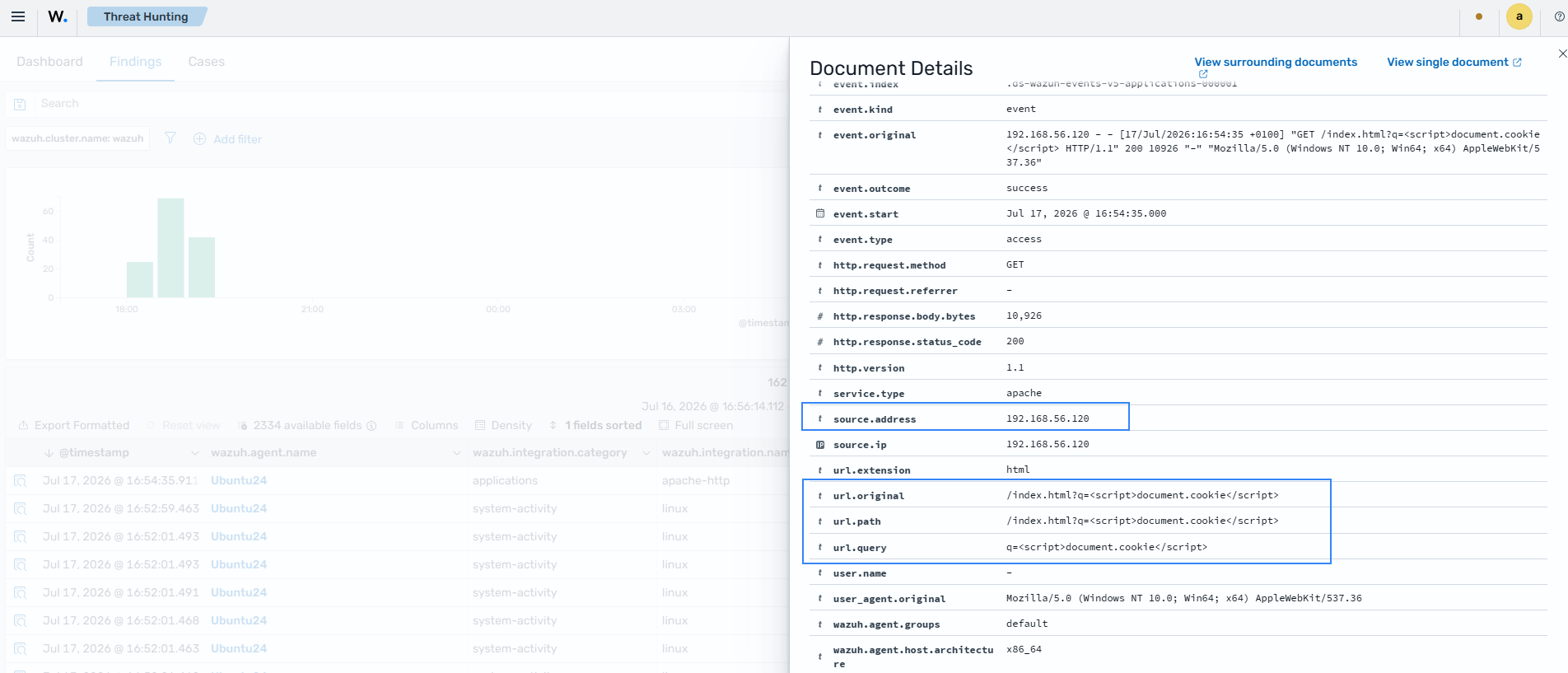
Expand the finding to see other information contained in the malicious payload, like the URL path and the respective query.