Detect malware persistence technique
Adversaries can achieve persistence by adding a malicious script or program to the startup folder of a Windows endpoint. The program then runs whenever a user logs in.
By monitoring the Windows startup folder with the Wazuh FIM module, you can detect suspicious or unknown programs and remove them before they cause harm to your endpoint.
Use case description
Endpoint |
Description |
|---|---|
Windows 11 |
The FIM module monitors the startup folder on this endpoint. |
Configuration
Wazuh monitors the startup folder automatically without requiring any user action. By default, the Wazuh configuration file at C:\Program Files (x86)\ossec-agent\ossec.conf uses the following setting to monitor the startup folder:
<syscheck>
  <directories realtime="yes">%PROGRAMDATA%\Microsoft\Windows\Start Menu\Programs\Startup</directories>
</syscheck>
Test the configuration
Note
You must carry this out in a sandbox environment.
Use PowerShell to download an EICAR test file to the
C:\ProgramData\Microsoft\Windows\Start Menu\Programs\Startupdirectory:> cd "C:\ProgramData\Microsoft\Windows\Start Menu\Programs\Startup" > Invoke-WebRequest -Uri https://secure.eicar.org/eicar.com.txt -OutFile eicar.txt
Delete the file from the Windows endpoint:
> Remove-Item eicar.txt
Visualize the finding
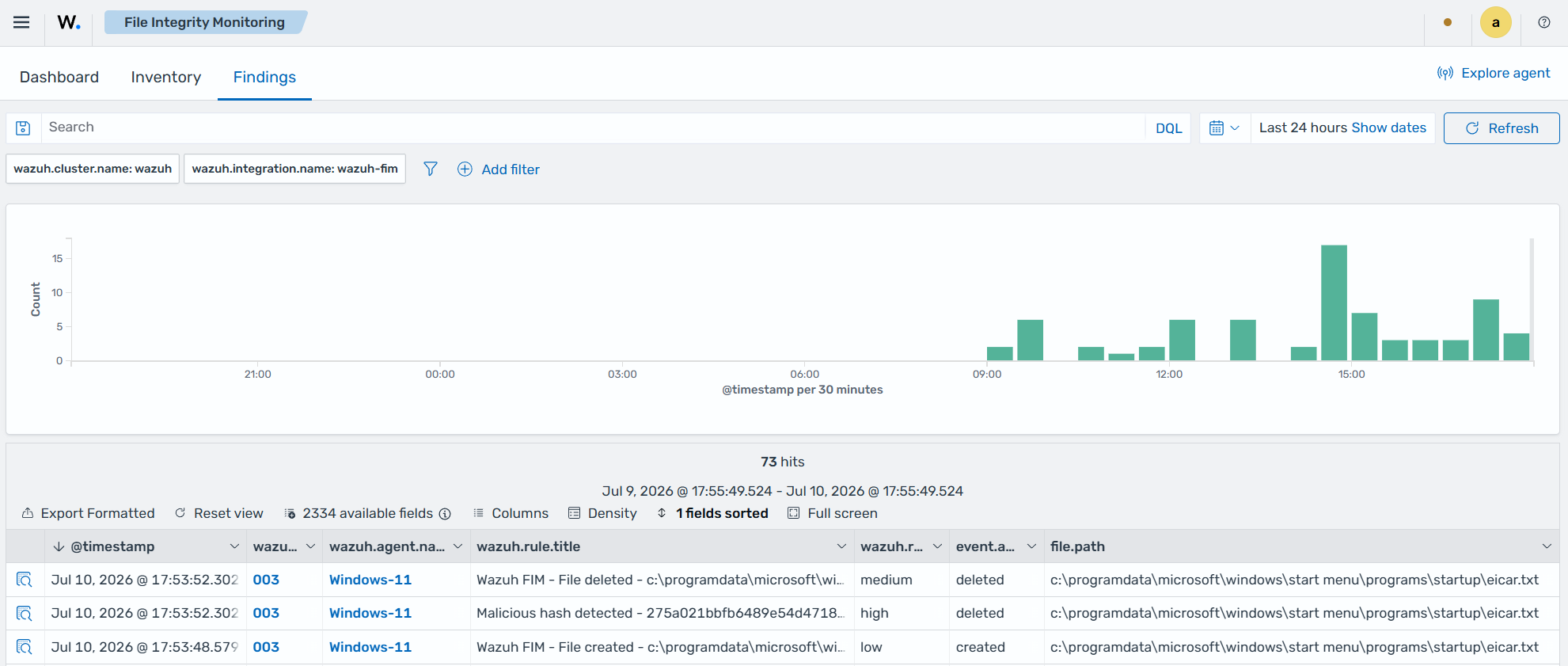
Navigate to Endpoint security → File Integrity Monitoring → Findings on the Wazuh dashboard to view the findings generated when the FIM module detects changes in the Windows startup folder. By default, Wazuh enriches the file hash with threat intelligence from Wazuh Cyber Threat Intelligence (CTI), providing additional context about the detected file.