File integrity monitoring
File Integrity Monitoring (FIM) helps in auditing sensitive files and meeting regulatory compliance requirements. Wazuh has an inbuilt FIM module that monitors file system changes to detect the creation, modification, and deletion of files. This use case uses the Wazuh FIM module to detect changes in monitored directories on Ubuntu and Windows endpoints. The Wazuh FIM module enriches alert data by fetching information about the user and process that made the changes using who-data audit.
Infrastructure
Endpoint |
Description |
|---|---|
Ubuntu 24.04 |
The Wazuh FIM module monitors a directory on this endpoint to detect file creation, changes, and deletion. |
Windows 11 |
The Wazuh FIM module monitors a directory on this endpoint to detect file creation, changes, and deletion. |
Configuration
Ubuntu endpoint
Perform the following steps to configure the Wazuh agent to monitor filesystem changes in the /root directory.
Edit the Wazuh agent
/var/ossec/etc/ossec.confconfiguration file. Add the following configuration within the<syscheck>block to specify the monitored directory and whodata provider. For this use case, you configure Wazuh to monitor the/rootdirectory:<directories check_all="yes" report_changes="yes" whodata="yes">/root</directories> <whodata> <provider>ebpf</provider> </whodata>
Note
You can also configure any path of your choice in the
<directories>block.Restart the Wazuh agent to apply the configuration changes:
$ sudo systemctl restart wazuh-agent
Windows endpoint
Take the following steps to configure the Wazuh agent to monitor filesystem changes in the C:\Users\<USER_NAME>\Desktop directory.
Edit the
C:\Program Files (x86)\ossec-agent\ossec.confconfiguration file on the monitored Windows endpoint. Add the directories for monitoring within the<syscheck>block. To get additional information about the user and the process that made the changes, enable who-data audit. Replace<USER_NAME>with the name of the user:<directories check_all="yes" report_changes="yes" whodata="yes">C:\Users\<USER_NAME>\Desktop</directories>
Note
You can also configure any path of your choice in the
<directories>block.Restart the Wazuh agent using PowerShell with administrator privileges to apply the changes:
> Restart-Service -Name wazuh
As an alternative to local configurations on the Wazuh agents, you can centrally configure groups of agents.
Test the configuration
Create a text file in the monitored directories, then wait for 5 seconds.
Add content to the text file and save it. Then wait for 5 seconds.
Delete the text file from the monitored directory.
Visualize the findings
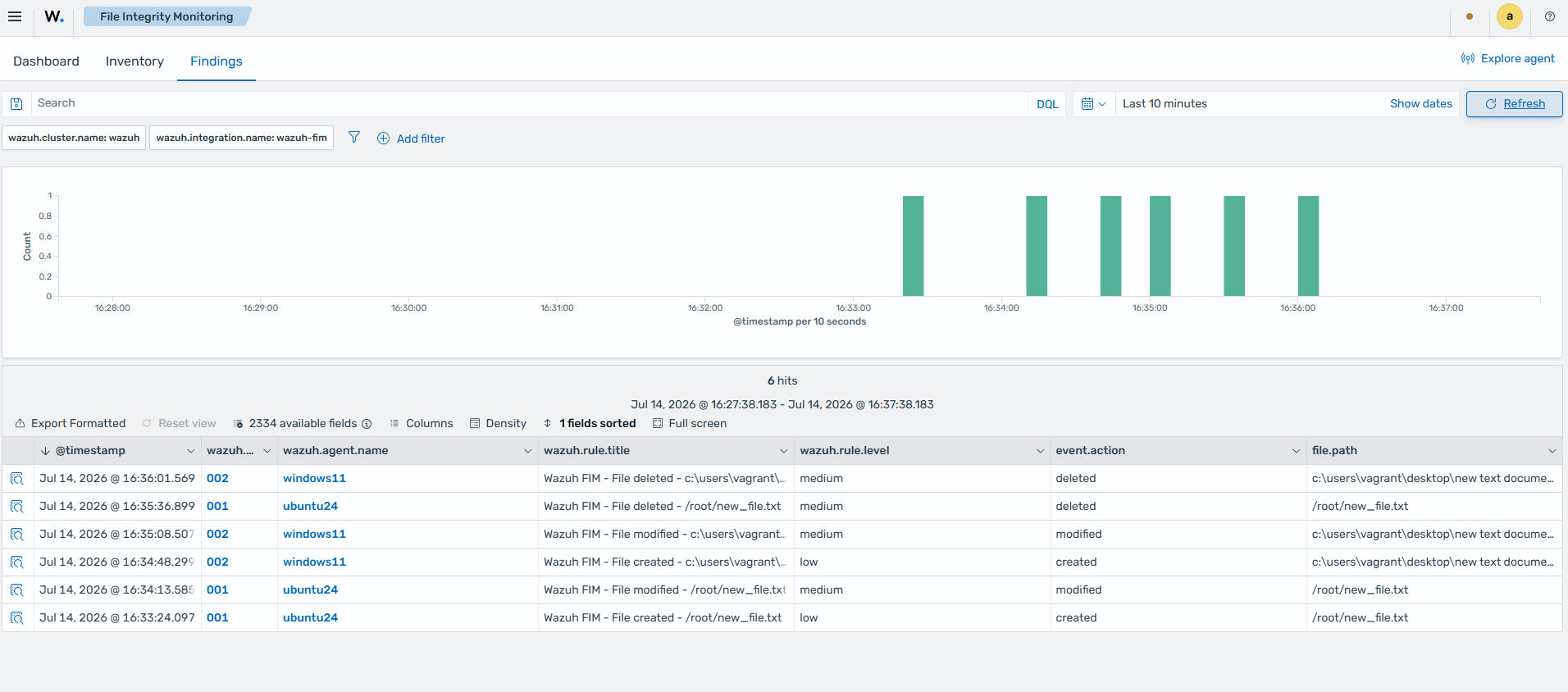
You can visualize the alert data in the Wazuh dashboard. To do this, navigate to Endpoint security > File Integrity Monitoring and click the Findings tab.
Note
Findings may take up to the FIM synchronization interval (the <frequency> setting in the <syscheck> block of the C:\Program Files (x86)\ossec-agent\ossec.conf file) to appear in the dashboard.
Windows and Ubuntu findings for the simulated events
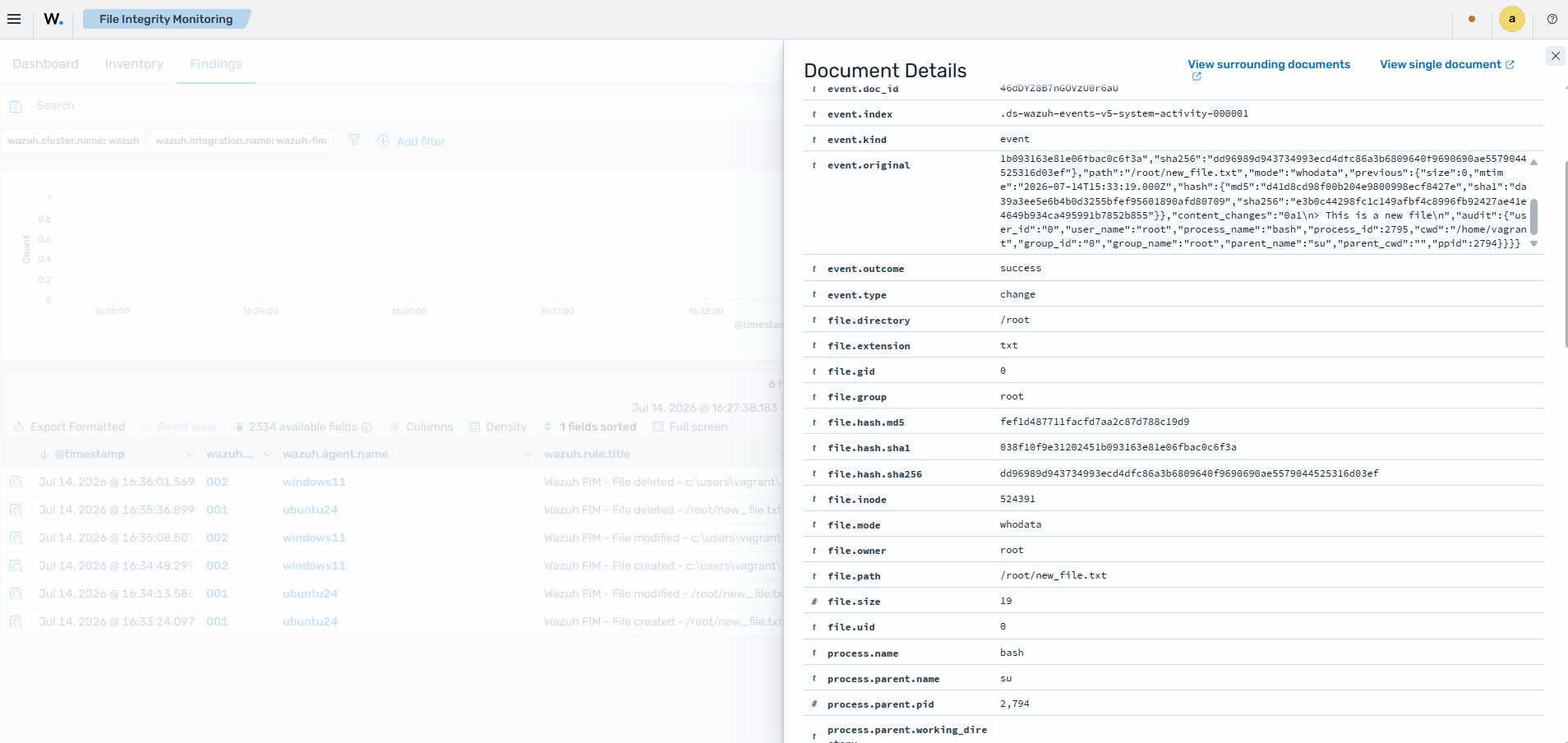
Finding showing whodata information on Ubuntu
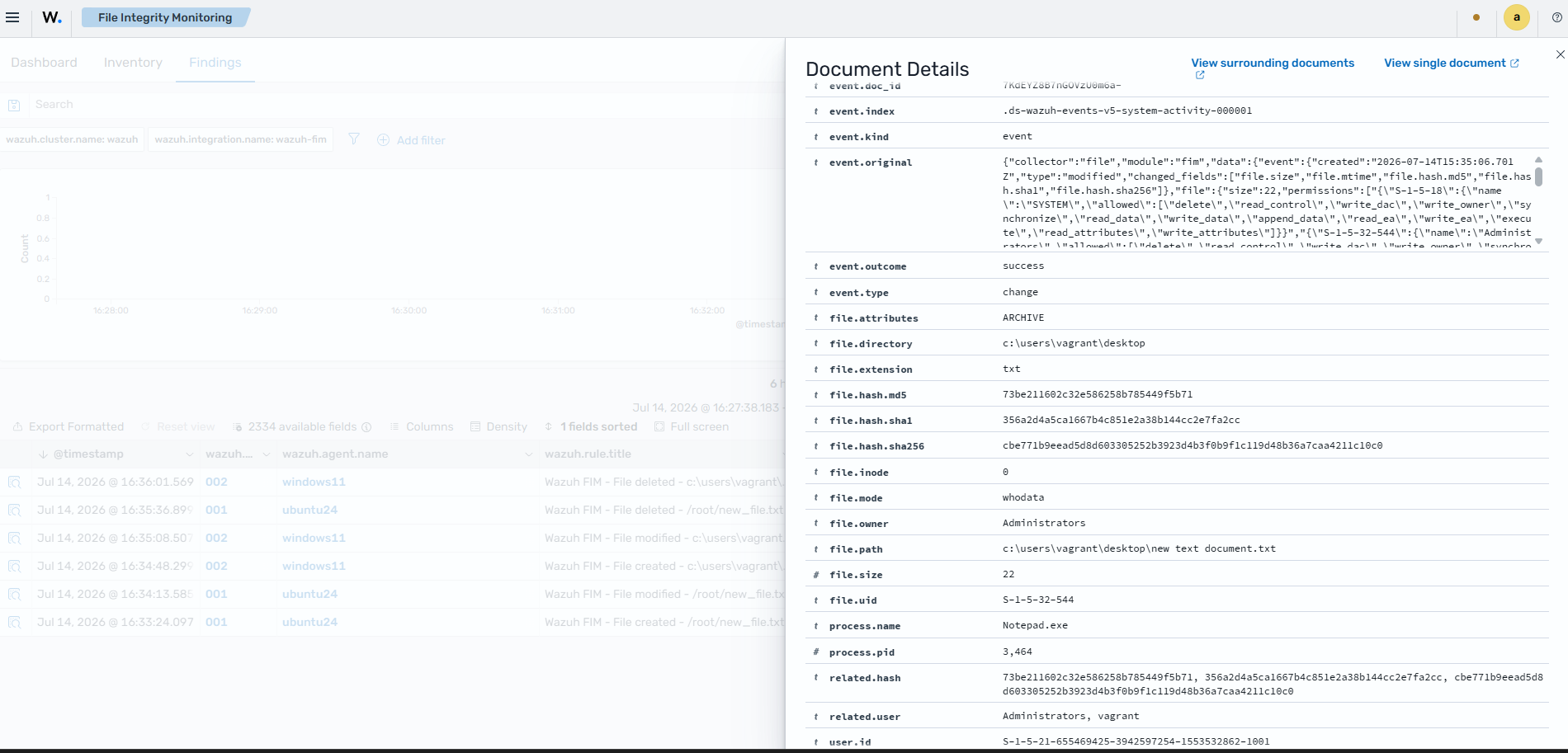
Finding showing whodata information on Windows