Querying security information on the Wazuh dashboard
The Wazuh dashboard provides query capabilities that enable users to search, filter, analyze, and visualize security data collected from monitored endpoints. Users can query information related to system inventory, vulnerabilities, file integrity monitoring (FIM), security configuration assessments (SCA), and other security monitoring capabilities from a centralized interface. This information can be used to investigate security issues, assess compliance, monitor endpoint security posture, and support threat hunting activities. Much of this information is stored as Wazuh global state data, which represents the current state of all monitored endpoints and provides a consolidated view of endpoint security and compliance information.
Wazuh global state data
Wazuh global state data represents aggregated information collected from all monitored endpoints and stored centrally in the Wazuh indexer under dedicated indices. It provides a consolidated view of the current state of monitored systems, including system inventory, vulnerabilities, file integrity monitoring data, and security configuration assessment results.
Wazuh agents continuously collect and update this information from monitored endpoints. The data is processed and stored in dedicated wazuh-states-* indices, where it can be queried and visualized from the Wazuh dashboard. This centralized approach provides visibility into endpoint security and compliance information across the environment, improving monitoring efficiency, streamlining threat hunting, and accelerating incident response.
The following Wazuh capabilities collect and store information as global state data:
System inventory (IT Hygiene)
Vulnerability detection
File Integrity Monitoring (FIM)
Security Configuration Assessment (SCA)
System inventory (IT hygiene)
System Inventory provides visibility into the hardware, software, network, and operating system information of monitored endpoints. It collects information such as installed software packages, running processes, open ports, network interfaces, users, groups, services, browser extensions, operating system details, and hardware characteristics.
Wazuh agents use the Syscollector module to periodically collect inventory information from monitored endpoints. The collected data is sent to the Wazuh manager, where it is processed and synchronized to the Wazuh indexer. The inventory information is stored as global state data in dedicated wazuh-states-inventory-* indices and can be queried and visualized from the Wazuh dashboard.
The following index patterns store system inventory data:
Index pattern |
Description |
|---|---|
|
Basic information about hardware components on a monitored endpoint. |
|
Updates installed on a Windows endpoint. |
|
Status and packet transfer information for network interfaces. |
|
IPv4 and IPv6 addresses for each network interface. |
|
Currently installed software packages on an endpoint. |
|
Open network ports on a monitored endpoint. |
|
System processes running on a monitored endpoint. |
|
Network routing configuration details and protocols per interface. |
|
Operating system, hostname, and architecture on an endpoint. |
|
Stores detected browser extensions and add-ons from supported browsers on monitored endpoints. |
|
Stores information about groups configured on monitored endpoints. |
|
Stores information about system services detected on monitored endpoints, including Windows services, Linux systemd units, and macOS launchd services. |
|
Stores Wazuh agent connection status history, including active, disconnected, pending, and never connected states. |
|
Stores information about users configured on monitored endpoints. |
Navigate to Security operation > IT Hygiene on the Wazuh dashboard to view system inventory information, including hardware, operating system, software, network, user, and service data collected from monitored endpoints.
Vulnerability detection
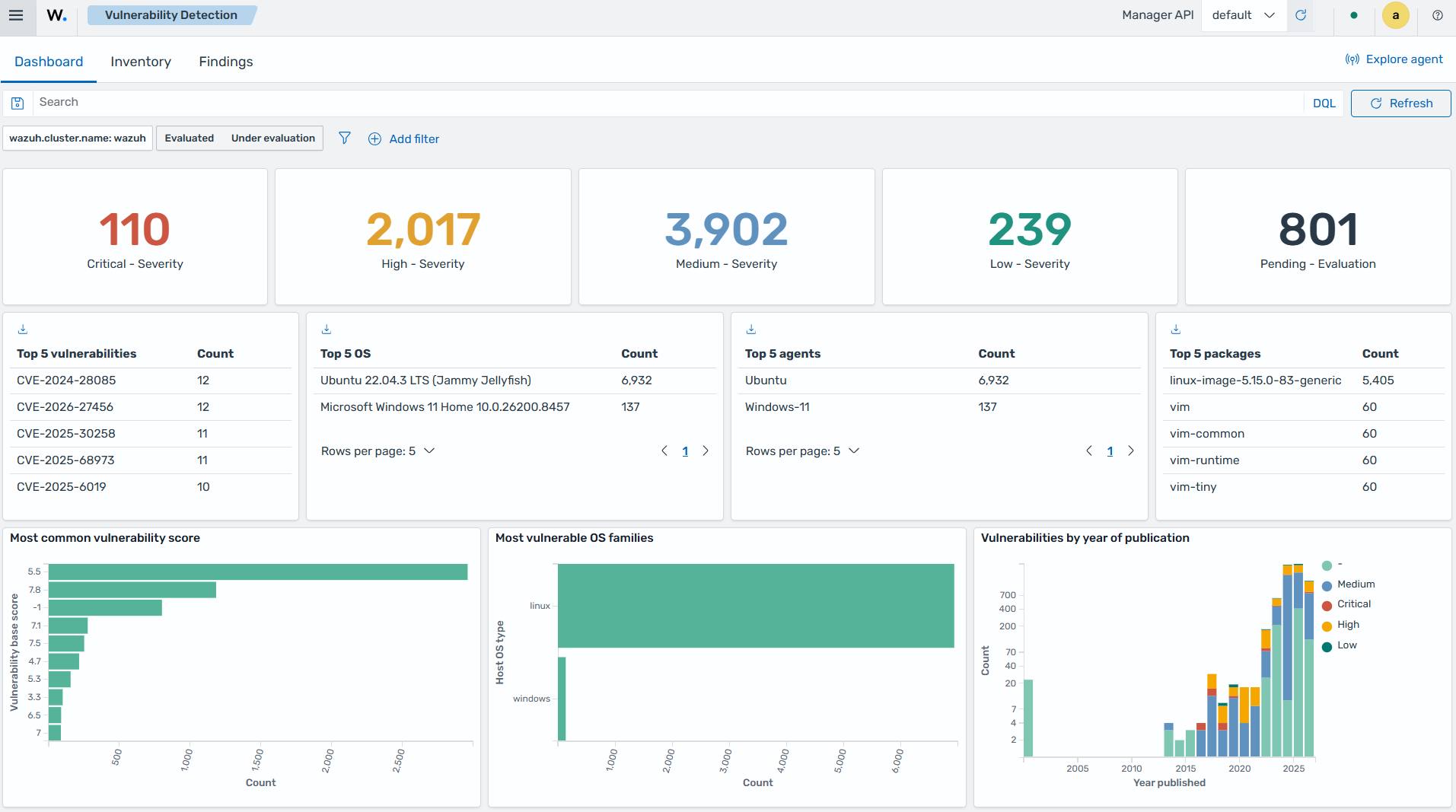
Vulnerability detection provides visibility into software vulnerabilities affecting monitored endpoints. It identifies vulnerable packages and applications by correlating endpoint inventory information with vulnerability data provided by the Wazuh Cyber Threat Intelligence (CTI) service, enabling security teams to prioritize remediation efforts and monitor the vulnerability posture of their environment.
The Wazuh agent collects inventory data such as installed packages, operating system details, and hardware information from monitored endpoints. The collected data is sent to the Wazuh manager, where the wazuh-remoted daemon publishes it to the Router inventory-states topic. The Inventory Sync module synchronizes the inventory state with the Wazuh indexer through the Indexer Connector and triggers the Vulnerability Scanner module.
The Vulnerability Scanner retrieves CVE feeds from the Wazuh indexer through the Content Manager and Indexer Connector. It then correlates the vulnerability information with the inventory data collected from monitored endpoints to identify affected systems and software packages. Vulnerability state information is stored as global state data in the wazuh-states-vulnerabilities-* index and can be queried and visualized from the Wazuh dashboard.
The following index pattern stores Vulnerability Detection data:
Index pattern |
Description |
|---|---|
|
Information about vulnerabilities detected on monitored endpoints. |
Navigate to Threat Intelligence > Vulnerability Detection on the Wazuh dashboard to view and query vulnerability information collected from monitored endpoints.
File integrity monitoring
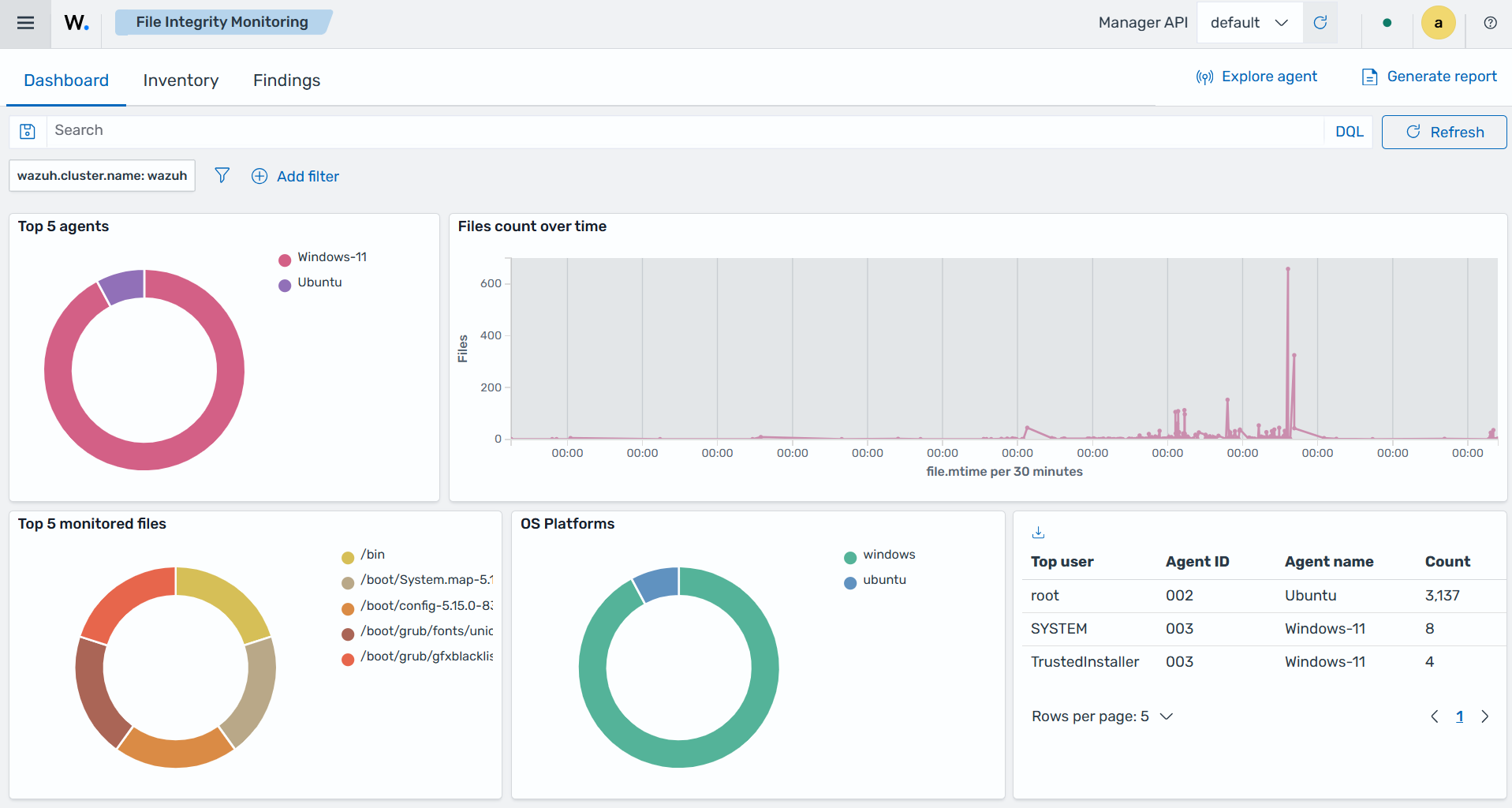
File Integrity Monitoring (FIM) provides visibility into changes made to monitored files, directories, and Windows registry entries. It helps security teams detect unauthorized modifications, track configuration changes, and monitor critical system files for signs of compromise or policy violations.
Wazuh agents continuously monitor configured files, directories, and registry entries on monitored endpoints. When a change is detected, the file integrity monitoring capability records information about the affected object, including its current state and relevant metadata. This information is synchronized to the Wazuh indexer and stored as Wazuh global state data.
FIM data can be queried and visualized from the Wazuh dashboard, providing centralized visibility into the integrity and status of monitored files and registry objects across the environment.
The following index patterns store file integrity monitoring data:
Index pattern |
Description |
|---|---|
|
Stores File Integrity Monitoring information about monitored Windows registry values. |
|
Stores File Integrity Monitoring information about monitored Windows registry keys. |
|
Stores File Integrity Monitoring information about monitored files and detected file changes. |
Navigate to Endpoint Security > File Integrity Monitoring on the Wazuh dashboard to view and query file integrity monitoring data collected from monitored endpoints.
Security configurations assessment (SCA)
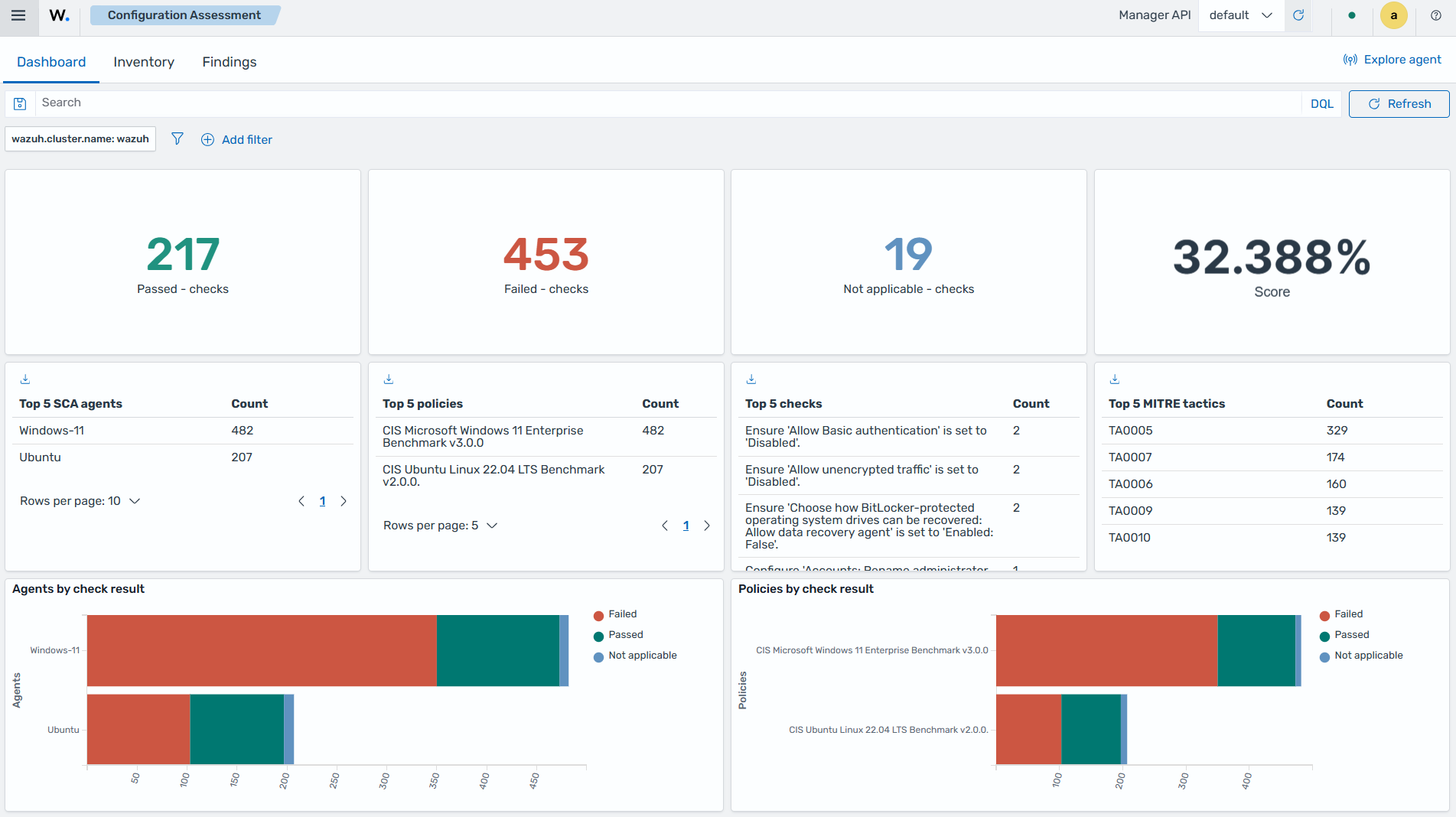
Security Configuration Assessment (SCA) provides visibility into the security and compliance posture of monitored endpoints. It evaluates endpoint configurations against predefined security policies and benchmarks, helping organizations identify misconfigurations, verify compliance requirements, and monitor adherence to security best practices.
Wazuh agents perform SCA scans using policy files that contain security configuration checks. These checks evaluate files, directories, running processes, commands, and Windows registry settings against the defined policy requirements. The scan results are synchronized with the Wazuh manager and stored as Wazuh global state data in the Wazuh indexer.
SCA data can be queried and visualized from the Wazuh dashboard, providing centralized visibility into compliance status and security configuration findings across monitored endpoints.
The following index pattern stores Security Configuration Assessment data:
Index pattern |
Description |
|---|---|
|
Stores Security Configuration Assessment (SCA) scan results and compliance evaluation data. |
Navigate to Endpoint Security > File Integrity Monitoring on the Wazuh dashboard to view and query security configuration assessment (SCA) data collected from monitored endpoints.
Filtering data using Wazuh Query Language (WQL)
Wazuh Query Language (WQL) is a text-based language designed to allow users to perform advanced data filtering in the Wazuh dashboard. WQL stands out with its user-friendly syntax that leverages the Wazuh manager API to facilitate advanced data analysis to gain security insights.
Beyond basic data retrieval, WQL extends the functionality of the Wazuh dashboard search bars, particularly within specialized tabs. This provides a seamless user experience, allowing for intuitive navigation and data manipulation on the Wazuh dashboard.
This guide shows the specifics of operators, values, separators, and the unique syntax of WQL. With WQL, you can filter for specific threat group names or conduct a broad search for related terms. WQL is case-sensitive, meaning it differentiates between uppercase and lowercase letters. Therefore, when writing queries, it is important to use the correct case for identifiers, keywords, and other elements to ensure accurate and effective query execution.
The WQL expands the search bar functionality to specialized tabs on the Wazuh dashboard. These tabs include the following:
Endpoint summary
MITRE ATT&CK Intelligence
IT Hygiene
Rule management
Decoder management
KVDB management
Group management
WQL queries
WQL enables precise data retrieval by defining detailed criteria. This approach requires defining the field, operator, and value, ensuring the return of accurate and relevant data. The structure of these queries follows a simple pattern: fieldname operator value.
Field name
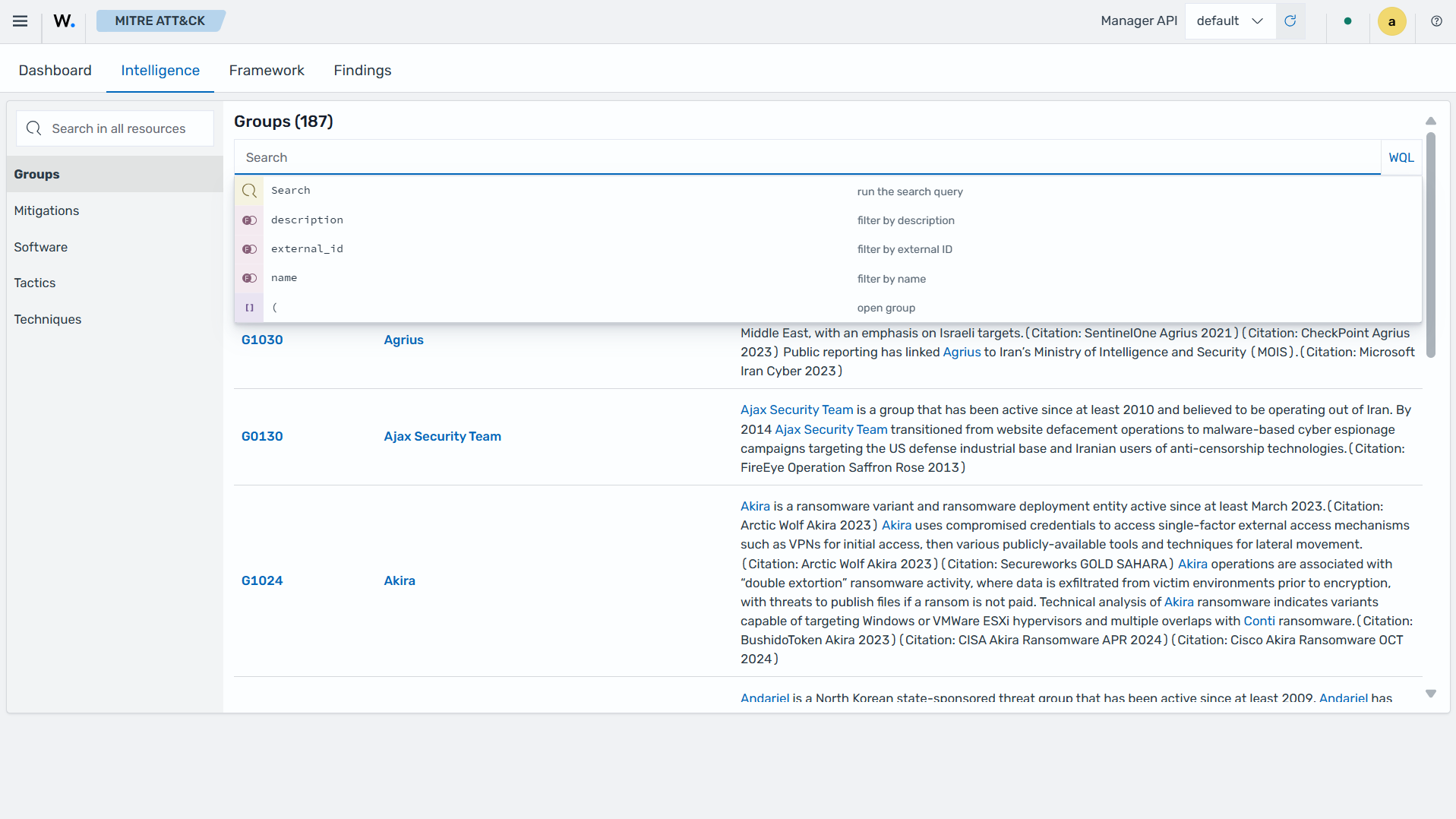
In WQL, "Field name" indicates the particular data type you want to filter, serving as the starting point in a query. It precedes the operator, pinpointing the exact data segment for targeted text searches. The image below demonstrates the WQL search bar in action on the MITRE ATT&CK > Intelligence tab. A click on the search bar reveals all available field names, enhancing user guidance and intuition.
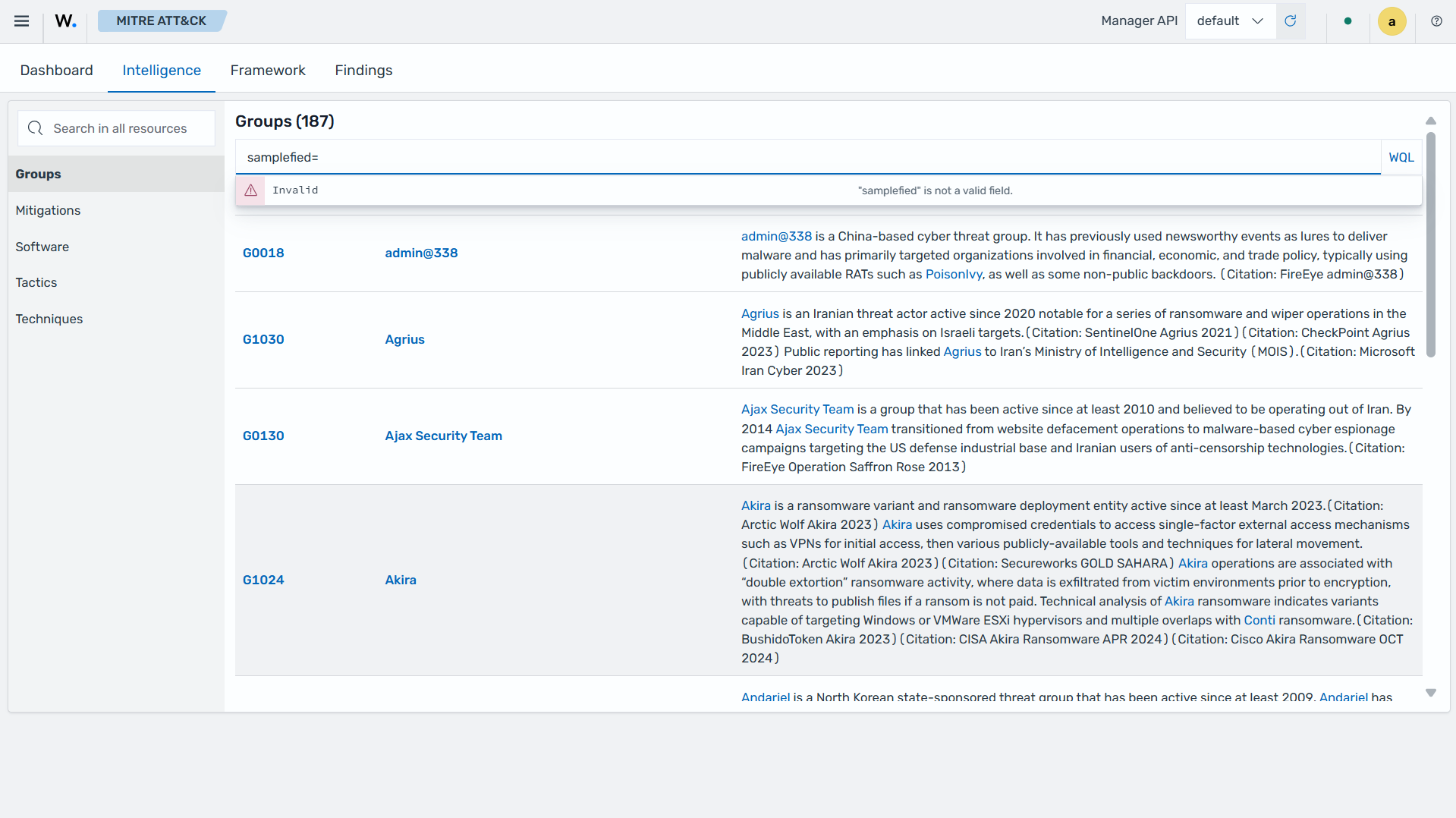
The Wazuh dashboard displays a validation error if you use an incorrect field name.
Operators
In the Wazuh Query Language, operators enable precise data filtering and guide the flow of operations to generate desired outcomes. The key operators in WQL are:
=for equality!=for inequality>for greater than<for less than~for like as
Equality (=)
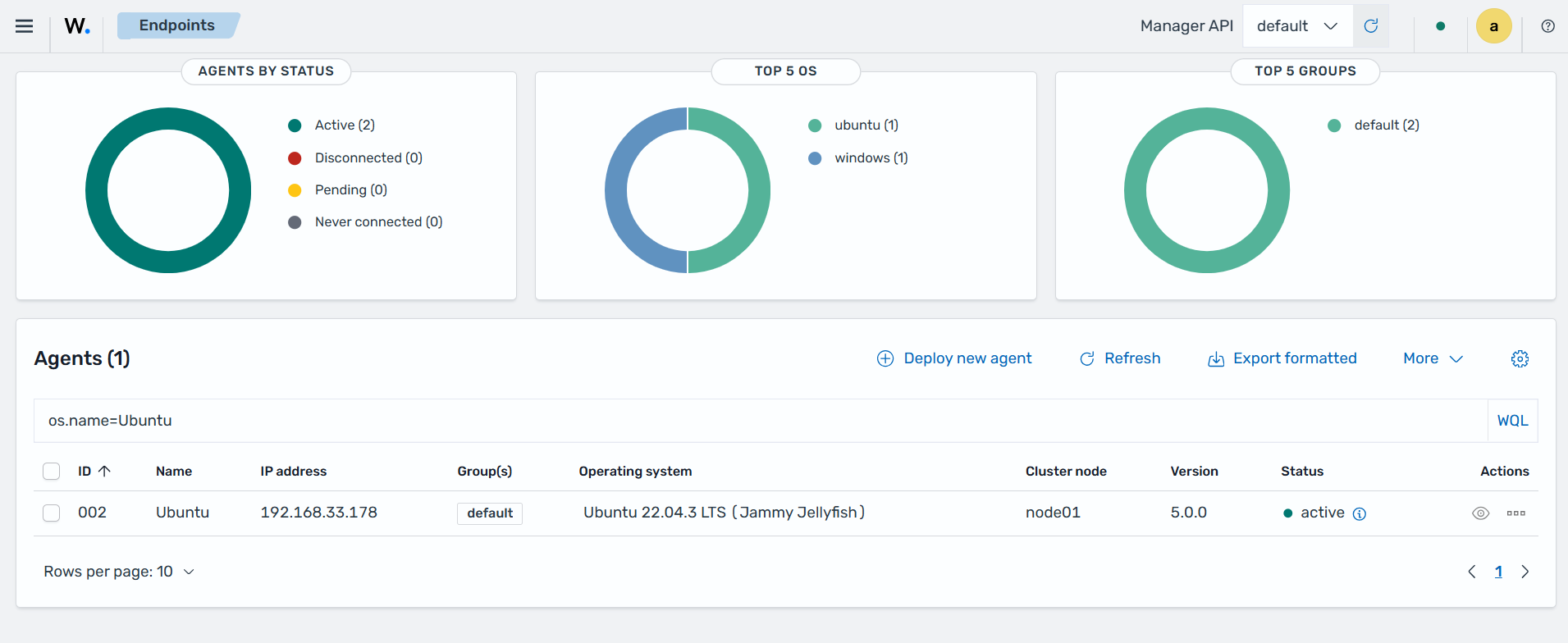
This filter operator is used to find exact matches within a dataset. It is also known as equals to and is denoted by the symbol =. For example, you can filter by entities whose os.name is equal to a specific value such as “Ubuntu”.
Inequality (!=)
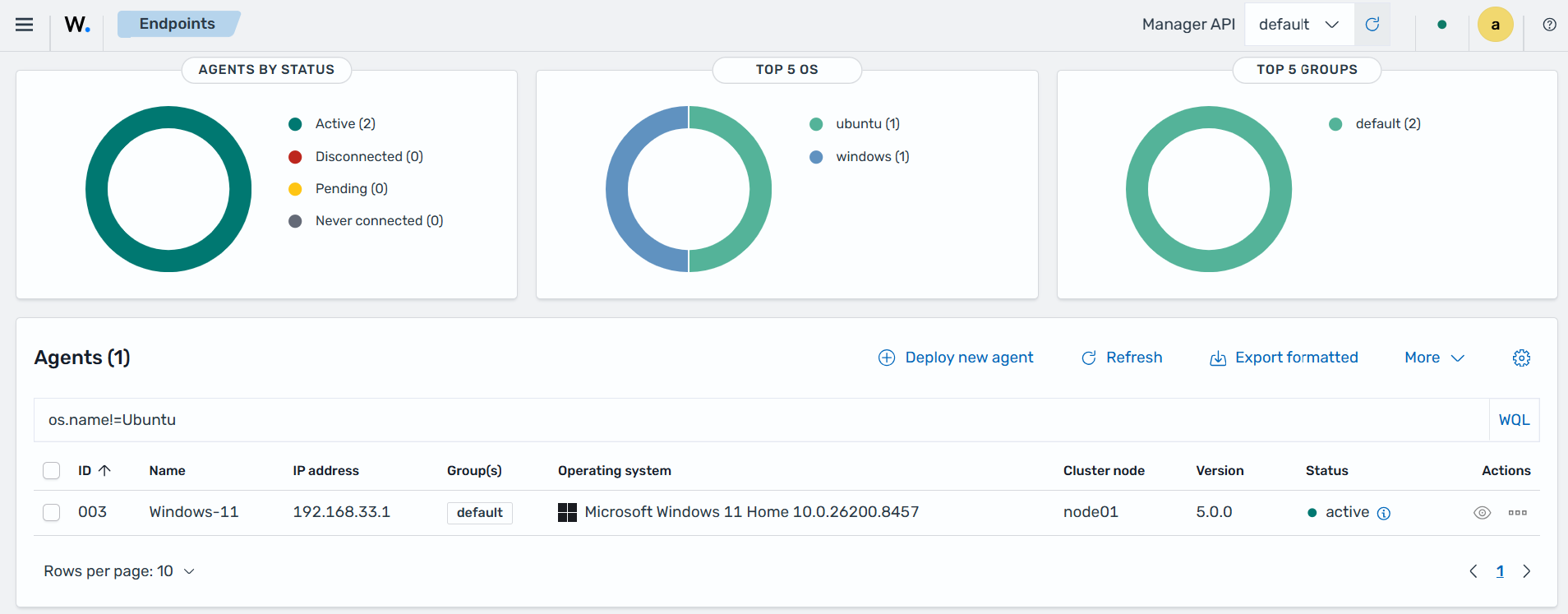
This filter operator finds all data that does not match the specified value within a dataset. It is also known as not equal to and denoted by the symbol !=. For example, you can filter by Wazuh whose operating system does not equal a specific value, such as Ubuntu.
Greater than ( > )
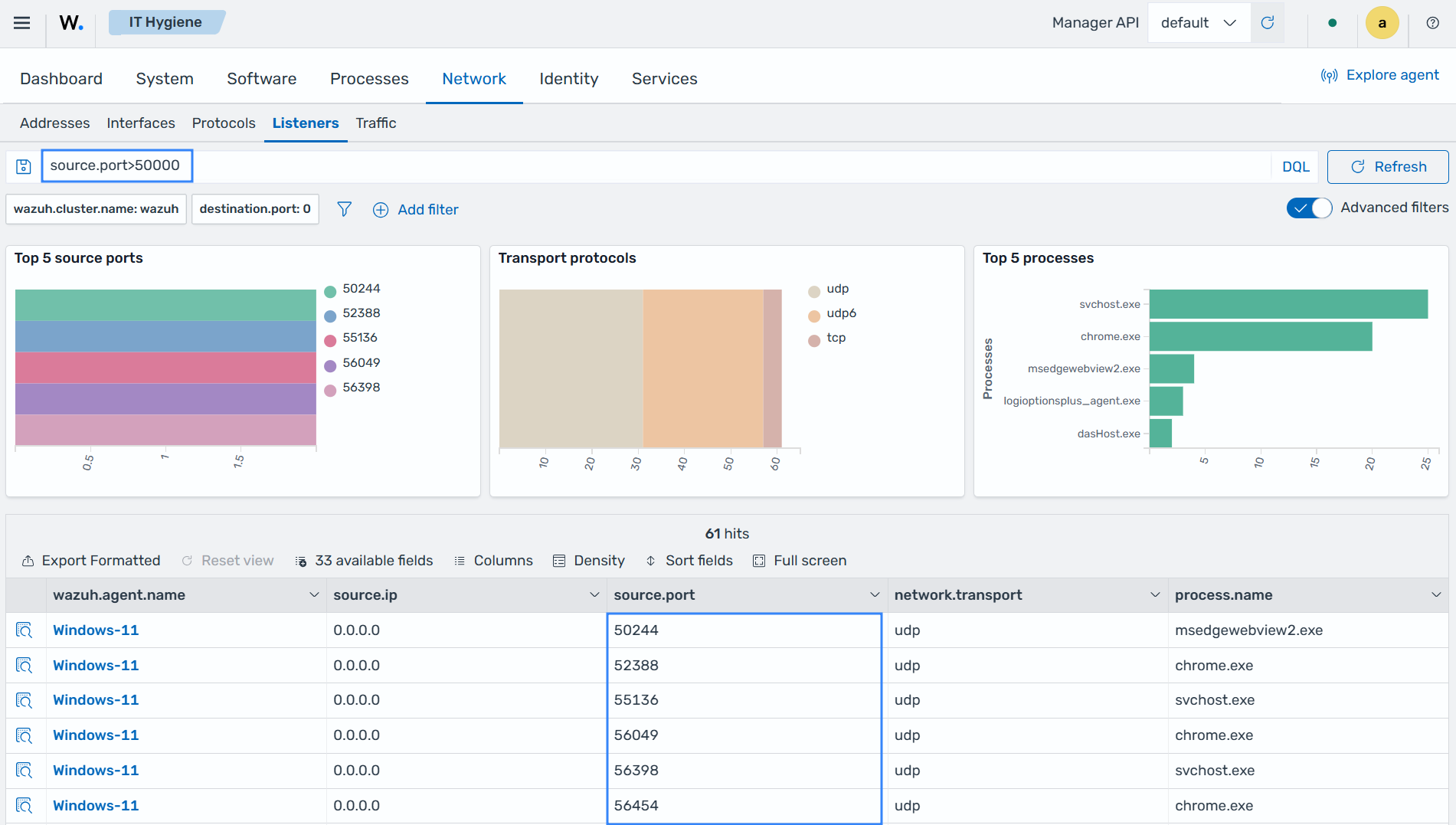
This greater than (>) operator filters values exceeding a specified threshold in a dataset. For example, you can filter by entities whose local port number is greater than a specific value, such as 50000, with the query source.port>50000.
Less than (<)
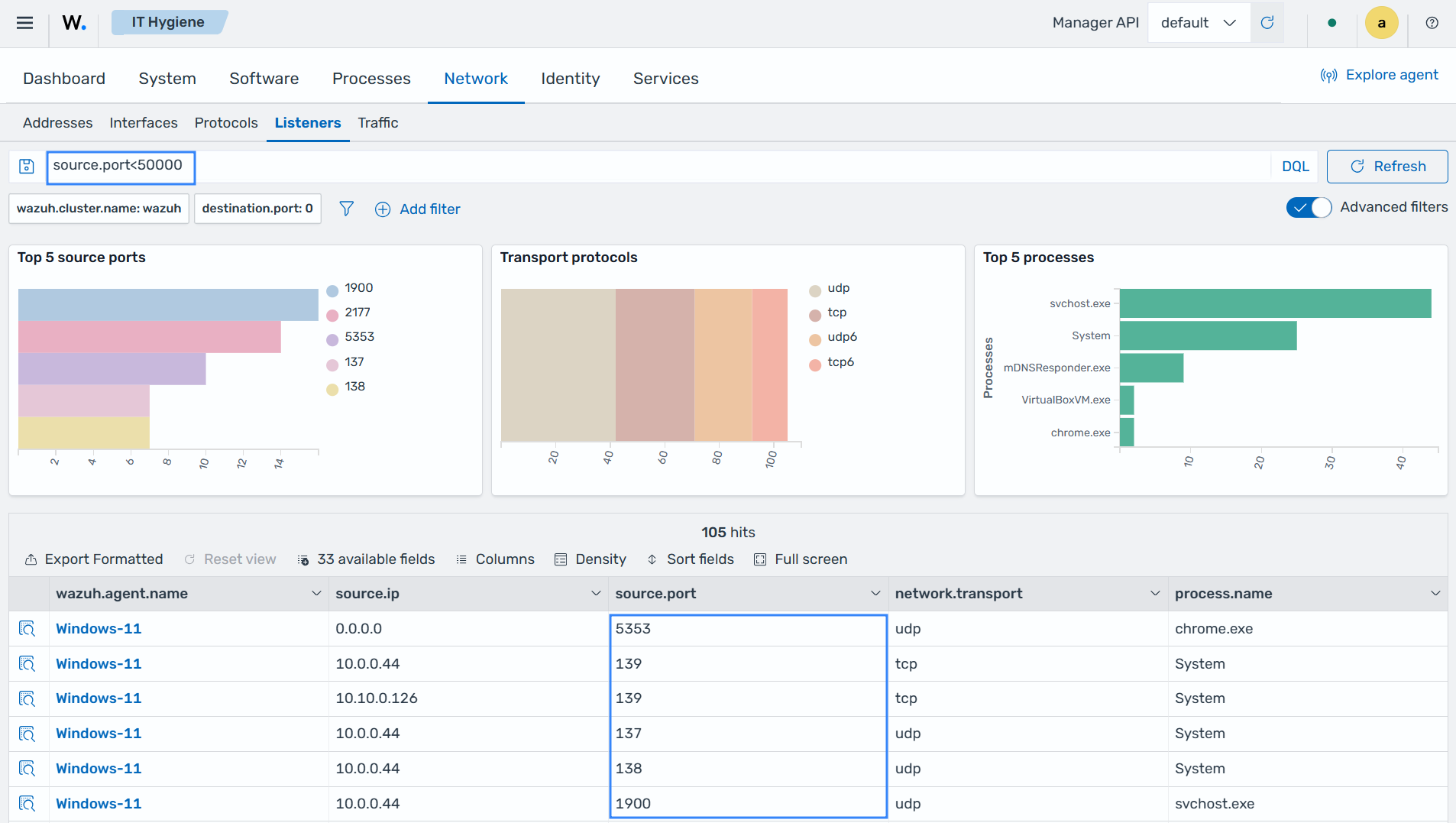
This less than (<) operator filters values below a specified limit in a dataset. For example, you can filter by entities whose local port number is less than a specific value, such as 50000, with the query source.port<50000.
Like as (~)
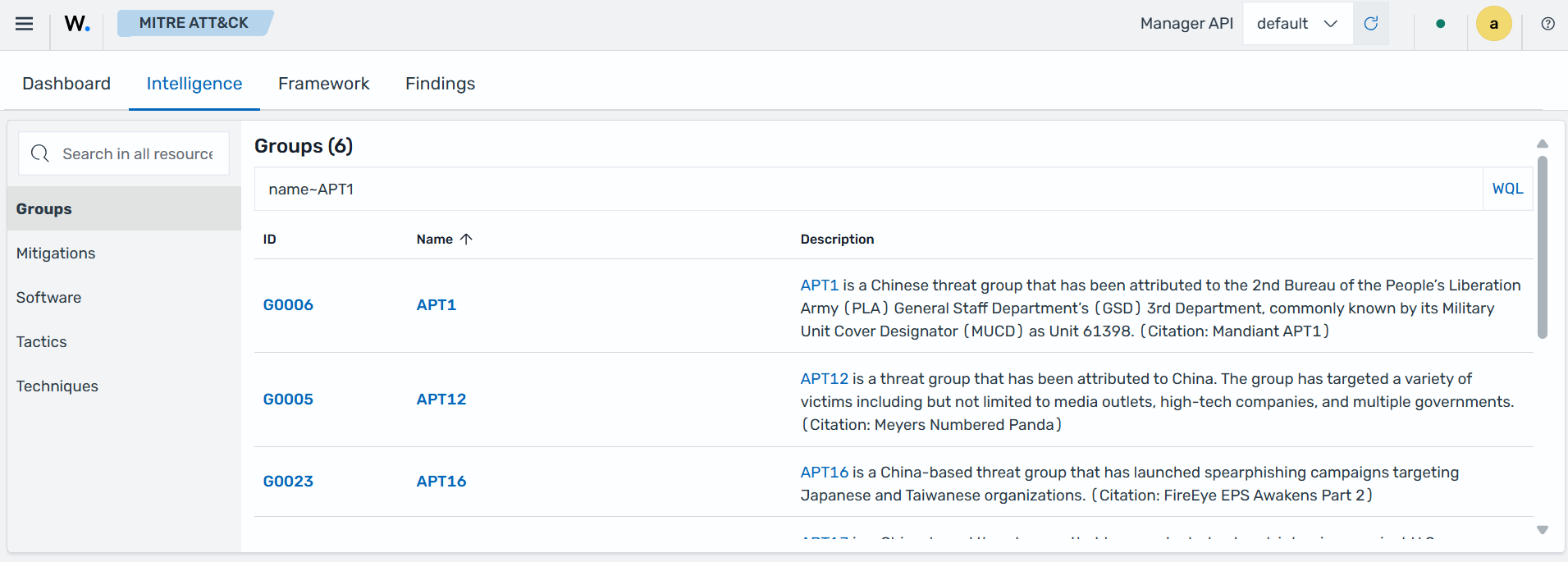
The like as operator (~) enables pattern matching, allowing data retrieval when a specified field matches a given pattern. It offers flexibility by finding records with partial matches. For example, the image below shows how to filter threat groups with names similar to “APT1”:
Consider a query aimed at finding descriptions that include the term "threat group" shown below:
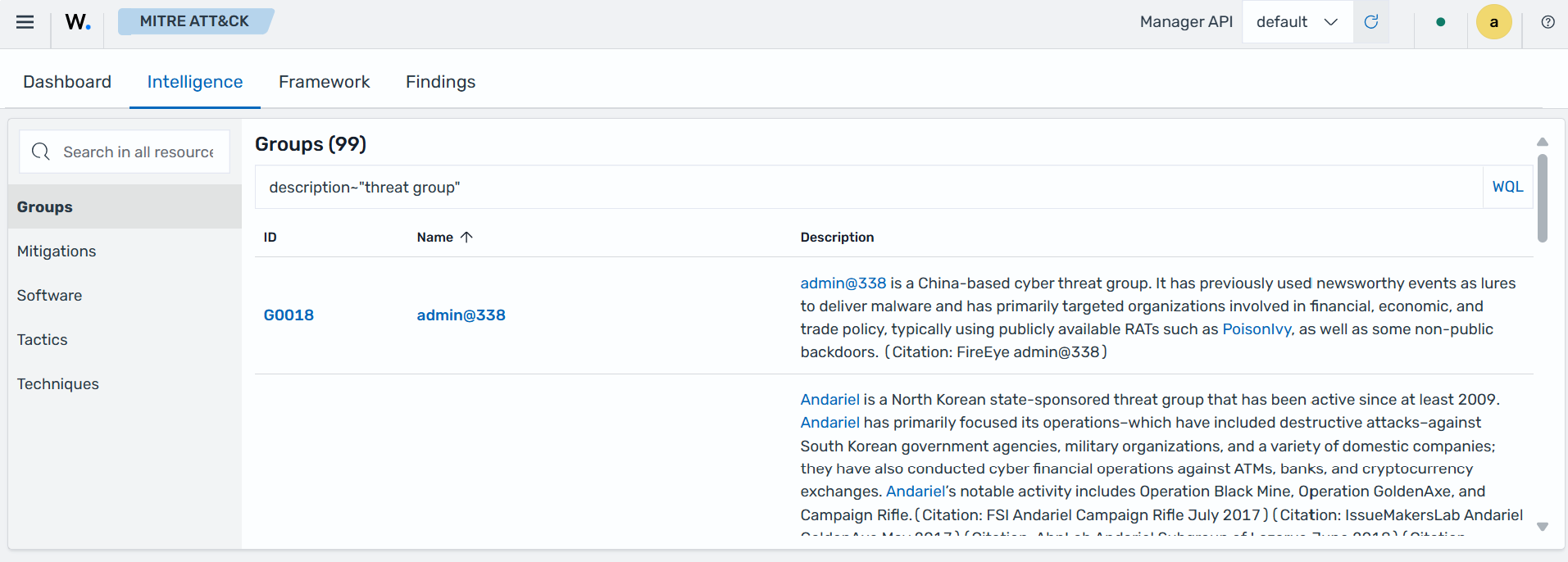
The query matches documents containing any search terms, irrespective of their order. By default, the query logic treats multiple search terms inclusively, using an or combination.
Value
Value is the specific data that is being filtered for. It represents the condition used to narrow down the results of a query. For instance, to display an entity named wazuh-agent, the query would be structured accordingly:
package.name:wazuh-agent
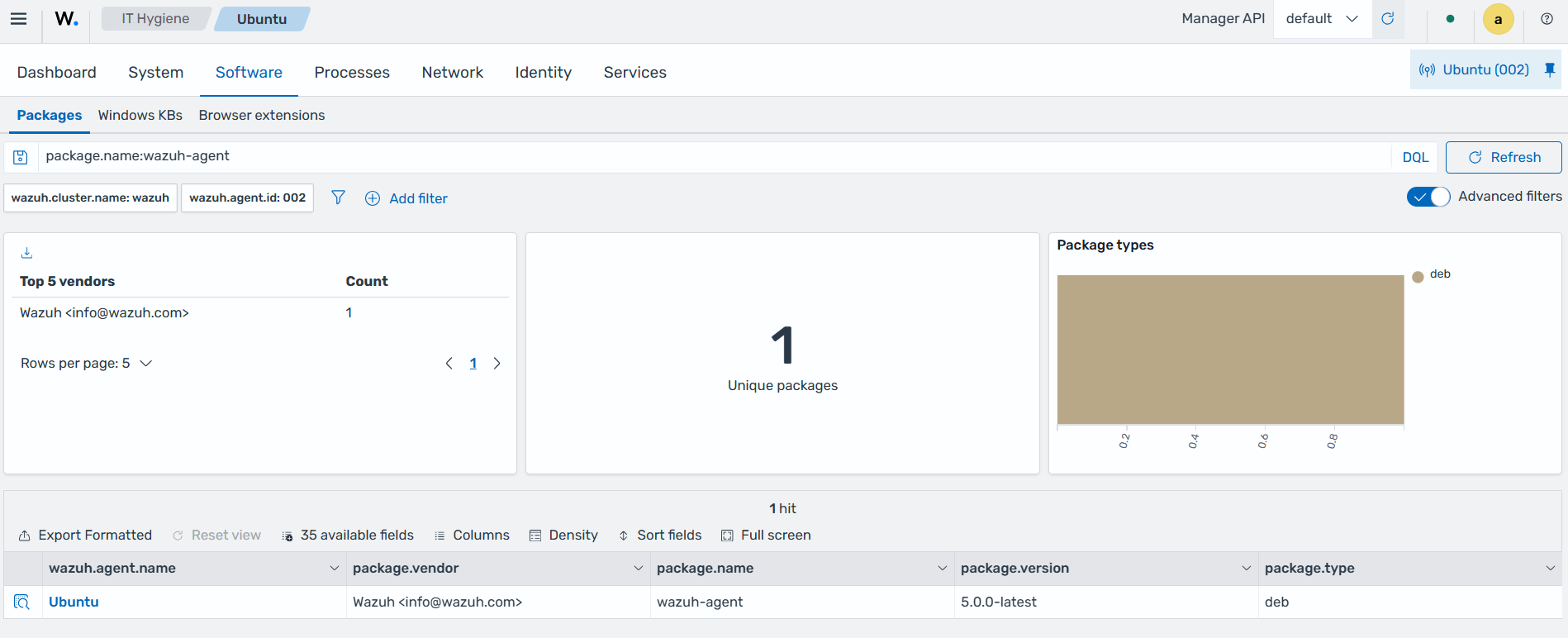
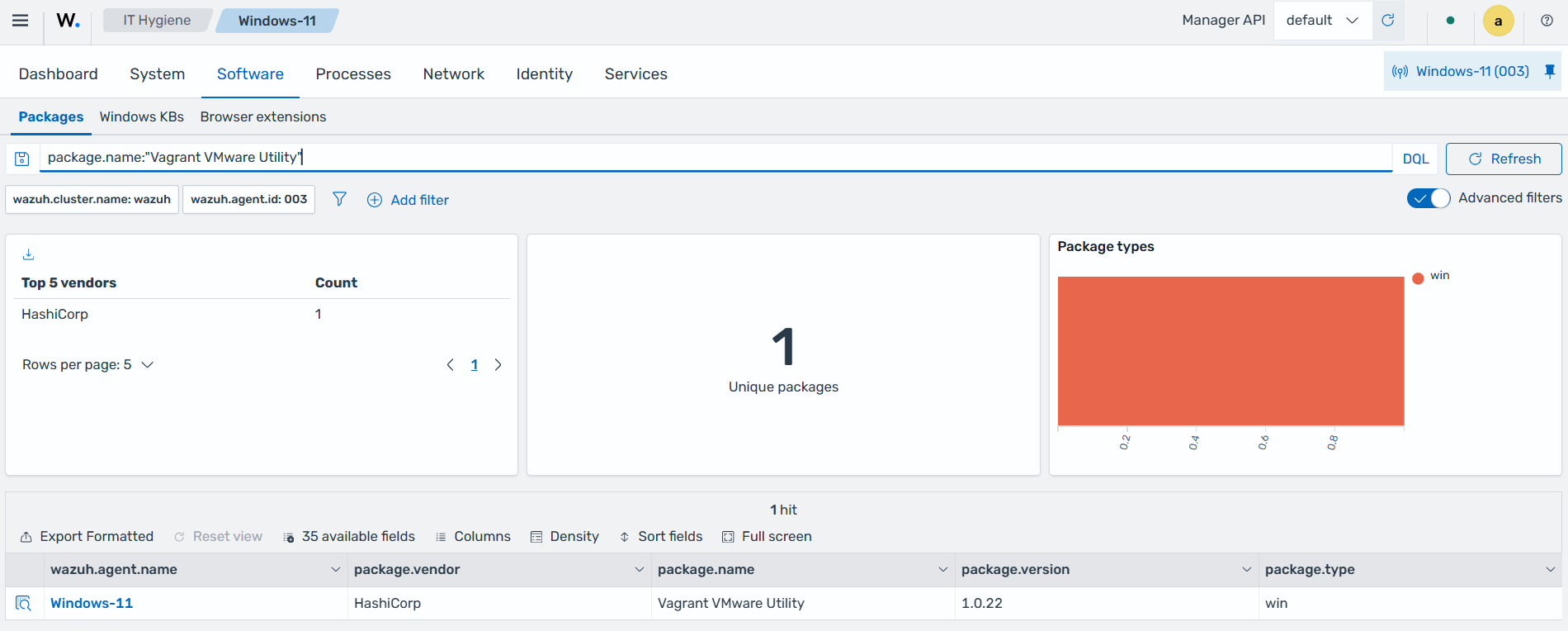
As shown in the example above, no additional formatting is necessary when filtering for values without spaces. You must wrap the value with a pair of double quotes " " if it contains spaces or the double quote character (").
package.name:"Vagrant VMware Utility"
Note
The double quote " can be escaped using \. For example: "value with whitespaces and escaped \"quotes\"" represents value with whitespaces and escaped "quotes".
Separators
Separators are operators that combine multiple queries for complex filtering. WQL supports the use of the and and or boolean operators.
Note
WQL is case-sensitive and supports only lowercase separators; hence, AND & OR are invalid.
or separator
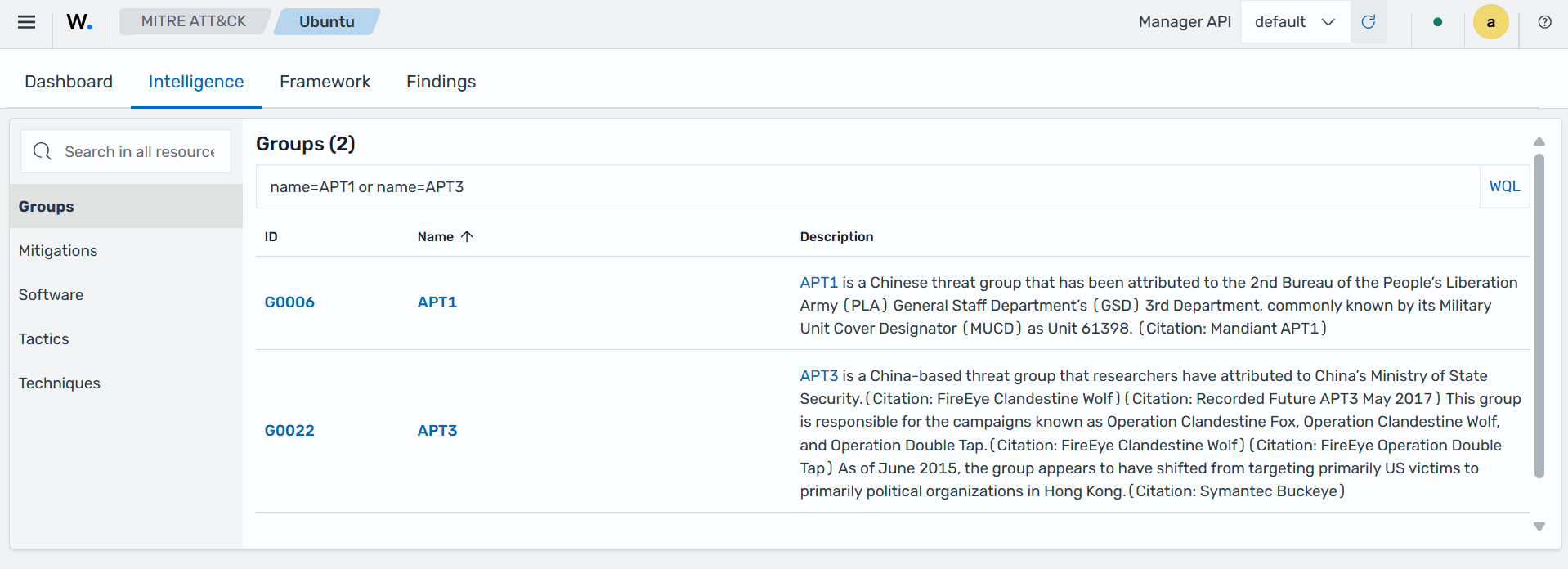
The or logical operator, denoted as a comma (,), merges various conditions within a query, requiring at least one condition to be true for the query to succeed. For example, we show the query to filter software named “Bumblebee” or “Avenger” below:
name=APT1 or name=APT3
and separator
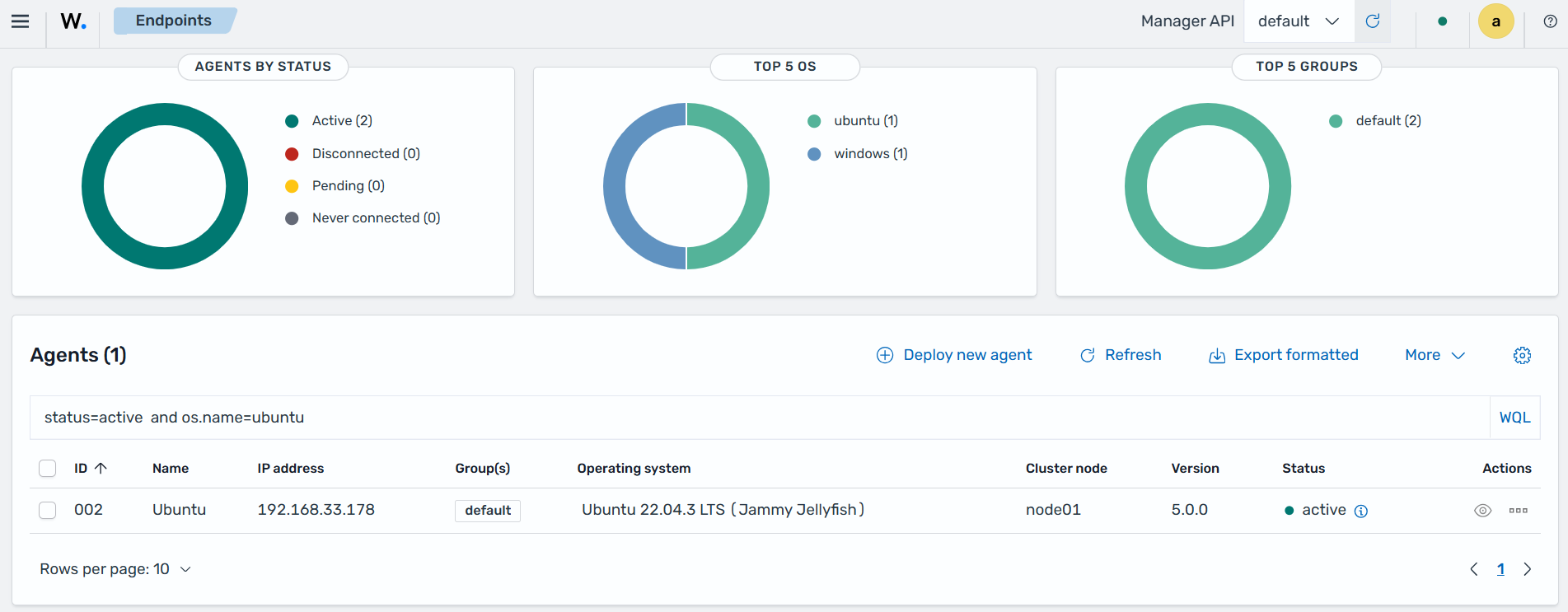
The and logical operator, denoted as a semicolon (;), links several conditions in a query, requiring all conditions to be met for the overall query to succeed. For example, run the following query to filter agents whose status is “active”, and whose operating system platform is “Ubuntu”:
status=active and os.platform=ubuntu
Grouping operators
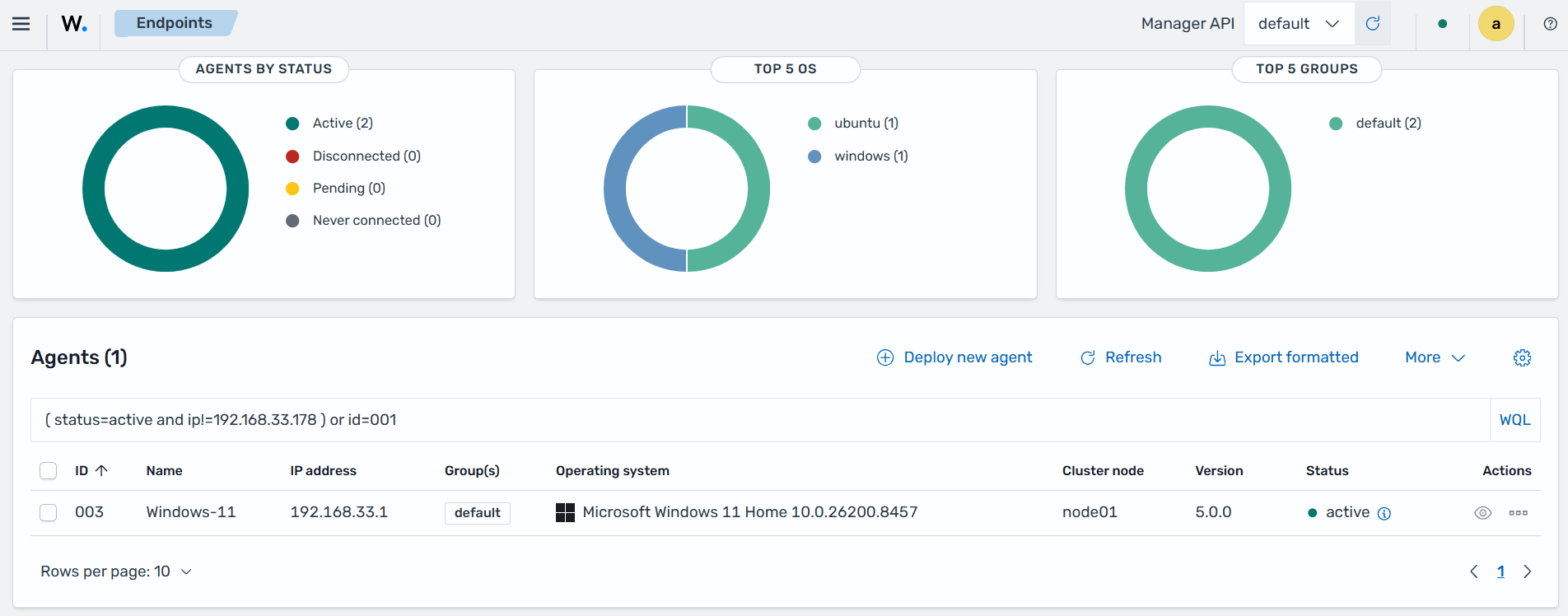
WQL utilizes parentheses () to prioritize expressions, ensuring those within are assessed first. This approach structures the enclosed expressions as singular units within broader queries, guiding the order of evaluation.
( status=active and ip!=192.168.33.178 ) or id=001
Wildcards
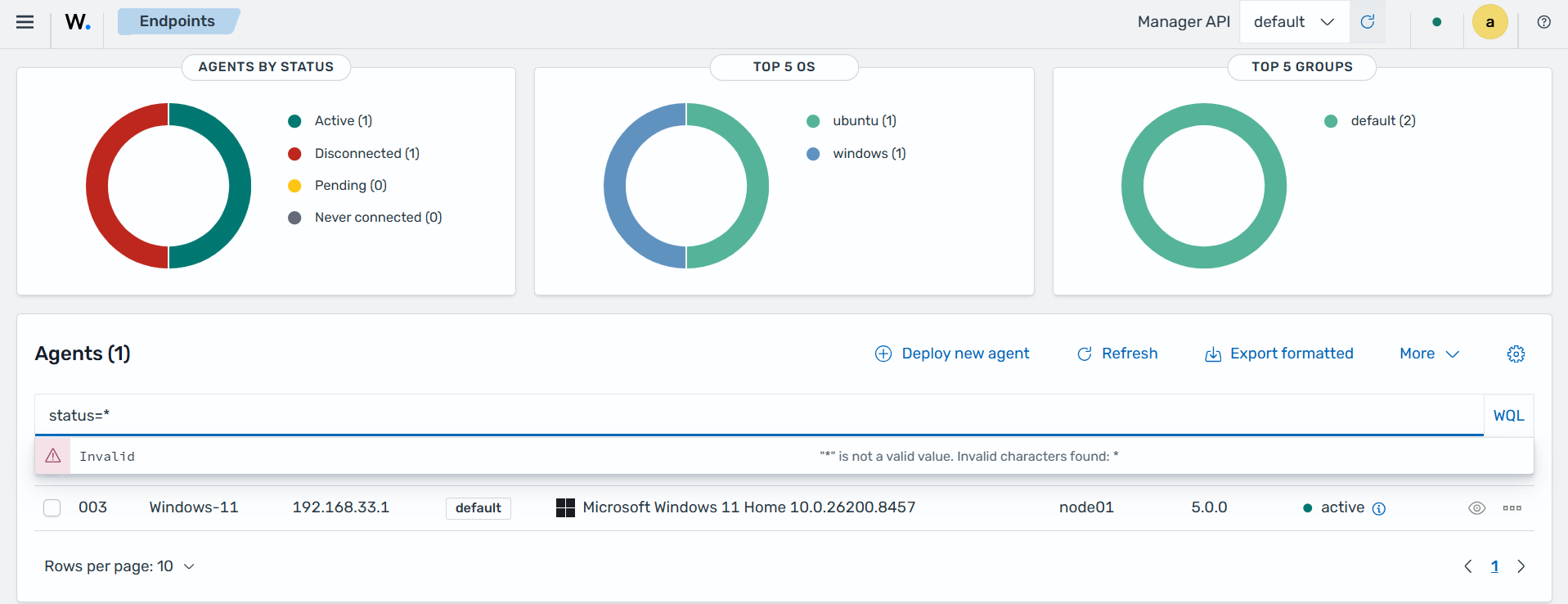
WQL does not support the use of wildcards represented as *.
Whitespaces
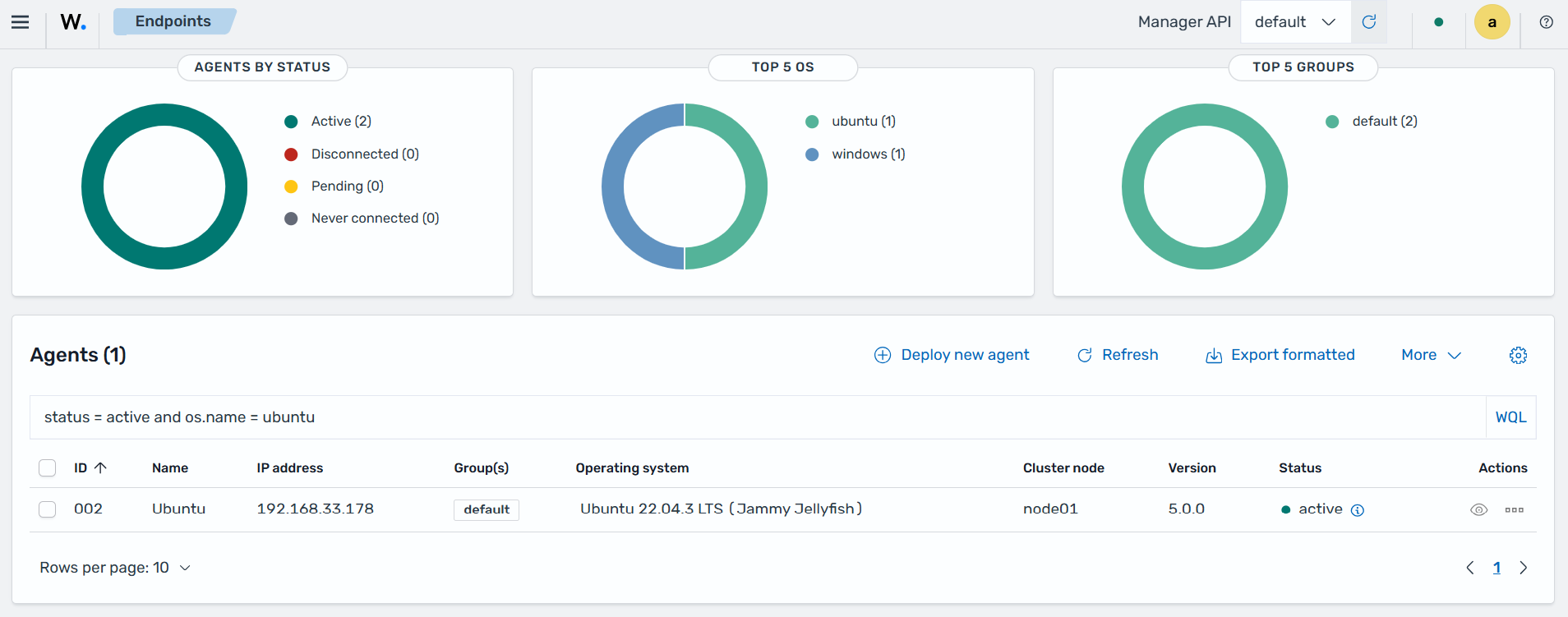
WQL supports the use of whitespaces between data tokens.
status = active and os.name = ubuntu
Ranges
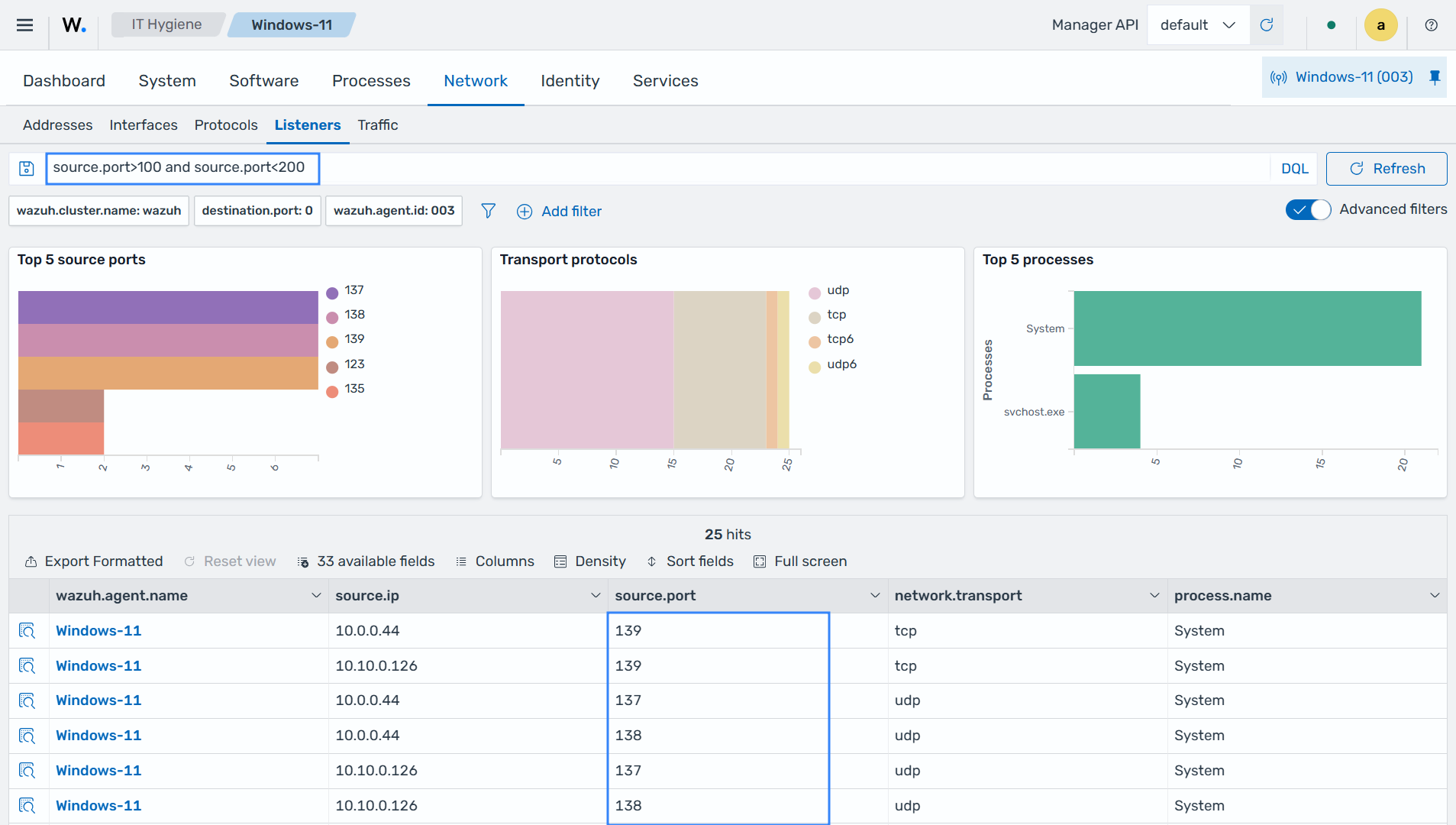
WQL supports numeric inequalities using the >, and < operators. For example:
source.port>100 and source.port<200
Example: Sending WQL queries with cURL
Generate a token to be used to interact with the API:
# TOKEN=$(curl -u <WAZUH_API_USERNAME>:<WAZUH_API_PASSWORD> -k -X GET "https://<WAZUH_MANAGER_IP_ADDRESS>:55000/security/user/authenticate?raw=true")
Replace:
<WAZUH_API_USERNAME>with your Wazuh manager API user.<WAZUH_API_PASSWORD>with your Wazuh manager API password.<WAZUH_MANAGER_IP_ADDRESS>with your Wazuh manager IP address.
For example, the following query would be used to filter Ubuntu endpoints with a version higher than 18.
We encode the value of the parameter q with the --data-urlencode flag:
# curl -G --data-urlencode "q=os.name=ubuntu" -k -X GET "https://<WAZUH_MANAGER_IP_ADDRESS>:55000/agents?limit=500&pretty=true&select=id,name,os.name,version,os.major" -H "Authorization: Bearer $TOKEN"
{
   "data": {
      "affected_items": [
         {
            "os": {
               "major": "22",
               "name": "Ubuntu"
            },
            "id": "002",
            "name": "Ubuntu",
            "version": "v5.0.0"
         }
      ],
      "total_affected_items": 1,
      "total_failed_items": 0,
      "failed_items": []
   },
   "message": "All selected agents information was returned",
   "error": 0
}
An example of using the or (,) separator and like as (~) operator can be filtering Wazuh agents whose operating system name contains windows or centos.
# curl -G --data-urlencode "q=os.name~centos,os.name~windows" -k -X GET "https://<WAZUH_MANAGER_IP_ADDRESS>:55000/agents?limit=500&pretty=true&select=id,name,os.name,os.version,os.major" -H "Authorization: Bearer $TOKEN"
{
   "data": {
      "affected_items": [
         {
            "os": {
               "major": "10",
               "name": "Microsoft Windows 11 Home",
               "version": "10.0.26200.8457"
            },
            "id": "003",
            "name": "Windows-11"
         }
      ],
      "total_affected_items": 1,
      "total_failed_items": 0,
      "failed_items": []
   },
   "message": "All selected agents information was returned",
   "error": 0
}