Monitoring Office 365 audit logs
Office 365 audit logs allow organization administrators to review the actions performed by members of their organization. They include details such as the user who performed an action, the type of action, and the time it occurred.
This section describes how to monitor the Office 365 audit log for your organization. The audit log contains information about changes and user activities in an Office 365 environment. You can use the Wazuh agent to monitor the following activities in Office 365:
User activity in SharePoint Online and OneDrive for Business.
User activity in Exchange Online (Exchange mailbox audit logging).
Administrator activity in SharePoint Online.
Administrator activity in Azure Active Directory (the directory service for Office 365).
Administrator activity in Exchange Online (Exchange admin audit logging).
User and administrator activity in:
Power BI.
Microsoft Teams.
Dynamics 365.
Yammer.
Microsoft Power Automate.
Microsoft Stream.
Microsoft Workplace Analytics.
Microsoft Power Apps.
Microsoft Forms.
User and administrator activity for sensitivity labels for sites that use SharePoint Online or Microsoft Teams.
Administrator activity in Briefing email and MyAnalytics.
Office 365 Management Activity API
The Office 365 Management APIs provide a platform for various management tasks, including service communications, security, compliance, reporting, and auditing. They provide an interface to collect audit logs from an Office 365 environment. Wazuh collects audit logs from Office 365 using this interface.
The Office 365 Management Activity API aggregates actions and events into tenant-specific content blobs, which are structured data tailored to each organization's Office 365 environment. These content blobs classify information by the type and source of the content they contain, enabling organizations to monitor and analyze actions and events within their Office 365 tenant for security auditing, compliance monitoring, and other administrative purposes.
Activity API operations based on plans
The Office 365 Management Activity API is a RESTful API that enables organizations to access and integrate audit logs and activity data from different Office 365 services. It categorizes activities by associated service, covering a wide range of services within the Office 365 suite. The specific activities available depend on your Office 365 subscription plan and the services you have enabled.
Plans
All API operations are restricted to a single tenant, and the API's root URL includes a tenant ID that specifies the tenant context. The URL of the API endpoint you use depends on the type of Office 365 subscription plan for your organization.
The following list shows the available plans and their corresponding API endpoint URLs.
Enterprise plan
https://manage.office.com/api/v1.0/{tenant_id}/activity/feed/{operation}Government Community Cloud (GCC) government plan
https://manage-gcc.office.com/api/v1.0/{tenant_id}/activity/feed/{operation}Government Community Cloud (GCC) High government plan
https://manage.office365.us/api/v1.0/{tenant_id}/activity/feed/{operation}Department of Defense (DoD) government plan
https://manage.protection.apps.mil/api/v1.0/{tenant_id}/activity/feed/{operation}
Activities
Office 365 subscription plans can include different features and services, so the available activities can vary depending on your specific plan. The following are categories of activities that you might find in the Office 365 Management API, depending on common Office 365 plans and services:
Azure Entra ID activities: Events related to the creation, modification, or deletion of users and groups in Azure Entra ID. This also includes sign-ins, authentication events, and role assignments and changes.
Exchange Online activities: This includes email-related activities, mailbox permission changes, and changes to email properties, attachments, and folders.
SharePoint Online activities: This category includes events related to sharing documents and sites, changes to user access rights and permissions, and file and folder operations.
Microsoft Teams activities: Activities relating to channel and team management, message and chat operations, and meeting-related events.
Security and Compliance Center activities: This category includes events related to compliance policies and data loss prevention (DLP). This also includes alerts for policy violations and eDiscovery activities.
General activities: Events that do not fall into specific service categories. This category might include general changes and administrative activities.
Operations
The Office 365 Management Activity API supports several operations. These include starting a subscription to receive notifications, retrieving a tenant's activity data, and stopping a subscription to discontinue data retrieval for that tenant. Using the Activity API, you can list current subscriptions, available content, and the corresponding content URLs. You can also retrieve content by using the content URL.
The following sections show how to use the Activity API to list available content and retrieve content.
Listing available content
You can list the content currently available for retrieval for a specified content type. This content is a collection of actions and events that occur in an Office 365 environment. Microsoft provides the following API endpoint to retrieve data when using an Office 365 enterprise plan:
Get https://manage.office.com/api/v1.0/<TENANT_ID>/activity/feed/subscriptions/content?contentType=<CONTENT_TYPE>&startTime=<START_TIME>&endTime=<END_TIME>
Where:
The
<TENANT_ID>variable is the tenant ID for the subscription.The
<CONTENT_TYPE>variable indicates the content type. For example,Audit.AzureActiveDirectoryandAudit.General.The
<START_TIME>and<END_TIME>variables indicate the time range of content to return, based on when the content became available (date format: YYYY-MM-DD).
Perform the following steps to manually list the available content.
Use the PowerShell script below to generate an access token. Create a file
AccessToken.ps1and paste the following content into it. Replace<YOUR_APPLICATION_ID>,<YOUR_CLIENT_SECRET>, and<YOUR_TENANT_ID>with the values collected during the application registration:$clientId = "<YOUR_CLIENT_ID>" $clientSecret = "<YOUR_CLIENT_SECRET>" $tenantId = "<YOUR_TENANT_ID>" $resource = "https://manage.office.com" $tokenEndpoint = "https://login.microsoftonline.com/$tenantId/oauth2/token" $tokenRequestBody = @{ grant_type = "client_credentials" client_id = $clientId client_secret = $clientSecret resource = $resource } $tokenResponse = Invoke-RestMethod -Uri $tokenEndpoint -Method POST -Body $tokenRequestBody $MyToken = $tokenResponse.access_token echo $MyToken
Open a regular PowerShell terminal and run the commands below to execute the PowerShell script
AccessToken.ps1created in the previous step:> Set-ExecutionPolicy RemoteSigned -Scope CurrentUser > $accessToken = & "<PATH>\AccessToken.ps1"
Note
The command
Set-ExecutionPolicy RemoteSigned -Scope CurrentUserallows the execution of local scripts. Replace<PATH>with the file path to the PowerShell script.Run the command below in the same PowerShell terminal to get the list of currently available content for a content type:
$response = Invoke-RestMethod -Uri "https://manage.office.com/api/v1.0/<TENANT_ID>/activity/feed/subscriptions/content?contentType=<CONTENT_TYPE>&startTime=<START_TIME>&endTime=<END_TIME>" -Headers @{ Authorization = "Bearer $accessToken"; ContentType = "application/json" } -Method Get; $response.value
Replace:
The
<TENANT_ID>variable with a valid tenant ID.The
<CONTENT_TYPE>variable with a valid content type. For example,Audit.AzureActiveDirectory.The
<START_TIME>and<END_TIME>variables with a date range (format: YYYY-MM-DD).
contentUri        : https://manage.office.com/api/v1.0/<Tenant_ID>/activity/feed/audit/
                    20240129073247100003384$20*********081955691028239
                    $audit_azureactivedirectory$Audit_AzureActiveDirectory$emea0010
contentId         : 20240129073247100003384$20*********081955691028239$audit_azureactivedirectory$Audit_AzureActiveDirectory$emea0010
contentType       : Audit.AzureActiveDirectory
contentCreated    : 2024-01-29T08:19:55.691Z
contentExpiration : 2024-02-05T07:32:47.100Z
...
Retrieving content
To retrieve a content blob, make a GET request against the corresponding content URI that is included in the list of available content. The returned content is a collection of one or more actions or events in JSON format.
GET <contentUri>
Replace the <contentUri> variable with the value of a content URI that is included in the list of available content.
For more information about the available endpoints and response formats, see the Office 365 Management Activity API reference.
Office 365 API requirements
Wazuh must authenticate to the Office 365 Management API to connect and pull audit logs for analysis. Register an application on the Azure portal to obtain the required credentials.
You need the following to access the audit logs of Office 365 with Wazuh:
The application (client) ID: The unique ID of the application created in the Azure portal to pull logs from Office 365.
The directory (tenant) ID: The tenant ID, which is the same as the organization ID, identifies which Azure Active Directory instance the application belongs to.
The client secret: A shared secret known to both the application and the authorization server.
Setting up Office 365 for monitoring
The Office 365 API provides an endpoint to access audit logs. You need an application with the required permissions to access the Microsoft API. The following list summarizes the steps you must perform on Microsoft Azure to integrate with Wazuh:
Registering an app via the Azure portal: This step involves creating an application with unique credentials (client ID, tenant ID, and client secret) in your organization.
Creating certificates and secrets: The created application must authenticate to the Office 365 Management API to ensure security. This step shows how to create certificates and secrets for the application.
Enabling API permissions: The created application needs specific API permissions to request the Office 365 activity events. This step shows how to assign the permissions required to pull logs from the Office 365 Management API.
Registering an app via the Azure portal
To authenticate with the Microsoft identity platform endpoint, you must register an app in your Azure portal.
Sign in to your Azure portal.
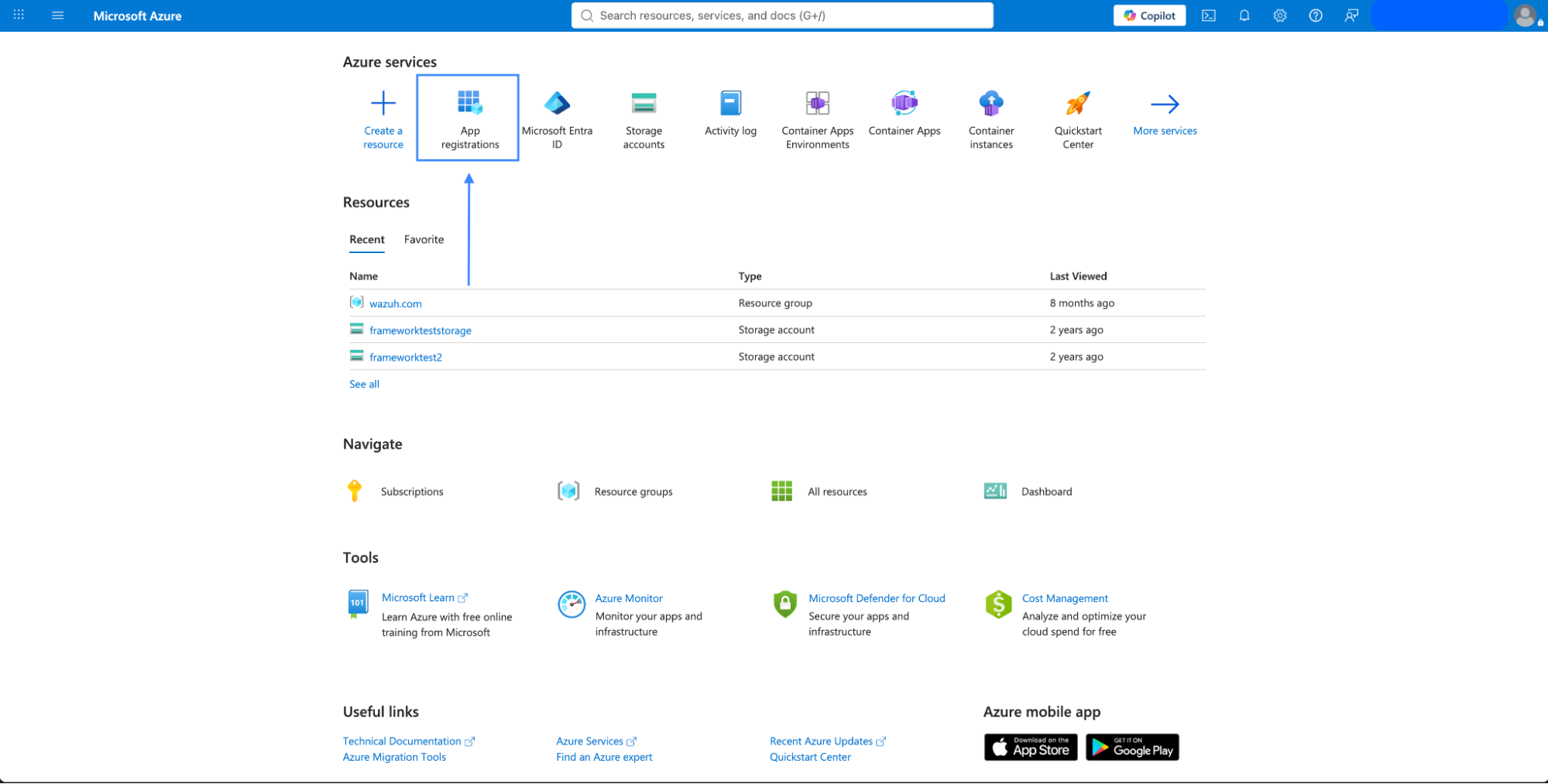
Click or search for App registrations.
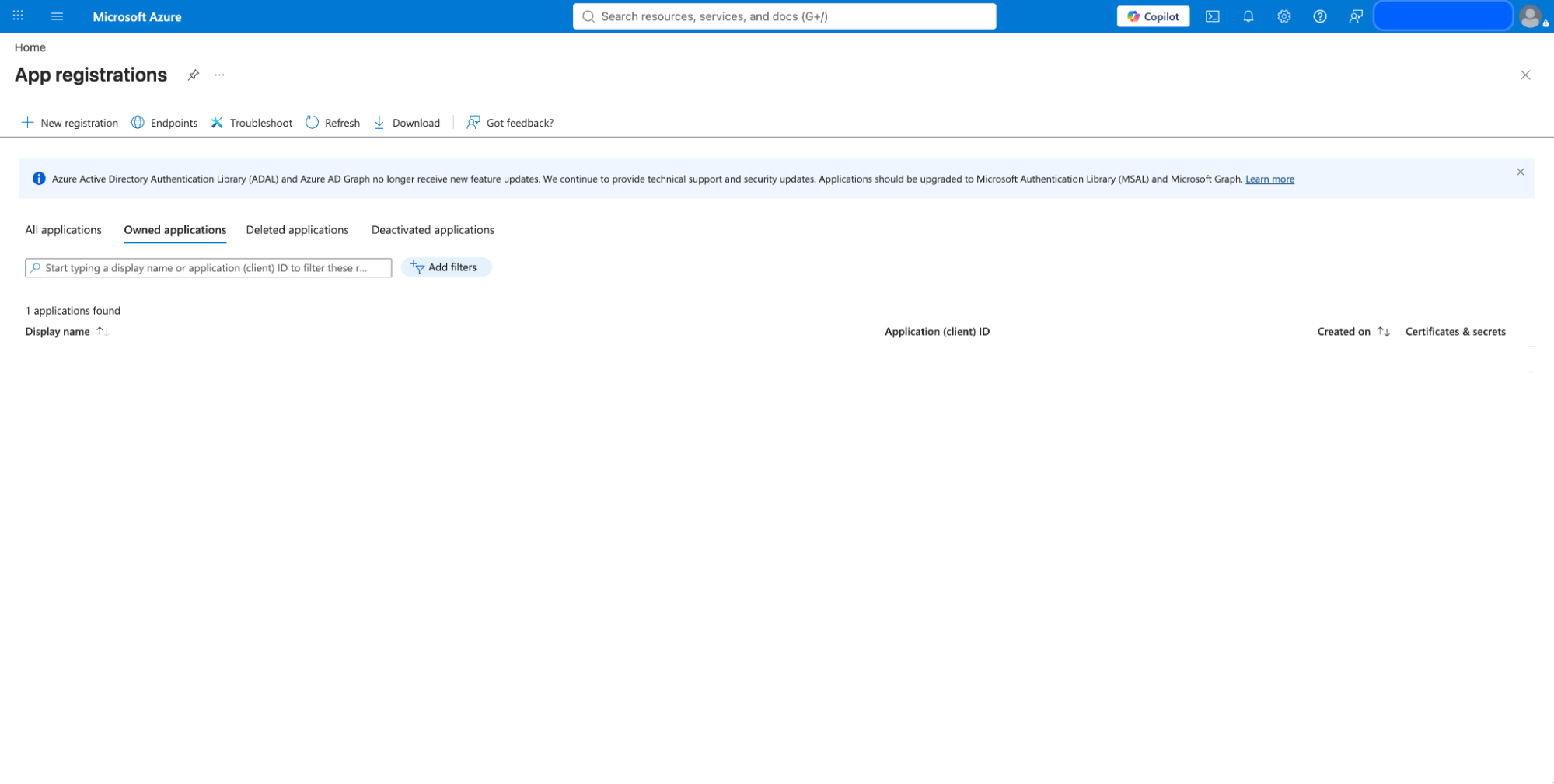
Click New registration in the Azure portal app registrations section.
Enter the name of your application, choose the desired account type, and click the Register button.
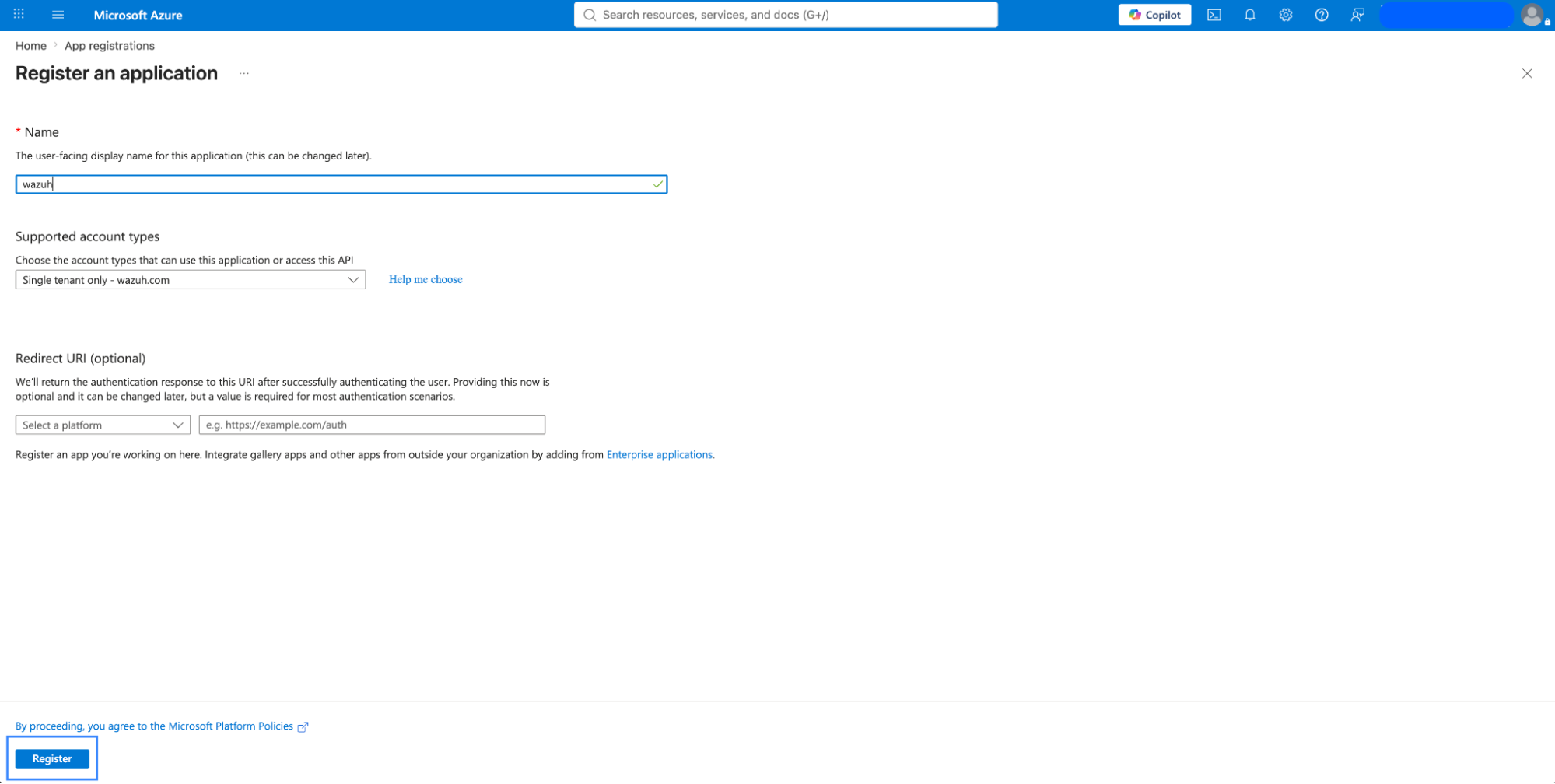
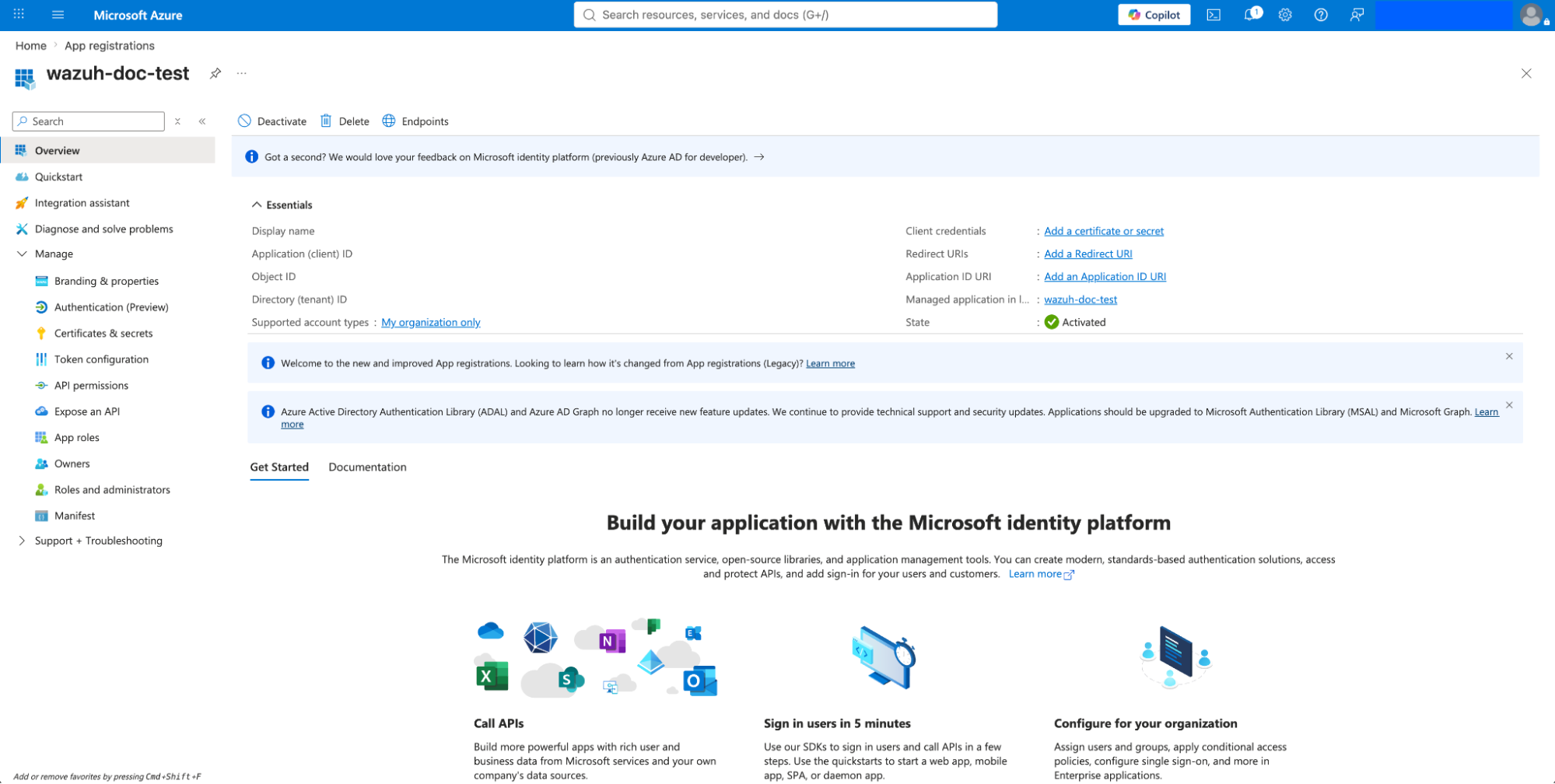
At this point, the application is registered.
Click the Overview tab on the menu to view and copy the application's client and tenant IDs.
Creating a client secret
The application requires a client secret to authenticate.
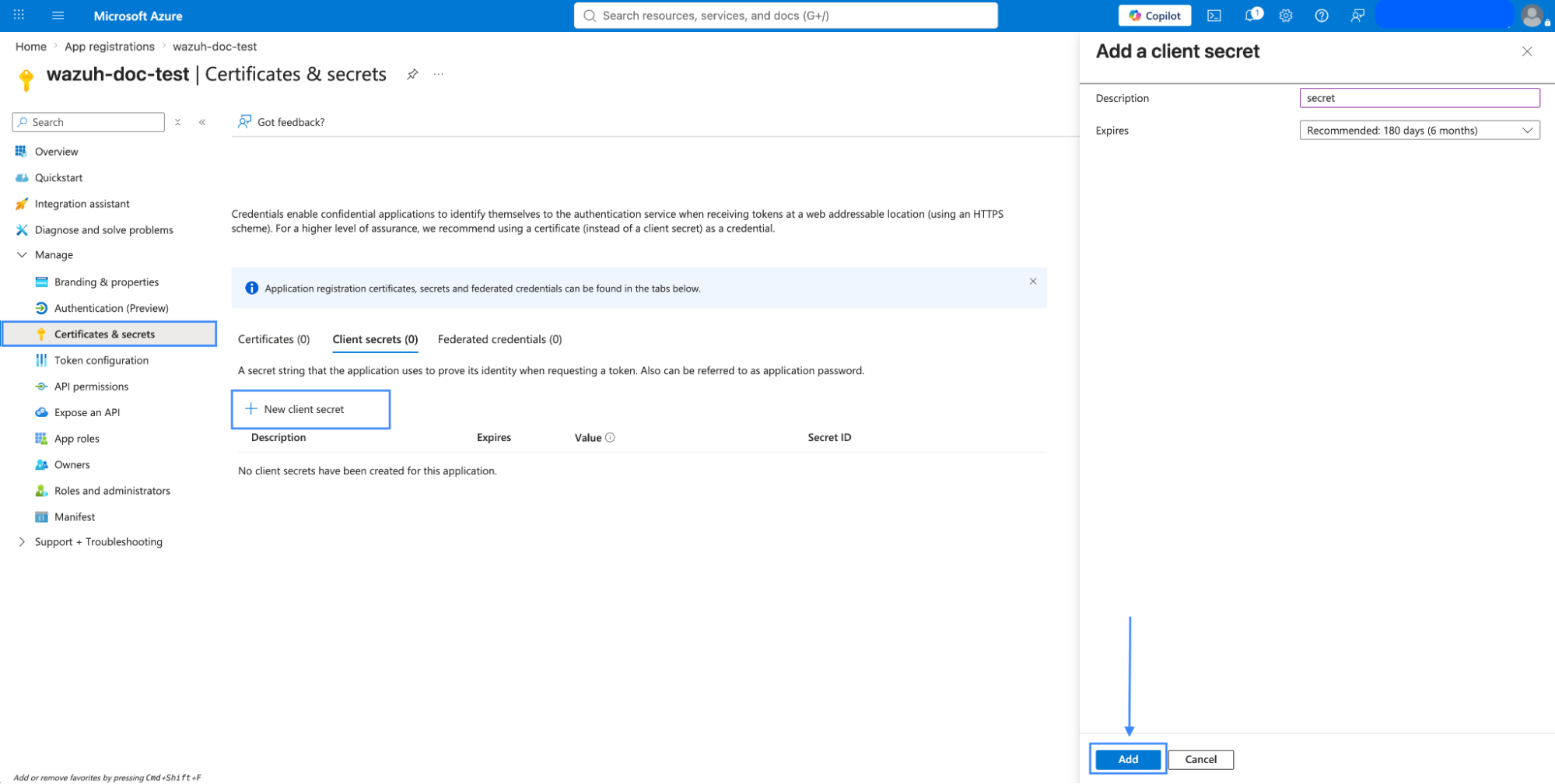
Navigate to Manage > Certificates & secrets and click the New client secret button. Then, fill in the Description and Expires fields of the new secret under the Add a client secret section.
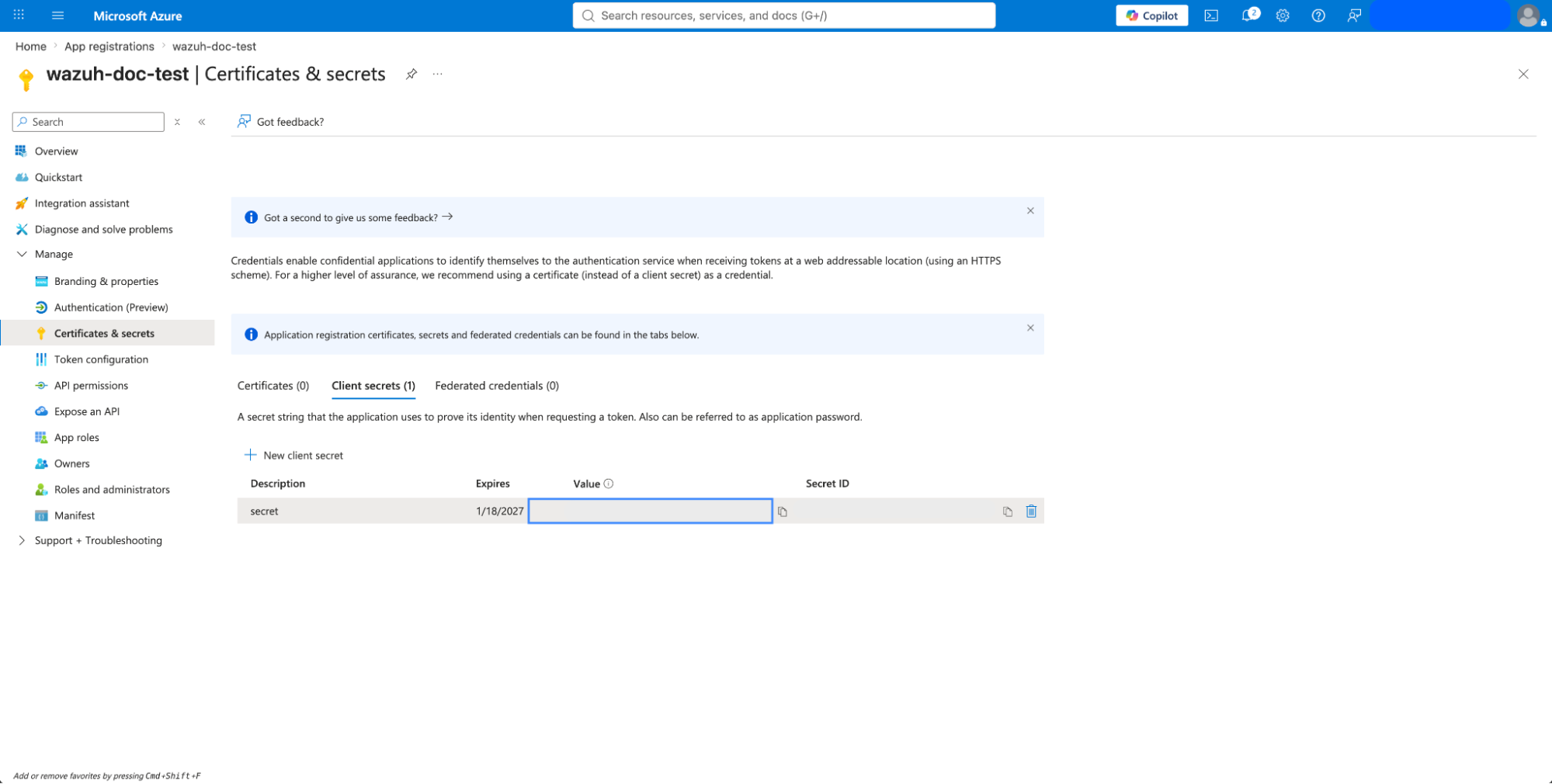
Copy and save the value of the secret under the Client secrets > Value section.
Note
Copy the secret value immediately because the Azure portal does not display it again.
Enabling API permissions
The application requires specific API permissions to request Office 365 activity events. The required permissions relate to the https://manage.office.com resource.
Perform the following steps to configure the application permissions:
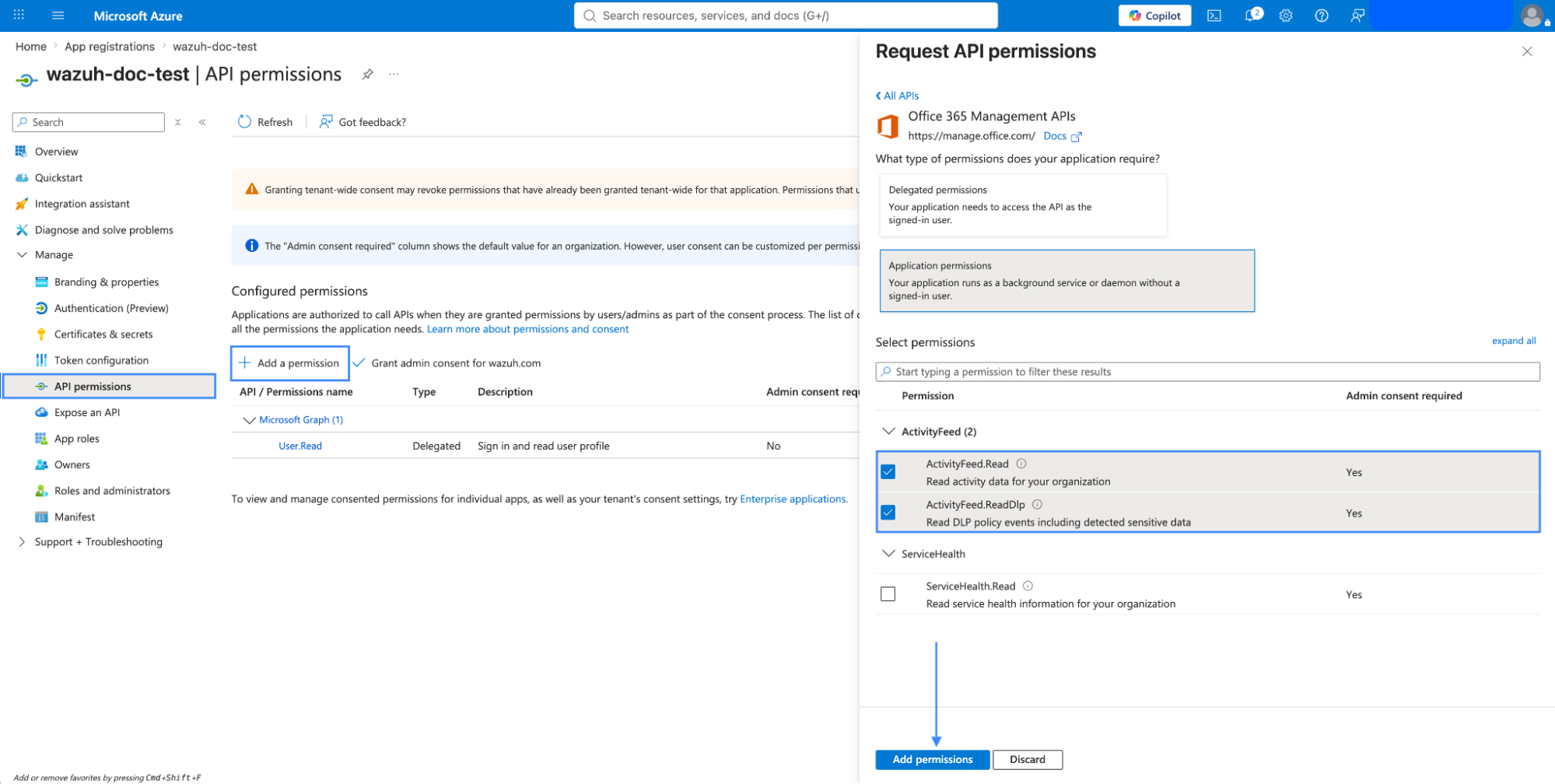
Navigate to the API permissions menu and choose Add a permission.
Select the Office 365 Management APIs and click Application permissions.
Add the following permissions under the ActivityFeed group:
ActivityFeed.Read: This permission is needed for general activity monitoring for your organization.ActivityFeed.ReadDlp: This permission is needed for visibility into DLP policy violations in your organization.
Click the Add permissions button.
Note
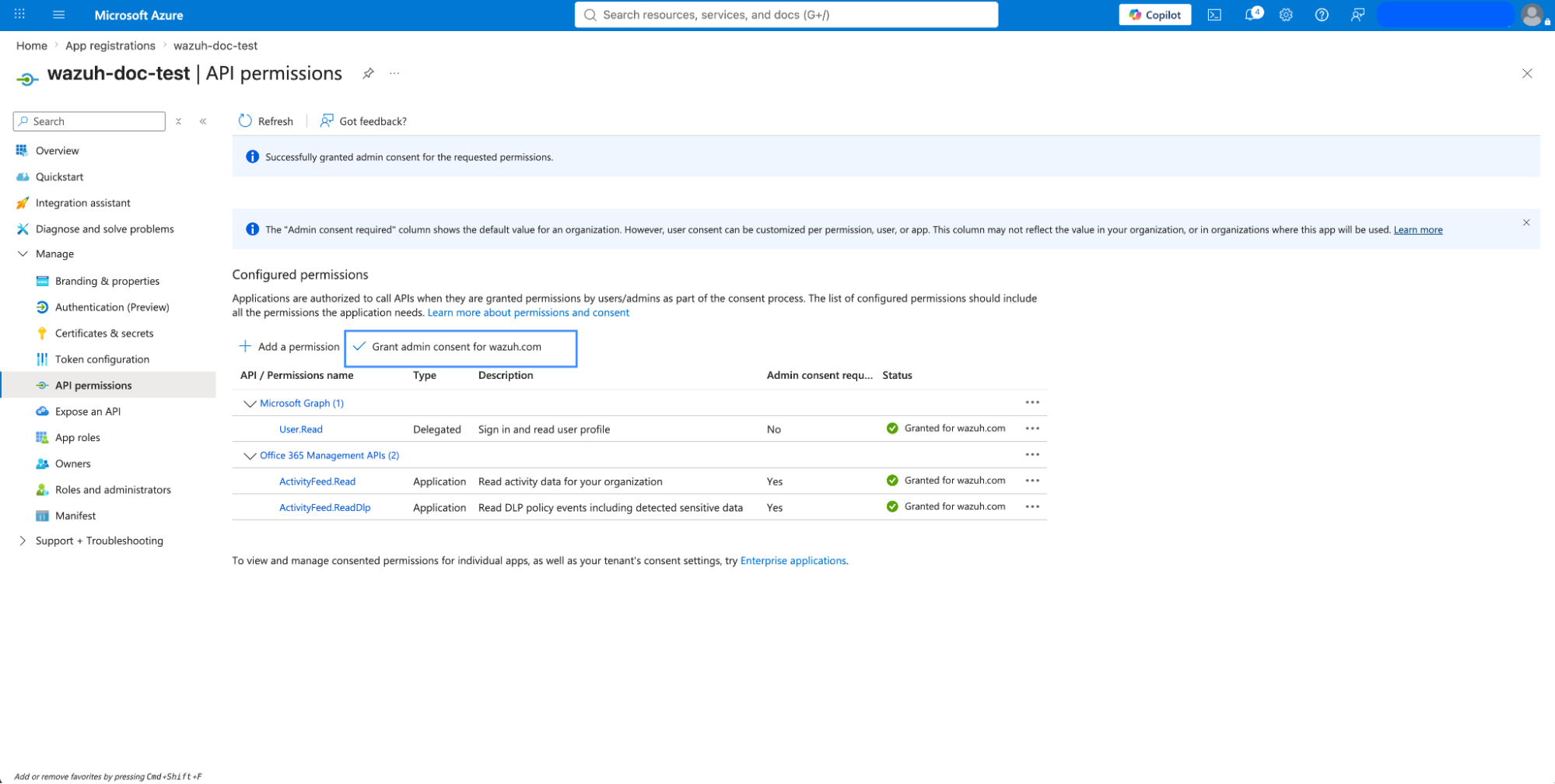
Administrator consent is required for API permission changes.
Setting up Wazuh for Office 365 monitoring
This section describes how to configure Wazuh to monitor Office 365 environments. The configuration process includes integrating with the Office 365 APIs for log collection, enabling the dashboard visualization module for Office 365 events, and rule correlation.
Configuring Wazuh with Office 365 APIs
The Wazuh module for Office 365 pulls audit logs from the Office 365 APIs for analysis and rule correlation. Starting from Wazuh 5.0, you can only configure the module on the Wazuh agent.
Perform the following steps to configure the Wazuh agent to pull audit logs from an Office 365 environment.
Append the following configuration to the Wazuh agent
/var/ossec/etc/ossec.conffile. The configuration pulls onlyAudit.SharePointevents at an interval of 1 minute.<ossec_config> <office365> <enabled>yes</enabled> <interval>1m</interval> <curl_max_size>1M</curl_max_size> <only_future_events>yes</only_future_events> <api_auth> <tenant_id><YOUR_TENANT_ID></tenant_id> <client_id><YOUR_CLIENT_ID></client_id> <client_secret><YOUR_CLIENT_SECRET></client_secret> <api_type>commercial</api_type> </api_auth> <subscriptions> <subscription>Audit.SharePoint</subscription> </subscriptions> </office365> </ossec_config>
Where:
<enabled>enables the Wazuh module for Office 365. The allowed values for this option areyesandno.<interval>defines the time interval between each execution of the Wazuh module for Office 365. The allowed value is any positive number that contains a suffix character indicating a time unit, such ass(seconds),m(minutes),h(hours), andd(days). The default interval for the module execution, if not specified, is10m.<curl_max_size>specifies the maximum size allowed for the Microsoft API response. The allowed value is any positive number that contains a suffix character indicating a size unit, such asb/B(bytes),k/K(kilobytes),m/M(megabytes), andg/G(gigabytes). The default value is1M.<only_future_events>configures the Wazuh module for Office 365 to collect only events generated after you start the Wazuh agent when the value is set toyes. When the value is set tono, it also collects events generated before you start the Wazuh agent. The default value isyes, and the allowed values areyesandno.The
<api_auth>block configures the credentials for the authentication with the Office 365 REST API. The tags<tenant_id>,<client_id>,<client_secret>, and<api_type>are configuration tags within<api_auth>.<tenant_id>specifies the tenant ID of the application registered in Azure. The allowed value is any string. Replace the variable<YOUR_TENANT_ID>with the tenant ID of your application registered in Azure.<client_id>specifies the client ID of the application registered in Azure. The allowed value is any string. Replace the variable<YOUR_CLIENT_ID>with the client ID of your application registered in Azure.<client_secret>specifies the client secret value of the application registered in Azure. Replace the variable<YOUR_CLIENT_SECRET>with the client secret of your application registered in Azure.<api_type>specifies the type of Office 365 subscription plan used by the tenant. The allowed subscriptions arecommercial,gcc, andgcc-high.
The
<subscriptions>block configures the internal options in the Office 365 REST API.<subscription>specifies the content types from which Wazuh collects audit logs. The subscription types that can be configured includeAudit.AzureActiveDirectory,Audit.Exchange,Audit.SharePoint,Audit.General, andDLP.All.
For more information about the configuration options, see the Wazuh module for Office 365 reference guide.
Restart the Wazuh agent service to apply the changes:
# systemctl restart wazuh-agent
Configuring multiple tenants
You can configure Wazuh to monitor multiple tenants in an organization by specifying the organization's credentials (<tenant_id>, <client_id>, <client_secret>, and <api_type>) in individual <api_auth> blocks.
For example, the following configuration monitors two tenants in an organization:
<ossec_config>
  <office365>
    <enabled>yes</enabled>
    <interval>1m</interval>
    <curl_max_size>1M</curl_max_size>
    <only_future_events>yes</only_future_events>

    <api_auth>
      <tenant_id><YOUR_TENANT_ID_1></tenant_id>
      <client_id><YOUR_CLIENT_ID_1></client_id>
      <client_secret><YOUR_CLIENT_SECRET_1></client_secret>
      <api_type>commercial</api_type>
    </api_auth>

    <api_auth>
      <tenant_id><YOUR_TENANT_ID_2></tenant_id>
      <client_id><YOUR_CLIENT_ID_2></client_id>
      <client_secret><YOUR_CLIENT_SECRET_2></client_secret>
      <api_type>commercial</api_type>
    </api_auth>

    <subscriptions>
      <subscription>Audit.AzureActiveDirectory</subscription>
      <subscription>Audit.General</subscription>
    </subscriptions>
  </office365>
</ossec_config>
Replace:
<YOUR_TENANT_ID_1>,<YOUR_CLIENT_ID_1>, and<YOUR_CLIENT_SECRET_1>with the organization's credentials for tenant 1.<YOUR_TENANT_ID_2>,<YOUR_CLIENT_ID_2>, and<YOUR_CLIENT_SECRET_2>with the organization's credentials for tenant 2.
Configuring multiple subscriptions
Wazuh pulls audit logs from the following subscription types in Office 365:
Audit.AzureActiveDirectory: User identity management.
Audit.Exchange: Mail and calendaring server.
Audit.SharePoint: Web-based collaborative platform.
Audit.General: Includes all other workloads not included in the previous content types.
DLP.All: Data loss prevention workloads.
You can configure Wazuh to monitor multiple subscriptions in an organization's tenants by specifying the subscription type in individual <subscription> tags within the same <subscriptions> block.
For example, the following configuration pulls only the Audit.AzureActiveDirectory and Audit.General events within a tenant in an organization:
<ossec_config>
  <office365>
    <enabled>yes</enabled>
    <interval>1m</interval>
    <curl_max_size>1M</curl_max_size>
    <only_future_events>yes</only_future_events>

    <api_auth>
      <tenant_id><YOUR_TENANT_ID></tenant_id>
      <client_id><YOUR_CLIENT_ID></client_id>
      <client_secret><YOUR_CLIENT_SECRET></client_secret>
      <api_type>commercial</api_type>
    </api_auth>

    <subscriptions>
      <subscription>Audit.AzureActiveDirectory</subscription>
      <subscription>Audit.General</subscription>
    </subscriptions>
  </office365>
</ossec_config>
Replace <YOUR_TENANT_ID>, <YOUR_CLIENT_ID>, and <YOUR_CLIENT_SECRET> with the organization's credentials for the tenant.
Enabling dashboard visualization for the Office 365 module
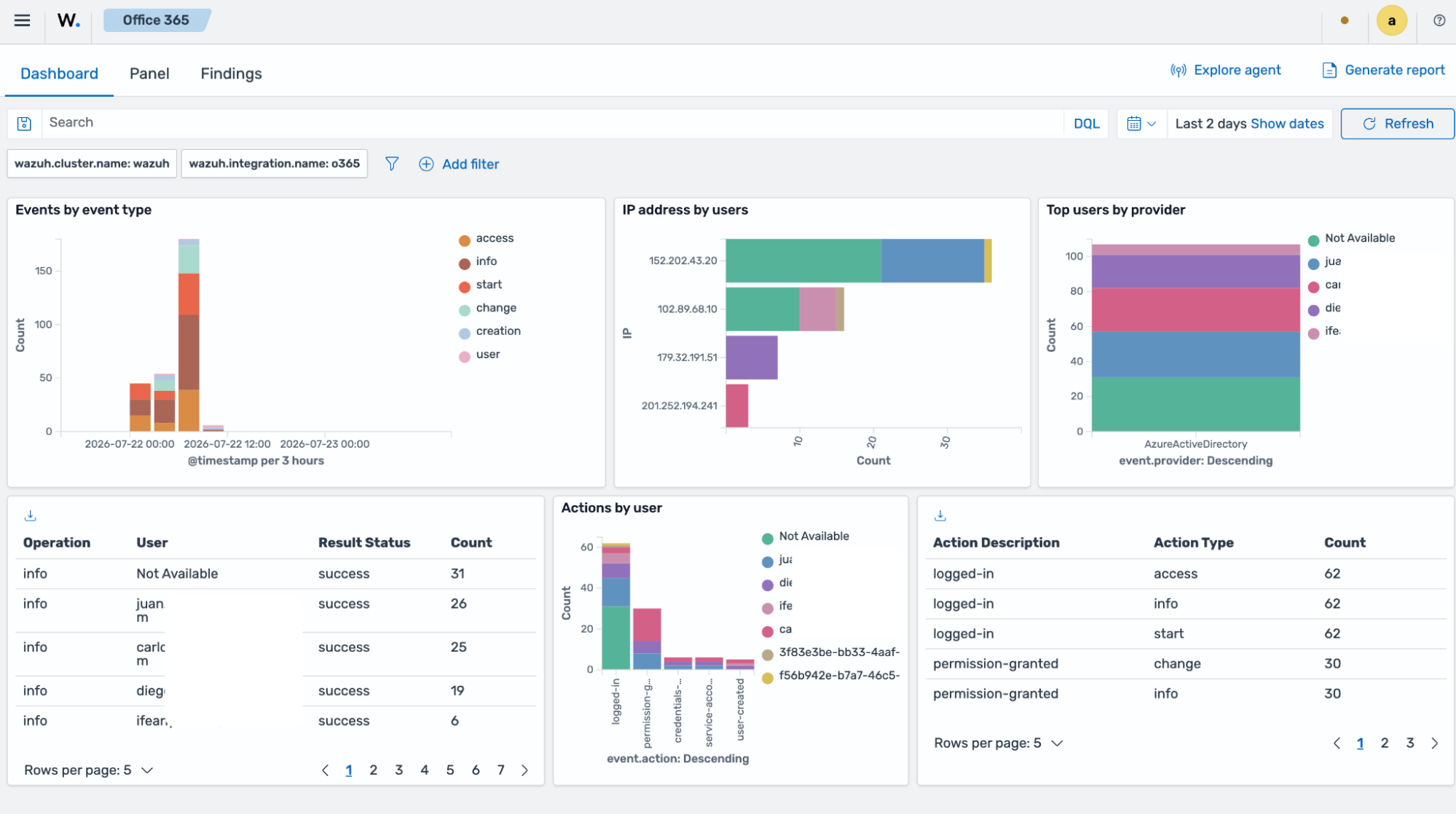
The Wazuh module for Office 365 has a dedicated visualization on the Wazuh dashboard that provides detailed information about the events that occur in Office 365. The module provides three visualization options: Panel, Dashboard, and Events. Navigate to Cloud security > Office 365 on the Wazuh dashboard to view this information.
Dashboard
The Dashboard tab visualization option provides a view of the actions performed in a monitored Office 365 environment. This information includes top actions by users, the types of events performed, and the IP addresses of these events, as shown in the following image.
Panel
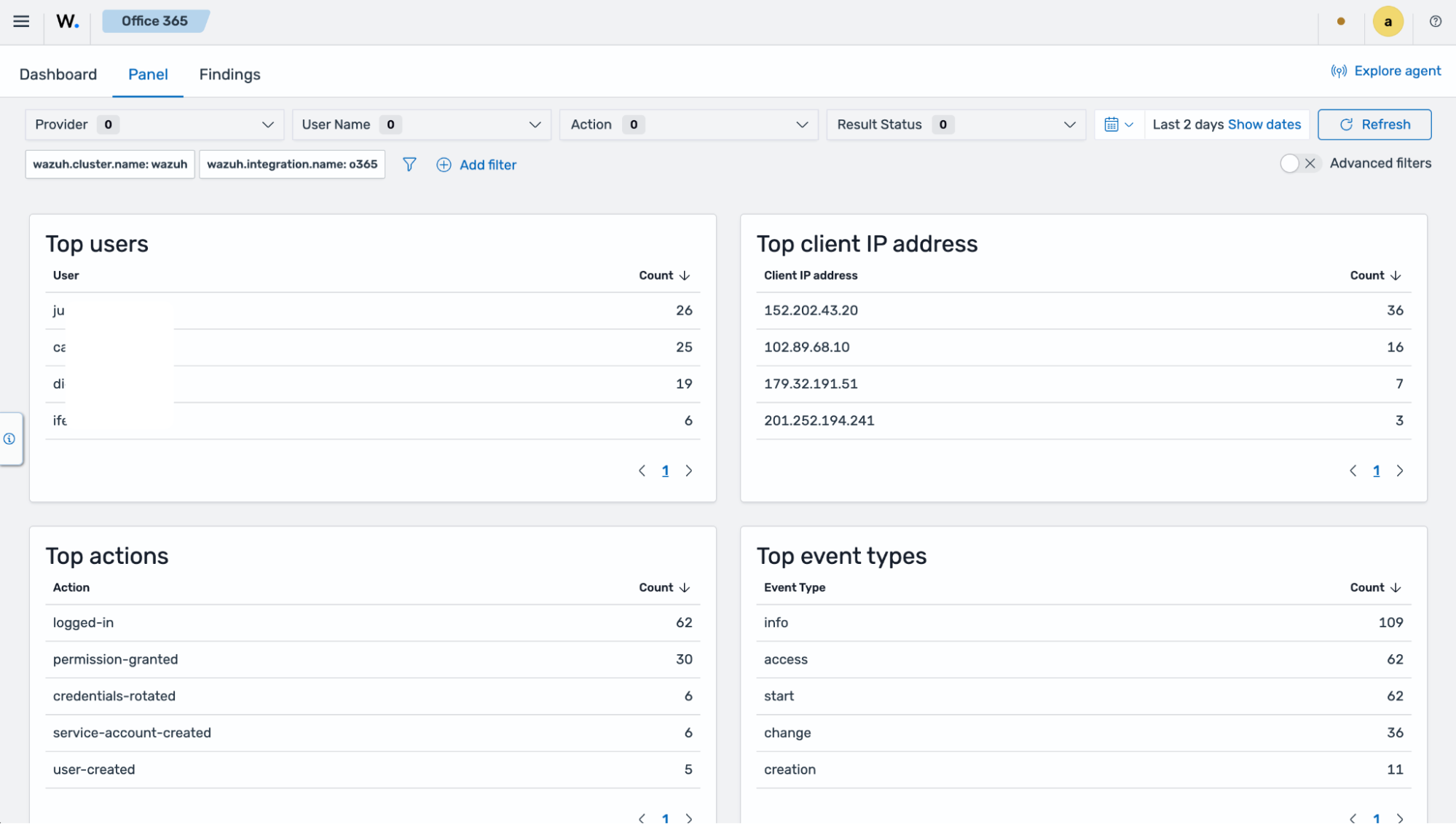
This Panel tab provides detailed information about the events that occurred, including the top users of the service, the top client IP addresses using the service, the top actions triggered, and the top events performed in Office 365.
Events
The Events tab shows the findings generated by events that occur in the Office 365 environment. Here you can see details such as the agent name, the event type, the IP address of the user performing the action, and other fields.
This tab also provides the following functionality:
Event filtering based on specific fields such as event type, IP addresses, and others.
Dynamic searches based on structured queries.
Complete details of the generated finding, including the full log, matched decoder, and others.
Use cases
Detecting user logins to Microsoft Azure portal
When a user logs in to the Microsoft Azure portal, the action generates an event. You can configure Wazuh to monitor and visualize these events by performing the following actions.
For this use case, we installed the Wazuh agent on an Ubuntu 25.10 endpoint and enrolled it in a Wazuh manager.
Ubuntu endpoint
Append the following configuration to the
/var/ossec/etc/ossec.conffile on the monitored Linux endpoint:<ossec_config> <office365> <enabled>yes</enabled> <interval>1m</interval> <curl_max_size>1M</curl_max_size> <only_future_events>yes</only_future_events> <api_auth> <tenant_id><YOUR_TENANT_ID></tenant_id> <client_id><YOUR_CLIENT_ID></client_id> <client_secret><YOUR_CLIENT_SECRET></client_secret> <api_type>commercial</api_type> </api_auth> <subscriptions> <subscription>Audit.AzureActiveDirectory</subscription> </subscriptions> </office365> </ossec_config>
Replace:
The
<YOUR_TENANT_ID>variable with the tenant ID of your application registered in Microsoft Azure.The
<YOUR_CLIENT_ID>variable with the client ID of your application registered in Microsoft Azure.The
<YOUR_CLIENT_SECRET>variable with the client secret of your application registered in Microsoft Azure.
Restart the Wazuh agent service to apply the changes:
# systemctl restart wazuh-agent
Microsoft Azure portal
Perform the following actions to create an Azure Active Directory login event.
Log in to your Azure portal. A user sign-in is the activity Wazuh detects in this use case.
Wazuh dashboard
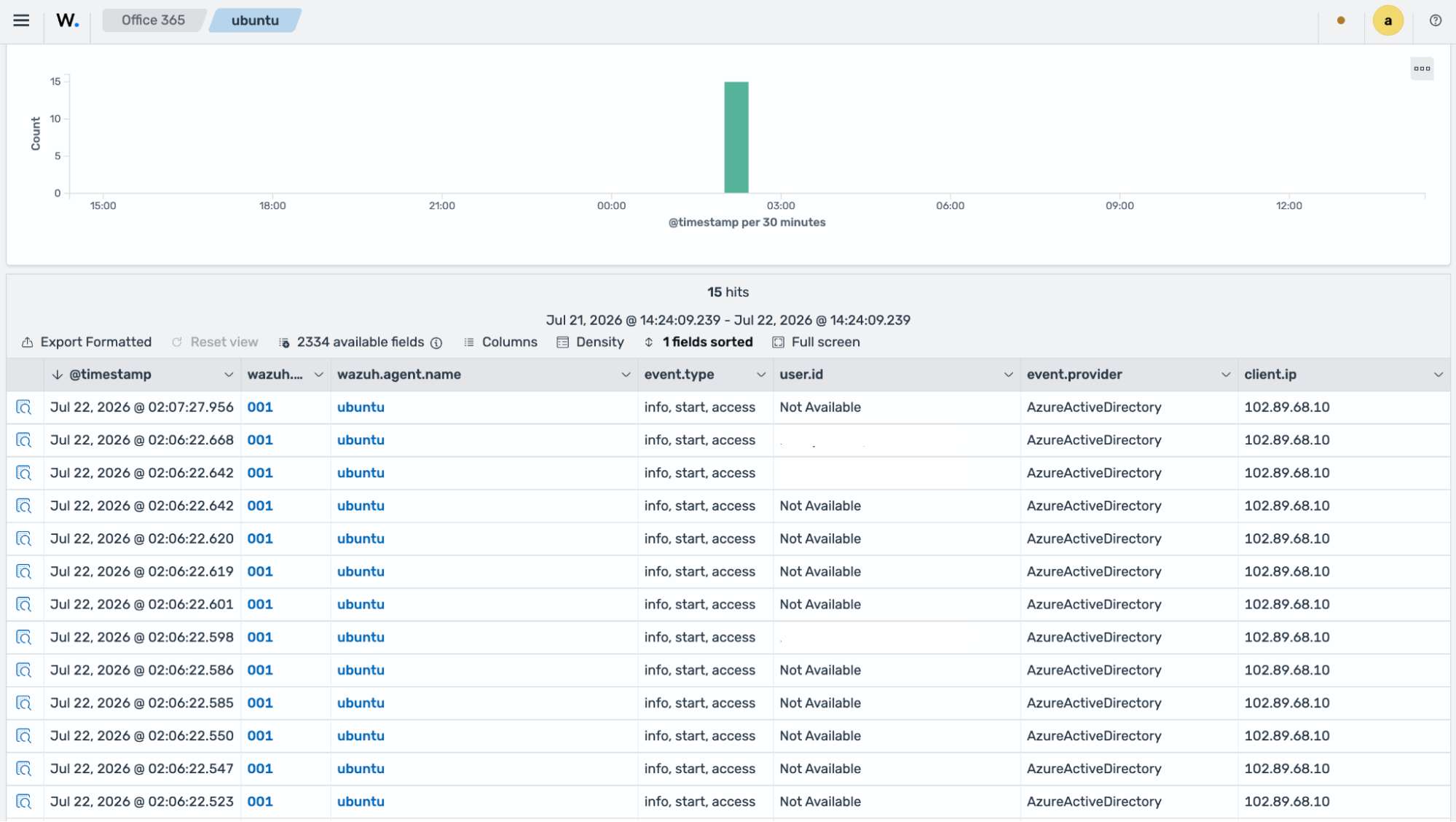
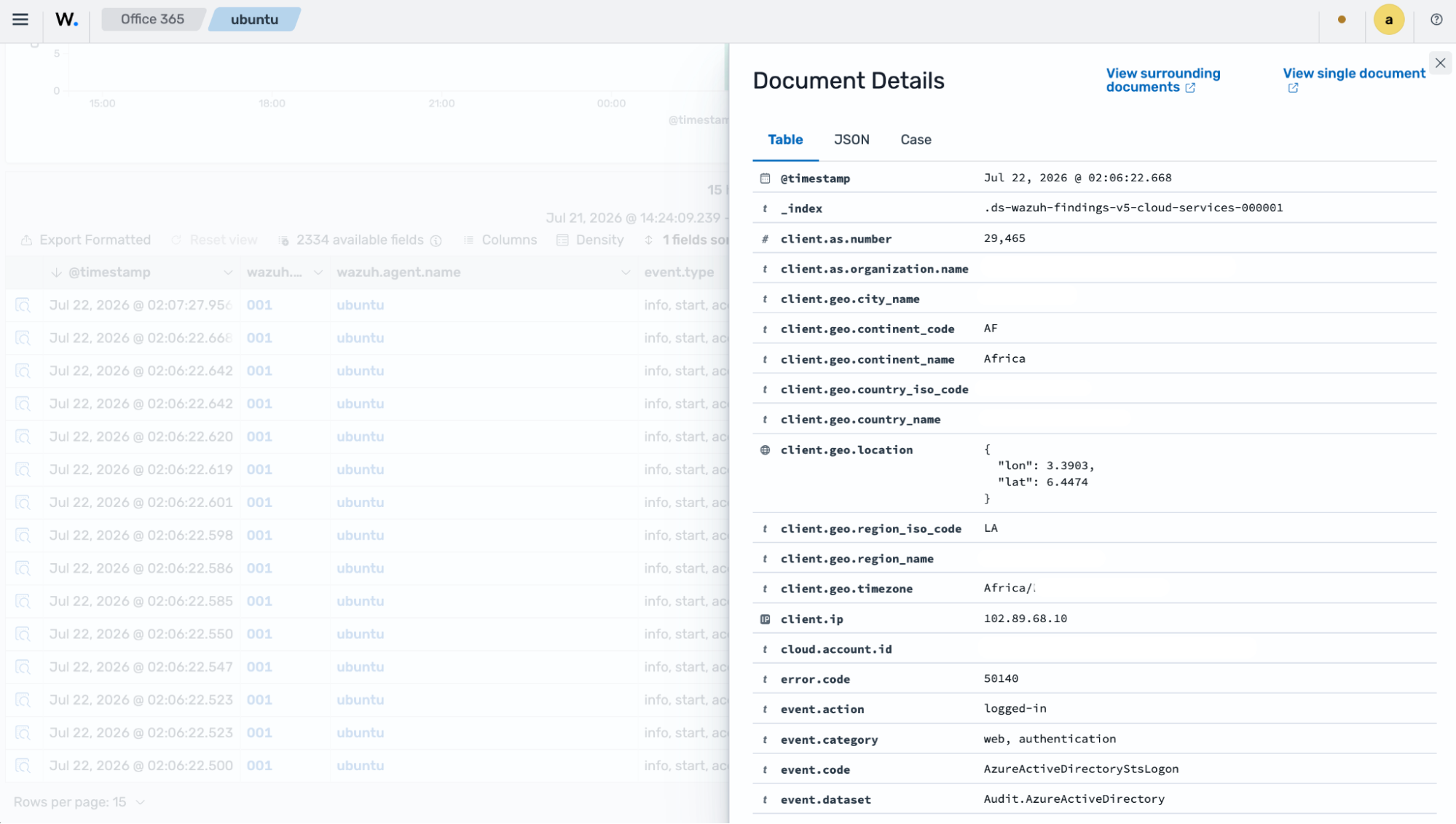
Navigate to Cloud security > Office 365 on your Wazuh dashboard, then click the Findings tab to view the generated findings.
Detecting creation and deletion of user accounts in Microsoft Entra ID
This use case shows how to monitor administrator activities in Microsoft Entra ID (the directory service for Office 365), including the creation and deletion of user accounts.
For this use case, we installed the Wazuh agent on an Ubuntu 25.10 endpoint and enrolled it in a Wazuh manager.
Ubuntu endpoint
Perform the following steps to configure the Wazuh agent for monitoring administrator activities in Microsoft Entra ID.
Append the following configuration to the
/var/ossec/etc/ossec.conffile on the Wazuh agent:<ossec_config> <office365> <enabled>yes</enabled> <interval>1m</interval> <curl_max_size>1M</curl_max_size> <only_future_events>yes</only_future_events> <api_auth> <tenant_id><YOUR_TENANT_ID></tenant_id> <client_id><YOUR_CLIENT_ID></client_id> <client_secret><YOUR_CLIENT_SECRET></client_secret> <api_type>commercial</api_type> </api_auth> <subscriptions> <subscription>Audit.AzureActiveDirectory</subscription> </subscriptions> </office365> </ossec_config>
Replace:
The
<YOUR_TENANT_ID>variable with the tenant ID of your application registered in Microsoft Azure.The
<YOUR_CLIENT_ID>variable with the client ID of your application registered in Microsoft Azure.The
<YOUR_CLIENT_SECRET>variable with the client secret of your application registered in Microsoft Azure.
Restart the Wazuh agent service to apply the changes:
# systemctl restart wazuh-agent
Microsoft Azure portal
Create and delete a user account in Microsoft Entra ID to generate activity for Wazuh to monitor and display on the dashboard.
Perform the following actions to create and delete a test user account.
Type Microsoft Entra ID in the search bar of the Azure portal, and click it to access your directory.
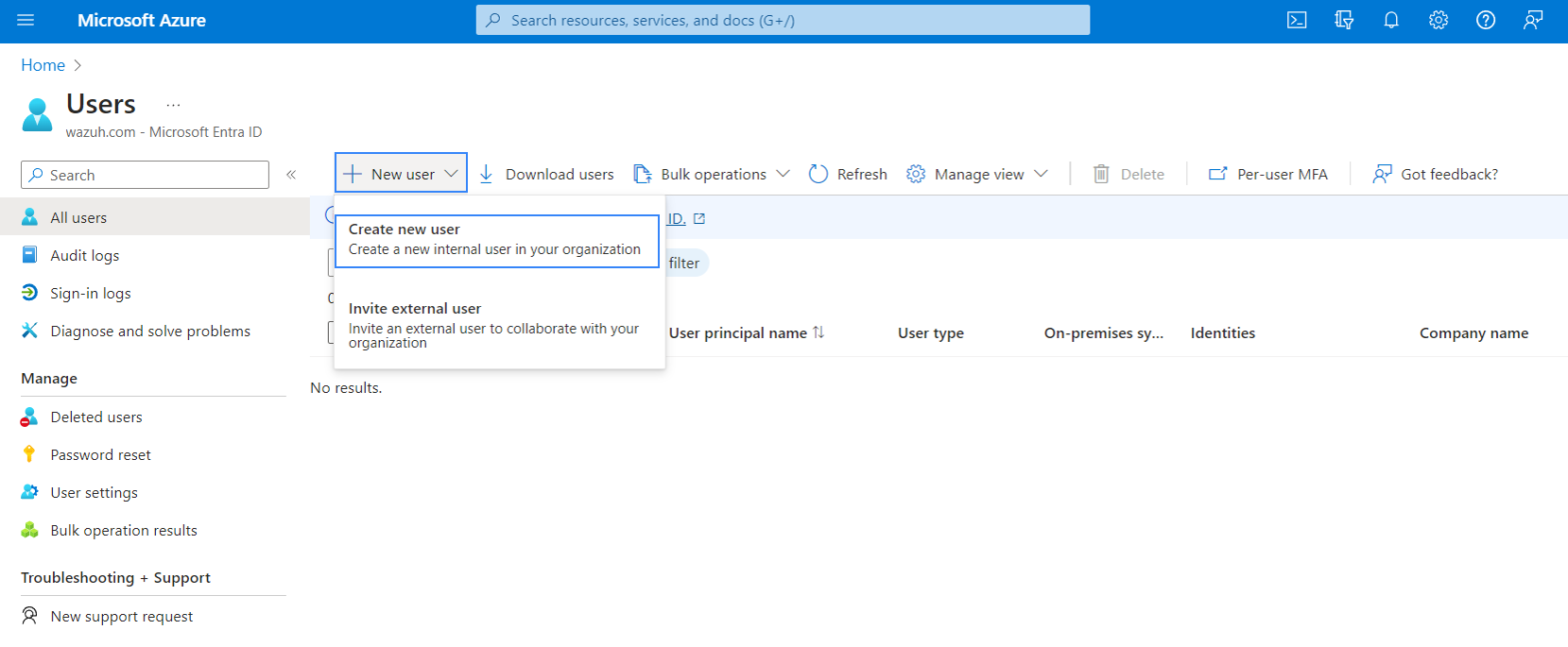
Navigate to Users from the side menu and click New user > Create new user.
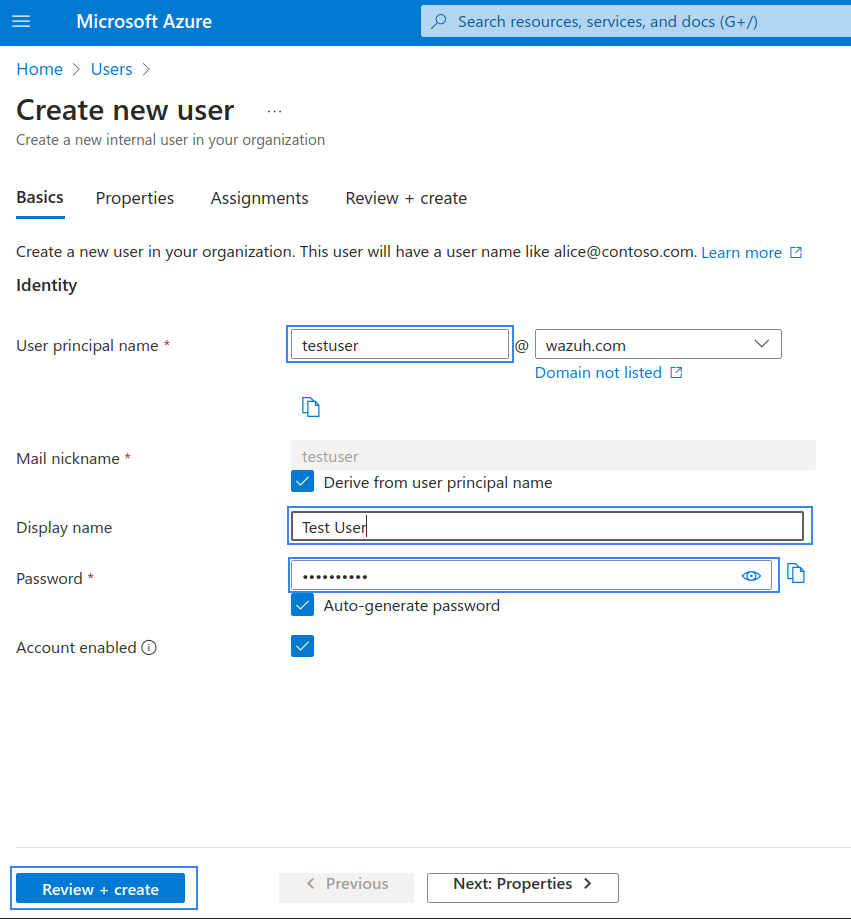
Fill in the user's information and click the Review + create button to create the user.
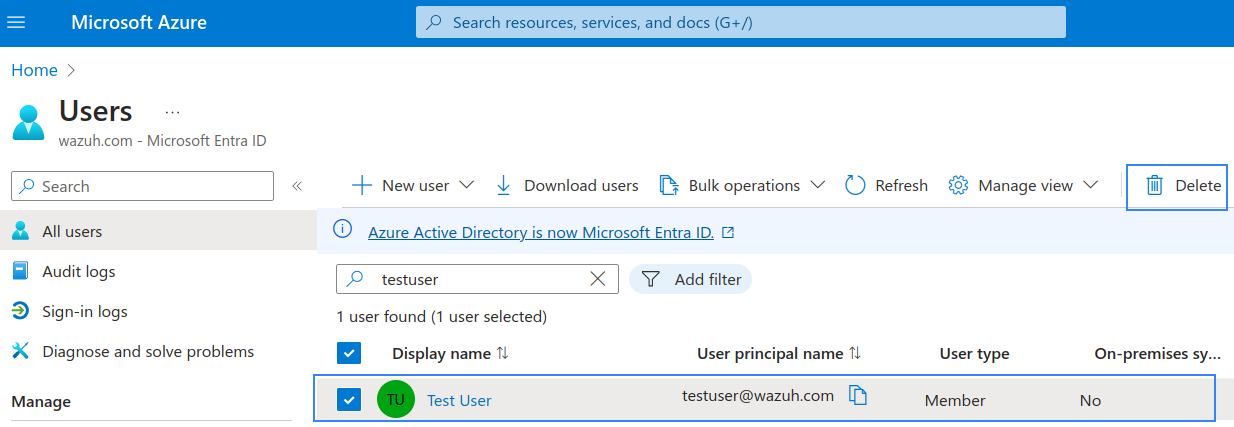
Delete the user by selecting the Display name and clicking the Delete button.
Wazuh dashboard
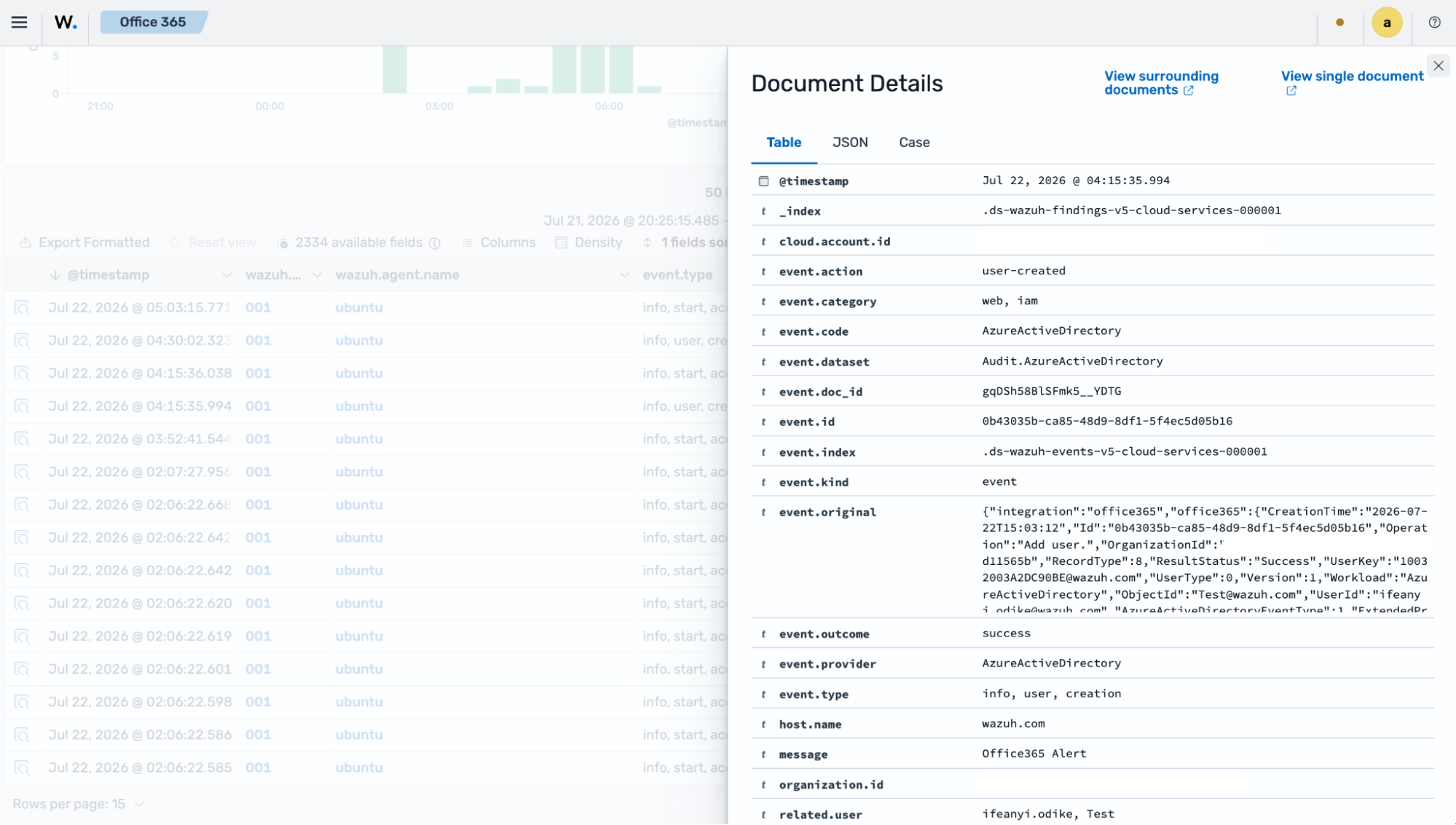
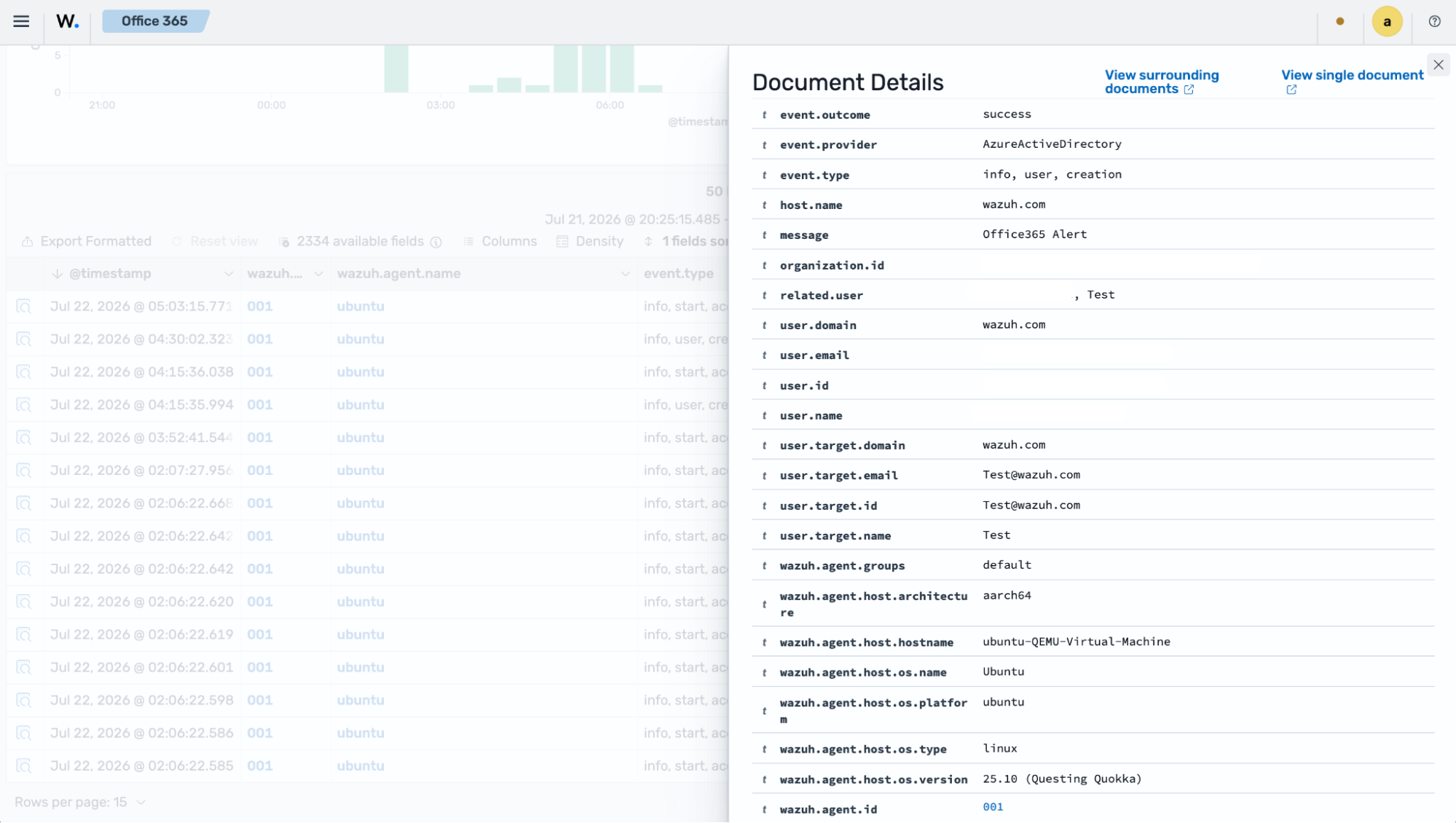
Navigate to Cloud security > Office 365 on your Wazuh dashboard, then click the Findings tab to view the generated findings.