Wazuh agent connection
This section highlights different methods to verify the connection status between a Wazuh agent and the Wazuh manager. It also discusses how to check the Wazuh agent connection to the Wazuh manager and verify the synchronization status of the Wazuh agent. These sections are outlined below:
Checking connection with the Wazuh manager
There are different ways to check the connection status between a Wazuh agent and the Wazuh manager. They include navigating the Wazuh dashboard, querying the Wazuh manager API, and reading the Wazuh agent state file. This guide highlights the different methods and contains steps to verify the network communication between a Wazuh agent and the Wazuh manager.
Using the Wazuh dashboard
You can check the connection status of a Wazuh agent by selecting Summary under Agents management on the Wazuh dashboard.
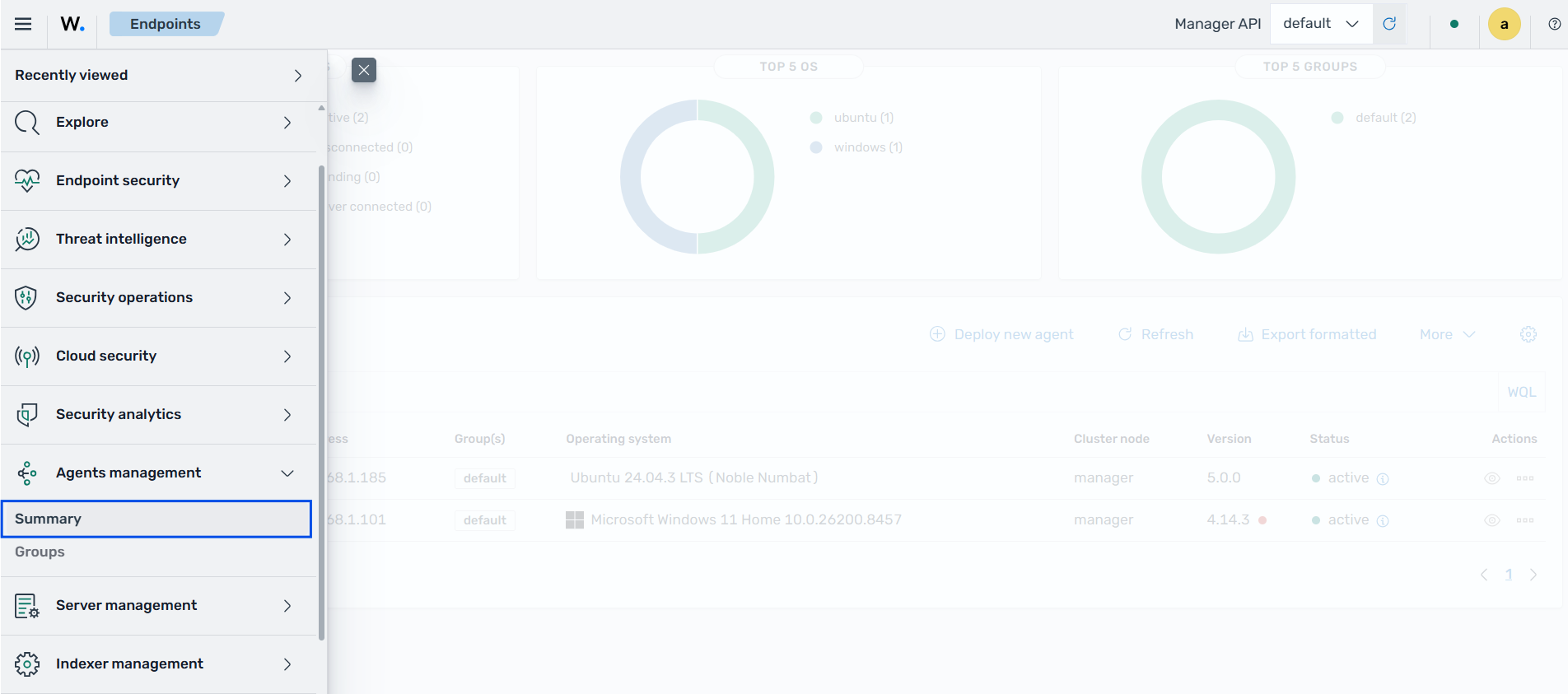
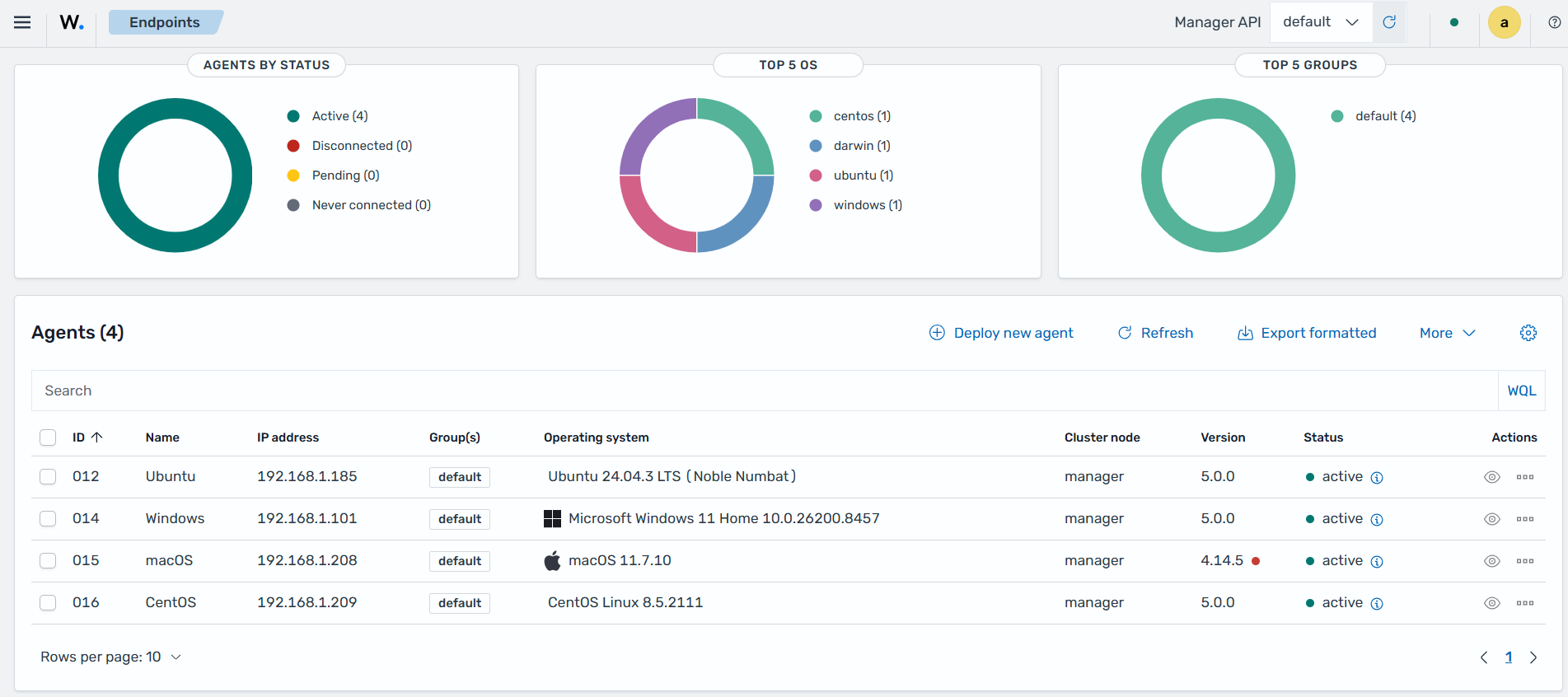
This option displays the Endpoints dashboard with a list of all enrolled Wazuh agents. The list includes the connection status of each Wazuh agent. The Wazuh dashboard also displays a summary with the number of Wazuh agents found for each possible agent connection status: Active, Disconnected, Pending, or Never connected.
Using the Wazuh manager API
You can check the status of a Wazuh agent by sending a request to the Wazuh manager API. This action is performed on the Wazuh manager.
GET /agents?agents_list=<WAZUH_AGENT_ID>
Output
{
  "data": {
    "affected_items": [
      {
        "os": {
          "arch": "x86_64",
          "major": "",
          "minor": "",
          "name": "Amazon Linux",
          "platform": "amzn",
          "type": "linux",
          "version": "2023"
        },
        "status": "active",
        "registerIP": "any",
        "group": [
          "default"
        ],
        "status_code": 0,
        "ip": "172.31.20.55",
        "version": "v5.0.0",
        "lastKeepAlive": "2026-09-03T17:41:55+00:00",
        "id": "001",
        "name": "agent5",
        "dateAdd": "2026-09-03T13:39:57+00:00"
      }
    ],
    "total_affected_items": 1,
    "total_failed_items": 0,
    "failed_items": []
  },
  "message": "All selected agents information was returned",
  "error": 0
}
Reading the local wazuh-agentd.state file
You can read the /var/ossec/var/run/wazuh-agentd.state file found in the endpoint to check the status of the connection. The Wazuh agent keeps reporting its connection status in this file as follows:
pending: Waiting for acknowledgement from the Wazuh manager about the connection established.disconnected: No acknowledgement signal received in the last 60 seconds or lost connection.connected: Acknowledgement about the connection established received from the Wazuh manager.
To check the current status and verify the connection of the Wazuh agent to the Wazuh manager, run the following command on the endpoint:
$ sudo grep ^status /var/ossec/var/run/wazuh-agentd.state
Output
status='connected'
> Select-String -Path 'C:\Program Files (x86)\ossec-agent\wazuh-agent.state' -Pattern "^status"
Output
C:\Program Files (x86)\ossec-agent\wazuh-agent.state:7:status='connected'
# sudo grep ^status /Library/Ossec/var/run/wazuh-agentd.state
Output
status='connected'
Checking network communication
Agent communication with the Wazuh manager requires outbound connectivity from the Wazuh agent to the Wazuh manager. It uses the port 1514/TCP by default.
Run the following commands on the Wazuh agent to verify if a connection to the Wazuh manager is established. The result should match the Wazuh agent and Wazuh manager IP addresses.
# netstat -vatunp|grep wazuh-agentd
Output
tcp 0 0 192.168.1.209:59129 192.168.1.174:1514 ESTABLISHED 2384/wazuh-agentd
> Get-NetTCPConnection -RemotePort 1514
Output
LocalAddress                        LocalPort RemoteAddress                       RemotePort State       AppliedSetting OwningProcess
------------                        --------- -------------                       ---------- -----       -------------- -------------
192.168.1.101                       15262     192.168.1.174                       1514       Established Internet       14884
# lsof -i -P | grep ESTABLISHED | grep 1514
Output
wazuh-age 309 wazuh 7u IPv4 0x146ea8aac5da611b 0t0 TCP 192.168.1.208:49246->192.168.1.174:1514 (ESTABLISHED)
Search for errors or warnings in the corresponding agent log files for troubleshooting purposes.
Linux/Unix:
/var/ossec/logs/ossec.logWindows:
C:\Program Files (x86)\ossec-agent\ossec.logmacOS:
/Library/Ossec/logs/ossec.log
To learn more, see the troubleshooting section.
Checking the synchronization status of Wazuh agents group configuration
Synchronization ensures the Wazuh agent has the latest security configurations and data for consistent monitoring. To check the synchronization status of the group configuration for agents, you can use the Wazuh dashboard or the GET /agents Wazuh manager API endpoint.
Using the Wazuh dashboard
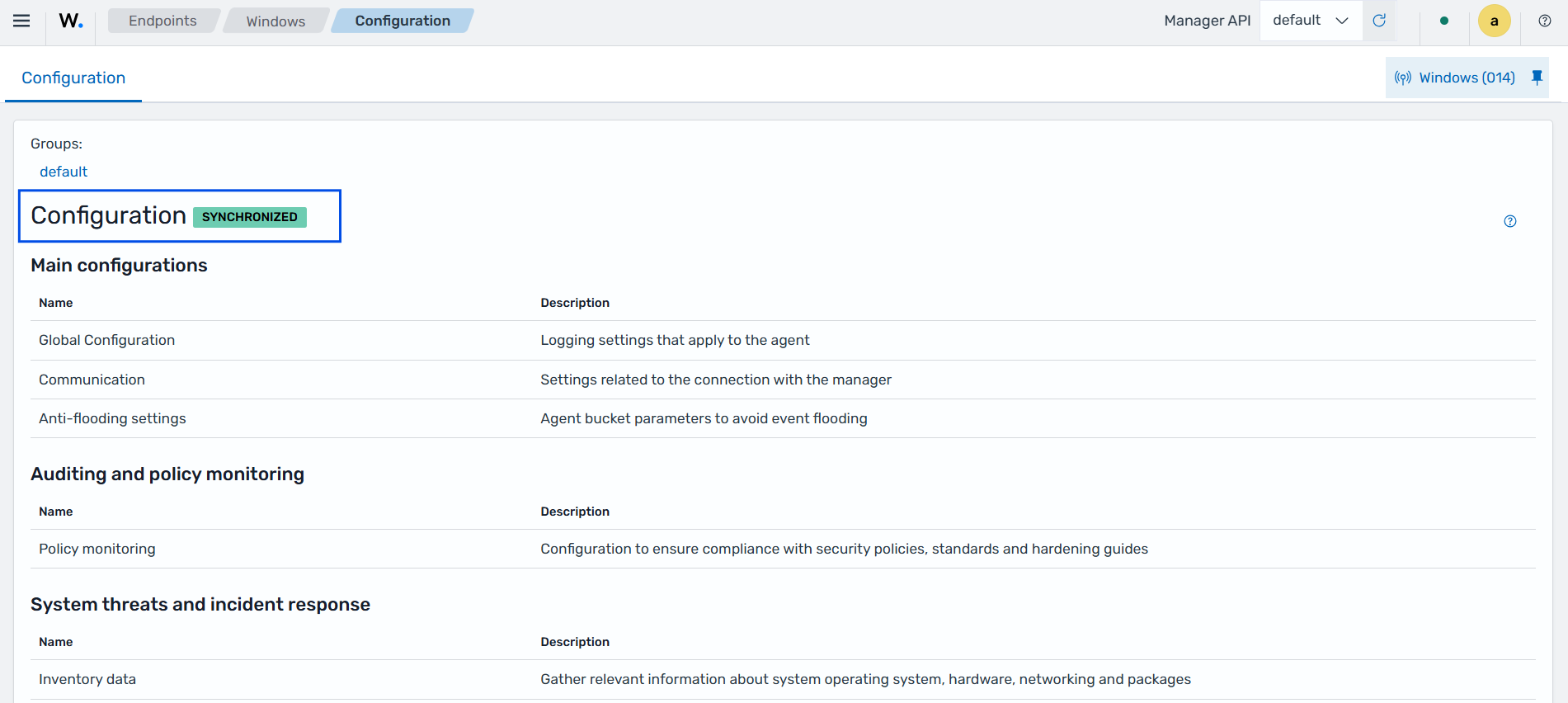
Navigate to the Agents management > Summary tab in the Wazuh dashboard. Select an agent and click on Configuration. The image below shows that the Wazuh agent configuration is SYNCHRONIZED. This means that the Wazuh agent's local configuration reflects the latest settings defined on the Wazuh manager.