Configure AWS policy
In AWS, a policy is an entity that links permissions with an identity or resource. The permissions in a policy determine whether a request is allowed or denied.
The following sections describe how to create an AWS policy and attach it to a group.
Create an AWS policy
The AWS IAM user needs a different set of permissions for each AWS service you monitor. The permissions required for each AWS service are explained on each page of the supported services section. An IAM user group can hold up to 10 managed policies by default. When you monitor more than ten services, combine their statements into fewer policies.
Follow the steps below on your AWS console to create an AWS policy that allows reading logs from an S3 bucket.
On your AWS console, search for
iamin the search bar and click IAM from the results.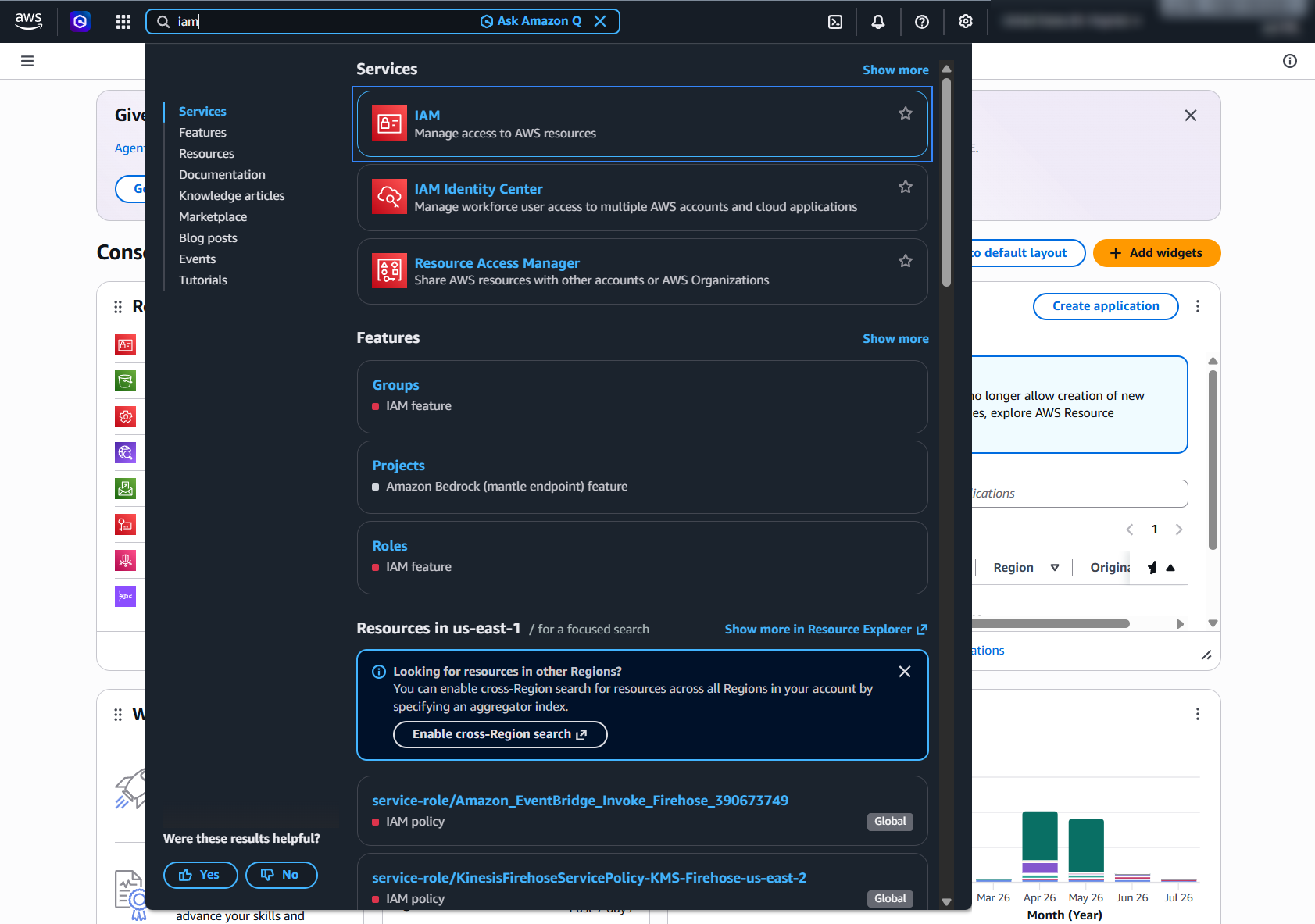
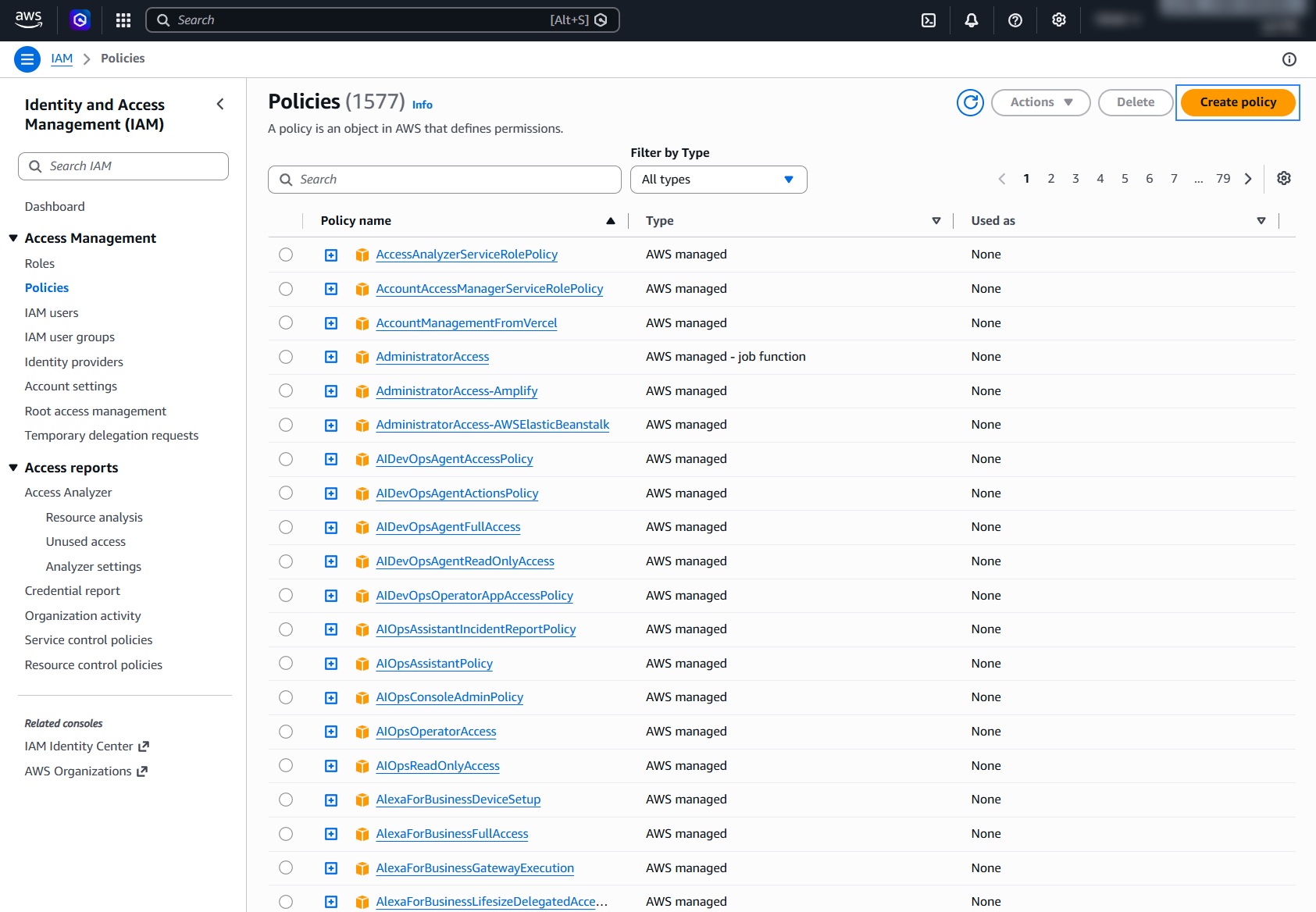
Click Policies > Create policy
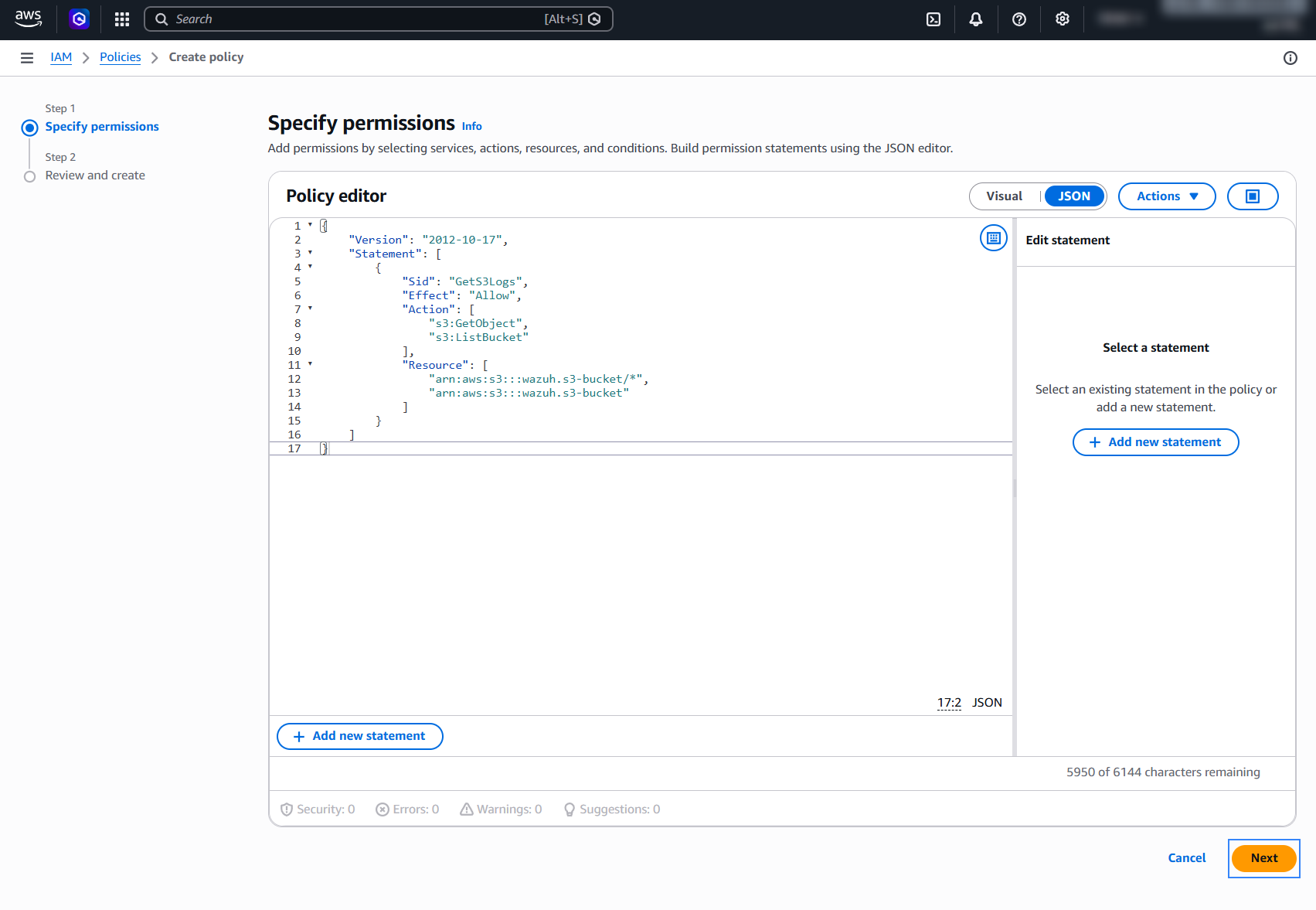
Switch to JSON view, remove the default statement, and paste the following configuration. Replace
<WAZUH_AWS_BUCKET>with the name of the previously created S3 bucket. In this example, the policy allows the IAM user to list the specified S3 bucket and retrieve its objects.{ "Version": "2012-10-17", "Statement": [ { "Sid": "GetS3Logs", "Effect": "Allow", "Action": [ "s3:GetObject", "s3:ListBucket" ], "Resource": [ "arn:aws:s3:::<WAZUH_AWS_BUCKET>/*", "arn:aws:s3:::<WAZUH_AWS_BUCKET>" ] } ] }
Click Next to proceed to the next step.
Name the policy and click Create policy to create a new policy.
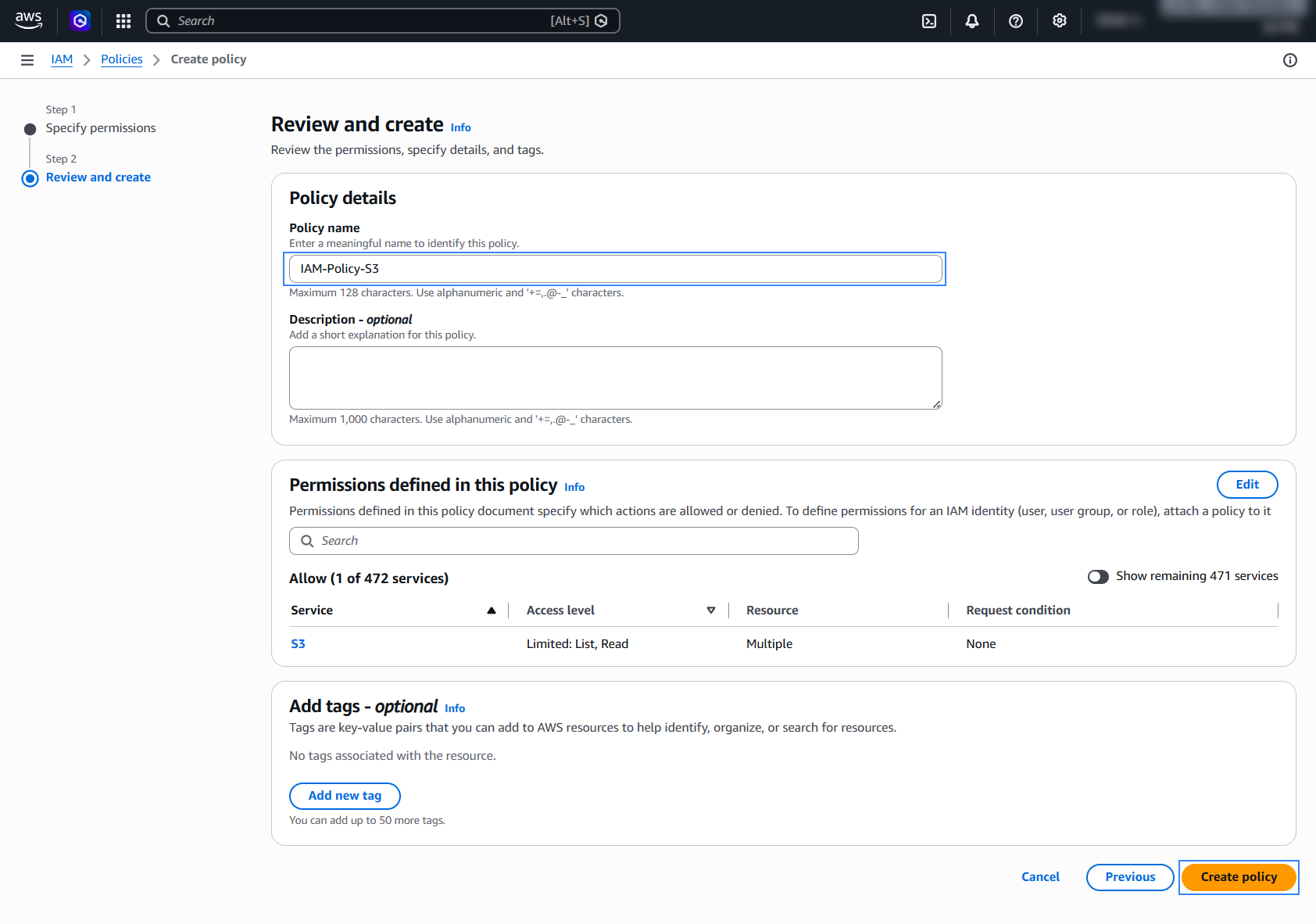
Confirm the policy creation.
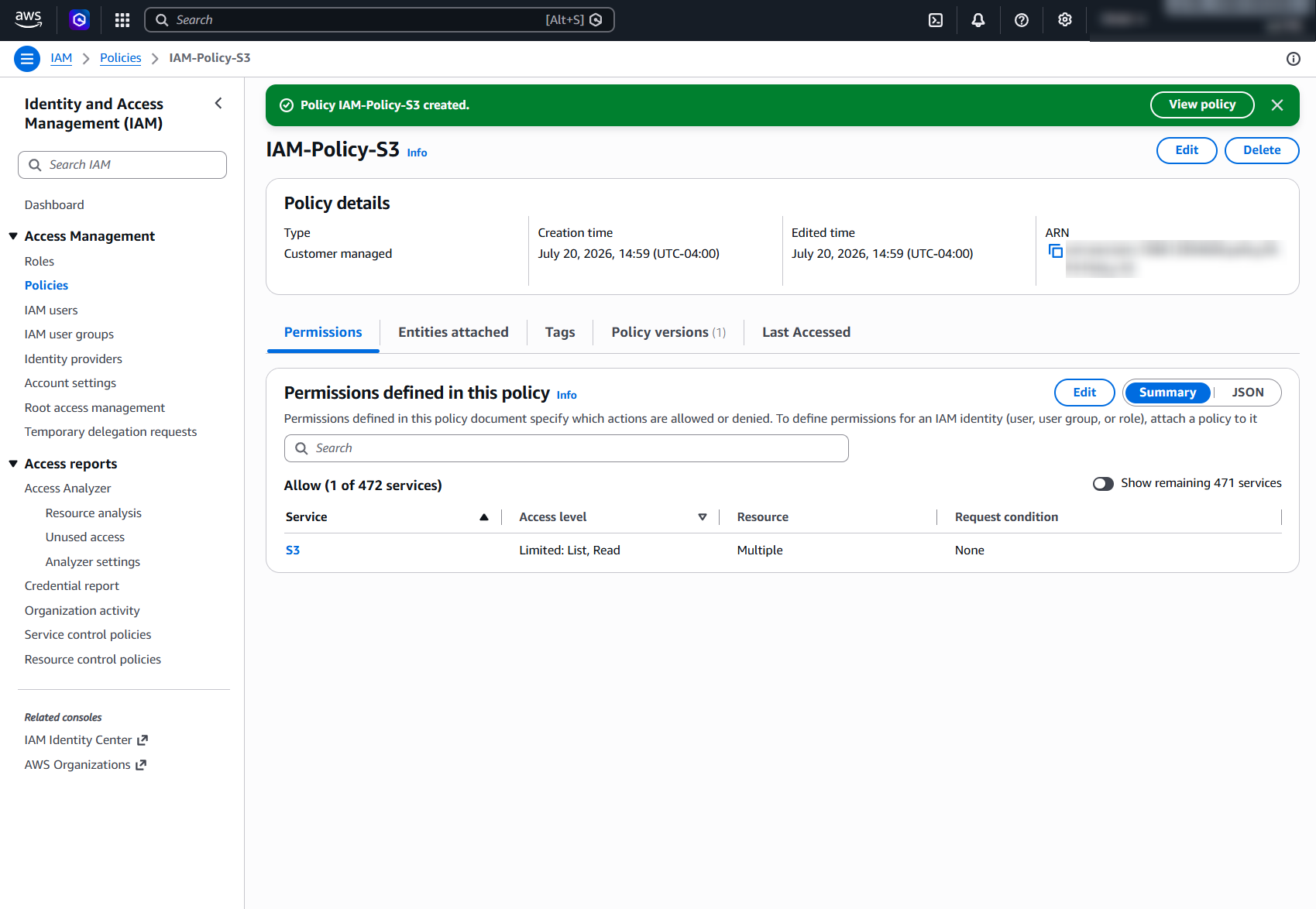
Attach a policy to an IAM user group
After you create a policy, you can attach it to groups, users, or roles. Follow these steps to attach a policy to the group you created earlier, using the AWS console.
On your AWS console, search for
iamin the search bar and click IAM from the results.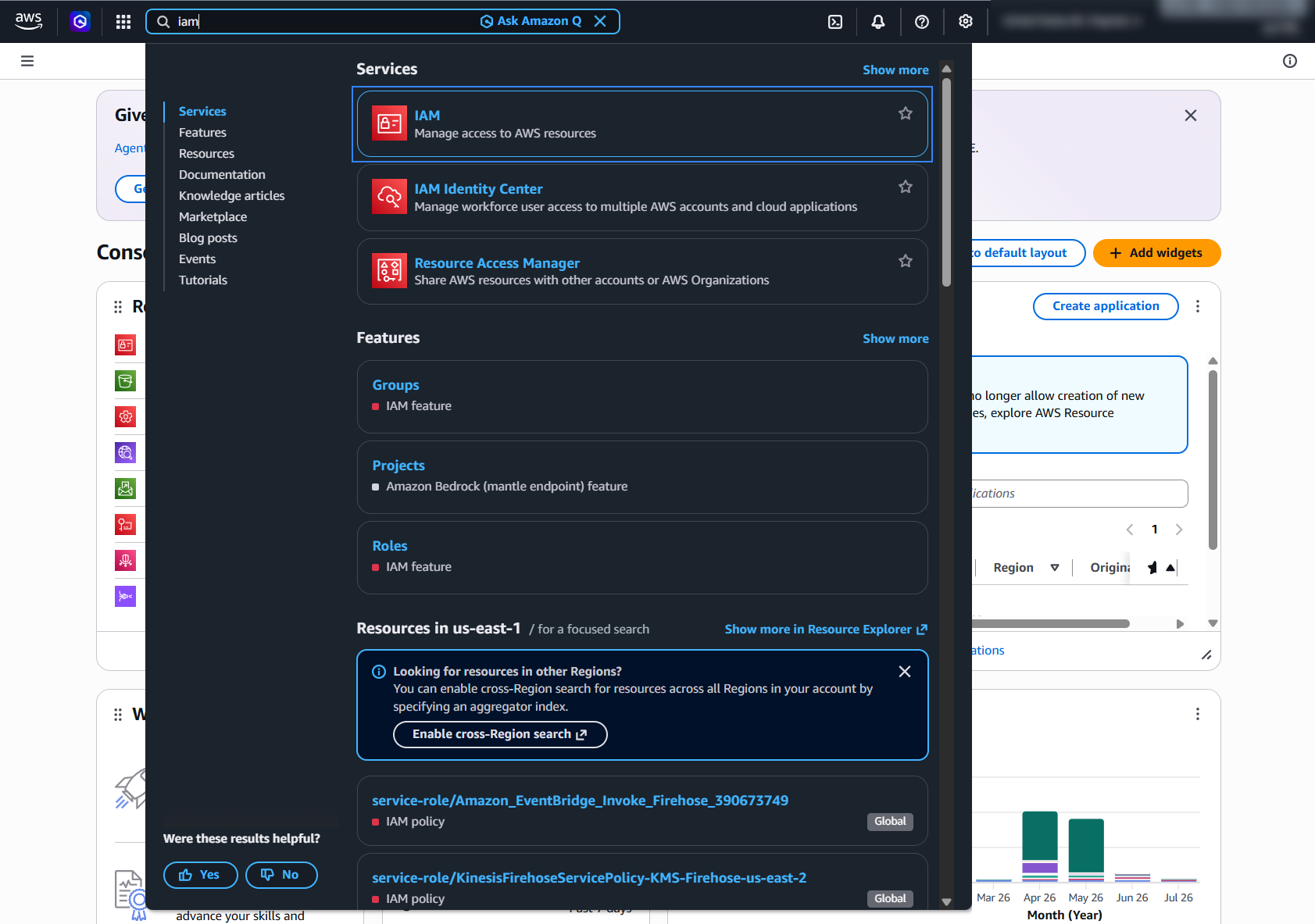
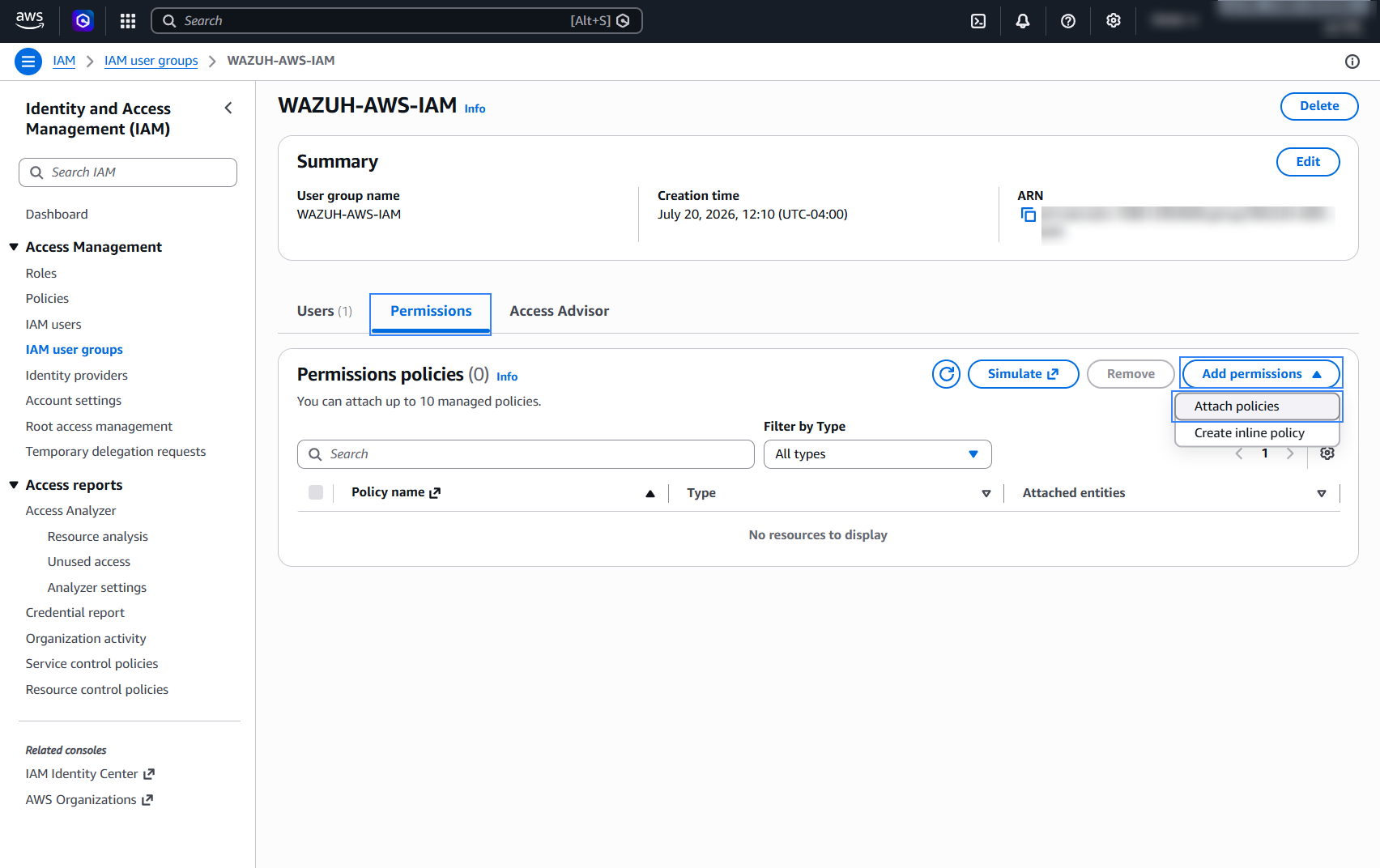
Navigate to IAM user groups and click a previously created group.
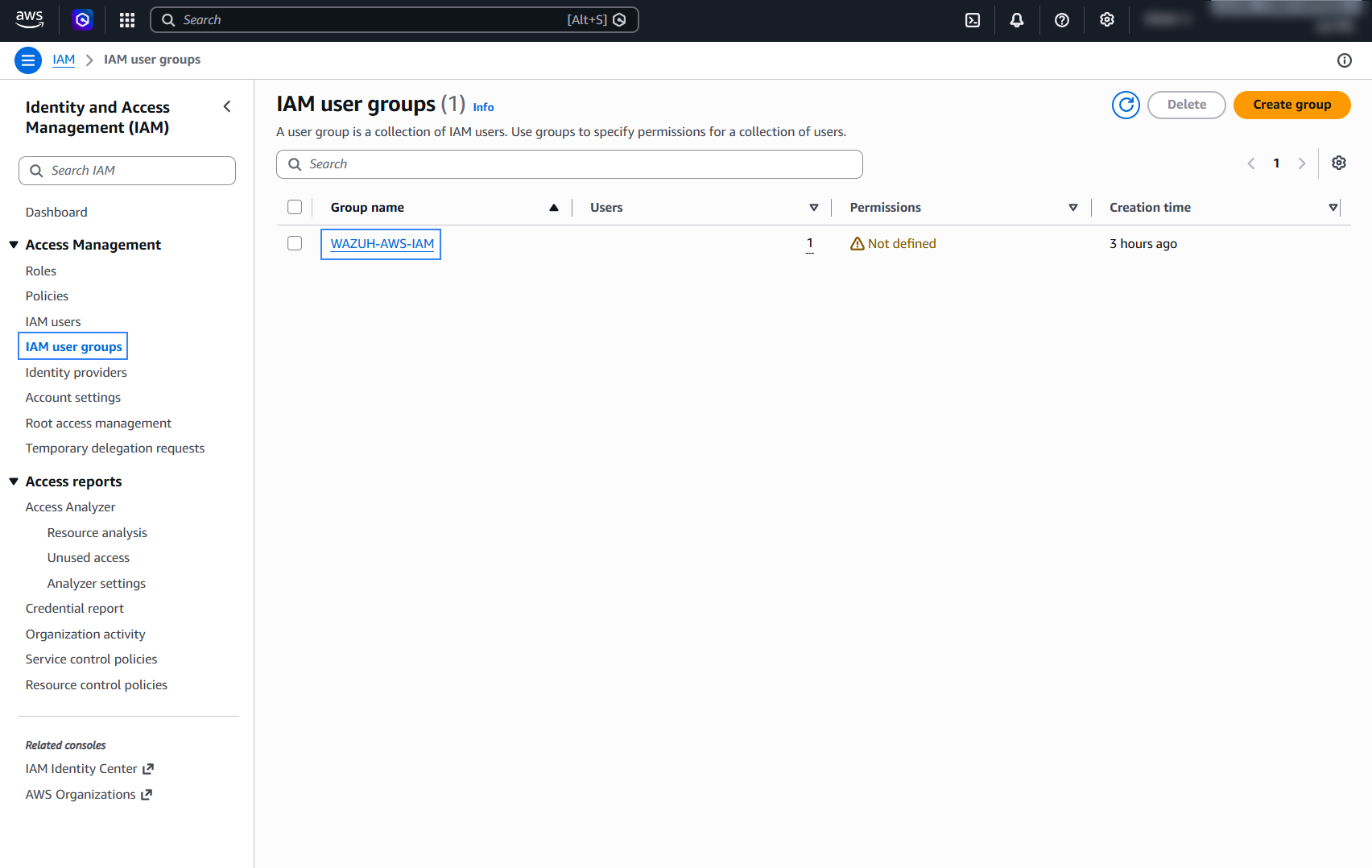
On the Permissions tab, click Add permissions > Attach policies.
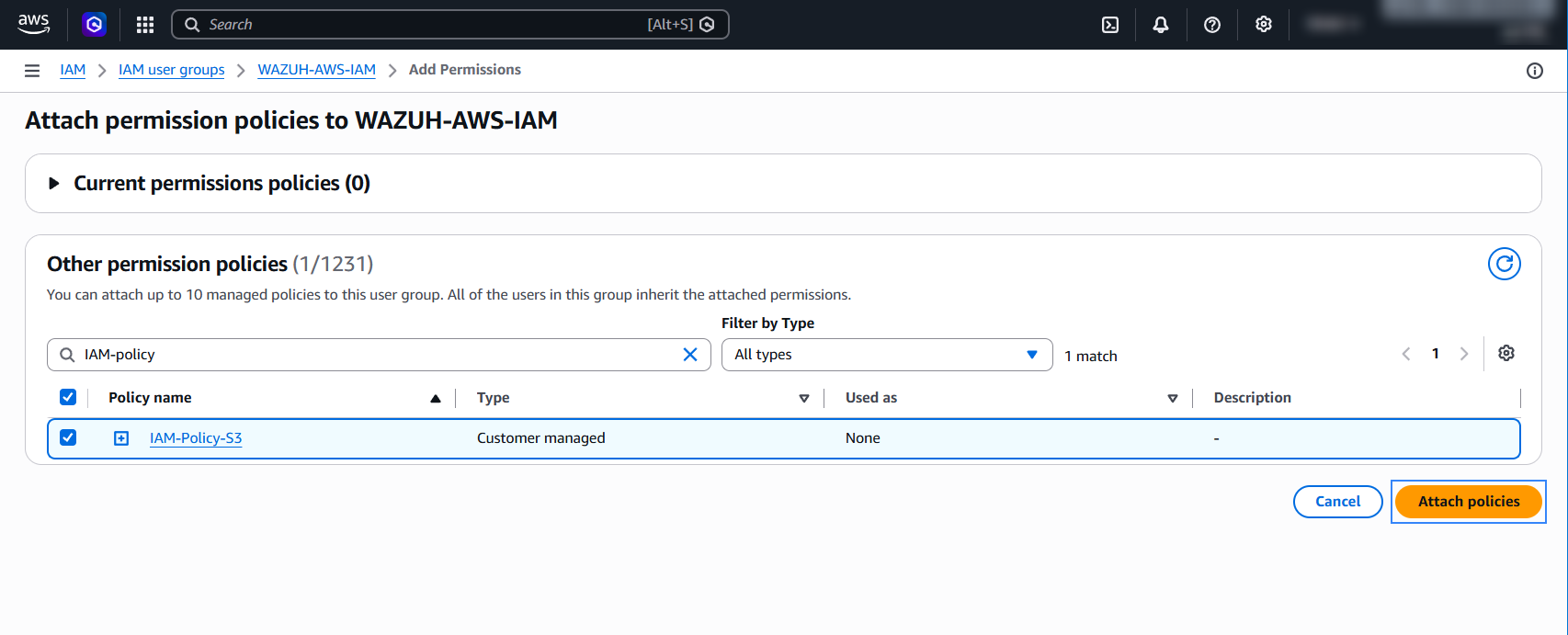
Search for the policy, select the checkbox next to it, and click Attach policies to attach it to the group.
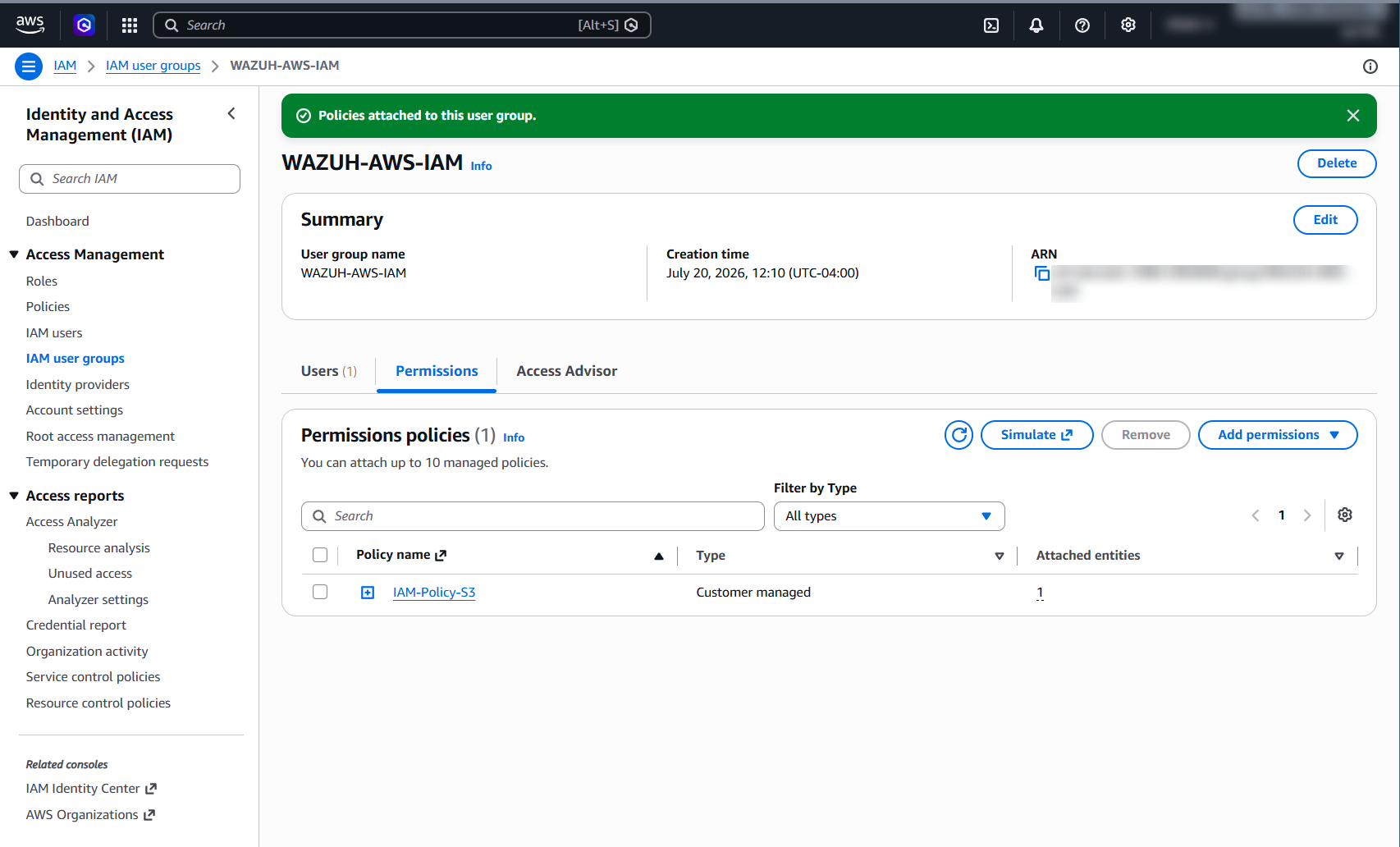
Confirm the policy is attached to the group.