Amazon ALB
Application Load Balancers (Amazon ALB) are one of the load balancer types that Elastic Load Balancing offers. An Application Load Balancer functions at the application layer, the seventh layer of the Open Systems Interconnection (OSI) model. After the load balancer receives a request, it evaluates the listener rules in priority order to determine which rule to apply. It then selects a target from the target group for the rule action.
AWS configuration
The following sections cover how to configure the Amazon ALB service to integrate with Wazuh.
Amazon ALB configuration
Go to S3 buckets, copy the name of an existing S3 bucket or create a new one. The bucket needs a bucket policy that allows Elastic Load Balancing to write the access logs. The AWS documentation in the note below gives the policy to use.
On your AWS console, search for
ec2in the search bar or go to Services > Compute > EC2.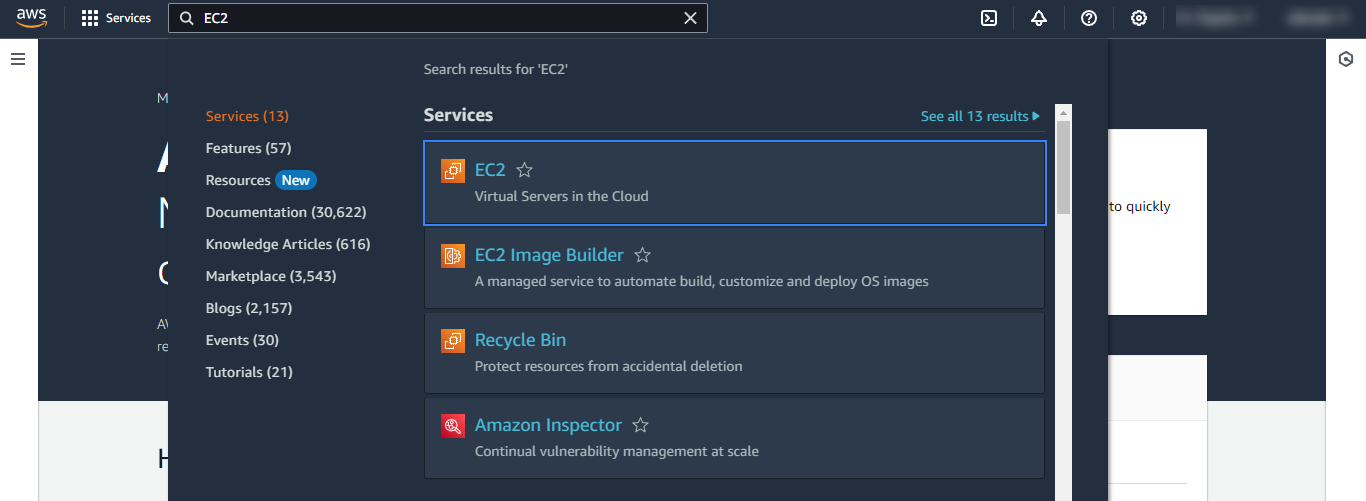
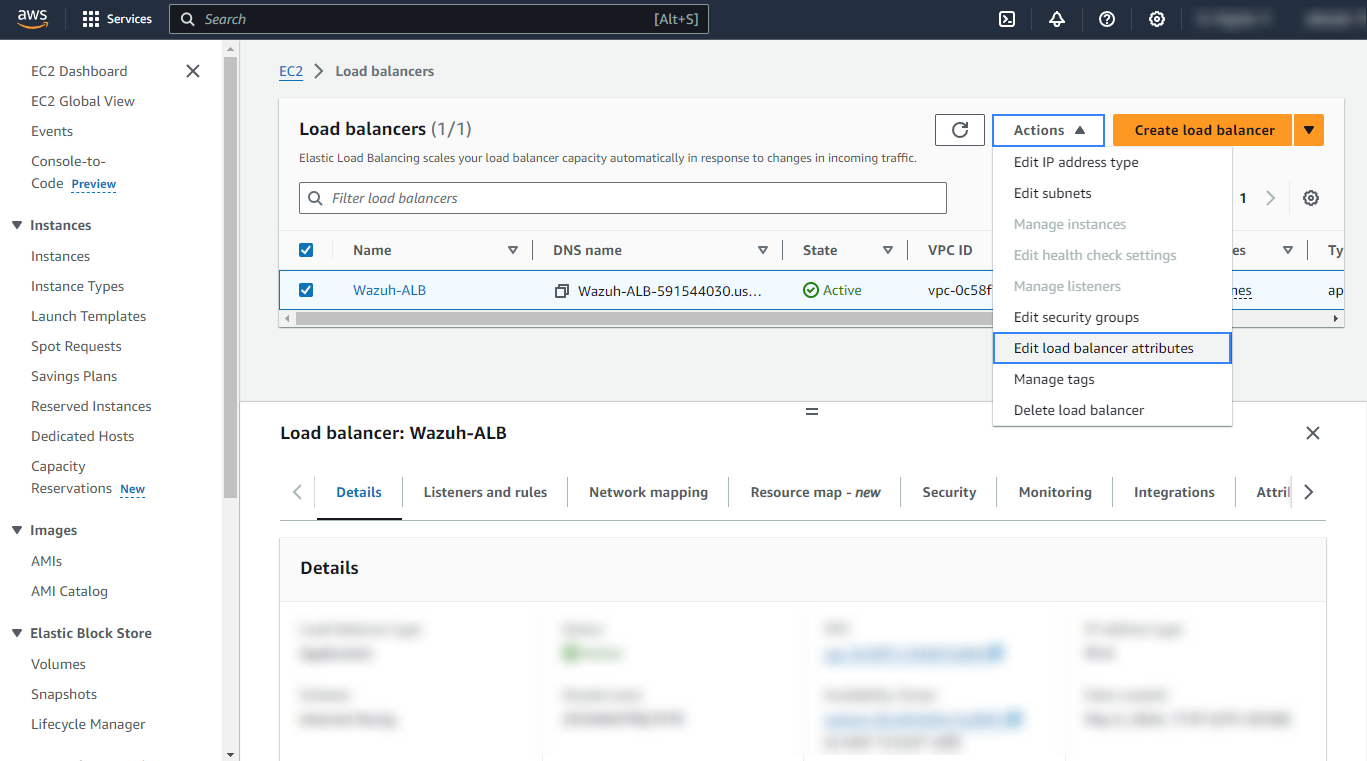
Go to Load Balancing > Load Balancers on the left menu. Create a new load balancer or select one or more load balancers and select Edit load balancer attributes on the Actions menu.
In the Monitoring tab, enable Access logs and define the S3 bucket and the path where the logs are stored. The Wazuh configuration below uses
ALBas the path. If you enter a different path, set the<path>value to match it.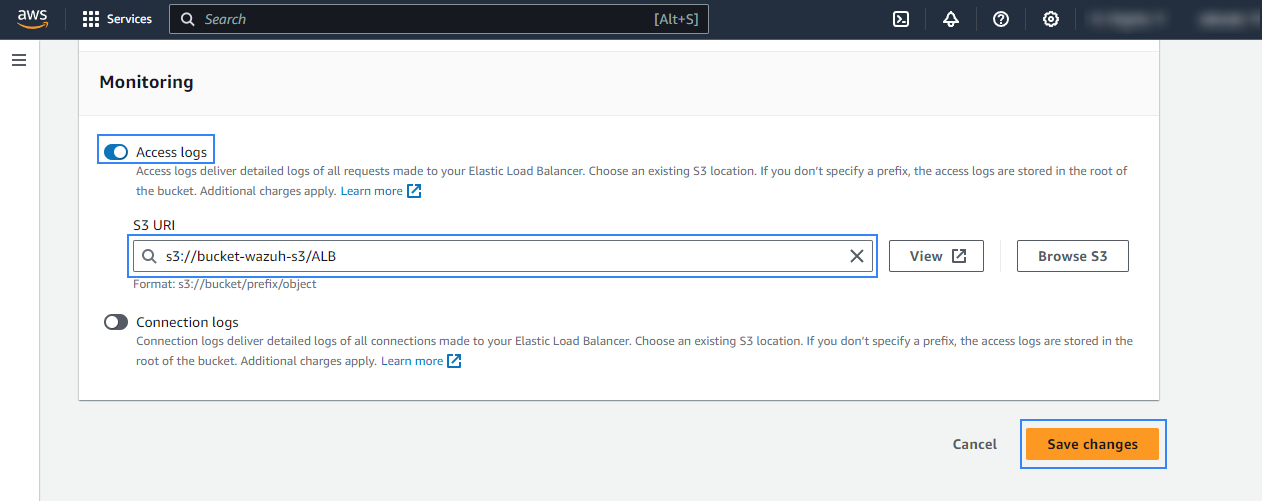
Note
To enable access logs and add the bucket policy that Elastic Load Balancing needs, see Access logs for your Application Load Balancer.
Policy configuration
Follow the creating an AWS policy guide to create a policy using the Amazon Web Services console.
The policies below follow the principle of least privilege, so they give the AWS IAM user only the minimum permissions it needs.
To allow an AWS user to use the Wazuh module for AWS with read-only permissions, it must have a policy like the following attached:
{
    "Version": "2012-10-17",
    "Statement": [
        {
            "Sid": "VisualEditor0",
            "Effect": "Allow",
            "Action": [
                "s3:GetObject",
                "s3:ListBucket"
            ],
            "Resource": [
                "arn:aws:s3:::<WAZUH_AWS_BUCKET>/*",
                "arn:aws:s3:::<WAZUH_AWS_BUCKET>"
            ]
        }
    ]
}
To delete the log files after Wazuh collects them, use the following policy instead:
{
    "Version": "2012-10-17",
    "Statement": [
        {
            "Sid": "VisualEditor0",
            "Effect": "Allow",
            "Action": [
                "s3:GetObject",
                "s3:ListBucket",
                "s3:DeleteObject"
            ],
            "Resource": [
                "arn:aws:s3:::<WAZUH_AWS_BUCKET>/*",
                "arn:aws:s3:::<WAZUH_AWS_BUCKET>"
            ]
        }
    ]
}
Note
<WAZUH_AWS_BUCKET> is a placeholder. Replace it with the actual name of the bucket from which you want to retrieve logs.
Wazuh deletes the log files from the bucket only if you set remove_from_bucket to yes in the bucket configuration. This option is off by default and isn't in the sample configuration, so you need the second policy only if you turn it on.
After creating a policy, you can attach it directly to a user or to a group to which the user belongs. In attaching a policy to an IAM user group, you see how to attach a policy to a group. More information on how to use other methods is available in the AWS documentation.
Configure Wazuh to process Amazon ALB logs
Make sure that the AWS integrations are enabled on the Wazuh dashboard, as described in Enable AWS integration on the Wazuh dashboard.
Add the following Wazuh module for AWS configuration to the
/var/ossec/etc/ossec.conffile on the Wazuh agent. Replace<WAZUH_AWS_BUCKET>with the name of the S3 bucket that stores the ALB access logs. If the file already has a<wodle name="aws-s3">block, add only the<bucket>section to it:<wodle name="aws-s3"> <disabled>no</disabled> <interval>10m</interval> <run_on_start>yes</run_on_start> <skip_on_error>yes</skip_on_error> <bucket type="alb"> <name><WAZUH_AWS_BUCKET></name> <path>ALB</path> <aws_profile>default</aws_profile> </bucket> </wodle>
Note
This example uses the
aws_profileauthentication parameter. Check the Configure AWS credentials section to learn more about the different authentication options and how to use them.Save the changes and restart the Wazuh agent service to apply the changes:
# systemctl restart wazuh-agent
ALB use case
Monitoring denied and failed requests
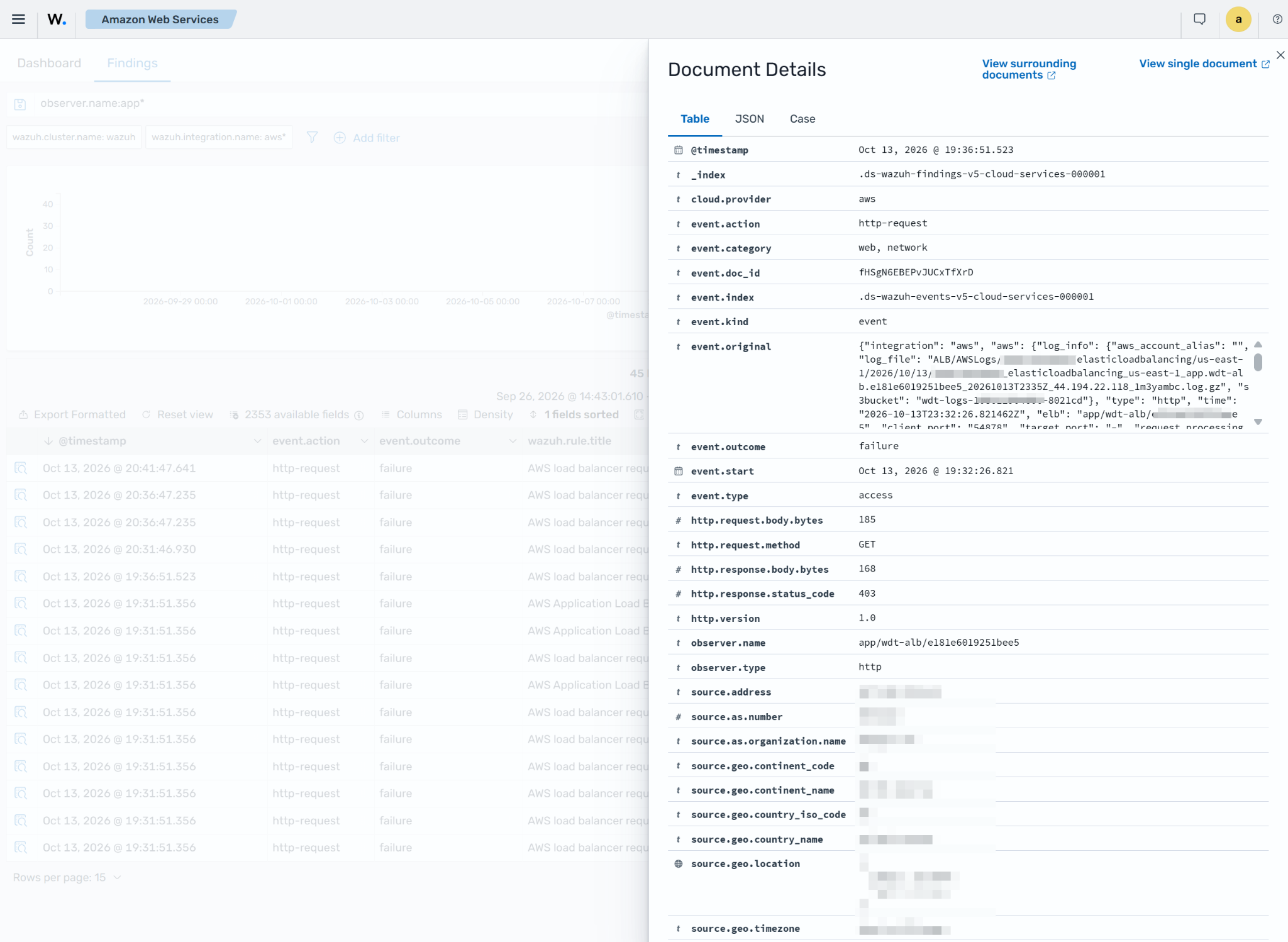
The Application Load Balancer can return HTTP 403 for a request, for example, when a listener rule or AWS WAF denies it. The Wazuh dashboard then shows the AWS load balancer request denied finding. When it returns a server error, such as 503 when no healthy target is available, the AWS Application Load Balancer server error finding is shown. To see these findings, go to Amazon Web Services > Findings.
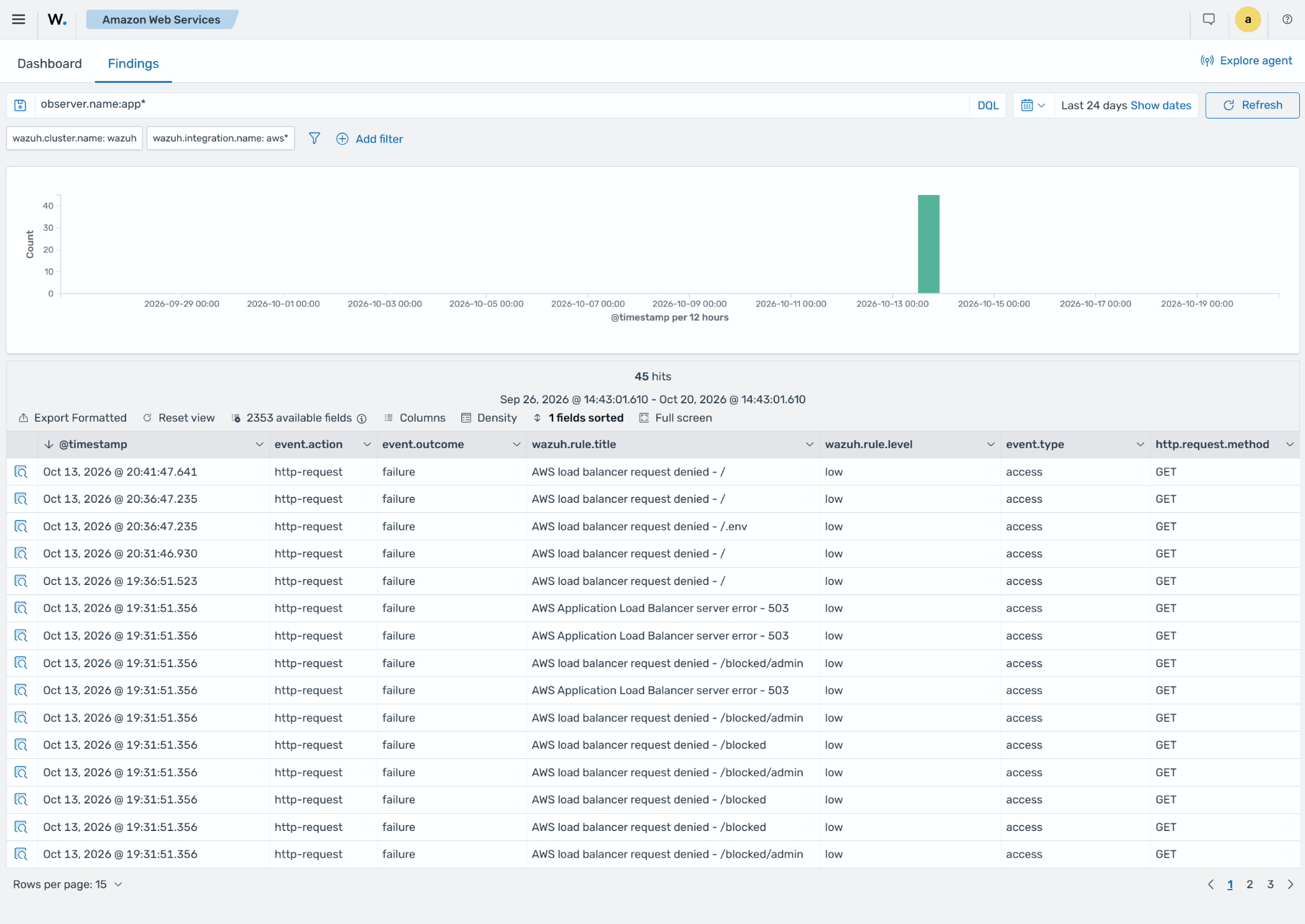
Expand a finding to see its details:
HTTP status code (
http.response.status_code)Request method and path (
http.request.methodandurl.path)Full request URL (
url.original)Client address and port (
source.addressandsource.port)Load balancer (
observer.name)User agent (
user_agent.original)Request trace ID (
trace.id)