Amazon GuardDuty
Amazon GuardDuty is a threat detection service that continuously monitors for malicious or unauthorized behavior to help you protect your AWS accounts and workloads. It monitors for activity, such as unusual API calls or potentially unauthorized deployments, that may indicate an account compromise. GuardDuty also detects potentially compromised instances or reconnaissance by attackers.
AWS configuration
The following sections cover how to configure the different services required to integrate GuardDuty into Wazuh.
Amazon GuardDuty configuration
Create a new S3 bucket, or skip this step to use an existing bucket.
On your AWS console, search for
guarddutyin the search bar or go to Services > Security, Identity, & Compliance > GuardDuty.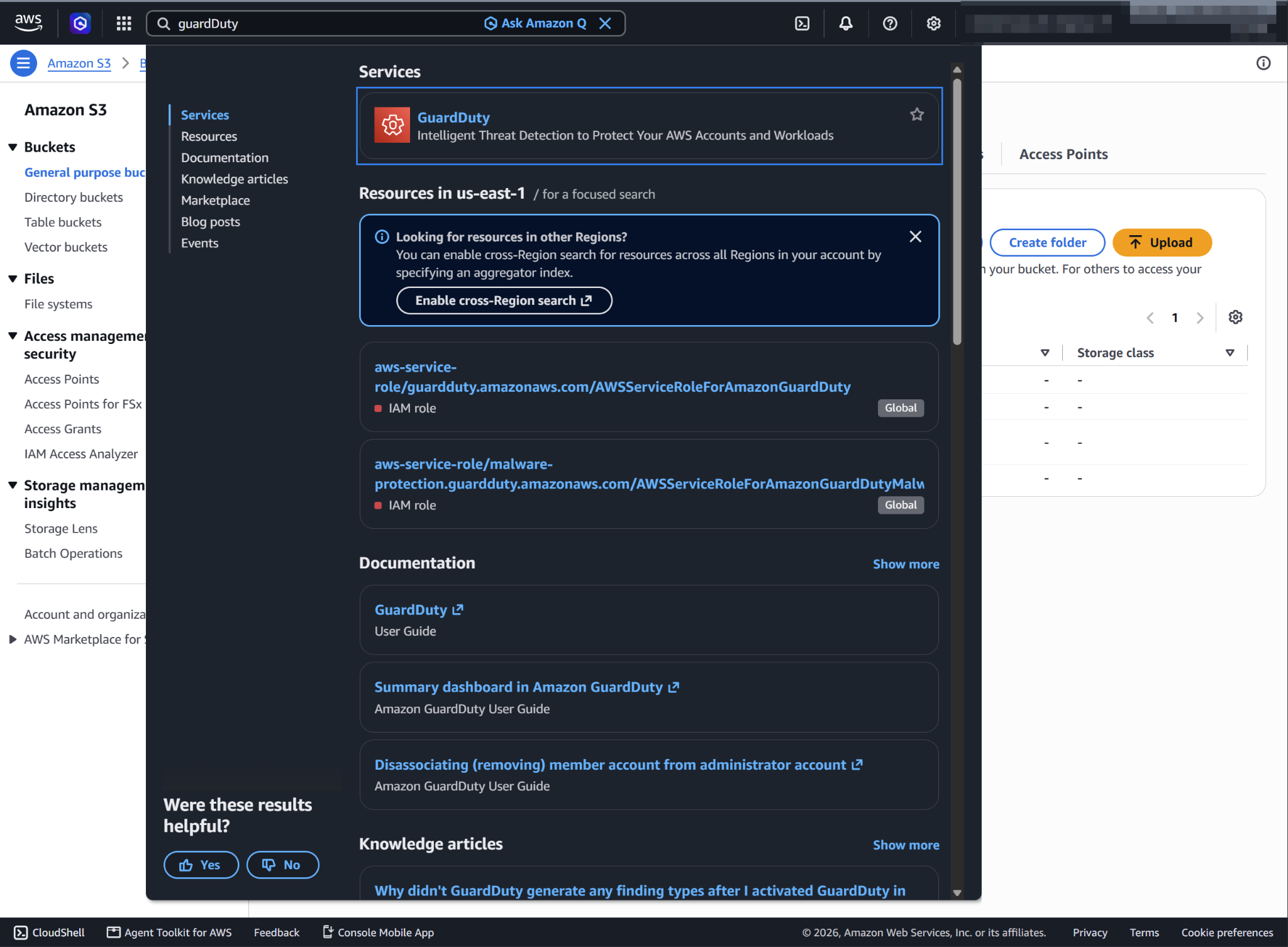
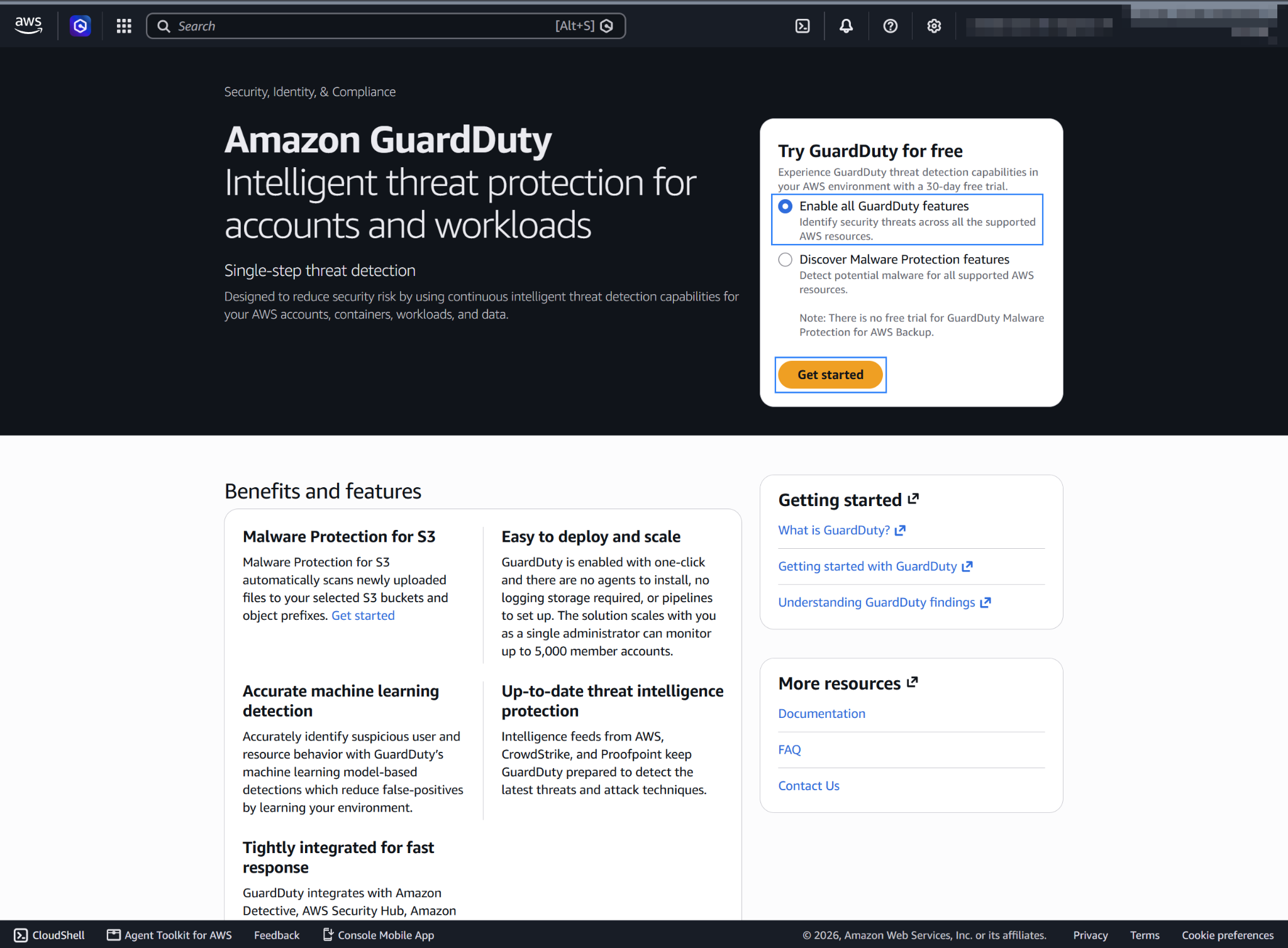
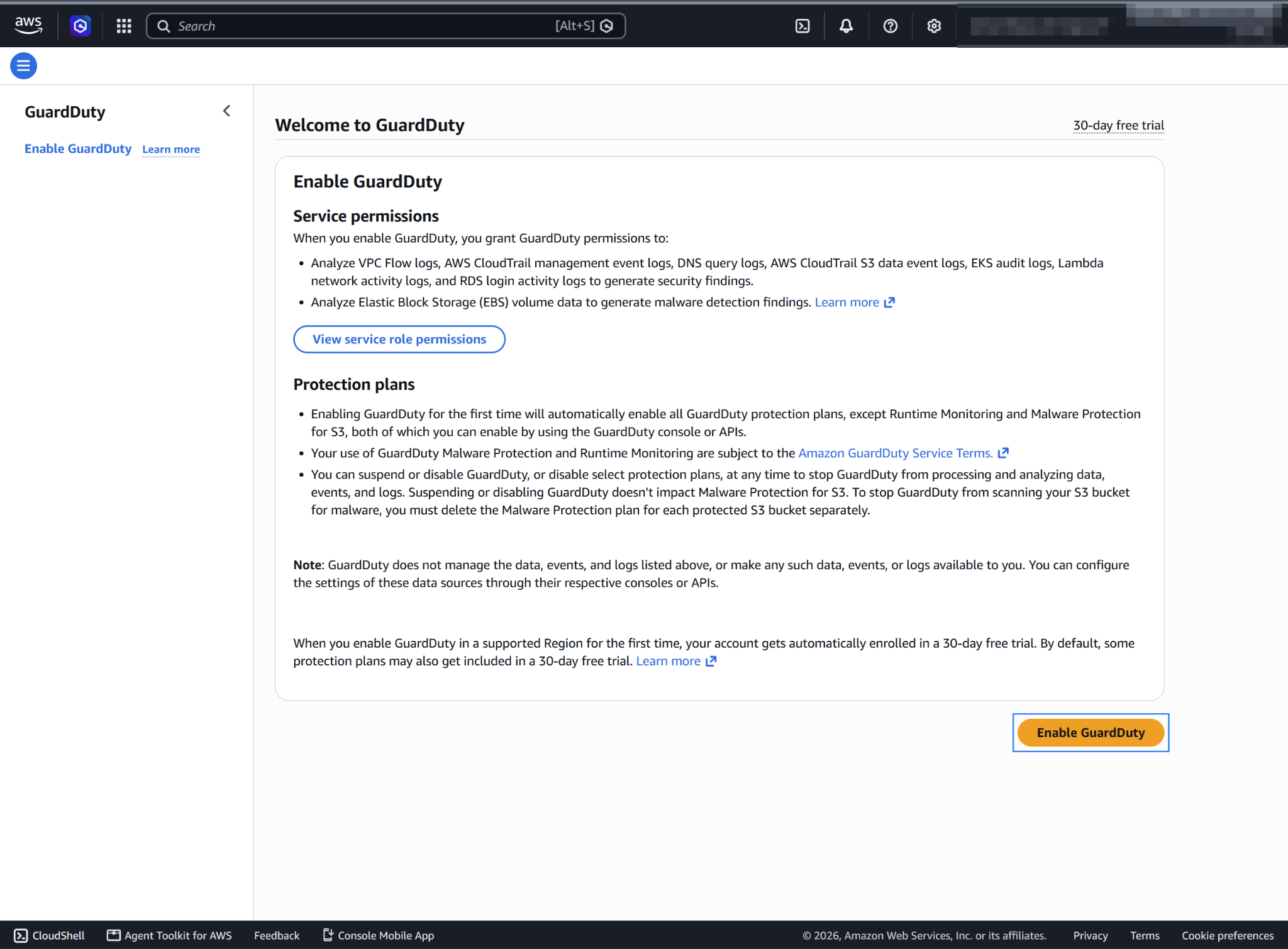
Select Enable all GuardDuty features, click Get started then Enable GuardDuty.
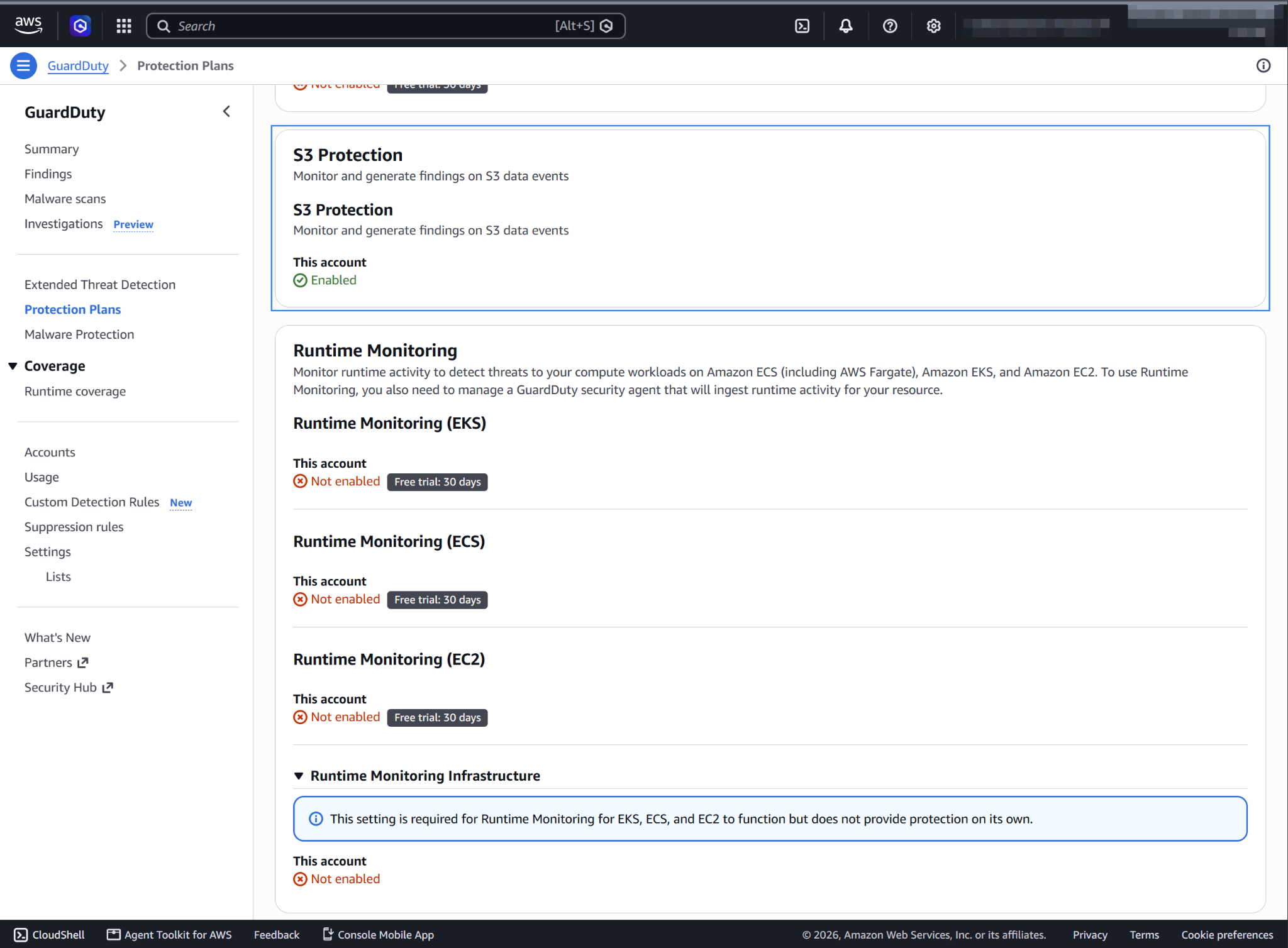
S3 Protection enables Amazon GuardDuty to monitor object-level API operations to identify potential security risks for data within your S3 buckets. In the navigation pane, under Protection plans, make sure S3 Protection is enabled.
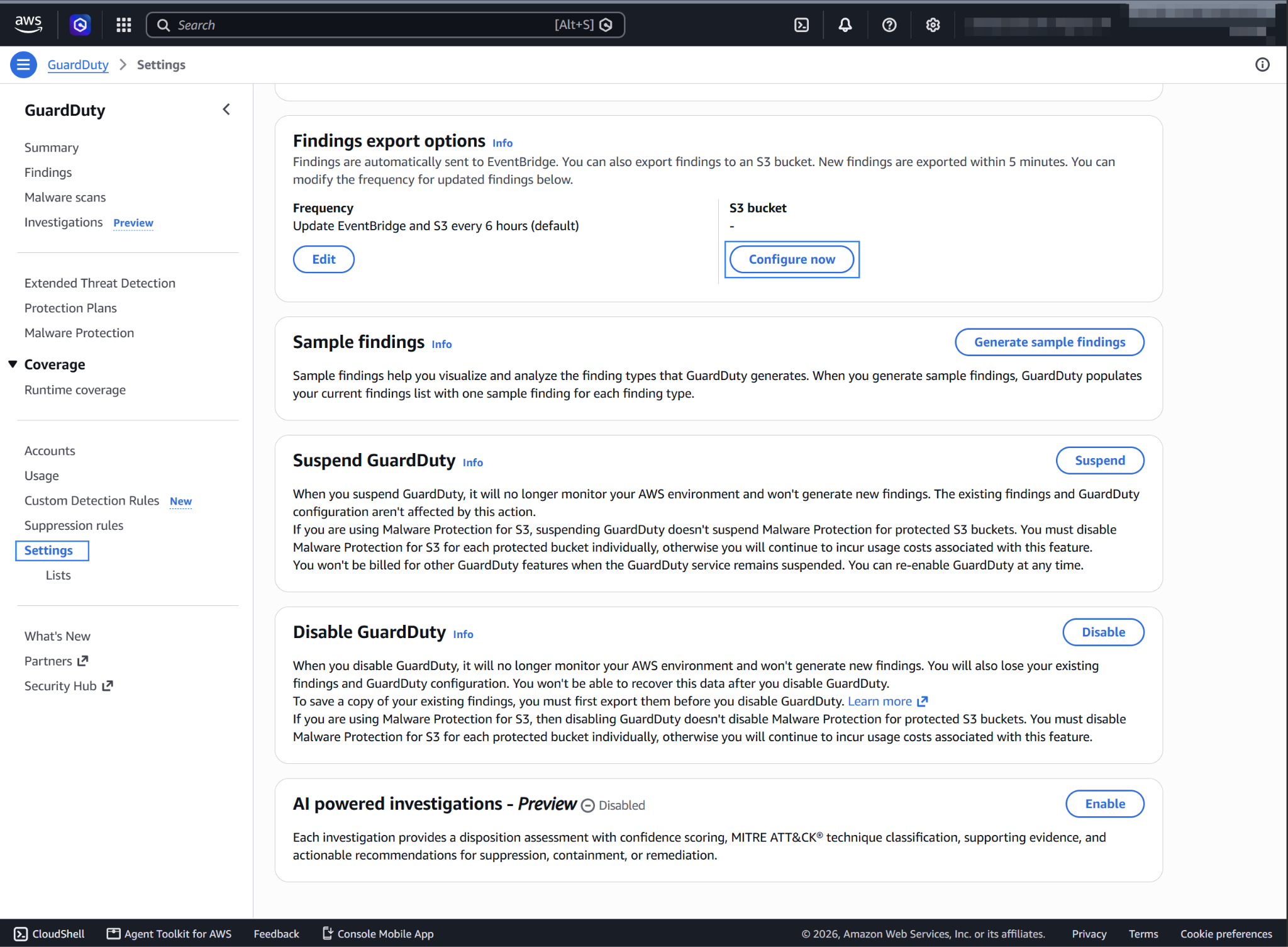
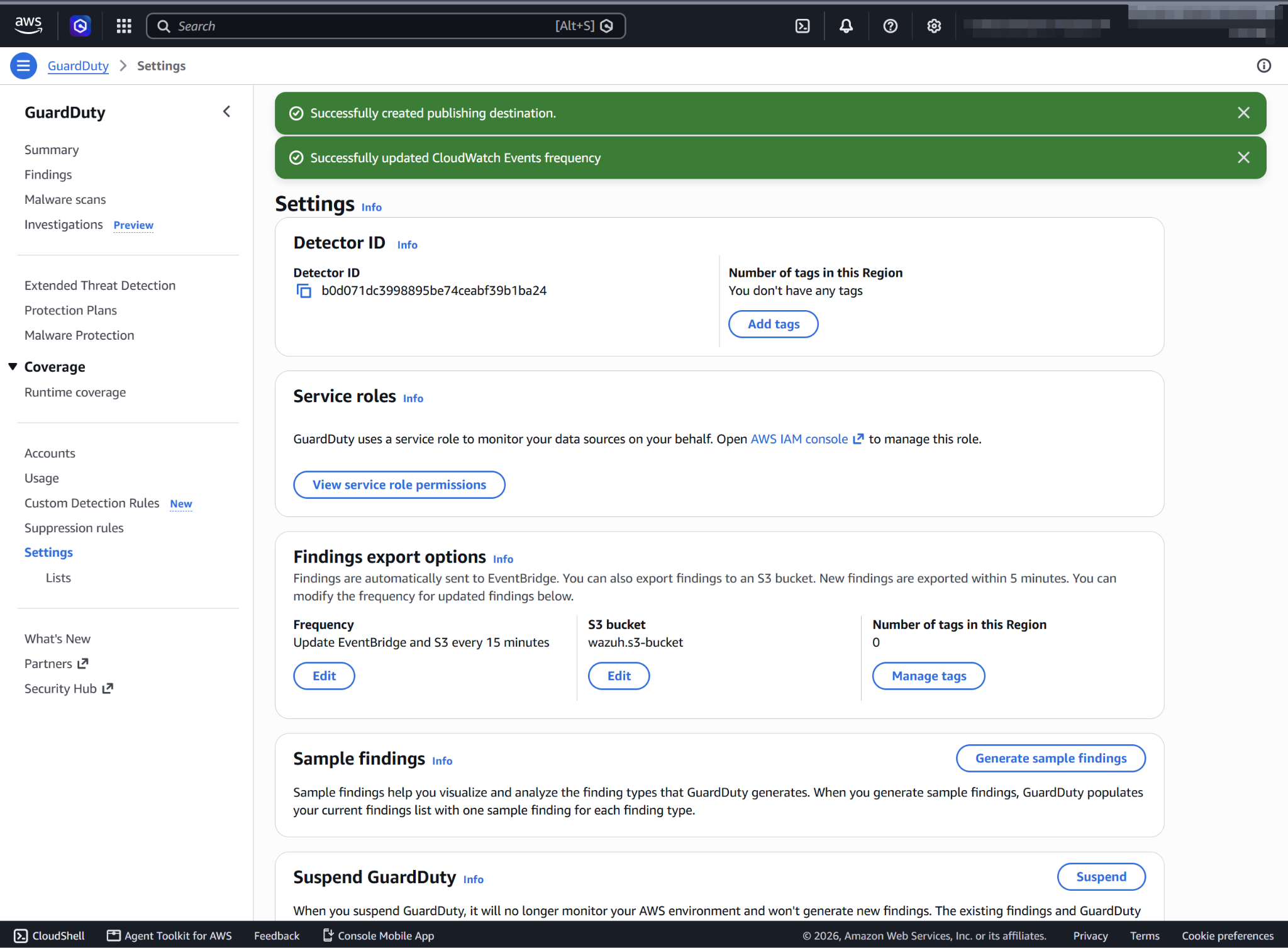
In the navigation pane, go to Settings, scroll to Findings export options, and click Configure now to configure GuardDuty to export findings to an S3 bucket.
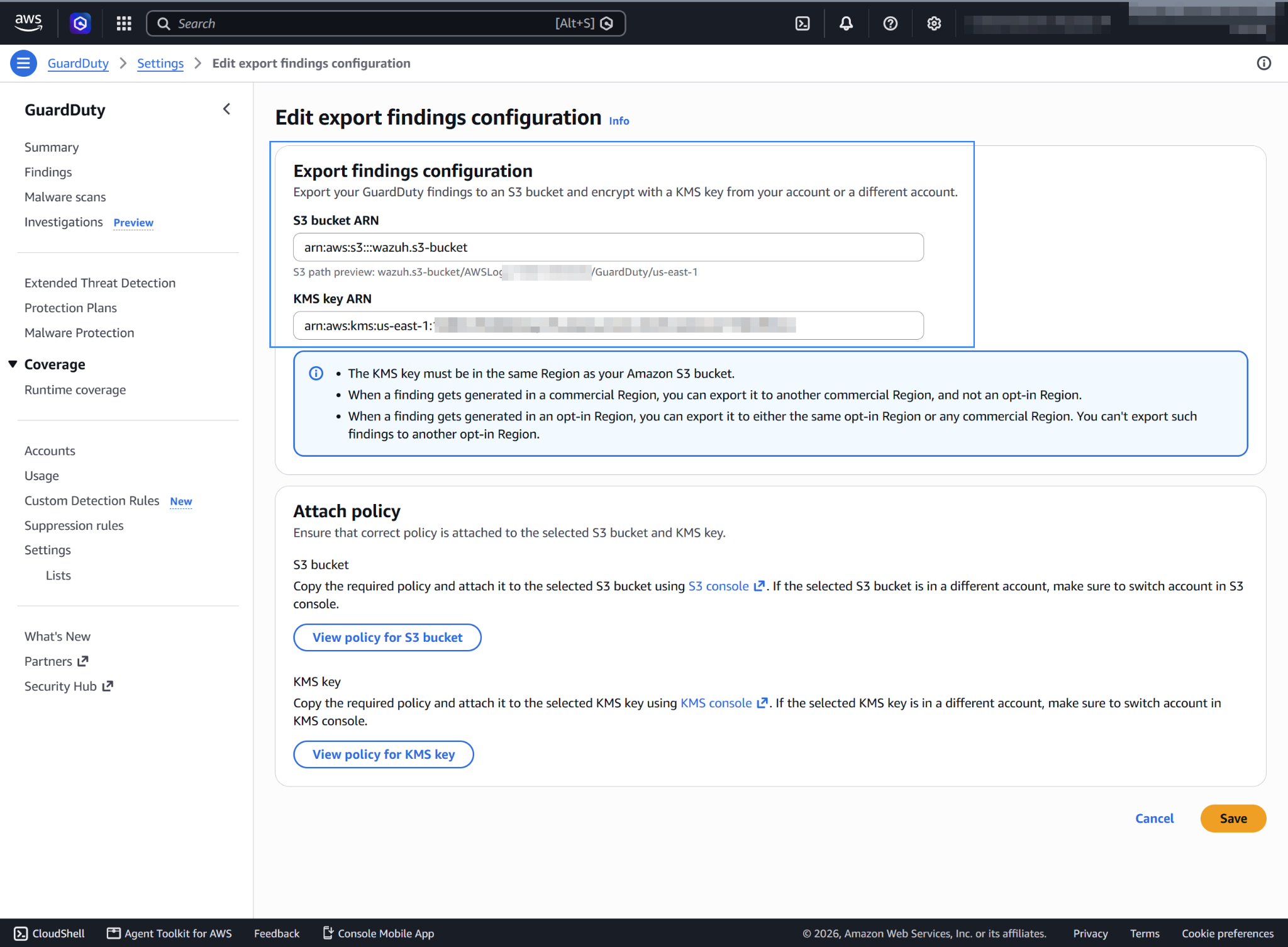
See the configuring an S3 bucket and creating symmetric encryption KMS keys guides on how to create an S3 bucket and KMS key. Enter the ARNs of the bucket and the key in the S3 bucket ARN and KMS key ARN fields.
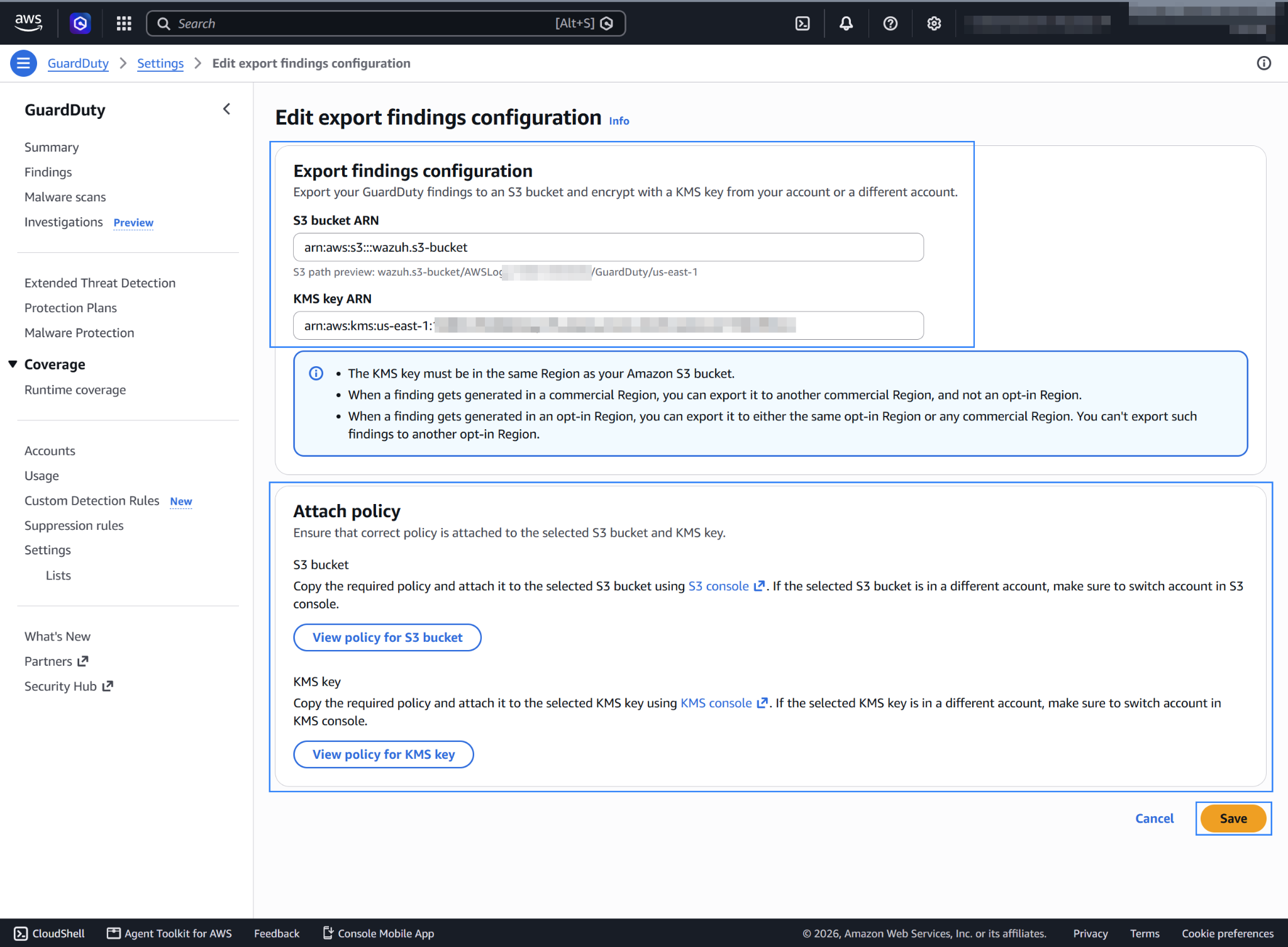
In the Attach policy section, click View Policy for S3 bucket and View Policy for KMS key. Copy and attach the corresponding policy to the selected S3 bucket and the KMS key. Click Save to apply the configuration.
Note
To change the S3 and KMS policies, see the adding a bucket policy by using the Amazon S3 console and changing a key policy guides.
Optionally, set the frequency for exporting updated GuardDuty findings to the S3 bucket, for example, 15 minutes.
Policy configuration
Follow the creating an AWS policy guide to create a policy using the Amazon Web Services console.
The policies below follow the principle of least privilege, so they give the AWS IAM user only the minimum permissions it needs.
To use the Wazuh module for AWS with read-only permissions and decrypt the encrypted logs, an AWS user needs a policy like the following:
{
    "Version": "2012-10-17",
    "Statement": [
        {
            "Sid": "VisualEditor0",
            "Effect": "Allow",
            "Action": [
                "s3:GetObject",
                "s3:ListBucket",
                "kms:Decrypt"
            ],
            "Resource": [
                "arn:aws:s3:::<WAZUH_AWS_BUCKET>/*",
                "arn:aws:s3:::<WAZUH_AWS_BUCKET>",
                "arn:aws:kms:<REGION>:<ACCOUNT_ID>:key/<KEY_ID>"
            ]
        }
    ]
}
To delete the log files after Wazuh collects them, use the following policy instead:
{
    "Version": "2012-10-17",
    "Statement": [
        {
            "Sid": "VisualEditor0",
            "Effect": "Allow",
            "Action": [
                "s3:GetObject",
                "s3:ListBucket",
                "s3:DeleteObject",
                "kms:Decrypt"
            ],
            "Resource": [
                "arn:aws:s3:::<WAZUH_AWS_BUCKET>/*",
                "arn:aws:s3:::<WAZUH_AWS_BUCKET>",
                "arn:aws:kms:<REGION>:<ACCOUNT_ID>:key/<KEY_ID>"
            ]
        }
    ]
}
Note
<WAZUH_AWS_BUCKET>, <REGION>, <ACCOUNT_ID>, and <KEY_ID> are placeholders. Replace them with the appropriate values.
Wazuh deletes the log files from the bucket only if you set remove_from_bucket to yes in the bucket configuration. This option is off by default and isn't in the sample configuration, so you need the second policy only if you turn it on.
After creating a policy, you can attach it directly to a user or to a group the user belongs to. In attaching a policy to an IAM user group, you see how to attach a policy to a group. More information on using other methods is available in the AWS documentation.
Configure Wazuh to process Amazon GuardDuty logs
Make sure that the AWS integrations are enabled on the Wazuh dashboard, as described in Enable AWS integration on the Wazuh dashboard.
Add the following Wazuh module for AWS configuration to the
/var/ossec/etc/ossec.conffile on the Wazuh agent. Replace<WAZUH_AWS_BUCKET>with the name of the S3 bucket. If the file already has a<wodle name="aws-s3">block, add only the<bucket>section to it:<wodle name="aws-s3"> <disabled>no</disabled> <interval>10m</interval> <run_on_start>yes</run_on_start> <skip_on_error>yes</skip_on_error> <bucket type="guardduty"> <name><WAZUH_AWS_BUCKET></name> <aws_profile>default</aws_profile> </bucket> </wodle>
Note
This example uses the
aws_profileauthentication parameter. Check the Configure AWS credentials section to learn more about the different authentication options and how to use them.Save the changes and restart the Wazuh agent service to apply the changes.
# systemctl restart wazuh-agent
GuardDuty use case
Amazon GuardDuty continuously monitors AWS accounts and workloads for potentially malicious or unauthorized activity. To validate the configuration, generate sample findings after you configure the findings export. On your AWS console, go to GuardDuty > Settings > Sample findings and select Generate sample findings. GuardDuty exports only the findings created after the export is configured.
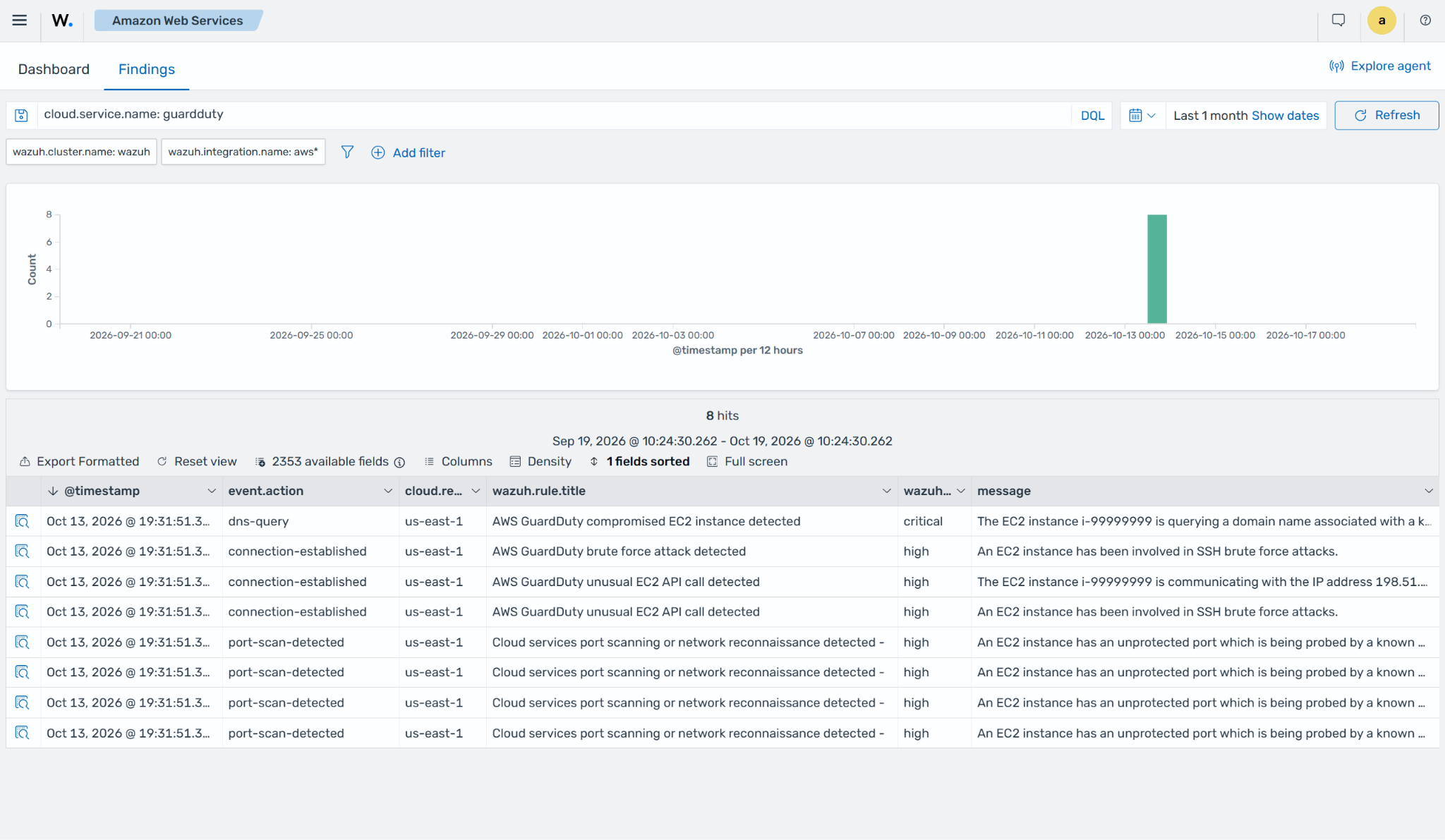
Wazuh collects the sample findings through the Wazuh module for AWS. Each finding on the Wazuh dashboard has a title that describes the threat, for example, AWS GuardDuty brute force attack detected.
To see them, go to Amazon Web Services > Findings and filter by cloud.service.name: guardduty. The screenshot below shows the ingested findings.