Getting started
The Wazuh manager API runs inside the Wazuh manager service and listens on port 55000. In a cluster, it runs only on the master node. Every request except the two login requests must carry a JSON Web Token (JWT).
Prerequisites
The steps in this guide target Wazuh 5.0.0, in an all-in-one or a distributed deployment. The credential and configuration steps need root access on the Wazuh manager. The command-line examples use cURL, and the Wazuh agent examples need at least one enrolled Wazuh agent. You can run the cURL commands and scripts on the Wazuh manager or on any host that reaches it on port 55000.
Start and stop the Wazuh manager API
The Wazuh manager API is automatically installed and runs as part of the Wazuh manager service. You can manage or monitor the Wazuh manager API by executing the systemctl or service commands with the Wazuh manager service:
# systemctl start/status/stop/restart wazuh-manager
# service wazuh-manager start/status/stop/restart
To check whether a Wazuh manager node is ready to process events, send GET /cluster/{node_id}/status. In Wazuh 5.0, it reports for each Wazuh manager daemon whether it is running and ready.
Using the API console from the Wazuh dashboard
You can interact with the Wazuh manager API through the built-in API console in the Wazuh dashboard.
Log in to the Wazuh dashboard as a user with administrator privileges, such as the default
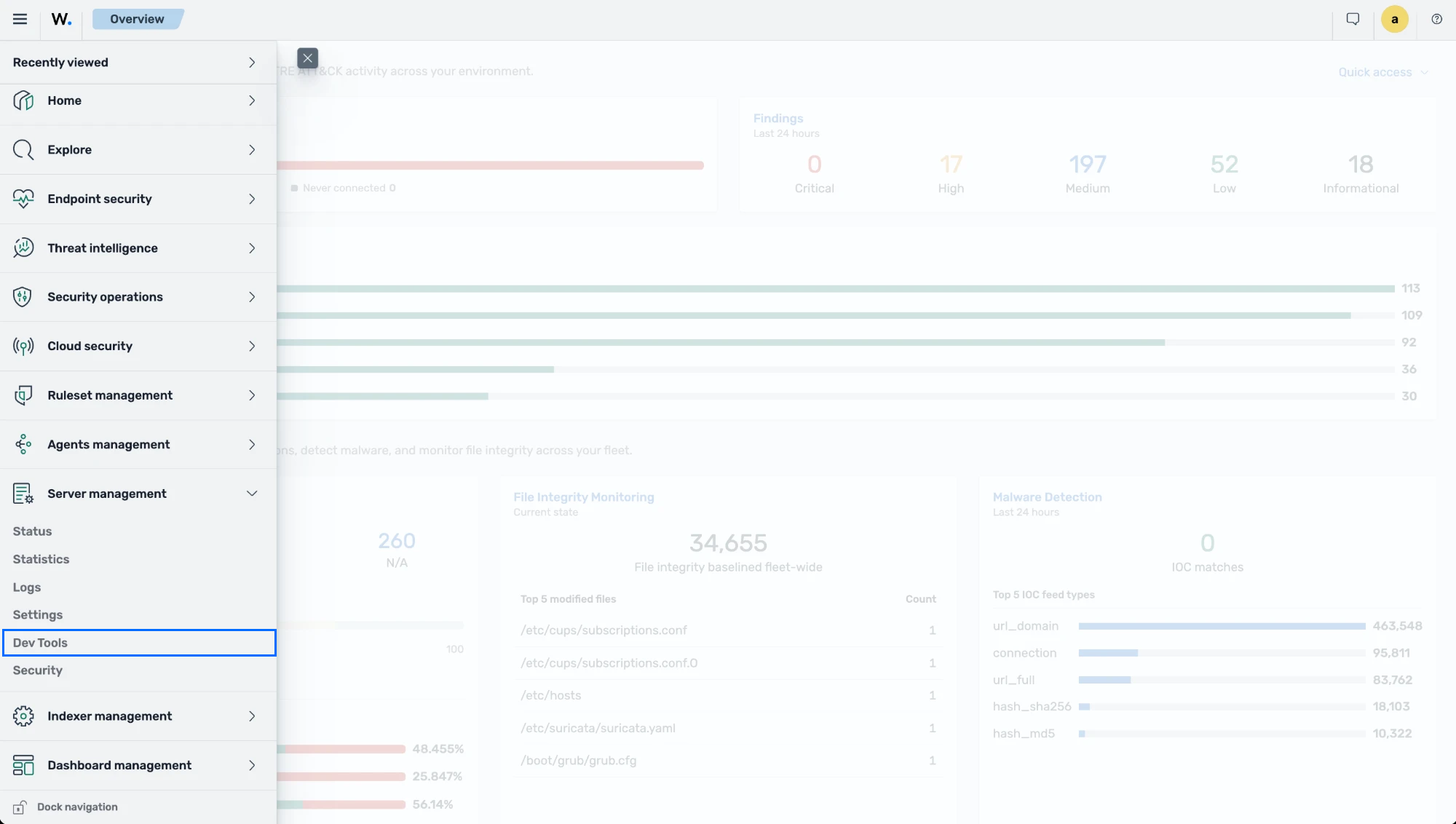
adminuser.Click the menu icon and select Server management > Dev Tools to access the Wazuh manager API console.
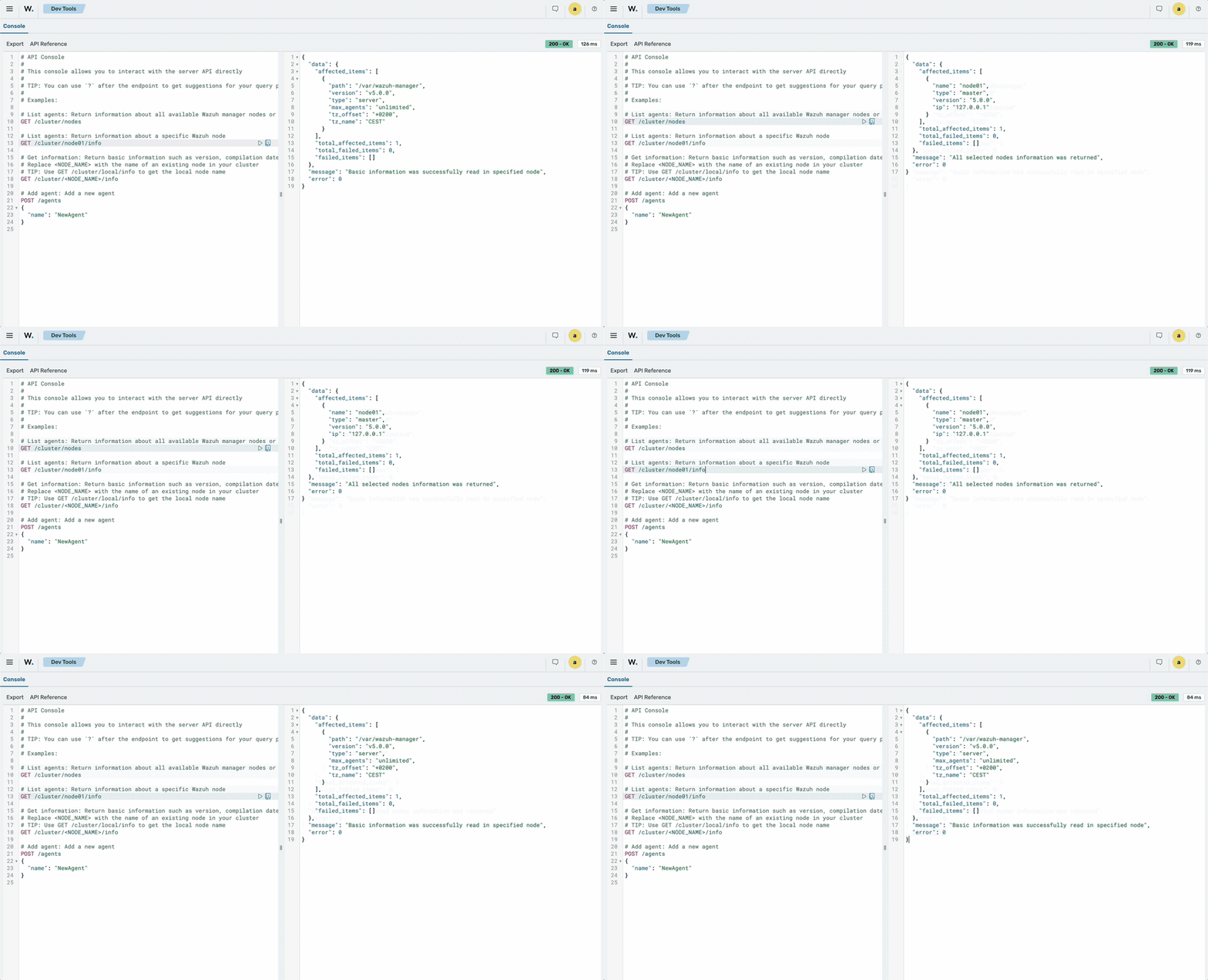
In the API Console:
Select HTTP method (GET, POST, PUT, or DELETE).
Enter the endpoint, such as
/cluster/nodesor/cluster/<NODE_NAME>/info.Add any query parameters, such as
?pretty=true.Click Play.
All requests are automatically authenticated using your current dashboard session. See Wazuh manager API requests and responses to learn more about the basic concepts.
Authentication
All endpoints except POST /security/user/authenticate and POST /security/user/authenticate/run_as require authentication using a JSON Web Token (JWT). These two endpoints use HTTP basic authentication. JWT is an open standard (RFC 7519) that defines a compact and self-contained method for securely transmitting information between parties as a JSON object.
Authenticate the Wazuh manager API from the command line
To ensure secure access, all Wazuh manager API endpoints require authentication. Follow the steps outlined in the POST /security/user/authenticate reference guide to obtain a token necessary for accessing the API endpoints:
Run the following command to authenticate with the Wazuh manager API and store the returned JWT in the
TOKENvariable, replacing<WAZUH_API_USER>and<WAZUH_API_PASSWORD>with your credentials.# TOKEN=$(curl -u <WAZUH_API_USER>:<WAZUH_API_PASSWORD> -k -X POST "https://<WAZUH_MANAGER_IP_ADDRESS>:55000/security/user/authenticate?raw=true")
Note
The Wazuh manager certificate authority (CA) issues the Wazuh manager API certificate. Add
-kto skip certificate verification, or use--cacertwith a copy of/etc/wazuh-manager/export/ca.pemto verify the certificate. We recommend theraw=truequery parameter when you authenticate with cURL. It returns the token in plain text, which simplifies handling long JWTs.The
wazuhandwazuh-internal-clientWazuh manager API users have no default password. The installation generates a password for each user and stores it in/etc/wazuh-manager/export/credentials.envon the Wazuh manager, readable only by root. In a distributed deployment, the passwords are also inwazuh-install-files/credentials.envinside thewazuh-install-files.tarfile. Bothcredentials.envfiles hold thewazuhpassword asWAZUH_MANAGER_API_PASSWORDand thewazuh-internal-clientpassword asWAZUH_MANAGER_WUI_PASSWORD. The Wazuh dashboard useswazuh-internal-client, so usewazuhfor your own requests. To print thewazuhpassword, runsed -n 's/^WAZUH_MANAGER_API_PASSWORD=//p' /etc/wazuh-manager/export/credentials.envas root on the Wazuh manager.You can reset the password for the
wazuhuser if you can't retrieve it. The/etc/wazuh-manager/export/credentials.envfile holds the password set at installation. If you change thewazuhpassword later, the file no longer holds the current password.
Verify that the token has been generated:
# echo $TOKEN
The command output looks similar to this:
eyJhbGciOiJFUzUxMiIsInR5cCI6IkpXVCJ9.eyJpc3MiOiJ3YXp1aCIsImF1ZCI6IldhenVoIEFQSSBSRVNUIiwibmJmIjoxNzkxOTg2NjIzLCJuYmZfbXMiOjE3OTE5ODY2MjM4ODUsImV4cCI6MTc5MTk4NzUyMywic3ViIjoid2F6dWgiLCJydW5fYXMiOmZhbHNlLCJyYmFjX3JvbGVzIjpbMV0sInJiYWNfbW9kZSI6IndoaXRlIn0.AeKHOdYaBEW4U-kZiHMXlYwVzSAHOdOQdPdDJ874450WdligB3PWxc2Jrz2WuUVWHOUBHDn05iyi42UQwWZN0IRPAa0OG7arhv0w2psqOWwHU8OnDs-RH7QAnwpFe47_tGeH0rweikwRmT-nS09u-x3uh3SaTNfydQnnqOa5VUyryDQ0
If the authentication fails, the output either displays an error message or remains blank. In such cases, double-check your user credentials and make sure you have network connectivity to the Wazuh manager API.
After you authenticate, you can access any API endpoint using the following structure. Replace
<METHOD>with the desired method and<ENDPOINT>with the string corresponding to the endpoint you wish to access. If you are not using an environment variable, replace$TOKENwith the obtained JWT.# curl -k -X <METHOD> "https://<WAZUH_MANAGER_IP_ADDRESS>:55000/<ENDPOINT>" -H "Authorization: Bearer $TOKEN"
Send an API request to return basic API info about the Wazuh manager:
# curl -k -s -X GET "https://<WAZUH_MANAGER_IP_ADDRESS>:55000/?pretty=true" -H "Authorization: Bearer $TOKEN"
Replace
<WAZUH_MANAGER_IP_ADDRESS>with the IP address of your Wazuh manager.The command output looks similar to this:
{
   "data": {
      "title": "Wazuh API REST",
      "api_version": "5.0.0",
      "revision": "rc2",
      "license_name": "GPL 2.0",
      "license_url": "https://github.com/wazuh/wazuh/blob/v5.0.0-rc2/LICENSE",
      "hostname": "ubuntu-QEMU-Virtual-Machine",
      "timestamp": "2026-09-23T07:30:59Z"
   },
   "error": 0
}
It sends an authenticated GET request to the root endpoint of the Wazuh manager API. The API returns basic API info (title, version, revision, hostname, timestamp) in a human-readable (pretty-printed) format.
To end a session, send DELETE /security/user/authenticate with the token. The request invalidates every token of the current user. For a token from POST /security/user/authenticate/run_as, the request invalidates only the tokens granted for the same authorization context.
A token expires after 900 seconds by default. Request a new token when it expires. To change the lifetime, use PUT /security/config. This change revokes all existing tokens. After 50 failed login attempts from an IP address, the Wazuh manager API rejects login requests from that address with HTTP 403 and error 6000 until 300 seconds have passed since its first failed attempt.
Authenticate the Wazuh manager API with scripts
A script that interacts with the Wazuh manager API must obtain a JWT programmatically. The examples below show how to authenticate and make authenticated requests using popular scripting languages like Python and Bash.
When you call the authentication endpoint /security/user/authenticate, you can choose how the API returns the token:
By default (without any special parameter), the response is a structured JSON object containing the token inside a data field. This format is convenient when your script can easily parse JSON.
With the
raw=truequery parameter, the Wazuh manager API returns only the plain text token (no JSON wrapper). A plain token suitscURLin shell scripts, because you can capture the token directly into a variable without extra parsing steps.
Use these scripts to automate tasks, or to learn how to access the Wazuh manager API programmatically for custom integrations.
Authenticate with a Python script
You can authenticate to the Wazuh manager API and obtain a JWT using a Python script. The following script wazuh_api_authenticator.py, gets the token and uses it to retrieve basic Wazuh manager API information and Wazuh agent status summary.
Copy the following script into a file named
wazuh_api_authenticator.py,#!/usr/bin/env python3 import json import requests import urllib3 from base64 import b64encode # Disable insecure HTTPS warnings (when the client does not trust the Wazuh manager CA) urllib3.disable_warnings(urllib3.exceptions.InsecureRequestWarning) # Configuration protocol = 'https' host = '<WAZUH_MANAGER_IP_ADDRESS>' port = 55000 user = '<WAZUH_API_USER>' password = '<WAZUH_API_PASSWORD>' login_endpoint = 'security/user/authenticate' login_url = f"{protocol}://{host}:{port}/{login_endpoint}" basic_auth = f"{user}:{password}".encode() login_headers = {'Content-Type': 'application/json', 'Authorization': f'Basic {b64encode(basic_auth).decode()}'} print("\nLogin request ...\n") response = requests.post(login_url, headers=login_headers, verify=False) token = json.loads(response.content.decode())['data']['token'] print(token) # New authorization header with the JWT we got requests_headers = {'Content-Type': 'application/json', 'Authorization': f'Bearer {token}'} print("\n- API calls with TOKEN environment variable ...\n") print("Getting API information:") response = requests.get(f"{protocol}://{host}:{port}/?pretty=true", headers=requests_headers, verify=False) print(response.text) print("\nGetting agents status summary:") response = requests.get(f"{protocol}://{host}:{port}/agents/summary/status?pretty=true", headers=requests_headers, verify=False) print(response.text) print("\nEnd of the script.\n")
Replace:
<WAZUH_API_USER>with your Wazuh manager API username.<WAZUH_API_PASSWORD>with your Wazuh manager API password.<WAZUH_MANAGER_IP_ADDRESS>with your Wazuh manager IP address.
Install the Python
requestsmodule if it doesn't exist:# apt update && apt install python3-requests -y
Note
urllib32.0 and later requires OpenSSL 1.1.1 or later. If your system has an older version of OpenSSL, you must either:Upgrade OpenSSL to version 1.1.1 or higher.
Downgrade
urllib3to a version compatible with your current OpenSSL version.
Make sure your software dependencies are properly aligned to avoid compatibility issues.
Run the Python script
wazuh_api_authenticator.py:# python3 wazuh_api_authenticator.py
The command output looks similar to this:
Login request ...

eyJhbGciOiJFUzUxMiIsInR5cCI6IkpXVCJ9.eyJpc3MiOiJ3YXp1aCIsImF1ZCI6IldhenVoIEFQSSBSRVNUIiwibmJmIjoxNzkwMTY5MjEwLCJuYmZfbXMiOjE3OTAxNjkyMTAwMTksImV4cCI6MTc5MDE3MDExMCwic3ViIjoid2F6dWgiLCJydW5fYXMiOmZhbHNlLCJyYmFjX3JvbGVzIjpbMV0sInJiYWNfbW9kZSI6IndoaXRlIn0.AcFXKKtz39b6mIyYSufP2w_BBVjWrBycvfA3gE4EYKwN7nZkOhG5DJlnHXSwpvOc7jcvAQP_vOgrCR9QsBCvUTAdAfHemlEDBU4tpZbnRv7Gamn4CN-Z4qEr8lPriROzYe4S4Z-jkYO37Hj_4NirGQPeenL23IbWnzzgYJ8wc8kdki1H

- API calls with TOKEN environment variable ...

Getting API information:
{
   "data": {
      "title": "Wazuh API REST",
      "api_version": "5.0.0",
      "revision": "rc2",
      "license_name": "GPL 2.0",
      "license_url": "https://github.com/wazuh/wazuh/blob/v5.0.0-rc2/LICENSE",
      "hostname": "ubuntu-QEMU-Virtual-Machine",
      "timestamp": "2026-09-23T13:13:30Z"
   },
   "error": 0
}

Getting agents status summary:
{
   "data": {
      "connection": {
         "active": 1,
         "disconnected": 0,
         "never_connected": 0,
         "pending": 0,
         "total": 1
      }
   },
   "error": 0
}

End of the script.
Authenticate with a Bash script
You can also authenticate to the Wazuh manager API using a Bash script. The following script wazuh_api_authenticator.sh authenticates with the Wazuh manager API to obtain a JWT. It then uses the token within the request header to retrieve a summary of operating systems used by Wazuh agents.
Copy the following script into a file named
wazuh_api_authenticator.sh:#!/bin/bash echo -e "\n- Getting token...\n" TOKEN=$(curl -s -u <WAZUH_API_USER>:<WAZUH_API_PASSWORD> -k -X POST "https://<WAZUH_MANAGER_IP_ADDRESS>:55000/security/user/authenticate?raw=true") echo -e "\n- API calls with TOKEN environment variable ...\n" echo -e "Getting default information:\n" curl -k -s -X GET "https://<WAZUH_MANAGER_IP_ADDRESS>:55000/?pretty=true" -H "Authorization: Bearer $TOKEN" echo -e "\n\nGetting /agents/summary/os:\n" curl -k -s -X GET "https://<WAZUH_MANAGER_IP_ADDRESS>:55000/agents/summary/os?pretty=true" -H "Authorization: Bearer $TOKEN" echo -e "\n\nEnd of the script.\n"
Replace:
<WAZUH_API_USER>with your Wazuh manager API username.<WAZUH_API_PASSWORD>with your Wazuh manager API password.<WAZUH_MANAGER_IP_ADDRESS>with your Wazuh manager IP address.
Make the script executable:
# chmod +x wazuh_api_authenticator.sh
Run the Bash script
wazuh_api_authenticator.sh:# bash wazuh_api_authenticator.sh
The command output looks similar to this:
- Getting token...

- API calls with TOKEN environment variable ...

Getting default information:

{
   "data": {
      "title": "Wazuh API REST",
      "api_version": "5.0.0",
      "revision": "rc2",
      "license_name": "GPL 2.0",
      "license_url": "https://github.com/wazuh/wazuh/blob/v5.0.0-rc2/LICENSE",
      "hostname": "ubuntu-QEMU-Virtual-Machine",
      "timestamp": "2026-09-23T13:36:02Z"
   },
   "error": 0
}

Getting /agents/summary/os:

{
   "data": {
      "affected_items": [
         "ubuntu"
      ],
      "total_affected_items": 1,
      "total_failed_items": 0,
      "failed_items": []
   },
   "message": "Showing the operative system of all specified agents",
   "error": 0
}

End of the script.