Amazon ECR image scanning
Amazon ECR image scanning detects software vulnerabilities in container images and lists them as scan findings. Amazon ECR basic scanning uses AWS native technology and more than 50 data feeds to detect common vulnerabilities and exposures (CVEs). Wazuh collects these findings from Amazon CloudWatch Logs. This method covers Amazon ECR basic scanning only. If your registry uses enhanced scanning, collect the findings with Amazon Inspector instead.
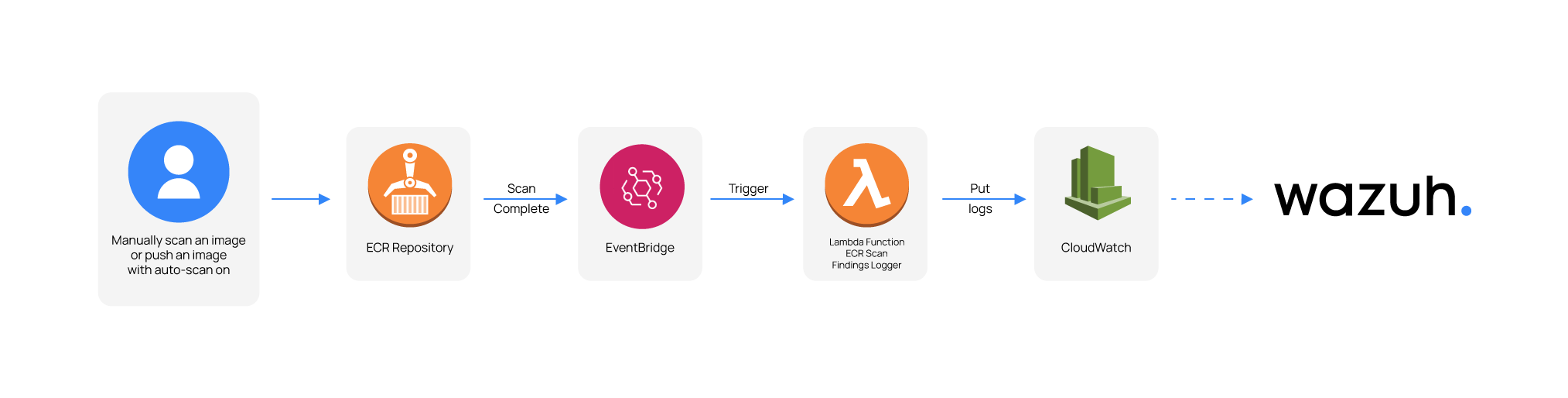
Amazon ECR sends an event to Amazon EventBridge when an image scan is completed. The event itself is only a summary and does not contain the details of the scan findings. However, you can configure a Lambda function to request the scan findings details and store them in CloudWatch Logs. The following list and diagram summarize the workflow:
An image scan is triggered.
Once the scan is completed, Amazon ECR sends an event to EventBridge.
The "Scan completed" event triggers a Lambda function.
The Lambda function takes the data from the "Scan completed" event and requests the scan details.
The Lambda function creates a log group and a log stream in CloudWatch Logs to store the response received.
Wazuh retrieves logs from CloudWatch log groups with the Wazuh module for AWS.
AWS configuration
The following sections cover configuring AWS to store scan findings in CloudWatch Logs and ingesting them into Wazuh.
Amazon ECR image scan configuration
AWS provides a template that logs findings from Amazon ECR image scans to CloudWatch. The template uses an AWS Lambda function to accomplish this. The Lambda function runs when an Amazon ECR basic scan completes. If your registry uses enhanced scanning with Amazon Inspector, Amazon ECR doesn't send this event, so the function writes no logs. In that case, use basic scanning for the repository, or collect the findings with Amazon Inspector.
Deploying the stack, pushing and scanning images, and reading the scan findings require specific permissions, so you need to create custom policies. Attach the first five policies below to the user who deploys the stack and pushes the images. They cover the IAM roles, the CloudFormation stack, the Amazon ECR registry, image pushing and scanning, and AWS Lambda and Amazon EventBridge. Attach the CloudWatch Logs policy to the IAM user that the Wazuh module for AWS uses. After creating a policy, you can attach it directly to a user or to a group to which the user belongs. In the policies below, replace <REGION>, <ACCOUNT_ID>, and <REPOSITORY_NAME> with your AWS Region, AWS account ID, and Amazon ECR repository name.
Note that the policies below follow the principle of least privilege, ensuring that only the minimum permissions are granted to the AWS IAM user.
Policy configuration
Follow the creating an AWS policy guide to create a policy using the Amazon Web Services console.
IAM role permissions
You need the permissions listed below inside the statements for RoleCreator and PassRole to create and delete the stack based on the template.
Note
The RoleCreator statement covers all roles in the account because CloudFormation generates the role name. The PassRole statement limits iam:PassRole to the Lambda execution role that the template creates.
{
  "Version": "2012-10-17",
  "Statement": [
    {
      "Sid": "RoleCreator",
      "Effect": "Allow",
      "Action": [
        "iam:CreateRole",
        "iam:PutRolePolicy",
        "iam:AttachRolePolicy",
        "iam:DeleteRolePolicy",
        "iam:DeleteRole",
        "iam:GetRole",
        "iam:GetRolePolicy"
      ],
      "Resource": "arn:aws:iam::<ACCOUNT_ID>:role/*"
    },
    {
      "Sid": "PassRole",
      "Effect": "Allow",
      "Action": "iam:PassRole",
      "Resource": "arn:aws:iam::<ACCOUNT_ID>:role/*-LambdaExecutionRole*"
    }
  ]
}
CloudFormation stack permissions
A CloudFormation stack is a collection of AWS resources that can be managed as a single unit, including creation, update, or deletion. You need the following permissions to create and delete any template-based CloudFormation stack.
{
  "Version": "2012-10-17",
  "Statement": [
    {
      "Sid": "CloudFormationStackCreation",
      "Effect": "Allow",
      "Action": [
        "cloudformation:CreateStack",
        "cloudformation:ValidateTemplate",
        "cloudformation:GetTemplateSummary",
        "cloudformation:DescribeStacks",
        "cloudformation:DescribeStackEvents",
        "cloudformation:DescribeStackResources",
        "cloudformation:ListStacks",
        "cloudformation:DeleteStack",
        "s3:CreateBucket",
        "s3:ListBucket",
        "s3:GetObject",
        "s3:PutObject"
      ],
      "Resource": "*"
    }
  ]
}
ECR registry and repository permissions
You need the following permissions to authenticate to the Amazon ECR registry and to list its repositories. For more information, see Identity and Access Management for Amazon Elastic Container Registry.
Note
Before authenticating to a registry and pushing or pulling any images from any Amazon ECR repository, you need ecr:GetAuthorizationToken.
{
  "Version": "2012-10-17",
  "Statement": [
    {
      "Sid": "ECRUtilities",
      "Effect": "Allow",
      "Action": [
        "ecr:GetAuthorizationToken",
        "ecr:DescribeRepositories"
      ],
      "Resource": "*"
    }
  ]
}
Image pushing and scanning permissions
You need the following Amazon ECR permissions to push images. They are scoped down to a specific repository. The steps to push Docker images are described in the Amazon ECR - pushing a Docker image documentation. They also include ecr:CreateRepository, so you can create the repository if it doesn't exist yet.
{
  "Version": "2012-10-17",
  "Statement": [
    {
      "Sid": "ScanPushImage",
      "Effect": "Allow",
      "Action": [
        "ecr:CreateRepository",
        "ecr:CompleteLayerUpload",
        "ecr:UploadLayerPart",
        "ecr:InitiateLayerUpload",
        "ecr:BatchCheckLayerAvailability",
        "ecr:BatchGetImage",
        "ecr:PutImage",
        "ecr:ListImages",
        "ecr:DescribeImages",
        "ecr:DescribeImageScanFindings",
        "ecr:StartImageScan"
      ],
      "Resource": "arn:aws:ecr:<REGION>:<ACCOUNT_ID>:repository/<REPOSITORY_NAME>"
    }
  ]
}
AWS Lambda and Amazon EventBridge permissions
You need the following permissions to create and delete the resources handled by the Scan Findings Logger template.
{
  "Version": "2012-10-17",
  "Statement": [
    {
      "Sid": "TemplateRequired0",
      "Effect": "Allow",
      "Action": [
        "lambda:RemovePermission",
        "lambda:DeleteFunction",
        "lambda:GetFunction",
        "lambda:CreateFunction",
        "lambda:AddPermission"
      ],
      "Resource": "arn:aws:lambda:<REGION>:<ACCOUNT_ID>:*"
    },
    {
      "Sid": "TemplateRequired1",
      "Effect": "Allow",
      "Action": [
        "events:RemoveTargets",
        "events:DeleteRule",
        "events:PutRule",
        "events:DescribeRule",
        "events:PutTargets"
      ],
      "Resource": "arn:aws:events:<REGION>:<ACCOUNT_ID>:*"
    }
  ]
}
CloudWatch Logs permissions
You need the following AWS IAM policy that grants read-only access to all the log streams in the scan findings log group of the repository. In the policy, replace <LOG_GROUP_NAME> with /aws/ecr/image-scan-findings/<REPOSITORY_NAME>.
{
    "Version": "2012-10-17",
    "Statement": [
        {
            "Sid": "VisualEditor0",
            "Effect": "Allow",
            "Action": "logs:DescribeLogStreams",
            "Resource": "arn:aws:logs:<REGION>:<ACCOUNT_ID>:log-group:<LOG_GROUP_NAME>:*"
        },
        {
            "Sid": "VisualEditor1",
            "Effect": "Allow",
            "Action": "logs:GetLogEvents",
            "Resource": "arn:aws:logs:<REGION>:<ACCOUNT_ID>:log-group:<LOG_GROUP_NAME>:log-stream:*"
        }
    ]
}
Note
<REGION>, <ACCOUNT_ID>, <REPOSITORY_NAME>, and <LOG_GROUP_NAME> are placeholders. Replace them with the appropriate values.
Create the CloudFormation stack
Download the ECR Image Scan findings logger template from the official aws-samples GitHub repository.
Go to CloudFormation and click Create stack > With new resources (standard).
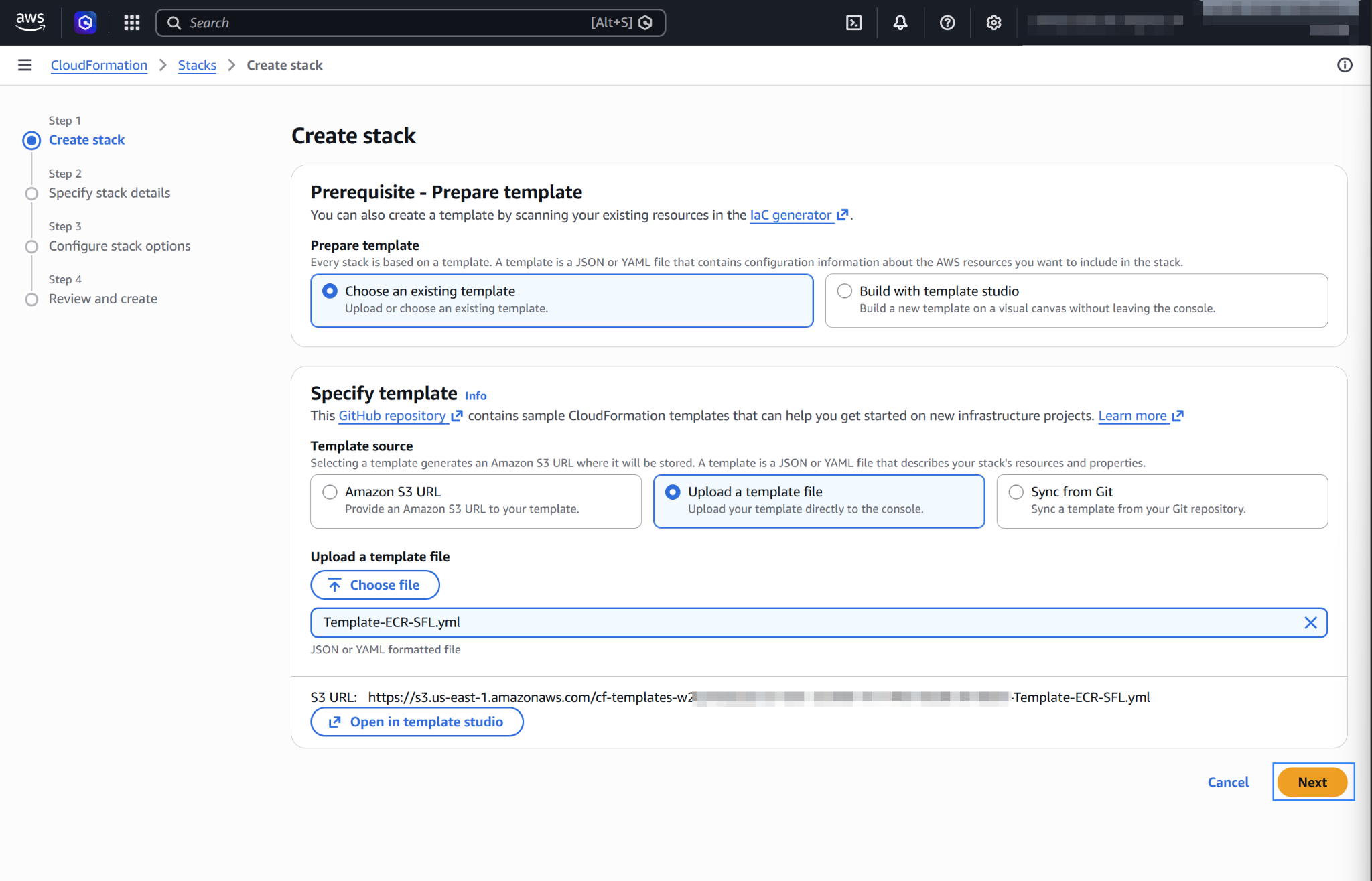
Select Upload a template file and choose the template you downloaded in step 1.
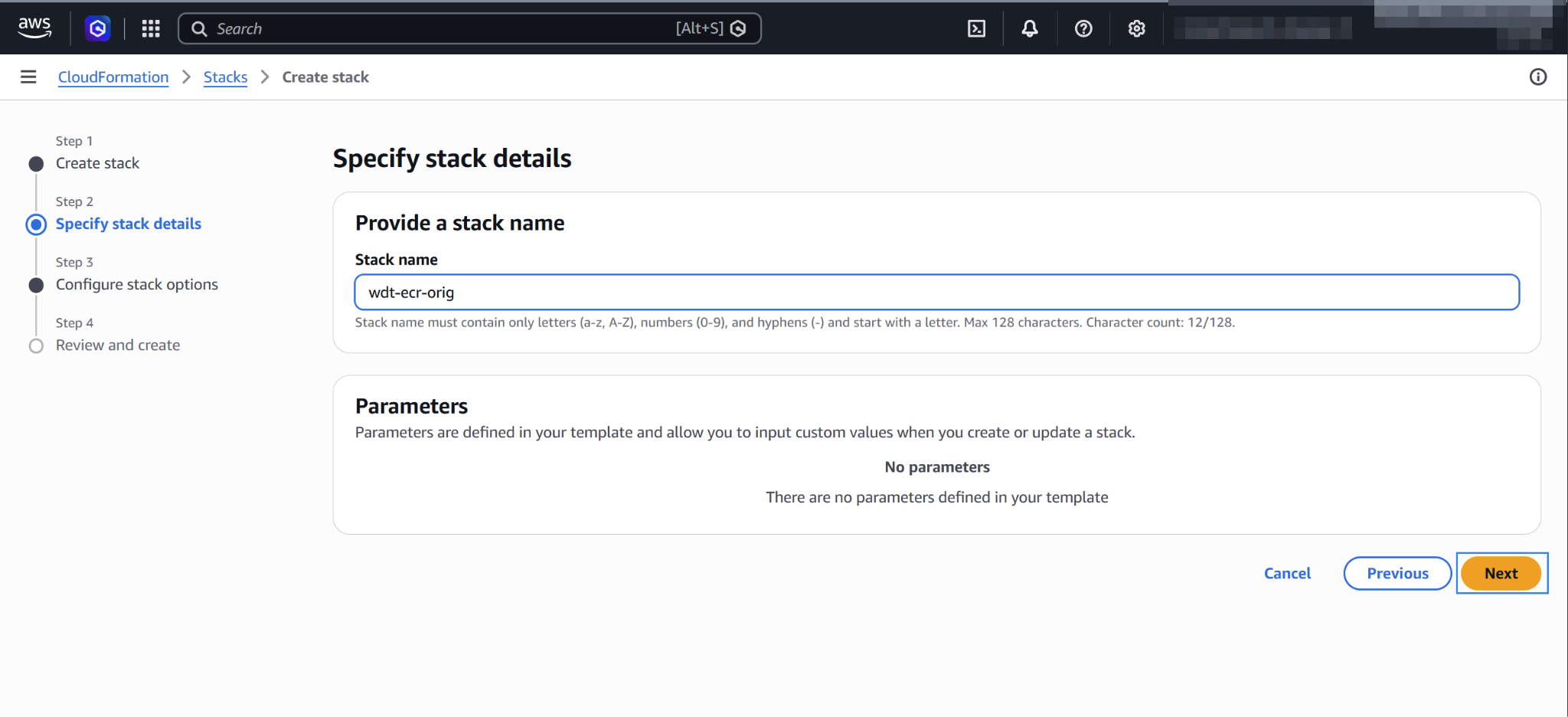
Choose a name for the stack and finish the creation process without changing any other settings.
Wait until the stack status is
CREATE_COMPLETE. The stack containing AWS Lambda is now ready to use.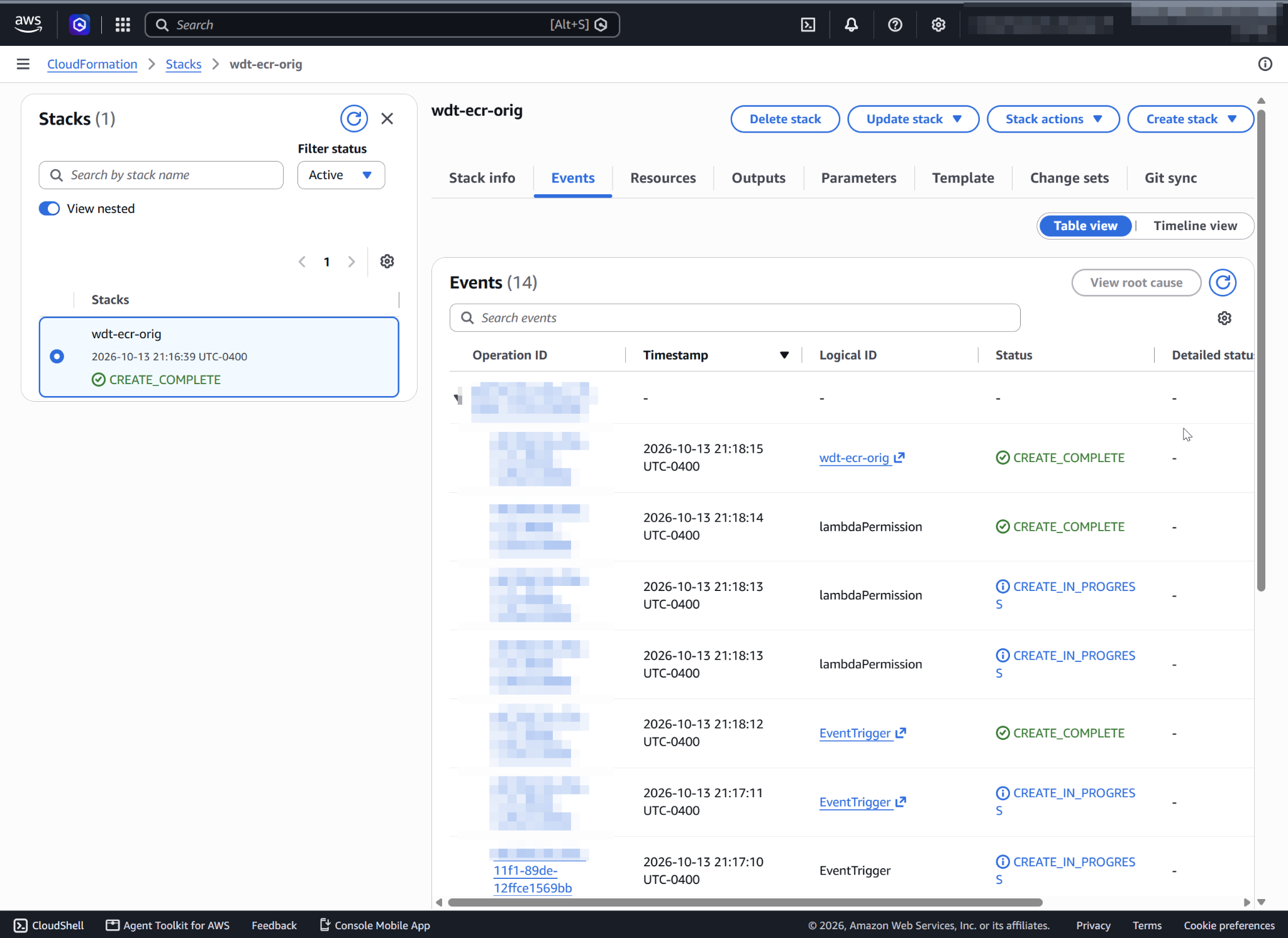
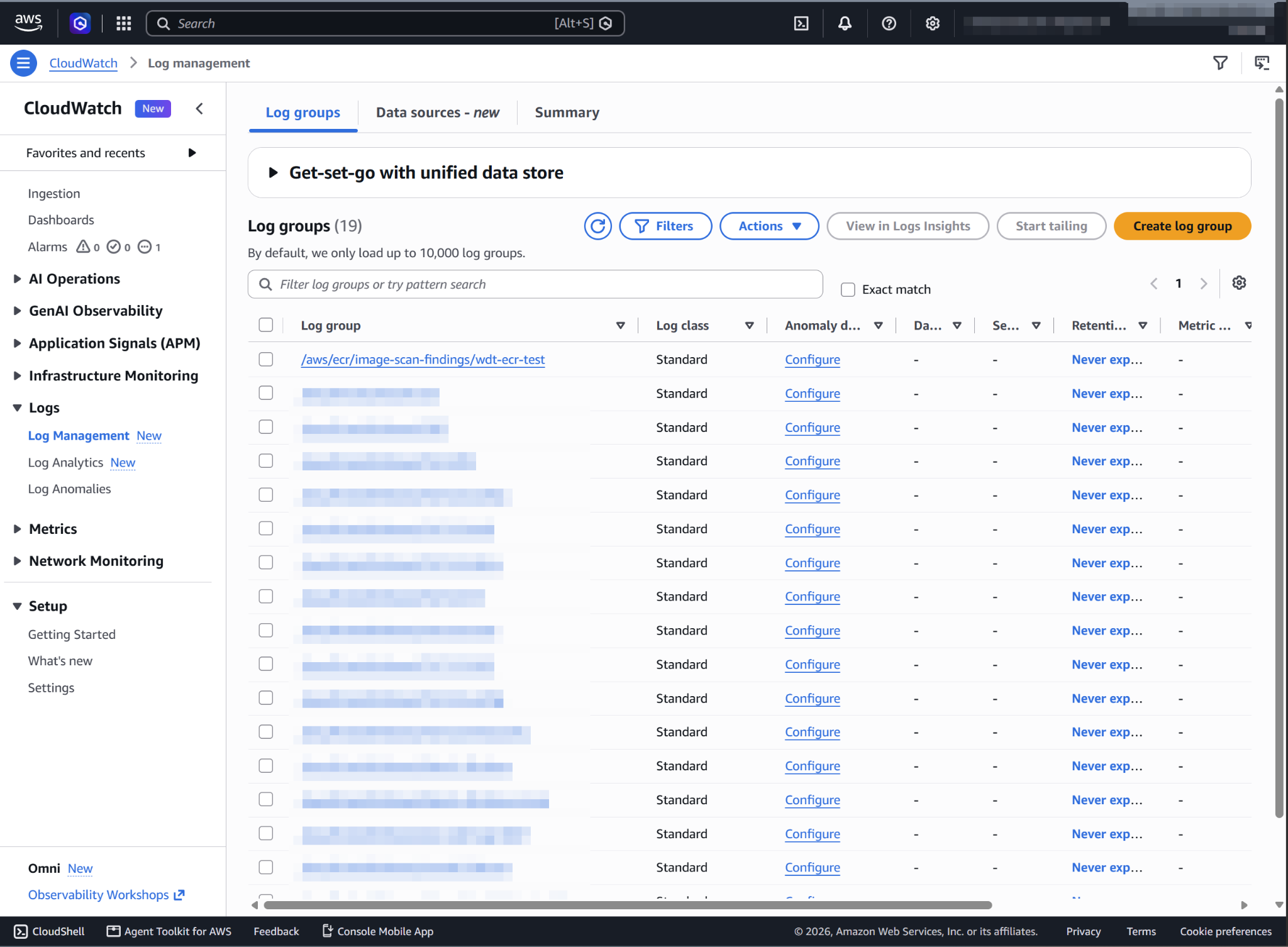
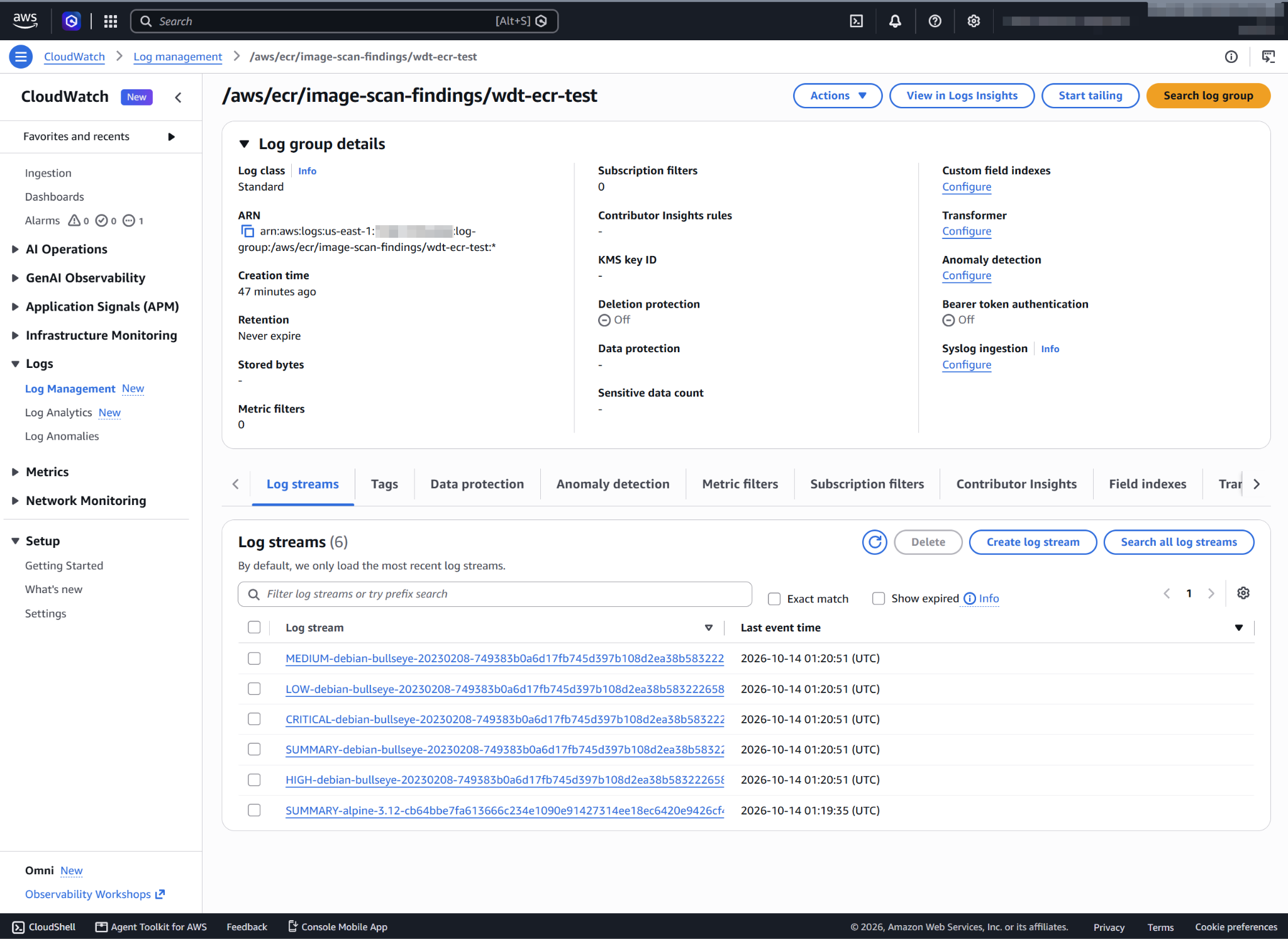
If you don't have a private repository yet, create one first. See Creating an Amazon ECR private repository to store images. After the stack is created, you can test the Lambda function by manually triggering an image scan of a container in Amazon ECR private registry. The scan results in the creation of a CloudWatch log group called /aws/ecr/image-scan-findings/<REPOSITORY_NAME> containing the scan results. For every new scan, the corresponding log streams are created inside the log group. If the scan returns no findings, check that Amazon ECR scanning still supports the image's operating system version. Images based on end-of-life versions return no results. The following images show the log group that the scan creates and the scan findings in its log events.
Configure Wazuh to process Amazon ECR image scanning logs
Make sure that the AWS integrations are enabled on the Wazuh dashboard, as described in Enable AWS integration on the Wazuh dashboard.
Add the following Wazuh module for AWS configuration block in the
/var/ossec/etc/ossec.conffile of the Wazuh agent to collect the Amazon ECR image scanning findings. Replace<REPOSITORY_NAME>with the name of the Amazon ECR repository and<REGION>with its AWS Region. If the file already has a<wodle name="aws-s3">block, add only the<service>section to it:<wodle name="aws-s3"> <disabled>no</disabled> <interval>5m</interval> <run_on_start>yes</run_on_start> <service type="cloudwatchlogs"> <aws_profile>default</aws_profile> <regions><REGION></regions> <aws_log_groups>/aws/ecr/image-scan-findings/<REPOSITORY_NAME></aws_log_groups> </service> </wodle>
Note
This example uses the
aws_profileauthentication parameter. Check the Configure AWS credentials section to learn more about the different authentication options and how to use them.Check the Amazon CloudWatch Logs section to learn more about how Wazuh collects CloudWatch Logs.
Save the changes and restart the Wazuh agent service to apply the changes:
# systemctl restart wazuh-agent
ECR image scanning use case
Monitoring container image vulnerabilities
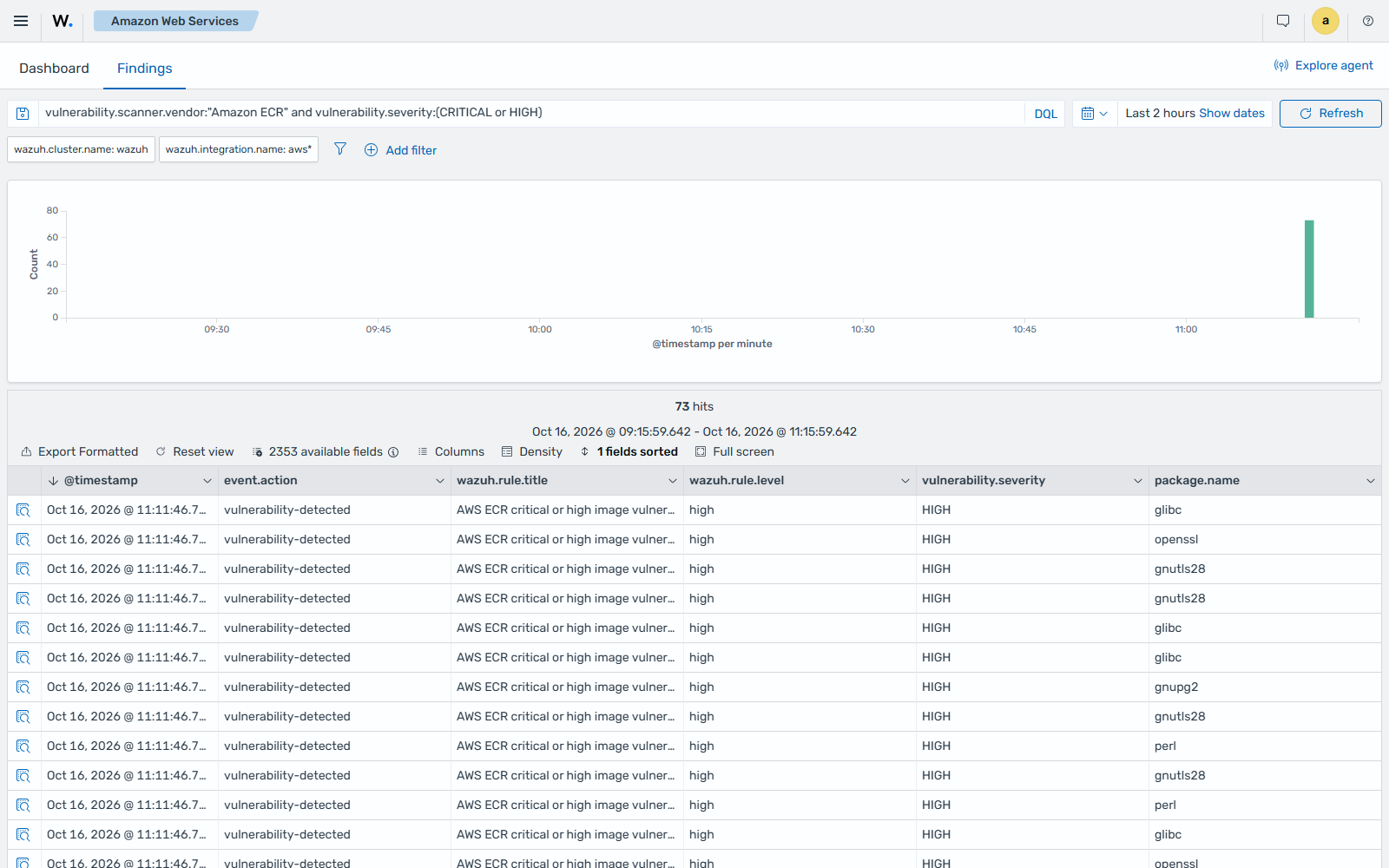
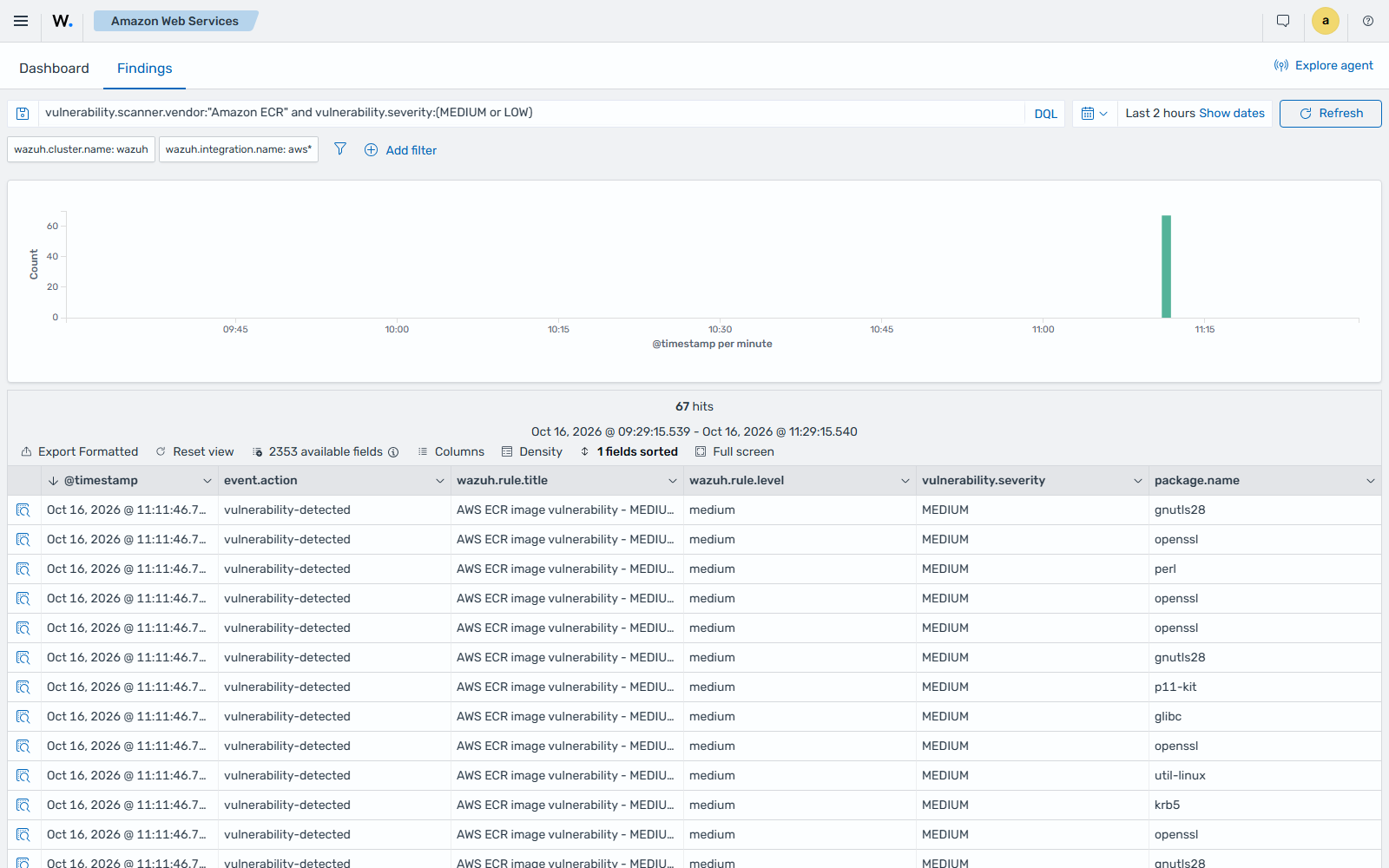
When Amazon ECR completes a basic scan, the Lambda function writes each finding to the log group as a separate event. The Wazuh dashboard shows one finding per vulnerability:
AWS ECR critical or high image vulnerability, for each critical or high vulnerability
AWS ECR image vulnerability, for each medium or low vulnerability
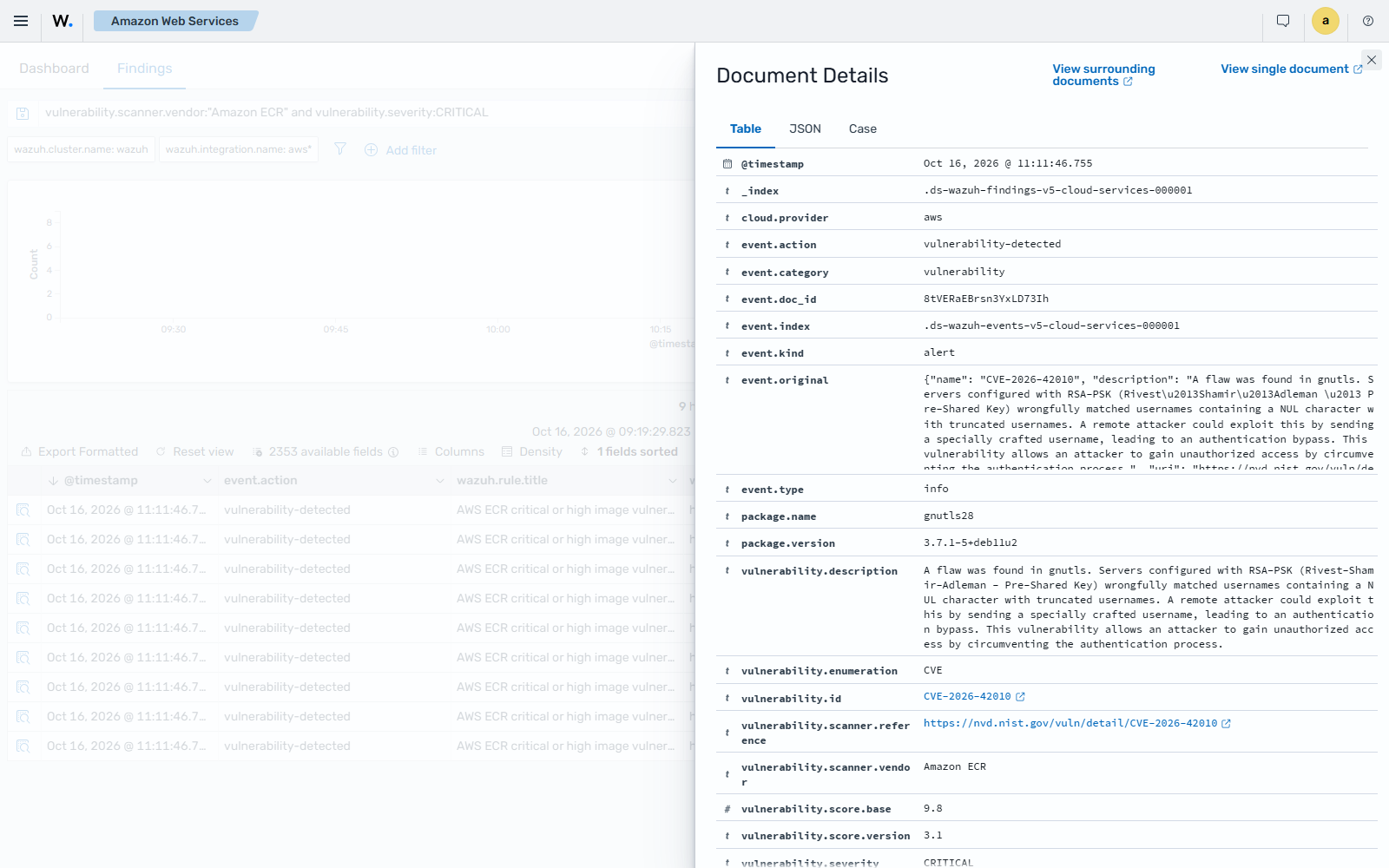
The scan summary doesn't raise a finding. To see only Amazon ECR findings, go to Amazon Web Services > Findings and filter by vulnerability.scanner.vendor:"Amazon ECR". To see only the critical and high findings, use vulnerability.scanner.vendor:"Amazon ECR" and vulnerability.severity:(CRITICAL or HIGH):
To see only the medium and low findings, use vulnerability.scanner.vendor:"Amazon ECR" and vulnerability.severity:(MEDIUM or LOW):
Expand a finding to see its details:
Vulnerability ID, linked to its page in Wazuh CTI (
vulnerability.id)Severity (
vulnerability.severity)CVSS base score and version (
vulnerability.score.baseandvulnerability.score.version)Affected package and version (
package.nameandpackage.version)Vulnerability description (
vulnerability.description)Reference link (
vulnerability.scanner.reference)Scanner (
vulnerability.scanner.vendor)