Threat detection ruleset
The threat detection ruleset includes the integrations and rules that turn the events Wazuh collects into malware findings. Standard integrations work out of the box, and custom integrations let you add your own decoders, KVDBs, and rules.
The threat detection ruleset is divided into:
Standard integrations
Standard integrations are part of the Wazuh standard ruleset and work out of the box. They include decoders and rules for common log sources and detect malware in two ways:
Antivirus log collection: Wazuh analyzes the detections and actions of antivirus solutions, such as ClamAV and Microsoft Defender.
Malware behavior detection: Detection rules identify malware activity, such as persistence and reverse shells, in monitored endpoint events. Some of these rules need System Monitor (Sysmon) events.
Antivirus log collection
Wazuh collects and analyzes logs from antivirus solutions running on monitored endpoints. This gives security teams visibility into the malware these solutions detect and the actions they take.
ClamAV
Wazuh detects malicious files through log ingestion from ClamAV, a free and open source antimalware engine for detecting various types of malware, including viruses and Trojans.
ClamAV is designed for endpoint security, web scanning, and email scanning, and has the following features:
It offers real-time protection for Linux endpoints.
It automatically updates the malware database.
It supports all standard mail file formats by default.
It supports several archive formats, such as ZIP and RAR.
It supports common document files like MS Office and Mac Office files, HTML, RTF, and PDF.
It includes an advanced database updater that can use scripted updates or digital signatures.
It uses a command-line scanner.
It has built-in support for ELF executables and Portable Executable files packed with UPX, FSG, Petite, NsPack, wwpack32, MEW, Upack, and obfuscated with SUE and others.
Perform the following steps on an Ubuntu 25.10 endpoint.
Configuration
Install ClamAV:
$ sudo apt update
$ sudo apt install -y clamav clamav-daemon clamav-freshclam
Verify that the signature databases were downloaded to
/var/lib/clamav.$ ls -l /var/lib/clamav
The command output looks similar to this:
total 110136
-rw-r--r-- 1 clamav clamav   281702 Jul 11 16:04 bytecode.cvd
-rw-r--r-- 1 clamav clamav 23414576 Jul 11 16:00 daily.cvd
-rw-r--r-- 1 clamav clamav       90 Jul 11 15:59 freshclam.dat
-rw-r--r-- 1 clamav clamav 89072577 Jul 11 16:04 main.cvd
Configure ClamAV logging in
/etc/clamav/clamd.confto log detections to a dedicated file, without timestamps. On Ubuntu, the clamav-daemon service also writes every detection to the system journal, which the Wazuh agent reads by default. Without timestamps, each journal entry contains only the file path and the signature, which the ClamAV decoder parses:LogSyslog false LogFile /var/log/clamav/clamav.log LogTime false LogRotate true ExtendedDetectionInfo true
Restart the ClamAV services:
$ sudo systemctl restart clamav-freshclam
$ sudo systemctl restart clamav-daemon
Verify that both services are active:
$ sudo systemctl status clamav-freshclam
$ sudo systemctl status clamav-daemon
Validate that ClamAV writes detections to its log file.
$ sudo tail -f /var/log/clamav/clamav.log
The Wazuh agent collects the ClamAV detections from the system journal, because the clamav-daemon service writes them to the journal. The default
/var/ossec/etc/ossec.conffile of the Wazuh agent on Linux includes the following block. If yours doesn't, add it. You don't need to collect/var/log/clamav/clamav.log:<localfile> <log_format>journald</log_format> <location>journald</location> </localfile>
If you added the block, restart the Wazuh agent.
$ sudo systemctl restart wazuh-agent
On the Wazuh dashboard, go to Ruleset management → Overview, select the Standard space, and open the
clamavintegration. Click Actions → Enable. The ClamAV integration is disabled by default, and Wazuh doesn't decode the ClamAV logs until you enable it.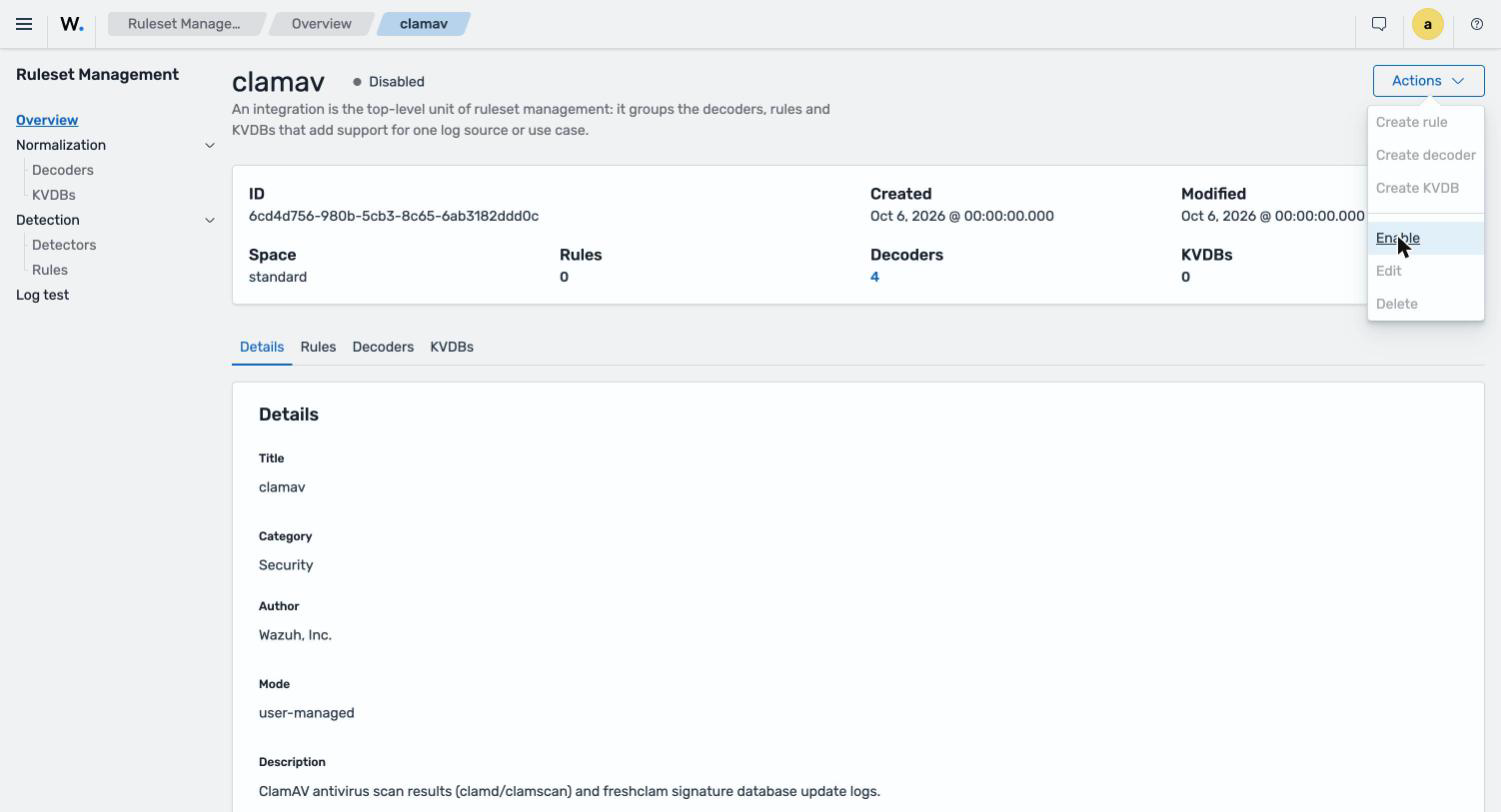
Test the configuration
Download the EICAR and WildFire ELF test files to the
/home/ubuntu/Downloadsdirectory of the Ubuntu endpoint:$ cd /home/ubuntu/Downloads $ curl -LO "https://secure.eicar.org/eicar.com" $ curl -O "http://wildfire.paloaltonetworks.com/publicapi/test/elf"
Scan the directory. The
--fdpassoption passes file descriptors to the ClamAV daemon to avoid permission errors:$ sudo clamdscan --fdpass /home/ubuntu/Downloads
Visualize the findings
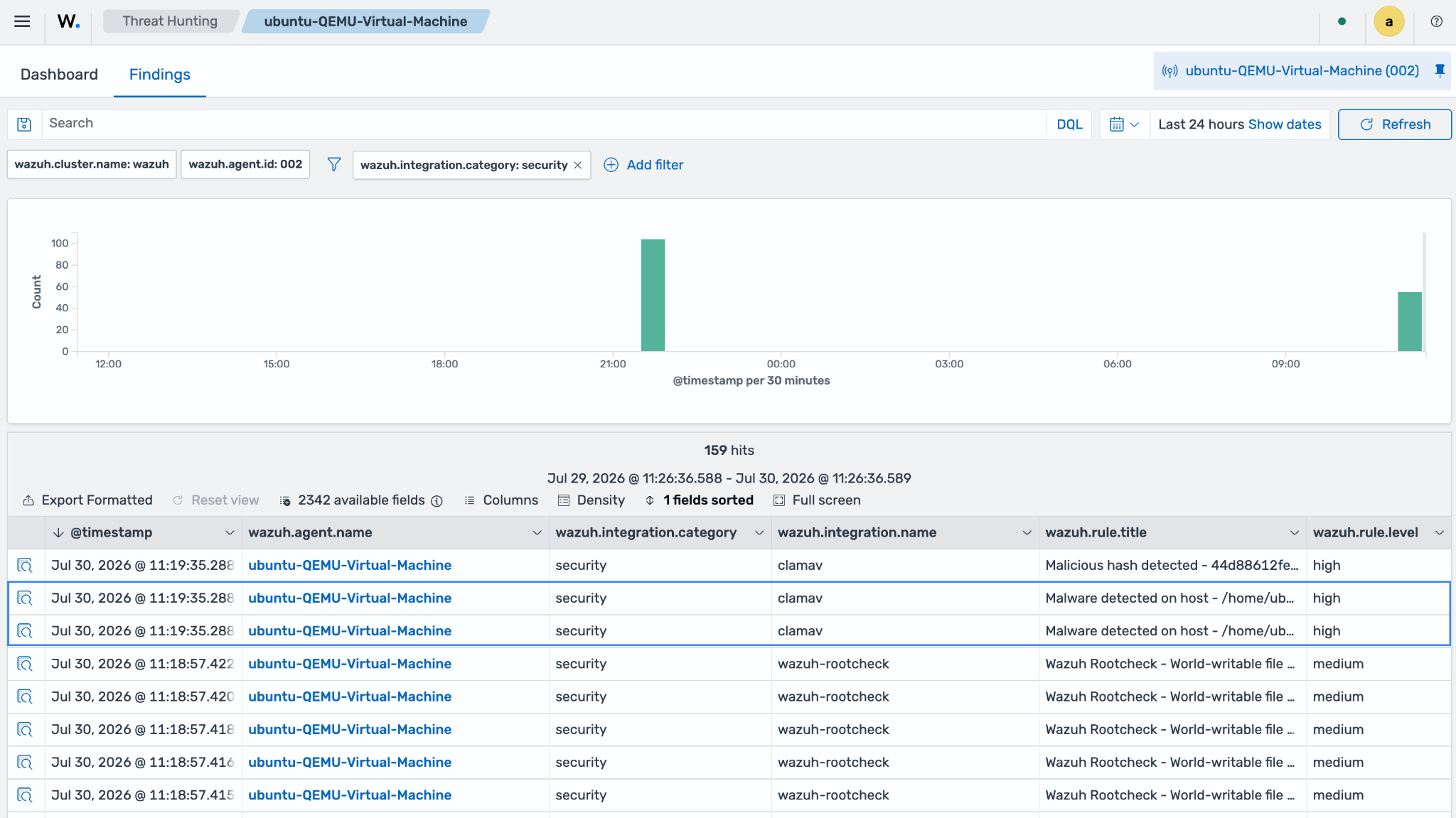
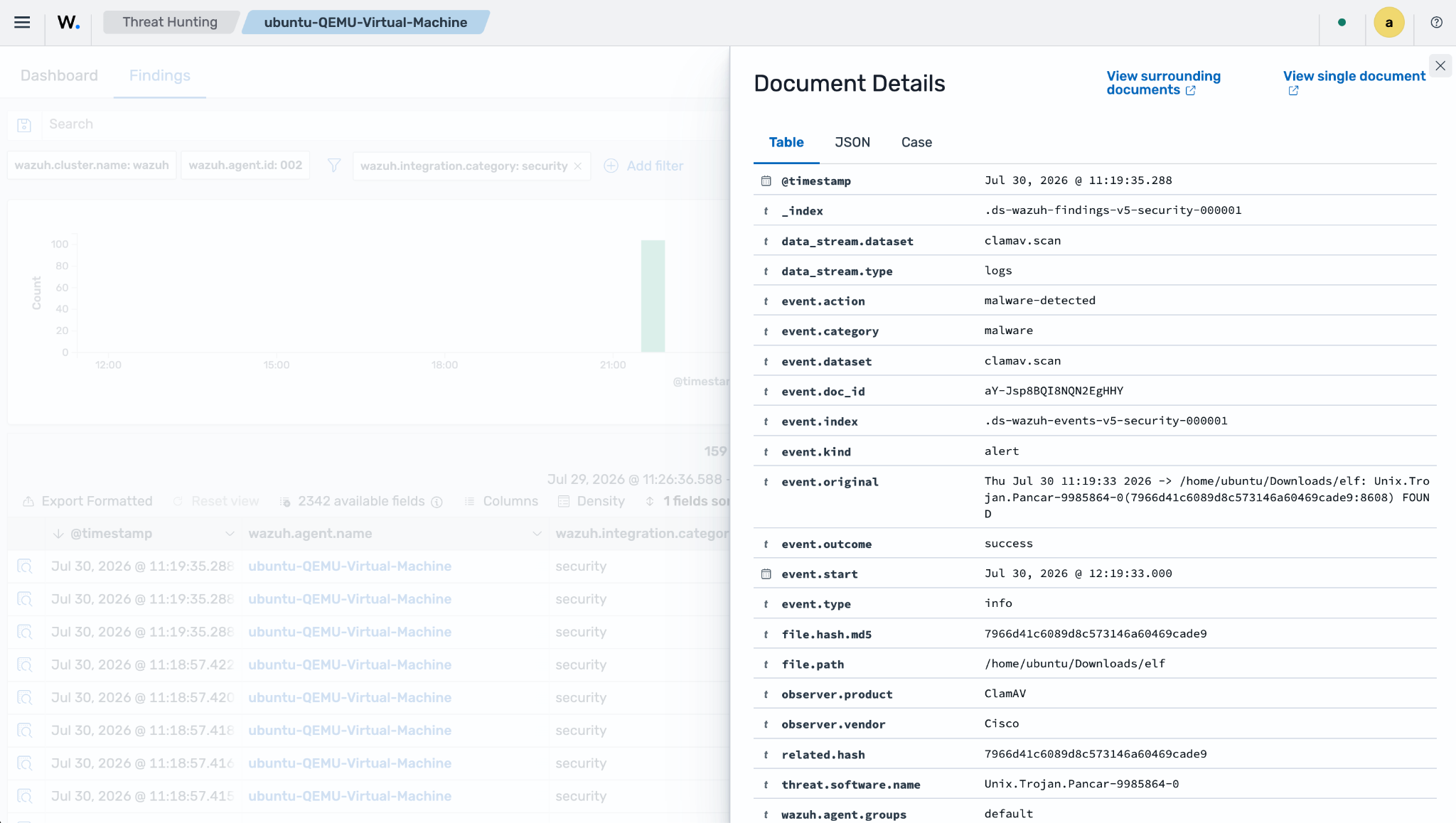
You can visualize the ClamAV findings using the Threat Hunting dashboard:
Navigate to Threat intelligence → Threat Hunting:
Select the Findings tab and add the following filter:
wazuh.integration.name: clamav
Microsoft Defender
Microsoft Defender is the anti-malware component of the Microsoft Windows operating system. You can configure Wazuh agents installed on Windows endpoints to collect Microsoft Defender logs. This provides visibility into malware infections that Microsoft Defender detects on Windows endpoints. These logs can also provide information about:
The status of the Microsoft Defender service.
Results of Microsoft Defender scans that the users run on these endpoints.
Configuration
To collect Microsoft Defender logs, you must configure the Wazuh agent using centralized configuration, or locally using the agent C:\Program Files (x86)\ossec-agent\ossec.conf file. Centralized configuration lets you share instructions with a group of agents.
Add the following block to the configuration file to enable Microsoft Defender log collection:
<localfile>
  <location>Microsoft-Windows-Windows Defender/Operational</location>
  <log_format>eventchannel</log_format>
</localfile>
If you edited the local configuration file, restart the Wazuh agent using PowerShell with administrator privileges to apply the changes:
> Restart-Service -Name WazuhSvc
Detection rules
Wazuh has out-of-the-box decoders for Microsoft Windows logs, including Microsoft Defender. Therefore, you don't need to create any decoders for these logs.
Visualize the findings
Below are examples of Microsoft Defender findings. User and malware activity trigger these kinds of findings on monitored endpoints.
Finding created when Microsoft Defender detects malware (event ID 1116):
event.code: 1116. The standard ruleMalware file detected - {{file.path}}generates a high-severity finding.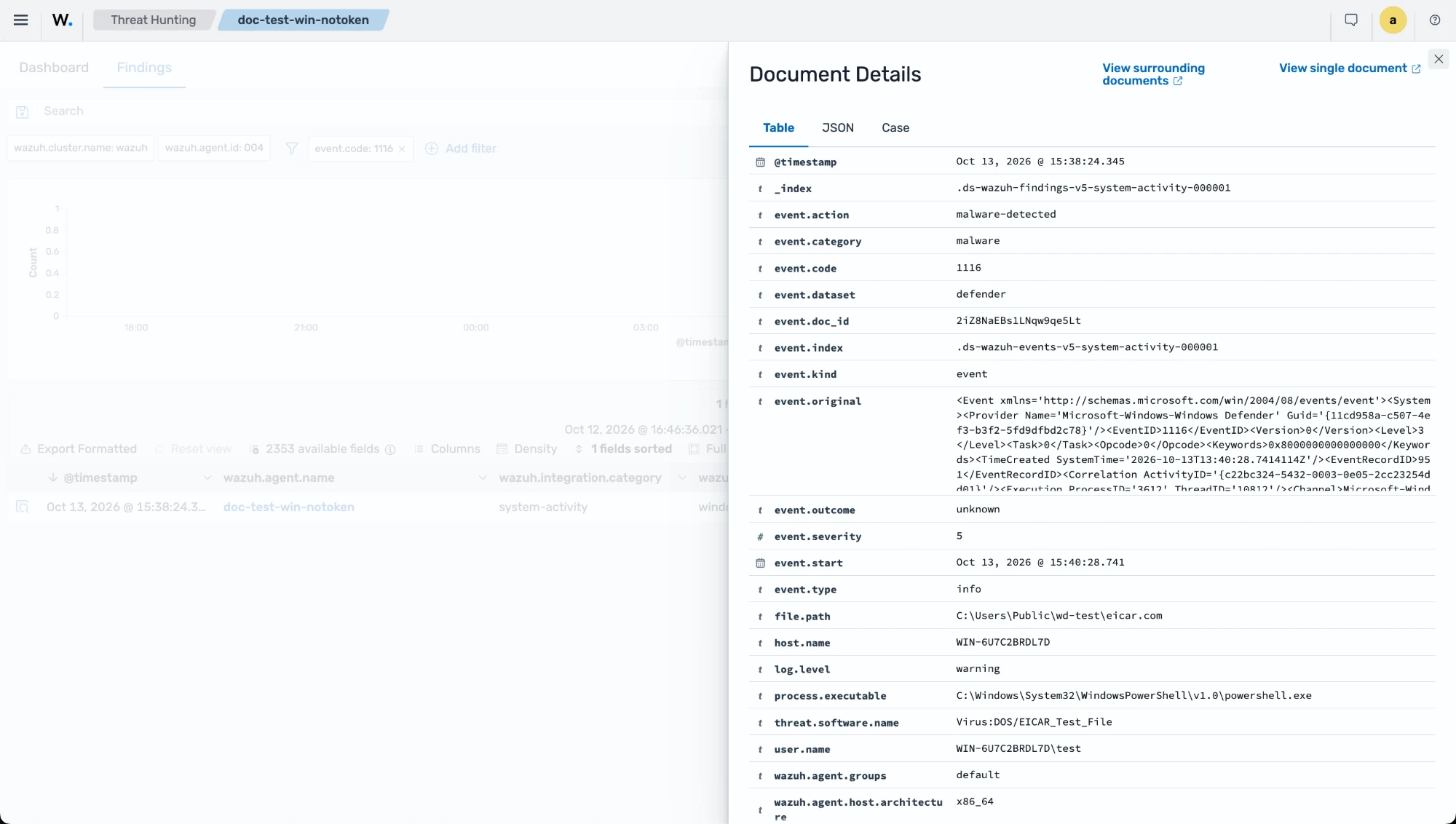
Finding created when Microsoft Defender responds to detected malware (event ID 1117):
event.action: malware-quarantined. When Microsoft Defender quarantines, removes, or blocks the file, the same rule generates a second finding with the action Microsoft Defender took.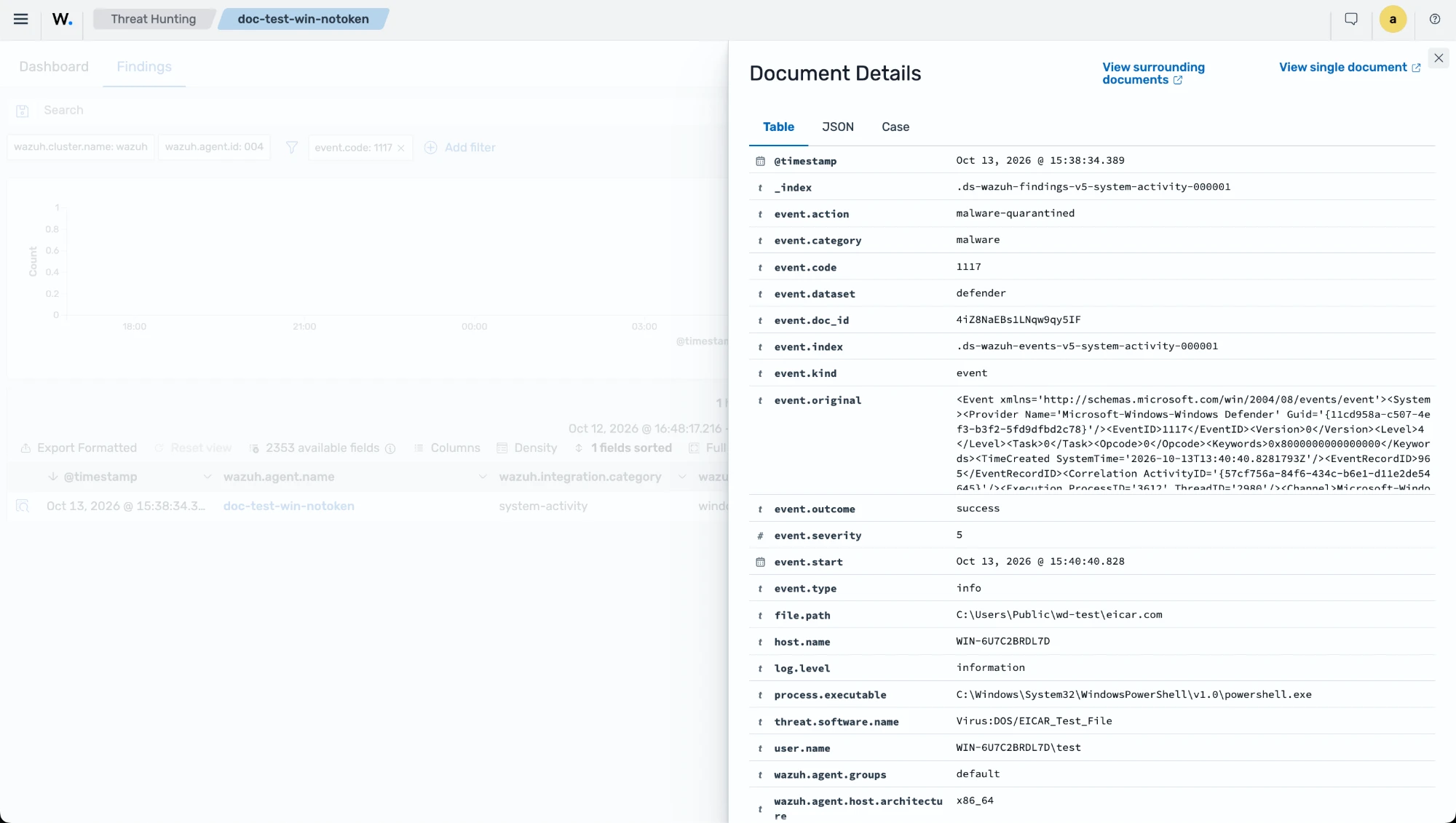
Finding created when Microsoft Defender real-time protection is disabled (event ID 5001):
wazuh.rule.title:Windows Defender real-time protection disabled - <HOST_NAME>
Malware behavior detection
Malware often uses legitimate system tools to run and persist on an endpoint, for example, a hidden PowerShell process that downloads its next stage, a registry Run key, or a cron job. These actions don't involve a known malicious file, so file hashes and IOCs alone don't detect them. The following standard detectors run rules that detect these behaviors:
windowsandwindows-rules: Rules for Windows endpoints, such as PowerShell launched with an encoded command or download cradle, Registry Run key persistence set, Scheduled task created via schtasks or PowerShell, Remote thread injection detected, LSASS memory credential dumping, and Volume shadow copy deletion.linux: Rules for Linux endpoints, such as Linux reverse shell execution, Linux cron/at persistence created, SSH authorized_keys modified, and Linux kernel module loaded via insmod/modprobe.
Most of these rules match process, registry, and file creation events from Sysmon, which a default Wazuh agent doesn't generate. To use them, install Sysmon on Windows endpoints and Sysmon for Linux on Linux endpoints. The Detecting PowerShell malware activity on Windows endpoints and Detecting reverse shells and persistence on Linux endpoints use cases show how to set up Sysmon and test the rules.
Custom integrations
Advancements in computing have made it easy to create novel malware variants. These variants exhibit new behavioral patterns and Indicators of Compromise (IOCs), requiring nuanced detection rules. You can create a custom integration that includes decoders, KVDBs, and rules on your Wazuh instance to detect malware that the Wazuh CTI IOC list does not cover, for example, hashes from your own incident investigations or threat intelligence feeds.
A custom integration groups the following components, which you create in Ruleset management on the Wazuh dashboard:
Decoders: Parse and normalize the events that the integration handles.
KVDBs: Store your own indicators, such as file hashes or domains, that decoders look up during normalization.
Rules: Generate findings when normalized events match the conditions you define.
Detectors: Run the integration's rules against the selected indices at a set interval.
The use cases below include two custom integrations: a hash blocklist that uses a KVDB, and a detection rule for changes to critical files. You can learn more about decoders, KVDBs, rules, and detectors in the Data analysis documentation. To stop a standard rule that generates false positives in your environment, replace the detector that runs it, as described in the Detectors documentation.