AWS CloudTrail
AWS CloudTrail is a service that enables auditing of your AWS account. With CloudTrail, you can log, monitor, and retain account activity related to actions across your AWS infrastructure. It records your AWS account activity, such as actions taken through the AWS Management Console, AWS SDKs, command-line tools, and other AWS services.
AWS configuration
The following sections cover how to configure the AWS CloudTrail service to integrate with Wazuh.
AWS CloudTrail configuration
Create a new S3 bucket, or skip this step to use an existing bucket.
On your AWS console, search for
cloudtrailin the search bar or go to Services > Management & Governance > CloudTrail.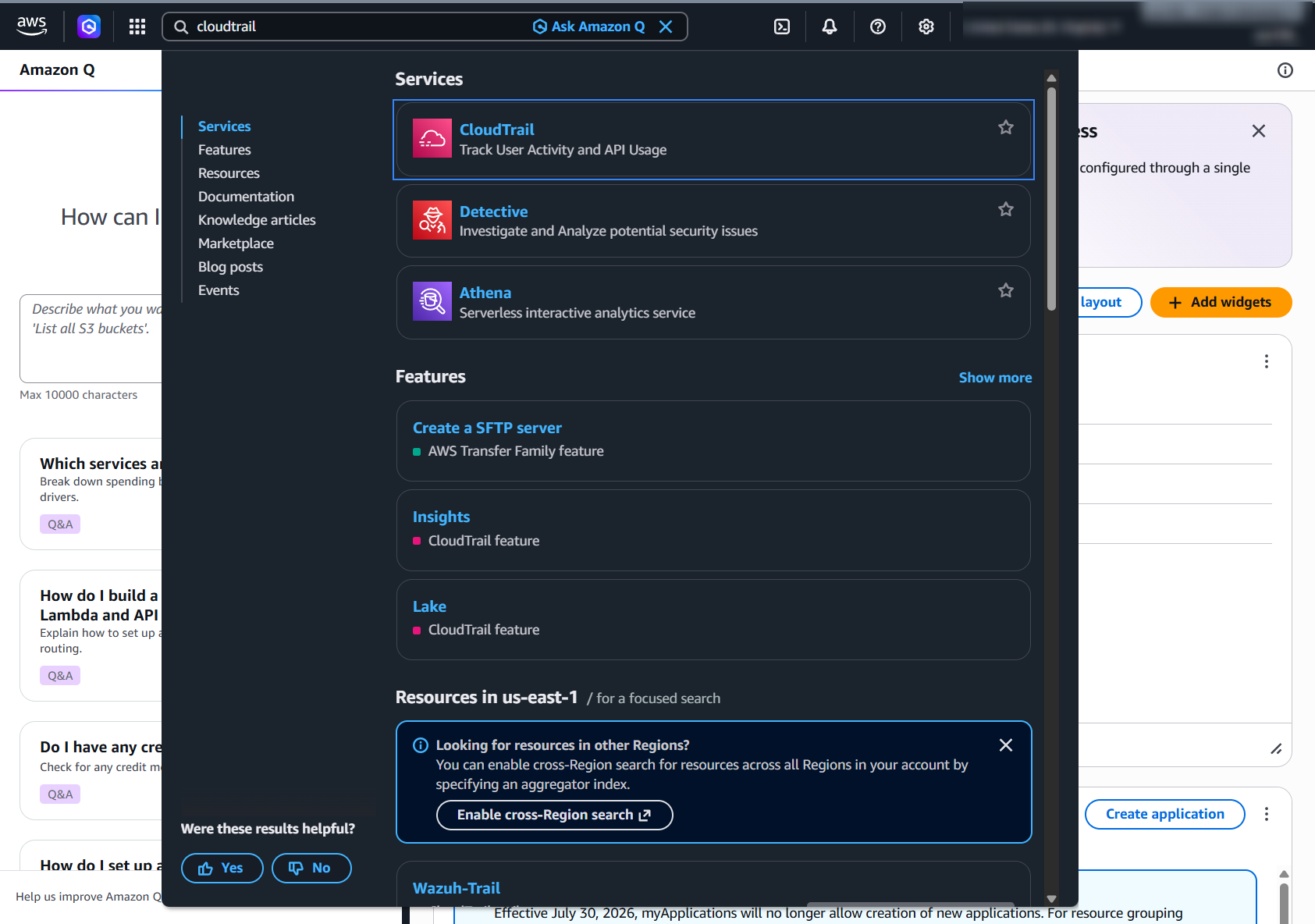
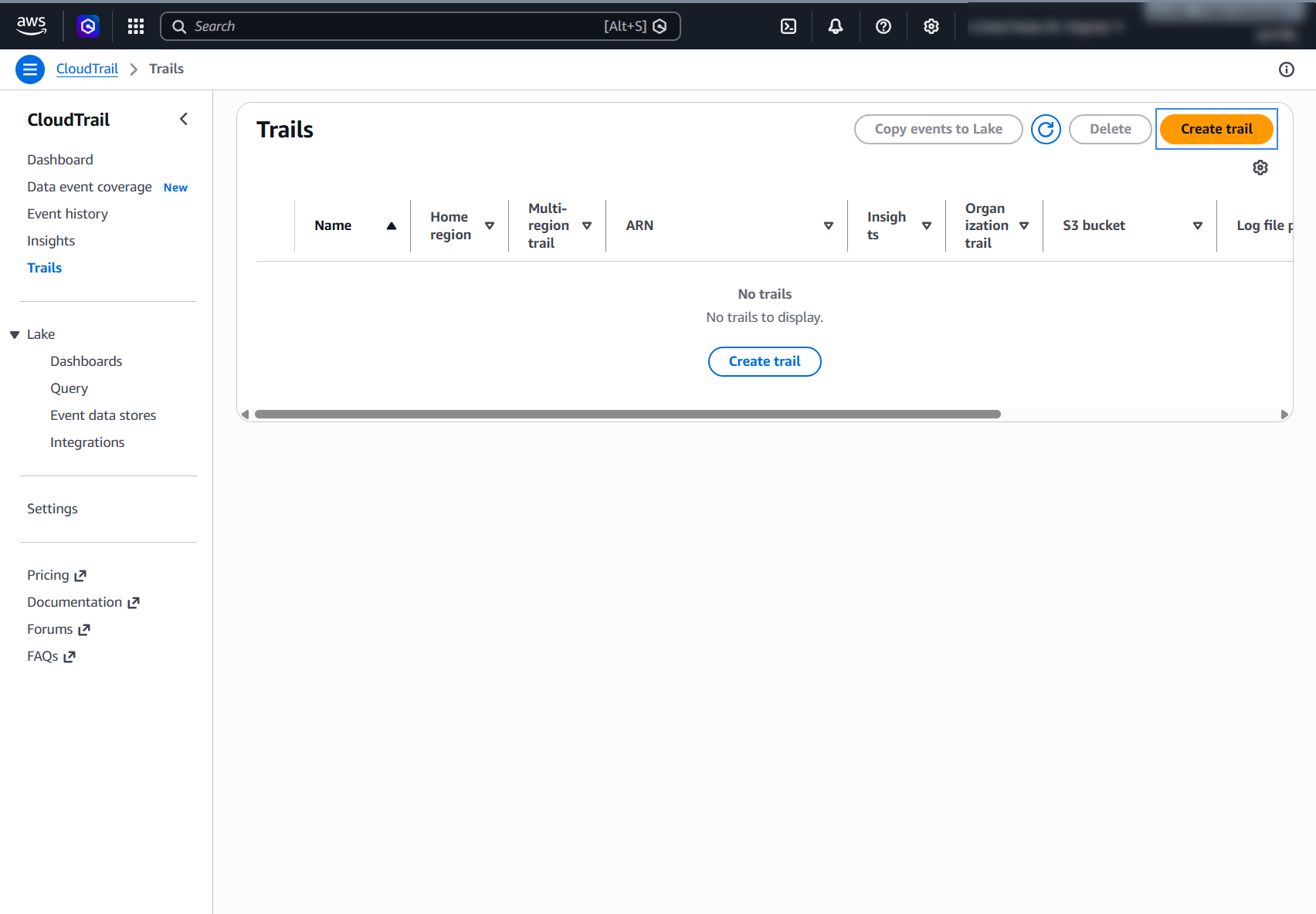
Click Create trail to create a new trail.
Assign a Trail name and choose the S3 bucket that stores the CloudTrail logs. Note the bucket name, because the Wazuh module for AWS configuration needs it. If Log file SSE-KMS encryption is enabled, assign a name for a new AWS KMS alias or choose an existing one. The CloudTrail console enables this encryption by default. If you keep it enabled, keep the
KMSDecryptstatement in the policies of the next section so that Wazuh can decrypt the logs.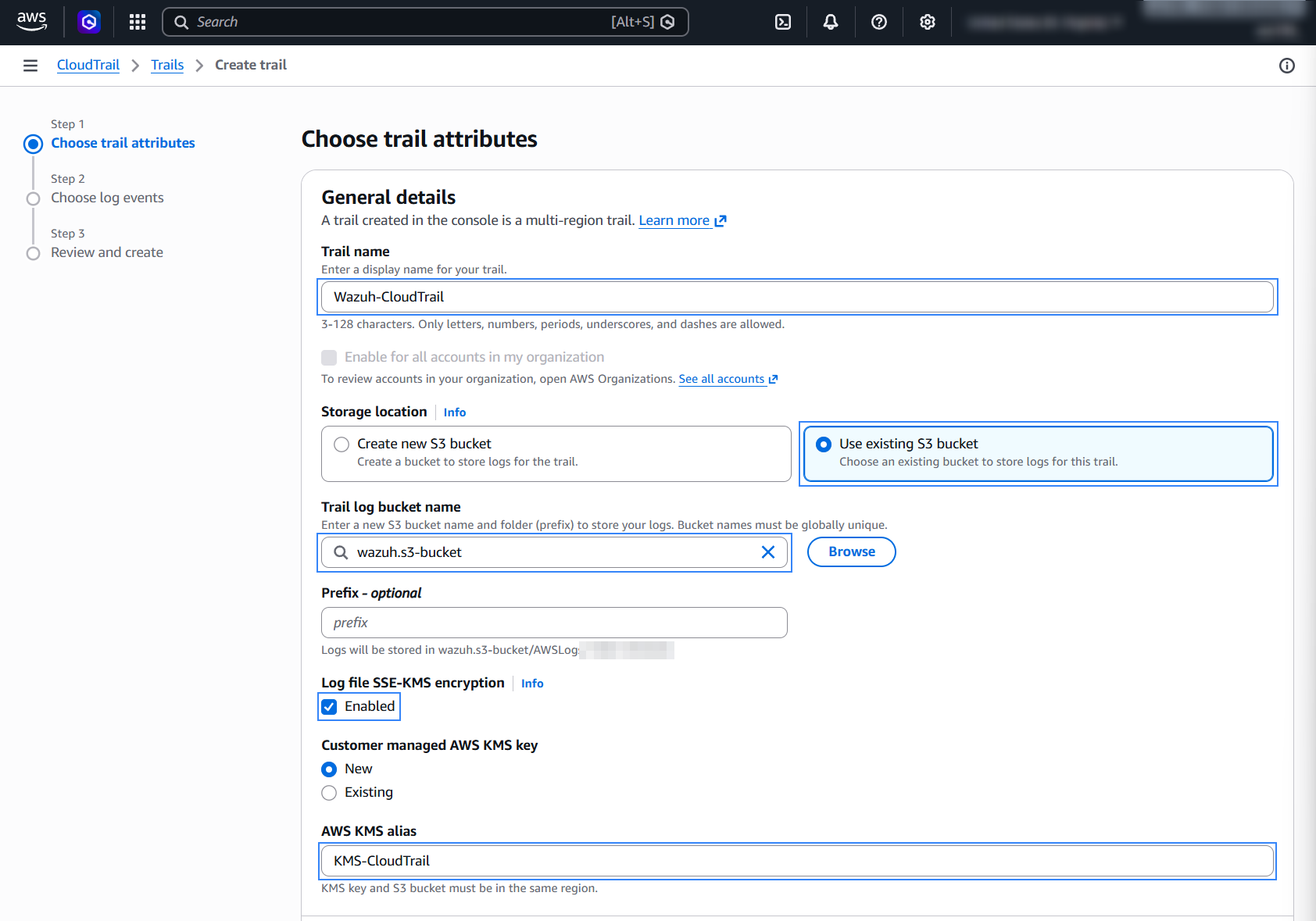
Note
By default, AWS CloudTrail creates this file structure:
<WAZUH_AWS_BUCKET>/<PREFIX>/AWSLogs/<ACCOUNT_ID>/CloudTrail/<REGION>/<YEAR>/<MONTH>/<DAY>
The structure might change depending on the configuration of the services, or changing of the
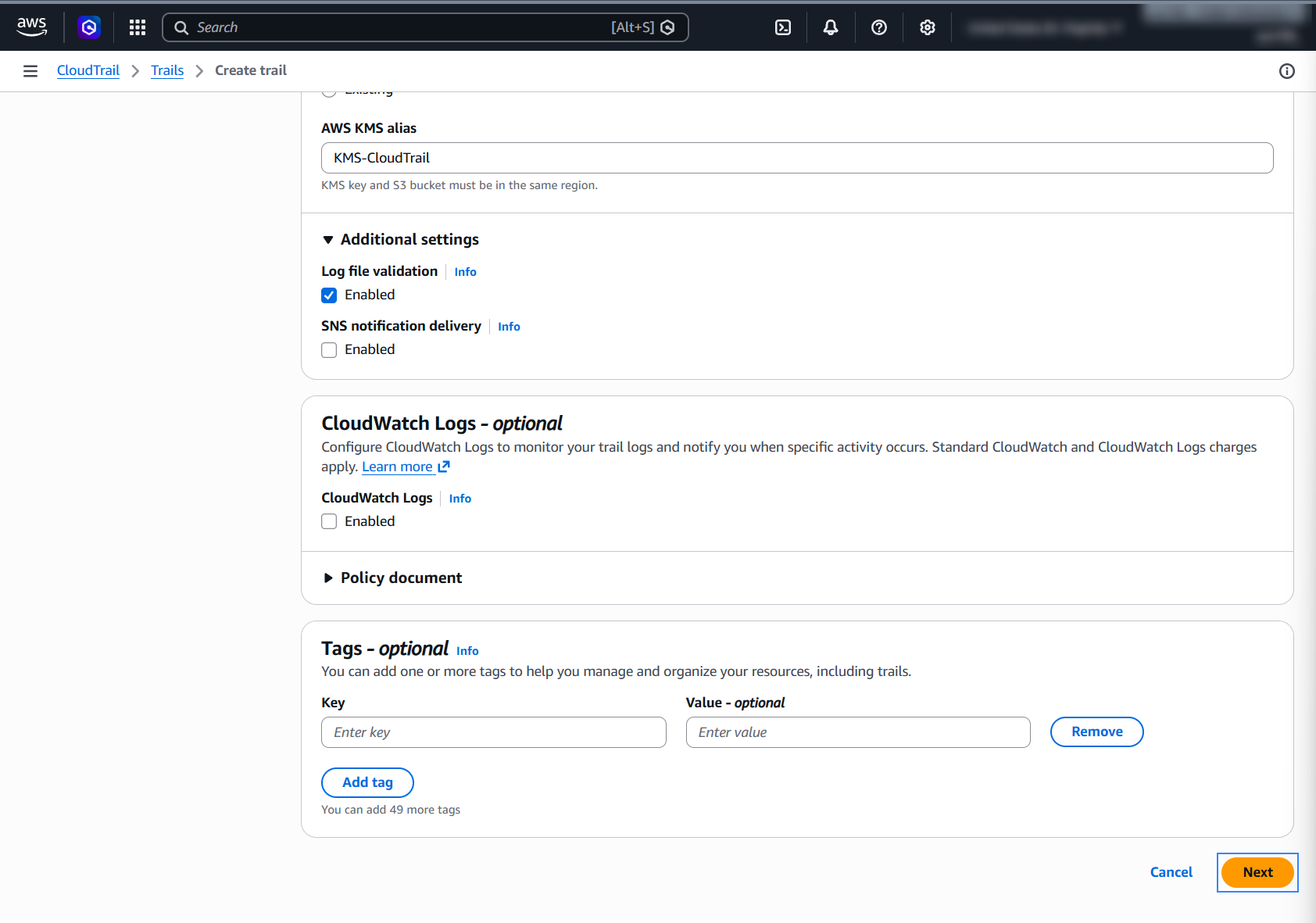
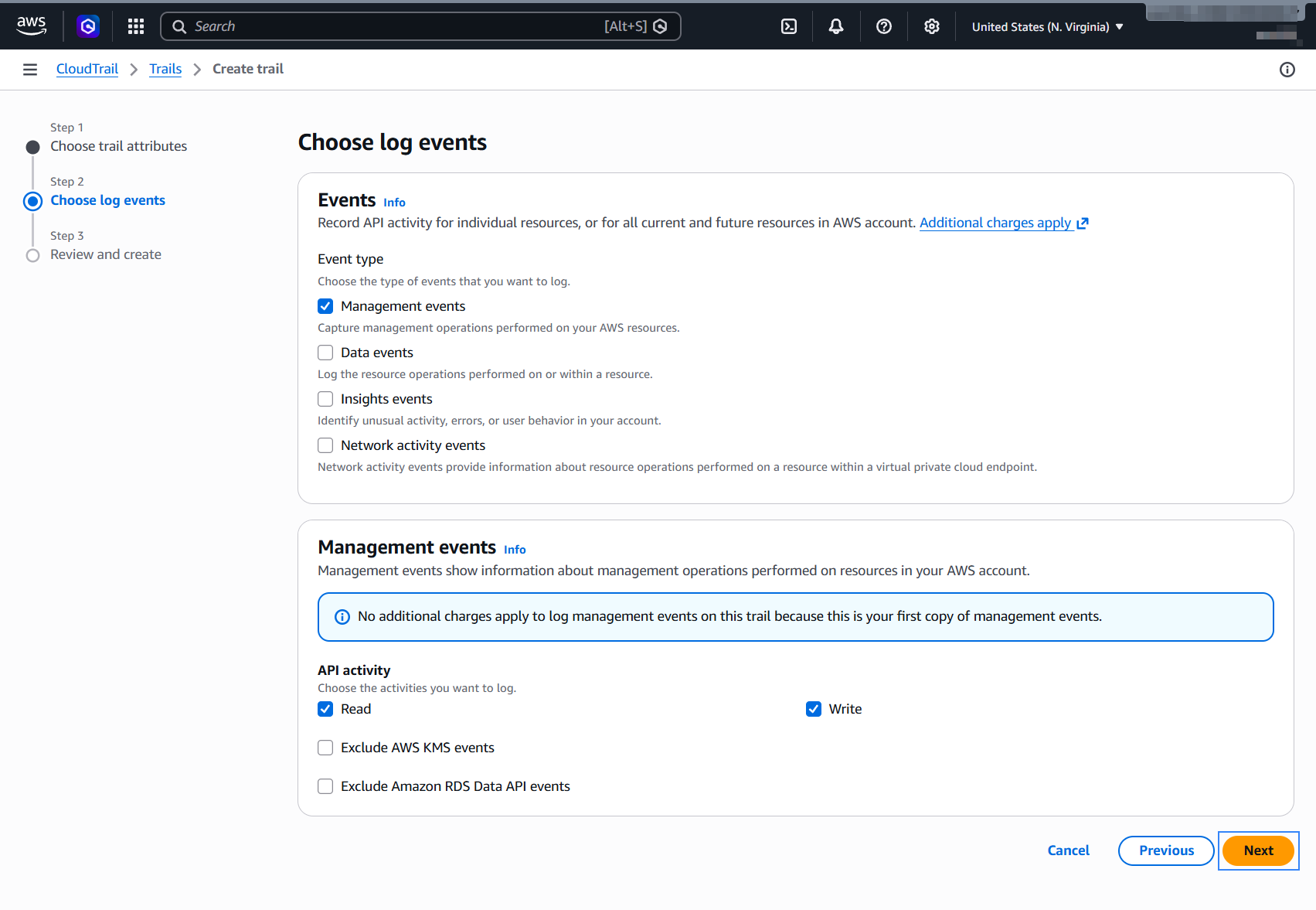
<WAZUH_AWS_BUCKET>and<PREFIX>values.Select the log events to record and click Next.
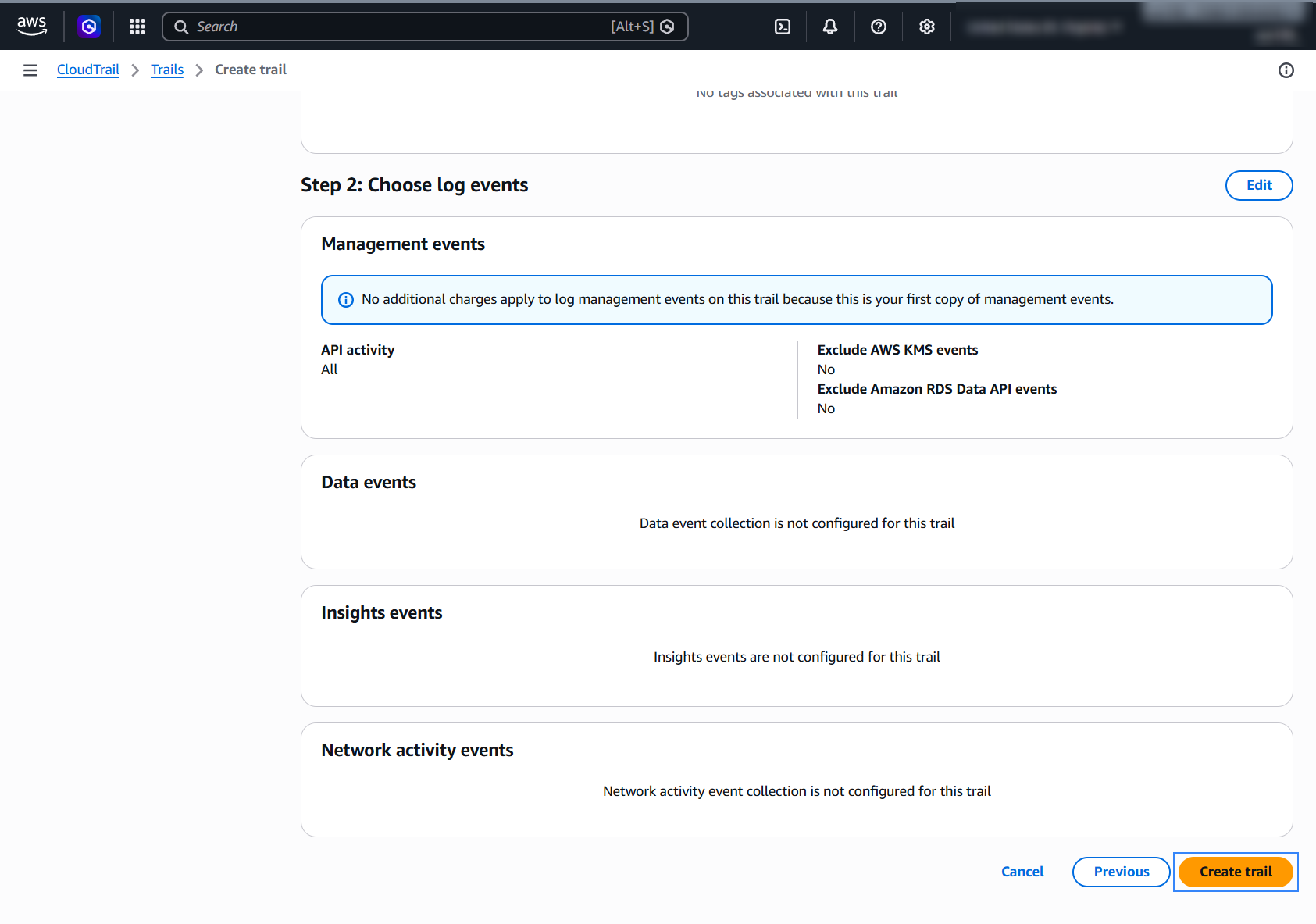
Review the configuration and click Create trail.
Policy configuration
Follow the creating an AWS policy guide to create a policy using the Amazon Web Services console.
The policies below follow the principle of least privilege, so they give the AWS IAM user only the minimum permissions it needs.
To allow an AWS user to use the Wazuh module for AWS with read-only permissions, it must have a policy like the following attached:
{
    "Version": "2012-10-17",
    "Statement": [
        {
            "Sid": "VisualEditor0",
            "Effect": "Allow",
            "Action": [
                "s3:GetObject",
                "s3:ListBucket"
            ],
            "Resource": [
                "arn:aws:s3:::<WAZUH_AWS_BUCKET>/*",
                "arn:aws:s3:::<WAZUH_AWS_BUCKET>"
            ]
        },
        {
            "Sid": "KMSDecrypt",
            "Effect": "Allow",
            "Action": "kms:Decrypt",
            "Resource": "arn:aws:kms:<REGION>:<ACCOUNT_ID>:key/<KEY_ID>"
        }
    ]
}
To delete the log files after Wazuh collects them, use the following policy instead:
{
    "Version": "2012-10-17",
    "Statement": [
        {
            "Sid": "VisualEditor0",
            "Effect": "Allow",
            "Action": [
                "s3:GetObject",
                "s3:ListBucket",
                "s3:DeleteObject"
            ],
            "Resource": [
                "arn:aws:s3:::<WAZUH_AWS_BUCKET>/*",
                "arn:aws:s3:::<WAZUH_AWS_BUCKET>"
            ]
        },
        {
            "Sid": "KMSDecrypt",
            "Effect": "Allow",
            "Action": "kms:Decrypt",
            "Resource": "arn:aws:kms:<REGION>:<ACCOUNT_ID>:key/<KEY_ID>"
        }
    ]
}
Note
<WAZUH_AWS_BUCKET> is a placeholder. Replace it with the actual name of the bucket from which you want to retrieve logs. If your trail encrypts its log files with SSE-KMS, replace <REGION>, <ACCOUNT_ID>, and <KEY_ID> in the KMSDecrypt statement with the Region, account ID, and ID of that KMS key. Otherwise, remove the KMSDecrypt statement.
Wazuh deletes the log files from the bucket only if you set remove_from_bucket to yes in the bucket configuration. This option is off by default and isn't in the sample configuration, so you need the second policy only if you turn it on.
After creating a policy, you can attach it directly to a user or to a group to which the user belongs. In attaching a policy to an IAM user group, you see how to attach a policy to a group. More information on how to use other methods is available in the AWS documentation.
Configure Wazuh to process AWS CloudTrail logs
Make sure that the AWS integrations are enabled on the Wazuh dashboard, as described in Enable AWS integration on the Wazuh dashboard.
Add the following Wazuh module for AWS configuration to the
/var/ossec/etc/ossec.conffile on the Wazuh agent. Replace<WAZUH_AWS_BUCKET>with the name of the S3 bucket. If the file already has a<wodle name="aws-s3">block, add only the<bucket>section to it:<wodle name="aws-s3"> <disabled>no</disabled> <interval>10m</interval> <run_on_start>yes</run_on_start> <skip_on_error>yes</skip_on_error> <bucket type="cloudtrail"> <name><WAZUH_AWS_BUCKET></name> <aws_profile>default</aws_profile> </bucket> </wodle>
Note
This example uses the
aws_profileauthentication parameter. Check the Configure AWS credentials section to learn more about the different authentication options and how to use them.Save the changes and restart the Wazuh agent service to apply the changes.
# systemctl restart wazuh-agent
CloudTrail use cases
The following examples show how Wazuh integrates with CloudTrail to monitor EC2 and IAM events. These use cases show near real-time detection of security incidents and compliance violations in your AWS environment.
EC2
Amazon Elastic Compute Cloud (Amazon EC2) provides scalable computing capacity in the cloud. We recommend that you monitor this service for intrusion attempts or other unauthorized actions performed against your cloud infrastructure.
Below are some use cases for EC2 monitoring.
Create a new instance in EC2
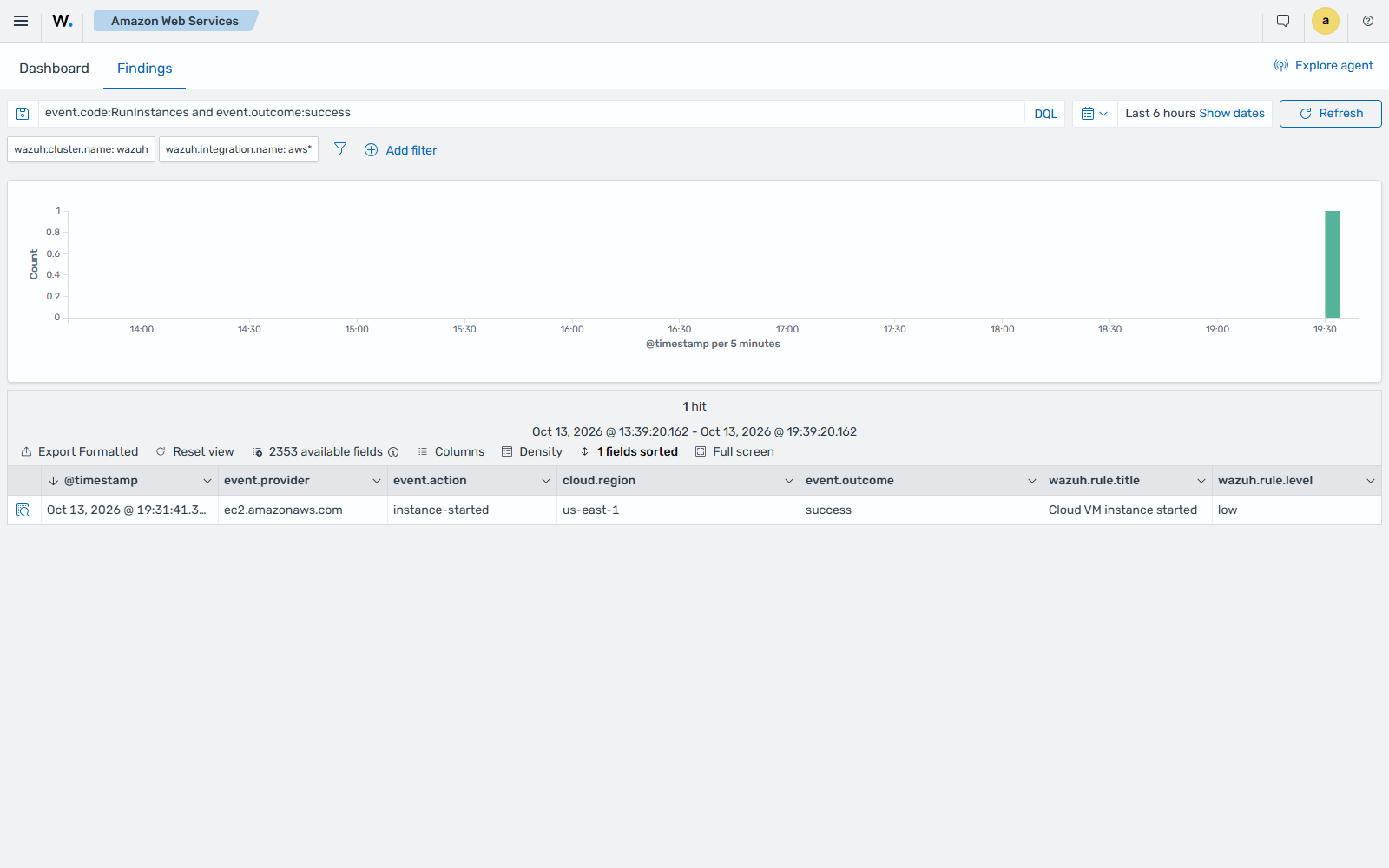
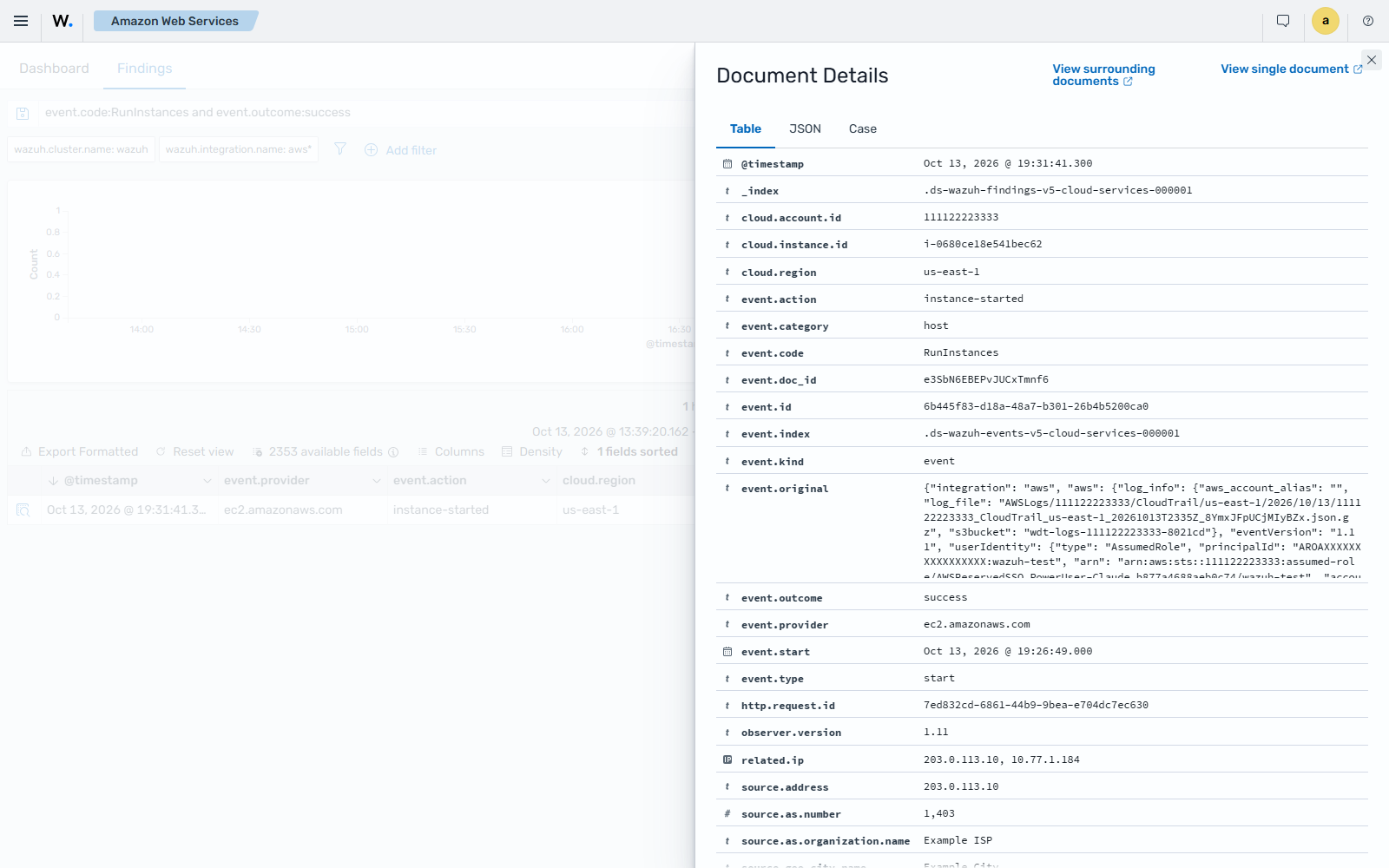
When a user creates a new instance in EC2, CloudTrail generates an event. The Wazuh agent collects the log message and forwards it to the Wazuh manager for analysis. The Cloud VM instance started finding is shown on the Wazuh dashboard. It shows data such as the instance type, the user who created it, and the creation date.
Expand the finding to see its details.
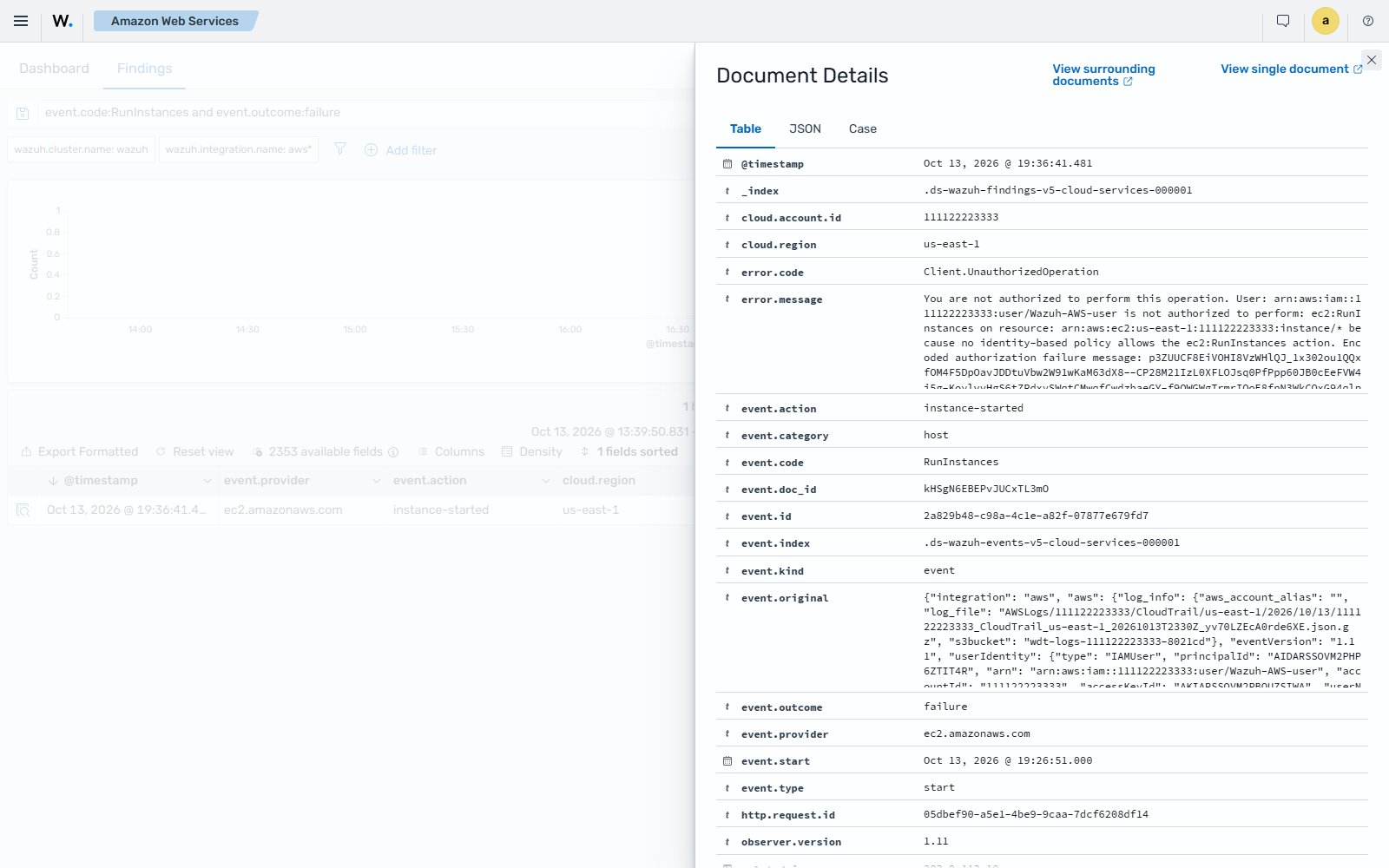
When a user tries to run an instance without the required permissions, the AWS API call denied by IAM finding is shown on the Wazuh dashboard.
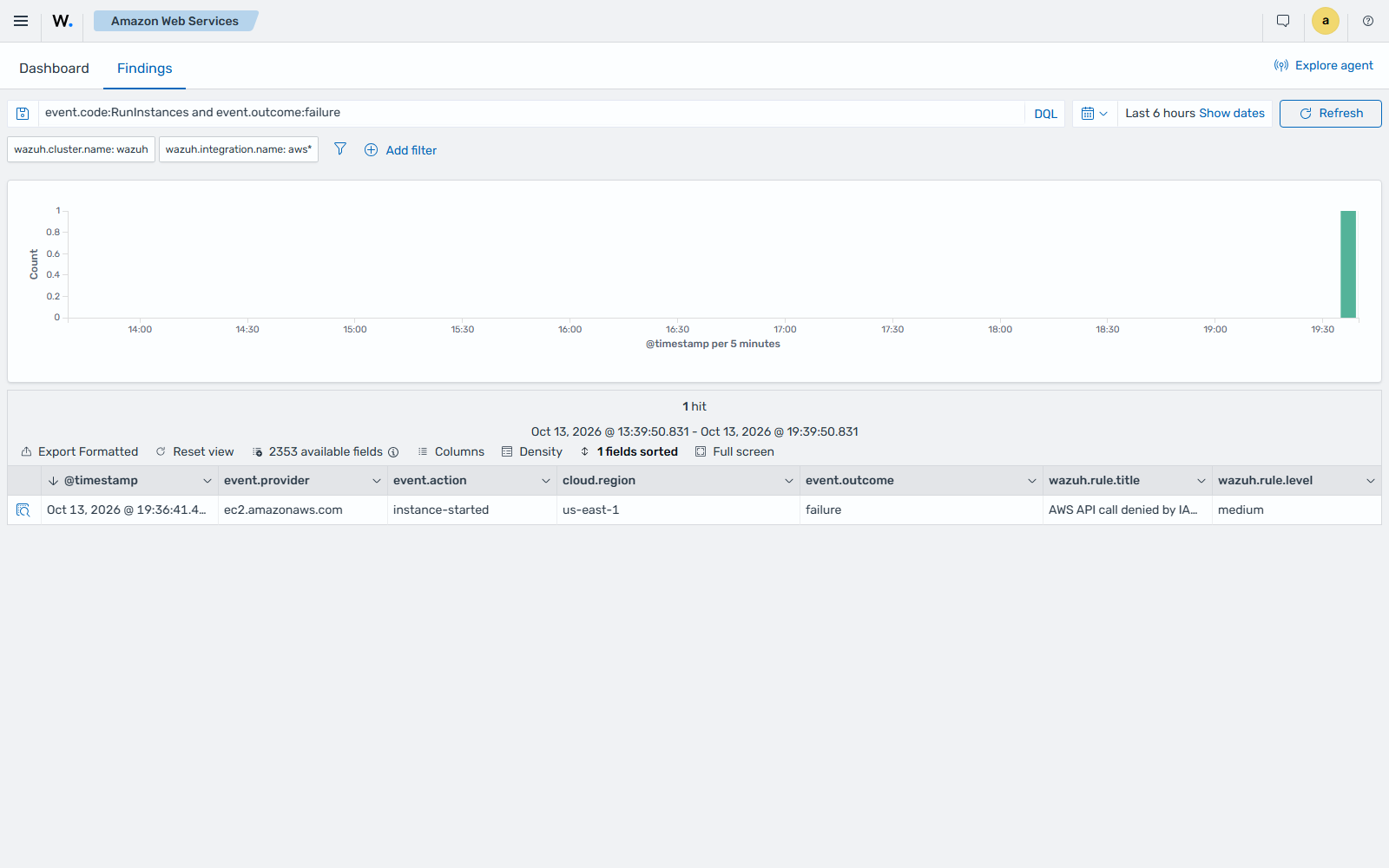
Expand the finding to see its details.
Start instances in EC2
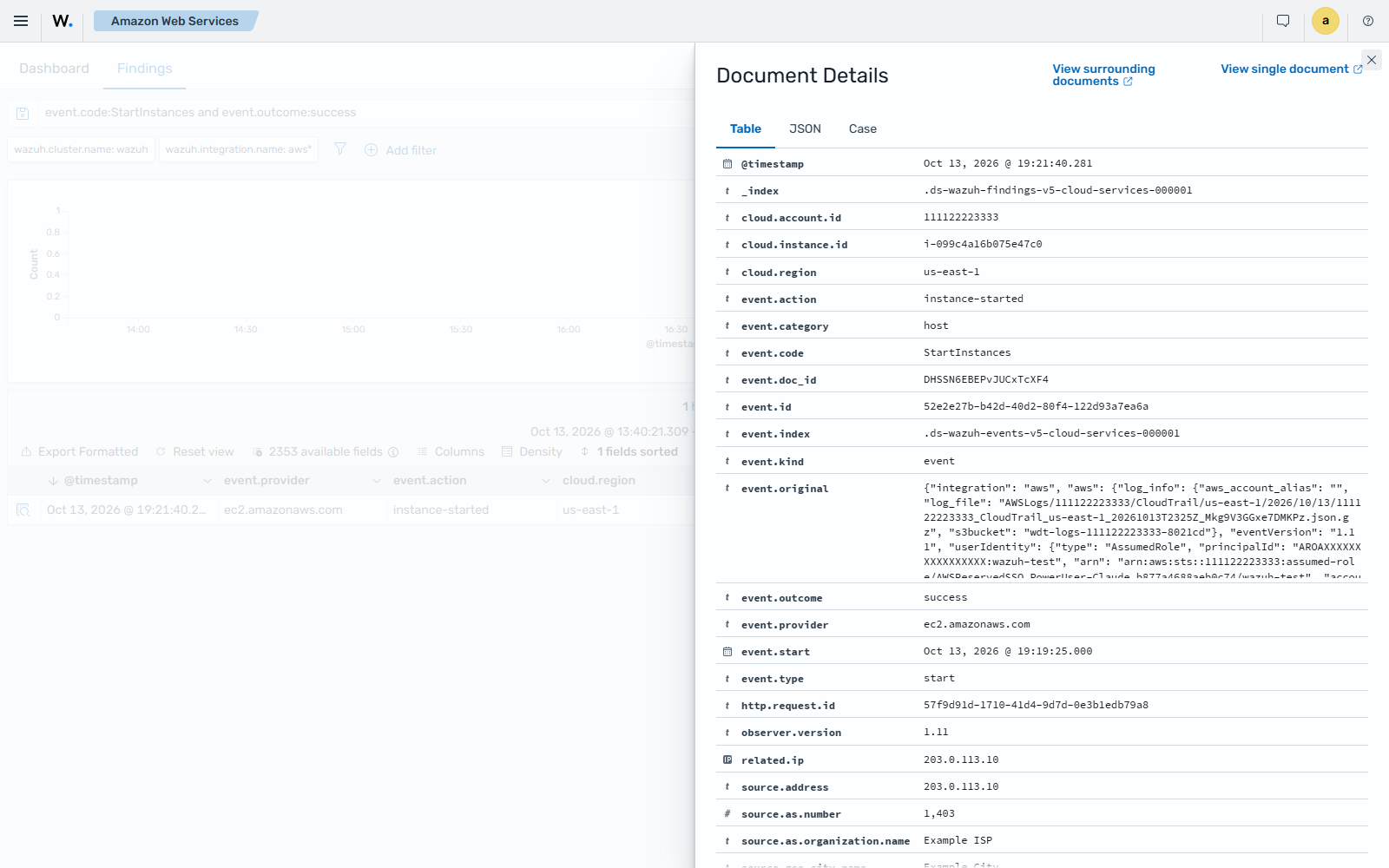
When an EC2 instance is started, the Cloud VM instance started finding is shown on the Wazuh dashboard. It shows information such as the instance ID and the user who started it.
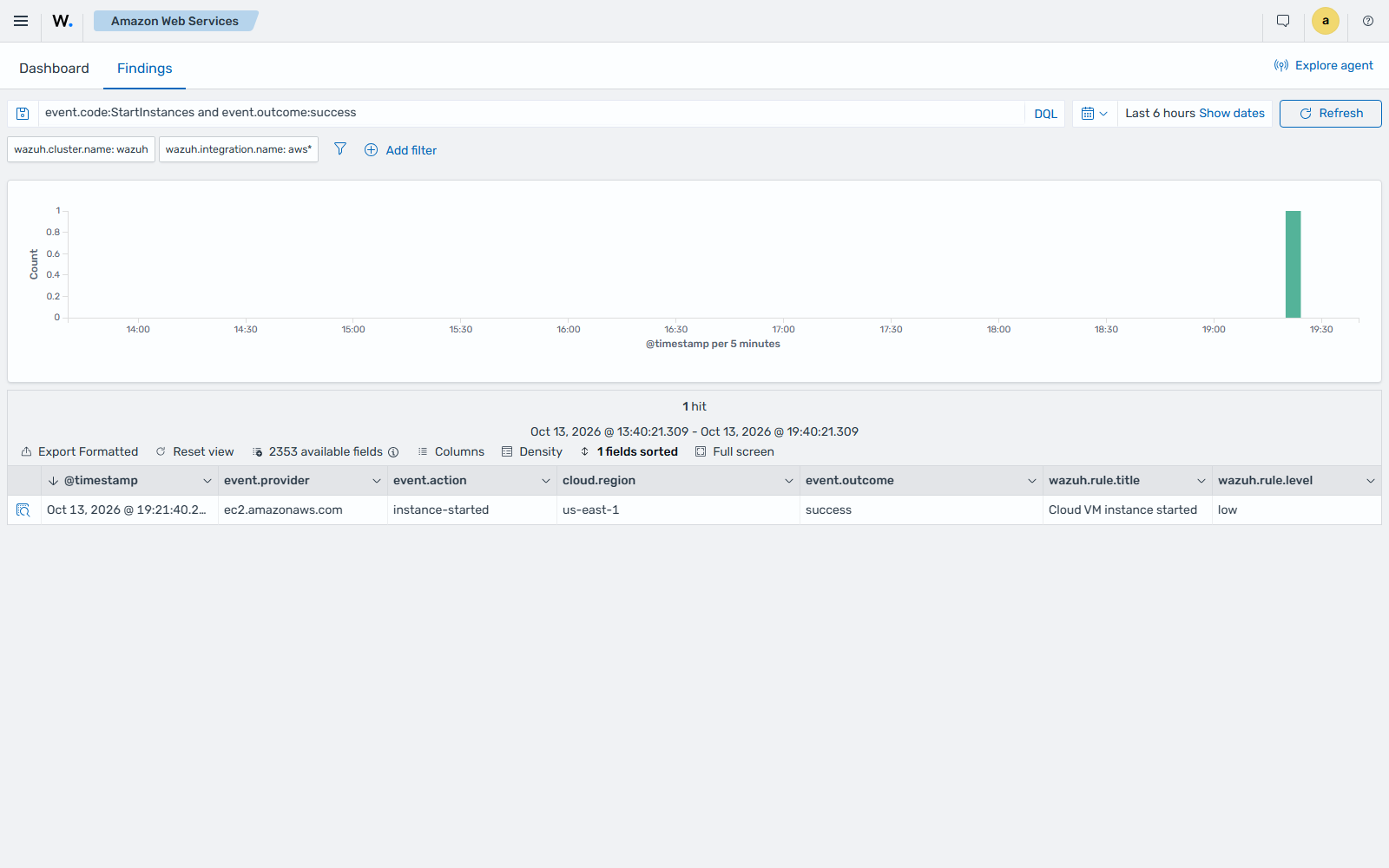
Expand the finding to see its details.
If a user tries to start instances without the required permissions, the AWS API call denied by IAM finding is shown on the Wazuh dashboard.
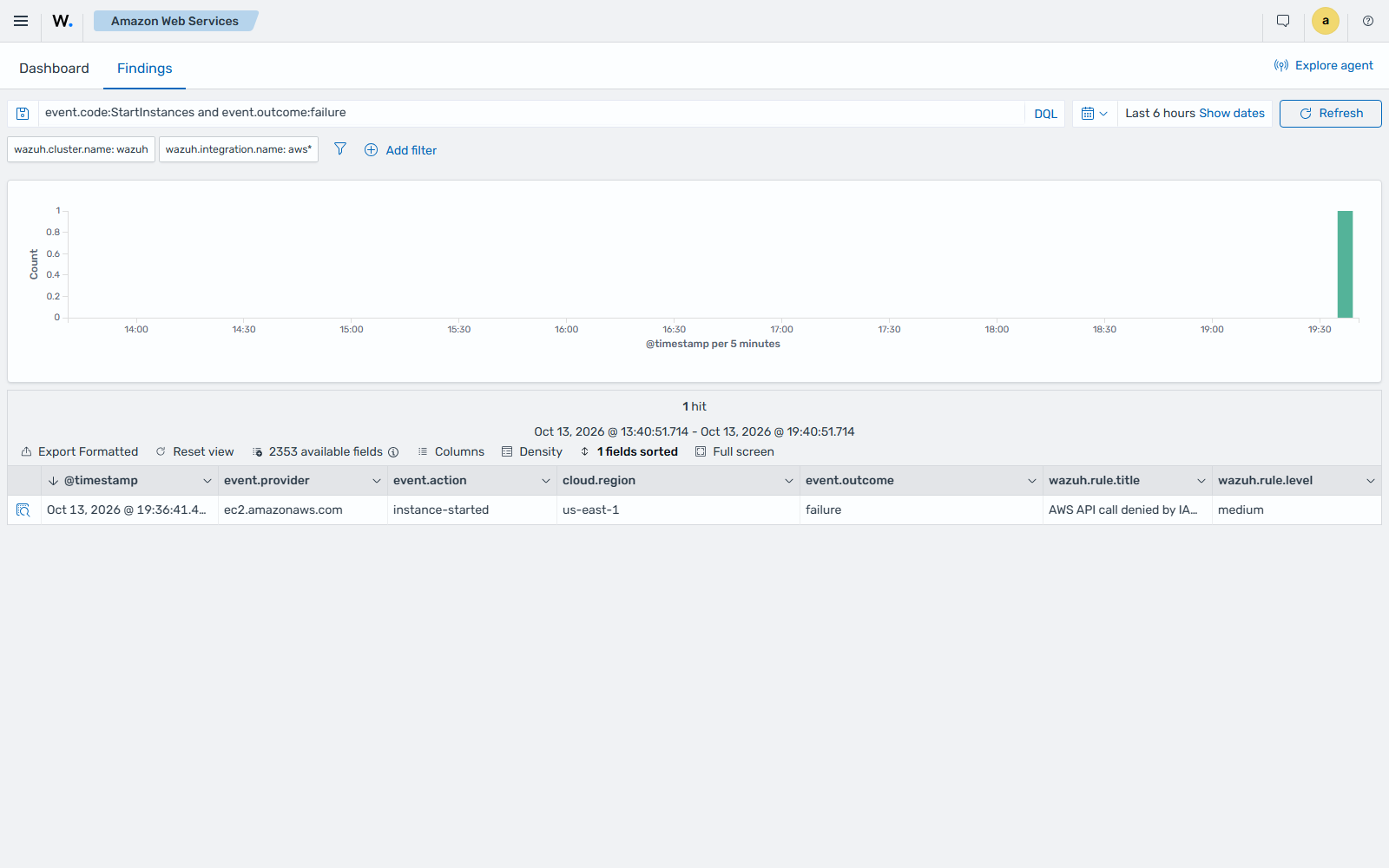
Expand the finding to see its details.
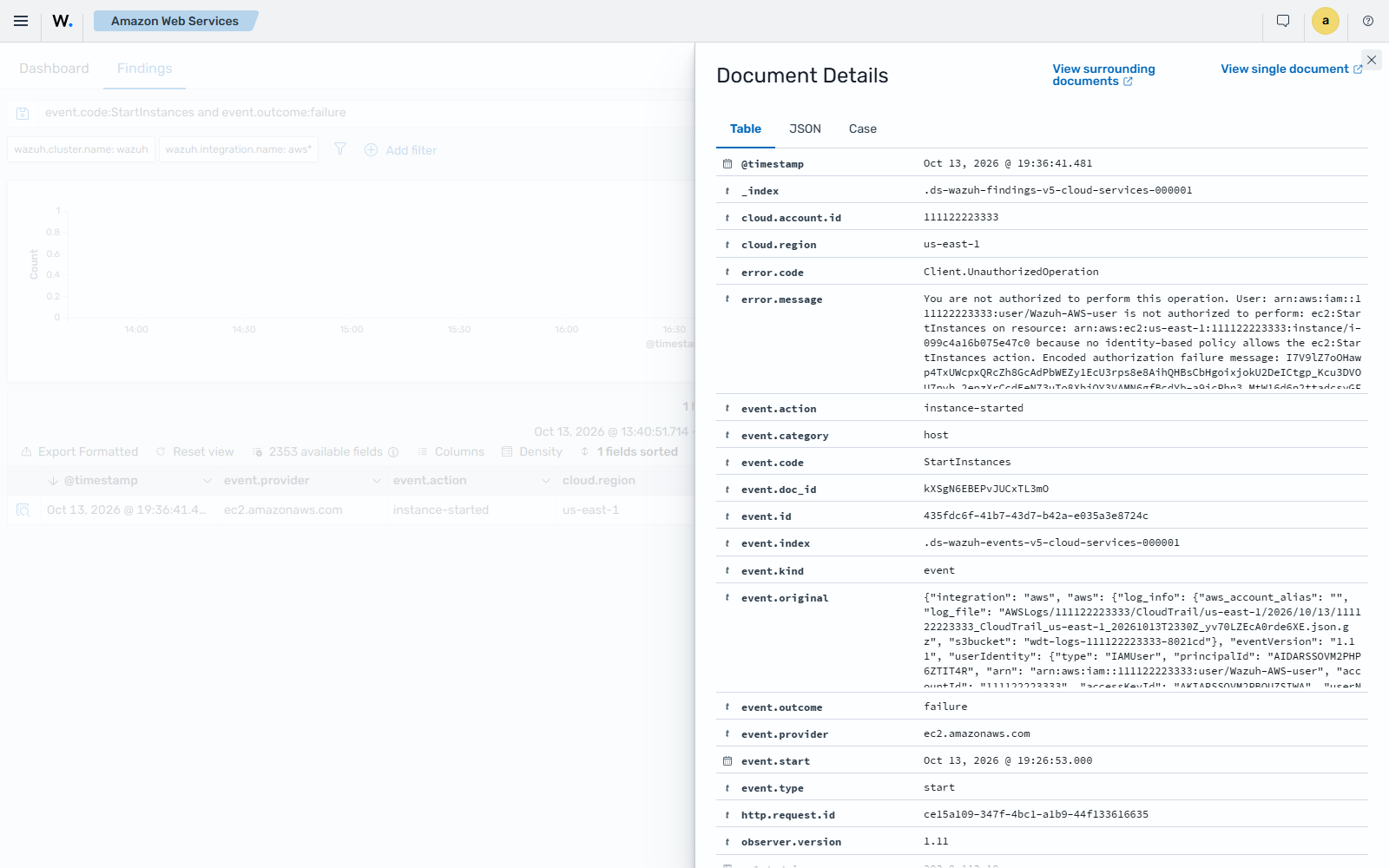
Stop instances in EC2
When an EC2 instance is stopped, the Cloud VM instance stopped finding is shown on the Wazuh dashboard.
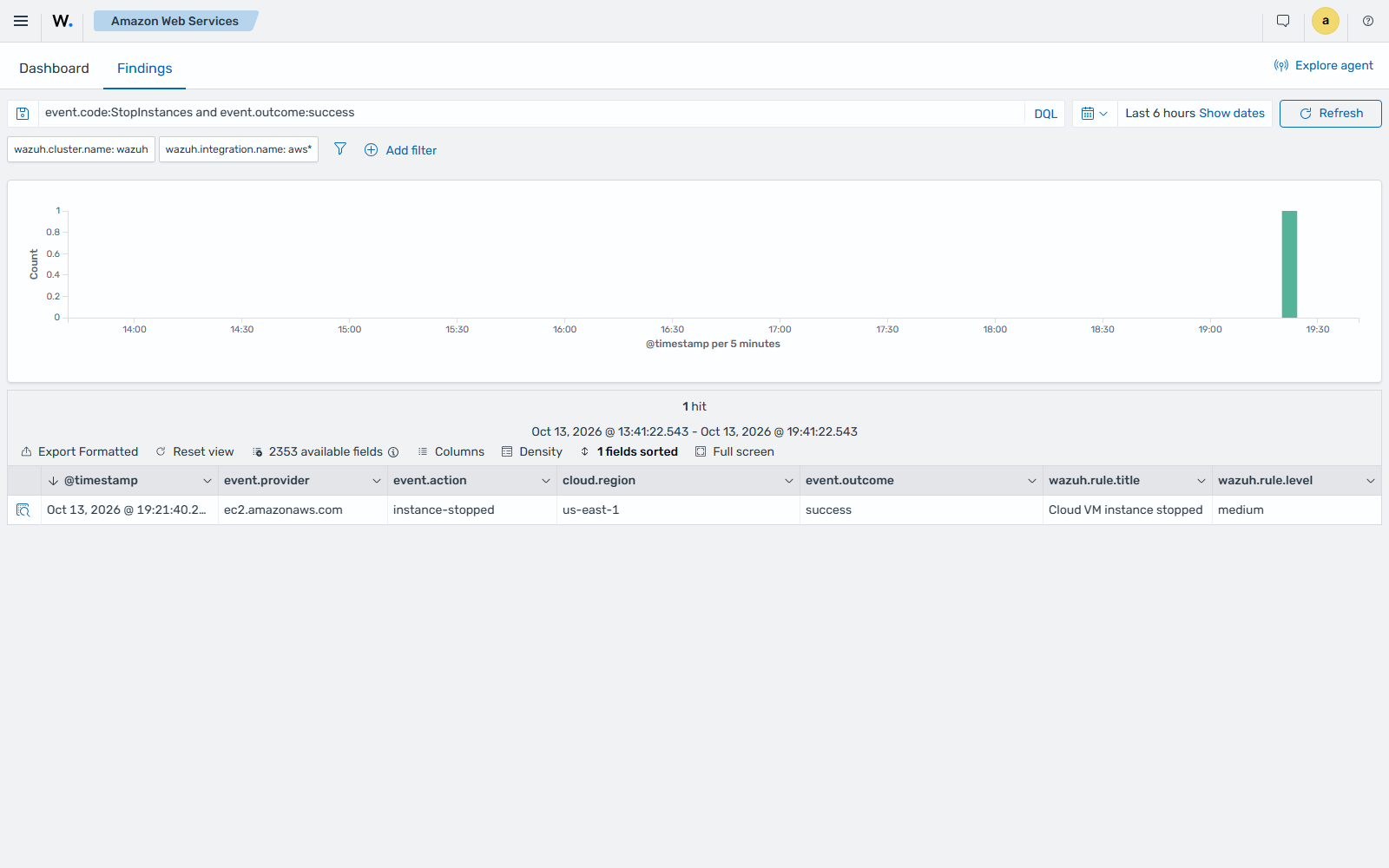
Expand the finding to see its details.
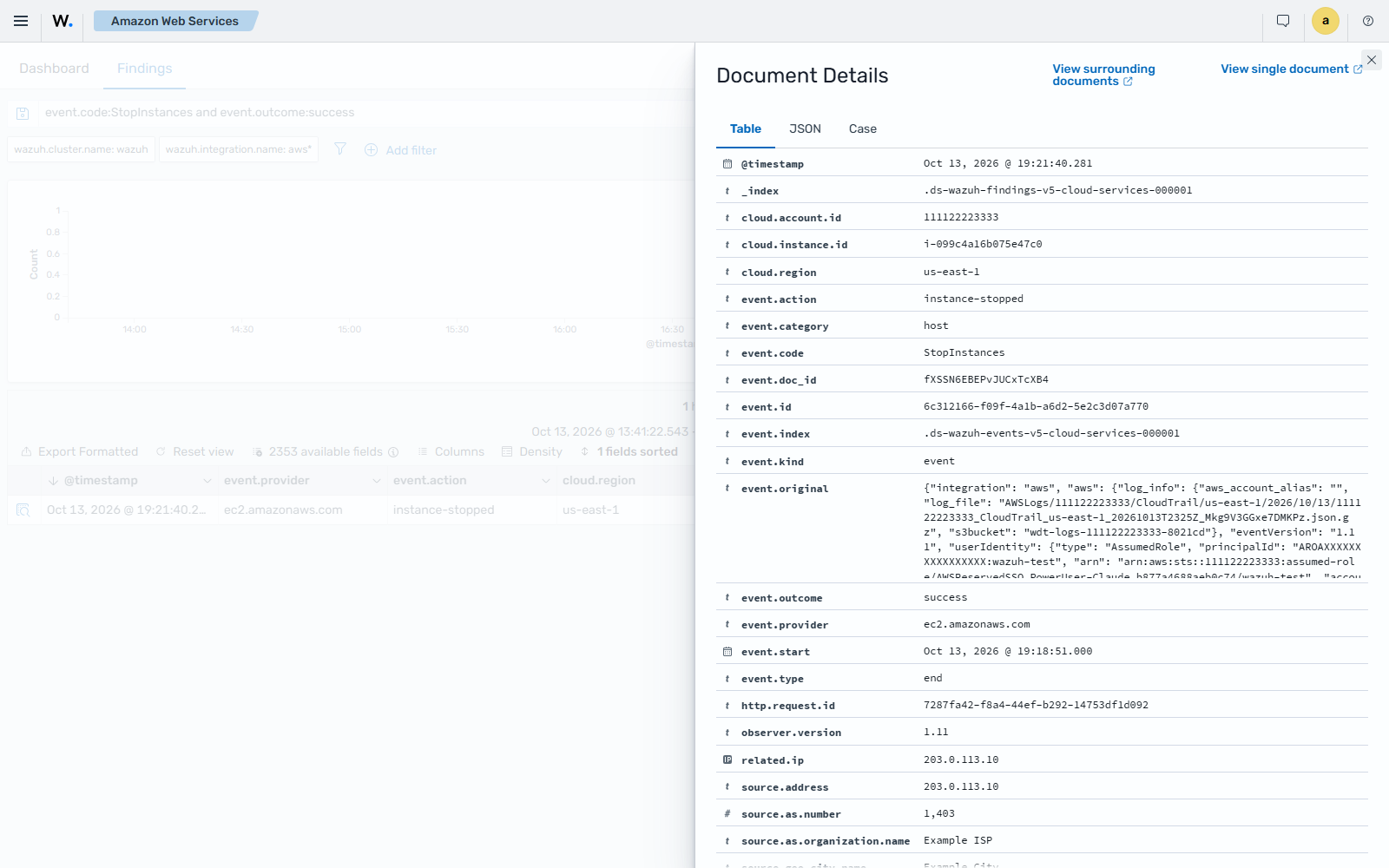
Create security groups in EC2
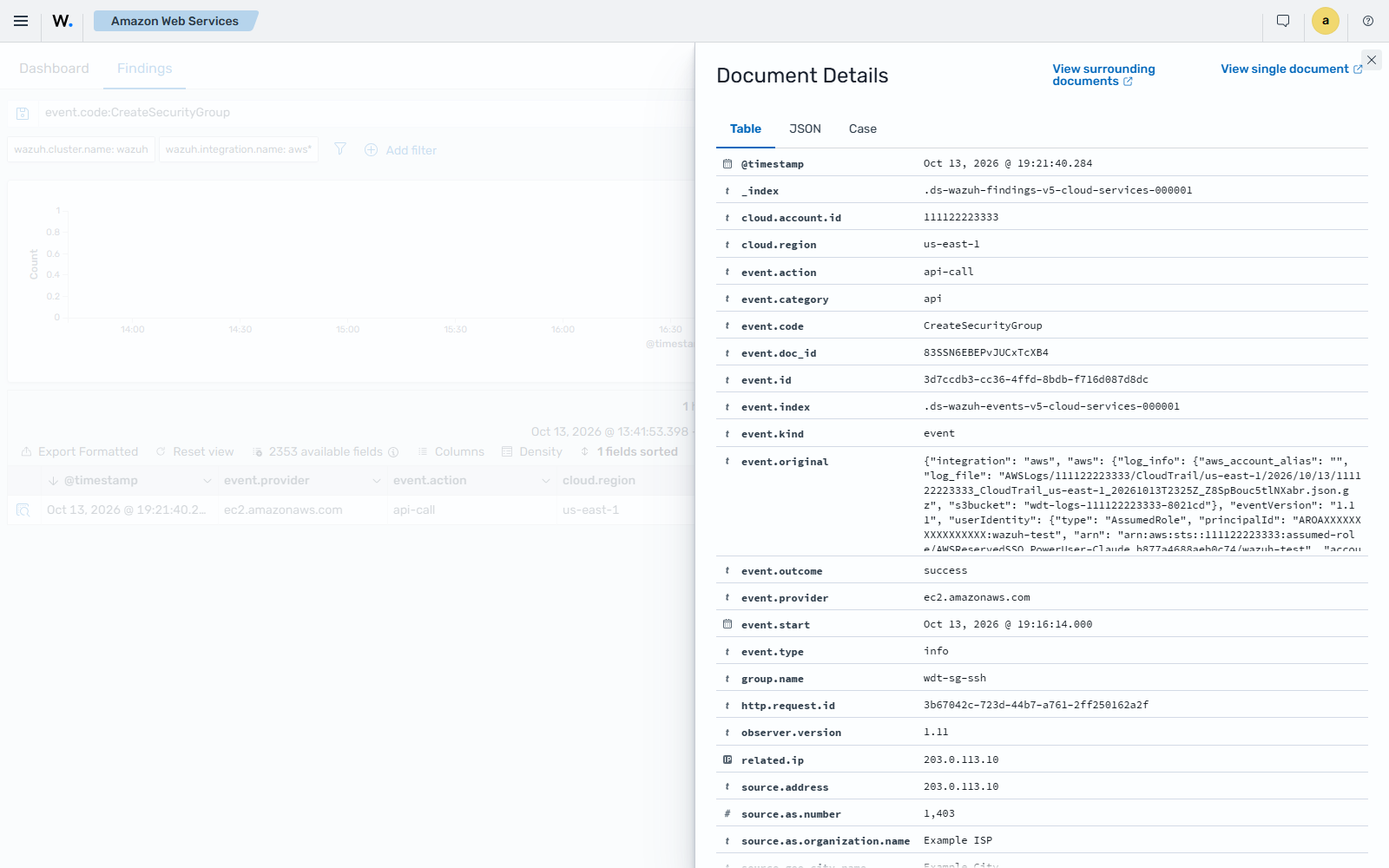
When a new EC2 security group is created, the AWS EC2 security group created finding is shown on the Wazuh dashboard. It shows information such as the user who created it and information about the security group.
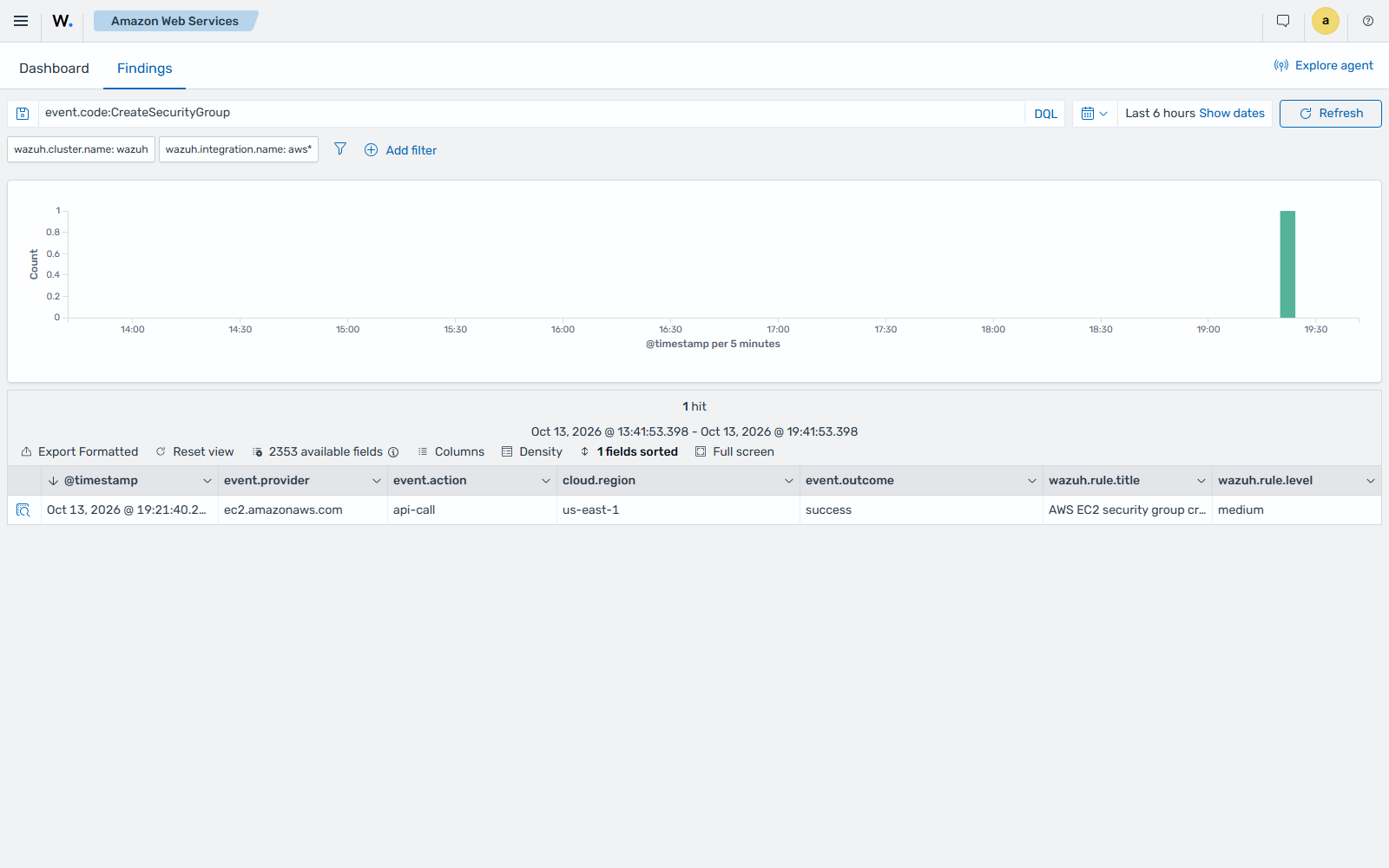
Expand the finding to see its details.
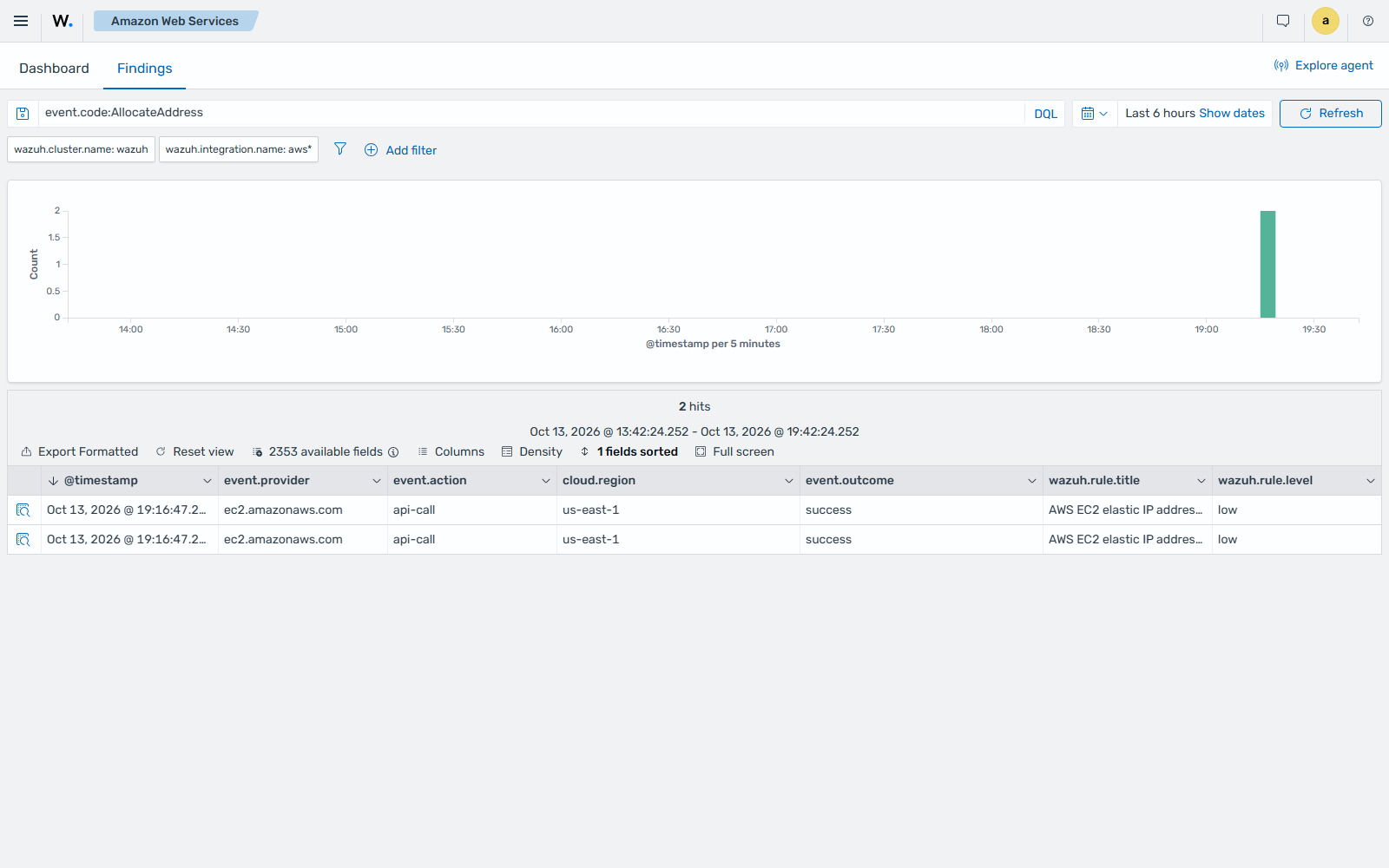
Allocate a new Elastic IP address
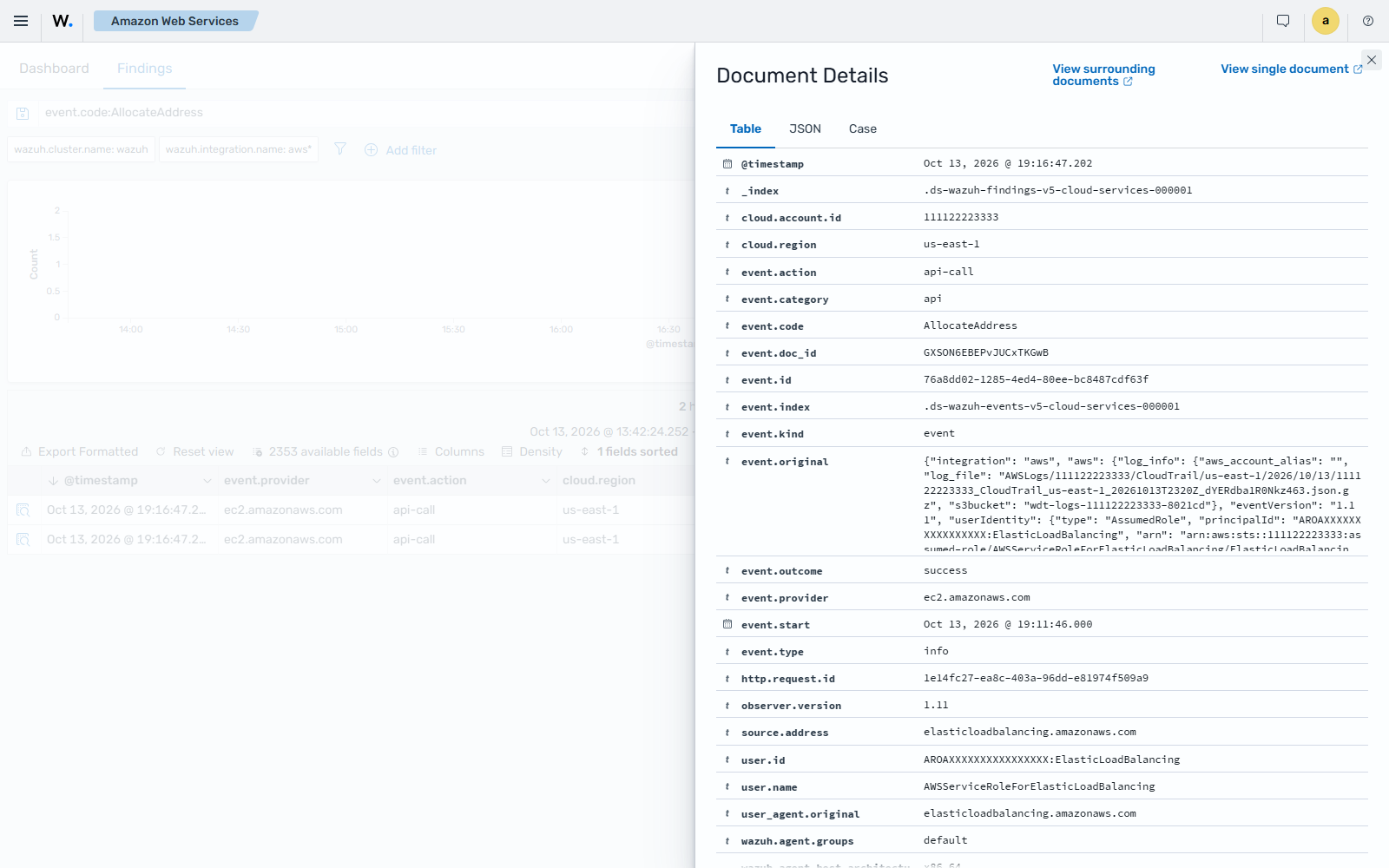
If a new Elastic IP address is allocated, the AWS EC2 elastic IP address allocated finding is shown on the Wazuh dashboard.
Expand the finding to see its details.
Associate a new Elastic IP address
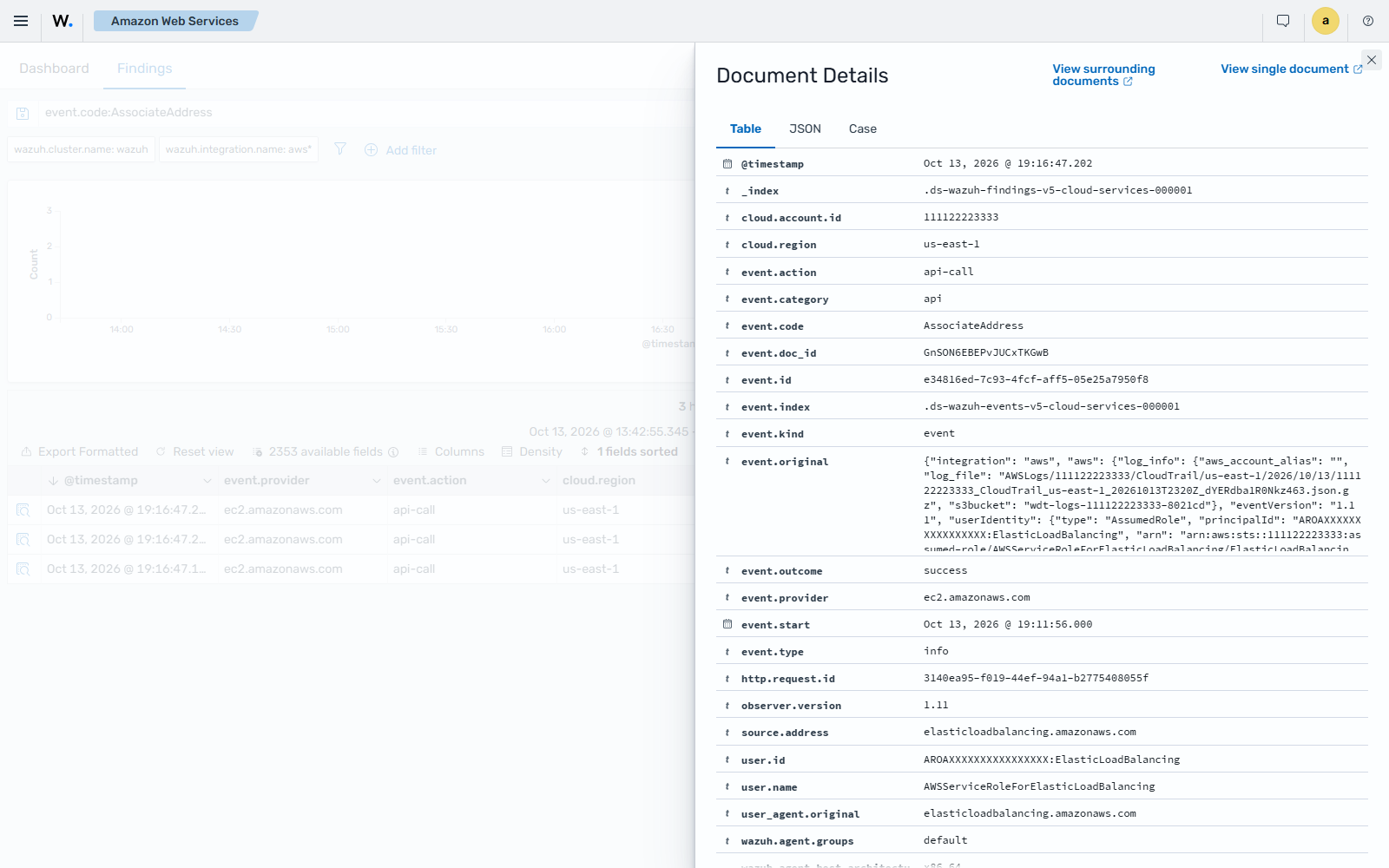
If an Elastic IP address is associated, the AWS EC2 elastic IP address associated finding is shown on the Wazuh dashboard.
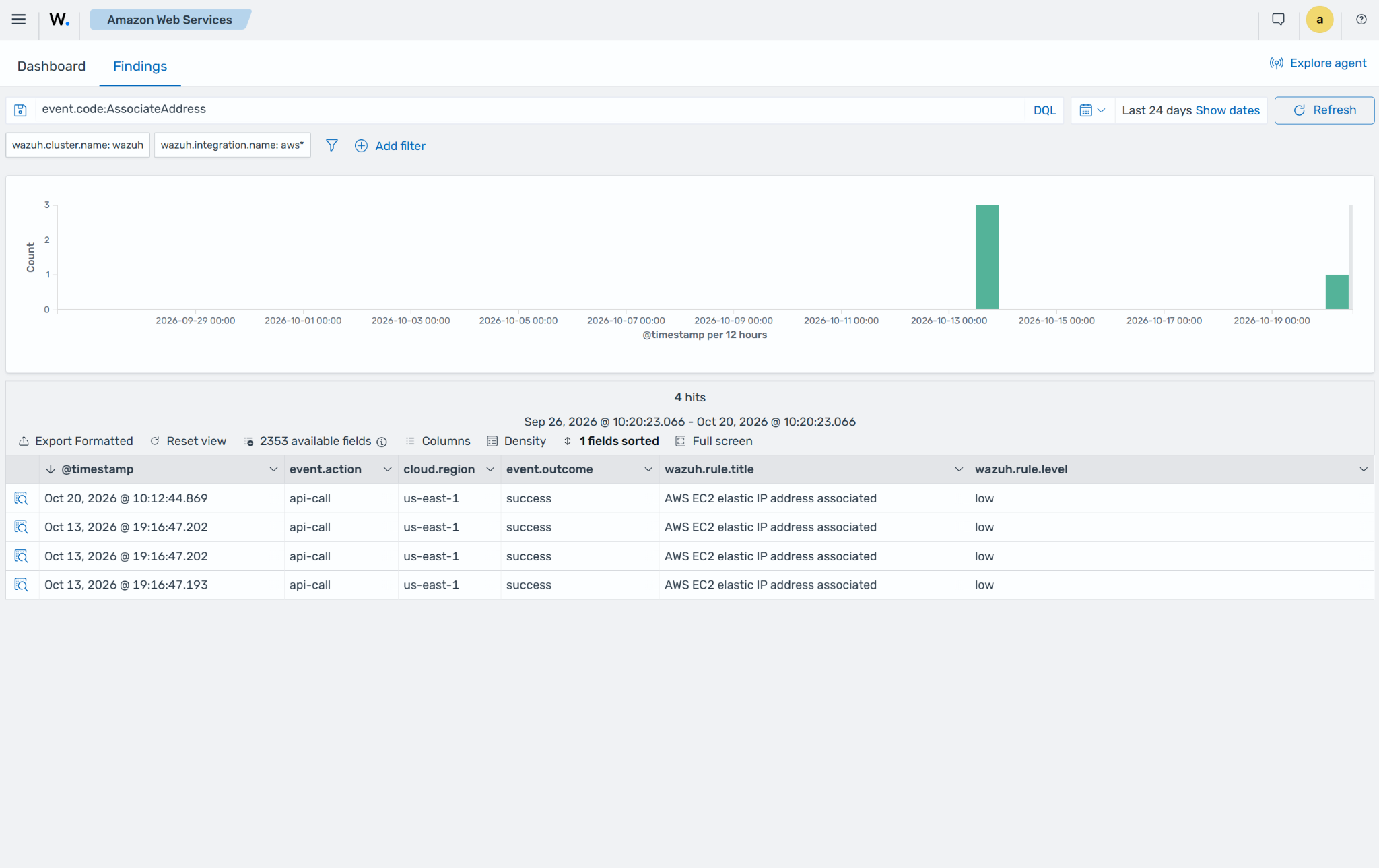
Expand the finding to see its details.
IAM
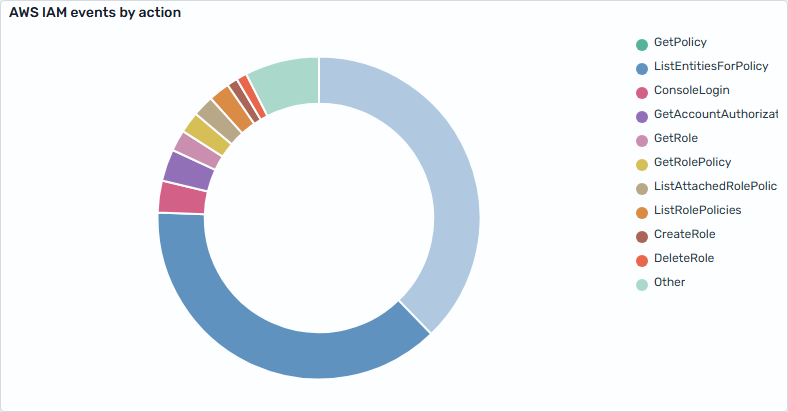
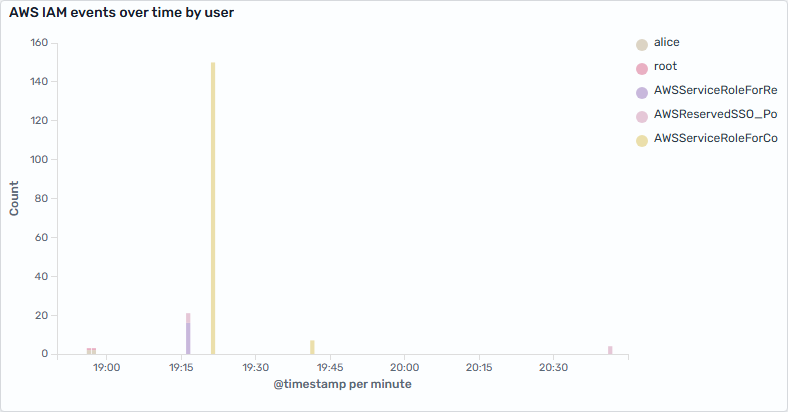
AWS Identity and Access Management (IAM) lets you create and manage AWS users and groups. It also sets the permissions that allow or deny their access to AWS resources. You can use the AWS IAM log data to monitor user access to AWS services and resources.
Below are some use cases for IAM events.
Create a user account
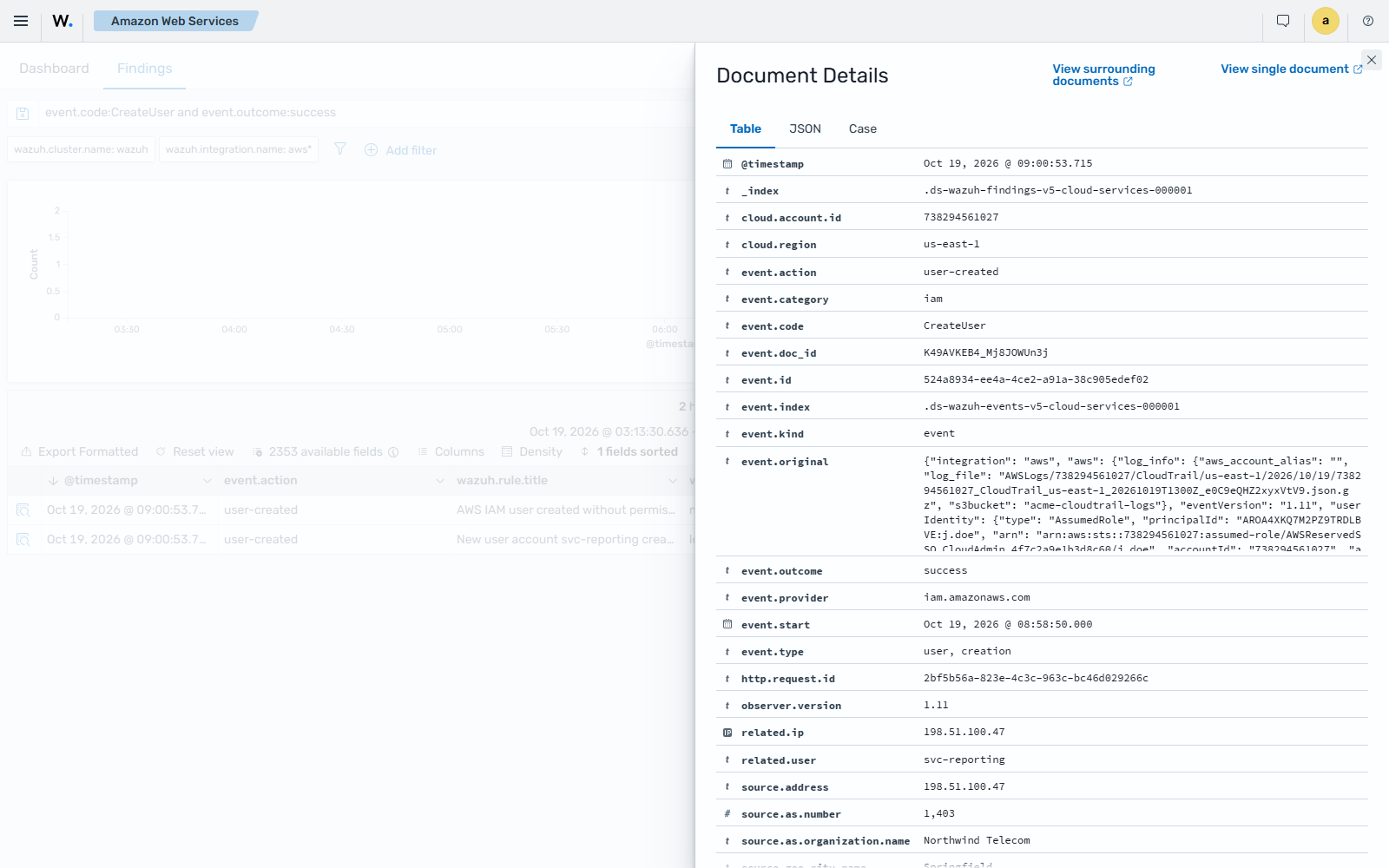
When a user creates a new user account in IAM, CloudTrail generates an event. As previously mentioned, the log message is collected by the Wazuh agent, and forwarded to the Wazuh manager for analysis. When a user account is created, the New user account <USERNAME> created finding is shown on the Wazuh dashboard. If the new user has no permissions, the AWS IAM user created without permissions assignment finding is also shown. You can see the username of the created user, the time it was created, and who created it.
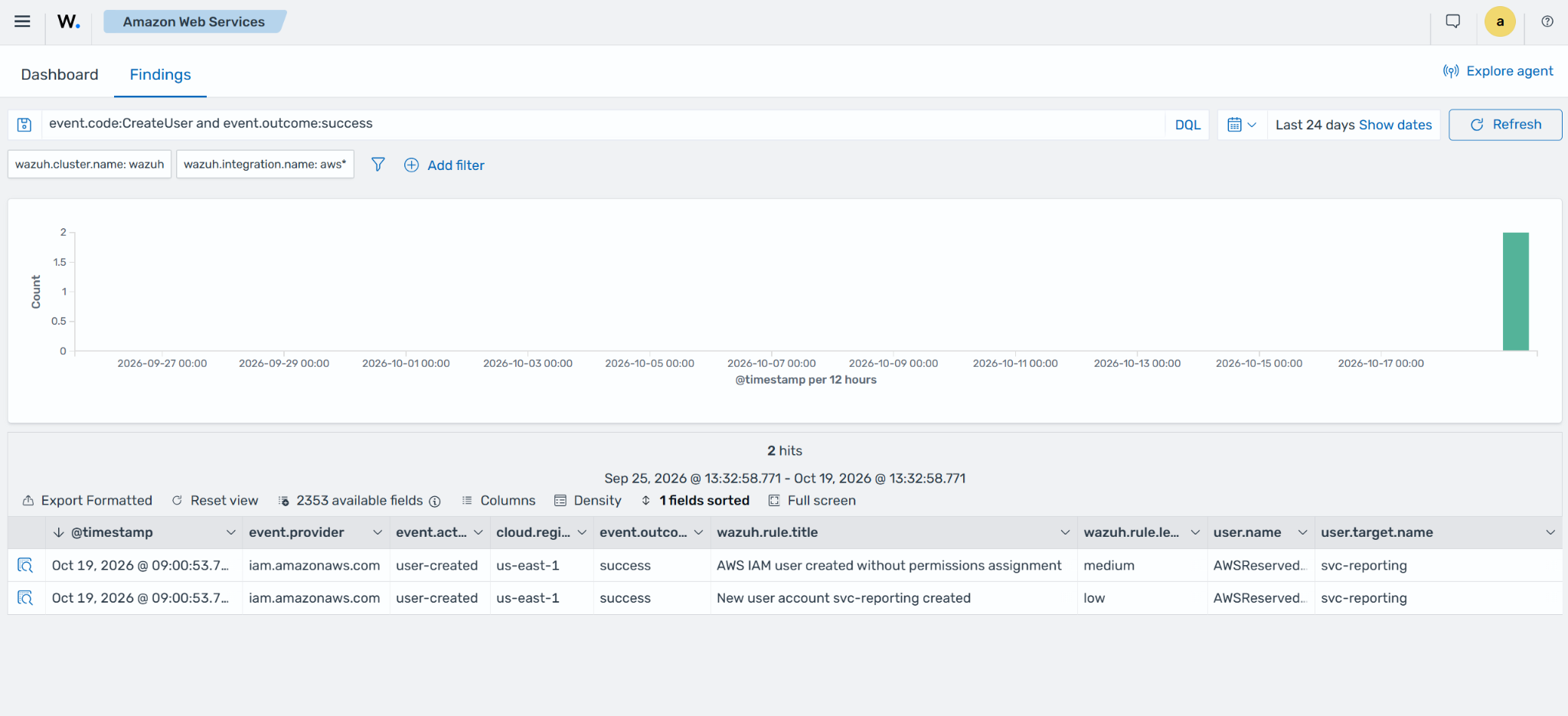
Expand the finding to see its details.
Create a user account without permissions
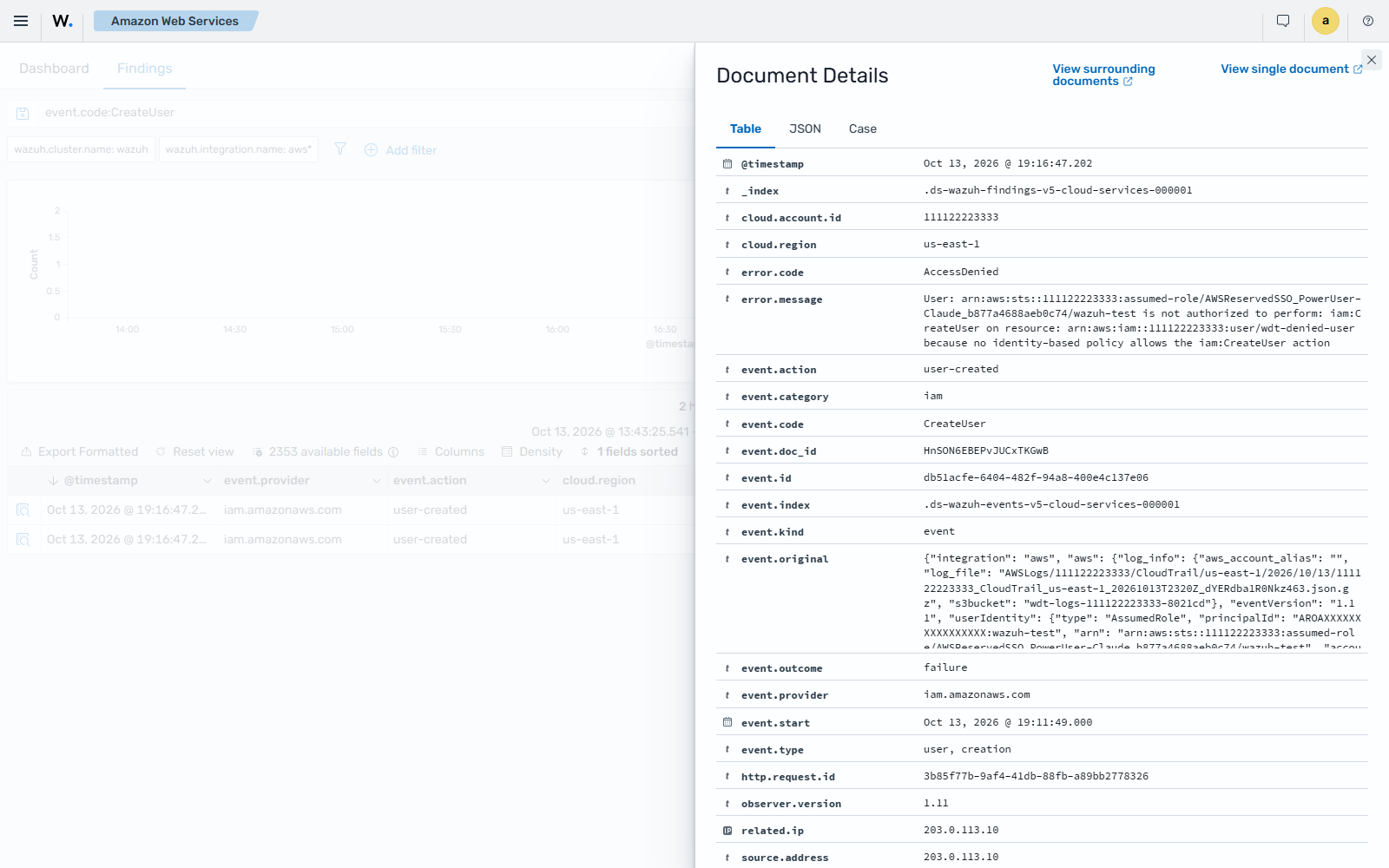
If an unauthorized user attempts to create new users, the AWS API call denied by IAM finding is shown on the Wazuh dashboard. It shows which user has tried to create a user account and the username it tried to create.
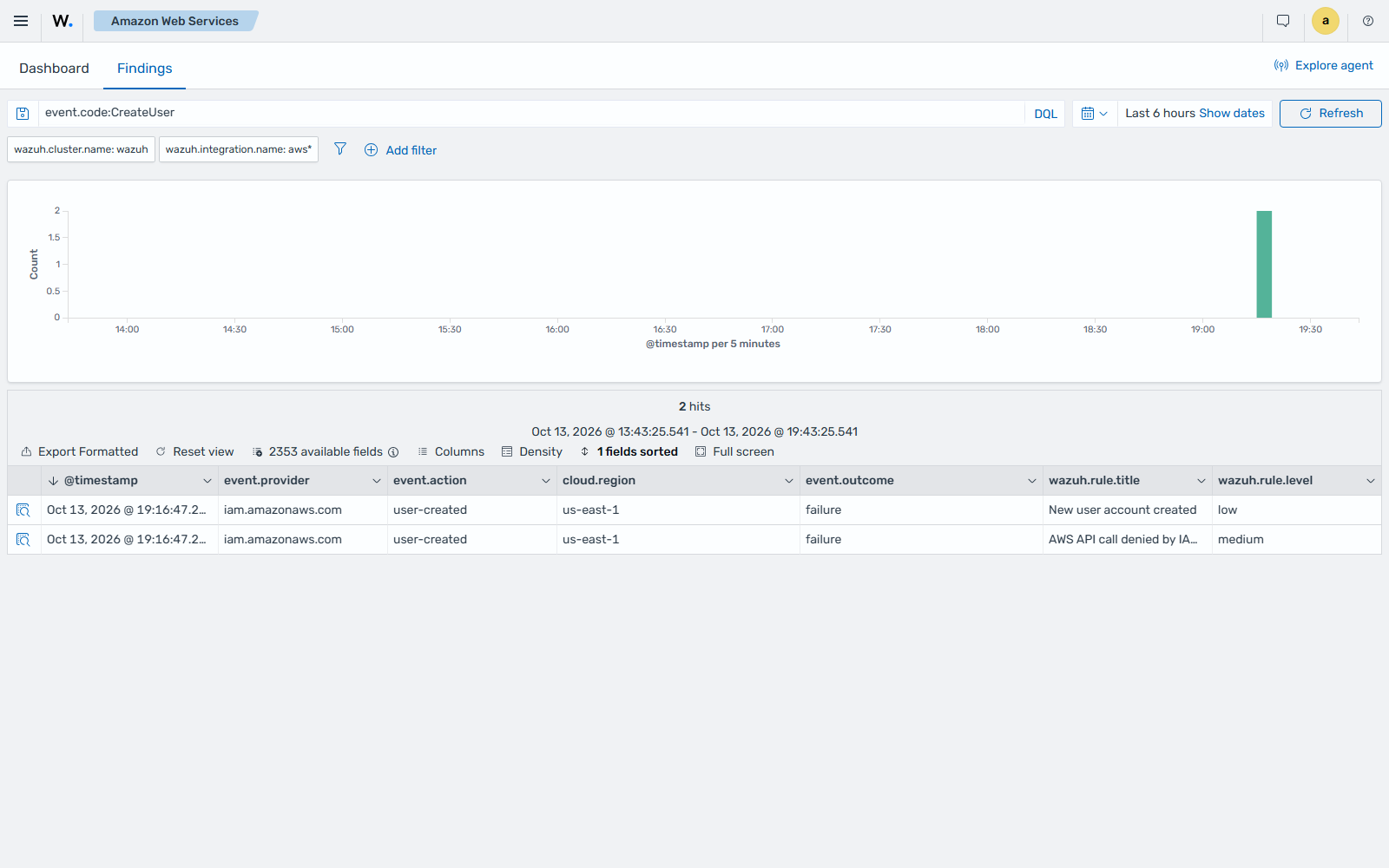
Expand the finding to see its details.
User login failed
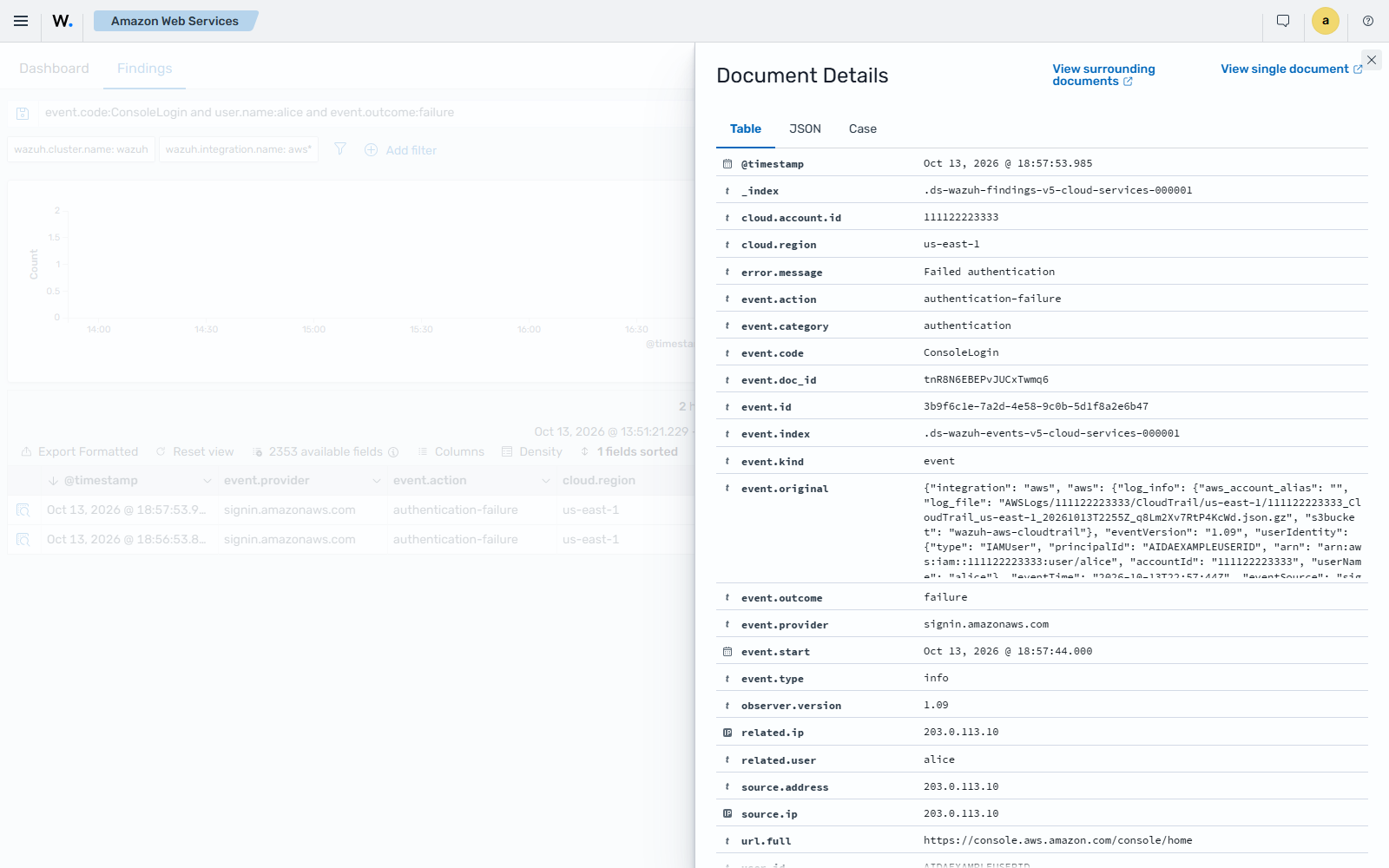
When a user tries to log in with an invalid password, the Failed authentication attempt finding is shown on the Wazuh dashboard. It shows data such as the user who tried to log in and the browser they used.
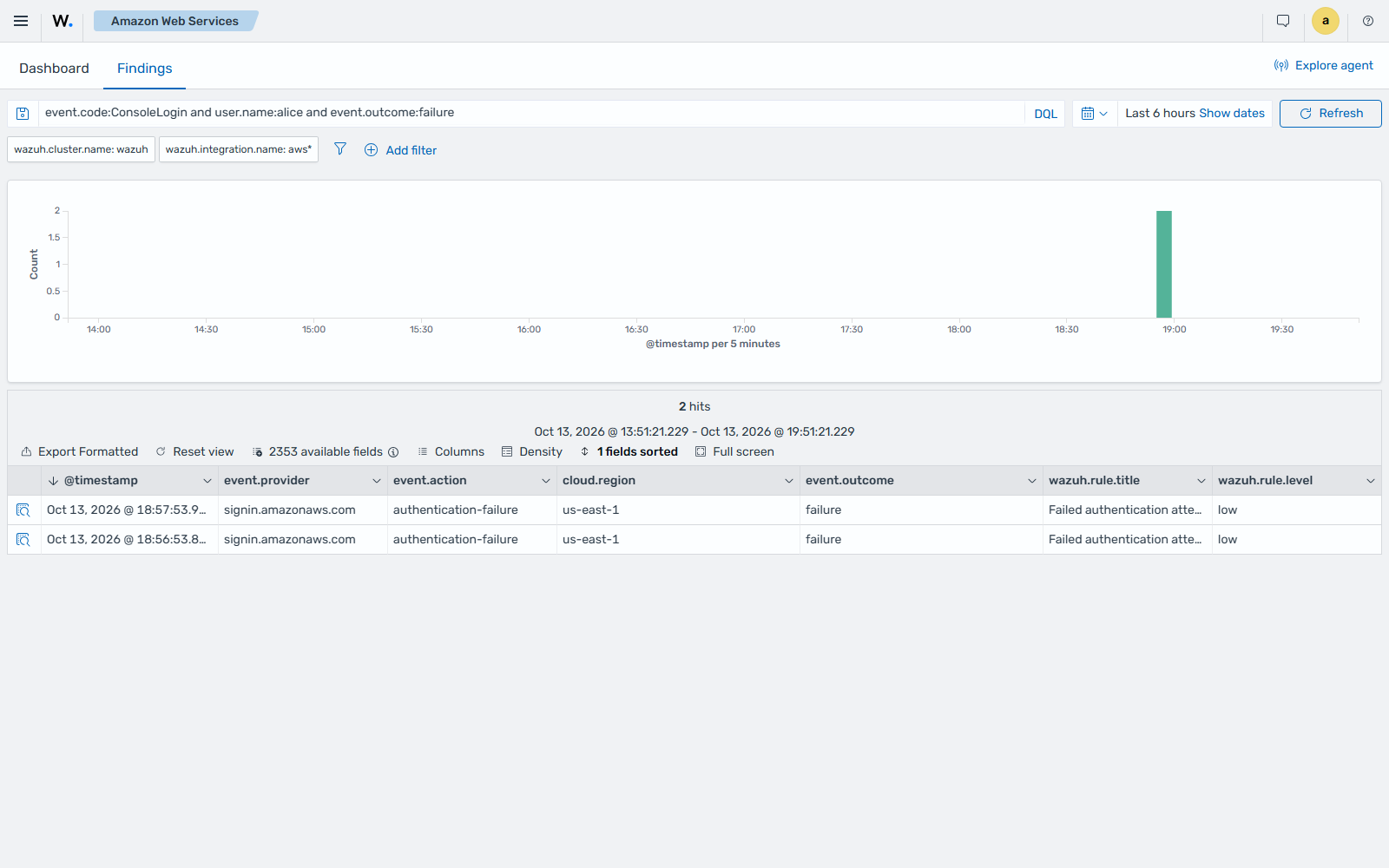
Expand the finding to see its details.
Possible break-in attempt
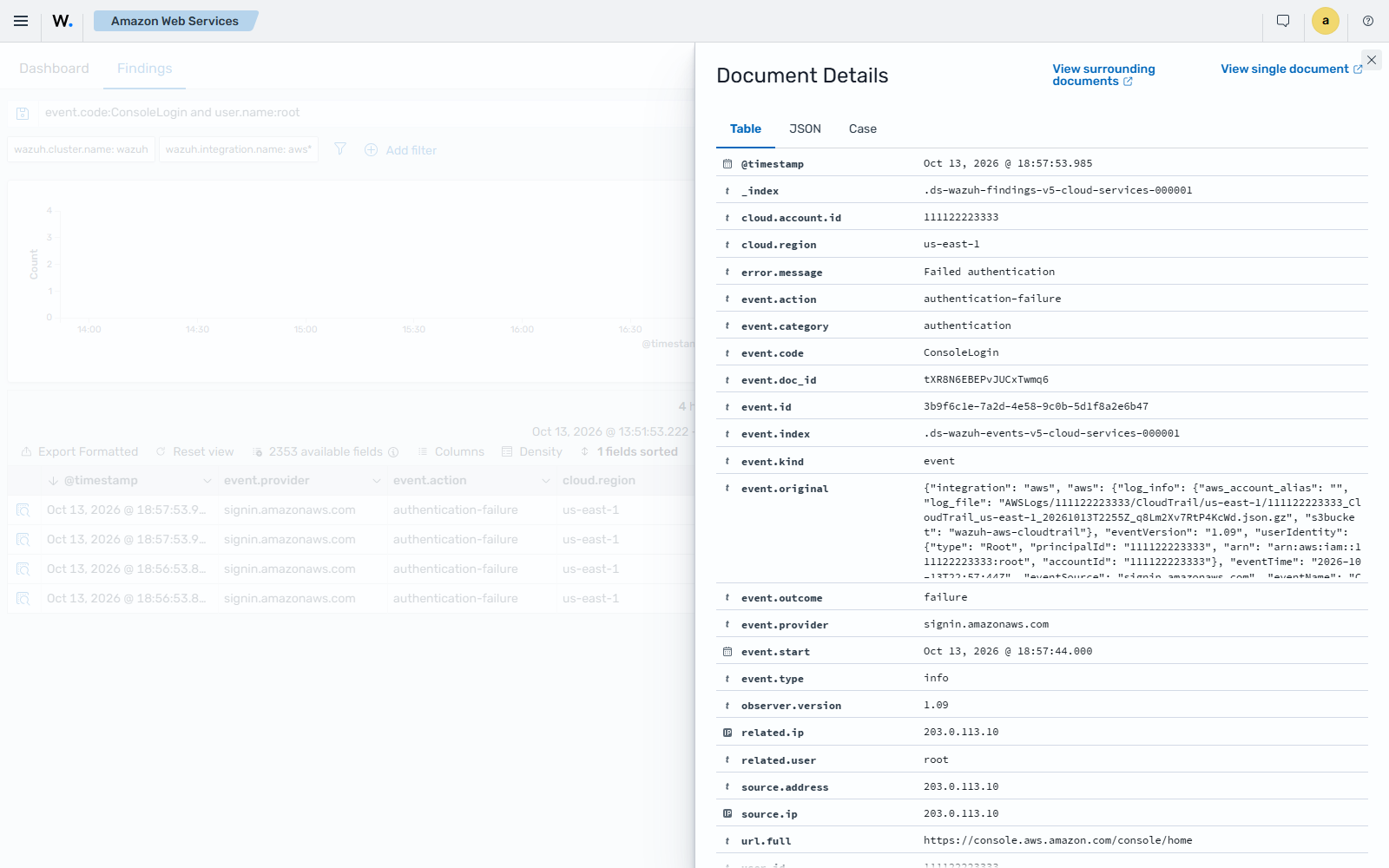
When a root user sign-in to the AWS Management Console fails, the Wazuh dashboard shows the AWS Console possible break-in attempt via root account finding. A Failed authentication attempt finding appears with it.
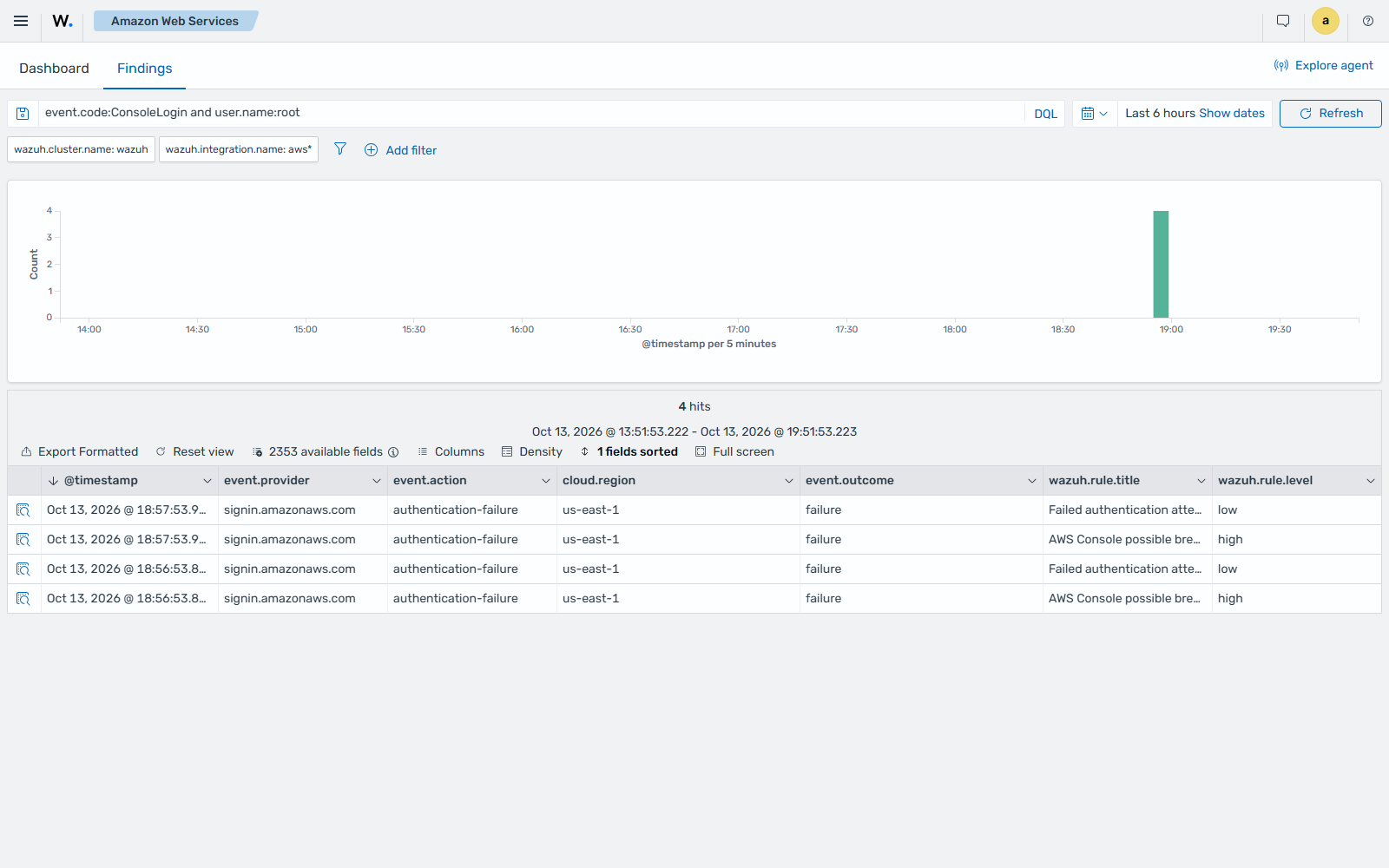
Expand the finding to see its details.
Login success
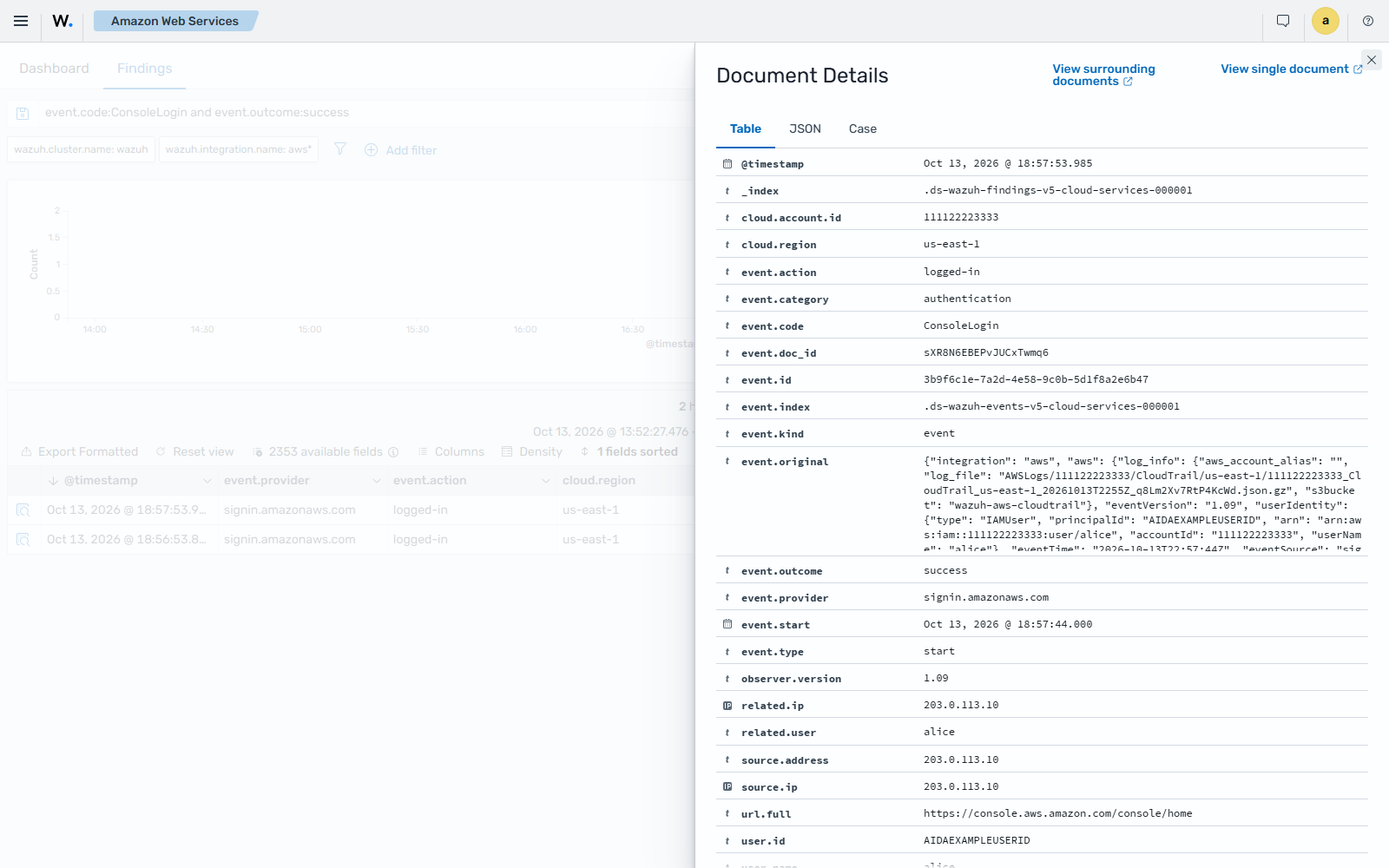
After a successful login, the Successful user authentication finding is shown on the Wazuh dashboard. It shows the user who logged in, the browser they used, and other useful information.
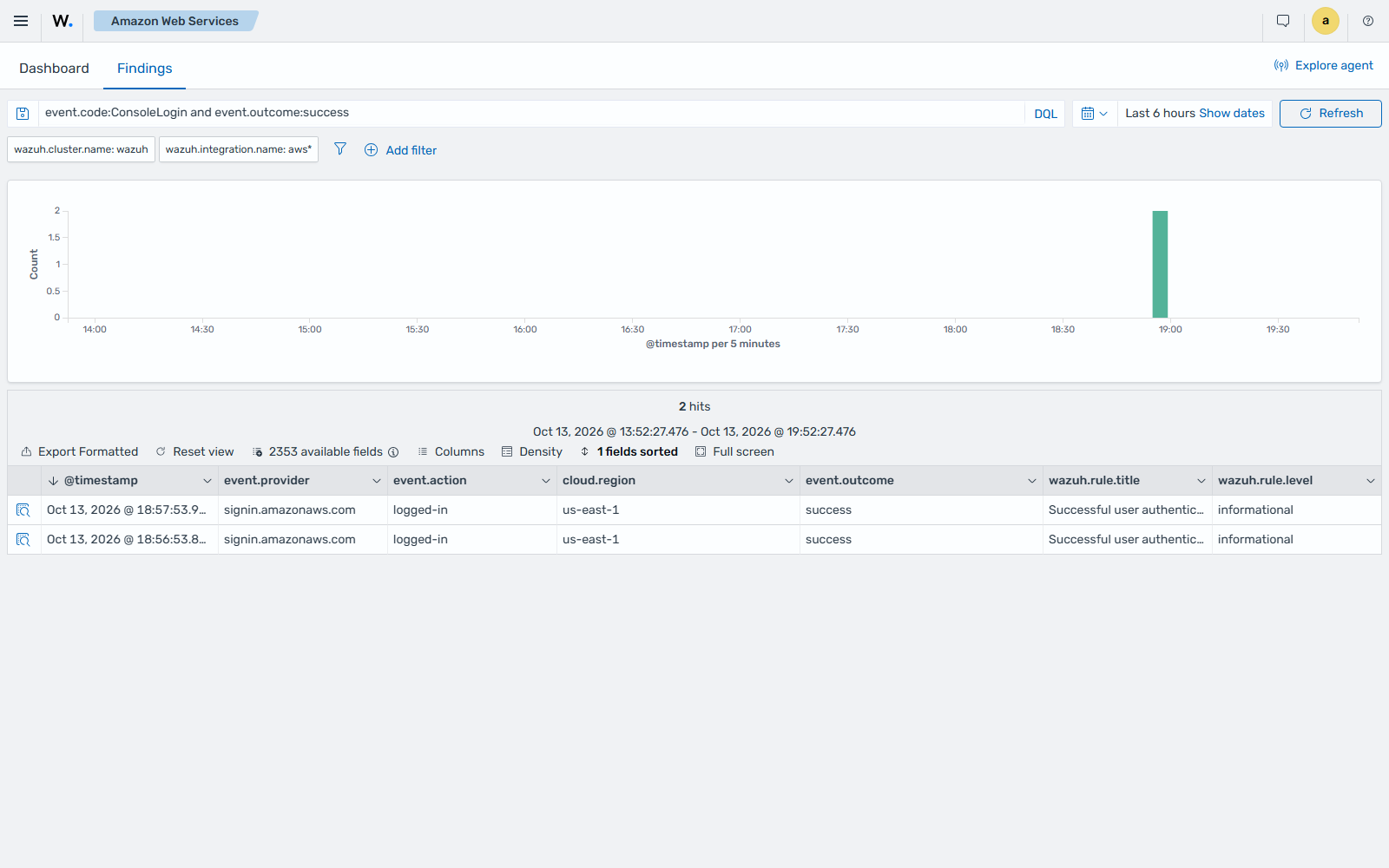
Expand the finding to see its details.
You can create visualizations like the following on the Wazuh dashboard for IAM events by following the custom dashboard guide:
Pie chart |
Stacked groups |
|---|---|
|
|