AWS Security Hub CSPM
AWS Security Hub CSPM automates security best practice checks and aggregates insights to help users understand their overall security posture across multiple AWS accounts. Security Hub CSPM helps users assess their compliance against security best practices. It achieves this by:
Running checks against security controls.
Generating control findings.
Grouping related findings into collections called insights.
AWS renamed AWS Security Hub to AWS Security Hub CSPM. This section uses AWS Security Hub CSPM, which sends findings in the AWS Security Finding Format (ASFF).
You need to perform the following to set up the configuration that allows you to receive Security Hub CSPM events on your Wazuh environment:
Configure your AWS environment. This involves:
Enabling Security Hub CSPM. There are two methods to enable AWS Security Hub CSPM in your environment. See the Enabling Security Hub CSPM section.
Creating a Firehose stream: Amazon Data Firehose delivers streaming data to destinations such as an S3 bucket. The EventBridge rule uses the Firehose stream as its target and sends it each event that matches the rule's event pattern.
Integrating Security Hub CSPM with EventBridge: EventBridge allows storing Security Hub CSPM findings and insights in S3 buckets.
Amazon S3 bucket with event notifications: The bucket sends notifications to the queue for every Security Hub CSPM object creation event.
Amazon Simple Queue Service: The Amazon Simple Queue Service (SQS) is a message queuing service that enables decoupled communication between AWS components. The Wazuh module for AWS queries the SQS queue for notifications of new logs in S3 and processes those Security Hub CSPM logs.
Configure the Wazuh module for AWS to receive AWS Security Hub CSPM events.
AWS configuration
Enabling Security Hub CSPM
Security Hub CSPM uses AWS Config to run the checks of its security standards. Enable AWS Config resource recording in every account and region where you enable Security Hub CSPM before you enable it. For more information, see Enabling and configuring AWS Config for Security Hub CSPM.
On your AWS console, search for security hub in the search bar to determine the best method for your environment. There are two ways to enable AWS Security Hub CSPM:
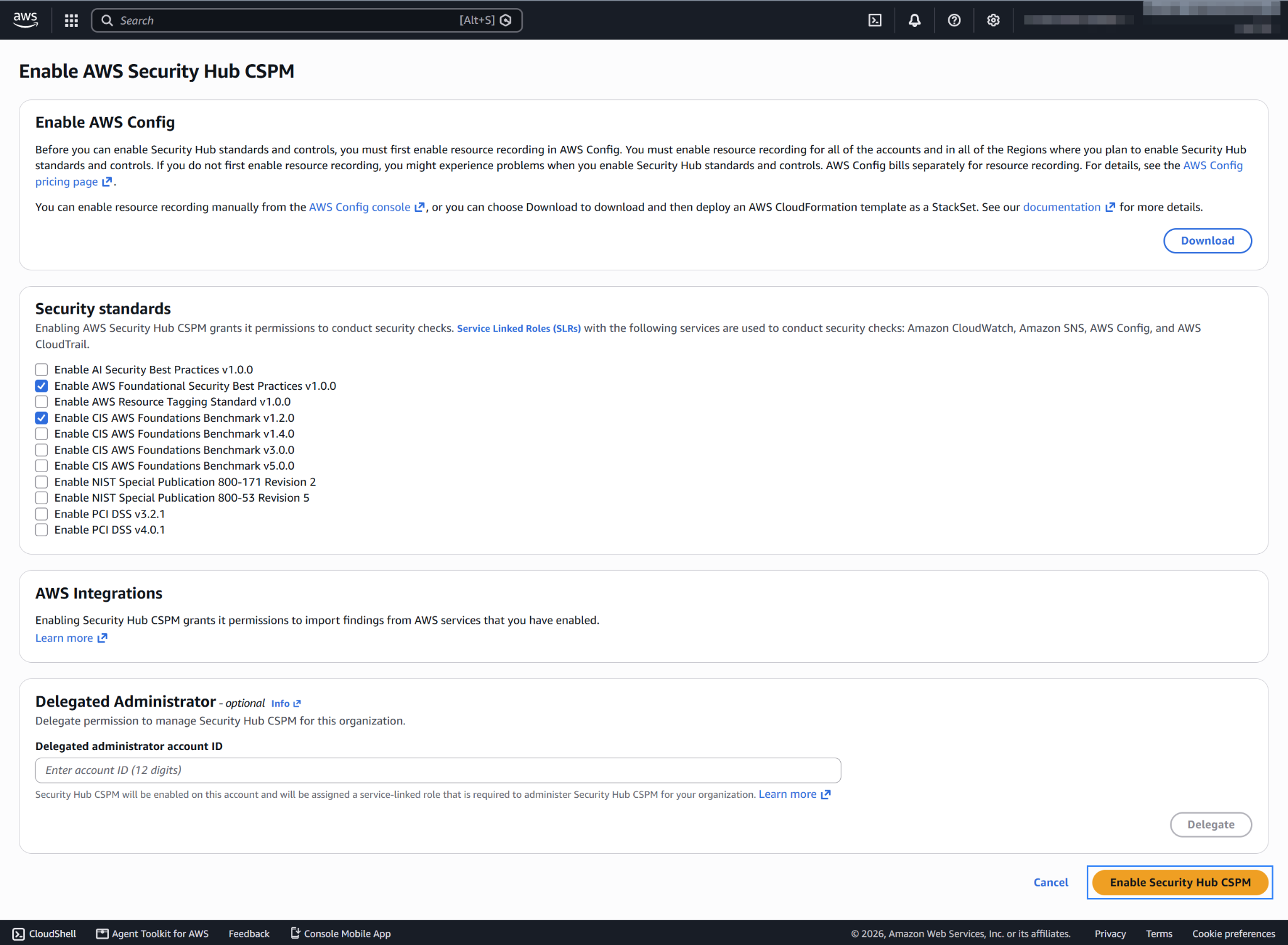
Manual integration: We recommend this method for standalone accounts that aren't part of AWS Organizations. The screenshot below shows how to enable AWS Security Hub CSPM using the AWS Security Hub CSPM console. Follow the enabling Security Hub CSPM manually guideline to find other methods to enable the AWS Security Hub CSPM.
Organizations integration: We recommend this method for multi-account and multi-region environments. Your organization must have a delegated administrator account. Follow the enabling Security Hub CSPM with organizations integration guidelines to set your AWS Security Hub CSPM using this method.
Creating a Firehose stream
The Amazon Data Firehose stream serves as the channel for sending the AWS Security Hub CSPM logs to the S3 bucket. Follow the steps below to create an Amazon Data Firehose stream for your AWS Security Hub CSPM logs.
Create a new S3 bucket, or skip this step to use an existing bucket.
On your AWS console, search for
amazon data firehosein the search bar or go to Services > Analytics > Amazon Data Firehose.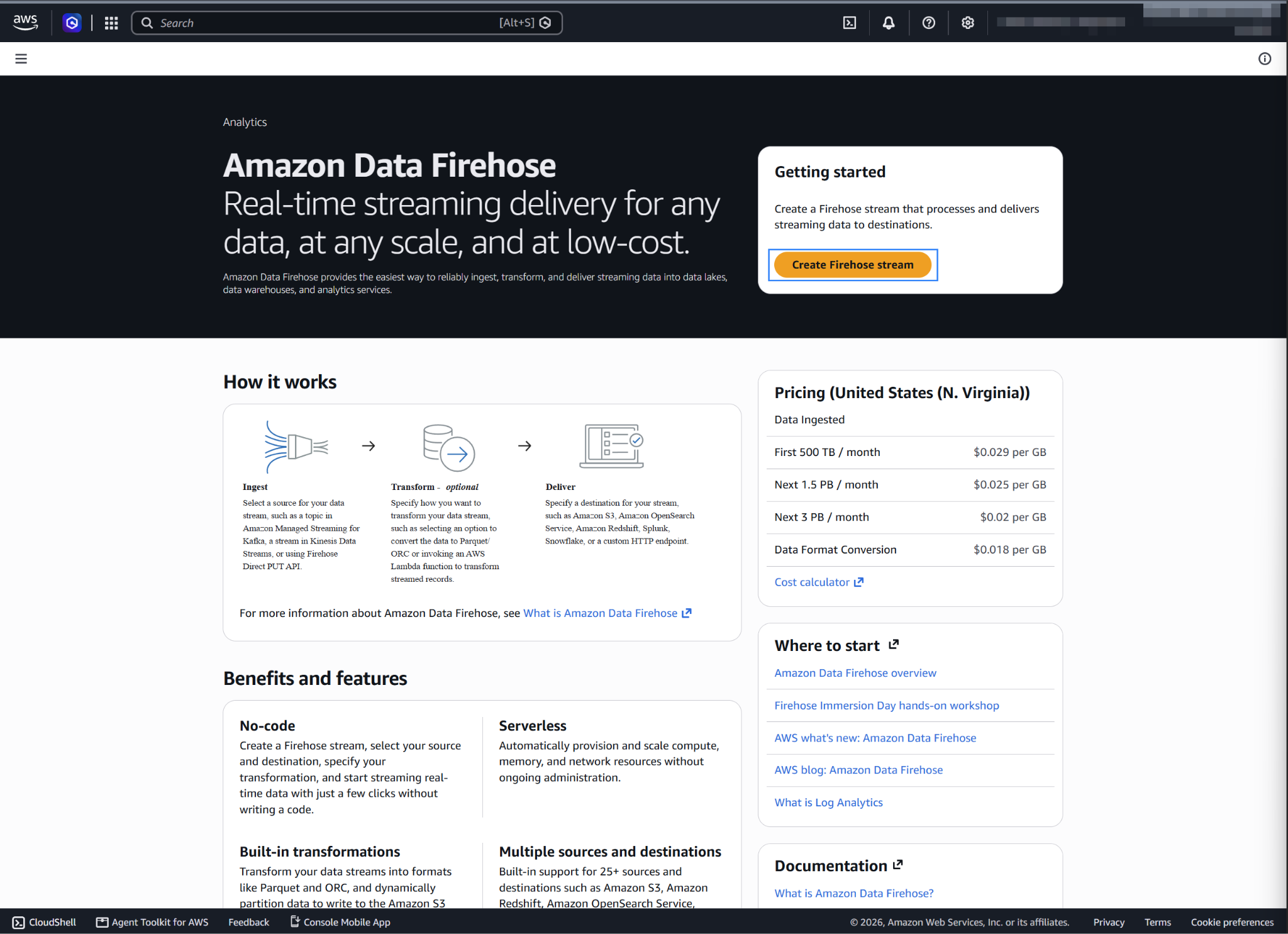
Click Create Firehose stream.
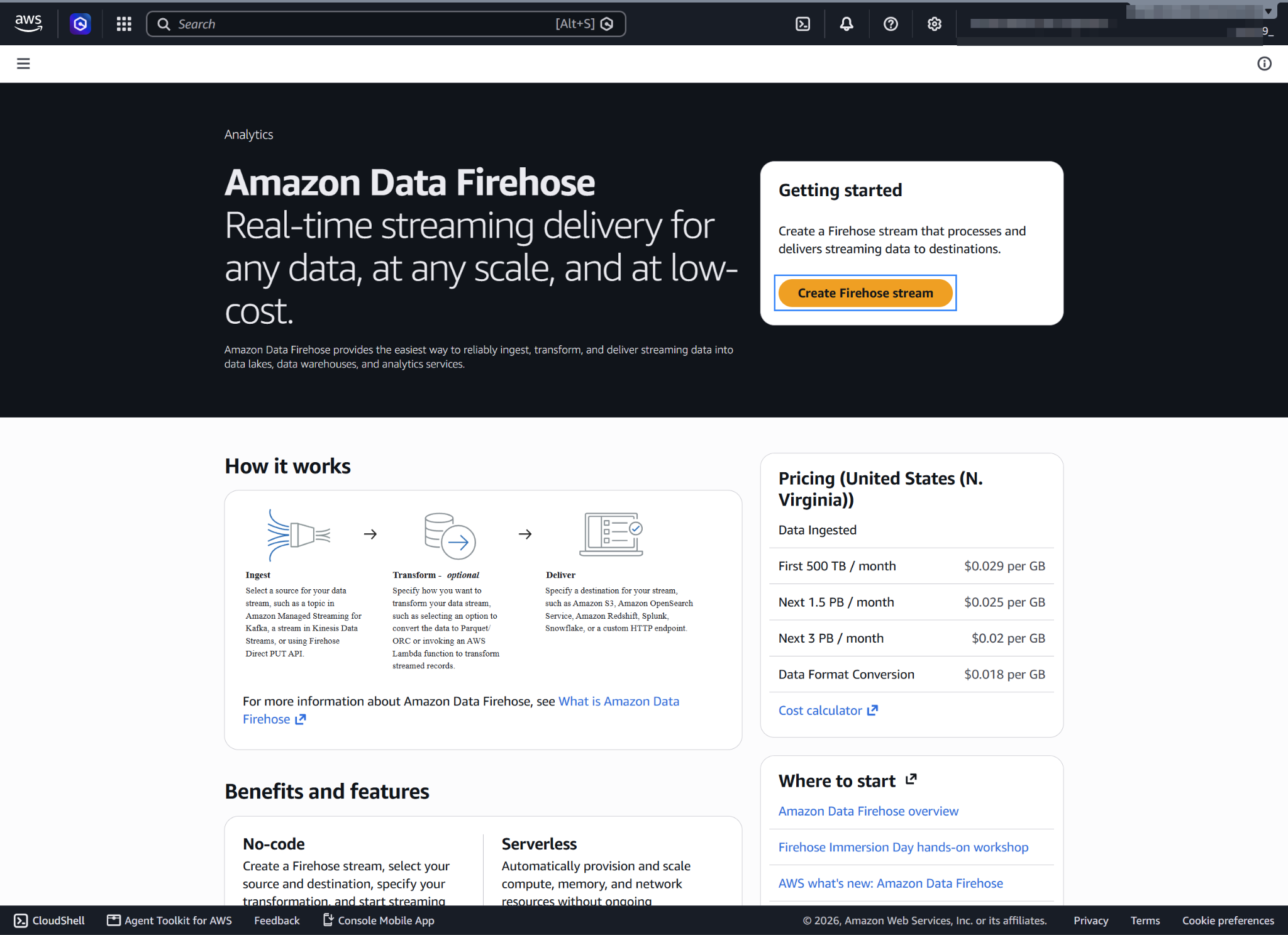
Select Direct PUT and Amazon S3 as the desired Source and Destination, respectively, and choose an appropriate Firehose stream name.
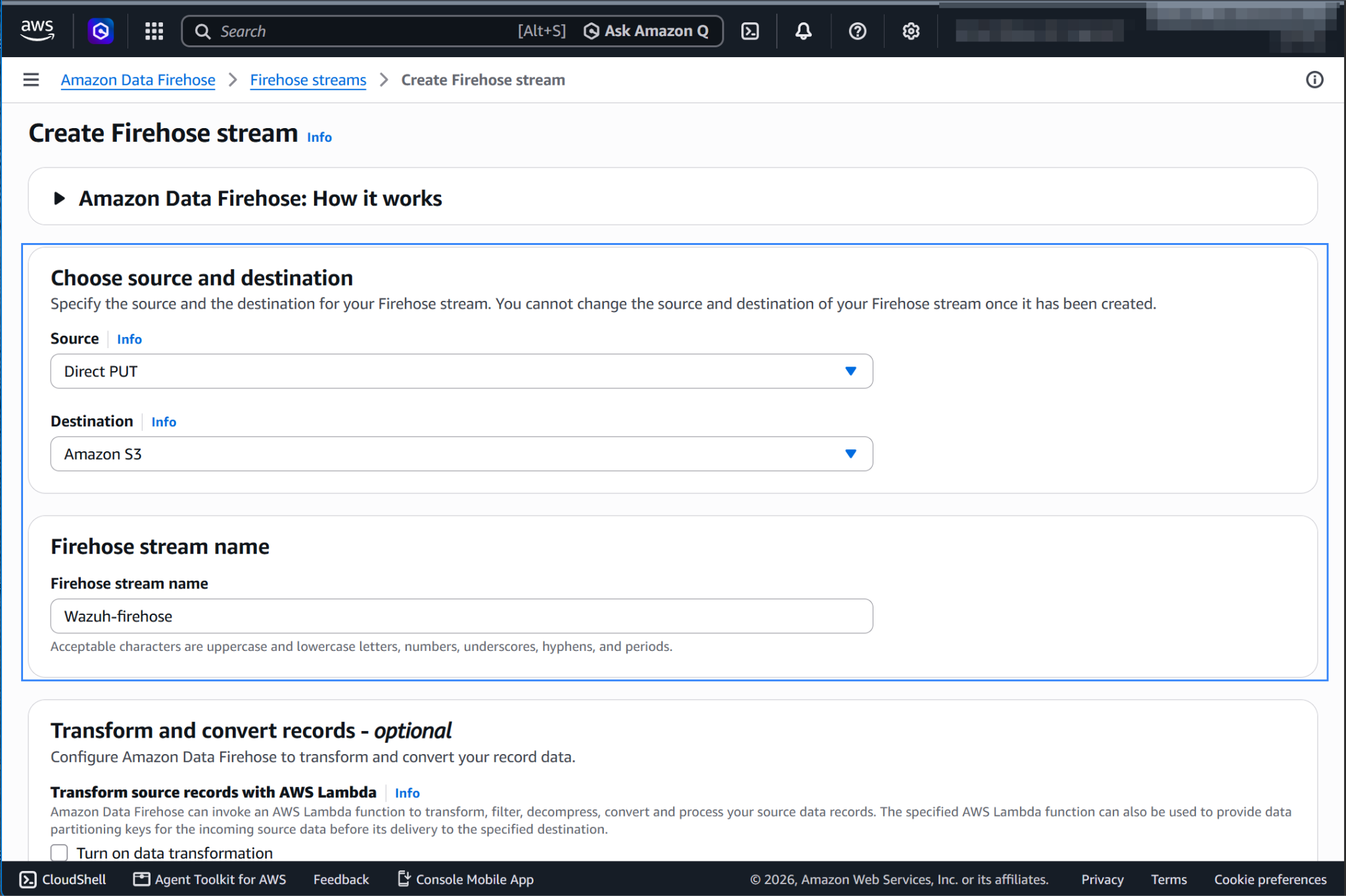
Select the desired S3 bucket as the destination. It is possible to specify a custom prefix to alter the path where AWS stores the logs. Amazon Data Firehose creates a file structure
YYYY/MM/DD/HH. If you use a prefix, the file structure isprefix-name/YYYY/MM/DD/HH. You don't need to set the prefix in Wazuh, because the Wazuh module for AWS gets the object keys from the SQS notifications. Select GZIP or ZIP compression to match the formats that the Wazuh module for AWS supports.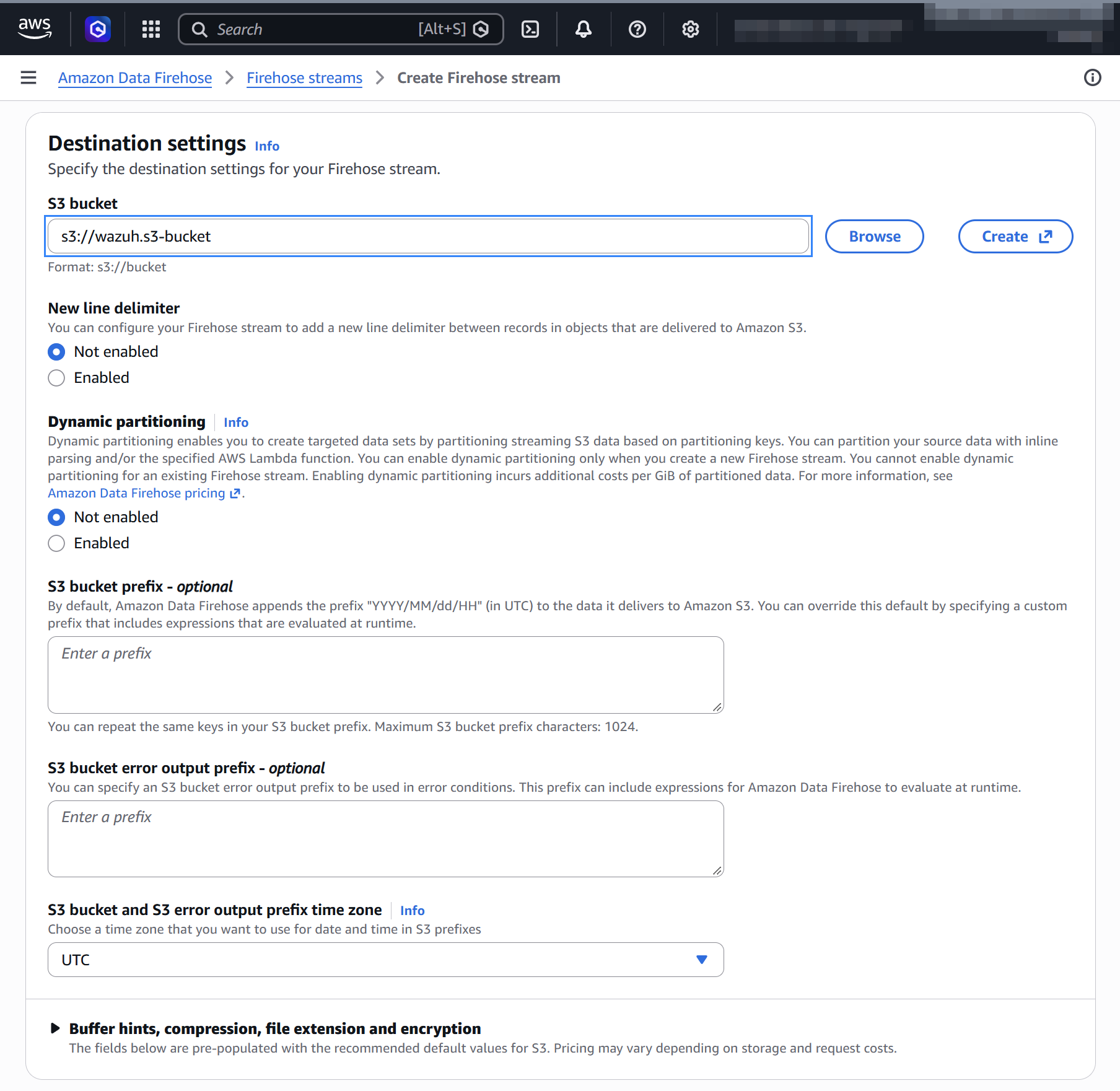
Create or choose an existing IAM role to be used by Amazon Data Firehose in the Advanced settings section.
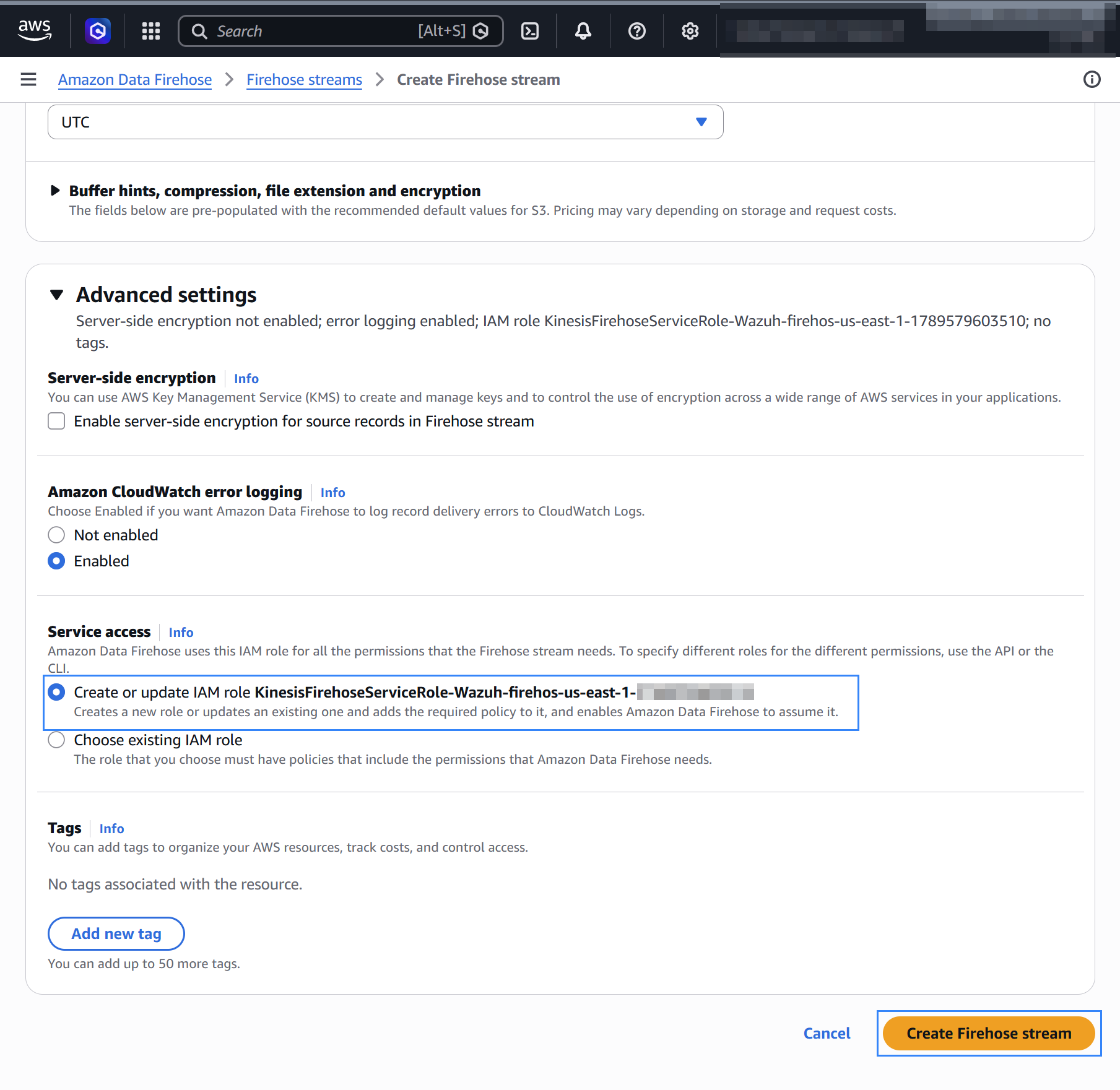
Click Create Firehose stream at the end of the page.
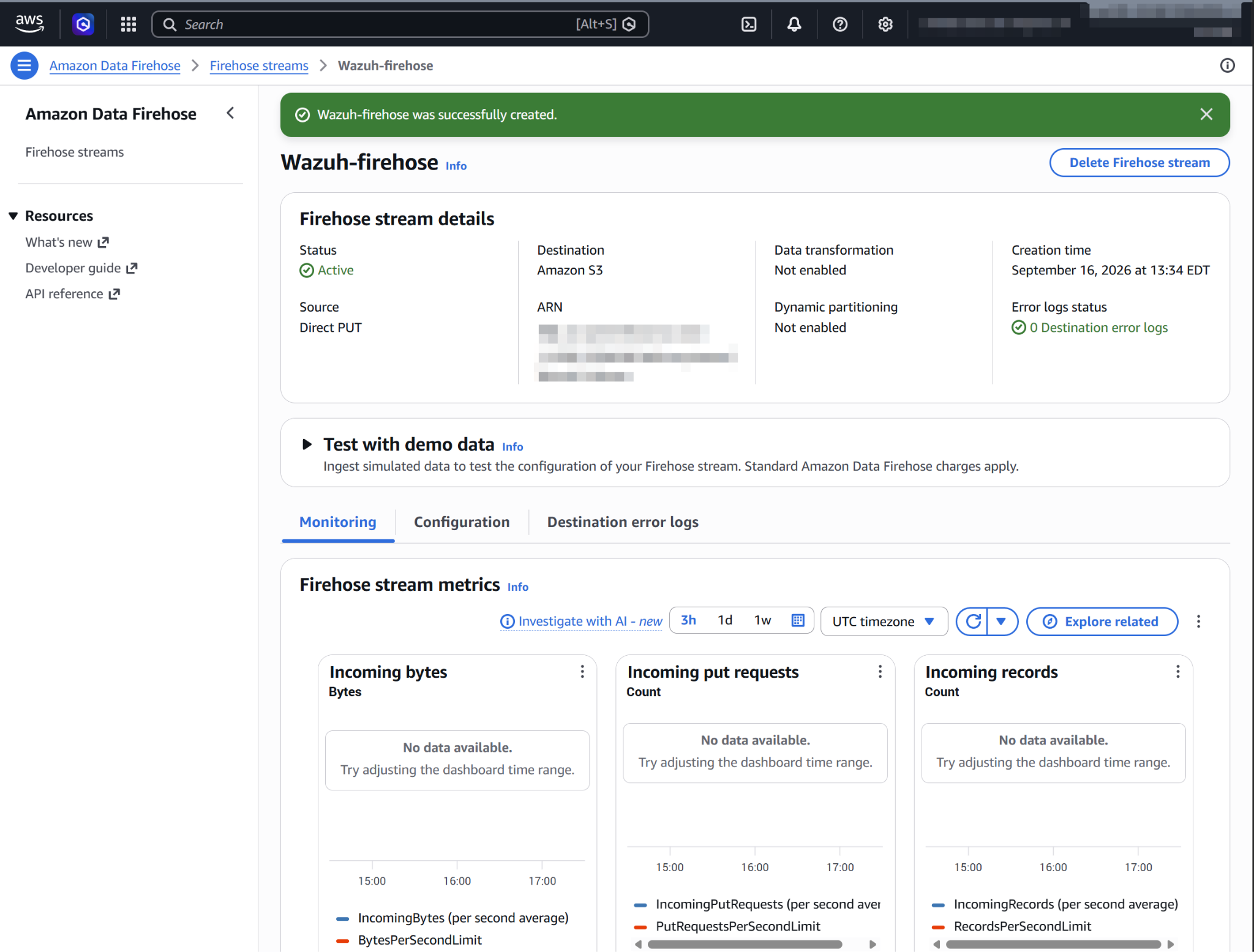
Integrating Security Hub CSPM with EventBridge
Integrating Security Hub CSPM with EventBridge enables the storage of Security Hub CSPM events in S3 buckets.
There are three types of events available, each using a specific EventBridge event format. The Wazuh module for AWS takes every relevant detail and detail-type value from them.
Security Hub Findings - Imported: Security Hub CSPM automatically sends events of this type to EventBridge. They include new findings and updates to existing findings, each containing a single finding.
Security Hub Findings - Custom Action: When you trigger custom actions, Security Hub CSPM sends these events to EventBridge. The custom actions associate the events with their findings.
Security Hub Insight Results: This event processes the Security Hub CSPM Insights. You can use custom actions to send sets of insight results to EventBridge. Insight results are the resources that match an insight.
To send the last two types of events to EventBridge, you need to create a custom action in Security Hub CSPM. Refer to the AWS Security Hub CSPM documentation to achieve this. Find more information about the types of Security Hub CSPM integration with EventBridge.
To integrate Security Hub CSPM with EventBridge, you must create an event rule in EventBridge.
On your AWS console, search for
eventbridgein the search bar or go to Services > Application Integration > Amazon EventBridge.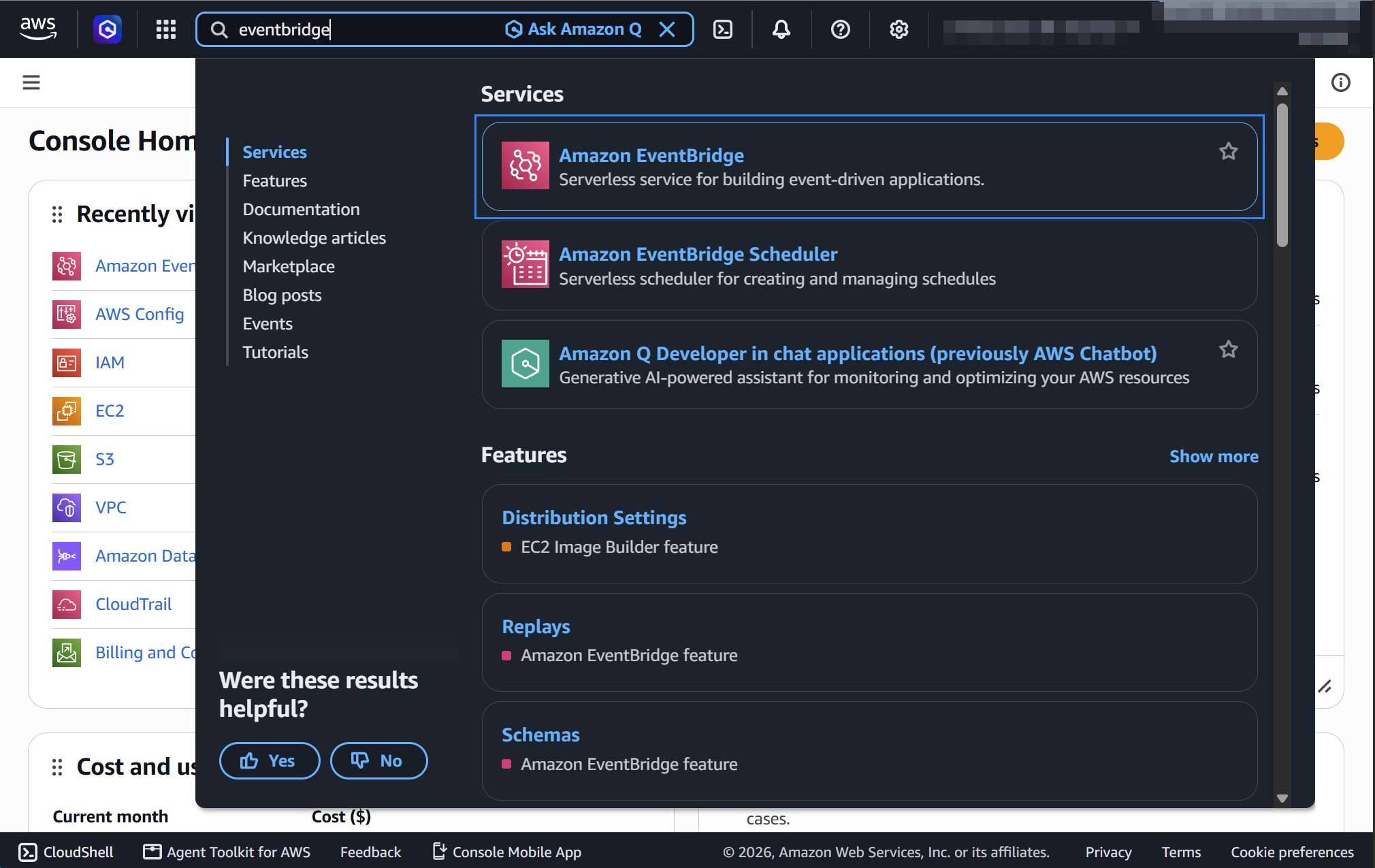
Select Event buses, under Default event bus, click default, then click Create rule.
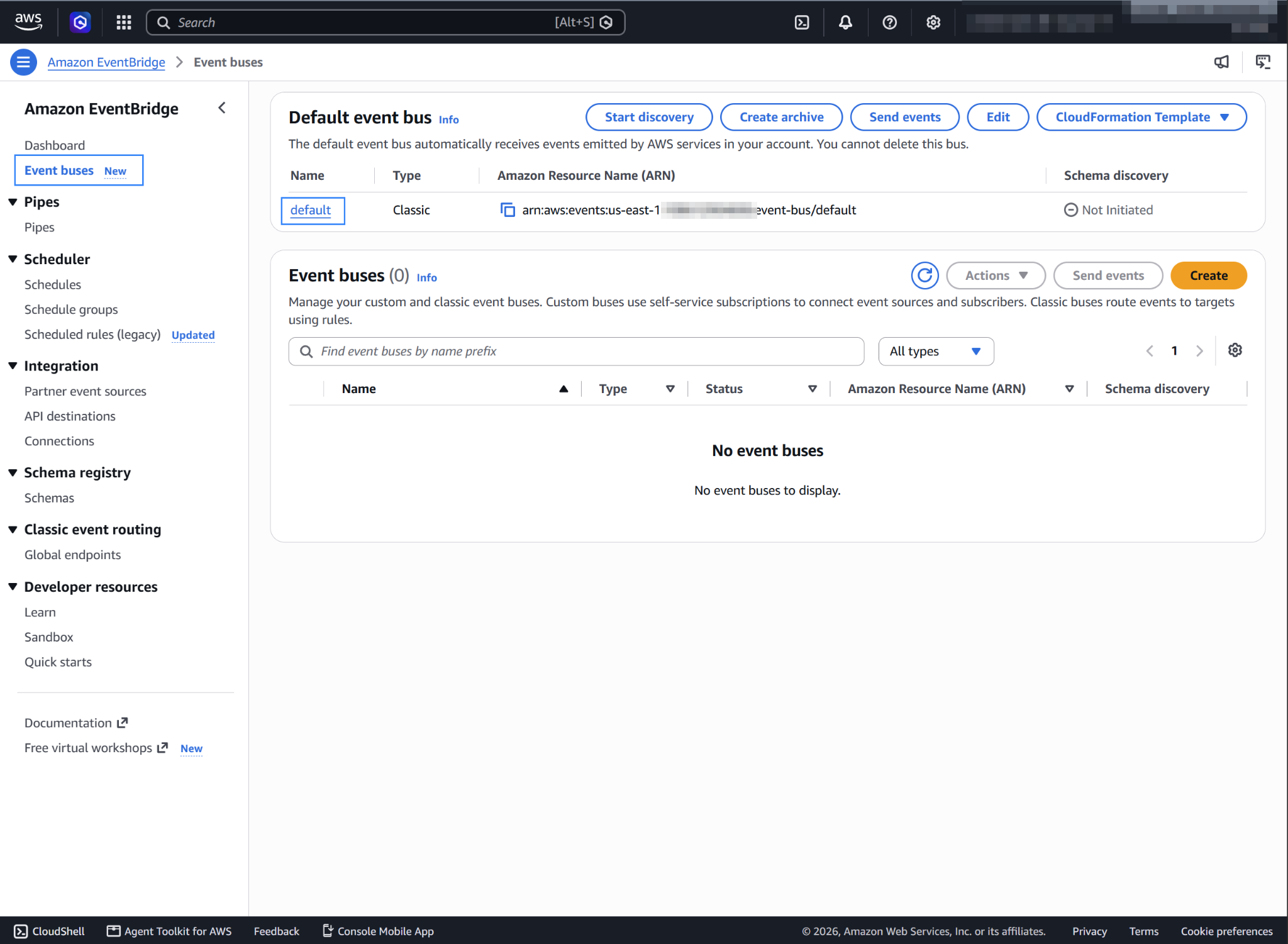
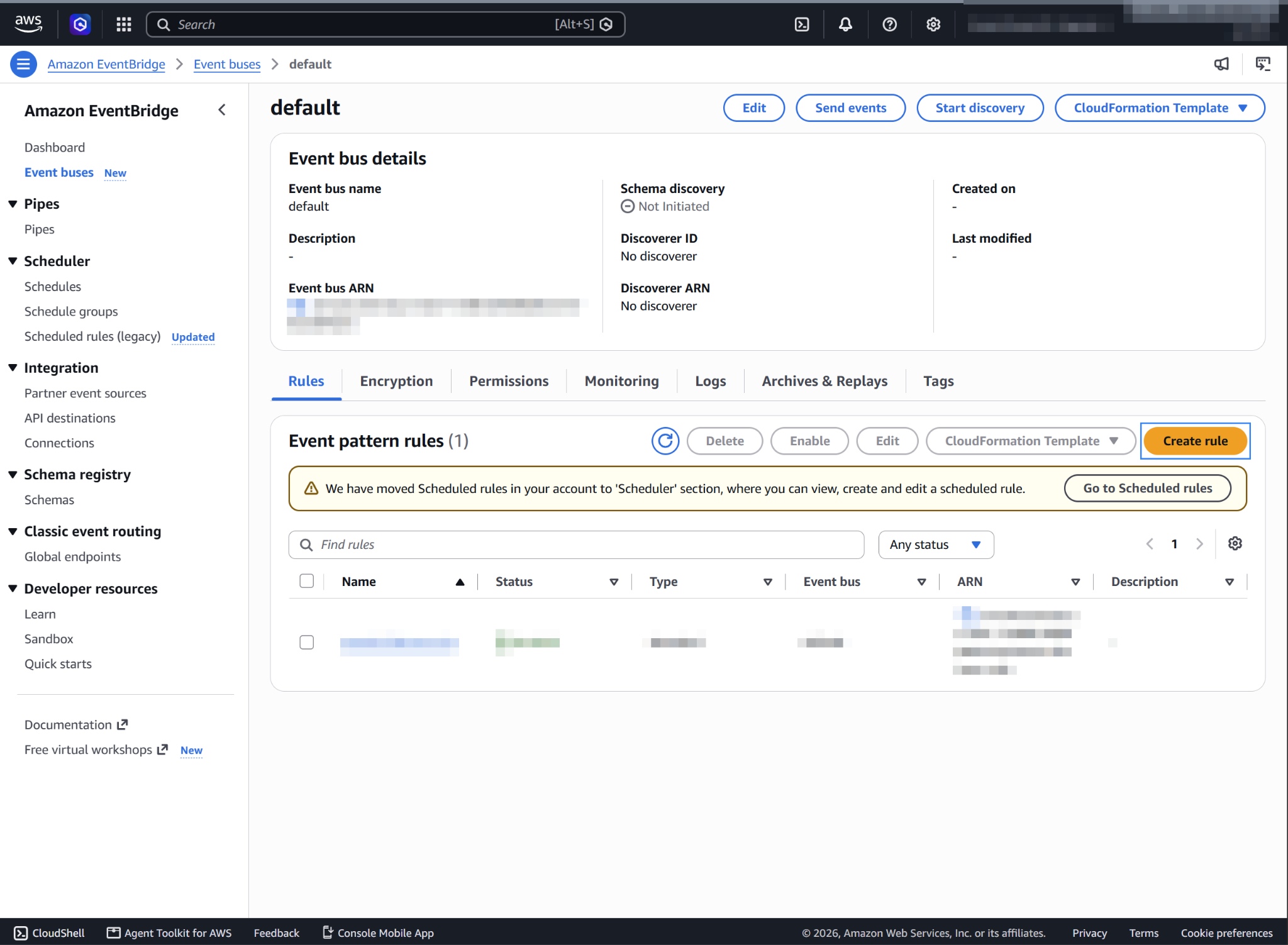
On the default event bus page, click Create rule.
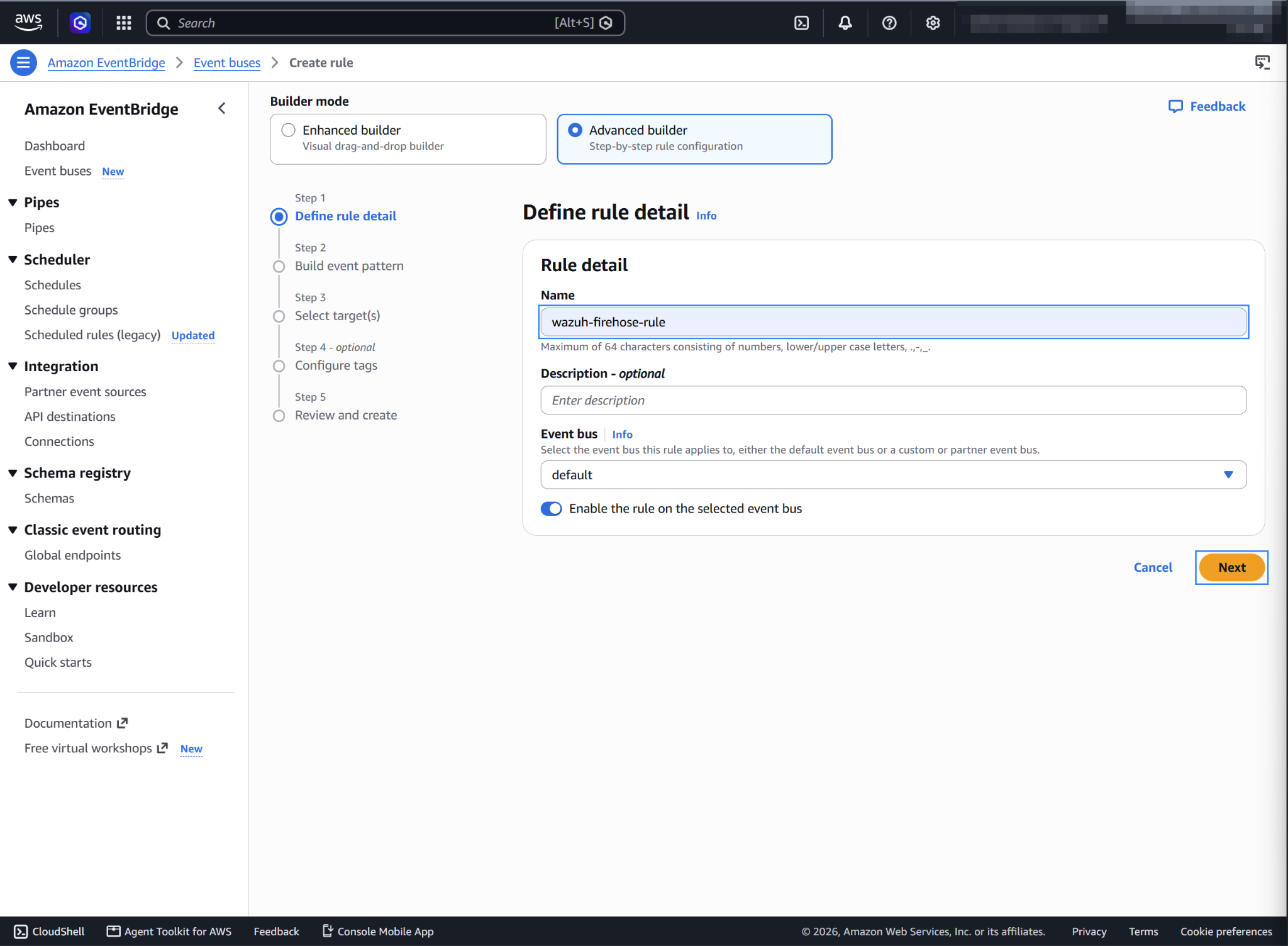
Select Advanced builder, assign a name to the EventBridge rule, and click Next.
In the Build event pattern section, choose AWS events or EventBridge partner events as Event source.
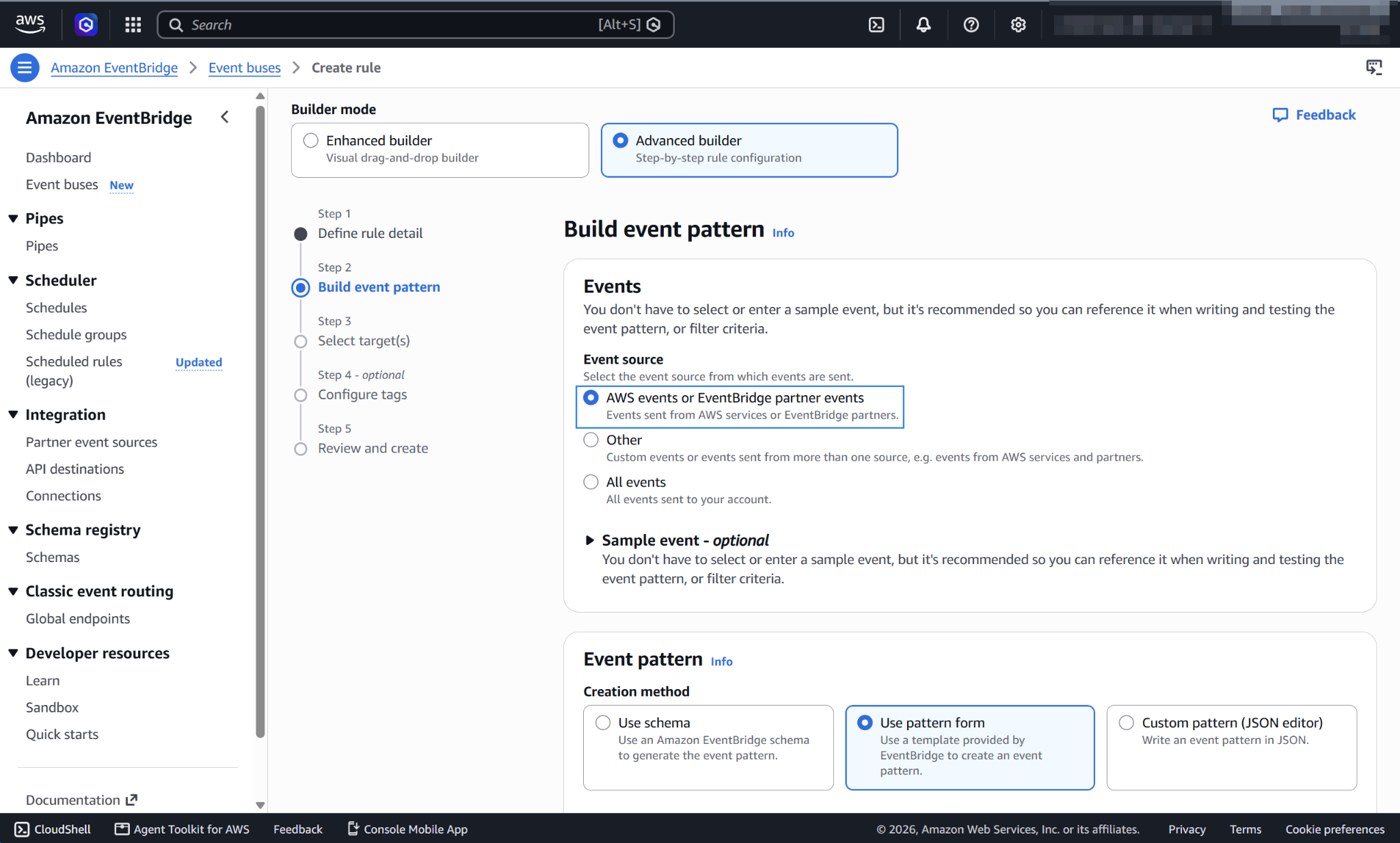
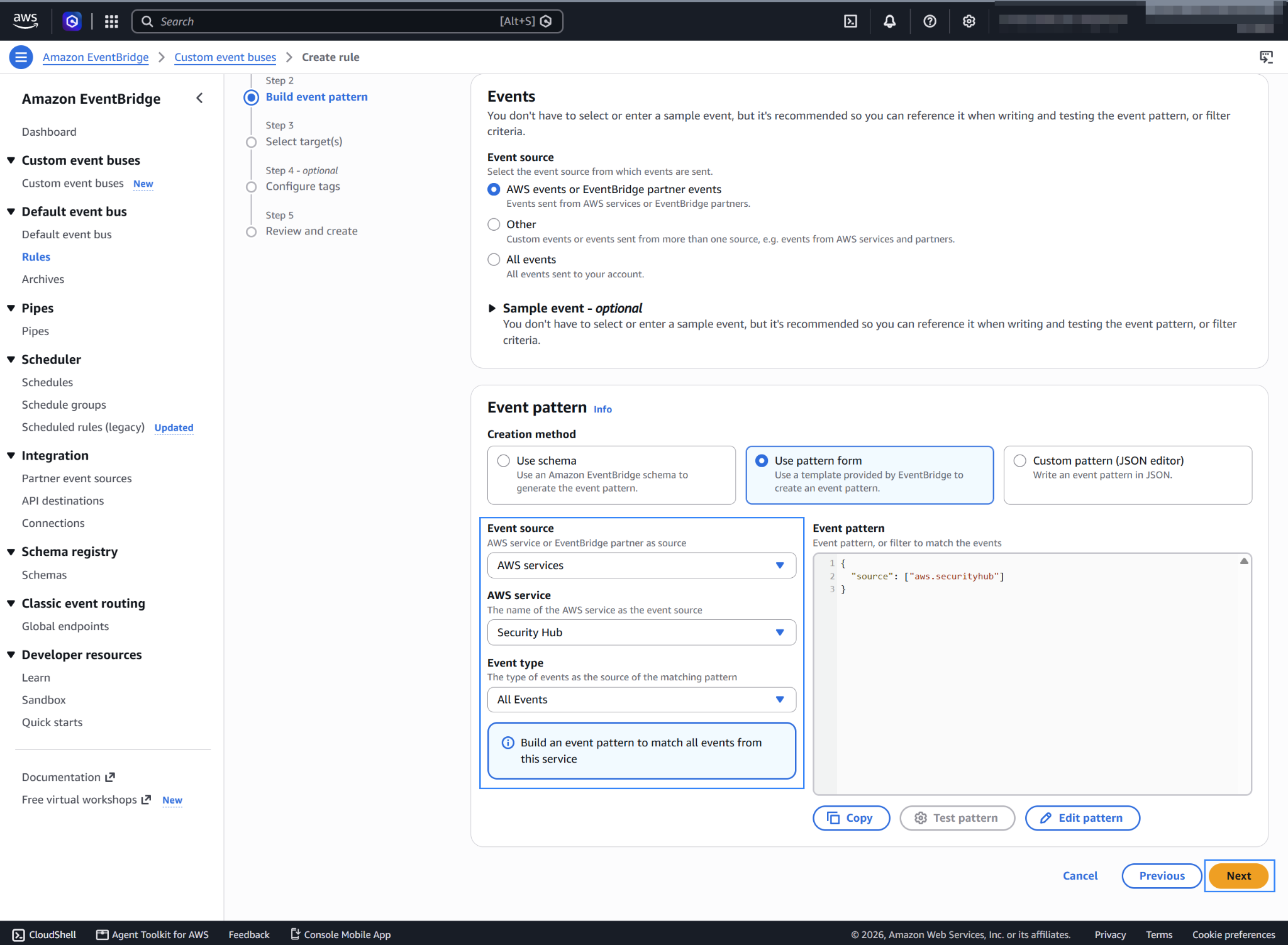
In the Event pattern section choose AWS services as Event source, Security Hub as AWS service, and All Events as Event type. Click Next to apply the configuration.
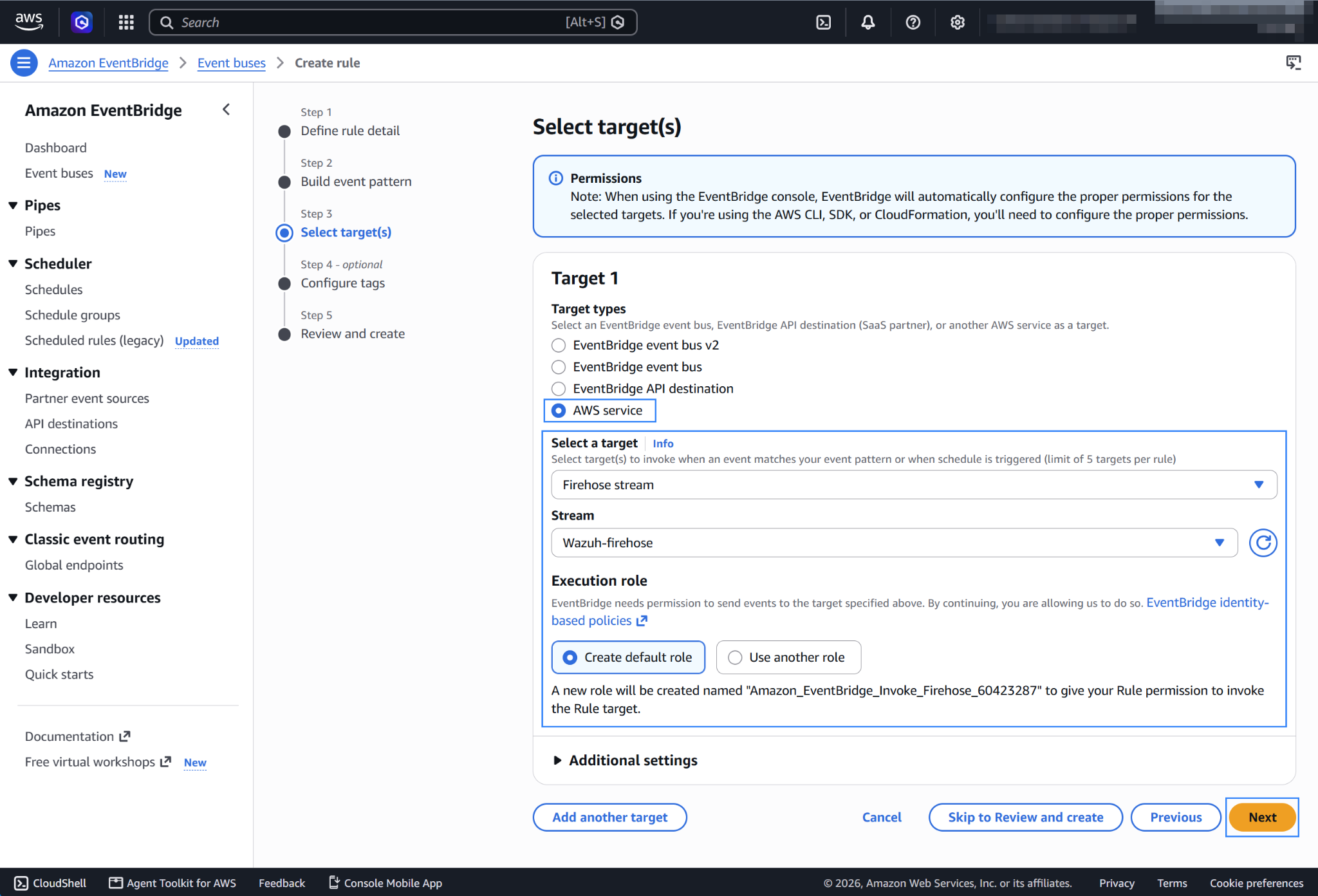
Under Select a target, choose Firehose stream and select the stream created previously. Also, create a new role to access the delivery stream. Click Next to apply the configuration.
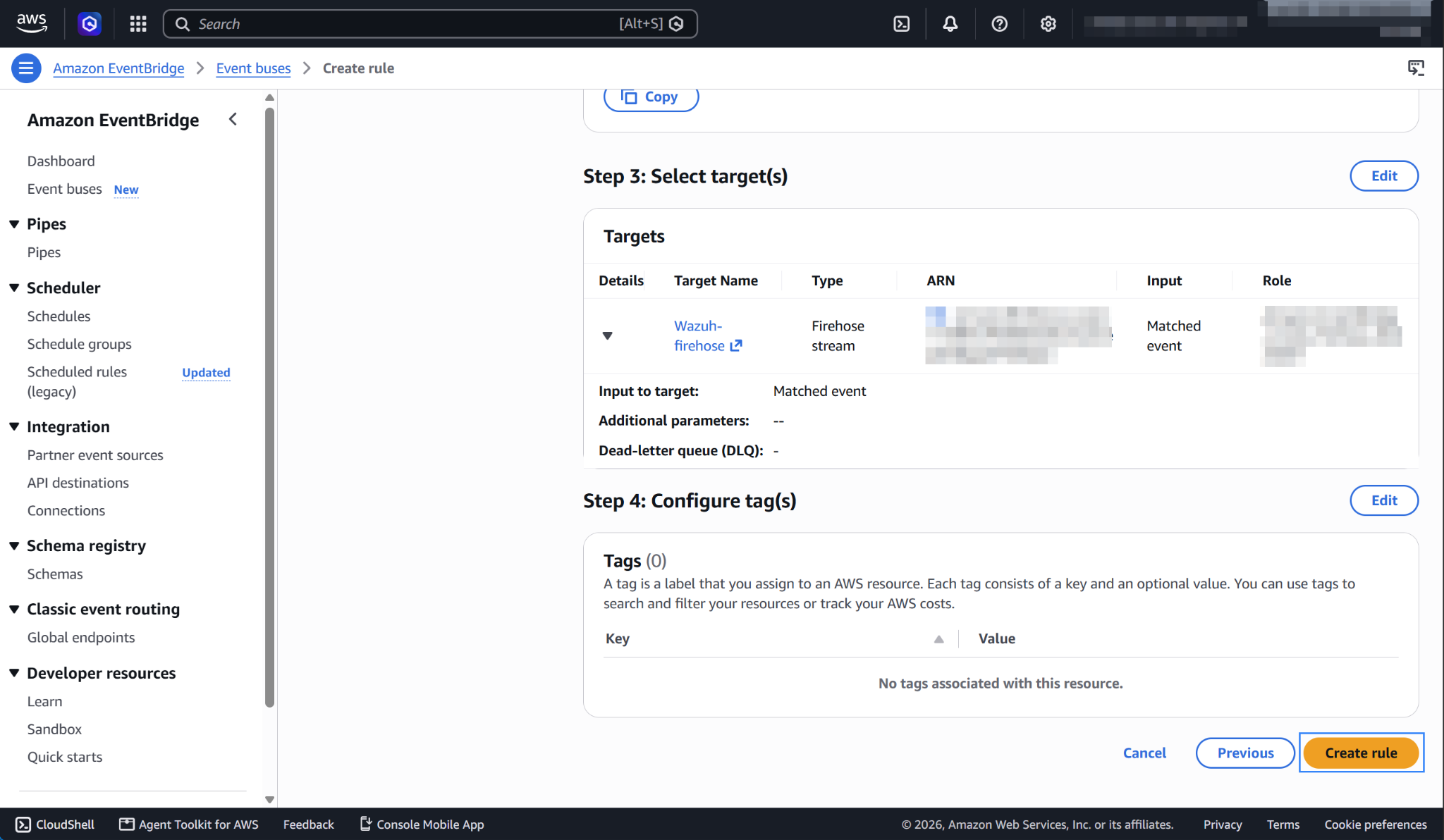
Review the configuration and click Create rule.
The AWS documentation provides steps to configure an EventBridge rule for AWS Security Hub CSPM.
Amazon S3 bucket with event notifications
Follow the steps below to configure an S3 bucket that reports the creation of events.
Configure an S3 bucket as defined in the configure an AWS S3 bucket section. Use the bucket that you selected as the destination of the Firehose stream.
Go to Event notifications inside the Properties tab, then click Create event notification.
Select All object create events in Event Types. The bucket then sends a notification for every event that creates an object in it.
Select SQS queue in the Destination section.
Select Choose from your SQS queues, then choose the queue you created previously.
Amazon Simple Queue Service
Amazon Simple Queue Service is a fully managed message queuing service that makes it easy to decouple and scale microservices, distributed systems, and serverless applications.
In this case, the queue receives the S3 notifications for new objects. The Wazuh module for AWS polls the queue to find the objects to pull from the S3 bucket.
Set up a Standard type SQS queue in the Amazon SQS console with the default configurations. You can apply an access policy similar to the following example. Replace
<REGION>,<ACCOUNT_ID>,<S3_BUCKET>,<SQS_NAME>with your region, account ID, S3 bucket name, and SQS queue name.{ "Version": "2012-10-17", "Id": "SecurityHub-ID", "Statement": [ { "Sid": "example-access-policy", "Effect": "Allow", "Principal": { "Service": "s3.amazonaws.com" }, "Action": "SQS:SendMessage", "Resource": "arn:aws:sqs:<REGION>:<ACCOUNT_ID>:<SQS_NAME>", "Condition": { "StringEquals": { "aws:SourceAccount": "<ACCOUNT_ID>" }, "ArnLike": { "aws:SourceArn": "arn:aws:s3:*:*:<S3_BUCKET>" } } } ] }
The other settings related to this configuration are:
"Version"specifies the version of the policy language being used, in this case, the version from 2012-10-17."Id"is a unique identifier for this policy."Statement"is an array that contains the individual permission statements for this policy."Sid"is an optional identifier that provides a way to give the statement a unique name."Effect"defines whether the statement results in an "Allow" or "Deny" for the specified actions."Principal"specifies the AWS service or account allowed to access the resource, in this case, the "s3.amazonaws.com" service."Action"specifies the action that is allowed or denied, in this case, "SQS:SendMessage", which allows sending messages to an SQS queue."Condition"specifies conditional elements that must be met for the policy to take effect."Resource"is the ARN of your SQS queue."aws:SourceAccount"is your AWS account ID."aws:SourceArn"is the ARN of the Amazon S3 bucket created for your AWS Security Hub CSPM logs.
You can also set your access policy to accept S3 notifications from different account IDs and apply different conditions. For more information, see managing access in Amazon SQS.
Policy configuration
Follow the creating an AWS policy guide to create a policy using the Amazon Web Services console. Attach a policy like the following to the AWS identity that the Wazuh module for AWS uses. Replace <REGION>, <ACCOUNT_ID>, <SQS_NAME>, and <S3_BUCKET> with your values.
{
    "Version": "2012-10-17",
    "Statement": [
        {
            "Sid": "ReadNotificationQueue",
            "Effect": "Allow",
            "Action": [
                "sqs:GetQueueUrl",
                "sqs:ReceiveMessage",
                "sqs:DeleteMessage"
            ],
            "Resource": "arn:aws:sqs:<REGION>:<ACCOUNT_ID>:<SQS_NAME>"
        },
        {
            "Sid": "ReadLogBucket",
            "Effect": "Allow",
            "Action": [
                "s3:GetObject",
                "s3:ListBucket"
            ],
            "Resource": [
                "arn:aws:s3:::<S3_BUCKET>",
                "arn:aws:s3:::<S3_BUCKET>/*"
            ]
        }
    ]
}
Configure Wazuh to process AWS Security Hub CSPM logs
Authentication
The available authentication methods are the following:
These authentication methods require providing credentials using the /root/.aws/credentials file. For more information, see the Configure AWS credentials section.
Configuration
Make sure that the AWS integrations are enabled on the Wazuh dashboard, as described in Enable AWS integration on the Wazuh dashboard.
Add the SQS queue name to the
<sqs_name>tag in the/var/ossec/etc/ossec.conffile, as in the following example. If the file already has a<wodle name="aws-s3">block, add only the<subscriber>section to it:<wodle name="aws-s3"> <disabled>no</disabled> <interval>1h</interval> <run_on_start>yes</run_on_start> <subscriber type="security_hub"> <sqs_name><SQS_NAME></sqs_name> <aws_profile><PROFILE></aws_profile> </subscriber> </wodle>
Where:
<interval>is the time taken between each log pull.<run_on_start>pulls AWS Security Hub CSPM logs each time the Wazuh agent starts.<subscriber type="security_hub">are the added tags to obtain AWS Security Hub CSPM logs.<sqs_name>is the name of the Amazon SQS queue created in the previous section.
Optional
<service_endpoint>– The AWS S3 endpoint URL for data downloading from the bucket. Check Using VPC and FIPS endpoints for more information about VPC and FIPS endpoints.
Restart the Wazuh agent to apply the changes.
# systemctl restart wazuh-agent
Check the Wazuh module for AWS reference to learn more about the available settings. For more information about the queue settings, check the subscribers reference.
Warning
Every message sent to the queue is read and deleted. Make sure you only use the queue for bucket notifications.
Visualize the findings on the Wazuh dashboard
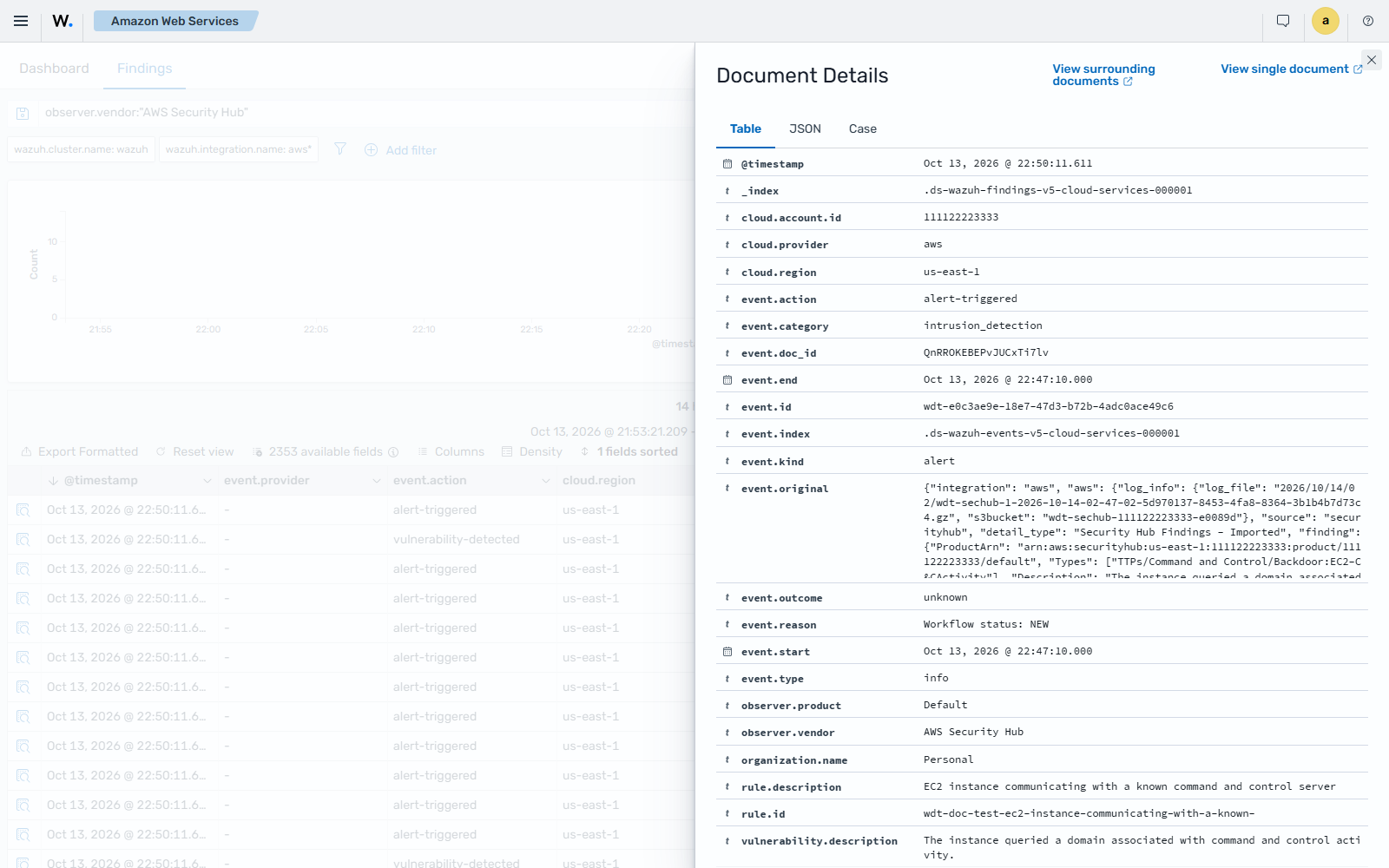
You can view these findings on the Wazuh dashboard. Go to Amazon Web Services > Findings and filter by observer.vendor: "AWS Security Hub".
Each type of Security Hub CSPM finding raises a different Wazuh finding:
Failed compliance checks: AWS Security Hub compliance check failed
Sensitive data identifications: AWS Security Hub sensitive data identified
Software vulnerabilities: Vulnerability detected
Threat detections (TTPs): IDS/IPS alert triggered
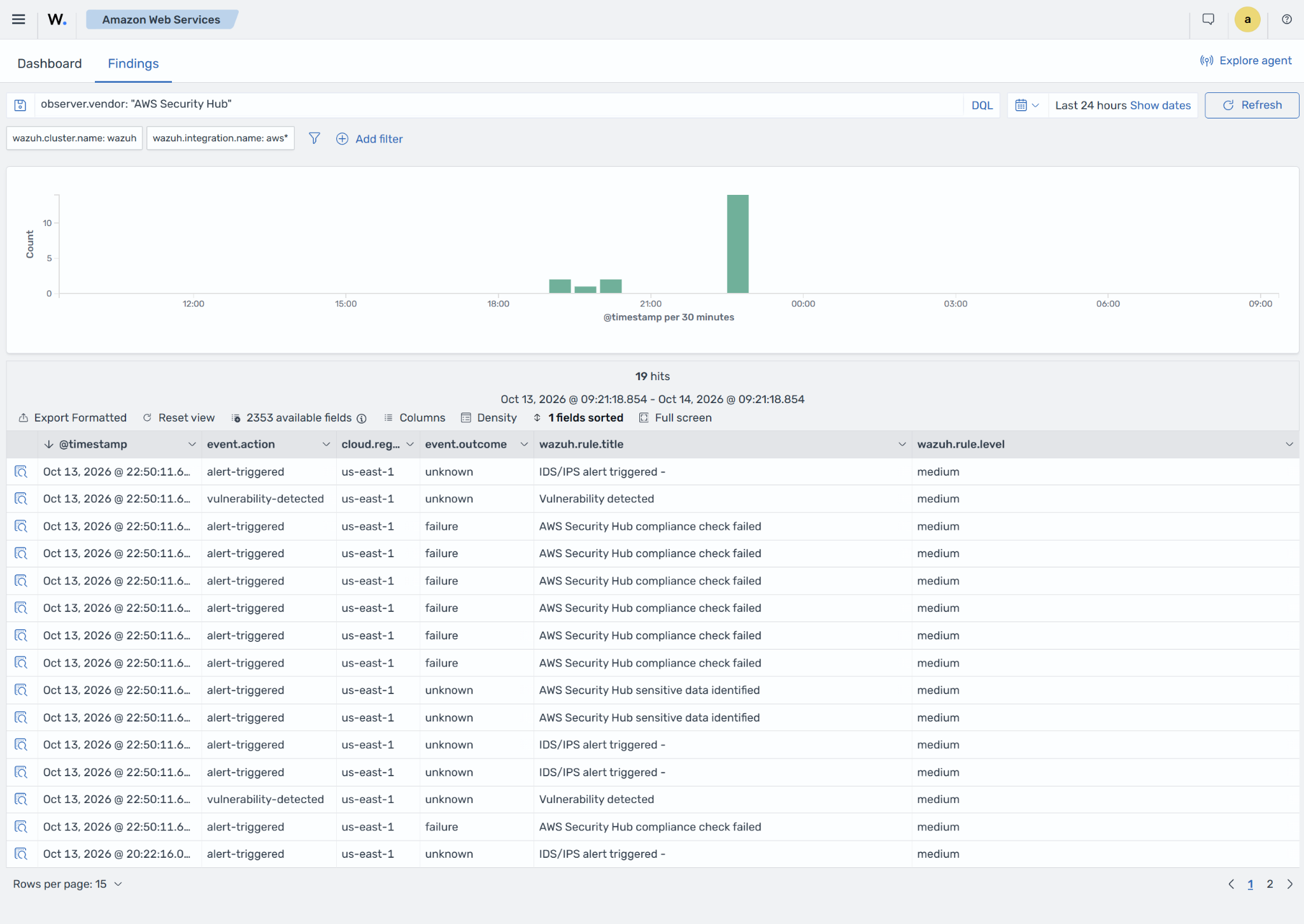
Expand a finding to see its details:
Security Hub CSPM finding title (
rule.description)Control ID (
rule.id)Finding description (
vulnerability.description)Workflow status (
event.reason)Product that reported it (
observer.product)AWS account and region (
cloud.account.idandcloud.region)