Amazon Security Lake
Amazon Security Lake is a fully managed security data lake service that consolidates data from multiple AWS and other services. It optimizes storage costs and performance at scale.
All logs in Amazon Security Lake use the Open Cybersecurity Schema Framework (OCSF) standard for formatting. You can use the Wazuh module for AWS as a Security Lake subscriber to ingest security events from AWS services.
These events are available as multi-event Apache Parquet objects in an S3 bucket. Each object has a corresponding SQS message, once it's ready for download.
Wazuh periodically checks for new SQS messages and downloads the new objects. It converts the files from Parquet to JSON and sends each event to the Wazuh manager for analysis. To set up the Wazuh module for AWS as a Security Lake subscriber, you need to do the following:
Create a subscriber in Amazon Security Lake and configure the role and user permissions.
Configure the Wazuh module for AWS to read from Amazon Security Lake.
AWS configuration
The following sections cover how to configure the Amazon Security Lake service to integrate with Wazuh.
Enabling Amazon Security Lake
If you haven't already, make sure that you have enabled Amazon Security Lake by following the instructions in Getting started - Amazon Security Lake.
For multiple AWS accounts, we recommend that you use AWS Organizations and set up Amazon Security Lake at the organization level.
Creating a subscriber in Amazon Security Lake
After you enable Amazon Security Lake, configure a subscriber for Amazon Security Lake in the AWS console. The subscriber creates the resources that make the Amazon Security Lake events available to your Wazuh deployment.
Setting up a subscriber in the AWS console
Creating a subscriber
Enter a descriptive name for your subscriber, for example,
Wazuh.Select S3 as your data access method.
Under S3 notification type select SQS queue.
Enter the AWS account ID for the account you are currently logged into.
Enter a unique value in External ID, for example,
WAZUH-EXTERNAL-ID-VALUE.Choose to either collect all log and event sources, or only specific log and event sources.
Click Create.
Reviewing the subscriber
Navigate to My subscribers section, and click your newly created subscriber to get to the Subscriber details page.
Check that AWS created the subscriber with the correct parameters.
Save the SQS queue name, which is the last part of the Subscription endpoint value. You need it to configure the Wazuh module for AWS and to verify the information in the SQS queue.
Verifying information in the SQS queue
Follow these steps in your AWS account to verify the information for the SQS queue that Security Lake creates.
In your AWS console, navigate to the Amazon Simple Queue Service.
In the Queues section, navigate to the queue that Security Lake created. Click its name.
In the information page for the queue, click the Monitoring tab. Verify that events are flowing in by looking at the Approximate Number Of Messages Visible graph and confirming the number is increasing.
Verifying events are flowing into S3 bucket
Follow these steps in your AWS account to verify that Parquet files are flowing into your configured S3 buckets.
In your AWS console, navigate to the Amazon S3 service.
Navigate to the Buckets section, and click the S3 bucket name that Security Lake created for each applicable region. These bucket names start with the prefix
aws-security-data-lake.In each applicable bucket, navigate to the Objects tab. Click through the directories to verify that Security Lake has available events flowing into the S3 bucket. Check that new files with the
.gz.parquetextension appear.If you enabled Security Lake on more than one AWS account, check if you see each applicable account number listed. Check that Parquet files exist inside each account.
In each applicable S3 bucket, go to the Properties tab. In the Event notifications section, verify that the data destination is the Security Lake SQS queue.
Policy configuration
Take into account that the policies below follow the principle of least privilege to ensure that only the minimum permissions are used.
Configuring the role
Follow these steps to modify the Security Lake subscriber role. You have to associate an existing IAM user with the role. Use the user whose access keys are in the AWS profile that you set in the Wazuh module for AWS configuration.
In your AWS console, navigate to the Amazon IAM service.
In your Amazon IAM service, navigate to the Roles page.
In the Roles page, select the subscriber role that Security Lake created when you created the subscriber.
In the Summary page, navigate to the Trust relationships tab to modify the Trusted entity policy.
Modify the Trusted entity policy with the following updates:
In the trust policy, set the AWS principal to the ARN of the IAM user that you associate with the role. The Wazuh module for AWS can then assume the role with the access keys of this user. See the following trust policy example:
{
    "Version": "2012-10-17",
    "Statement": [
        {
            "Sid": "1",
            "Effect": "Allow",
            "Principal": {
                "AWS": "arn:aws:iam::<ACCOUNT_ID>:user/<USERNAME>"
            },
            "Action": "sts:AssumeRole",
            "Condition": {
                    "StringEquals": {
                        "sts:ExternalId": [
                            "<EXTERNAL_ID>"
                        ]
                    }
            }
        }
    ]
}
Note
<ACCOUNT_ID>,<USERNAME>and<EXTERNAL_ID>are placeholders. Replace them with the appropriate values.
Granting user permission to switch roles
Follow these steps to configure the user permissions:
In your Amazon IAM service, navigate to the Users page.
In the Users page, select the Username of the user you have connected to the role (
<USERNAME>).On the Permissions tab, select Add permissions > Create inline policy.
In the Policy editor, select JSON and paste the following policy. Replace
<ACCOUNT_ID>with your AWS account ID and<RESOURCE_ROLE>with the subscriber role that Security Lake created. This policy lets the user switch to the subscriber role. After you paste the policy, click Next, enter a policy name, and click Create policy.{ "Version": "2012-10-17", "Statement": [ { "Sid": "VisualEditor1", "Effect": "Allow", "Action": "sts:AssumeRole", "Resource": "arn:aws:iam::<ACCOUNT_ID>:role/<RESOURCE_ROLE>" } ] }
Configuration parameters
The following fields inside the /var/ossec/etc/ossec.conf file on the Wazuh agent allow you to configure the queue and authentication:
Queue configuration
<sqs_name>: The name of the SQS queue that Security Lake created.<service_endpoint>- Optional: The AWS S3 endpoint URL to be used to download the data from the bucket. Check Using VPC and FIPS endpoints for more information about VPC and FIPS endpoints.
Authentication
The available authentication configuration parameters are the following:
<iam_role_arn>: Amazon Resource Name (ARN) for the corresponding IAM role to assume.<external_id>: External ID to use when assuming the role.<aws_profile>: A valid profile name from a shared credentials file or AWS config file with the permissions to access the service. By default, the Wazuh module for AWS uses the settings found in thedefaultprofile. This example uses thedevprofile. Replace it with the appropriate profile defined in your credential file.<iam_role_duration>- Optional: The session duration in seconds.<sts_endpoint>- Optional: The URL of the VPC endpoint of the AWS Security Token Service.
You can find more information about the different authentication methods in the Configure AWS credentials section.
Configure Wazuh to process Amazon Security Lake logs
Make sure that the AWS integrations are enabled on the Wazuh dashboard, as described in Enable AWS integration on the Wazuh dashboard.
Add the following Wazuh module for AWS configuration block to the
/var/ossec/etc/ossec.conffile on the Wazuh agent. If the file already has a<wodle name="aws-s3">block, add only the<subscriber>section to it.<wodle name="aws-s3"> <disabled>no</disabled> <interval>1h</interval> <run_on_start>yes</run_on_start> <subscriber type="security_lake"> <sqs_name><SQS_NAME></sqs_name> <iam_role_arn>arn:aws:iam::<ACCOUNT_ID>:role/<RESOURCE_ROLE></iam_role_arn> <iam_role_duration>1300</iam_role_duration> <external_id><EXTERNAL_ID></external_id> <aws_profile>dev</aws_profile> </subscriber> </wodle>
After setting the required parameters, restart the Wazuh agent service to apply the changes:
# systemctl restart wazuh-agent
Note
The Wazuh module for AWS execution time varies depending on the number of notifications present in the queue. The execution time affects how long events take to appear on the Wazuh dashboard. If the <interval> value is less than the execution time, the Interval overtaken message appears in the /var/ossec/logs/ossec.log file.
Visualize events on the Wazuh dashboard
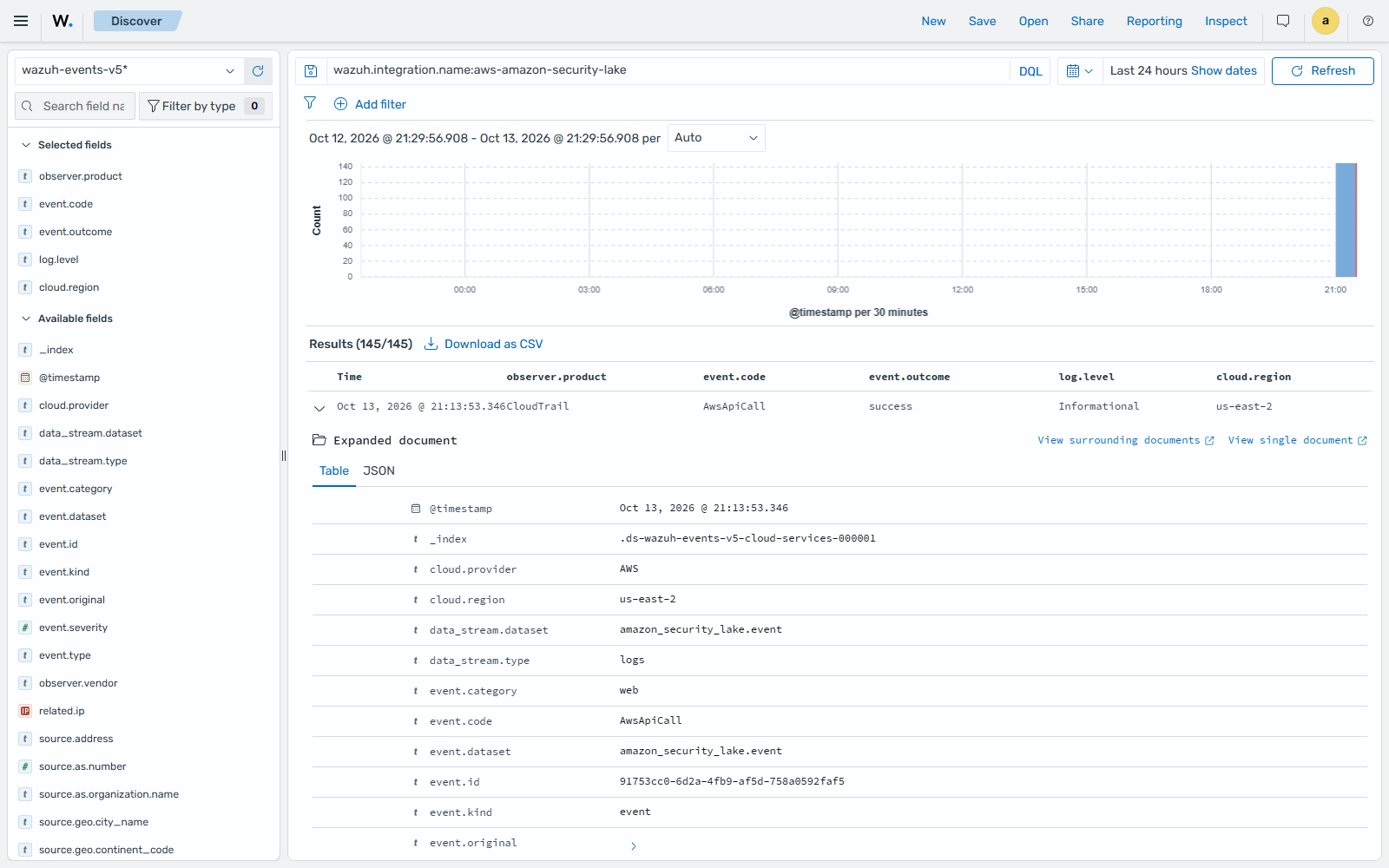
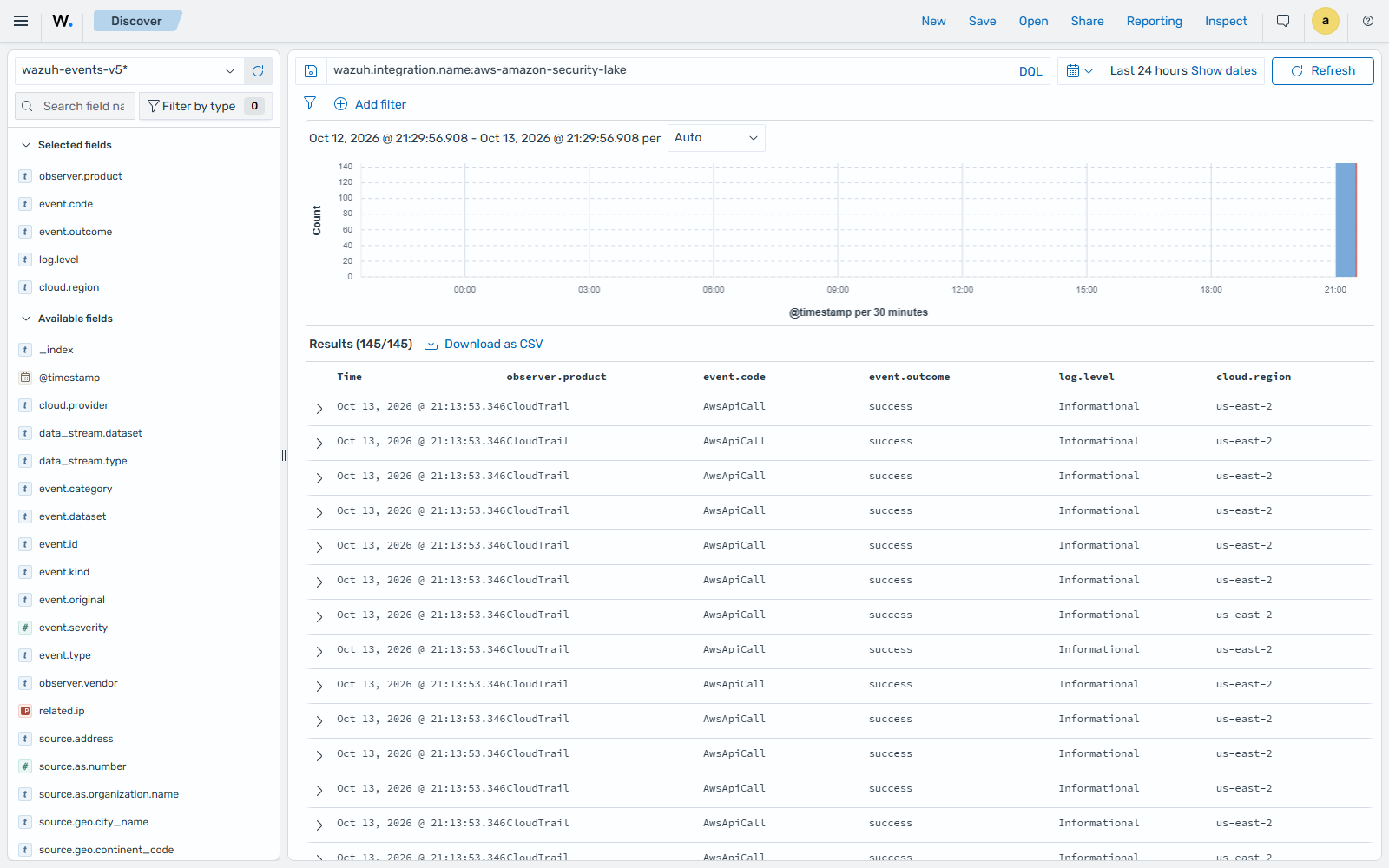
After you set the configuration and restart the Wazuh agent, you can see the Amazon Security Lake events on the Wazuh dashboard. To do this, go to Explore > Discover, select the wazuh-events-v5* index pattern, and filter by wazuh.integration.name: aws-amazon-security-lake. The aws-amazon-security-lake integration decodes the OCSF events but has no rules, so these events don't raise findings.
Expand an event to see its details:
AWS service that produced the record (
observer.product, for example CloudTrail)OCSF event code (
event.code, for example AwsApiCall)Outcome (
event.outcome)Severity (
event.severityandlog.level)AWS region (
cloud.region)User agent (
user_agent.original)Full OCSF record (
event.original)