Active response
The Wazuh Active Response module performs autonomous actions on endpoints to mitigate security threats. Wazuh can execute scripts automatically when specific alerting conditions are met. These scripts execute actions, such as a firewall block or drop, and account lockout.
The Wazuh Active Response module assists in meeting the following NIST 800-53 controls:
AC-7 Unsuccessful logon attempts: "The need to limit unsuccessful logon attempts and take subsequent action when the maximum number of attempts is exceeded applies regardless of whether the logon occurs via a local or network connection. Due to the potential for denial of service, automatic lockouts initiated by systems are usually temporary and automatically released after a predetermined, organization-defined time period. If a delay algorithm is selected, organizations may employ different algorithms for different components of the system based on the capabilities of those components. Responses to unsuccessful logon attempts may be implemented at the operating system and the application levels. Organization-defined actions that may be taken when the number of allowed consecutive invalid logon attempts is exceeded include prompting the user to answer a secret question in addition to the username and password, invoking a lockdown mode with limited user capabilities (instead of full lockout), allowing users to only logon from specified Internet Protocol (IP) addresses, requiring a CAPTCHA to prevent automated attacks, or applying user profiles such as location, time of day, IP address, device, or Media Access Control (MAC) address. If automatic system lockout or execution of a delay algorithm is not implemented in support of the availability objective, organizations consider a combination of other actions to help prevent brute force attacks. In addition to the above, organizations can prompt users to respond to a secret question before the number of allowed unsuccessful logon attempts is exceeded. Automatically unlocking an account after a specified period of time is generally not permitted. However, exceptions may be required based on operational mission or need."
SC-5 Denial-of-service protection: "Denial-of-service events may occur due to a variety of internal and external causes, such as an attack by an adversary or a lack of planning to support organizational needs with respect to capacity and bandwidth. Such attacks can occur across a wide range of network protocols (e.g., IPv4, IPv6). A variety of technologies are available to limit or eliminate the origination and effects of denial-of-service events. For example, boundary protection devices can filter certain types of packets to protect system components on internal networks from being directly affected by or the source of denial-of-service attacks. Employing increased network capacity and bandwidth combined with service redundancy also reduces the susceptibility to denial-of-service events."
The Wazuh Active Response module assists in meeting the above controls by responding to malicious sources. Wazuh includes out-of-the-box active response commands that drop traffic from a malicious IP address or disable a user account that is a victim of brute forcing.
Use case
Block web attacks with Active Response
Wazuh detects web-based attacks by analyzing web server logs, then automatically responds by blocking the attacking source.
In this scenario, we initiate a Cross-Site Scripting (XSS) attack from a host with HTTP access to a monitored Ubuntu 24.04 endpoint. Active response automatically blocks an attacker's IP address after detecting an XSS attack. You can then track the findings for these events and actions on the Wazuh dashboard.
Configure the Ubuntu endpoint
Perform the following steps to install an Apache web server and monitor its logs with the Wazuh agent.
Update local packages and install the Apache web server:
$ sudo apt update
$ sudo apt install apache2
If a firewall is enabled, modify it to allow external access to web ports:
$ sudo ufw app list
$ sudo ufw allow 'Apache'
$ sudo ufw status
Check that the Apache web server is running:
$ sudo systemctl status apache2
Add the following lines to the Wazuh agent
/var/ossec/etc/ossec.confconfiguration file.This sets the Wazuh agent to monitor the access logs of your Apache server:
<localfile>
  <log_format>syslog</log_format>
  <location>/var/log/apache2/access.log</location>
</localfile>
Restart the Wazuh agent to apply the configuration changes:
$ sudo systemctl restart wazuh-agent
Configure the Wazuh dashboard
Follow these steps to configure an active response that blocks the source IP address of a detected web attack.
From the Wazuh dashboard main menu, navigate to Explore > Active Responses.
Click Create active response and complete the configuration form with the following details.
Field
Value
Name
web_attack_arExecutable
block-ipLocation
LocalType
Stateless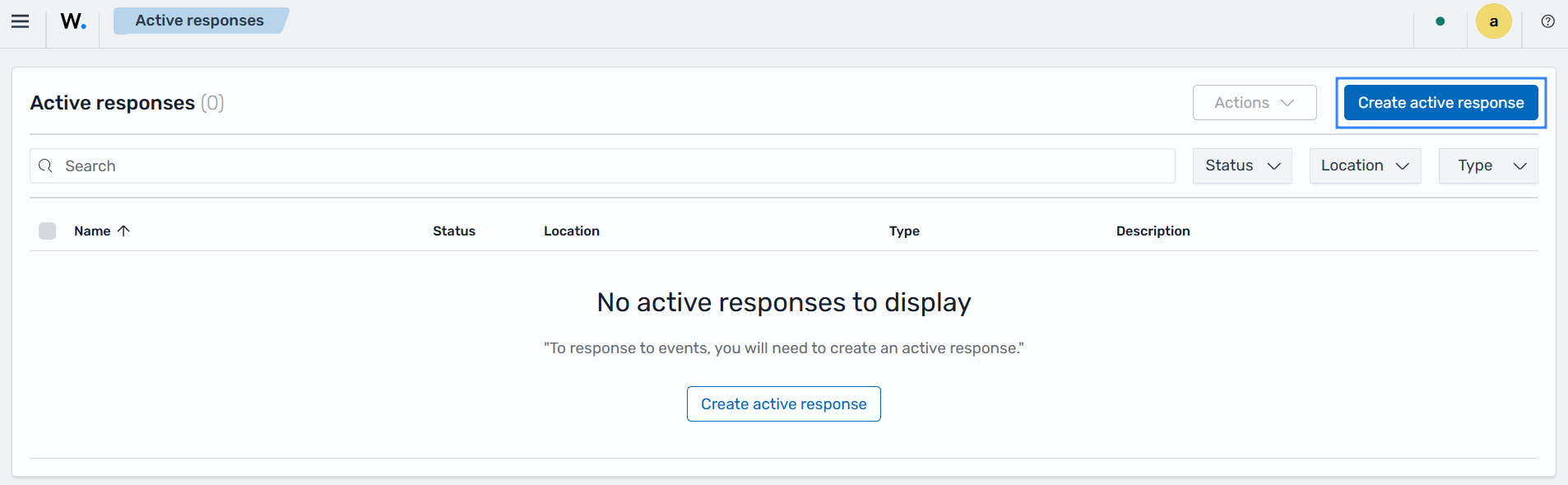
Click Create to save the active response.
Navigate to Explore > Alerting.
Switch to the Monitors tab, then click Create Monitor.
Fill in the following parameters.
Field
Value
Monitor name
web_attack_ar_monitorMonitor type
Active Response monitorMonitor defining method
Visual editorFrequency
By intervalRun every
1 Minute(s)Index
wazuh-findings-v5-applicationsQuery name
web_attack_ar_queryField
wazuh.rule.id is b04f7630-f428-5209-89f6-d640238bceac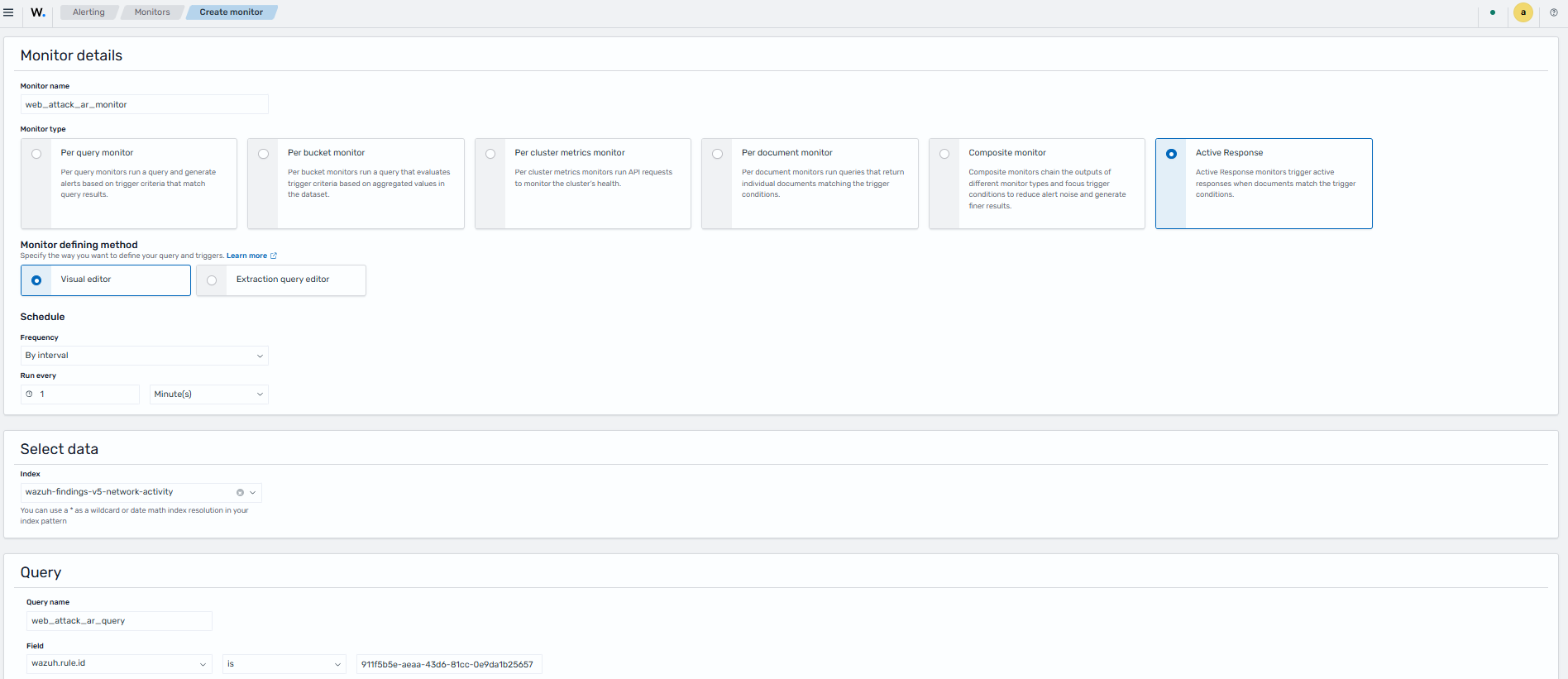
In the Triggers section, click Add trigger and fill in the following parameters.
Field
Value
Trigger name
web_attack_ar_triggerSeverity level
1 (Highest)Specify queries or tags
web_attack_ar_query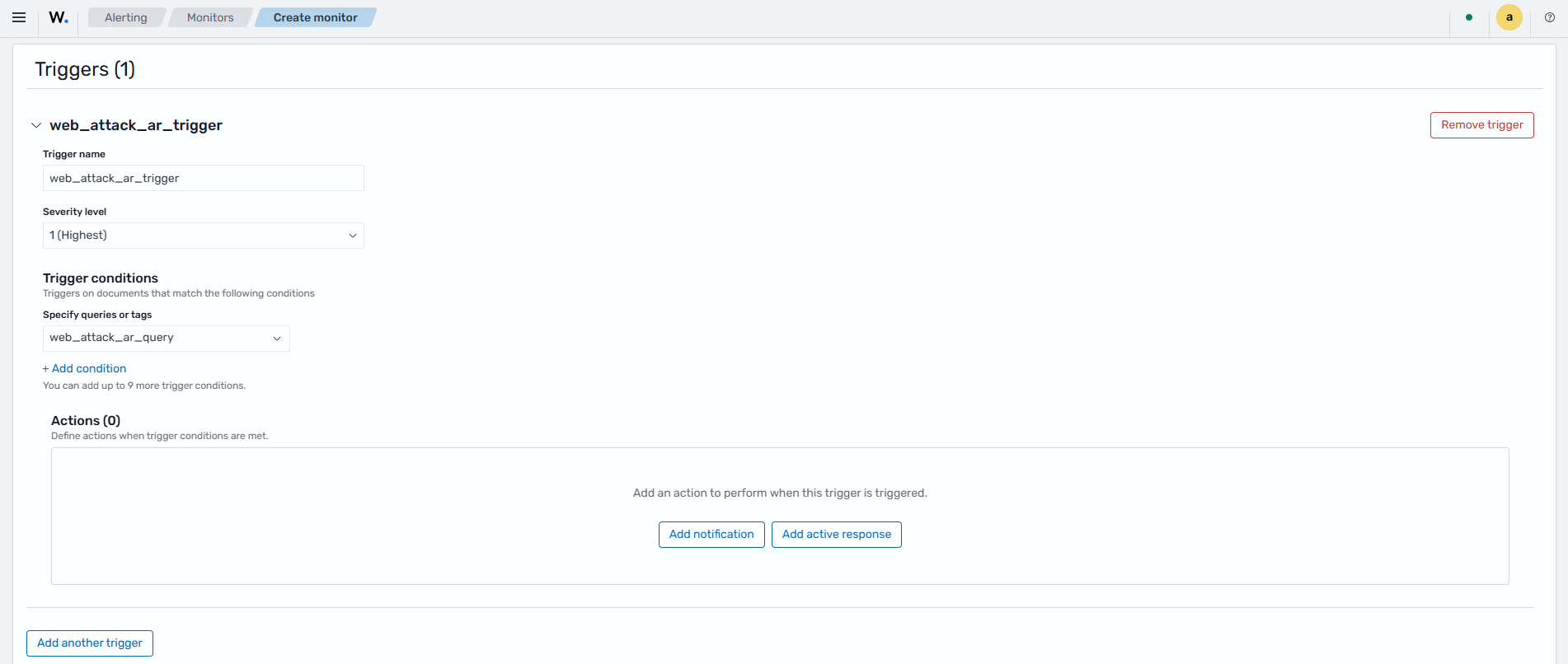
In the Actions subsection, click Add active response and fill in the following parameters.
Field
Value
Action name
web_attack_ar_actionActive response
web_attack_ar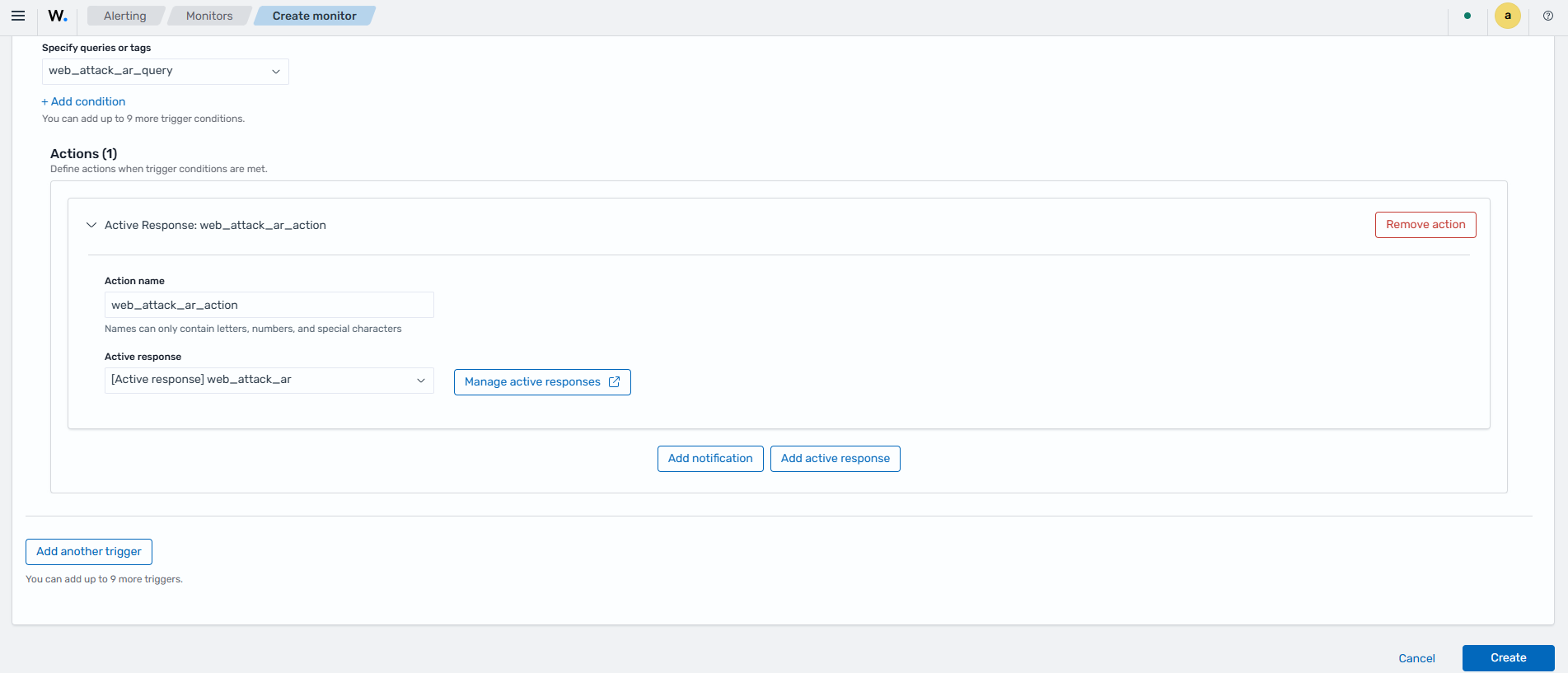
Click Create to save the monitor.
Simulate the attack
Perform the following steps from another endpoint.
Replace
<WEBSERVER_IP_ADDRESS>with the Ubuntu IP address and execute the following command from the attacker endpoint:$ curl -A "Mozilla/5.0 (Windows NT 10.0; Win64; x64) AppleWebKit/537.36" "http://<WEBSERVER_IP_ADDRESS>/index.html?q=<script>document.cookie</script>"
The attacker endpoint connects to the victim's web server the first time. This triggers a web attack finding and then triggers the
block-ipactive response to block any successive connections.Wait three minutes, then run the attack command again to confirm that the attacker IP is blocked:
$ curl -A "Mozilla/5.0 (Windows NT 10.0; Win64; x64) AppleWebKit/537.36" "http://<WEBSERVER_IP_ADDRESS>/index.html?q=<script>document.cookie</script>"
The command output looks similar to this:
curl: (28) Failed to connect to <WEBSERVER_IP_ADDRESS> port 80 after 134781 ms: Couldn't connect to server
Visualize the findings
You can visualize the findings in the Wazuh dashboard. Click the upper-left menu icon (☰) and go to Threat intelligence > Threat Hunting. Add the following filter in the search bar.
event.dataset:apache-access
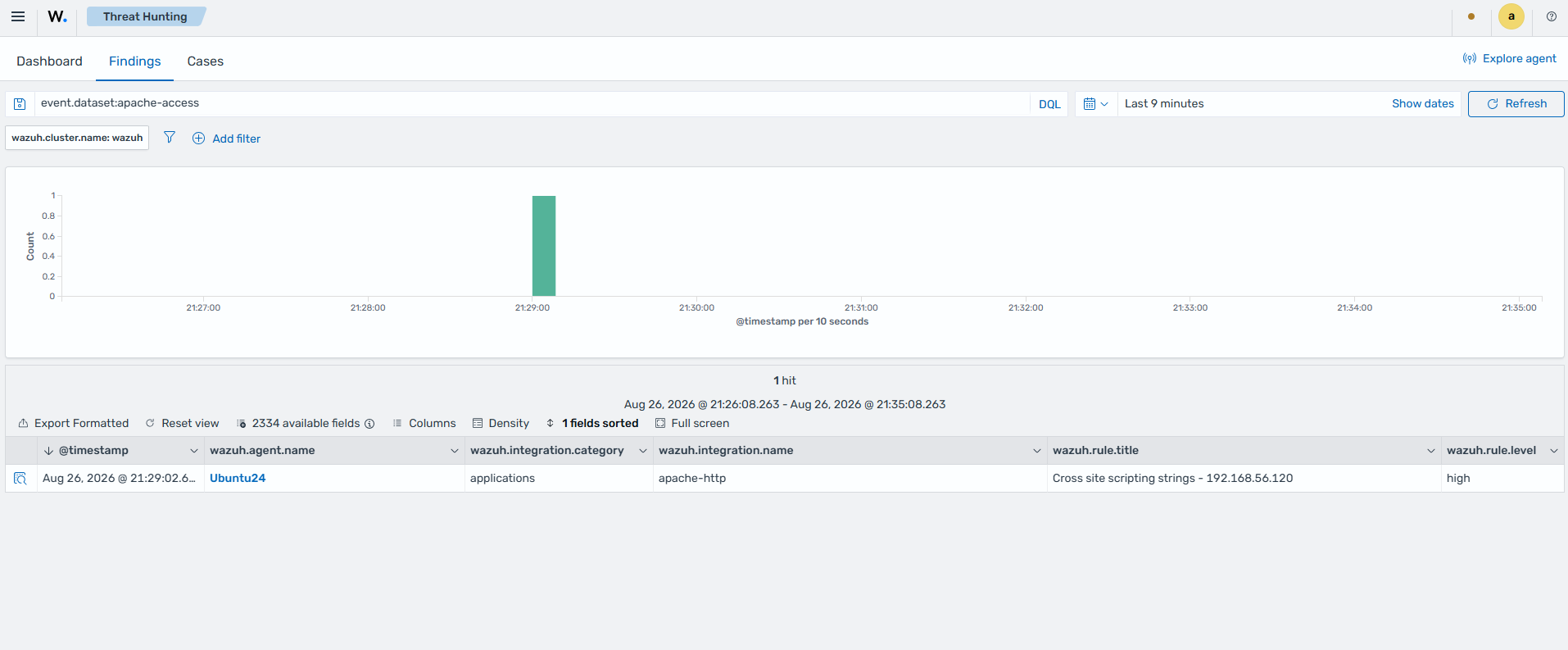
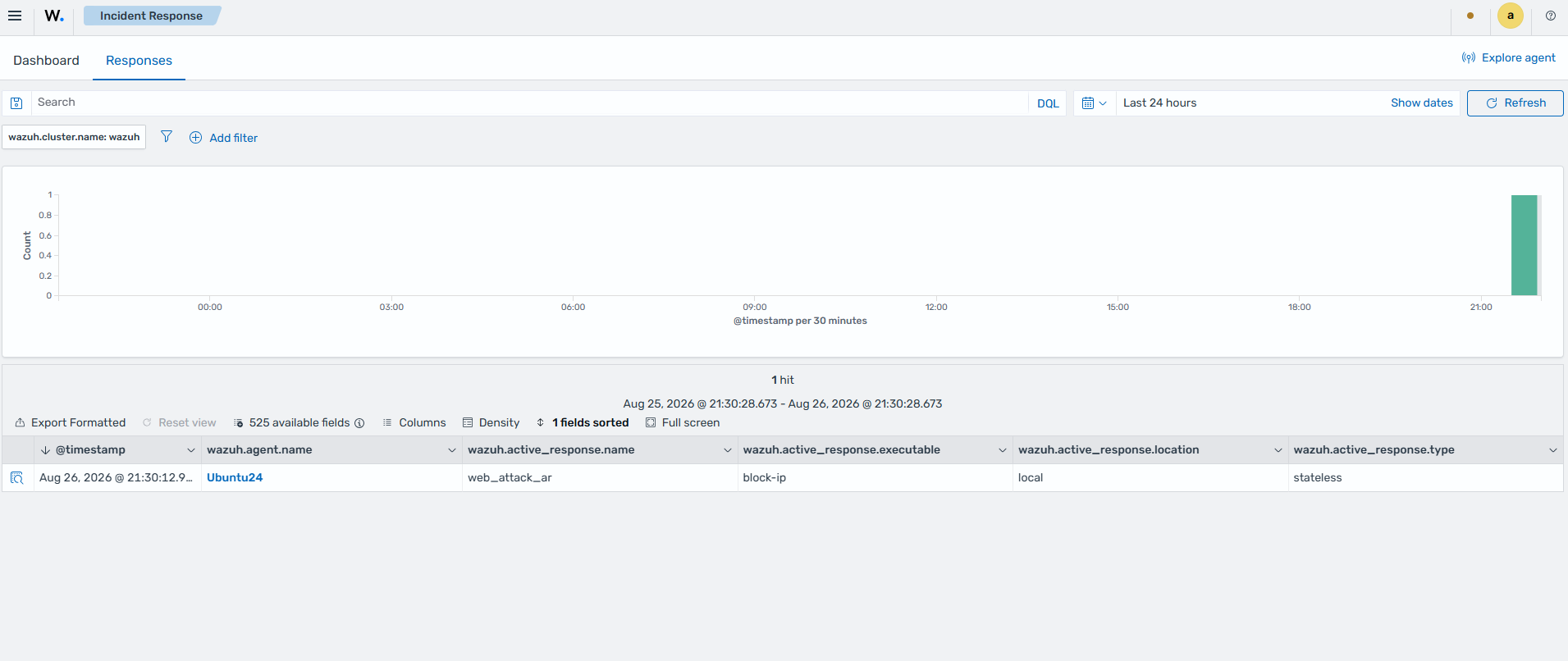
The block-ip active response triggers to block the attacker IP. Navigate to Security operations > Incident Response. Switch to the Responses tab to see details about the triggered Active response.