Getting started
This guide provides the essential information you need to use the Wazuh indexer API.
In the examples, replace <WAZUH_INDEXER_USERNAME> and <WAZUH_INDEXER_PASSWORD> with the credentials of a Wazuh indexer user that has the permissions the request needs, such as admin. Run the examples on the Wazuh indexer node, and replace <WAZUH_INDEXER_IP> with the network.host value of its /etc/wazuh-indexer/opensearch.yml file. On an all-in-one deployment, this value is 127.0.0.1.
Starting and stopping the Wazuh indexer API
By default, the Wazuh indexer API is included in the Wazuh indexer installation. You can manage or monitor the Wazuh indexer API by running the systemctl or service commands with the Wazuh indexer service.
# systemctl restart wazuh-indexer
# service wazuh-indexer restart
Replace restart with start, stop, or status to run the other actions.
Logging into the Wazuh indexer API
You must authenticate to use the Wazuh indexer API. The Wazuh indexer supports several authentication methods, and you can select the one that best meets your requirements. When you log in to the Wazuh dashboard with a user that has the appropriate privileges, you can use the Wazuh indexer API from the dashboard. The following sections describe options to access the Wazuh indexer API from scripts or the command line.
HTTP basic authentication
HTTP basic authentication is one of the simplest methods of accessing the Wazuh indexer API. The client sends a username and password with every request in the Authorization header of the HTTP request. This method is straightforward to implement and compatible with most tools and systems. However, it's less secure because the credentials travel with every request.
HTTP basic authentication is enabled by default. Its settings are in the basic_internal_auth_domain section of the /etc/wazuh-indexer/opensearch-security/config.yml configuration file. The default settings are the following:
basic_internal_auth_domain:
  description: "Authenticate via HTTP Basic against internal users database"
  http_enabled: true
  transport_enabled: true
  order: 4
  http_authenticator:
    type: basic
    challenge: true
  authentication_backend:
    type: intern
The following example uses curl to connect and authenticate with HTTP basic authentication:
# curl -k -u <WAZUH_INDEXER_USERNAME>:<WAZUH_INDEXER_PASSWORD> https://<WAZUH_INDEXER_IP>:9200/
The command output looks similar to this:
{
  "name" : "node-1",
  "cluster_name" : "wazuh-cluster",
  "cluster_uuid" : "hE4dRwcIS5WwgJZKXiCKUw",
  "version" : {
    "distribution" : "opensearch",
    "number" : "3.6.0",
    "build_type" : "deb",
    "build_hash" : "17bec3a11c6593a2dabafa83fd97e17dac8f6ac8",
    "build_date" : "2026-10-05T15:19:59.692749060Z",
    "build_snapshot" : false,
    "lucene_version" : "10.4.0",
    "minimum_wire_compatibility_version" : "2.19.0",
    "minimum_index_compatibility_version" : "2.0.0"
  },
  "tagline" : "The OpenSearch Project: https://opensearch.org/"
}
JSON Web Token (JWT)
A JSON Web Token (JWT) is another method of authenticating to the Wazuh indexer API. JWT is an open standard (RFC 7519) that defines a compact and self-contained method for securely transmitting information between parties as a JSON object.
You can use JWTs in the following ways:
On-behalf-of tokens: The Wazuh indexer issues a short-lived JWT for an authenticated user. It signs the token with a key stored in the
/etc/wazuh-indexer/opensearch-security/config.ymlfile. The following steps use this method.External JWTs: An external identity provider issues the token. The Wazuh indexer validates it with the
jwt_auth_domainsettings, or with keys retrieved from a JSON Web Key Set (JWKS) endpoint on the issuer's server. See Configuration options for these settings.
On-behalf-of token authentication isn't enabled by default. Its settings are in the on_behalf_of section under config.dynamic in the /etc/wazuh-indexer/opensearch-security/config.yml configuration file. Follow these steps to enable it and log in to the Wazuh indexer API with a JWT.
Run the following command twice to generate 64 bytes of cryptographically secure random data as a single-line Base64-encoded string:
# openssl rand -base64 64 | tr -d '\n'; echo
# openssl rand -base64 64 | tr -d '\n'; echo
Open the
/etc/wazuh-indexer/opensearch-security/config.ymlfile and add the followingon_behalf_ofblock underconfig.dynamic, at the same indentation level as the existinghttpandauthckeys. Replace<SIGNING_KEY>with the first output and<ENCRYPTION_KEY>with the second output of the previous step:config: dynamic: on_behalf_of: enabled: 'true' signing_key: "<SIGNING_KEY>" encryption_key: "<ENCRYPTION_KEY>"
The
signing_keysigns the tokens with HMAC SHA-512. Theencryption_keyis optional and encrypts the role information in the token.Run the
indexer-security-init.shscript to load the changes made in the/etc/wazuh-indexer/opensearch-security/config.ymlfile:# /usr/share/wazuh-indexer/bin/indexer-security-init.sh --options "-f /etc/wazuh-indexer/opensearch-security/config.yml -icl -nhnv"
The
indexer-security-init.shscript runssecurityadmin.shwith the admin certificate and reads the address and port from/etc/wazuh-indexer/opensearch.yml. Alternatively, you can runsecurityadmin.shdirectly:# export JAVA_HOME=/usr/share/wazuh-indexer/jdk/ && bash /usr/share/wazuh-indexer/plugins/opensearch-security/tools/securityadmin.sh -f /etc/wazuh-indexer/opensearch-security/config.yml -icl -key /etc/wazuh-indexer/certs/admin-key.pem -cert /etc/wazuh-indexer/certs/admin.pem -cacert /etc/wazuh-indexer/certs/root-ca.pem -h <WAZUH_INDEXER_IP> -nhnv
Run the following command to fetch a JWT. Replace
<WAZUH_INDEXER_USERNAME>and<WAZUH_INDEXER_PASSWORD>with your Wazuh indexer username and password:# curl -k -u <WAZUH_INDEXER_USERNAME>:<WAZUH_INDEXER_PASSWORD> -X POST "https://<WAZUH_INDEXER_IP>:9200/_plugins/_security/api/generateonbehalfoftoken" -H 'Content-Type: application/json' -d '{"description":"Testing","service":"Testing Service","durationSeconds":"600"}'
The output is similar to the following:
{"user":"admin","authenticationToken":"eyJhbGciOiJIUzUxMiJ9.eyJzdWIiOiJhZG1pbiIsImF1ZCI6IlRlc3RpbmcgU2VydmljZSIs...","durationSeconds":600}
The token expires after
durationSeconds. The default duration is 300 seconds and the maximum is 600 seconds. The Wazuh indexer caps larger values at 600 seconds. Request a new token when it expires. You can't use an on-behalf-of token to request another token or to change a password.Authenticate to the Wazuh indexer API with your JWT. The following example uses
curl. Replace<WAZUH_INDEXER_JWT>with theauthenticationTokenvalue from the previous step:# curl -k -X GET "https://<WAZUH_INDEXER_IP>:9200" -H "Authorization: Bearer <WAZUH_INDEXER_JWT>"
The output is similar to the following:
{
  "name" : "node-1",
  "cluster_name" : "wazuh-cluster",
  "cluster_uuid" : "hE4dRwcIS5WwgJZKXiCKUw",
  "version" : {
    "distribution" : "opensearch",
    "number" : "3.6.0",
    "build_type" : "deb",
    "build_hash" : "17bec3a11c6593a2dabafa83fd97e17dac8f6ac8",
    "build_date" : "2026-10-05T15:19:59.692749060Z",
    "build_snapshot" : false,
    "lucene_version" : "10.4.0",
    "minimum_wire_compatibility_version" : "2.19.0",
    "minimum_index_compatibility_version" : "2.0.0"
  },
  "tagline" : "The OpenSearch Project: https://opensearch.org/"
}
Optionally, store a new JWT in an environment variable instead of copying it by hand:
# apt-get install -y jq
# export TOKEN=$(curl -s -k -u <WAZUH_INDEXER_USERNAME>:<WAZUH_INDEXER_PASSWORD> -X POST "https://<WAZUH_INDEXER_IP>:9200/_plugins/_security/api/generateonbehalfoftoken" -H 'Content-Type: application/json' -d '{"durationSeconds":"600"}' | jq -r .authenticationToken)
You can access any API endpoint with the following structure. Replace
<METHOD>with the HTTP method,<ENDPOINT>with the endpoint you want to access, and<WAZUH_INDEXER_JWT>with your JWT:# curl -k -X <METHOD> "https://<WAZUH_INDEXER_IP>:9200/<ENDPOINT>" -H "Authorization: Bearer <WAZUH_INDEXER_JWT>"
If you stored the JWT in an environment variable, replace <WAZUH_INDEXER_JWT> with the variable, for example, $TOKEN.
Configuration options
The external JWT settings are in the jwt_auth_domain section under the authc key in the /etc/wazuh-indexer/opensearch-security/config.yml configuration file. The following tables describe the configuration parameters.
jwt_auth_domain
Sub-fields |
Allowed values |
Default value |
Description |
|---|---|---|---|
|
|
|
Defines if JWT-based authentication is enabled for HTTP requests. |
|
|
|
Sets the sequence in which the Wazuh indexer evaluates authentication domains. This is relevant when you configure multiple authentication mechanisms. |
jwt_auth_domain.http_authenticator
Sub-fields |
Allowed values |
Default value |
Description |
|---|---|---|---|
|
|
|
Specifies the authentication domain. |
|
|
|
Specifies if the Wazuh indexer presents a challenge to the user during authentication. |
jwt_auth_domain.http_authenticator.config
Sub-fields |
Allowed values |
Default value |
Description |
|---|---|---|---|
|
Any Base64-encoded secret or public key |
None. The default |
The key or keys that verify the JWT. With a symmetric key algorithm, set the value to the Base64-encoded secret. With an asymmetric algorithm, set the value to the public key. Use a comma-separated list to set multiple keys. |
|
Any URL |
None. The default |
The JSON Web Key Set (JWKS) endpoint that provides the keys to verify the JWT. |
|
Any string |
|
The HTTP header that carries the JWT. The value typically uses the Bearer schema: |
|
Any string |
|
The name of the URL parameter that carries the token when the client doesn't send it in an HTTP header. |
|
Any string |
|
The key in the JSON payload that stores the username. If you don't set a value, the Wazuh indexer uses the |
|
Any string |
|
The key in the JSON payload that stores the user roles. The value can be a comma-separated list of roles. |
|
Any string |
|
The audience that the JWT must specify. The value can be a comma-separated list. |
|
Any string |
|
The issuer that the JWT must specify in its payload. |
|
Any positive integer |
|
A time window, in seconds, that compensates for clock differences between the JWT issuer and the Wazuh indexer nodes. It prevents authentication failures caused by clock drift. |
jwt_auth_domain.authentication_backend
Sub-fields |
Allowed values |
Default value |
Description |
|---|---|---|---|
|
|
|
Set to no operation ( |
Note
The JWT values are case-sensitive. Make sure the casing matches to avoid errors.
Using the Wazuh indexer API via the Wazuh dashboard
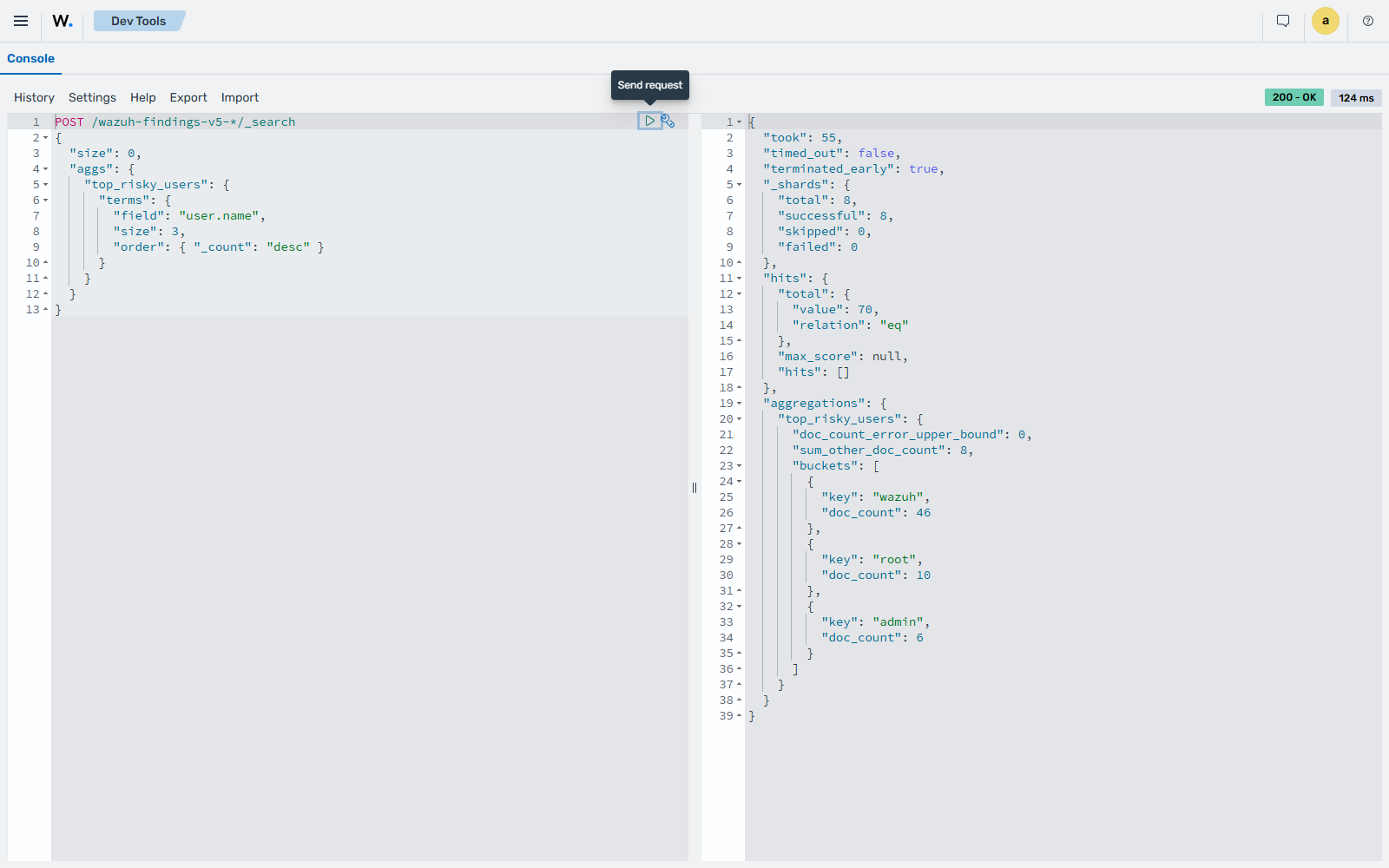
You can run Wazuh indexer API requests directly in the Wazuh dashboard web user interface (WUI). From the Wazuh dashboard, you can use the API to perform searches, manage index settings, view document details, and retrieve insights without command-line access. You must log in with a user that has the appropriate privileges. For example, the default admin user has administrator privileges.
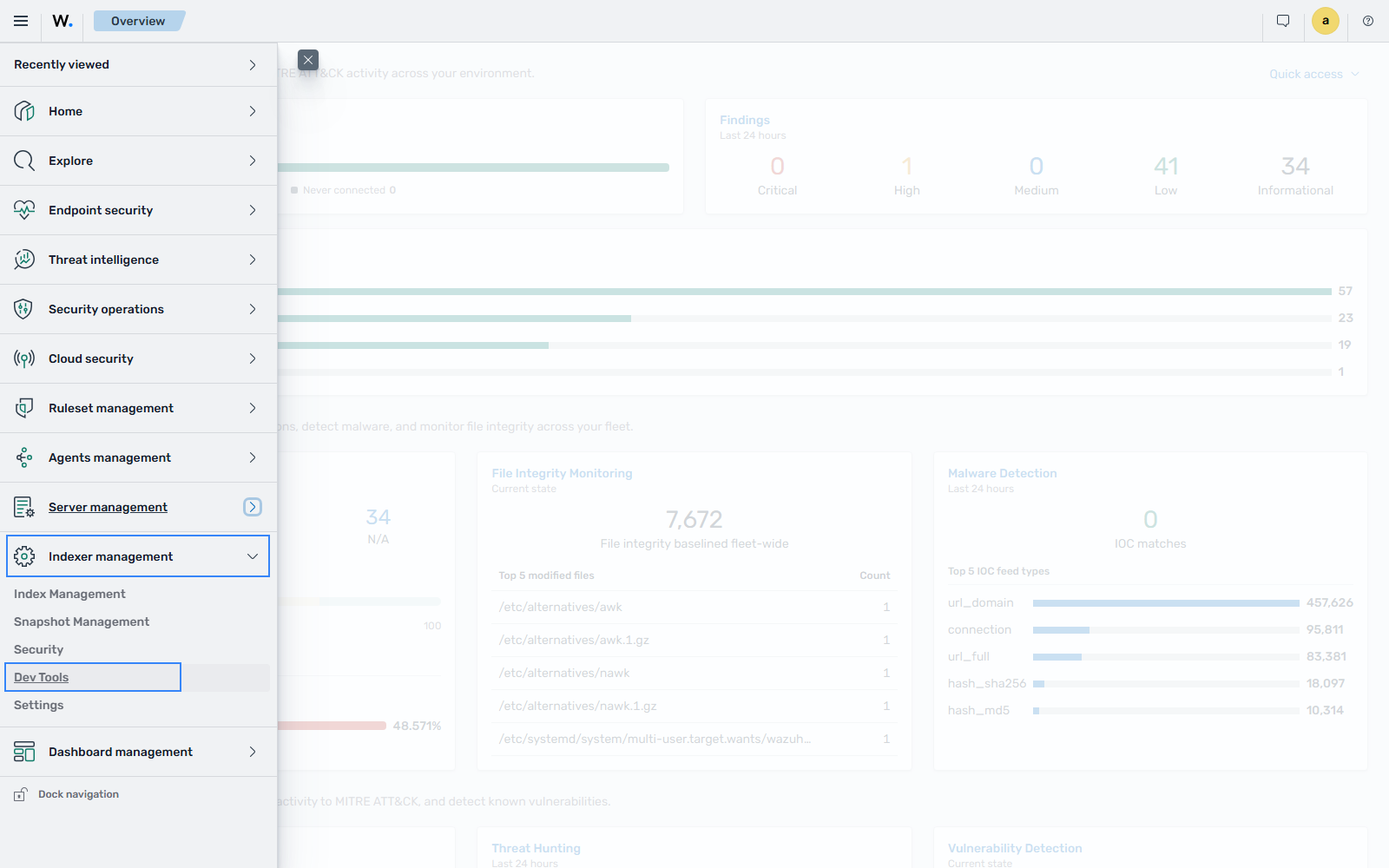
To open the Wazuh indexer API console, click the upper-left menu icon and go to Indexer management > Dev Tools.
The console has two panes. The left pane collects the API request, and the right pane displays the result. In the left pane, enter the HTTP method, request endpoint, and any query parameters, then click the Send request button, the play icon at the top right of the request, to run the request. See Understanding the Wazuh indexer API request and response to learn more about the basic concepts.
Using the Wazuh indexer API via the command line
You can also access the Wazuh indexer API from a terminal with any client that sends HTTP requests, such as curl. The Wazuh indexer API listens for incoming requests on TCP port 9200 and requires authentication, such as a username and password, to authorize each request.
The following example uses curl to check the health status of the Wazuh indexer cluster:
# curl -k -u <WAZUH_INDEXER_USERNAME>:<WAZUH_INDEXER_PASSWORD> "https://<WAZUH_INDEXER_IP>:9200/_cluster/health?pretty"
Replace <WAZUH_INDEXER_USERNAME> and <WAZUH_INDEXER_PASSWORD> with the correct credentials.
The output is similar to the following. The number of shards depends on your deployment.
{
  "cluster_name" : "wazuh-cluster",
  "status" : "green",
  "timed_out" : false,
  "number_of_nodes" : 1,
  "number_of_data_nodes" : 1,
  "discovered_master" : true,
  "discovered_cluster_manager" : true,
  "active_primary_shards" : 110,
  "active_shards" : 110,
  "relocating_shards" : 0,
  "initializing_shards" : 0,
  "unassigned_shards" : 0,
  "delayed_unassigned_shards" : 0,
  "number_of_pending_tasks" : 0,
  "number_of_in_flight_fetch" : 0,
  "task_max_waiting_in_queue_millis" : 0,
  "active_shards_percent_as_number" : 100.0
}
Using the Wazuh indexer API via a script
Scripts are a convenient way to interact with the Wazuh indexer API when you need automation. You can use any programming language that can send HTTP requests. This section shows how to use Python and Bash with the Wazuh indexer API. With scripts, you can build custom workflows that integrate Wazuh indexer data into broader security operations, automate repetitive tasks, or quickly retrieve data for analysis and reporting.
Using Python
The Python requests library sends HTTP requests to the Wazuh indexer API endpoints. A Python script can handle authentication and parse and manipulate the Wazuh indexer responses. The following check_wazuh_indexer_health.py script queries the Wazuh indexer health status. Save the following script as check_wazuh_indexer_health.py:
import requests
from requests.auth import HTTPBasicAuth

# Base URL and endpoint
wazuh_indexer_url = "https://<WAZUH_INDEXER_IP>:9200"
endpoint = "/_cluster/health"

# Full URL
url = wazuh_indexer_url + endpoint
# Credentials for authentication
username = "<WAZUH_INDEXER_USERNAME>"
password = "<WAZUH_INDEXER_PASSWORD>"

# Disable SSL warnings
requests.packages.urllib3.disable_warnings()

try:
    # GET request to check cluster health
    response = requests.get(url, auth=HTTPBasicAuth(username, password), verify=False)

    # Check if the request was successful
    if response.status_code == 200:
        # Parse and print the response JSON data
        cluster_health = response.json()
        print("Cluster Health Status")
        print(f"Status: {cluster_health['status']}")
        print(f"Number of Nodes: {cluster_health['number_of_nodes']}")
        print(f"Active Primary Shards: {cluster_health['active_primary_shards']}")
        print(f"Active Shards: {cluster_health['active_shards']}")

    else:
        print(f"Failed to retrieve cluster health. Status Code: {response.status_code}")
        print(response.text)

except Exception as e:
    print("Error connecting to Wazuh indexer:", e)
Replace <WAZUH_INDEXER_USERNAME> and <WAZUH_INDEXER_PASSWORD> with the correct credentials. Follow these steps to run the script.
Install the Python
requestsmodule. On Ubuntu and Debian, install it from the distribution packages:# apt-get install -y python3-requests
Run the
check_wazuh_indexer_health.pyPython script:# python3 check_wazuh_indexer_health.py
The output is similar to the following:
Cluster Health Status
Status: green
Number of Nodes: 1
Active Primary Shards: 110
Active Shards: 110
Note
In a production environment, we recommend that you use environment variables or a secrets manager to protect the authentication credentials from exposure. See Securing the Wazuh indexer API for more information.
Using Bash
You can also interact with the Wazuh indexer API using a Bash script. A Bash script is useful when you don't want to install additional programs such as Python. The following check_wazuh_indexer_health.sh Bash script queries the Wazuh indexer API to retrieve the cluster health status.
Create a Bash script called
check_wazuh_indexer_health.shand paste the following content:#!/bin/bash # Base URL and endpoint for the Wazuh indexer API WAZUH_INDEXER_URL="https://<WAZUH_INDEXER_IP>:9200" ENDPOINT="/_cluster/health" FULL_URL="${WAZUH_INDEXER_URL}${ENDPOINT}" USERNAME="<WAZUH_INDEXER_USERNAME>" PASSWORD="<WAZUH_INDEXER_PASSWORD>" # Make the API request using basic authentication response=$(curl -s -k -u "$USERNAME:$PASSWORD" "$FULL_URL") # Check if the request was successful if [ $? -eq 0 ]; then echo "Cluster Health Status:" # Check if jq is installed if command -v jq > /dev/null; then echo "$response" | jq . else echo "Warning: 'jq' is not installed. Displaying raw JSON response:" echo "$response" fi else echo "Error: Failed to retrieve cluster health." fi
Run the following command to make the script executable:
# chmod +x check_wazuh_indexer_health.sh
Run the
check_wazuh_indexer_health.shscript:# ./check_wazuh_indexer_health.shThe output is similar to the following:
Cluster Health Status:

{
  "cluster_name": "wazuh-cluster",
  "status": "green",
  "timed_out": false,
  "number_of_nodes": 1,
  "number_of_data_nodes": 1,
  "discovered_master": true,
  "discovered_cluster_manager": true,
  "active_primary_shards": 110,
  "active_shards": 110,
  "relocating_shards": 0,
  "initializing_shards": 0,
  "unassigned_shards": 0,
  "delayed_unassigned_shards": 0,
  "number_of_pending_tasks": 0,
  "number_of_in_flight_fetch": 0,
  "task_max_waiting_in_queue_millis": 0,
  "active_shards_percent_as_number": 100.0
}
Note
In a production environment, we recommend that you use environment variables or a secrets manager to protect the authentication credentials from exposure. See Securing the Wazuh indexer API for more information.
Understanding the Wazuh indexer API request and response
A standard Wazuh indexer API request has three essential components:
The request method:
GET,POST,PUT, orDELETEThe API URL, which specifies the endpoint
User credentials for authentication and authorization
The following is an example cURL request:
# curl -k -u <WAZUH_INDEXER_USERNAME>:<WAZUH_INDEXER_PASSWORD> -X GET "https://<WAZUH_INDEXER_IP>:9200/_cluster/health?pretty"
The cURL command for each request contains the following fields:
Field |
Description |
|---|---|
|
The request method to use when communicating with the HTTP server. |
|
The API URL. The Wazuh indexer API uses HTTPS by default. Use |
|
Skips TLS certificate verification. Use it only with self-signed certificates. To verify the certificate instead, replace |
|
The user credentials for HTTP basic authentication. Use the format |
A single search returns at most 10,000 results. The
index.max_result_windowindex setting controls this limit. If you need more results, use one of the following options:Paginate the results with the
fromandsizeparameters. The sum offromandsizemust stay within the 10,000 limit.Increase the
index.max_result_windowvalue in the settings of the target indexes. We don't recommend this option because it increases memory usage and can degrade performance.
All responses include an HTTP status code: 2xx for success, 4xx for client errors, and 5xx for server errors.
All requests accept the
prettyparameter, which formats the JSON response for readability.The Wazuh indexer stores its logs in
/var/log/wazuh-indexer/wazuh-cluster.logand/var/log/wazuh-indexer/wazuh-cluster_server.json.
Example response without errors (HTTP status code 200). The request is GET _plugins/_security/api/permissionsinfo:
{
  "user" : "User [name=admin, backend_roles=[admin], requestedTenant=null]",
  "user_name" : "admin",
  "has_api_access" : true,
  "disabled_endpoints" : { }
}
Example response that reports a resource not found (HTTP status code 404). The request is GET _plugins/_security/api/actiongroups/admin:
{
  "status" : "NOT_FOUND",
  "message" : "actiongroup 'admin' not found."
}
Example response that reports a permission denied error (HTTP status code 403):
{
  "error" : {
    "root_cause" : [
      {
        "type" : "security_exception",
        "reason" : "no permissions for [cluster:monitor/health] and User [name=<WAZUH_INDEXER_USERNAME>, backend_roles=[], requestedTenant=null]"
      }
    ],
    "type" : "security_exception",
    "reason" : "no permissions for [cluster:monitor/health] and User [name=<WAZUH_INDEXER_USERNAME>, backend_roles=[], requestedTenant=null]"
  },
  "status" : 403
}
Example response that reports an index not found exception (HTTP status code 404). The request is GET testindex/_search:
{
  "error" : {
    "root_cause" : [
      {
        "type" : "index_not_found_exception",
        "reason" : "no such index [testindex]",
        "index" : "testindex",
        "resource.id" : "testindex",
        "resource.type" : "index_or_alias",
        "index_uuid" : "_na_"
      }
    ],
    "type" : "index_not_found_exception",
    "reason" : "no such index [testindex]",
    "index" : "testindex",
    "resource.id" : "testindex",
    "resource.type" : "index_or_alias",
    "index_uuid" : "_na_"
  },
  "status" : 404
}
Practical examples of Wazuh indexer API methods
GET
The following GET request retrieves basic information about the Wazuh indexer, such as its node name, cluster name, version, and compatibility information.
# curl -k -u <WAZUH_INDEXER_USERNAME>:<WAZUH_INDEXER_PASSWORD> -X GET "https://<WAZUH_INDEXER_IP>:9200/?pretty"
The output is similar to the following:
{
  "name" : "node-1",
  "cluster_name" : "wazuh-cluster",
  "cluster_uuid" : "hE4dRwcIS5WwgJZKXiCKUw",
  "version" : {
    "distribution" : "opensearch",
    "number" : "3.6.0",
    "build_type" : "deb",
    "build_hash" : "17bec3a11c6593a2dabafa83fd97e17dac8f6ac8",
    "build_date" : "2026-10-05T15:19:59.692749060Z",
    "build_snapshot" : false,
    "lucene_version" : "10.4.0",
    "minimum_wire_compatibility_version" : "2.19.0",
    "minimum_index_compatibility_version" : "2.0.0"
  },
  "tagline" : "The OpenSearch Project: https://opensearch.org/"
}
PUT
The following PUT request updates the Wazuh indexer cluster settings to change the value of search.max_buckets to 75000. The search.max_buckets setting controls the maximum number of aggregation buckets allowed in the response to a single query. A transient setting applies until the next full cluster restart. Use persistent instead to keep the value after a restart.
# curl -k -u <WAZUH_INDEXER_USERNAME>:<WAZUH_INDEXER_PASSWORD> -H "Content-Type: application/json" -X PUT "https://<WAZUH_INDEXER_IP>:9200/_cluster/settings?pretty" -d '{"transient": {"search.max_buckets": 75000}}'
The output is similar to the following:
{
  "acknowledged" : true,
  "persistent" : { },
  "transient" : {
    "search" : {
      "max_buckets" : "75000"
    }
  }
}
POST
In this example, you send a POST request to the _search endpoint to list the events indexed within a time range in the event data streams. The query uses a range filter on the @timestamp field and returns the matching documents without changing them. Replace <START_TIMESTAMP> and <END_TIMESTAMP> with dates and times in ISO 8601 format, for example, 2026-10-01T00:00:00Z and 2026-10-02T00:00:00Z:
curl -X POST "https://<WAZUH_INDEXER_IP>:9200/wazuh-events-v5-*/_search?pretty" -H "Content-Type: application/json" -u "<WAZUH_INDEXER_USERNAME>:<WAZUH_INDEXER_PASSWORD>" -k -d '{
  "query": {
    "range": {
      "@timestamp": {
        "gt": "<START_TIMESTAMP>",
        "lte": "<END_TIMESTAMP>"
      }
    }
  }
}'
The query targets all the wazuh-events-v5-* data streams with the wildcard *. The range query returns only the documents with a timestamp after <START_TIMESTAMP> and up to <END_TIMESTAMP>. The output is similar to the following:
{
  "took" : 23,
  "timed_out" : false,
  "_shards" : {
    "total" : 8,
    "successful" : 8,
    "skipped" : 0,
    "failed" : 0
  },
  "hits" : {
    "total" : {
      "value" : 30,
      "relation" : "eq"
    },
    "max_score" : 1.0,
    ...
In the output above, thirty (30) documents match the query.
DELETE
The following DELETE request removes a single event from the Wazuh indexer. Data streams are designed for append-only data, so you delete a document from the backing index that stores it, not from the data stream name.
First, run a search to find the event to delete. The following request returns one event indexed within a time range, without the document content. Replace <START_TIMESTAMP> and <END_TIMESTAMP> with dates and times in ISO 8601 format, for example, 2026-10-01T00:00:00Z and 2026-10-02T00:00:00Z:
# curl -k -u <WAZUH_INDEXER_USERNAME>:<WAZUH_INDEXER_PASSWORD> -H "Content-Type: application/json" -X POST "https://<WAZUH_INDEXER_IP>:9200/wazuh-events-v5-*/_search?pretty" -d '{"size": 1, "_source": false, "query": {"range": {"@timestamp": {"gt": "<START_TIMESTAMP>", "lte": "<END_TIMESTAMP>"}}}}'
The output is similar to the following. The _index field is the backing index that stores the event, and _id is the document ID:
{
  "took" : 5,
  "timed_out" : false,
  "_shards" : {
    "total" : 8,
    "successful" : 8,
    "skipped" : 0,
    "failed" : 0
  },
  "hits" : {
    "total" : {
      "value" : 30,
      "relation" : "eq"
    },
    "max_score" : 1.0,
    "hits" : [
      {
        "_index" : ".ds-wazuh-events-v5-system-activity-000001",
        "_id" : "jWOBMaEBsTl-Vx86cIPk",
        "_score" : 1.0
      }
    ]
  }
}
Next, delete the document. Replace <BACKING_INDEX> with the _index value and <DOCUMENT_ID> with the _id value from the previous output. The refresh=true parameter makes the deletion visible to searches immediately:
# curl -k -u <WAZUH_INDEXER_USERNAME>:<WAZUH_INDEXER_PASSWORD> -X DELETE "https://<WAZUH_INDEXER_IP>:9200/<BACKING_INDEX>/_doc/<DOCUMENT_ID>?refresh=true&pretty"
The output is similar to the following. The result field is deleted:
{
  "_index" : ".ds-wazuh-events-v5-system-activity-000001",
  "_id" : "jWOBMaEBsTl-Vx86cIPk",
  "_version" : 2,
  "result" : "deleted",
  "forced_refresh" : true,
  "_shards" : {
    "total" : 1,
    "successful" : 1,
    "failed" : 0
  },
  "_seq_no" : 30,
  "_primary_term" : 1
}
To verify that the document is deleted, retrieve it by its ID:
# curl -k -u <WAZUH_INDEXER_USERNAME>:<WAZUH_INDEXER_PASSWORD> -X GET "https://<WAZUH_INDEXER_IP>:9200/<BACKING_INDEX>/_doc/<DOCUMENT_ID>?pretty"
The Wazuh indexer returns HTTP status code 404, and the output shows "found" : false:
{
  "_index" : ".ds-wazuh-events-v5-system-activity-000001",
  "_id" : "jWOBMaEBsTl-Vx86cIPk",
  "found" : false
}
Warning
A DELETE request on an index, such as DELETE /<INDEX_NAME>, removes the entire index and ignores any query in the request body. Use _delete_by_query to remove only the documents that match a query. To remove a whole data stream and its backing indexes, use DELETE /_data_stream/<DATA_STREAM_NAME>. The deleted data can't be recovered.
Practical examples of Wazuh indexer API access tools
This section shows how to send requests to the Wazuh indexer API with cURL, Python scripts and Bash scripts. These examples are a foundation for more advanced use cases.
The Python and Bash examples query the wazuh-events-v5-* data streams for authentication events. They use the following Wazuh Common Schema (WCS) fields:
event.category: The event category, such asauthentication.event.outcome: The result of the event,successorfailure.user.name: The name of the user.
These queries return results only after a Wazuh agent sends authentication logs, for example, from a monitored Linux endpoint. The Wazuh manager doesn't collect the logs of its own host, so a new installation has no events or findings until a Wazuh agent reports. Without matching events, the requests succeed and return empty results.
cURL
cURL is a command-line tool for sending HTTP and HTTPS requests. It comes preinstalled on most Linux, macOS, and Windows endpoints, so you can interact directly with the Wazuh indexer API from the command line. In the examples, you store the Wazuh indexer credentials or JWT as environment variables and interact with different endpoints. For detailed instructions on authentication, see Logging into the Wazuh indexer API.
Note
When you send a cURL request that contains JSON data, set the content type to JSON with the -H "Content-Type: application/json" header.
In this example, you count the failed login attempts stored in the wazuh-events-v5-* data streams.
Export your Wazuh indexer credentials as environment variables. Replace
<WAZUH_INDEXER_USERNAME>and<WAZUH_INDEXER_PASSWORD>with your credentials:# export WAZUH_INDEXER_USER="<WAZUH_INDEXER_USERNAME>" # export WAZUH_INDEXER_PASS="<WAZUH_INDEXER_PASSWORD>"
Send a request to the
_countendpoint with a query that matches failed authentication events:curl -k -u "$WAZUH_INDEXER_USER:$WAZUH_INDEXER_PASS" -X POST "https://<WAZUH_INDEXER_IP>:9200/wazuh-events-v5-*/_count?pretty" -H "Content-Type: application/json" -d '{ "query": { "bool": { "filter": [ { "term": { "event.category": "authentication" } }, { "term": { "event.outcome": "failure" } } ] } } }'
The output is similar to the following. The
countfield shows the number of failed login attempts:{ "count" : 14, "_shards" : { "total" : 3, "successful" : 3, "skipped" : 0, "failed" : 0 } }
To authenticate with a JWT instead, replace -u "$WAZUH_INDEXER_USER:$WAZUH_INDEXER_PASS" with -H "Authorization: Bearer $TOKEN", where $TOKEN holds the JWT you exported in Logging into the Wazuh indexer API.
Python
You can use a Python script to retrieve information about documents from any index in the Wazuh indexer. In this example, you query the wazuh-events-v5-* data streams to find the top three (3) users with the most successful logins on monitored endpoints. The script authenticates to the Wazuh indexer API with a JWT. Then, it makes a POST request to retrieve the required information.
Save the following Python script as
top_successful_login.py:import requests import json # Base URL and endpoint indexer_url = "https://<WAZUH_INDEXER_IP>:9200" endpoint = "/wazuh-events-v5-*/_search" url = indexer_url + endpoint headers = { "Content-Type": "application/json", "Authorization": "Bearer <WAZUH_INDEXER_JWT>" } # Query payload payload = { "size": 0, "query": { "bool": { "filter": [ {"term": {"event.category": "authentication"}}, {"term": {"event.outcome": "success"}} ] } }, "aggs": { "successful_logins_by_user": { "terms": { "field": "user.name", "size": 3, "order": { "_count": "desc" } } } } } # Disable SSL warnings requests.packages.urllib3.disable_warnings() # Execute the API request try: response = requests.post(url, headers=headers, data=json.dumps(payload), verify=False) response.raise_for_status() # Raise an exception for HTTP errors result = response.json() # Parse the JSON response # Process and display the results print("Top three (3) Users with Most Successful Login Sessions:") if "aggregations" in result and "successful_logins_by_user" in result["aggregations"]: buckets = result["aggregations"]["successful_logins_by_user"]["buckets"] if buckets: for user in buckets: print(f"User: {user['key']}, Count: {user['doc_count']}") else: print("No data found for the query.") else: print("Unexpected response format.") except requests.exceptions.RequestException as e: print(f"Error querying Wazuh indexer API: {e}")
Replace
<WAZUH_INDEXER_JWT>with your JWT. The token expires after at most 600 seconds, so generate a new one if the script returns401 ClientError: Unauthorized.Run the script:
# python3 top_successful_login.py
The output is similar to the following. It shows the top three (3) users with the most successful logins:
Top three (3) Users with Most Successful Login Sessions:
User: root, Count: 22
User: wazuh, Count: 3
User: test, Count: 2
If the Wazuh indexer has no matching events, the output is No data found for the query.
Bash
In this example, you query the wazuh-events-v5-* data streams to find the top three (3) users with the most failed login attempts. The script authenticates to the Wazuh indexer API with a JWT. You export the JWT as an environment variable to keep the token out of the script.
Follow these steps.
Export your JWT as an environment variable. Replace
<WAZUH_INDEXER_JWT>with your JWT:# export JWT_AUTH_TOKEN="<WAZUH_INDEXER_JWT>"
Verify that the token is exported:
# echo $JWT_AUTH_TOKEN
Save the following script as
top_failed_login.sh:#!/bin/bash # Wazuh indexer API URL WAZUH_INDEXER_URL="https://<WAZUH_INDEXER_IP>:9200/wazuh-events-v5-*/_search" # JSON query payload PAYLOAD=$(cat <<EOF { "size": 0, "query": { "bool": { "filter": [ { "term": { "event.category": "authentication" } }, { "term": { "event.outcome": "failure" } } ] } }, "aggs": { "failed_logins_by_user": { "terms": { "field": "user.name", "size": 3, "order": { "_count": "desc" } } } } } EOF ) # Execute the API request RESPONSE=$(curl -s -k -X POST "$WAZUH_INDEXER_URL?pretty" \ -H "Content-Type: application/json" \ -H "Authorization: Bearer $JWT_AUTH_TOKEN" \ -d "$PAYLOAD") # Check if the response contains valid data if [[ $? -ne 0 || -z "$RESPONSE" ]]; then echo "Error: Failed to fetch data from Wazuh indexer API" exit 1 fi echo "Top three (3) Users with Most Failed Login Attempts" echo "$RESPONSE"
Make the script executable:
# chmod u+x top_failed_login.sh
Run the
top_failed_login.shscript:# ./top_failed_login.shThe output is similar to the following:
Top three (3) Users with Most Failed Login Attempts
{
  "took" : 271,
  "timed_out" : false,
  "_shards" : {
    "total" : 8,
    "successful" : 8,
    "skipped" : 0,
    "failed" : 0
  },
  "hits" : {
    "total" : {
      "value" : 36,
      "relation" : "eq"
    },
    "max_score" : null,
    "hits" : [ ]
  },
  "aggregations" : {
    "failed_logins_by_user" : {
      "doc_count_error_upper_bound" : 0,
      "sum_other_doc_count" : 6,
      "buckets" : [
        {
          "key" : "root",
          "doc_count" : 15
        },
        {
          "key" : "test",
          "doc_count" : 9
        },
        {
          "key" : "admin",
          "doc_count" : 6
        }
      ]
    }
  }
}
If the Wazuh indexer has no matching events, the buckets list is empty.