Configure AWS IAM identities
In AWS Identity and Access Management (IAM), an identity represents a human user or programmatic workload that AWS can authenticate and authorize to perform actions. The Wazuh module for AWS requires authentication and authorization through an IAM identity to integrate with supported AWS services.
The following sections describe how to create an IAM user group, create an IAM user with access credentials, and add the user to the group.
Create an IAM user group
On your AWS console, search for
iamin the search bar and click IAM from the results.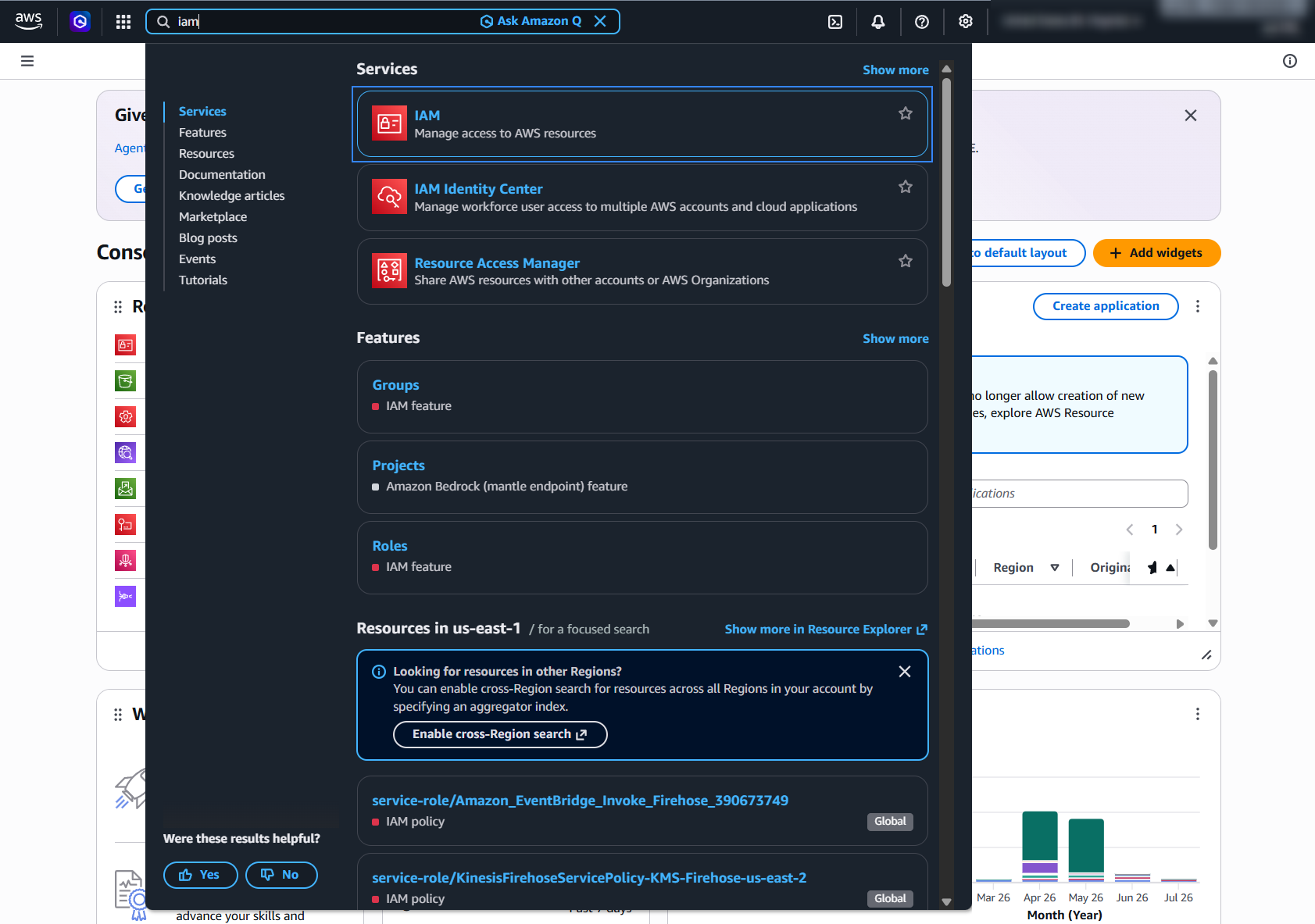
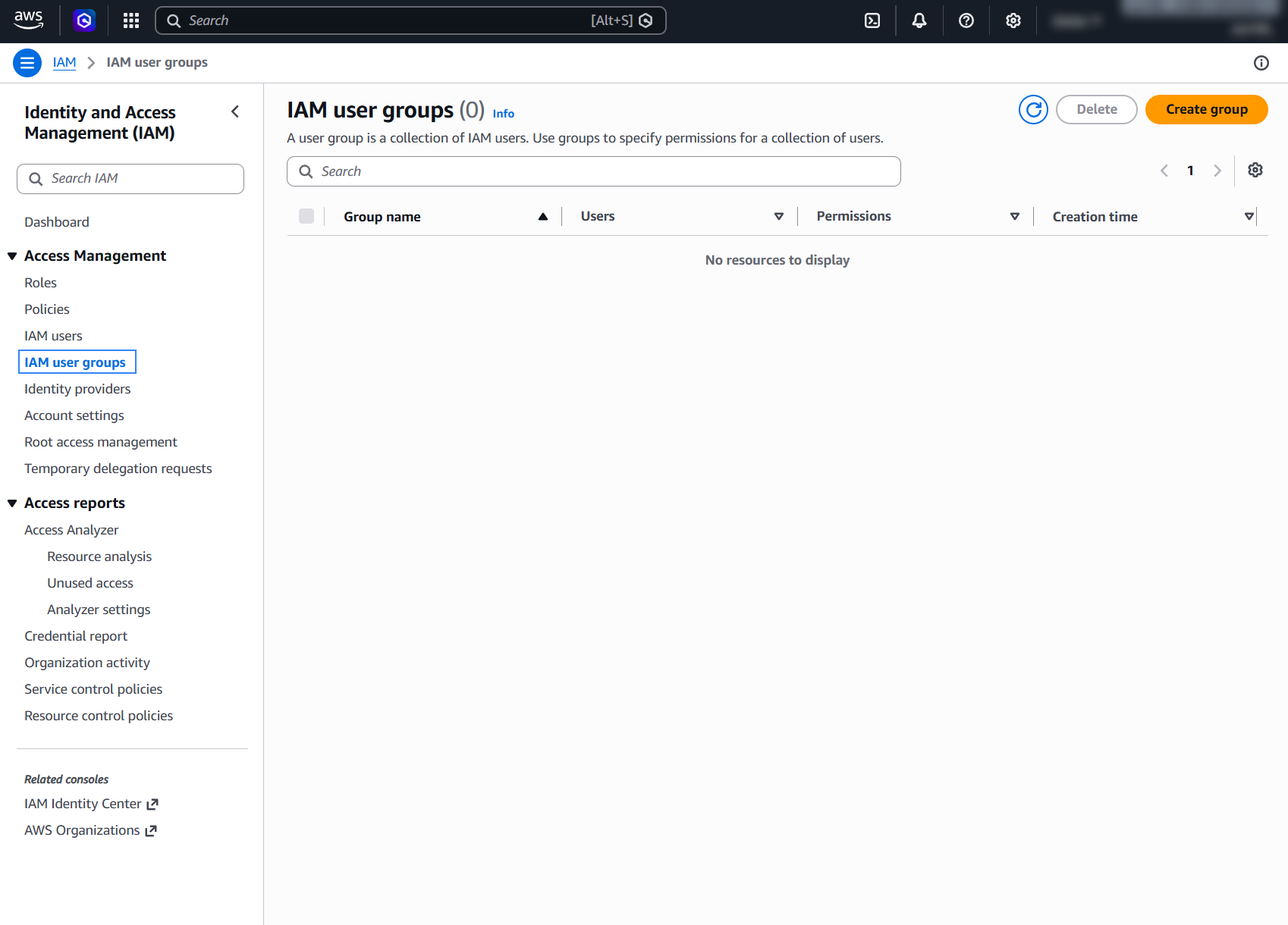
Go to IAM user groups and click Create group to create a new group.
Assign a name for the group.
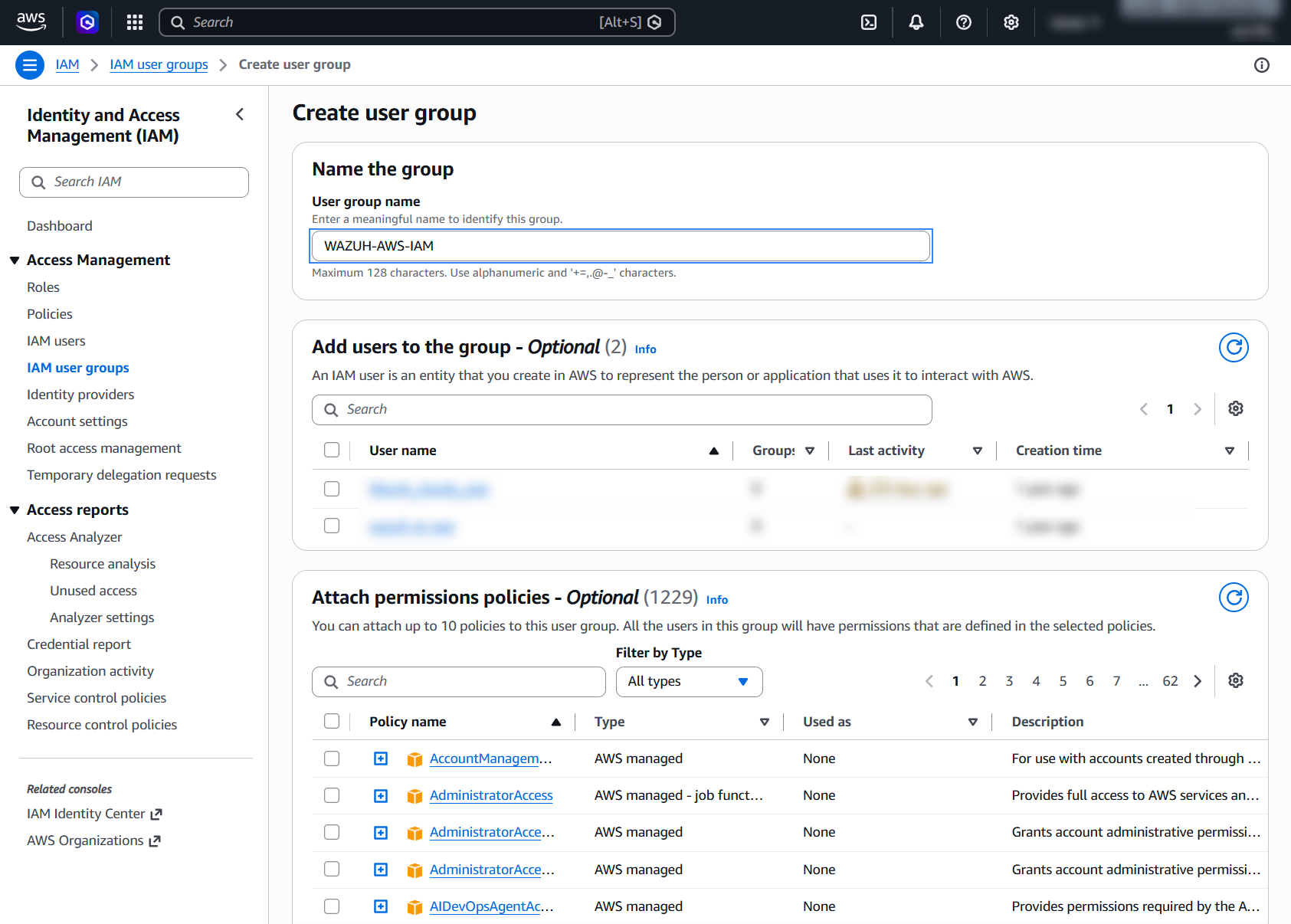
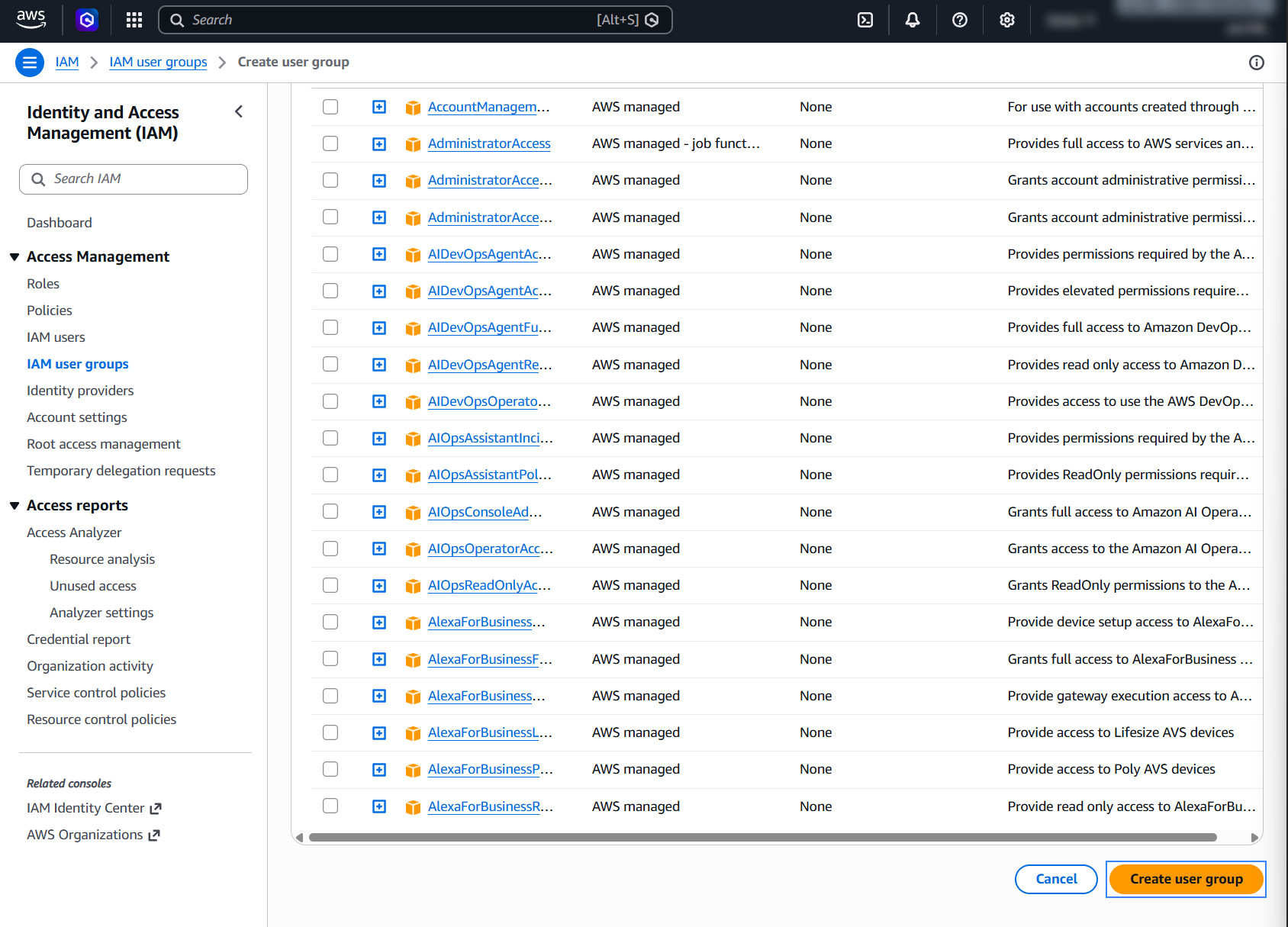
Scroll down, and click Create user group.
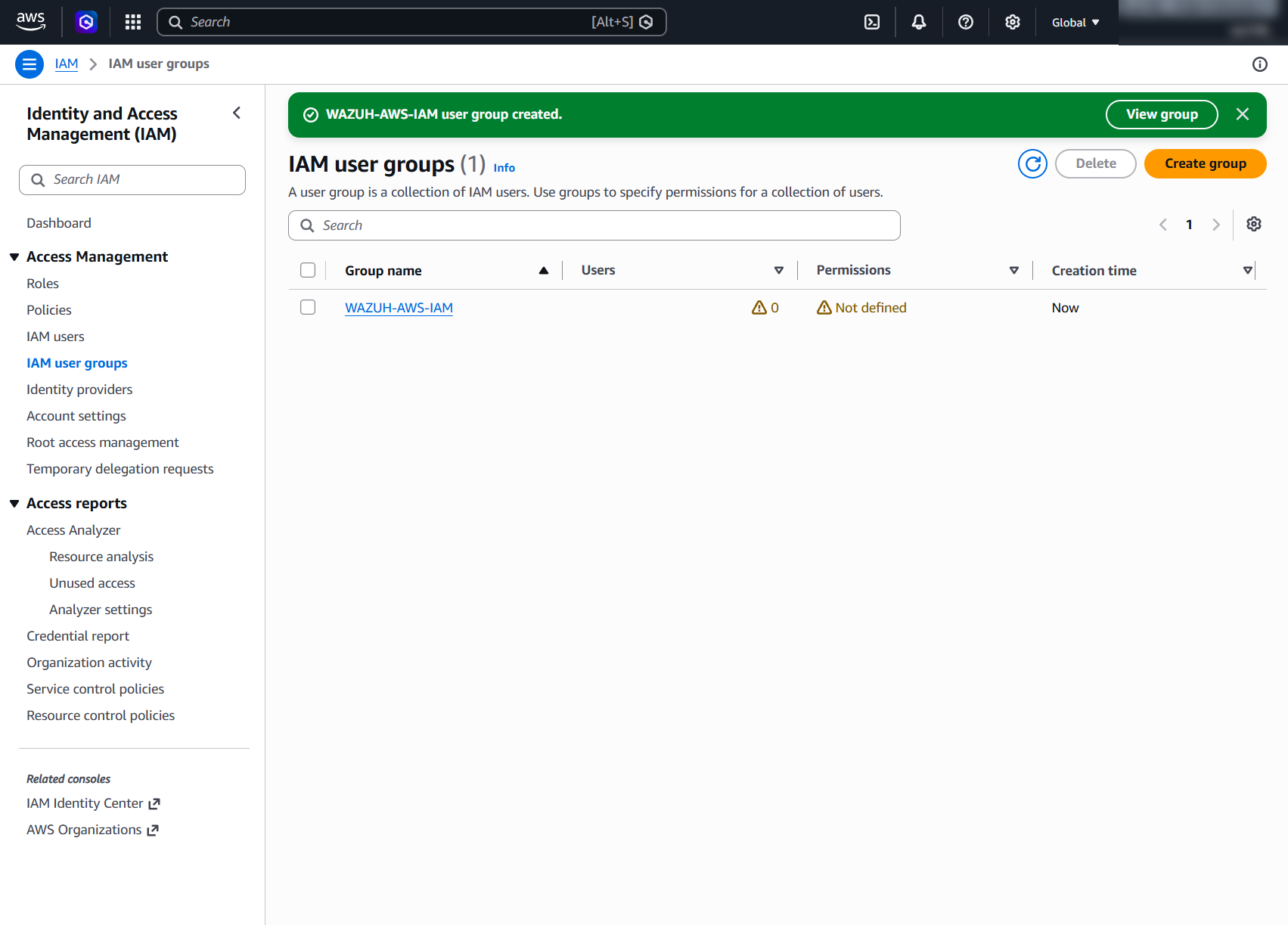
Confirm the group has been successfully created.
Create an IAM user
Wazuh requires an AWS IAM user with the necessary permissions to collect log data from the different AWS services. Follow these steps to create a new IAM user in your AWS environment and obtain the access credentials.
Create a new IAM user and add it to a user group:
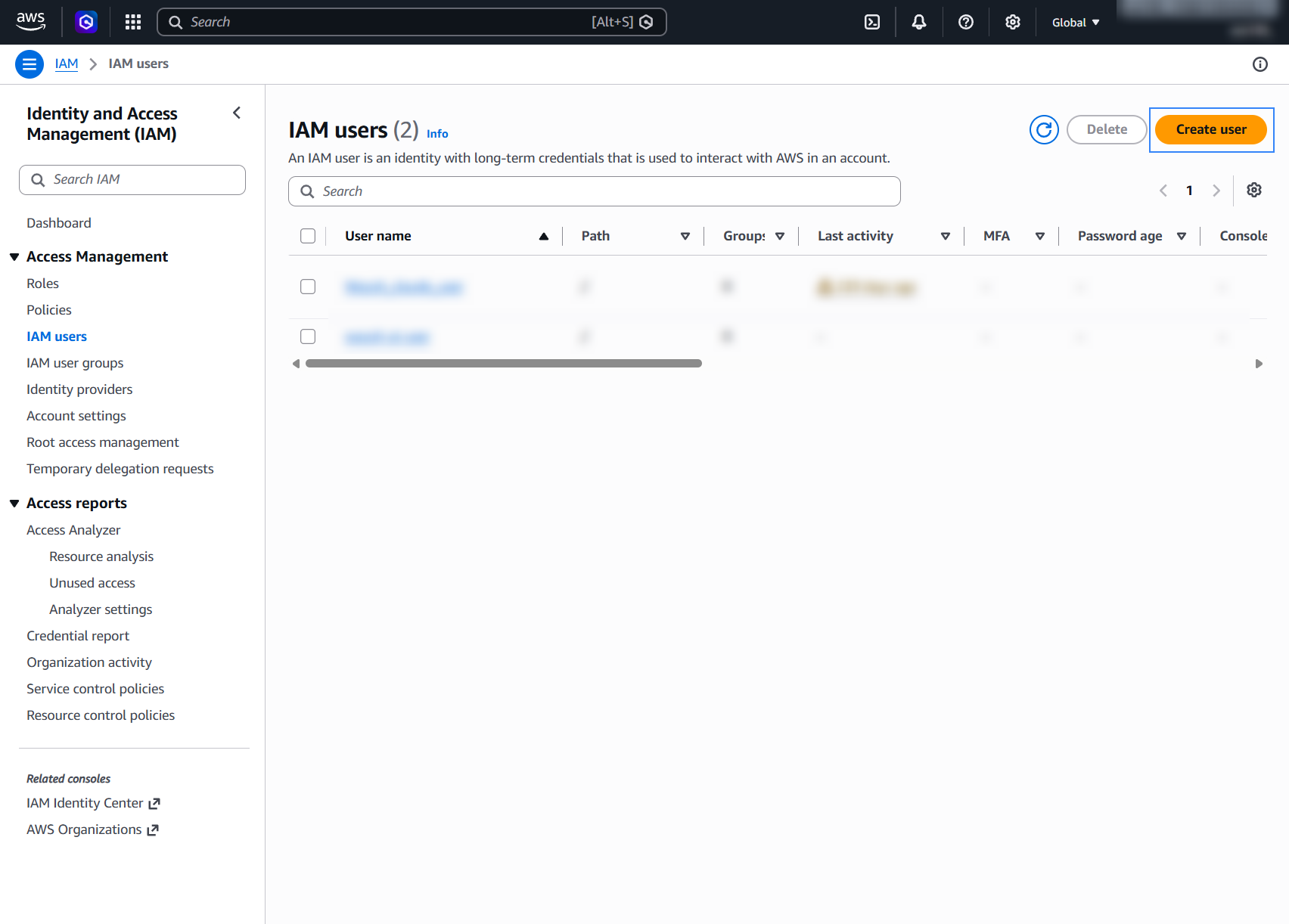
On your AWS console, navigate to Services > IAM > Users > Create user.
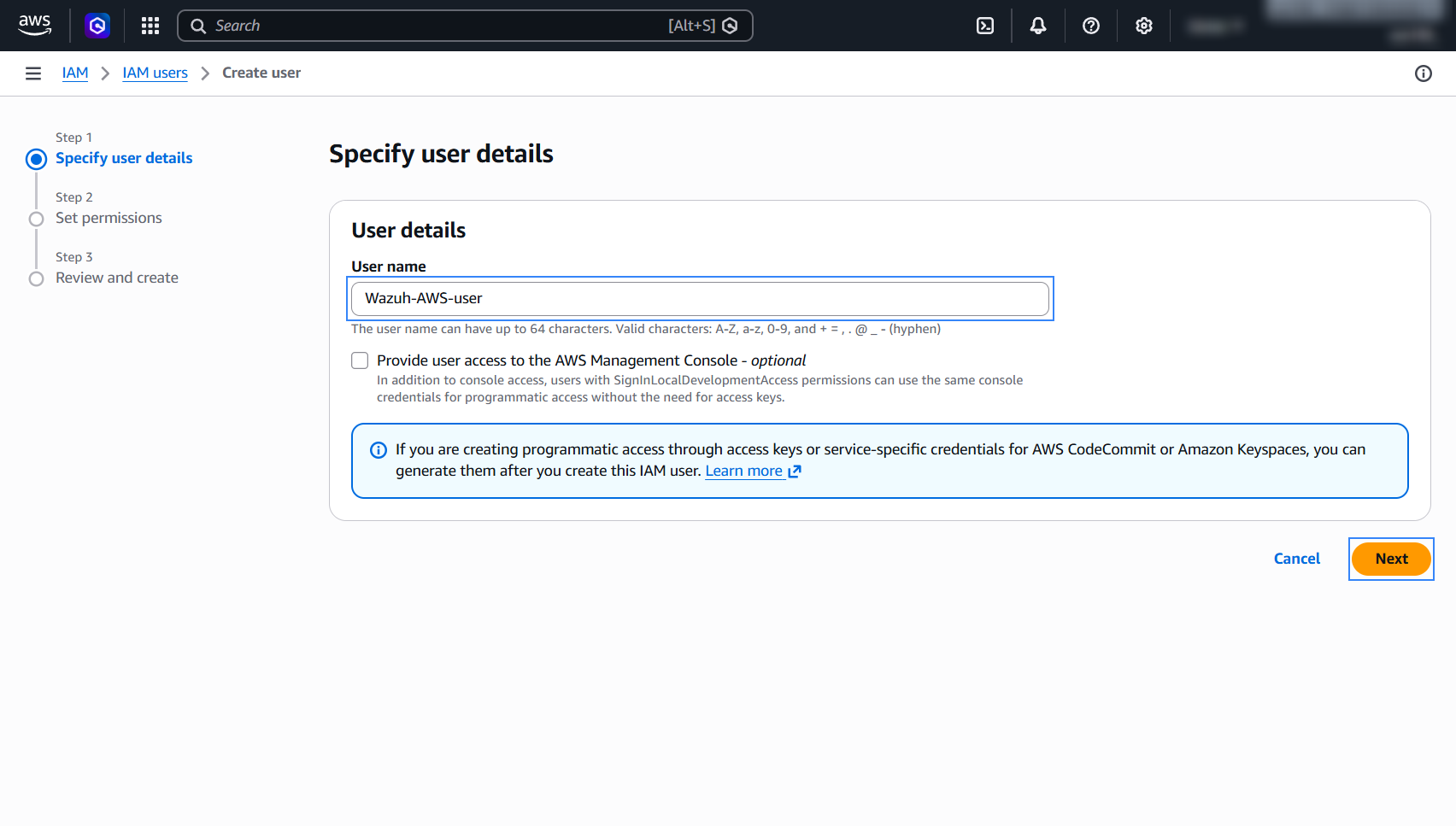
Assign a username and click Next.
Assign the user to the previously created group and click Next to proceed.
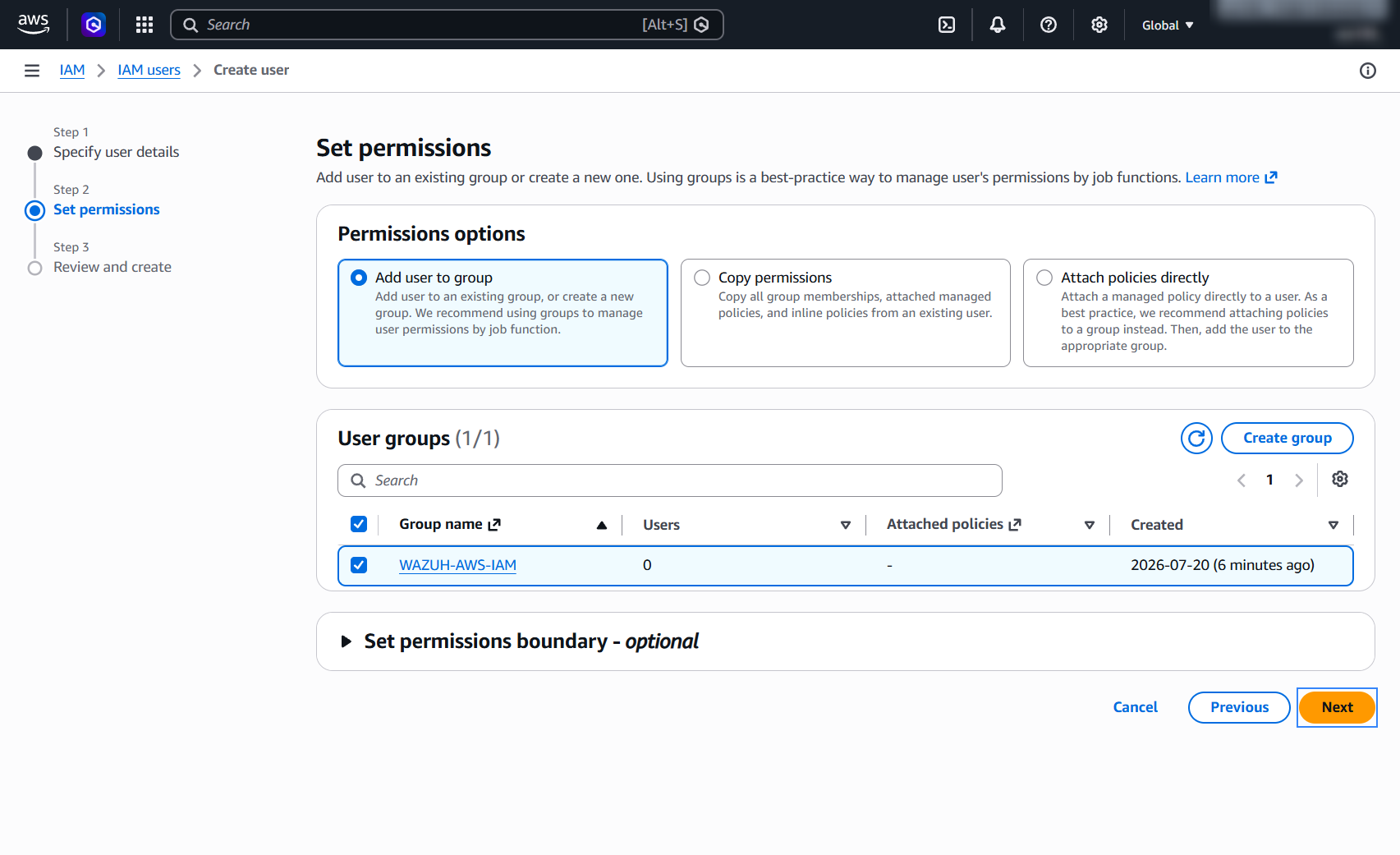
Review the selected options and click Create user.
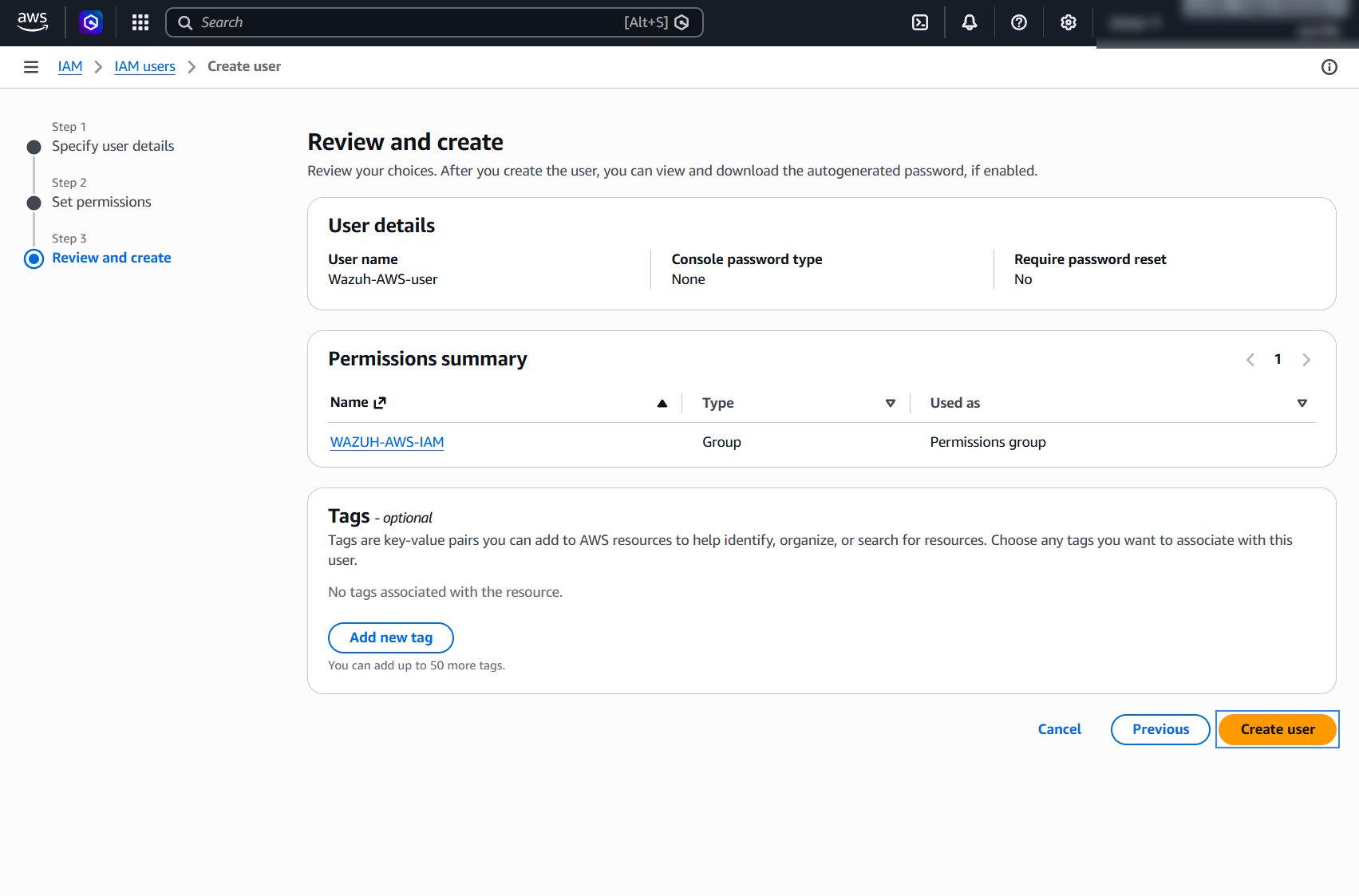
Confirm the user creation.
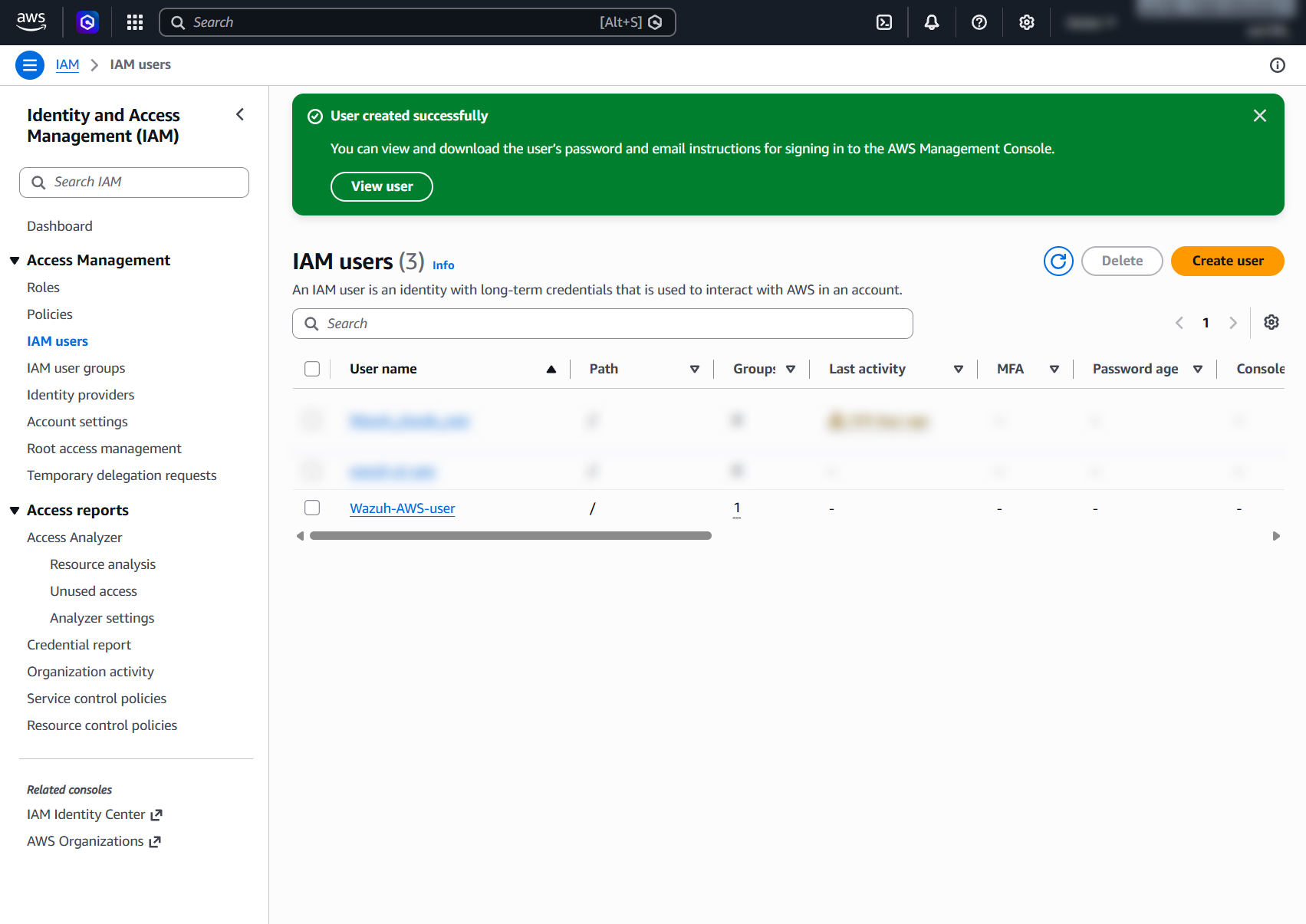
Obtain the necessary access credentials for the IAM user.
Click the IAM user you created, go to Security credentials, scroll down to Access keys, and click Create access key.
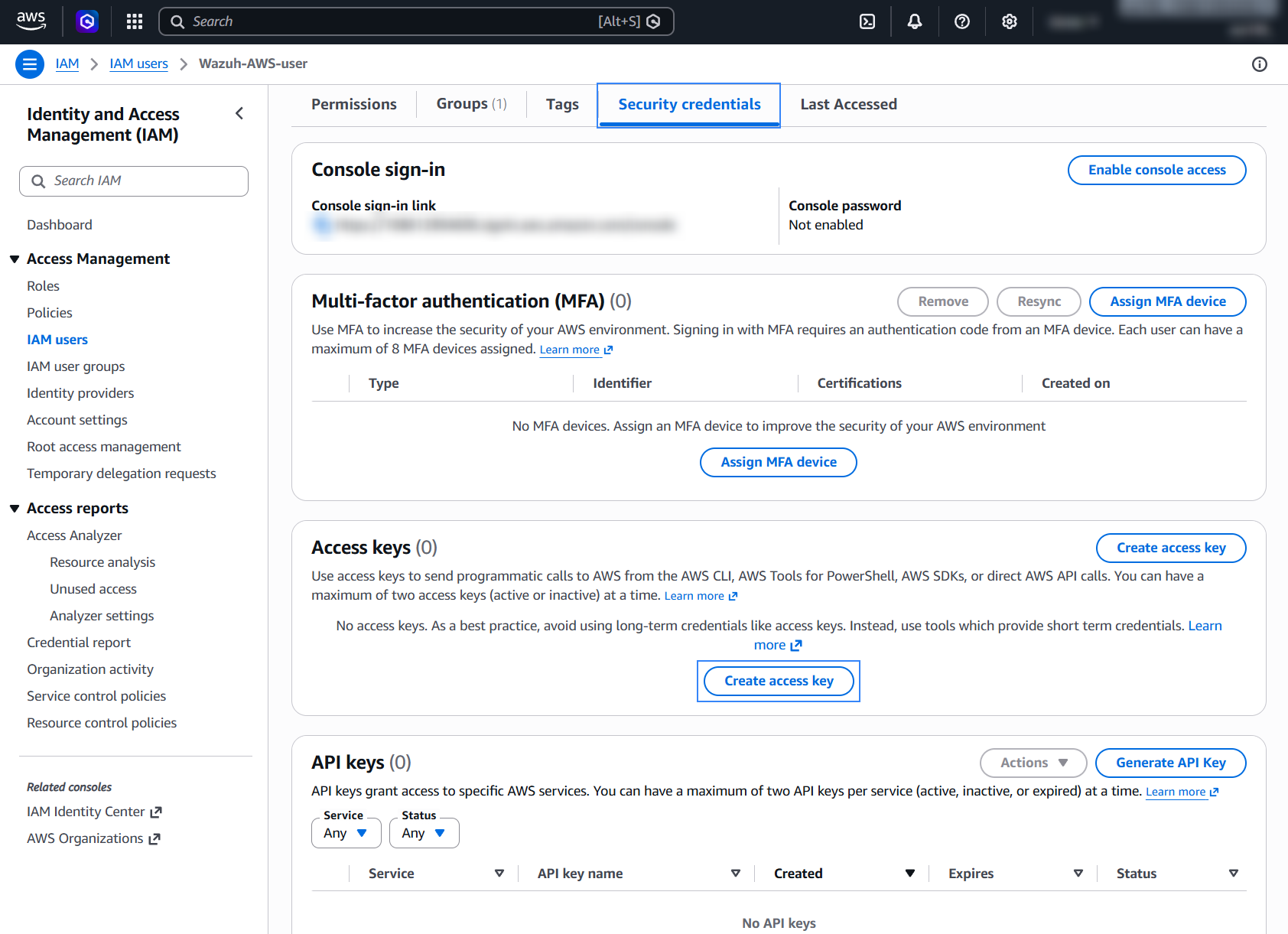
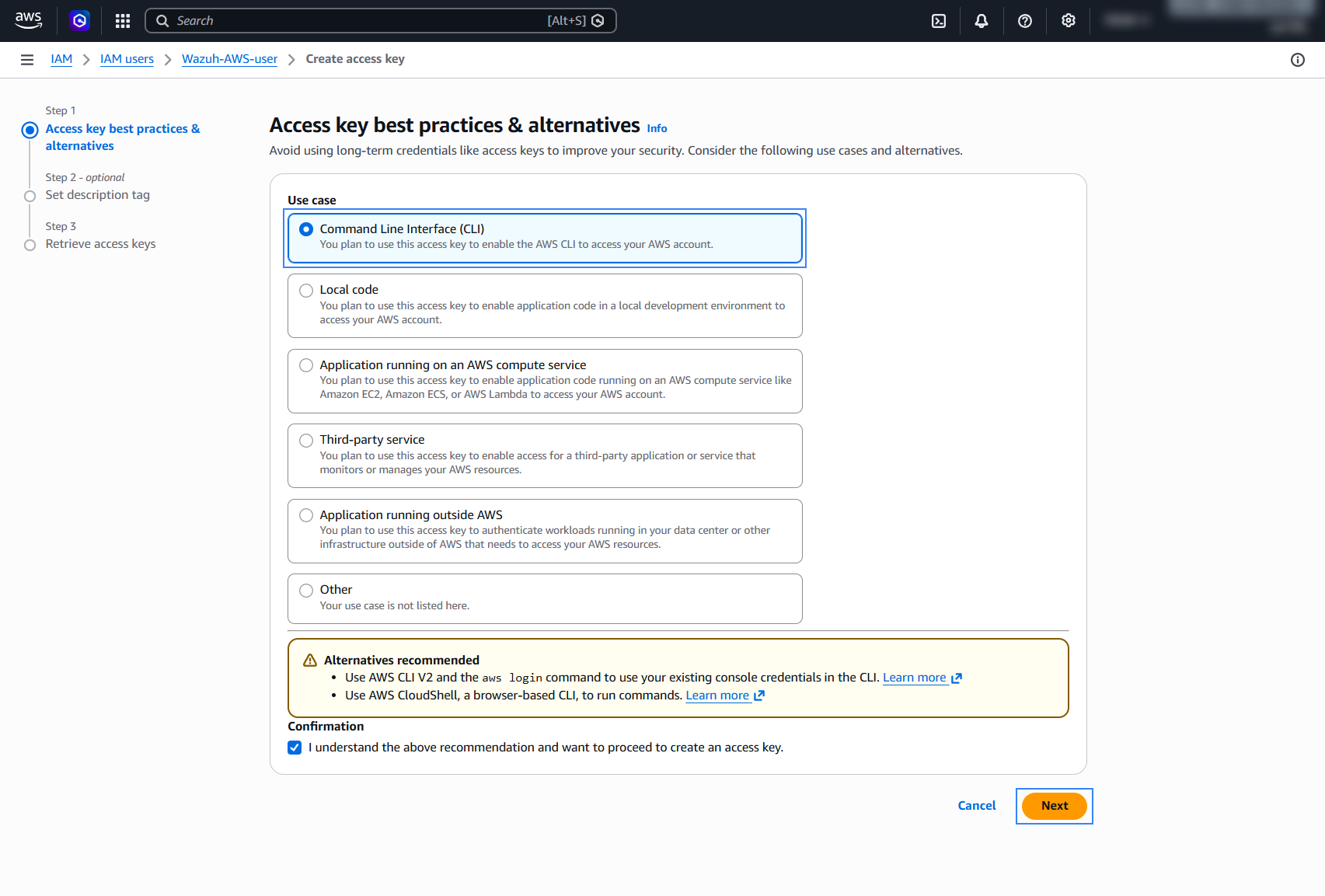
Select and confirm the Command Line Interface (CLI) use case and click Next.
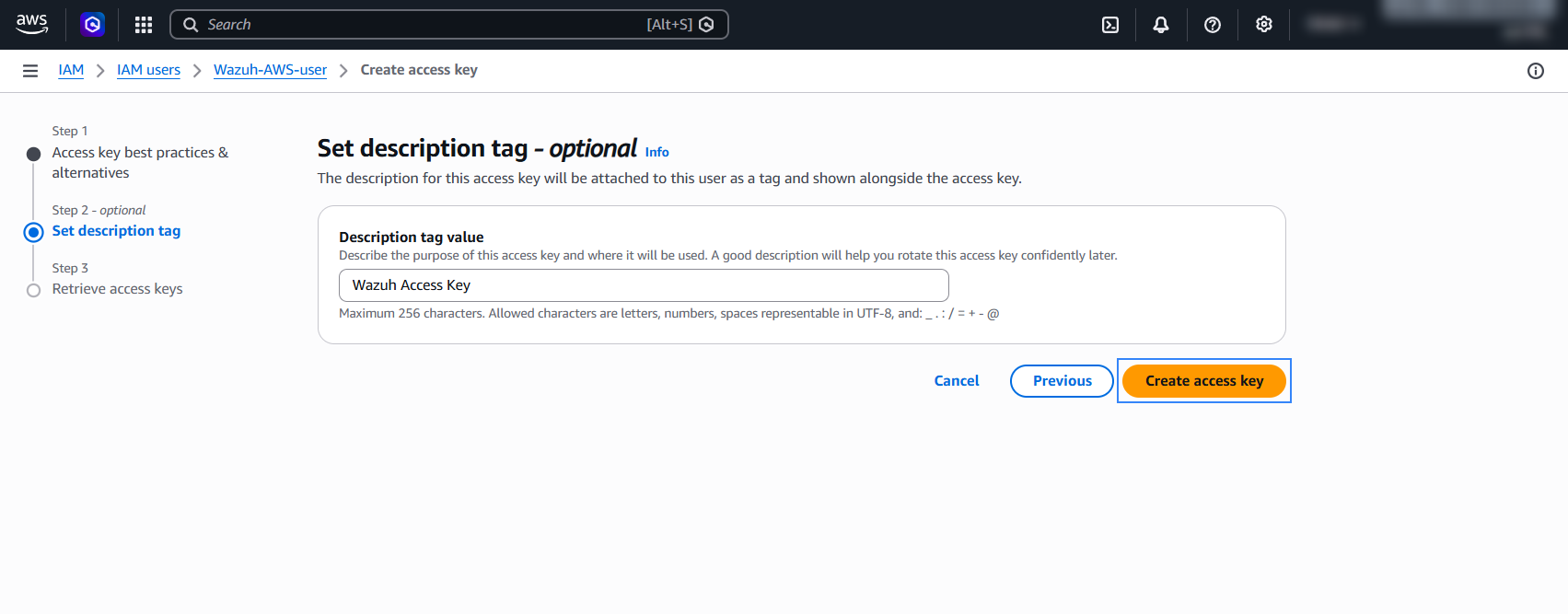
Assign a description tag value and click Create access key.
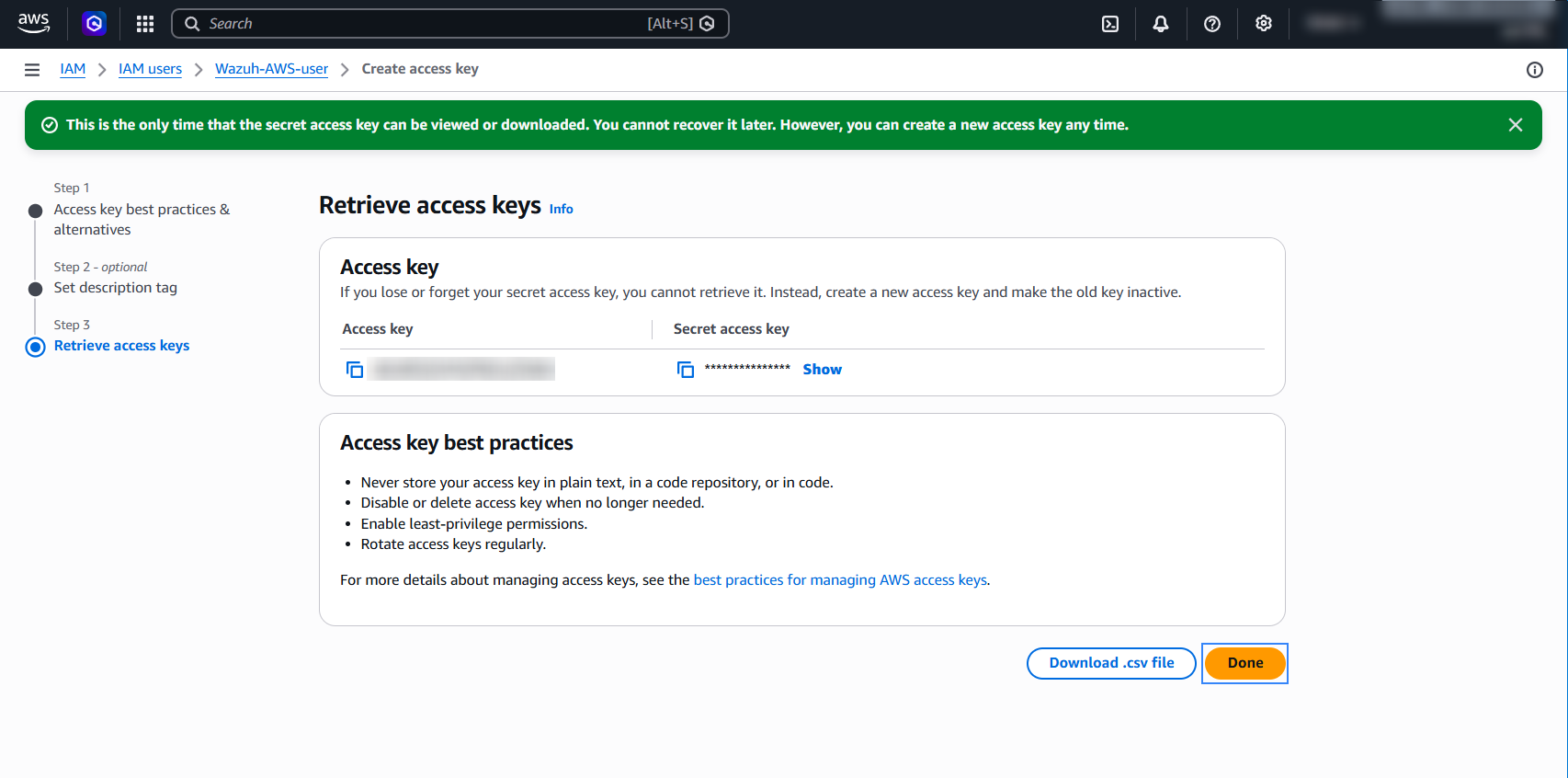
Save the access credentials. You use them later to configure the Wazuh module for AWS. If you don't copy the credentials before you click Done, you can't recover them later. However, you can create a new secret access key.