AWS WAF
AWS WAF is a web application firewall that protects your web applications from common web exploits. These exploits can affect availability, compromise security, or consume excessive resources. AWS WAF gives you control over which traffic to allow or block to your web applications by defining customizable web security rules.
AWS configuration
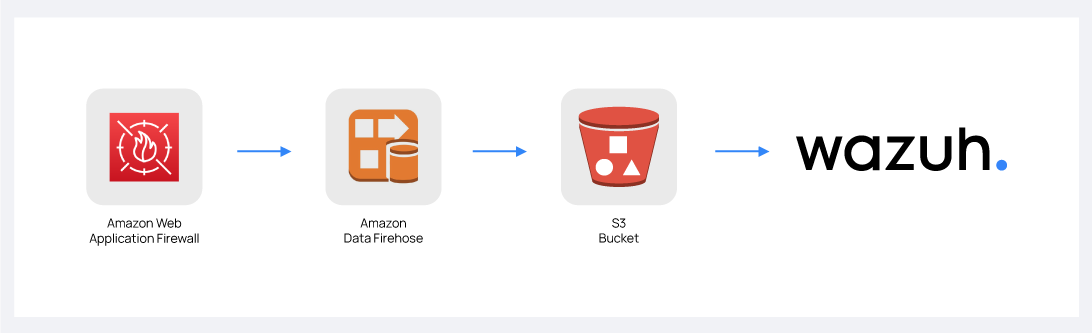
The following sections cover how to configure different services required to integrate AWS WAF with Wazuh. The following diagram shows how AWS WAF sends logs through Amazon Data Firehose to the S3 bucket, and how Wazuh collects them from the bucket.
Amazon Data Firehose configuration
Create an Amazon Data Firehose delivery stream to store the AWS WAF logs into the desired S3 bucket so Wazuh can process them.
Create a new S3 bucket, or skip this step to use an existing bucket.
On your AWS console, search for
amazon data firehosein the search bar or go to Services > Analytics > Amazon Data Firehose.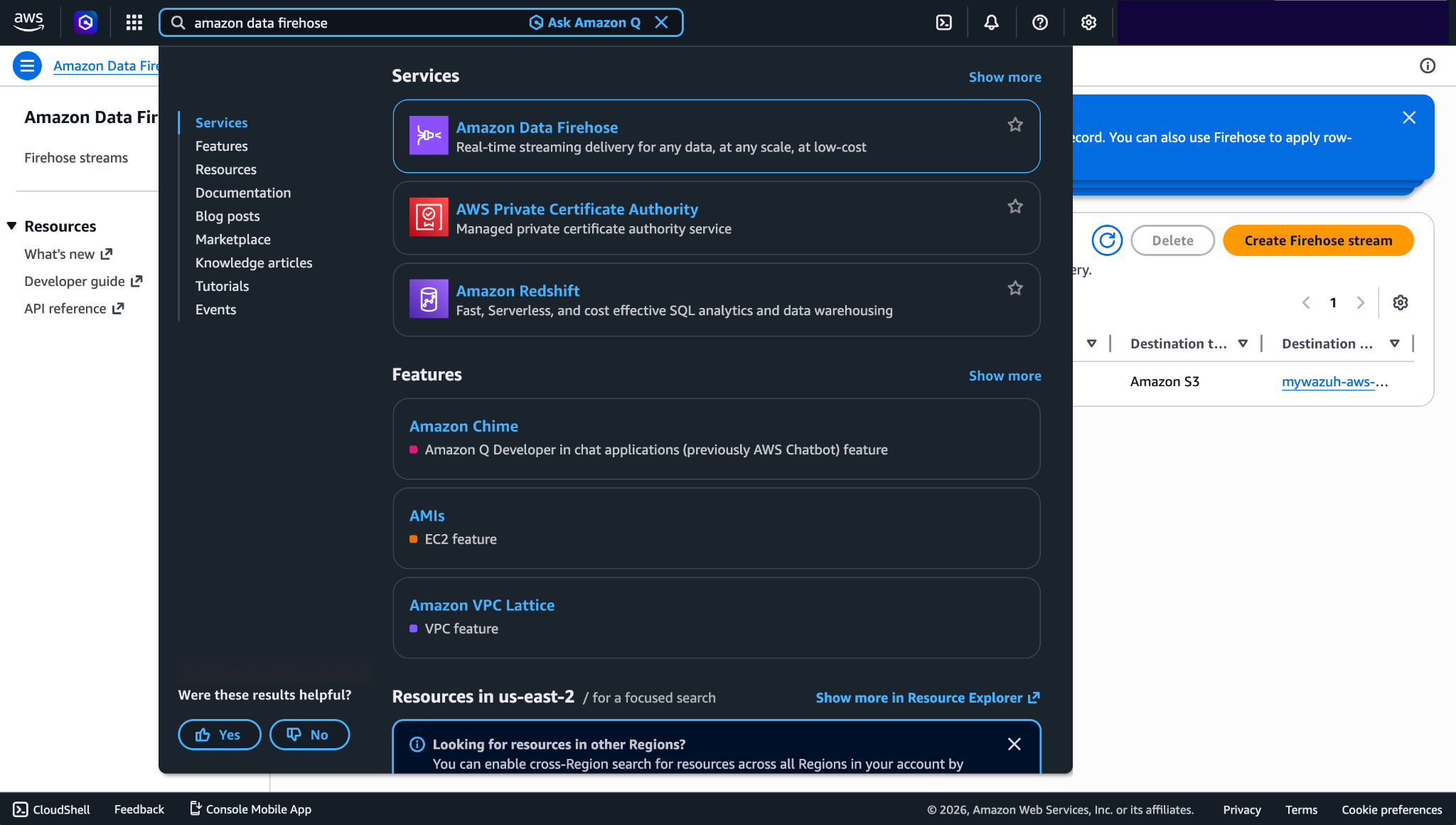
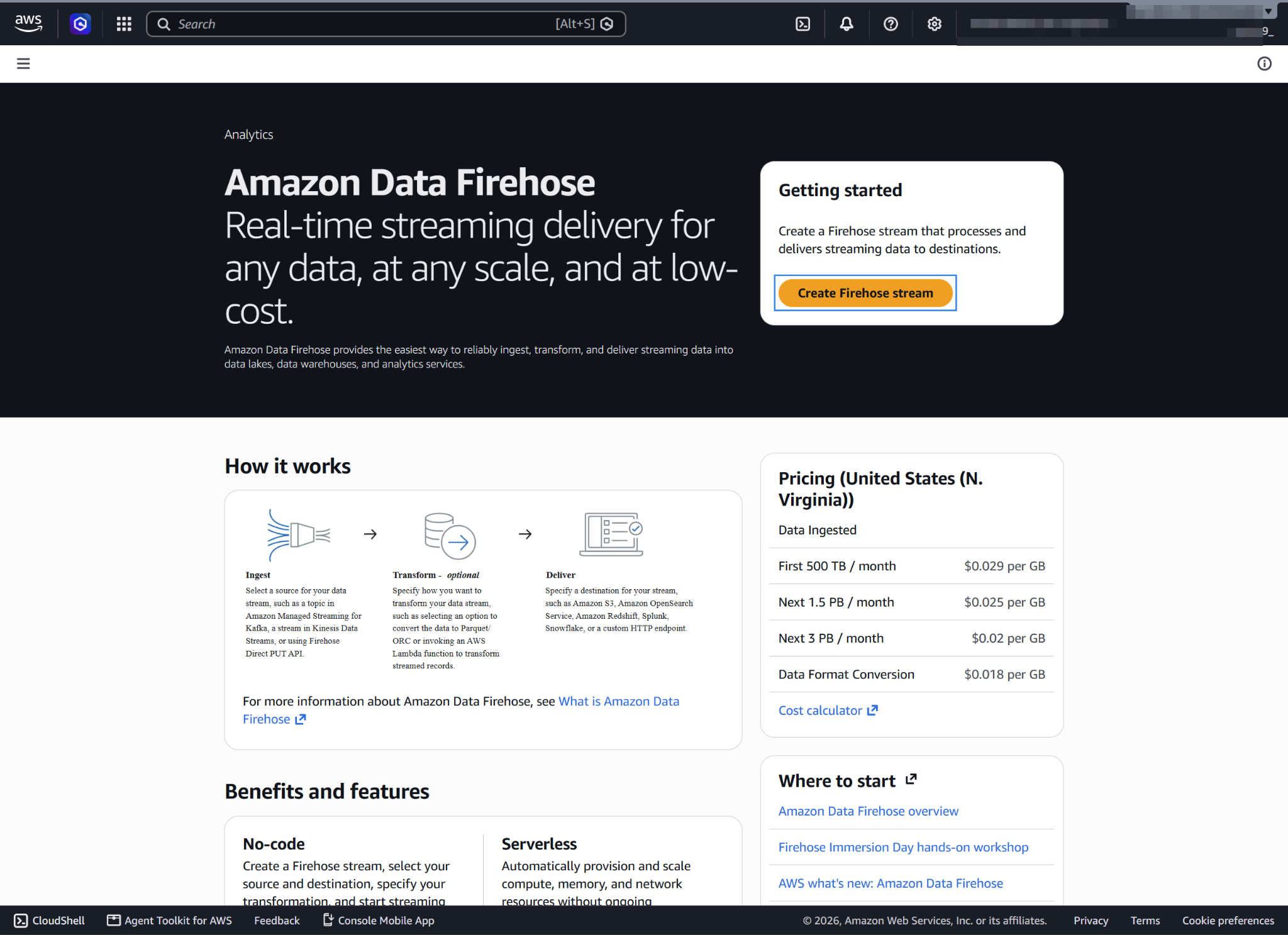
Click Create Firehose stream.
Select Direct PUT and Amazon S3 as the desired Source and Destination, respectively, and choose a Firehose stream name that starts with
aws-waf-logs-.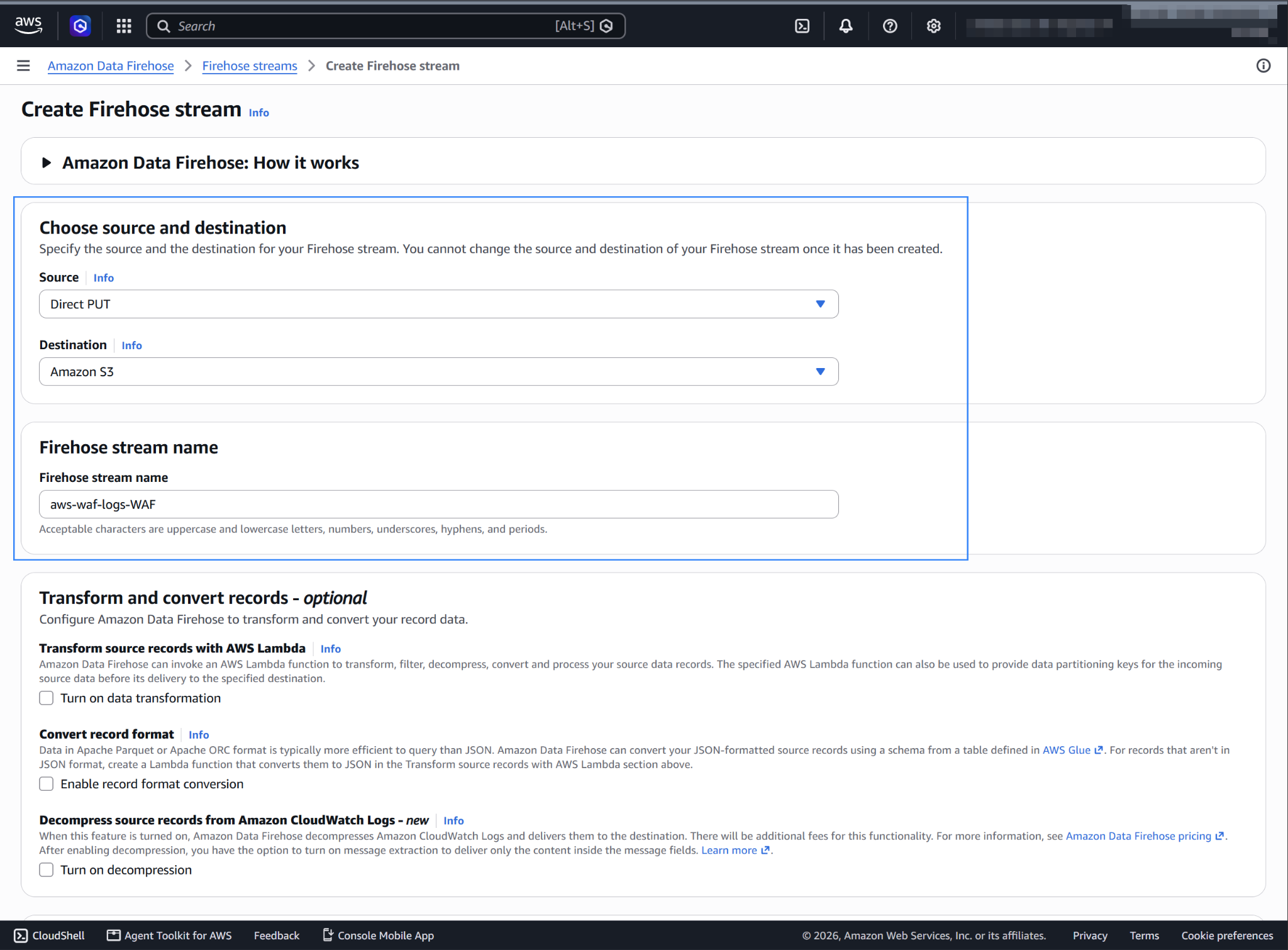
Select the desired S3 bucket as the destination. You can specify a custom prefix to change the path where AWS stores the logs. Amazon Data Firehose creates a file structure
YYYY/MM/DD/HH. If you use a prefix, the file structure isprefix-name/YYYY/MM/DD/HH, and you must enter the same prefix as the path value in the Wazuh configuration. In this example, the prefix iswaf/.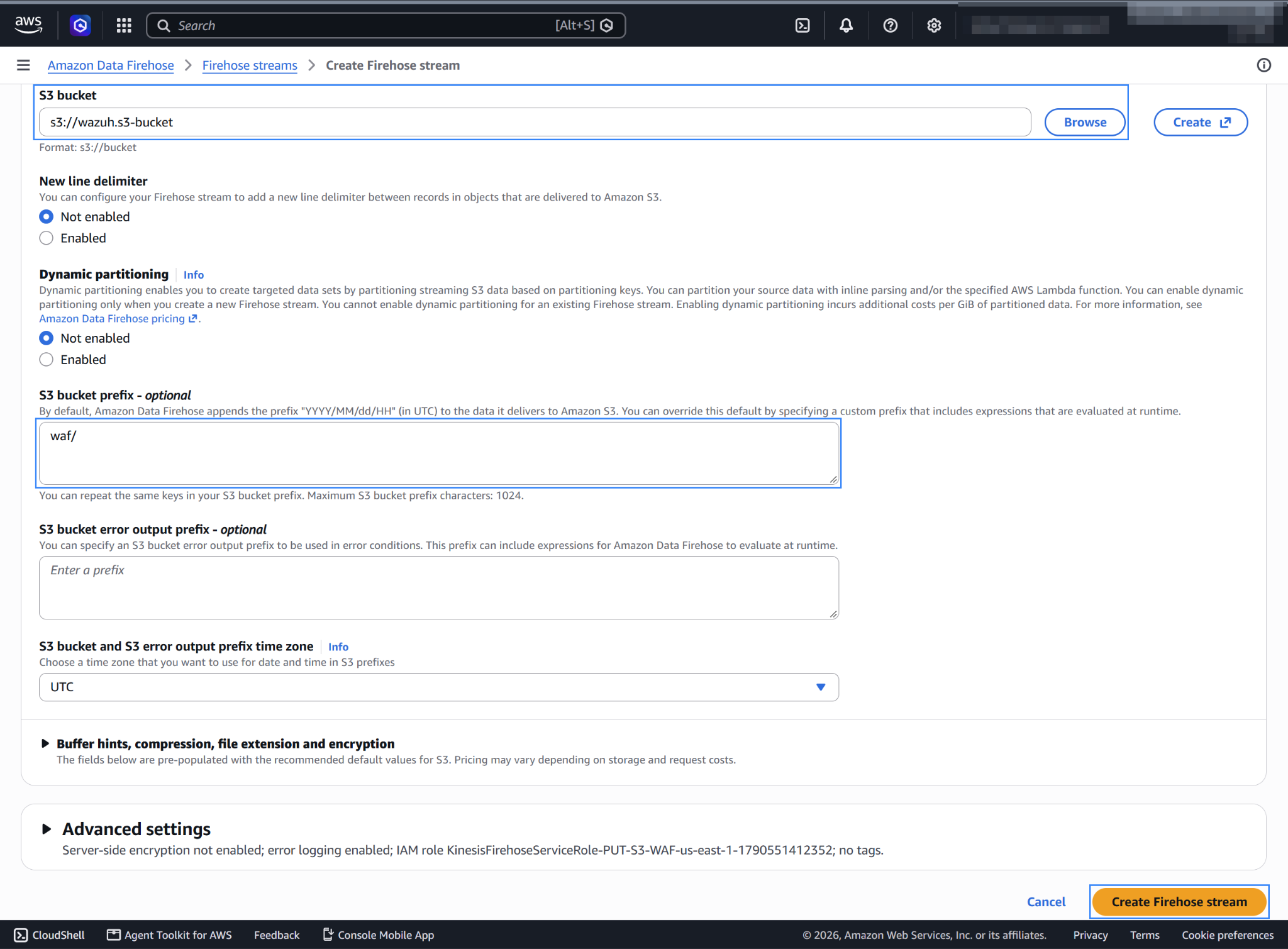
Create or choose an existing IAM role to be used by Amazon Data Firehose in the Advanced settings section.
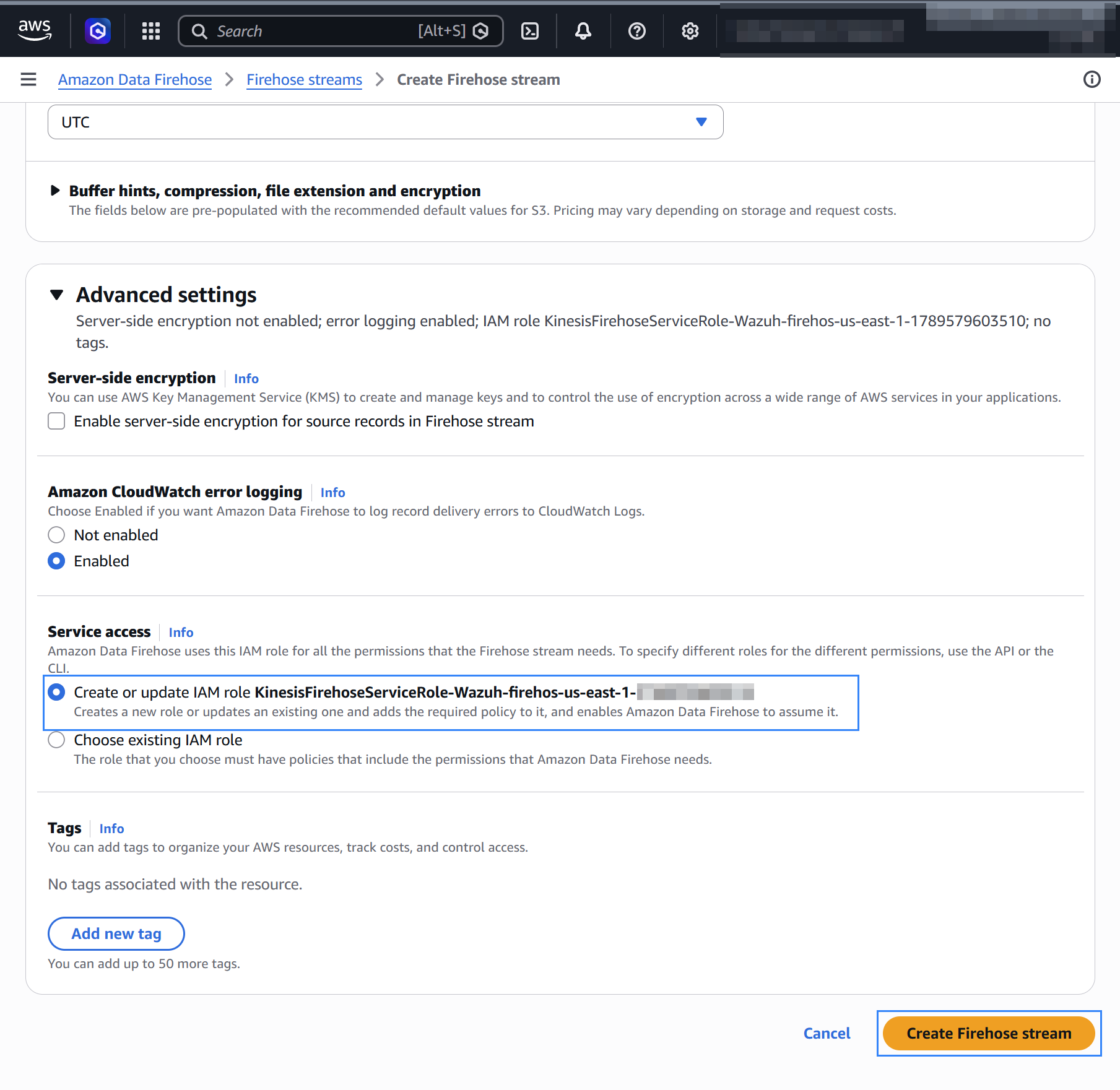
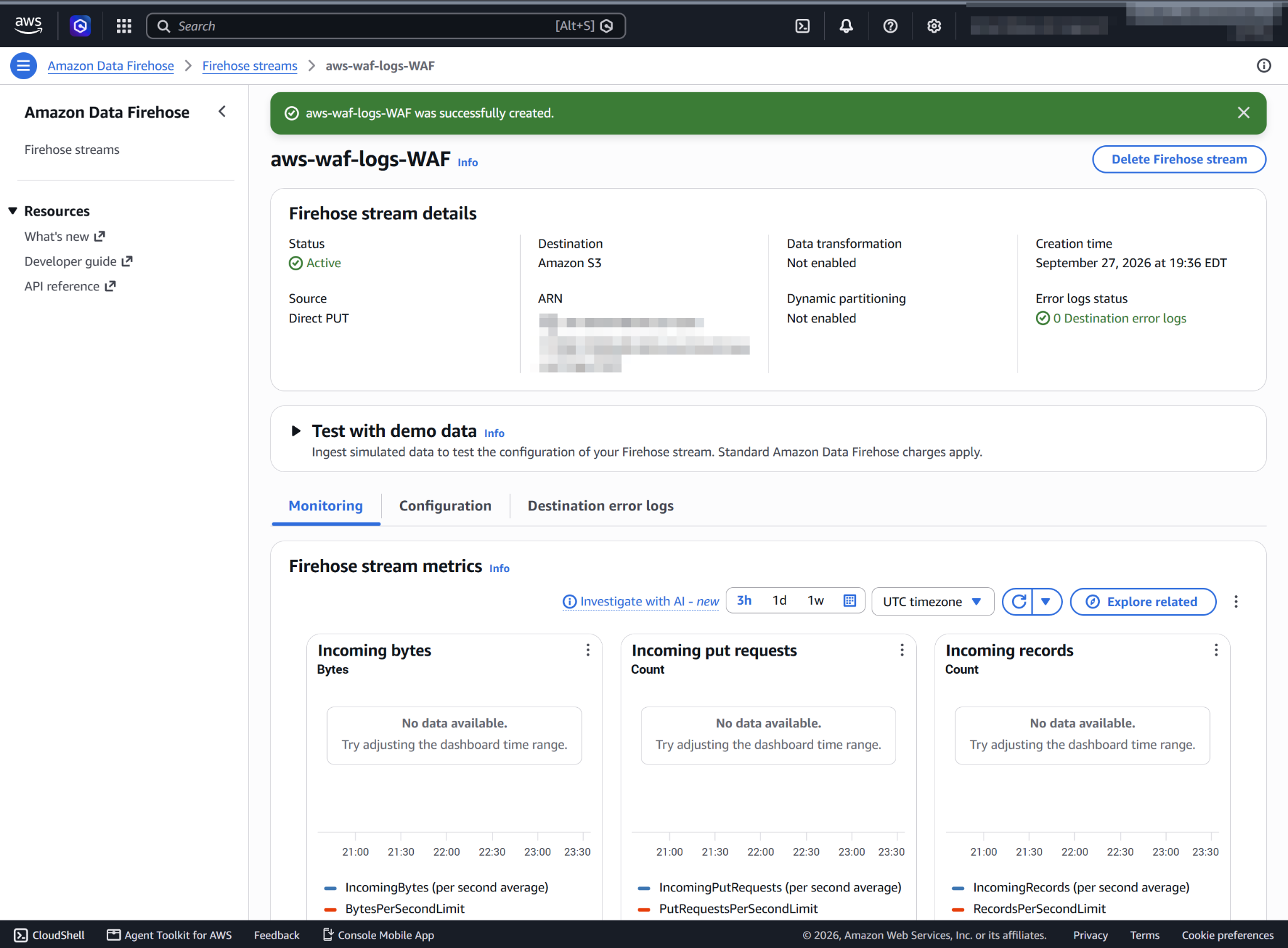
Click Create Firehose stream at the end of the page.
AWS WAF configuration
Send logs from your Web Access Control Lists (web ACLs) to the previously created Amazon Data Firehose with an S3 storage destination configured. After you enable logging, AWS WAF sends logs to the Firehose stream, which delivers them to your S3 bucket.
On your AWS console, search for
wafin the search bar or go to Services > Security, Identity, & Compliance > WAF & Shield.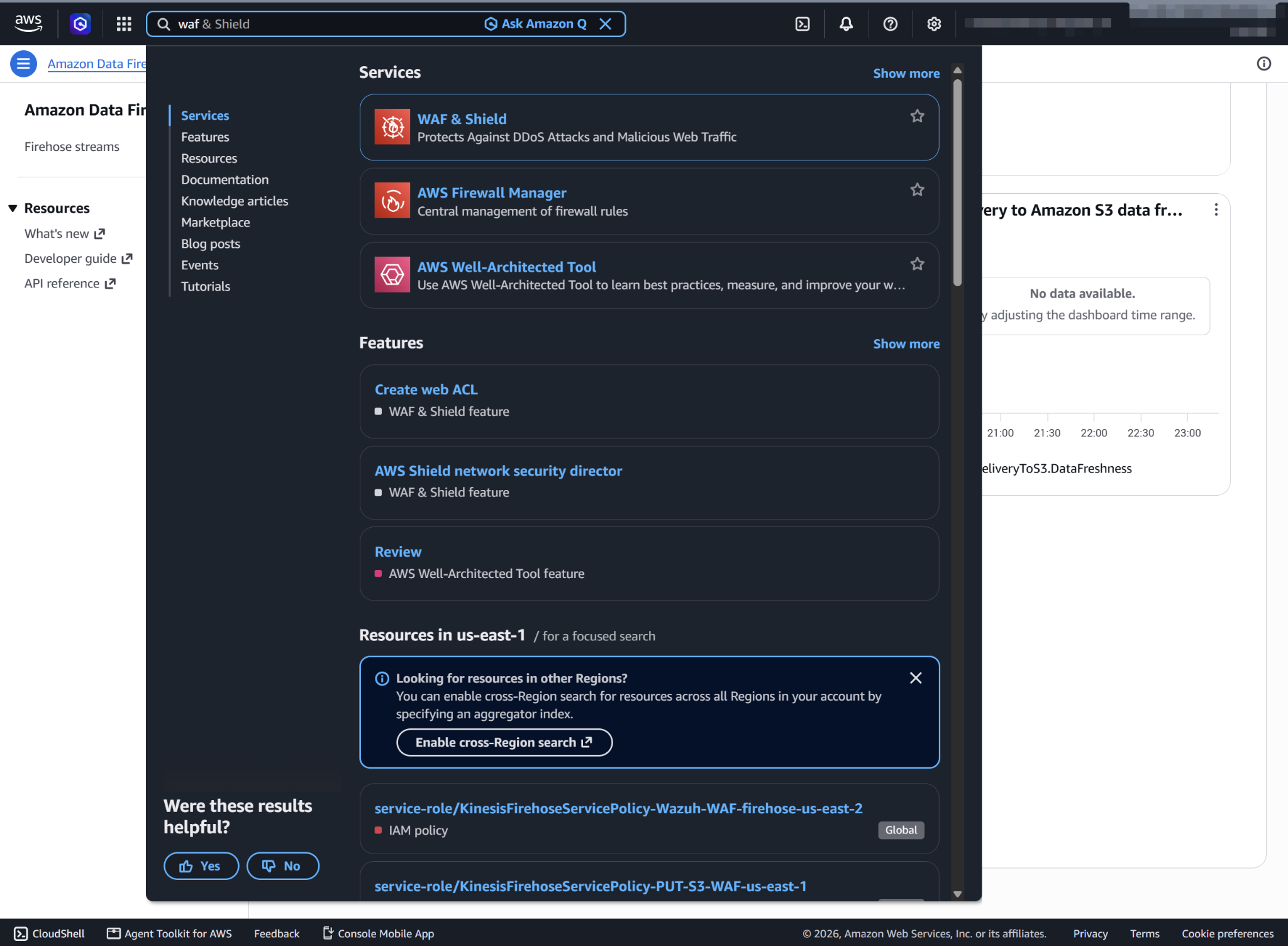
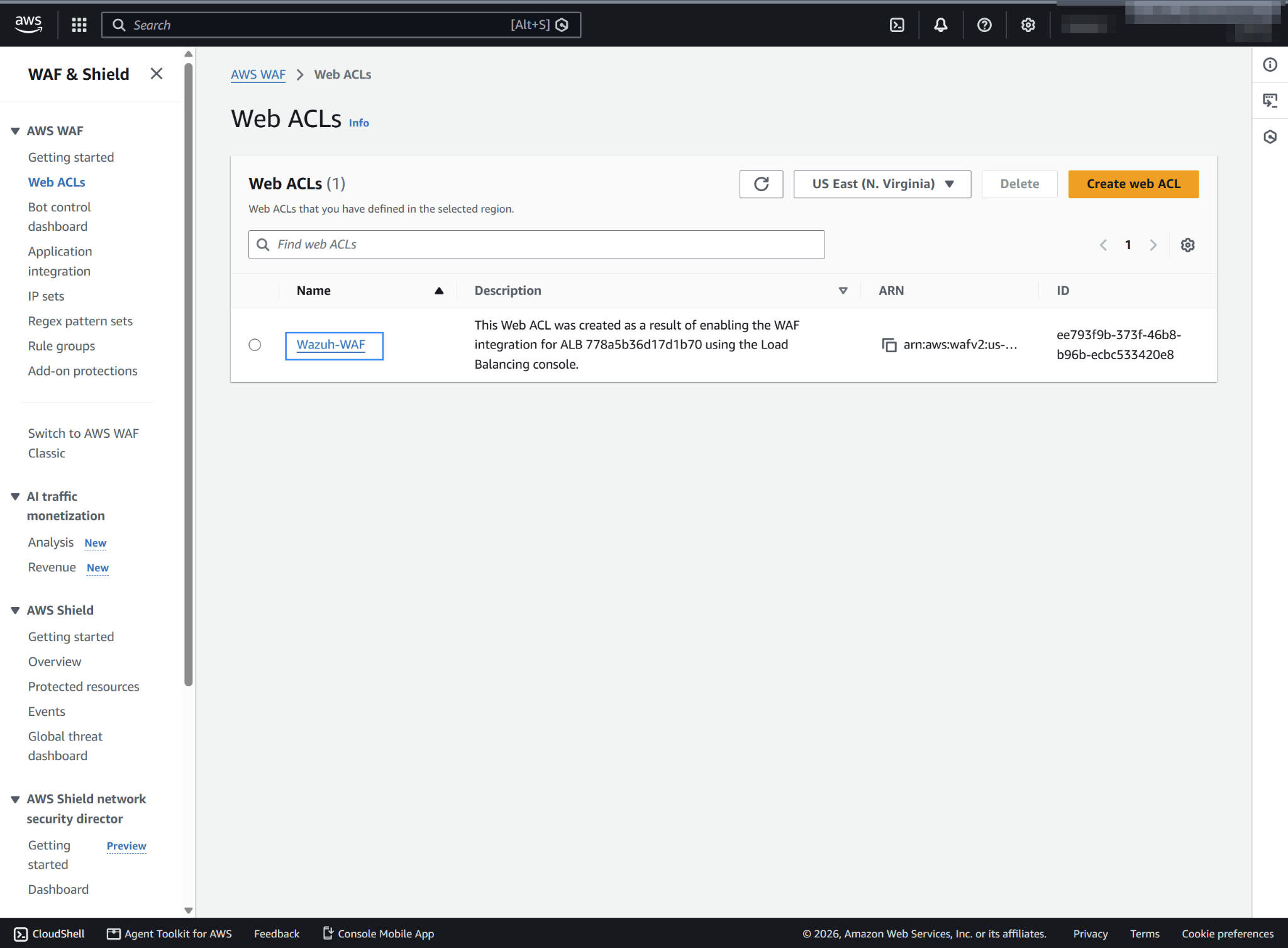
Go to Web ACLs and click the name of the web ACL attached to your web application. If you haven't configured a web ACL, follow the set up AWS WAF guide.
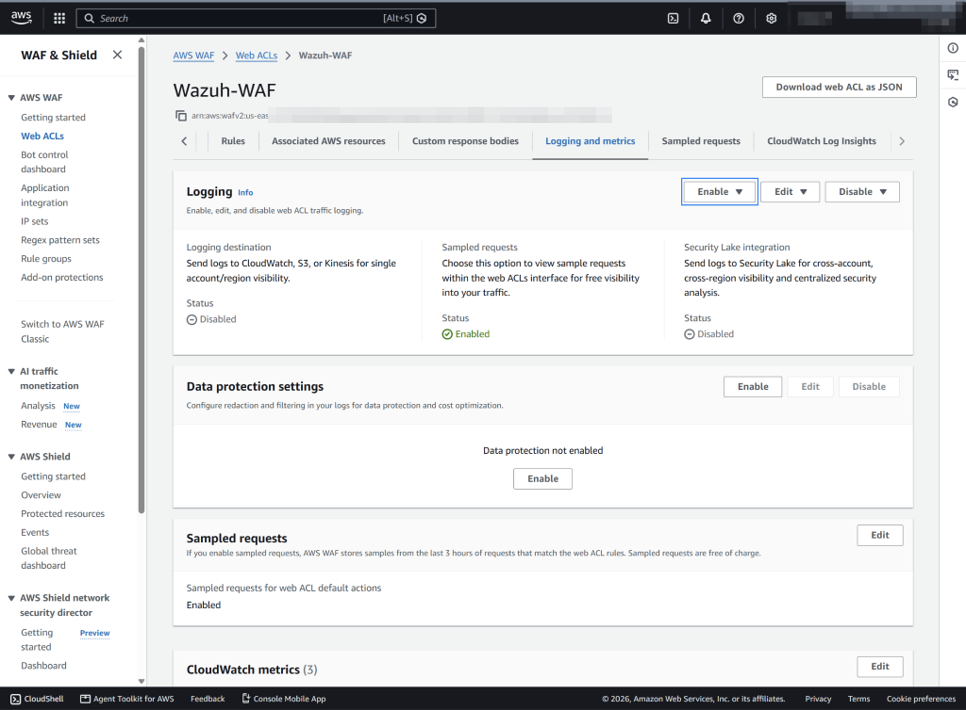
Go to Logging and metrics, under Logging, click Enable.
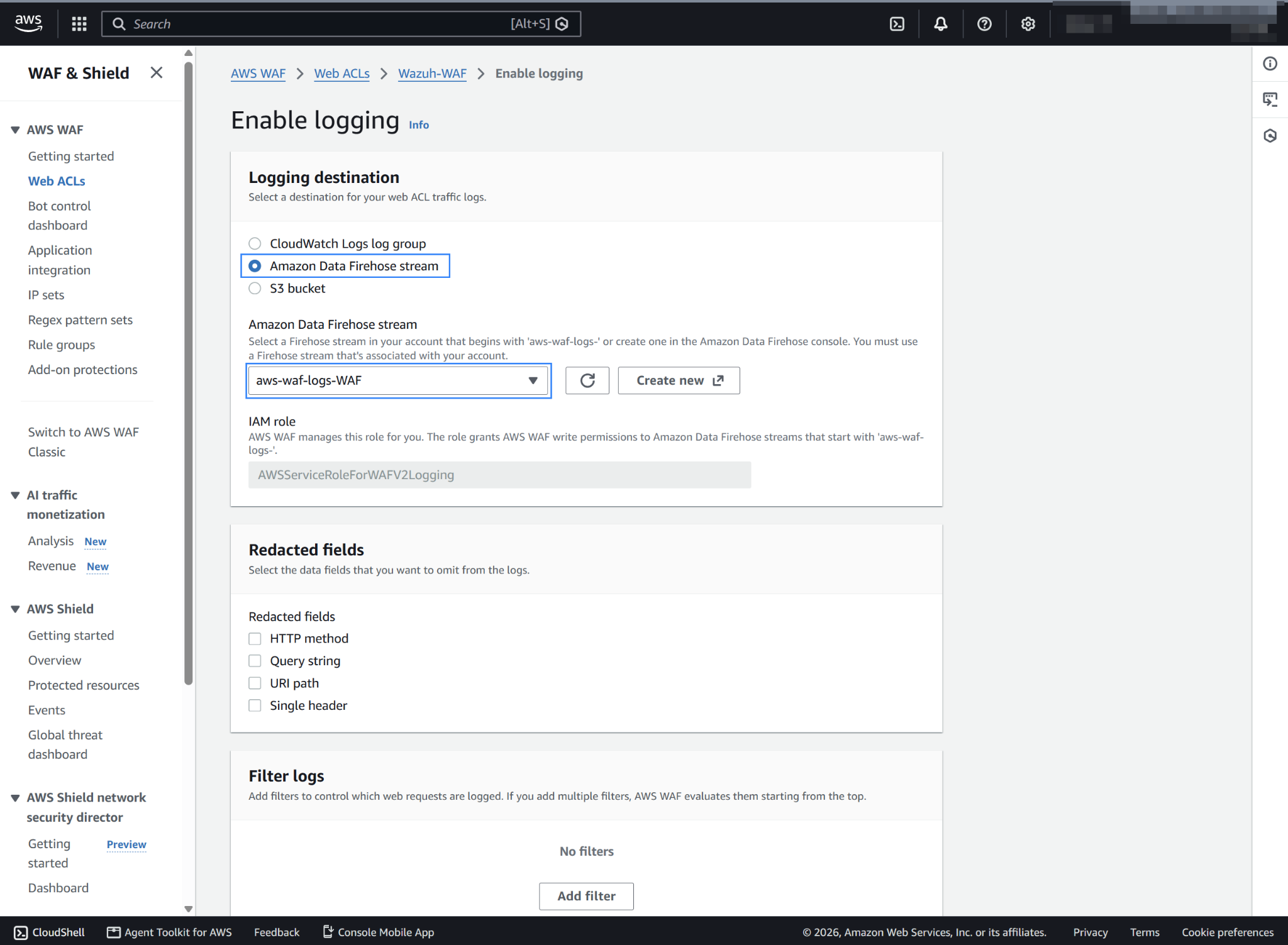
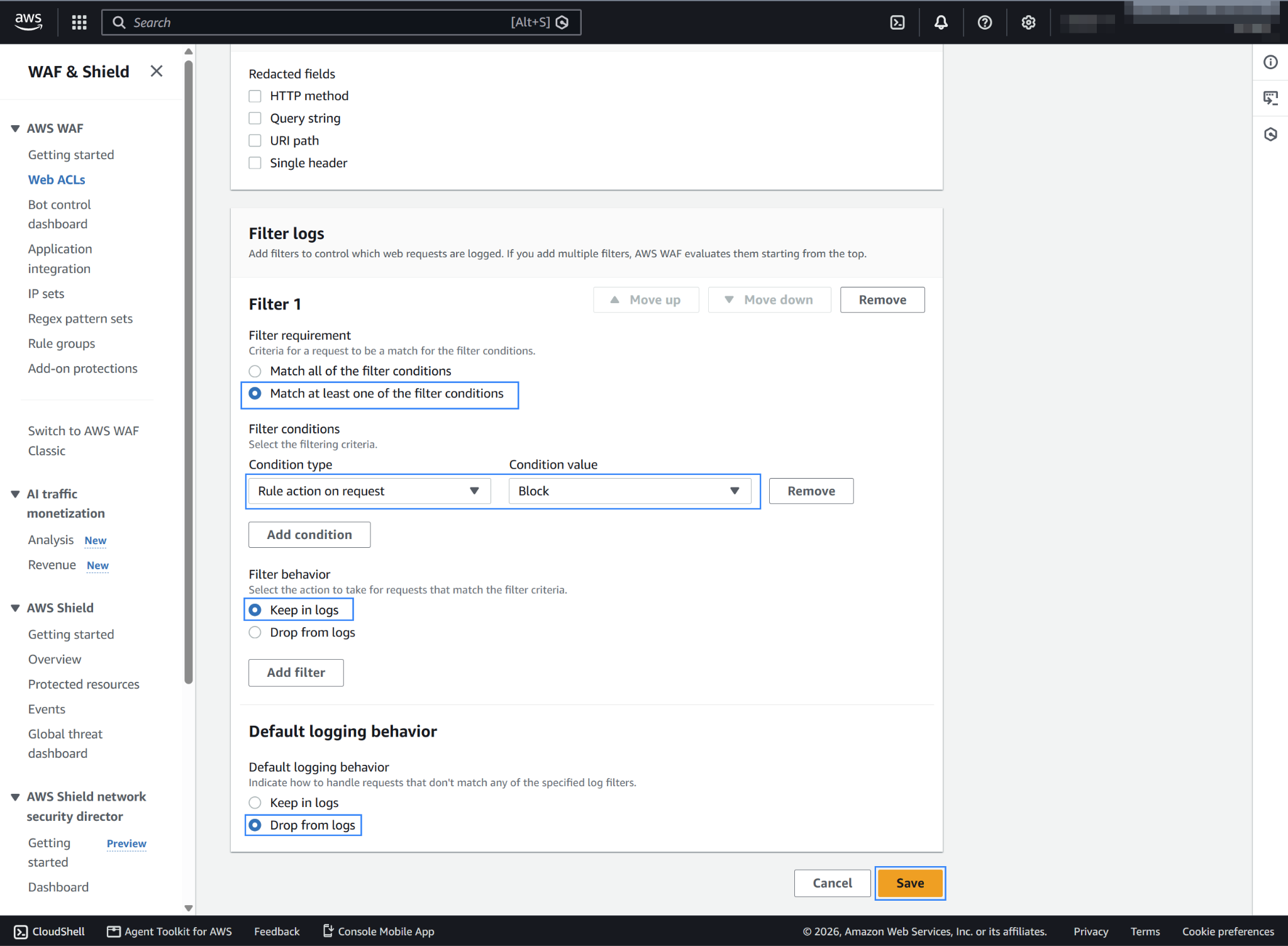
Select the Amazon Data Firehose stream as the Logging destination, and select the previously created Firehose stream under Amazon Data Firehose stream.
Under Filter logs, apply your preferred filtering requirements and click Save. In this example, the filter logs only blocked web requests.
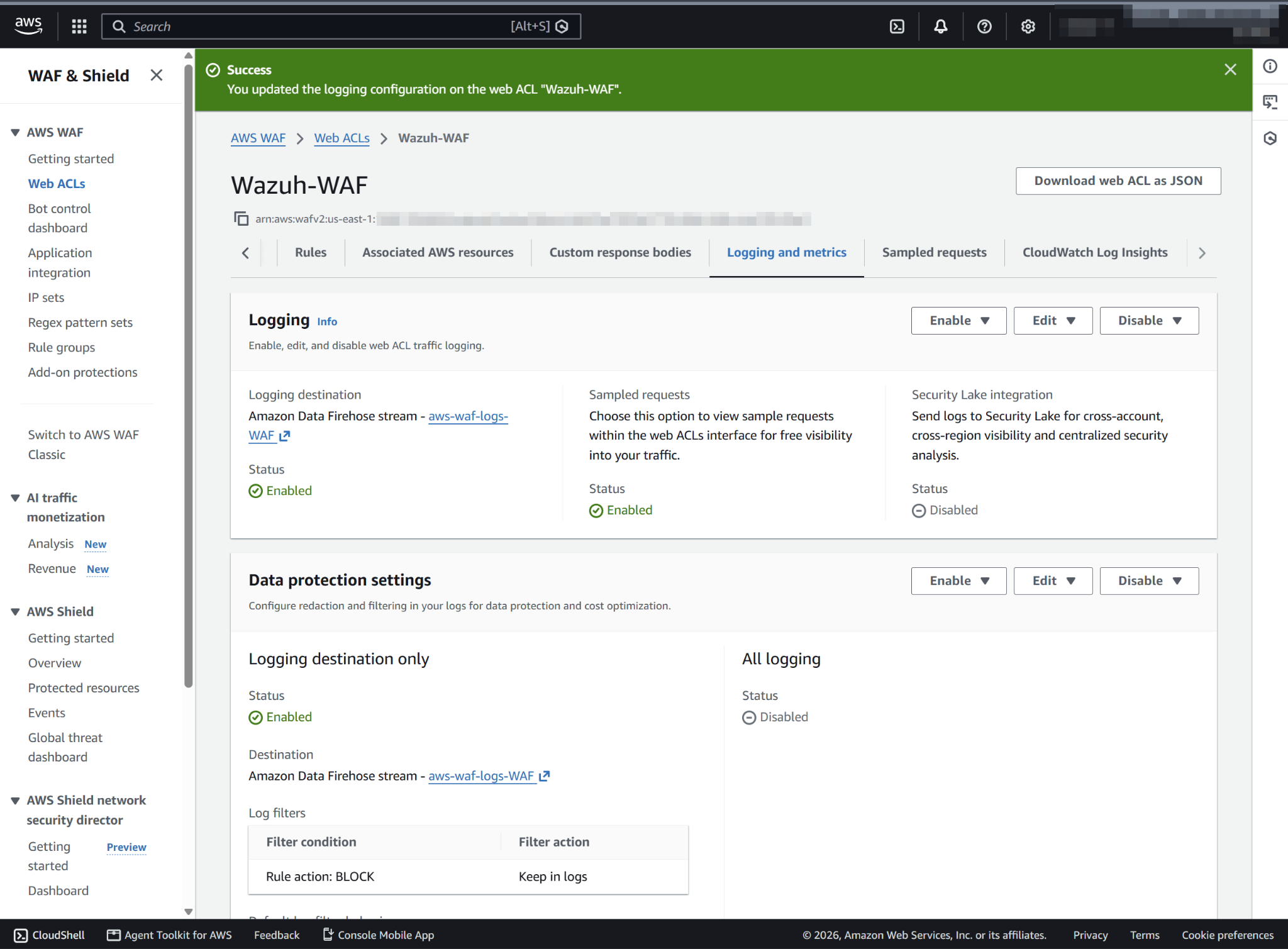
Confirm that logging is enabled.
Policy configuration
Follow the creating an AWS policy guide to create a policy using the Amazon Web Services console.
Take into account that the policies below follow the principle of least privilege, ensuring that only the minimum permissions are granted to the AWS IAM user.
To allow an AWS user to use the Wazuh module for AWS with read-only permissions, the user must have a policy like the following attached:
{
    "Version": "2012-10-17",
    "Statement": [
        {
            "Sid": "VisualEditor0",
            "Effect": "Allow",
            "Action": [
                "s3:GetObject",
                "s3:ListBucket"
            ],
            "Resource": [
                "arn:aws:s3:::<WAZUH_AWS_BUCKET>/*",
                "arn:aws:s3:::<WAZUH_AWS_BUCKET>"
            ]
        }
    ]
}
To delete the log files after Wazuh collects them, use the following policy instead:
{
    "Version": "2012-10-17",
    "Statement": [
        {
            "Sid": "VisualEditor0",
            "Effect": "Allow",
            "Action": [
                "s3:GetObject",
                "s3:ListBucket",
                "s3:DeleteObject"
            ],
            "Resource": [
                "arn:aws:s3:::<WAZUH_AWS_BUCKET>/*",
                "arn:aws:s3:::<WAZUH_AWS_BUCKET>"
            ]
        }
    ]
}
Note
<WAZUH_AWS_BUCKET> is a placeholder. Replace it with the actual name of the bucket from which you want to retrieve logs.
Wazuh deletes the log files from the bucket only if you set remove_from_bucket to yes in the bucket configuration. This option is off by default and isn't in the sample configuration, so you need the second policy only if you turn it on.
After creating a policy, you can attach it directly to a user or to a group the user belongs to. In attaching a policy to an IAM user group, you see how to attach a policy to a group. More information on using other methods is available in the AWS documentation.
Configure Wazuh to process AWS WAF logs
Make sure that the AWS integrations are enabled on the Wazuh dashboard, as described in Enable AWS integration on the Wazuh dashboard.
Add the following Wazuh module for AWS configuration to the
/var/ossec/etc/ossec.conffile on the Wazuh agent. Replace<WAZUH_AWS_BUCKET>with the name of the S3 bucket. Set the path value to the Firehose stream prefix you entered earlier, or remove the path line if the logs are in the bucket root. If the file already has a<wodle name="aws-s3">block, add only the<bucket>section to it:<wodle name="aws-s3"> <disabled>no</disabled> <interval>10m</interval> <run_on_start>yes</run_on_start> <skip_on_error>yes</skip_on_error> <bucket type="waf"> <name><WAZUH_AWS_BUCKET></name> <path>waf</path> <aws_profile>default</aws_profile> </bucket> </wodle>
Note
This example uses the
aws_profileauthentication parameter. Check the Configure AWS credentials section to learn more about the different authentication options and how to use them.Save the changes and restart the Wazuh agent service to apply the changes:
# systemctl restart wazuh-agent
WAF use case
AWS WAF is a security service that helps protect your web applications or APIs from threats. By monitoring blocked requests, you can identify the types of threats your application is facing. Knowing these threats helps you understand the security landscape and adjust your defenses accordingly.
Monitoring blocked web application requests
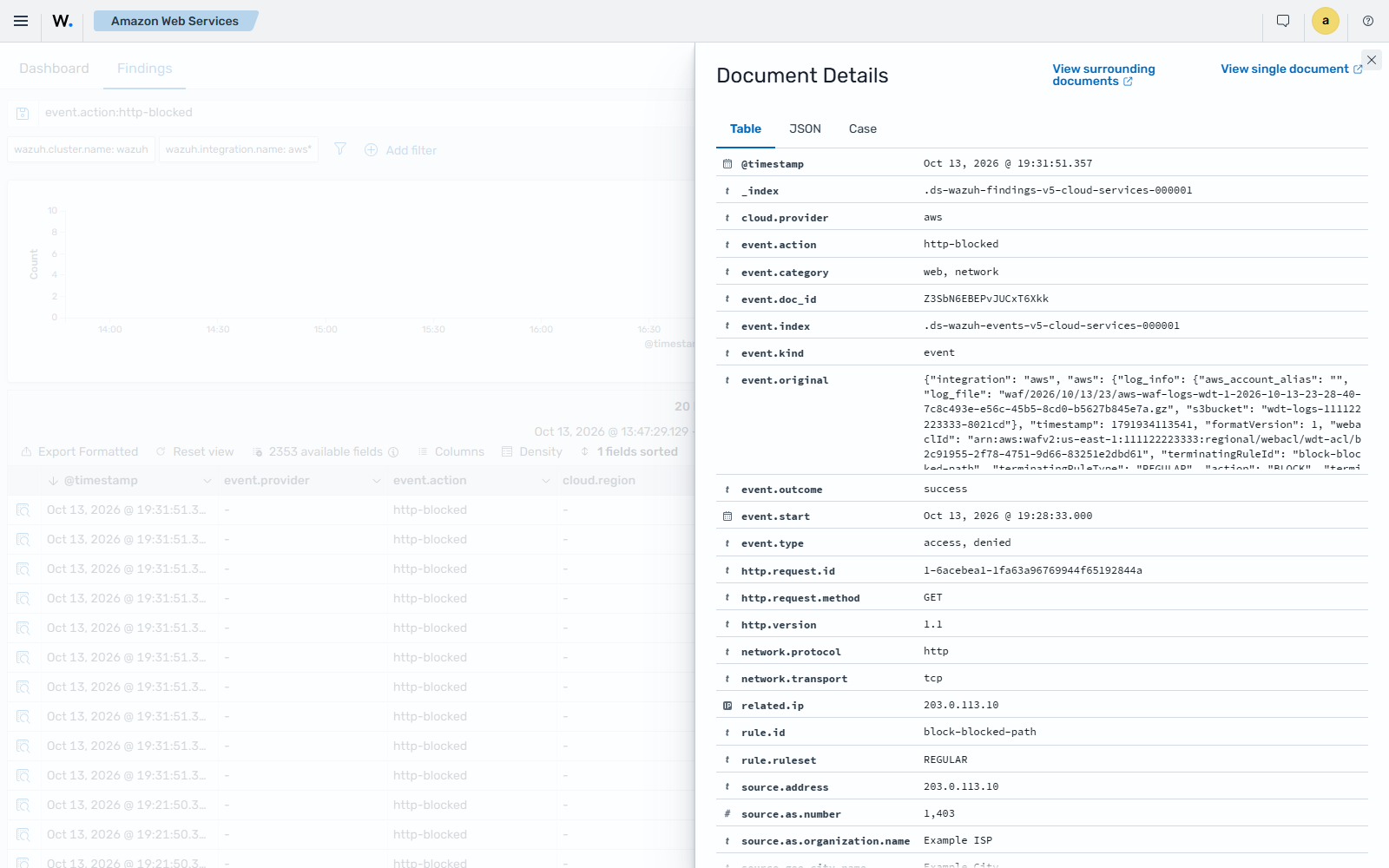
If the rules of the web ACL block web requests, you see the Cloud firewall or WAF connection denied or blocked finding on the Wazuh dashboard.
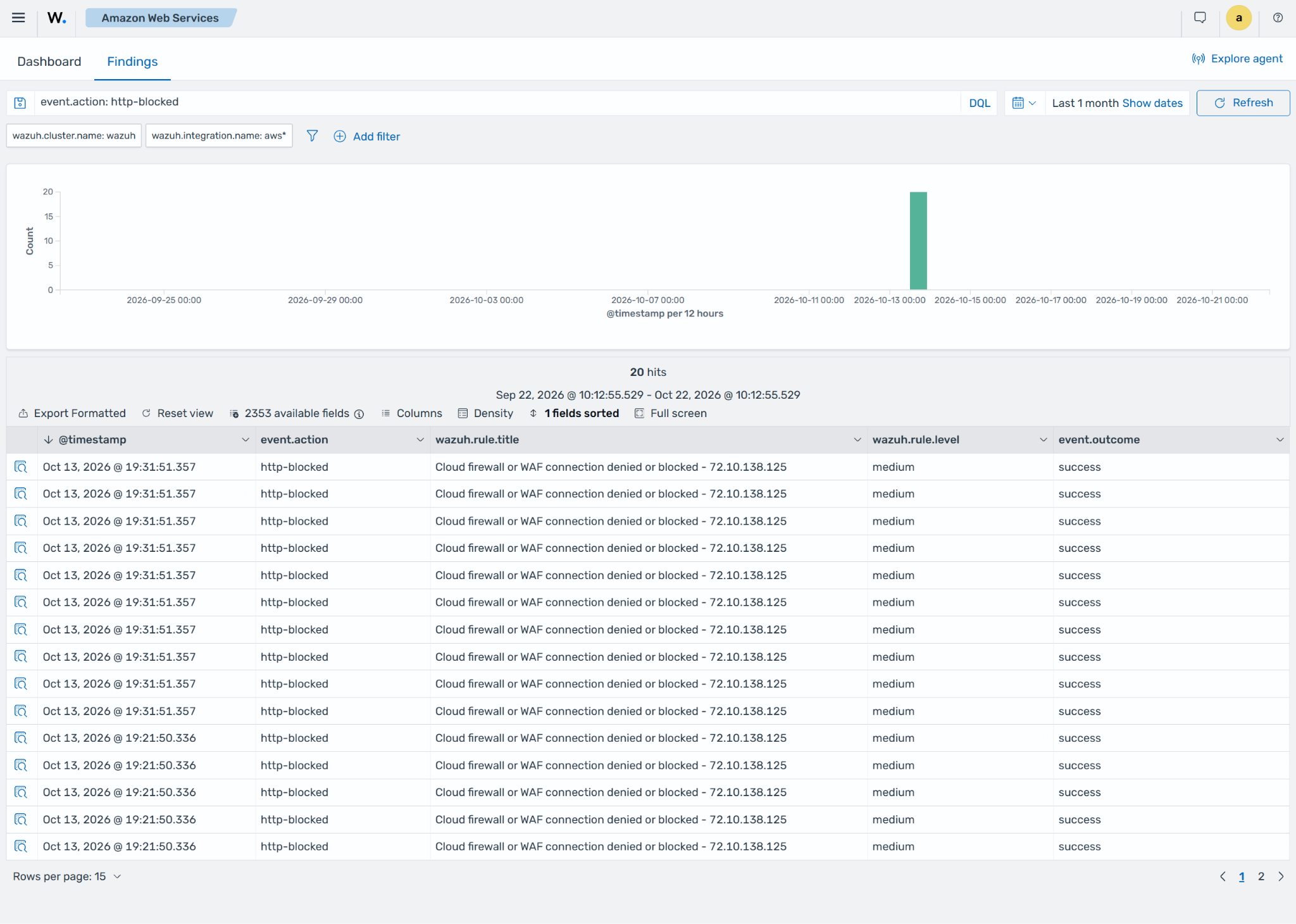
Expand a finding to see more information, such as the request path (url.path), the method (http.request.method), and the name of the web ACL rule that blocked the request (rule.id).