Amazon S3 server access
Amazon S3 server access logging provides detailed records of requests made to a bucket. Server access logs are useful for many applications. For example, access log information can be useful in security and access audits. It can also help you learn about your customer base and understand your Amazon S3 bill.
AWS configuration
The following sections cover how to configure the Amazon S3 server access logging to integrate with Wazuh.
Amazon S3 server access configuration
Create a new S3 bucket to store the access logs in it, or skip this step to use an existing bucket.
On your AWS console, search for
s3in the search bar or go to Services > Storage > S3.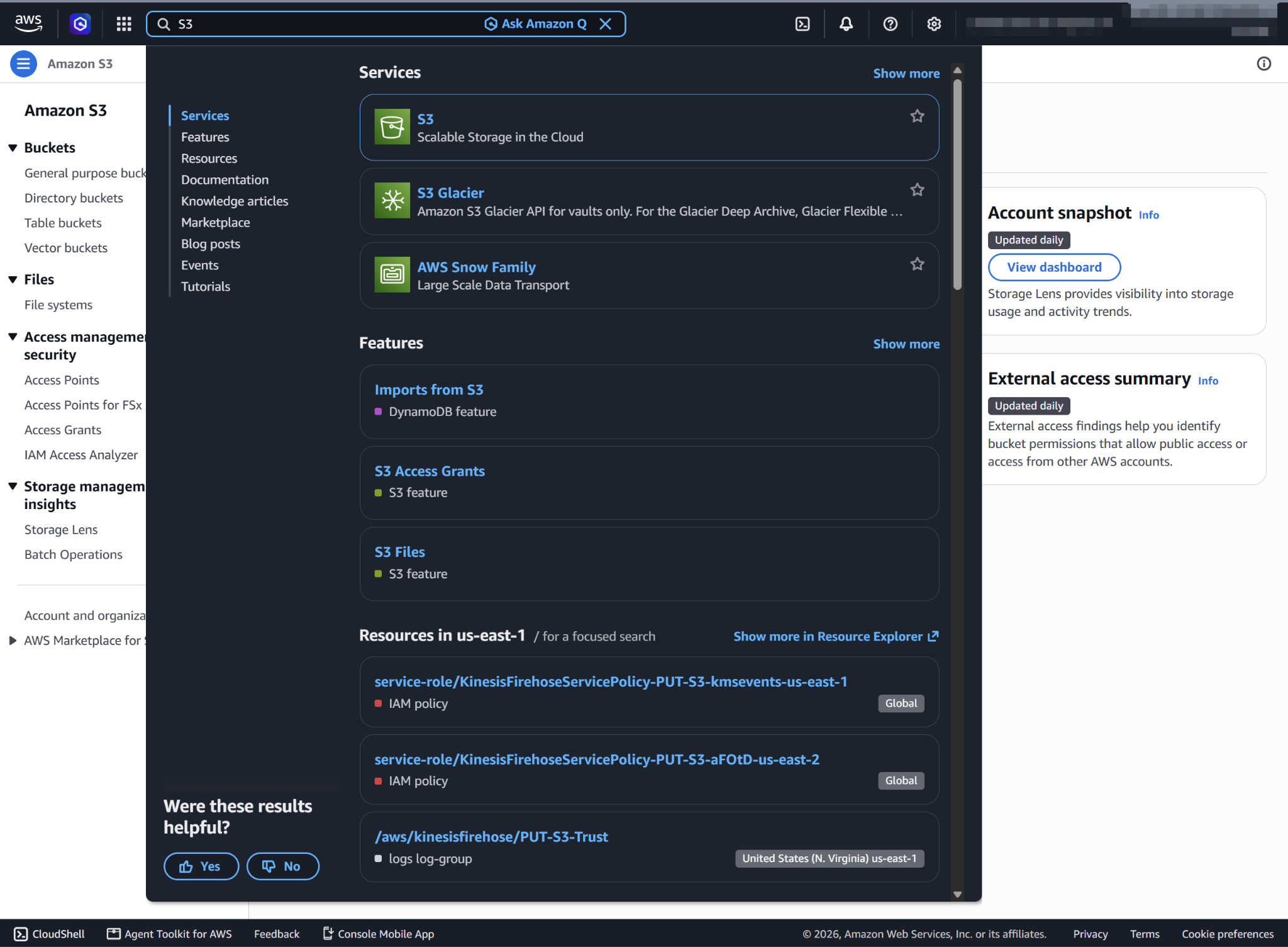
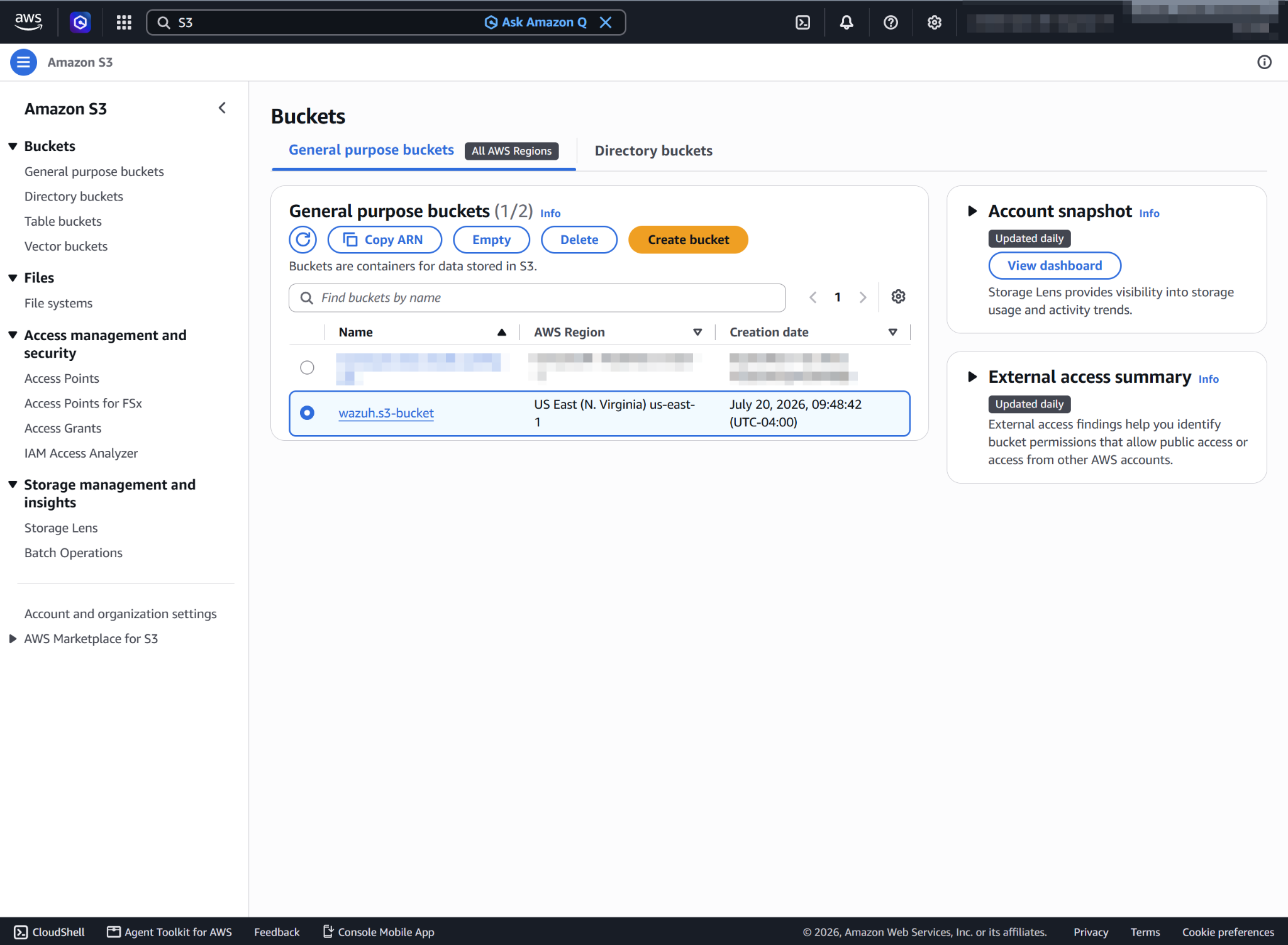
Click the name of the S3 bucket you want to monitor.
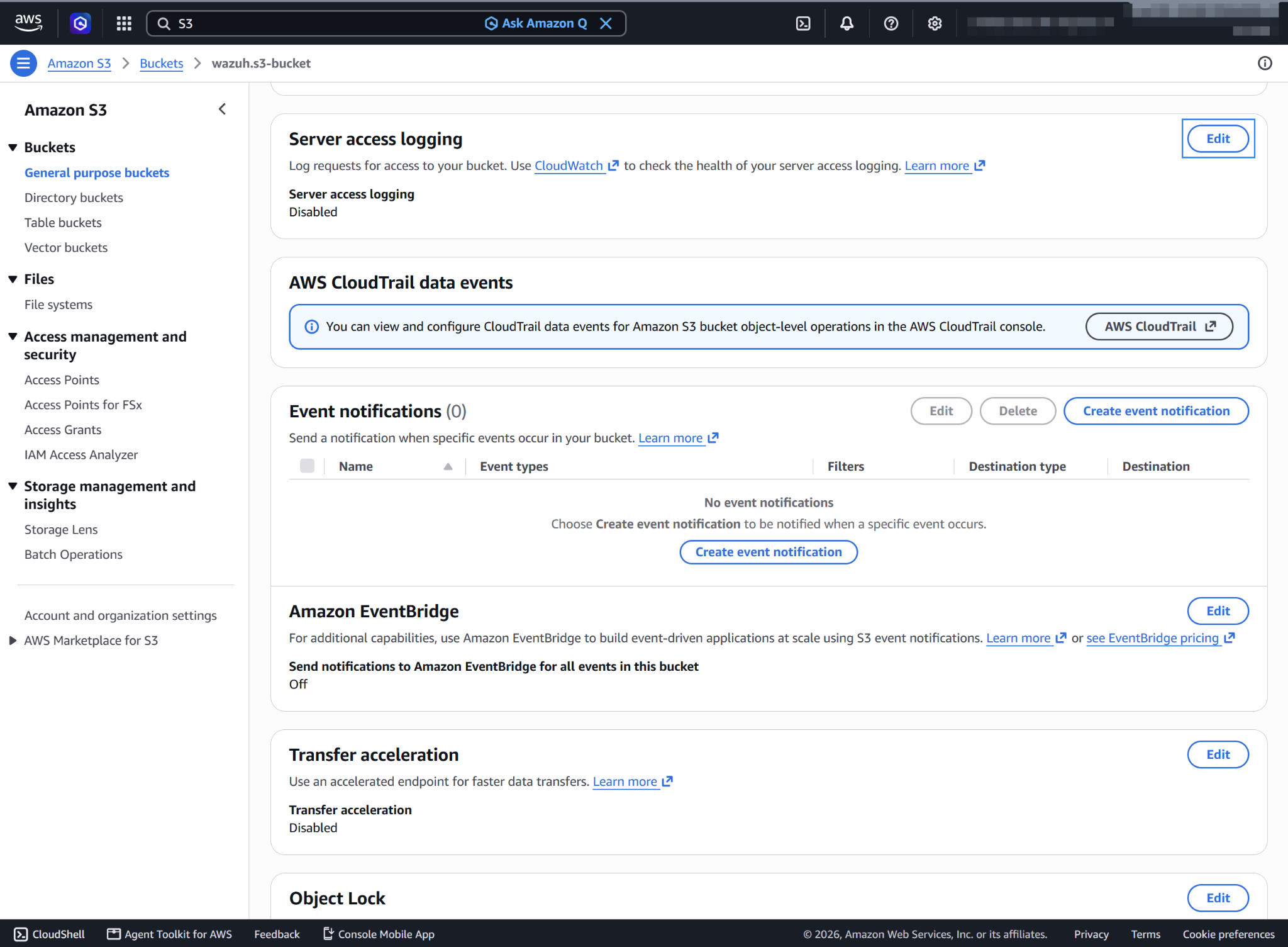
Go to the Properties tab, scroll down until you find the Server access logging, and click Edit.
Select Enable, and click Browse S3 to look for the bucket where you want to store the server access logs. In this example, the logs are stored in the
s3-server-logs/path of the destination bucket.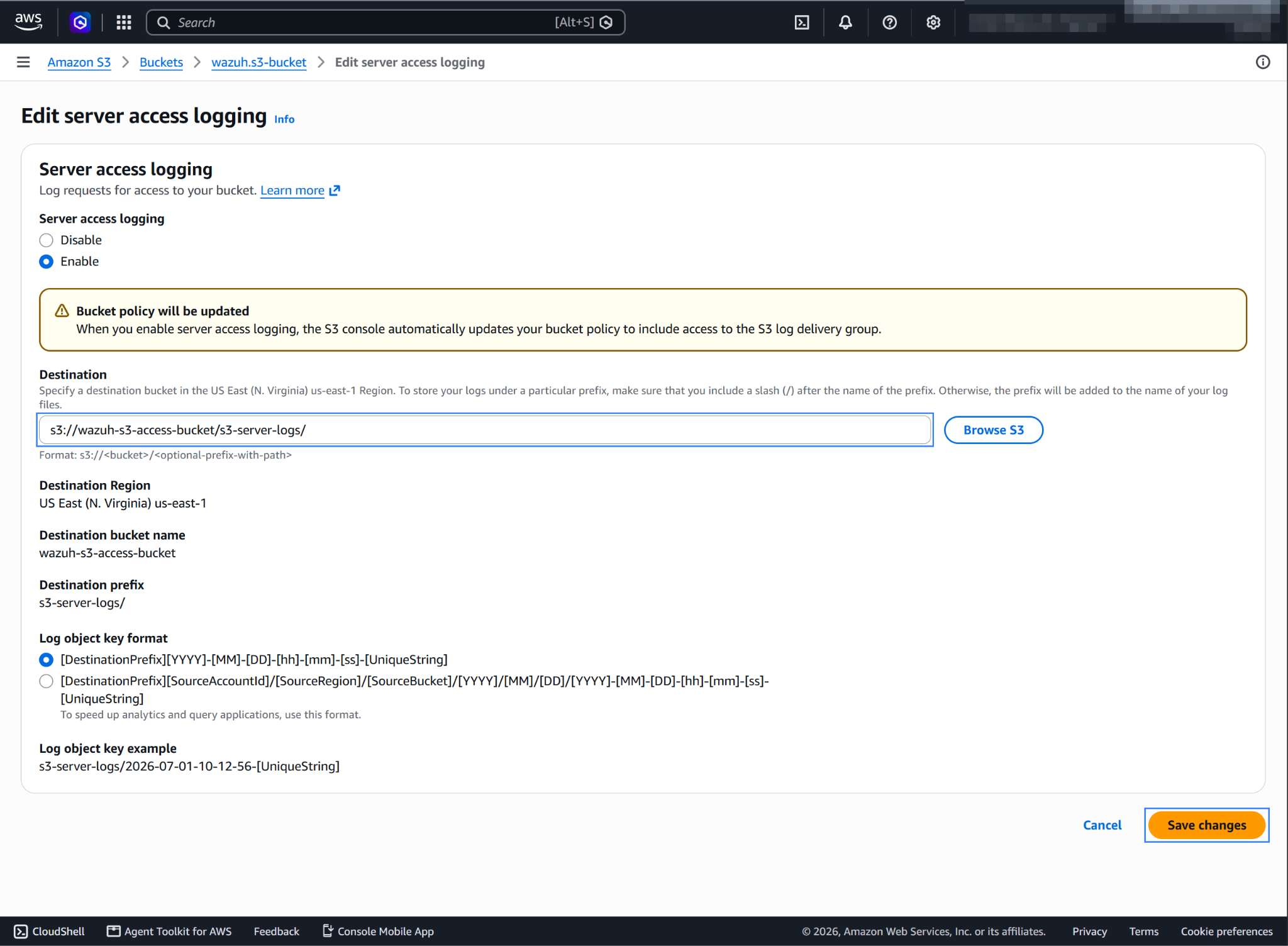
Note
Store the server access logs in a different bucket from the one you monitor, in the same AWS Region. If the source and destination bucket are the same, each log write creates more log entries and adds cost. You can also specify a custom path within the destination bucket to store the logs.
Click Save changes. S3 server access logs are then stored at the specified path.
Policy configuration
Follow the creating an AWS policy guide to create a policy using the Amazon Web Services console.
The policies below follow the principle of least privilege, so they give the AWS IAM user only the minimum permissions it needs.
To allow an AWS user to use the Wazuh module for AWS with read-only permissions, the user must have a policy like the following attached:
{
    "Version": "2012-10-17",
    "Statement": [
        {
            "Sid": "VisualEditor0",
            "Effect": "Allow",
            "Action": [
                "s3:GetObject",
                "s3:ListBucket"
            ],
            "Resource": [
                "arn:aws:s3:::<WAZUH_AWS_BUCKET>/*",
                "arn:aws:s3:::<WAZUH_AWS_BUCKET>"
            ]
        }
    ]
}
To delete the log files after Wazuh collects them, use the following policy instead:
{
    "Version": "2012-10-17",
    "Statement": [
        {
            "Sid": "VisualEditor0",
            "Effect": "Allow",
            "Action": [
                "s3:GetObject",
                "s3:ListBucket",
                "s3:DeleteObject"
            ],
            "Resource": [
                "arn:aws:s3:::<WAZUH_AWS_BUCKET>/*",
                "arn:aws:s3:::<WAZUH_AWS_BUCKET>"
            ]
        }
    ]
}
Note
<WAZUH_AWS_BUCKET> is a placeholder. Replace it with the actual name of the bucket from which you want to retrieve logs.
Wazuh deletes the log files from the bucket only if you set remove_from_bucket to yes in the bucket configuration. This option is off by default and isn't in the sample configuration, so you need the second policy only if you turn it on.
After creating a policy, you can attach it directly to a user or to a group the user belongs to. In attaching a policy to an IAM user group, you see how to attach a policy to a group. More information on using other methods is available in the AWS documentation.
Configure Wazuh to process Amazon S3 server access logs
Make sure that the AWS integrations are enabled on the Wazuh dashboard, as described in Enable AWS integration on the Wazuh dashboard.
Add the following Wazuh module for AWS configuration to the
/var/ossec/etc/ossec.conffile on the Wazuh agent. Replace<WAZUH_AWS_BUCKET>with the name of the bucket that stores the logs. If you store the logs under a prefix, set the path value to that prefix. If the file already has a<wodle name="aws-s3">block, add only the<bucket>section to it:<wodle name="aws-s3"> <disabled>no</disabled> <interval>10m</interval> <run_on_start>yes</run_on_start> <skip_on_error>yes</skip_on_error> <bucket type="server_access"> <name><WAZUH_AWS_BUCKET></name> <path>s3-server-logs</path> <aws_profile>default</aws_profile> </bucket> </wodle>
Note
This example uses the
aws_profileauthentication parameter. Check the Configure AWS credentials section to learn more about the different authentication options and how to use them.Save the changes and restart the Wazuh agent service to apply the changes:
# systemctl restart wazuh-agent
S3 server access use case
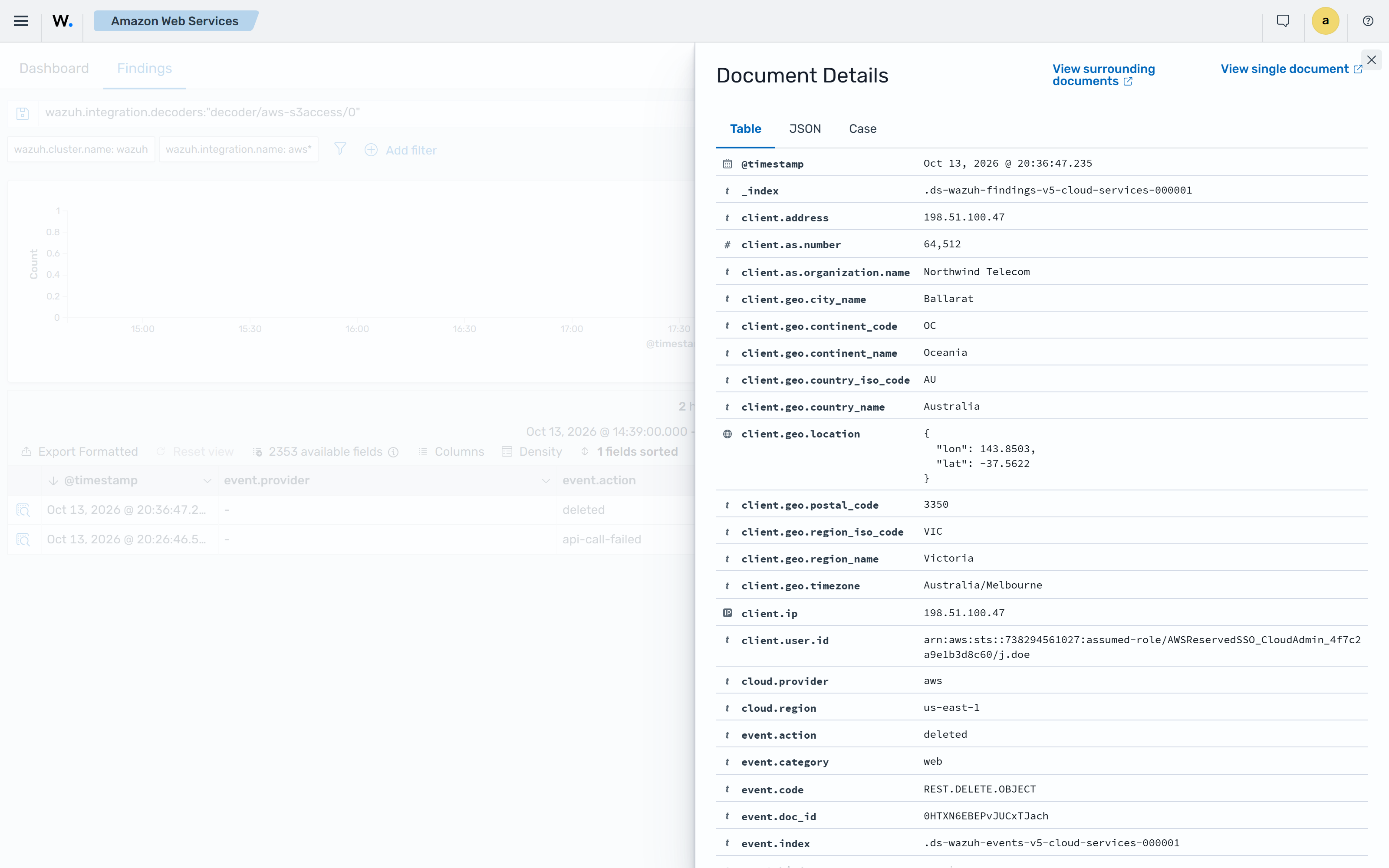
Below is a use case for Wazuh findings built for Amazon S3 server access logs.
Monitoring server access logs
When a request deletes an object from the monitored bucket, for example aws s3 rm s3://<MONITORED_BUCKET>/<OBJECT_KEY>, the Wazuh dashboard shows the AWS S3 object deleted finding. When a request to the bucket fails with an error, the dashboard shows the Cloud services API call failed finding. For example, aws s3api get-bucket-policy --bucket <MONITORED_BUCKET> fails on a bucket that has no bucket policy. Amazon S3 delivers server access logs on a best-effort basis, usually within a few hours. The findings appear after the logs reach the destination bucket and Wazuh collects them. To see these findings, go to Amazon Web Services > Findings.
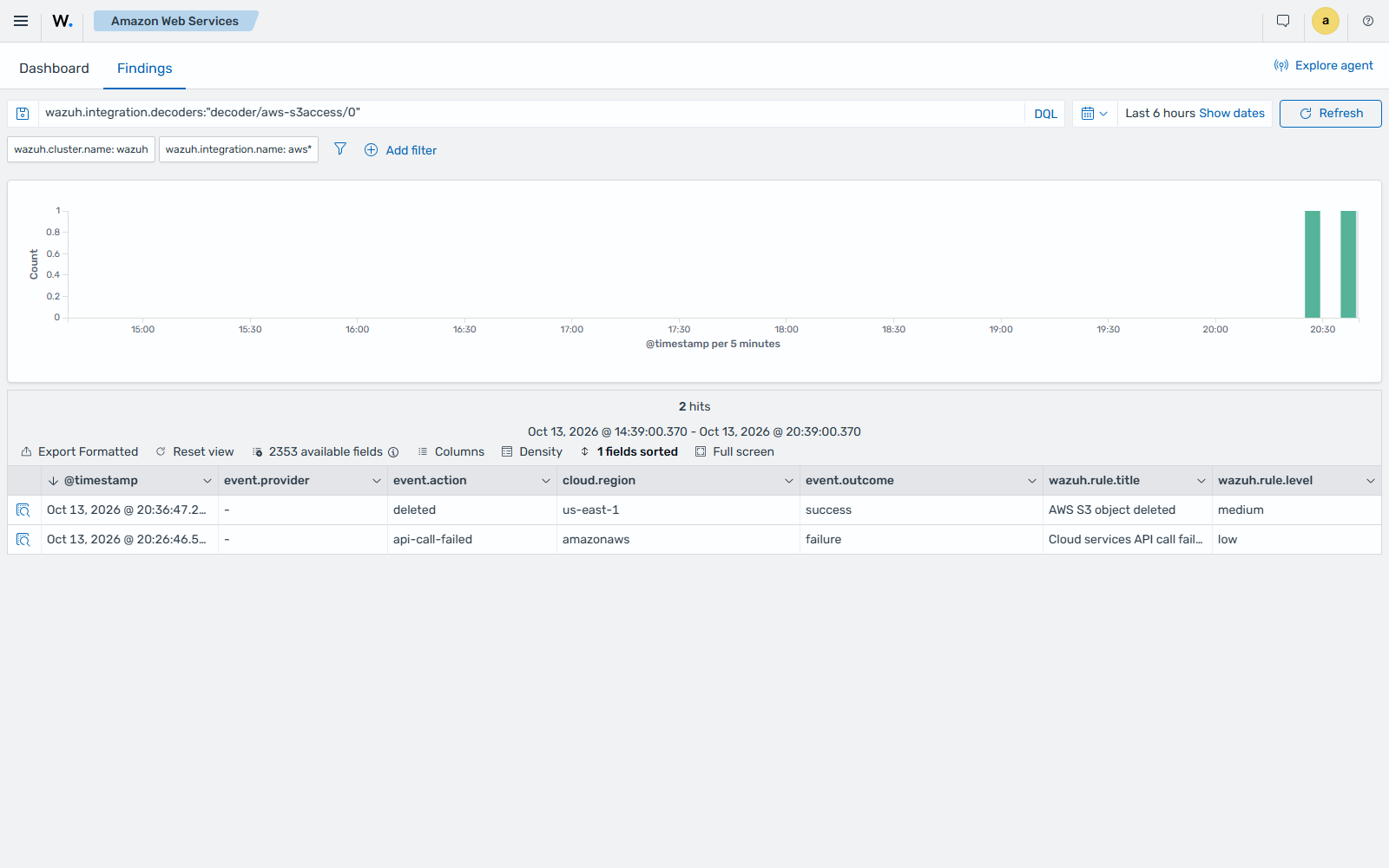
Expand a finding to see the operation (event.code), the object key (url.path), and the caller (client.user.id). The bucket name and the full request URI are in the full event, event.original.