Custom Logs Buckets
Amazon Simple Queue Service (Amazon SQS) is a fully managed message queuing service. It offers secure, durable, and available hosted queues to decouple and scale software systems and components. It allows sending, storing, and receiving messages between software components at any volume, without losing messages or requiring other services to be available. These features make it an optimal component to associate with Amazon S3 buckets to consume any type of log.
Combining Amazon SQS with Amazon S3 buckets allows Wazuh to collect JSON, CSV, and plain text logs from any custom path. These logs don't need to come from AWS. Wazuh indexes these logs as events of the aws integration, with each log unparsed in the event.original field. To parse your log format and raise findings, create decoders and rules as described in Create a security analytics detection workflow.
Note
To properly process CSV logs, they must include column headers.
To collect logs from Custom Logs Buckets, you need to do the following:
Create an Amazon SQS queue.
Configure an S3 bucket. For every object creation event, the bucket sends notifications to the queue.
AWS configuration
The following sections cover how to configure Custom Logs Buckets to integrate with Wazuh.
Amazon Simple Queue Service
Create a Standard type SQS queue in the Amazon SQS console with the default configurations. You can apply an access policy like the following example. Replace <REGION>, <ACCOUNT_ID>, <SQS_NAME>, and <S3_BUCKET> with your region, account ID, SQS queue name, and the name you give the S3 bucket.
{
"Version": "2012-10-17",
"Id": "example-ID",
"Statement": [
  {
    "Sid": "example-access-policy",
    "Effect": "Allow",
    "Principal": {
      "Service": "s3.amazonaws.com"
    },
    "Action": "SQS:SendMessage",
    "Resource": "arn:aws:sqs:<REGION>:<ACCOUNT_ID>:<SQS_NAME>",
    "Condition": {
      "StringEquals": {
        "aws:SourceAccount": "<ACCOUNT_ID>"
      },
      "ArnLike": {
        "aws:SourceArn": "arn:aws:s3:*:*:<S3_BUCKET>"
      }
    }
  }
]
}
You can configure your access policy to accept S3 notifications from different account IDs and to apply different conditions. For more information, see managing access in Amazon SQS.
Amazon S3 and Event Notifications
To configure an S3 bucket that reports creation events, do the following.
Configure an S3 bucket as defined in the configuring an S3 bucket section. Provide the name you decided in the previous section.
After you create the bucket, go to Event notifications inside the Properties tab, then click Create event notification.
In Event Types, select All object create events. The bucket then sends a notification for every event that creates an object in it.
In the Destination section, select SQS queue, then select Choose from your SQS queues.
Choose the queue you created previously.
Policy configuration
Follow the creating an AWS policy guide to create a policy using the Amazon Web Services console. Attach a policy like the following to the AWS identity that the Wazuh module for AWS uses. Replace <REGION>, <ACCOUNT_ID>, <SQS_NAME>, and <S3_BUCKET> with your values.
{
    "Version": "2012-10-17",
    "Statement": [
        {
            "Sid": "ReadNotificationQueue",
            "Effect": "Allow",
            "Action": [
                "sqs:GetQueueUrl",
                "sqs:ReceiveMessage",
                "sqs:DeleteMessage"
            ],
            "Resource": "arn:aws:sqs:<REGION>:<ACCOUNT_ID>:<SQS_NAME>"
        },
        {
            "Sid": "ReadLogBucket",
            "Effect": "Allow",
            "Action": [
                "s3:GetObject",
                "s3:ListBucket"
            ],
            "Resource": [
                "arn:aws:s3:::<S3_BUCKET>",
                "arn:aws:s3:::<S3_BUCKET>/*"
            ]
        }
    ]
}
Configuration parameters
Configure the following fields to set the queue and authentication configuration. For more information, check the subscribers reference.
Queue
<sqs_name>: The name of the queue.Optional –
<service_endpoint>: The AWS S3 endpoint URL for data downloading from the bucket. Check Using VPC and FIPS endpoints for more information about VPC and FIPS endpoints.
Authentication
The available authentication methods are the following:
These authentication methods require using the /root/.aws/credentials file to provide credentials. You can find more information in the Configure AWS credentials section.
The available authentication configuration parameters are the following:
<aws_profile>: A valid profile name from a shared credentials file or AWS config file with permission to read logs from the bucket.<iam_role_arn>: Amazon Resource Name (ARN) for the corresponding IAM role to assume.Optional –
<iam_role_duration>: The session duration in seconds.Optional –
<sts_endpoint>: The URL of the VPC endpoint of the AWS Security Token Service.
Configure Wazuh to process logs from Custom Logs Buckets
Warning
Every message sent to the queue is read and deleted. Make sure you only use the queue for bucket notifications.
Make sure that the AWS integrations are enabled on the Wazuh dashboard, as described in Enable AWS integration on the Wazuh dashboard.
Add the following Wazuh module for AWS configuration to the
/var/ossec/etc/ossec.conffile on the Wazuh agent. Configure the<subscriber type="buckets">section with your SQS queue name and the required configuration parameters for the buckets service. If the file already has a<wodle name="aws-s3">block, add only the<subscriber>section to it. For example:<wodle name="aws-s3"> <disabled>no</disabled> <interval>1h</interval> <run_on_start>yes</run_on_start> <subscriber type="buckets"> <sqs_name><SQS_NAME></sqs_name> <aws_profile>default</aws_profile> </subscriber> </wodle>
Check the Wazuh module for AWS reference manual to learn more about the available settings.
Note
The number of notifications in the queue affects the execution time of the Wazuh module for AWS. If the
<interval>value for the waiting time between executions is too short, the interval overtaken warning is logged into the/var/ossec/logs/ossec.logfile.Save the changes and restart the Wazuh agent service to apply the changes:
# systemctl restart wazuh-agent
Visualize events on the Wazuh dashboard
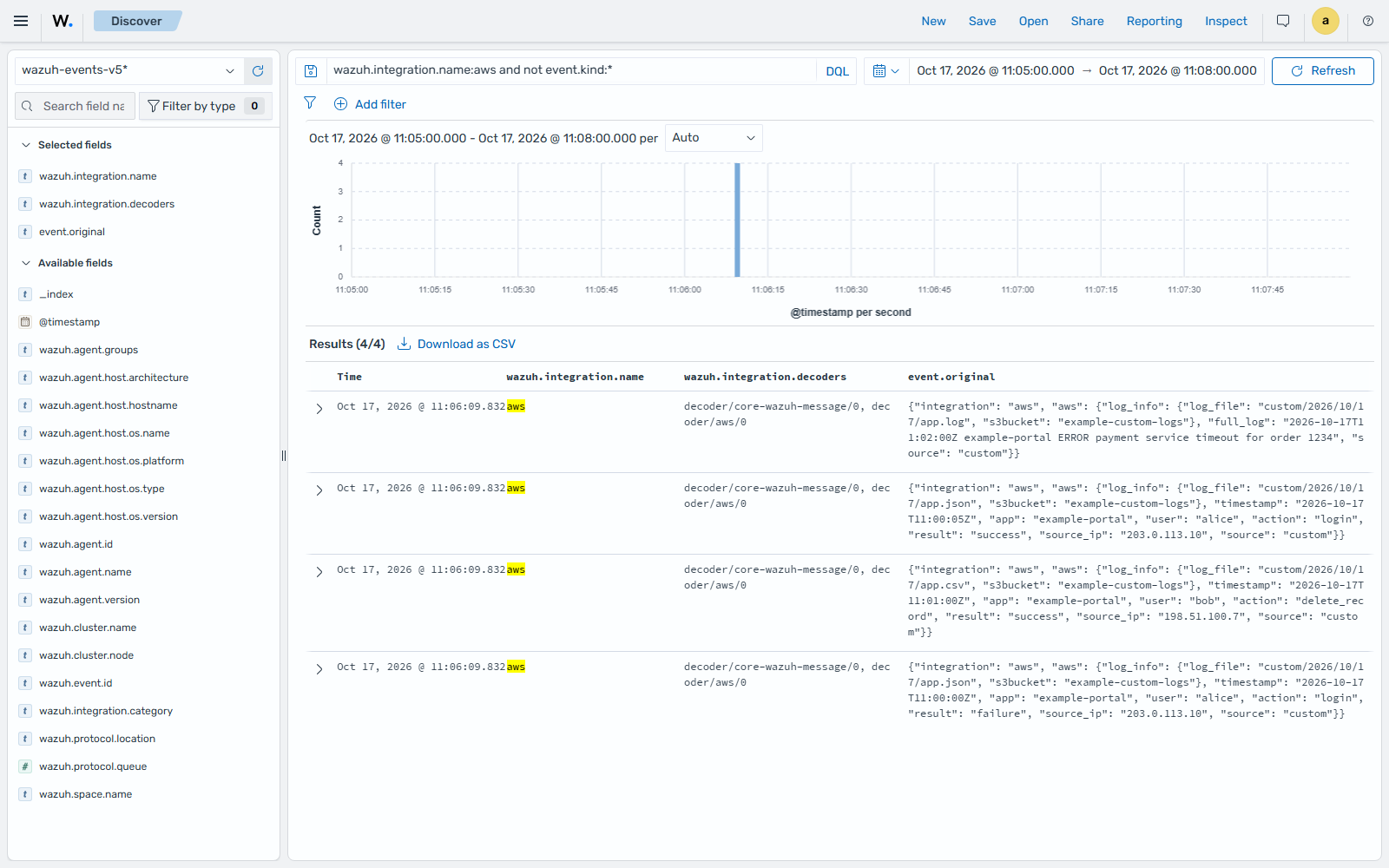
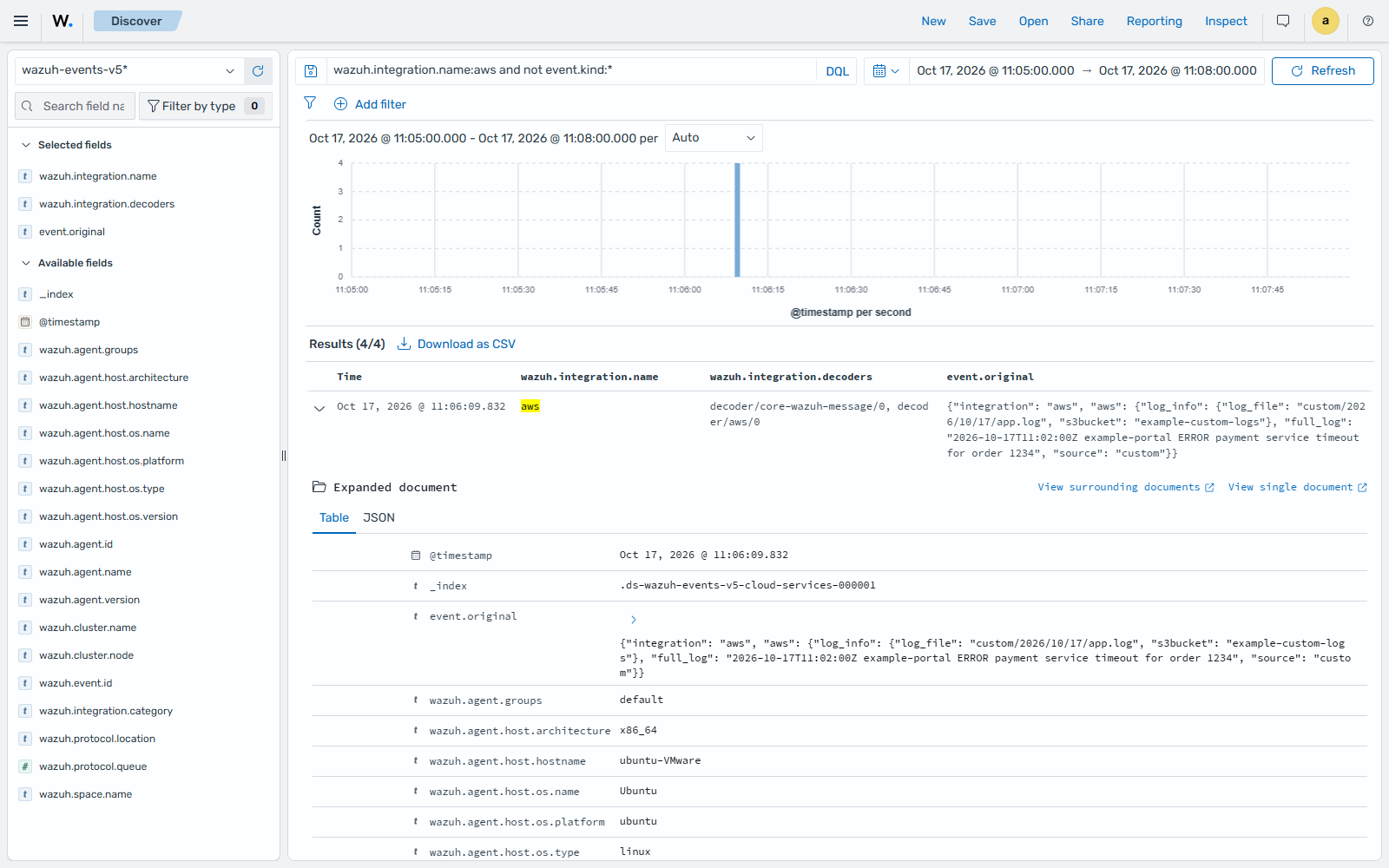
Go to Explore > Discover, select the wazuh-events-v5* index pattern, and filter by wazuh.integration.name:aws and not event.kind:*. This filter shows the AWS events that no decoder parsed, including your custom logs. Expand an event and check event.original to see the log, its S3 bucket, and its file.