Monitoring Microsoft Graph services with Wazuh
The Microsoft Graph API is a comprehensive system that provides access to data across the full suite of Microsoft cloud services, including Microsoft 365, Azure, Dynamics 365, and other Microsoft cloud services. It is an endpoint for accessing structured data, insights, and rich relationships from the Microsoft Cloud ecosystem. Wazuh enables log collection from the Microsoft Graph API using the Wazuh module for Microsoft Graph.
The Wazuh module for Microsoft Graph is a standalone Wazuh module independent of the Wazuh module for Azure and its <graph> block. It is configured using the <ms-graph> block, runs on its own <interval>, and supports a much broader set of resources, including:
Microsoft Entra ID Protection
Microsoft 365 Defender
Microsoft Defender for Cloud Apps
Microsoft Defender for Endpoint
Microsoft Defender for Identity
Microsoft Defender for Office 365
Microsoft Purview eDiscovery
Microsoft Purview Data Loss Prevention (DLP)
Microsoft Intune
While the above are fundamental security resources, you can monitor additional resources using the Microsoft Graph API. See the Overview of Microsoft Graph documentation to learn more.
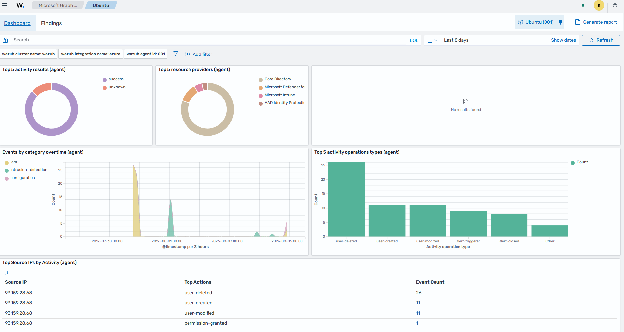
The Wazuh Microsoft Graph API dashboard visualizes data from these services.
This section provides instructions for monitoring your organization's Microsoft Graph API resources and relationships using the Wazuh module for Microsoft Graph.
Configuration
Perform the following steps to integrate your Microsoft Graph API with your Wazuh deployment:
Configure the Microsoft Graph API permissions
Configure the Wazuh agent
Configure the Microsoft Graph API permissions
Wazuh must be authorized before it can pull logs and other content from the Microsoft Graph API. This authentication process uses the tenant_id, client_id, and secret_value of an authorized application.
If you don't have an application, follow the steps below; otherwise, skip to Certificates & secrets.
Register your app
Register an application to authenticate with the Microsoft identity platform endpoint.
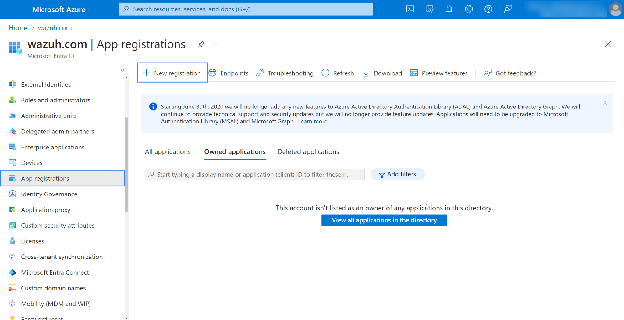
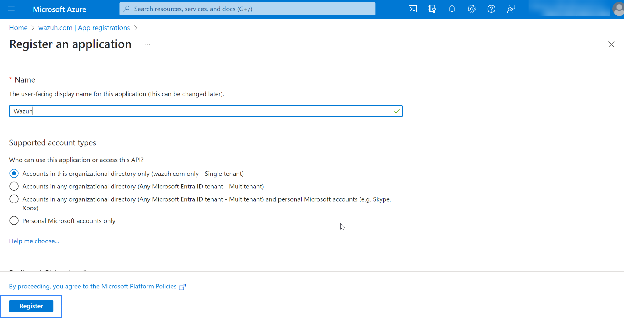
Fill in the name of your app, choose the desired account type, and click on the Register button:
The app is now registered; you can view its information in the Overview section. Make sure to note down the
client_idandtenant_idinformation: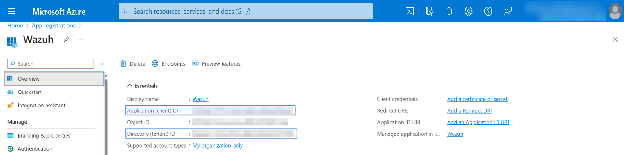
Certificates & secrets
Generate a secret for the authentication process.
Go to Certificates & secrets and click on New client secret.
Add a client secret to generate the secret value and secret ID.
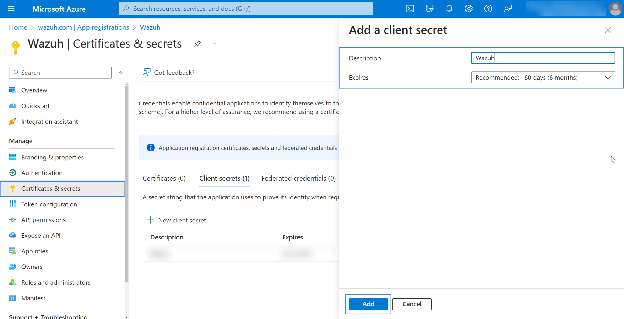
Copy and save the
secret_valueinformation: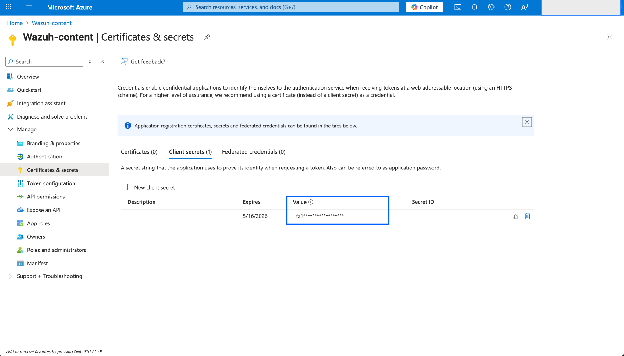
Note
Write down the secret value, as the UI won't let you copy it later.
API permissions
Your application needs specific API permissions to retrieve logs and events from the Microsoft Graph API. The required API permission depends on the resource you need to access. The comprehensive list of permissions is documented in the Microsoft Graph permissions reference.
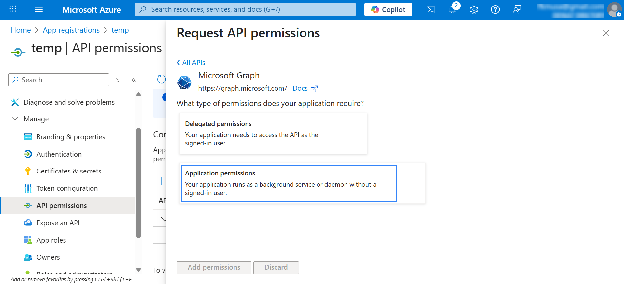
To configure the application permissions, go to the API permissions page and choose Add a permission.
Select the Microsoft Graph API, then click Application permissions.
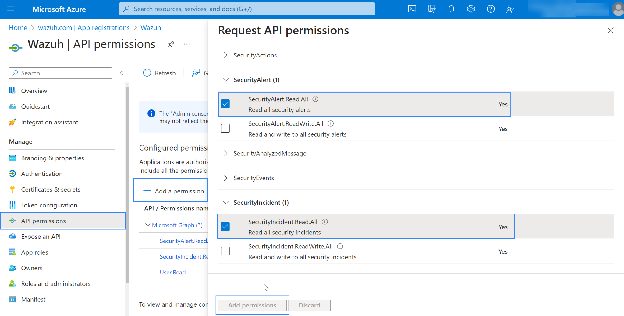
Add the following relationship permissions under the SecurityAlert and SecurityIncident sections:
SecurityAlert.Read.All: This permission is required to read security alerts from the/security/alerts_v2API on your tenant.SecurityIncident.Read.All: This permission is required to read security incident data, including associated events/alerts from the/security/incidentsAPI on your tenant.
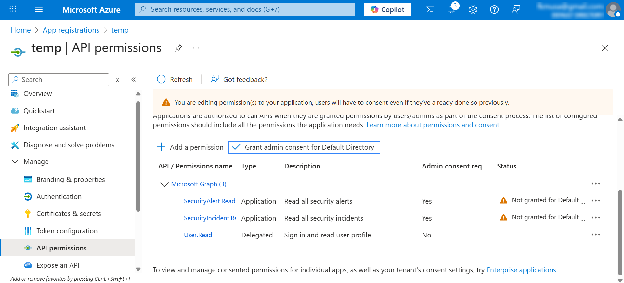
Use an admin user to Grant admin consent for the tenant.
Note
An Admin account is required to Grant admin consent for Default Directory.
Test to retrieve content
To retrieve a set of logs from Microsoft Graph, make a GET request using the URL below:
GET https://graph.microsoft.com/{<VERSION>}/{<RESOURCE>}/{<RELATIONSHIP>}?{<QUERY_PARAMETERS>}
A description of the current production version of the Microsoft Graph API is in the Overview of Microsoft Graph.
Alternatively, you can test the API directly in Microsoft Graph Explorer.
Wazuh agent
Next, set the necessary configurations to allow the Wazuh module for Microsoft Graph to pull logs from the Microsoft Graph API successfully.
Apply the following configuration to the local configuration file
/var/ossec/etc/ossec.conf:<ossec_config> <ms-graph> <enabled>yes</enabled> <only_future_events>yes</only_future_events> <curl_max_size>10M</curl_max_size> <run_on_start>yes</run_on_start> <interval>20m</interval> <version>v1.0</version> <api_auth> <client_id><YOUR_CLIENT_ID></client_id> <tenant_id><YOUR_TENANT_ID></tenant_id> <secret_value><YOUR_SECRET_VALUE></secret_value> <api_type>global</api_type> </api_auth> <resource> <name>security</name> <relationship>alerts_v2</relationship> <relationship>incidents</relationship> </resource> </ms-graph> </ossec_config>
In this case, we search for
alerts_v2andincidentswithin thesecurityresource at an interval of20m. The logs are created after the Wazuh module for Microsoft Graph starts.Where:
<client_id>(also known as an Application ID) is the unique identifier of your registered application. Replace the value<YOUR_CLIENT_ID>with your client ID.<tenant_id>(also known as Directory ID) is the unique identifier for your Azure tenant. Replace the value<YOUR_TENANT_ID>with your tenant ID.<secret_value>is the client secret value. It authenticates the registered app in the Azure tenant. Replace the value<YOUR_SECRET_VALUE>with your secret key.<api_type>specifies the type of Microsoft 365 subscription plan the tenant uses.globalrefers to either a commercial or GCC tenant.<name>specifies the resource's name (that is, specific API endpoint) to query for logs.<relationship>specifies the types of content (relationships) to obtain logs for.
Restart the Wazuh agent to apply the configuration changes:
# systemctl restart wazuh-agent
Note
Multi-tenant is not supported. You can only configure one block of
api_auth. To learn more about the Wazuh module for Microsoft Graph options, see the ms-graph reference.
Use case
Using the configuration mentioned above, we examine the following use case
Monitor security resources
One ubiquitous alert an organization of any size receives is spam email. In this case, we can examine a spam email containing malicious content and see how Microsoft Graph and Wazuh report it.
We set up the Wazuh module for Microsoft Graph to monitor the security resource and the alerts_v2 relationship within our Microsoft 365 tenant. We also enable Microsoft Defender for Office 365 within the Microsoft 365 tenant. Microsoft Defender for Office 365 monitors email messages for threats such as spam and malicious attachments.
Detect a malicious email
Enable Microsoft Defender for Office 365, then send a malicious email to an address in the monitored domain. A malicious email detection activity produces a log you can access using the alerts_v2 relationship within the Microsoft 365 tenant.
Log in to the Microsoft 365 Defender portal using an admin account.
Navigate to Email & collaboration > Policies & rules > Threat policies > Preset Security Policies.
Toggle the Standard protection is off button under Standard protection from off to on.
Click on Manage protection settings and follow the prompt to set up the policies.
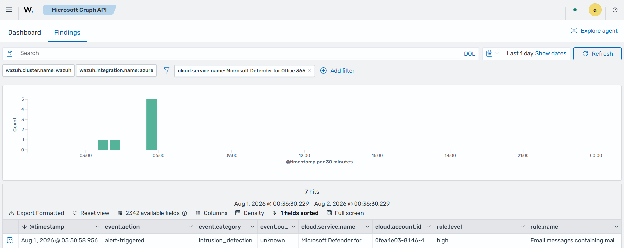
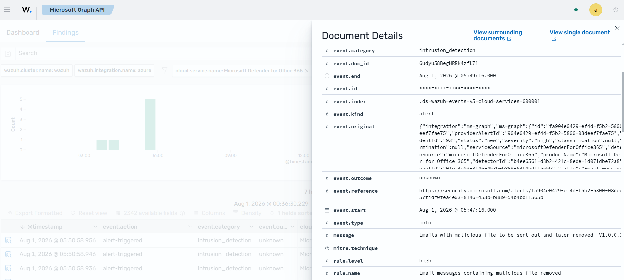
When Microsoft Defender for Office 365 detects a malicious email event, it generates a log similar to the following. You can view this event using the Alerts tab of the Microsoft Defender portal. For example:
The command output looks similar to this:
{
   "id": "xxxx-xxxx-xxxx-xxxx-xxxx",
   "providerAlertId": "xxxx-xxxx-xxxx-xxxx-xxxx",
   "incidentId": "xx",
   "status": "new",
   "severity": "high",
   "classification": null,
   "determination": null,
   "serviceSource": "microsoftDefenderForOffice365",
   "detectionSource": "microsoftDefenderForOffice365",
   "productName": "Microsoft Defender for Office 365",
   "detectorId": "xxxx-xxxx-xxxx-xxxx-xxxx",
   "tenantId": "xxxx-xxxx-xxxx-xxxx-xxxx",
   "title": "Email messages containing malicious file removed",
   "description": "Emails with malicious file to be sent out and later removed -V1.0.0.3",
   "recommendedActions": "",
   "category": "InitialAccess",
   "categories": [
      "PreAttack",
      "Probing"
   ],
   "alertWebUrl": "https://security.microsoft.com/alerts/xxxx-xxxx-xxxx-xxxx-xxxx ",
   "incidentWebUrl": "https://security.microsoft.com/incident2/xx/overview",
   "createdDateTime": "2026-08-01T03:49:45.64Z",
   "lastUpdateDateTime": "2026-08-01T03:49:55.5233333Z",
   "firstActivityDateTime": "2026-08-01T03:47:16Z",
   "lastActivityDateTime": "2026-08-01T03:49:16Z",
   "investigationState": "queued",
   "evidence": [
      {
         "@odata.type": "#microsoft.graph.security.mailboxEvidence",
         "verdict": "suspicious",
         "primaryAddress": "xxxxxxxxxx@outlook.com"
      },
      {
         "@odata.type": "#microsoft.graph.security.analyzedMessageEvidence",
         "verdict": "suspicious",
         "subject": "Test",
         "senderIp": "93.159.28.68",
         "recipientEmailAddress": "xxxxxxxxxxx@outlook.com"
      }
   ]
}
The Wazuh Microsoft Graph integration retrieves this alert via the security/alerts_v2 relationship. Wazuh decodes the event and evaluates it against the built-in Microsoft Graph detection rules. When a match is found, Wazuh generates a finding similar to the following: