Microsoft Graph
You can use the Wazuh module for Azure to collect Microsoft Graph activity logs from multiple Azure services (including Microsoft Entra ID) via the Microsoft Graph REST API.
In this section, you learn how to monitor your Microsoft Entra ID activity using the Microsoft Graph REST API. This section contains:
The following Microsoft Graph REST API endpoints support auditing and monitoring activities in Microsoft Entra ID.
Report type |
Query |
|---|---|
|
|
|
|
|
These endpoints let administrators and developers monitor and audit Microsoft Entra ID activities for security, compliance, and operational purposes.
Wazuh can process Microsoft Entra ID activity reports using the above endpoints. Each requires a different query. Place these queries in the <query> field of the <request> block in your Wazuh module for Azure configuration.
Configuration
Create the application
This section explains how to create an application that uses the Microsoft Graph REST API. You can also configure an existing application. Skip this step if you already have an existing application.
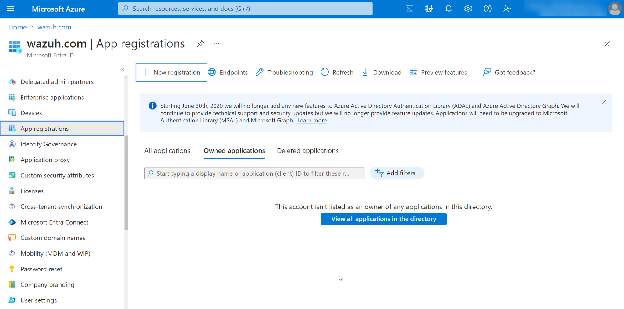
In the Microsoft Entra ID panel, select App registrations. Then, select New registration.
Give the app a descriptive name, select the appropriate account type, and click Register.
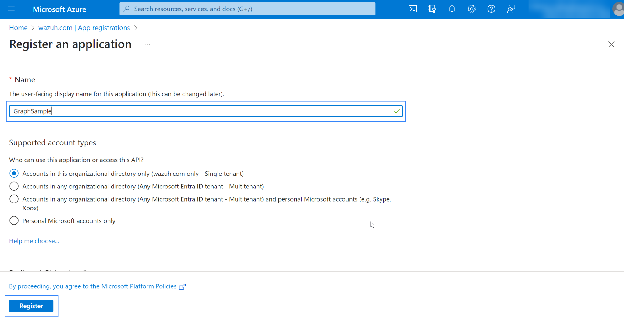
The app is now registered.
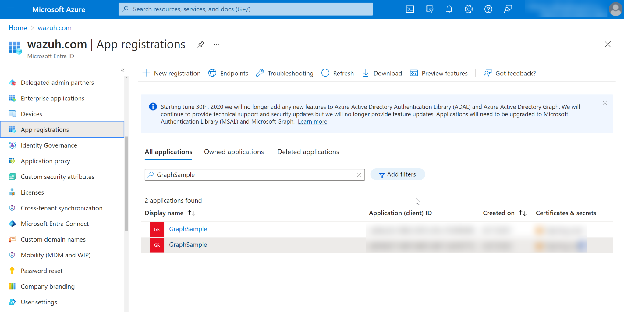
Grant permissions to the application
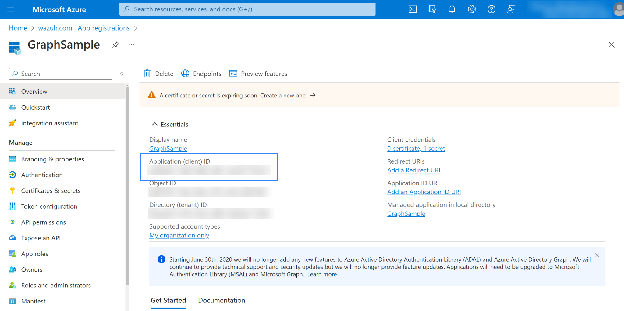
Click on the application, go to the Overview section, and save the Application (client) ID for later authentication.
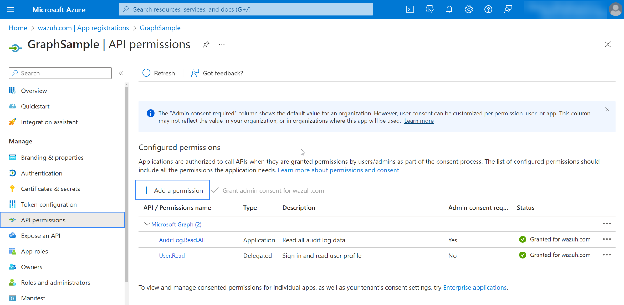
Select the Add a permission option in the API permissions section.
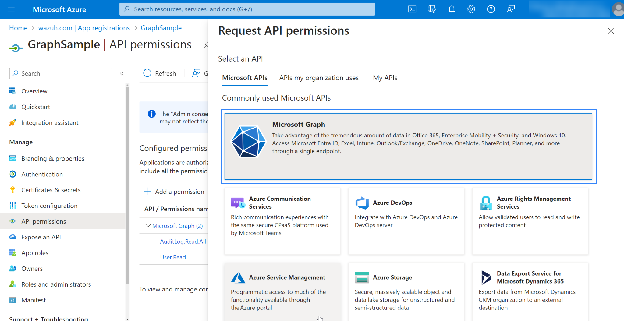
Search for "Microsoft Graph" and select the API.
Select the permissions in Application permissions that align with your infrastructure. In this case, the
AuditLog.Read.Allpermissions are granted. Then, click Add permissions.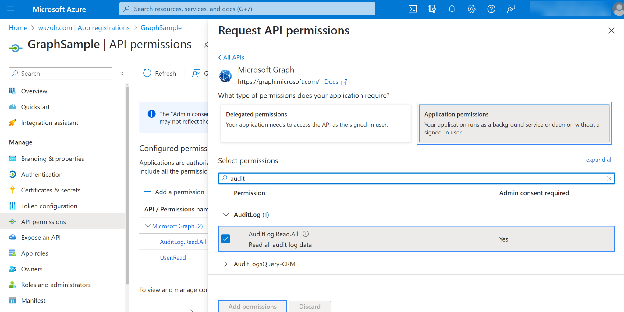
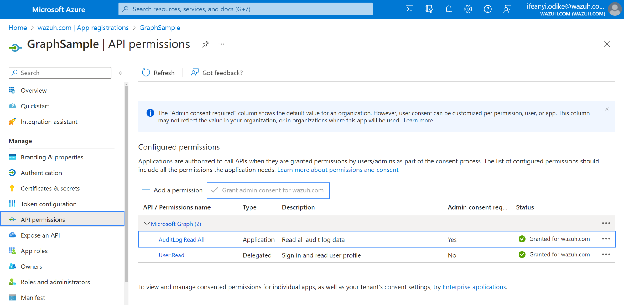
Use an admin user to Grant admin consent for the tenant.
Obtain the application key for authentication
To use the Microsoft Graph API to retrieve logs, we must generate an application key to authenticate. Follow the steps below to generate the application key.
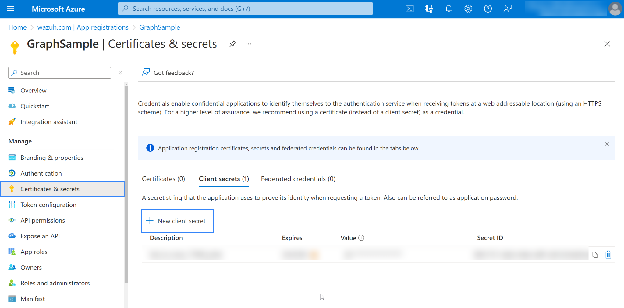
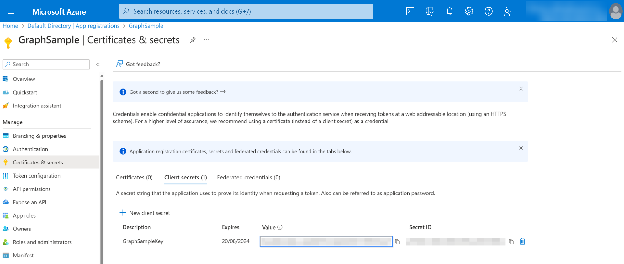
Select Certificates & secrets, then select New client secret to generate a key.
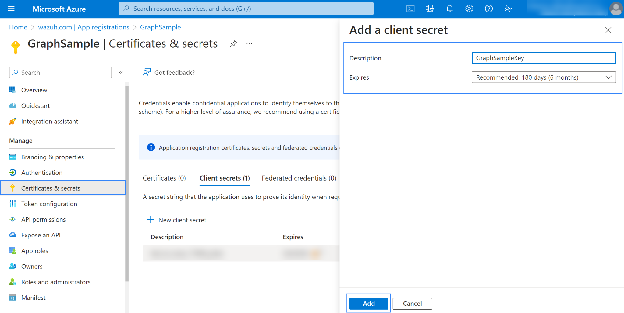
Give an appropriate description, set a preferred duration for the key, and then click Add.
Copy the key value. Use this for authentication in a later section.
Note
Copy the key before exiting this page, as it is displayed once. If you do not copy it before exiting the page, you must generate a new key.
Wazuh agent
We use the (client) ID and key of the application saved during the previous steps here. In this case, both fields were saved in a file for authentication. Check the authentication section for more information about configuring Azure credentials.
Apply the following configuration to the local configuration file
/var/ossec/etc/ossec.confof the Wazuh agent:<wodle name="azure-logs"> <disabled>no</disabled> <wday>Monday</wday> <time>2:00</time> <run_on_start>yes</run_on_start> <graph> <auth_path>/var/ossec/wodles/credentials/<GRAPH_CREDENTIALS></auth_path> <tenantdomain><YOUR_TENANT_DOMAIN></tenantdomain> <request> <tag>microsoft-entra_id</tag> <query>auditLogs/directoryAudits</query> <time_offset>1d</time_offset> </request> </graph> </wodle>
Where:
<auth_path>is the full path of the file holding the application ID and application key. Replace<GRAPH_CREDENTIALS>with your authentication credentials file name.<tenantdomain>is the tenant domain name. You can obtain this from the Overview section in Microsoft Entra ID. Replace the<YOUR_TENANT_DOMAIN>value with your tenant domain.<wday>is the day of the week scheduled for the scan.<query>is the Microsoft Graph endpoint to request.<time>is the time scheduled for the scan.<time_offset>set to1dmeans that only the log data from the last day is parsed.
Restart the Wazuh agent to apply the configuration changes:
# systemctl restart wazuh-agent
Check the Wazuh module for Azure reference for more information about using the different available parameters. See the Wazuh Azure authentication file section for guidance on setting up credentials to monitor your Microsoft Entra ID.
Note
The field tenantdomain is mandatory. You can obtain it from the Overview section in Microsoft Entra ID.
Use case
Monitor Microsoft Entra ID
Microsoft Entra ID is the identity and directory management service that combines essential directory services, application access management, and identity protection in a single solution.
Wazuh can monitor the Microsoft Entra ID (ME-ID) service using the activity reports provided by the Microsoft Graph REST API. Microsoft Graph API can perform read operations on directory data and objects in Microsoft Entra ID applications.
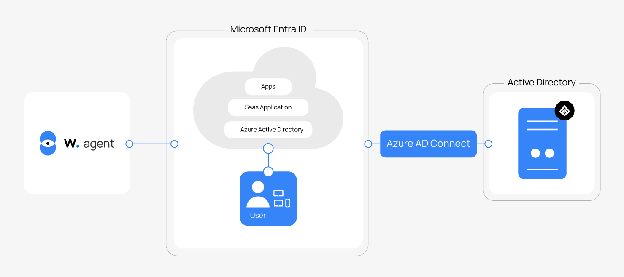
Here is an example of Microsoft Entra ID activity monitoring using the above configuration.
Monitor a new user creation
Create a new user in Azure. A successful user creation activity produces a log entry. You can retrieve this log using the auditLogs/directoryAudits query.
Navigate to Users > All users, select New user > Create new user.
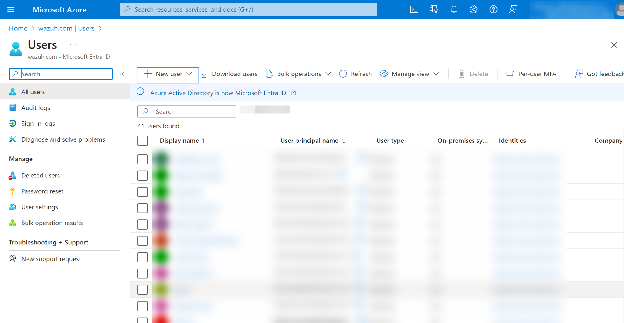
Fill in the required details and click Review + create. The user is now created.
You can check the result of the successful user creation in the Audit logs section of Microsoft Entra ID.
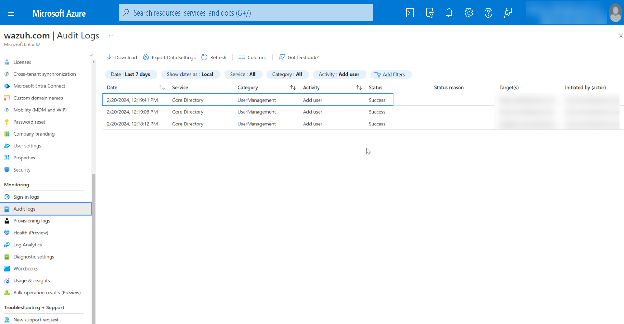
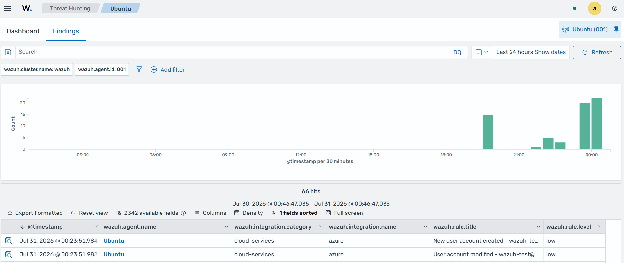
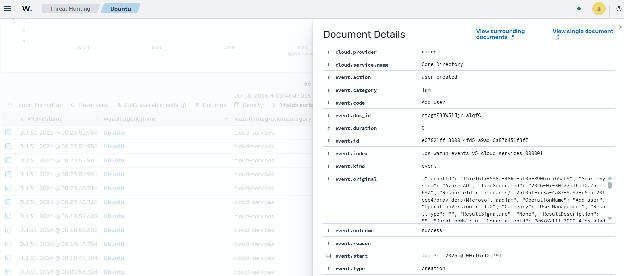
The results are available in the Threat Hunting tab of the Wazuh dashboard.