Monitoring Microsoft Azure platform and services
Microsoft Azure Monitor Logs collects and organizes logs and performance data from monitored resources, including Azure services, virtual machines, and applications. The Wazuh module for Azure retrieves this data through the Azure Log Analytics REST API or directly from a Microsoft Azure Storage account. The Wazuh module for Azure and Microsoft Graph enable centralized logging, threat detection, and compliance management of your Microsoft Azure environments from your Wazuh deployment.
The Wazuh module for Azure and the Wazuh module for Microsoft Graph run exclusively on the Wazuh agent. Starting with Wazuh 5.0, the Wazuh manager no longer collects Azure Log Analytics logs directly.
This section focuses on:
The Wazuh module for Azure requires dependencies and credentials to access your Microsoft Azure logs. Review the Prerequisites section before proceeding.
Prerequisites
Microsoft Azure
Before installing these dependencies, make sure the following are already in place in your Microsoft Azure environment. The integrations in the following section depend entirely on these resources:
An active Microsoft Azure subscription.
A Microsoft Entra ID tenant and an account with sufficient administrator rights to grant admin consent when registering applications. Every integration below requires this.
For Microsoft Azure Log Analytics, a Log Analytics workspace.
For Microsoft Azure Storage, a storage account.
For the Microsoft 365 Defender for Office 365 use case, a Microsoft 365 license that includes Defender for Office 365.
For the Microsoft Intune integration, a Microsoft Intune license, with devices enrolled and managed.
Without these resources, application registration and permission grants can succeed while the underlying Microsoft service still returns no data.
Wazuh
Enable the Microsoft Azure integration
The Azure integration is disabled by default on the Wazuh manager. Enable this integration to allow Microsoft Azure event analysis and processing.
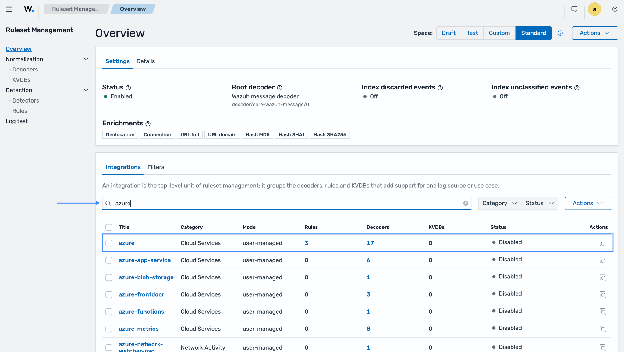
Navigate to the Ruleset Management dashboard > Overview dashboard.
Search for the integration name Azure and select it.
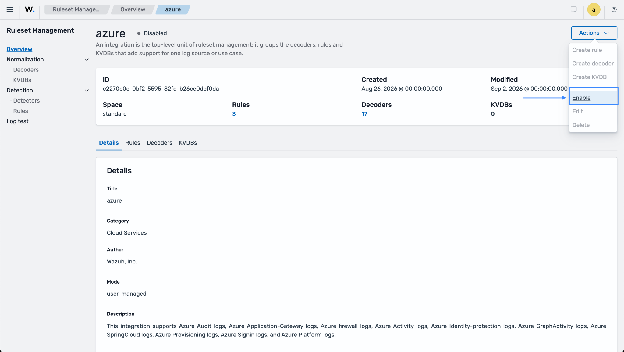
Click on Actions > Enable to enable the integration.
Python
The Wazuh module for Azure is compatible with Python 3.8–3.13. While later Python versions should work as well, we can't assure they are compatible. If you do not have Python 3 already installed, run the following command on your monitored endpoint.
# apt-get update && apt-get install python3
# yum update && yum install python3
You can install the required modules with Pip, the Python package manager. Most UNIX distributions have this tool available in their software repositories. Run the following command to install pip on your endpoint if you do not have it already installed.
# apt-get update && apt-get install python3-pip
# yum update && yum install python3-pip
We recommend using Pip 19.3 or later to simplify the installation of the dependencies. Run this command to check your pip version.
# pip3 --version
An example output is as follows.
pip 22.0.2 from /usr/lib/python3/dist-packages/pip (python 3.10)
If your pip version is less than 19.3, run the following command to upgrade the version.
# pip3 install --upgrade pip
# pip3 install --upgrade pip --break-system-packages
Note
This command modifies the default externally managed Python environment. See the PEP 668 description for more information.
To prevent the modification, you can run pip3 install --upgrade pip within a virtual environment. You must update the shebang of the /var/ossec/wodles/azure/azure-logs Python script with the interpreter in your virtual environment. For example, #!/path/to/your/virtual/environment/bin/python3.
Azure Blob Storage client library for Python
You need the libraries below to set up your Wazuh agent endpoint and monitor your Microsoft Azure platform and services. We recommend creating a virtual Python environment for these installations.
# pip3 install azure-storage-blob==12.20.0 azure-storage-common==2.1.0 azure-common==1.1.25 cryptography==3.3.2 cffi==1.14.4 pycparser==2.20 six==1.14.0 python-dateutil==2.8.1 requests==2.25.1 certifi==2022.12.07 chardet==3.0.4 idna==2.9 urllib3==1.26.18 SQLAlchemy==2.0.23 pytz==2020.1
# pip3 install --break-system-packages azure-storage-blob==12.20.0 azure-storage-common==2.1.0 azure-common==1.1.25 cryptography==3.3.2 cffi==1.14.4 pycparser==2.20 six==1.14.0 python-dateutil==2.8.1 requests==2.25.1 certifi==2022.12.07 chardet==3.0.4 idna==2.9 urllib3==1.26.18 SQLAlchemy==2.0.23 pytz==2020.1
If you use a virtual environment, remove the --break-system-packages parameter from the above command.
Install the system-level package libffi.
# apt-get update && apt-get install -y libffi-dev build-essential python3-dev
# yum update && yum install -y libffi-devel
Install the Python packages.
# pip3 install --break-system-packages azure-storage-blob==12.20.0 SQLAlchemy==2.0.36 pytz==2020.1 six==1.17.0
If you use a virtual environment, remove the --break-system-packages parameter from the above command.
Note
The Wazuh module for Azure and the Wazuh module for Microsoft Graph run only on a Linux-based Wazuh agent. Install the required dependencies before configuring the Wazuh module for Azure.
Authentication
The Wazuh module for Azure must have access credentials to connect to Azure successfully. The credentials required vary depending on the type of monitoring. These include:
Access credentials for Microsoft Graph and Azure Log Analytics
Access credentials for Microsoft Azure Storage
The following sections explain how to create these credentials.
Get access credentials for Microsoft Graph and Azure Log Analytics
You need valid application_id and application_key values to authenticate the connection from the Wazuh module for Azure.
Follow the steps below to obtain an application_id and application_key:
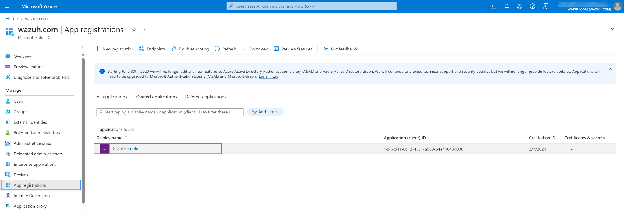
Go to Microsoft Entra ID and navigate to the registered application.
Go to the Certificates & secrets section of the chosen application, then generate a secret key by selecting New client secret.
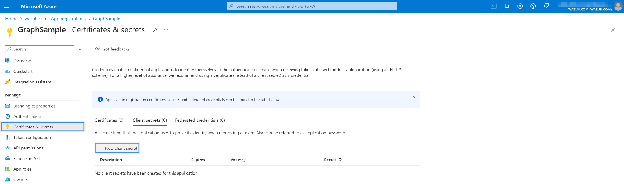
Give the key a descriptive name and specify the duration for which the key remains active, then select Add.
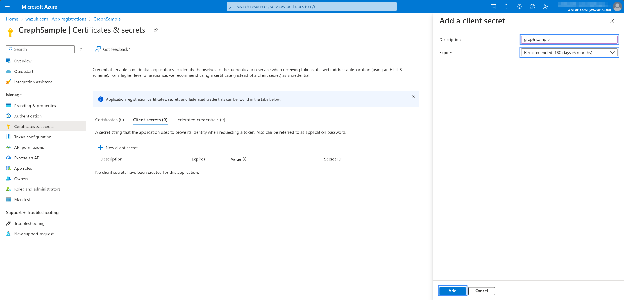
Copy the
Valueand theSecret ID. Store these values securely, as you can view them only once. TheValueis theapplication_key.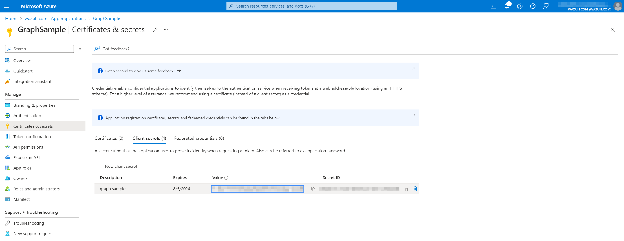
Copy the
application_idvalue for your registered application from the Overview section.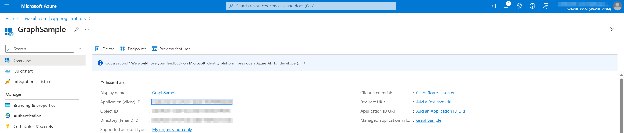
Get access credentials for Microsoft Azure Storage
Microsoft Azure Storage requires valid account_name and account_key values. You can obtain them in the Access keys section of Storage accounts in your Azure environment. Follow the Microsoft guide to create a storage account.
The section below shows the steps to retrieve the Microsoft Azure Storage account key.
Go to the Storage accounts section of your Microsoft Azure environment and select the account of interest.
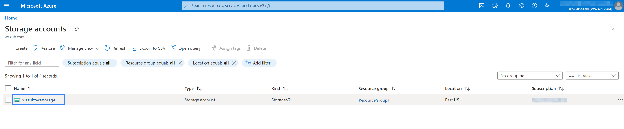
Navigate to Access keys located on the left pane to access the
account_nameandaccount_keyvalues.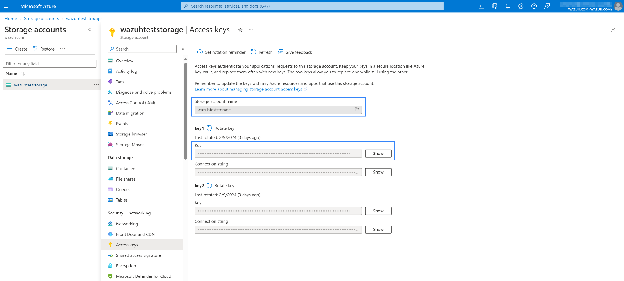
Configure the Wazuh agent for Microsoft Azure
To authenticate your Microsoft Azure environment to Wazuh, store your credentials in a file in the format field = value.
Create the credentials directory if it doesn't already exist:
# mkdir -p /var/ossec/wodles/credentials
Create the credentials file for your service inside that directory, using the
field = valueformat:The fields expected in the credentials file depend on the type of service or activity you are monitoring.
Microsoft Azure Log Analytics and Graph
The file must contain only two lines, one for the
application_idand another for theapplication_keyobtained previously:application_id = <YOUR_APPLICATION_ID> application_key = <YOUR_APPLICATION_KEY>
Microsoft Azure Storage
The file must contain only two lines, one for the
account_nameand the other one for theaccount_keyobtained previously:account_name = <YOUR_ACCOUNT_NAME> account_key = <YOUR_ACCOUNT_KEY>
Restrict the file so that only the root user can write it and the wazuh group can read it:
# chown root:wazuh /var/ossec/wodles/credentials/<SERVICE_NAME_CREDENTIALS>
# chmod 640 /var/ossec/wodles/credentials/<SERVICE_NAME_CREDENTIALS>
Specify the authentication file in the
/var/ossec/etc/ossec.confconfiguration file using the<auth_path>option, regardless of the service or activity you monitor. For example:<wodle name="azure-logs"> <disabled>no</disabled> <run_on_start>yes</run_on_start> <log_analytics> <auth_path>/var/ossec/wodles/credentials/<LOG_ANALYTICS_CREDENTIALS></auth_path> <tenantdomain><YOUR_TENANT_DOMAIN></tenantdomain> <request> <query>AzureActivity</query> <workspace><WORKSPACE_ID></workspace> <time_offset>1d</time_offset> </request> </log_analytics> <graph> <auth_path>/var/ossec/wodles/credentials/<GRAPH_CREDENTIALS></auth_path> <tenantdomain><YOUR_TENANT_DOMAIN></tenantdomain> <request> <tag>microsoft-entra_id</tag> <query>auditLogs/directoryAudits</query> <time_offset>1d</time_offset> </request> </graph> <storage> <auth_path>/var/ossec/wodles/credentials/<STORAGE_CREDENTIALS></auth_path> <container name="insights-logs-auditlogs"> <blobs>.json</blobs> <content_type>json_inline</content_type> <time_offset>24h</time_offset> </container> </storage> </wodle>
You can add more than one request block simultaneously in the same configuration. The Wazuh module for Azure processes each request sequentially. The above configuration is an example. It includes Microsoft Azure Log Analytics, Graph, and Storage configuration blocks.
For more information on <auth_path>, look at the Wazuh module for Azure reference page.