Microsoft Azure Log Analytics
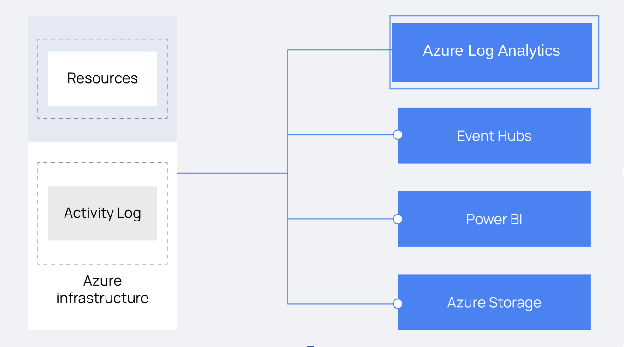
Microsoft Azure Log Analytics is a service that monitors your Microsoft Azure infrastructure, offering query capabilities that allow you to perform advanced searches specific to your data.
The Microsoft Azure Log Analytics service helps you analyze and search Azure activity logs across all your Azure subscriptions, providing information about operations performed on your subscription resources.
Configuration
Microsoft Azure
You can query data collected by Log Analytics using the Azure Log Analytics REST API, which uses the Microsoft Entra ID authentication scheme. You need a qualified application or client to use the Azure Log Analytics REST API. You must configure this manually on the Microsoft Azure portal.
The process below details how to create an application using the Azure Log Analytics REST API. You can also configure an existing application. Skip the Create the application step if you already have an existing application.
Create the application
Navigate to the Microsoft Entra ID panel in the Microsoft Azure portal to create a new application for Azure Log Analytics.
Select the App registrations option from the Microsoft Entra ID panel. Then, select New registration.
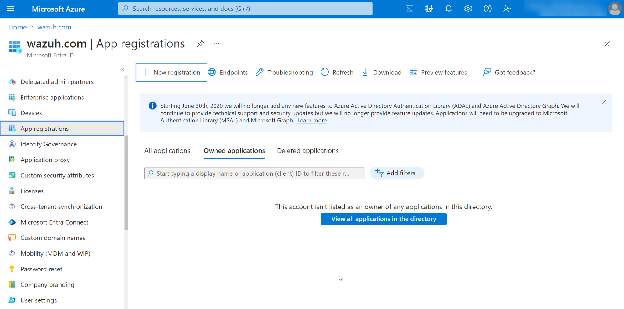
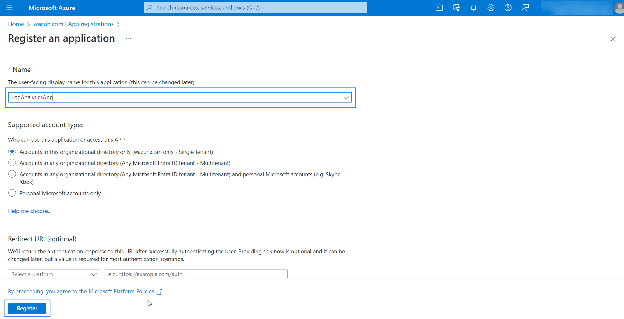
Define the user-facing display name for the application and select Register.
Grant permissions to the application
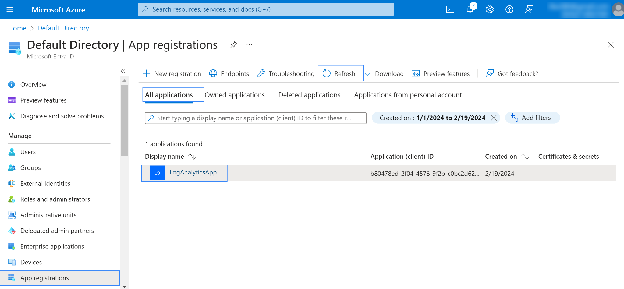
Select All applications from App registration and refresh it to view your list of applications. In our case, our application's display name is LogAnalyticsApp.
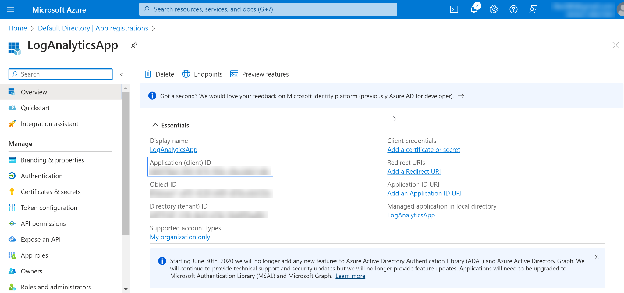
Go to the Overview section and save the Application (client) ID for later authentication.
Go to the API permissions section and click on Add a permission.
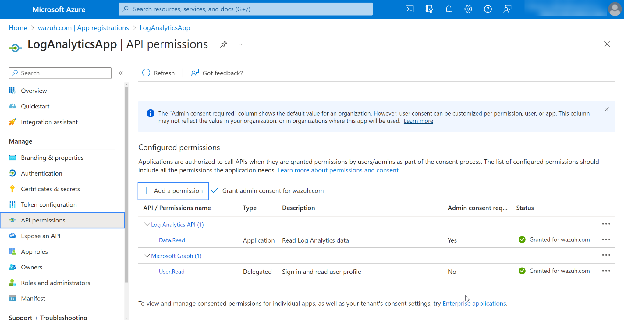
Search for the Log Analytics API.
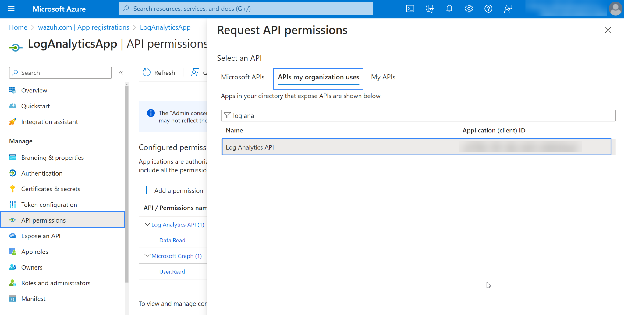
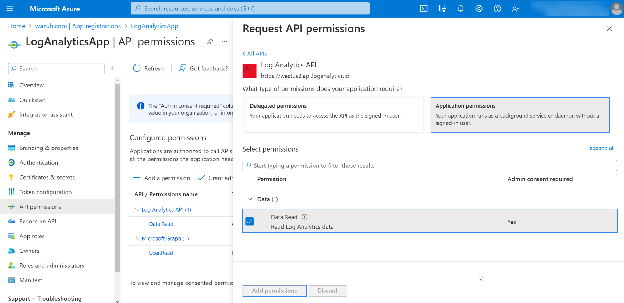
Select the Data.Read permission and click Add permissions.
Use an admin user to Grant admin consent for the tenant.
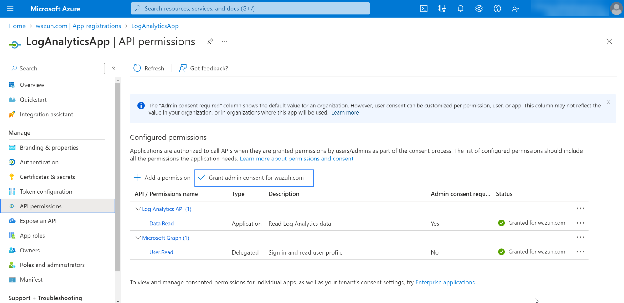
Grant the application access to the Azure Log Analytics API
Access Log Analytics workspaces and create a new workspace or choose an existing one.
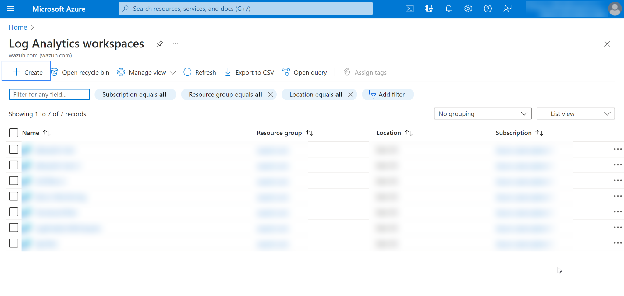
Copy the
Workspace IDvalue from the Overview section.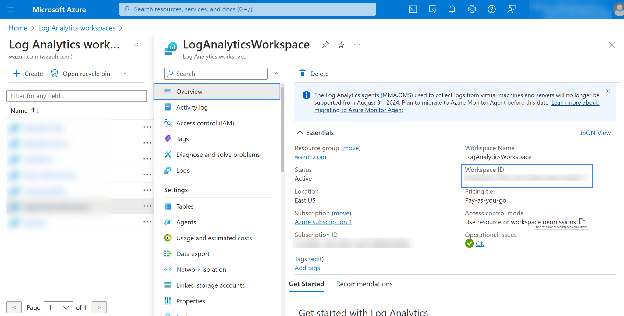
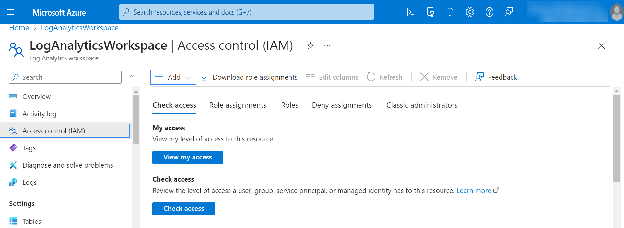
Go to the Access control (IAM) section, click Add, and select Add role assignment to add the required role to the application.
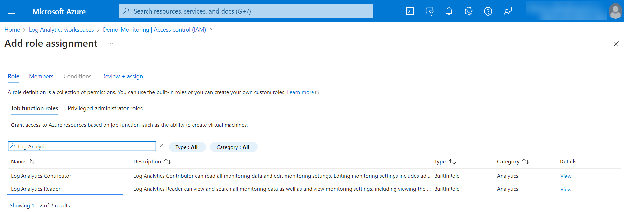
Select the Log Analytics Reader role from the Job functions role tab.
Select User, group, or service principal from the Members tab. Click Select members and find the App registration created previously.
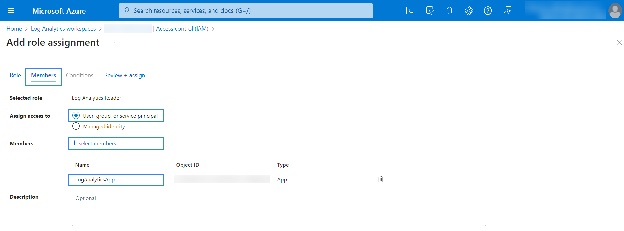
Click Review + assign to finish.
Send logs to the Workspace
Create a diagnostic setting to collect logs and send them to the Azure Log Analytics Workspace created in the previous steps.
Return to Microsoft Entra ID, scroll down on the left menu bar, and select the Diagnostic settings section.
Click on Add diagnostic setting.
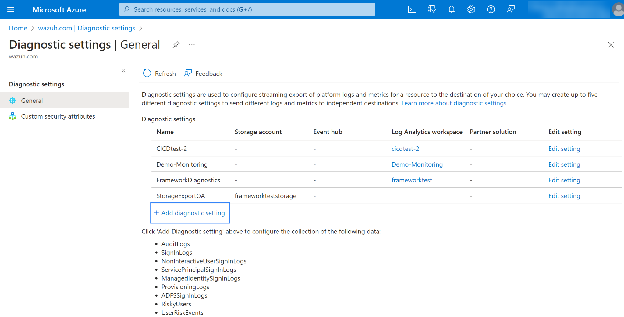
Choose the log categories you want to collect from under Categories. Select the Send to Log Analytics workspace option under Destination details. Select the Log Analytics Workspace you created in the previous steps.
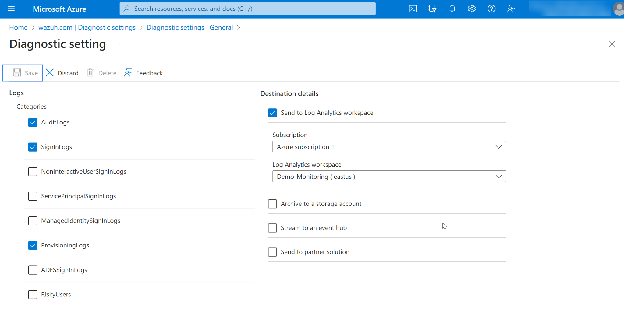
Click on Save.
Azure Log Analytics streams the selected categories to your workspace.
Wazuh requires valid credentials to pull logs from Azure Log Analytics. Look at the authentication section to learn how to generate a client secret to access the registered application.
Wazuh agent
You need to authorize the Wazuh module for Azure to access your Azure Log Analytics. For more information on setting up authorization, see the authentication section.
Apply the following configuration to the local configuration file
/var/ossec/etc/ossec.confof the Wazuh agent.<wodle name="azure-logs"> <disabled>no</disabled> <run_on_start>yes</run_on_start> <log_analytics> <auth_path>/var/ossec/wodles/credentials/<LOG_ANALYTICS_CREDENTIALS></auth_path> <tenantdomain><YOUR_TENANT_DOMAIN></tenantdomain> <request> <tag>azure-auditlogs</tag> <query>AuditLogs</query> <workspace><WORKSPACE_ID></workspace> <time_offset>1d</time_offset> </request> </log_analytics> </wodle>
Where:
<auth_path>is the full path of the file holding theapplication_idandapplication_key, created in the authentication section.<tenantdomain>is the tenant domain name. You can obtain this from the Overview section in Microsoft Entra ID. Replace<YOUR_TENANT_DOMAIN>with your tenant domain.<workspace>is the workspace ID that you need for authentication. Replace<WORKSPACE_ID>with your workspace ID.<time_offset>is the timeframe, counted backward. In this case, it downloads all logs from the past 24 hours.
Restart the Wazuh agent to apply the configuration changes:
# systemctl restart wazuh-agent
The configuration above allows Wazuh to search through any query using the tag value as the identifier.
Check the reference for more information about the Wazuh module for Azure.
Use case
Here is an example of monitoring infrastructure activity using the Azure application created above.
Monitor a new user creation
Follow the steps outlined below to create a user on Microsoft Entra ID:
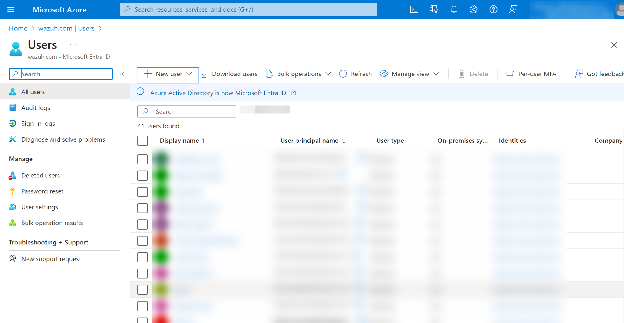
Navigate to Microsoft Entra ID and select All users.
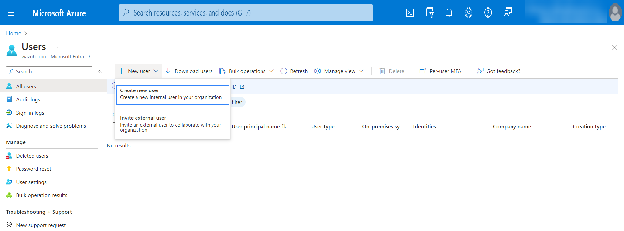
Click on New User.
Select Create new user.
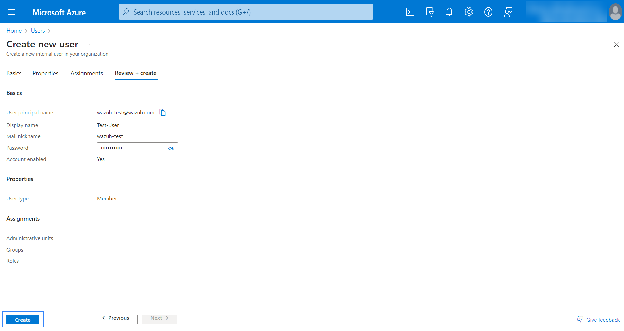
Provide the necessary details for the user you want to create, and then click Create to complete the creation.
Visualizing the findings on the Wazuh dashboard
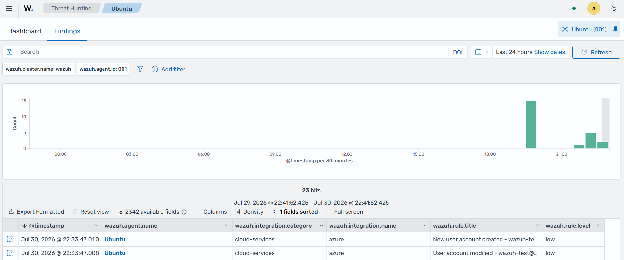
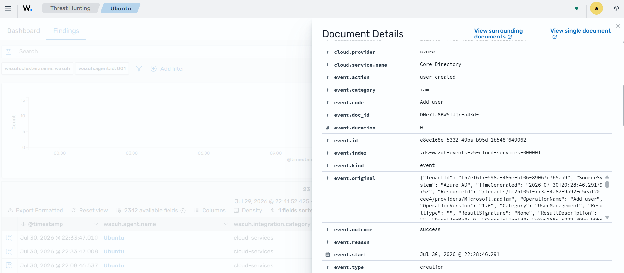
Once set up, you can check the results in the Wazuh dashboard.