Microsoft Azure Storage
Microsoft Azure Storage refers to the Microsoft Azure cloud storage solution. This service provides a massively scalable object store for data objects, a messaging store for reliable messaging, a file system service for the cloud, and a NoSQL store.
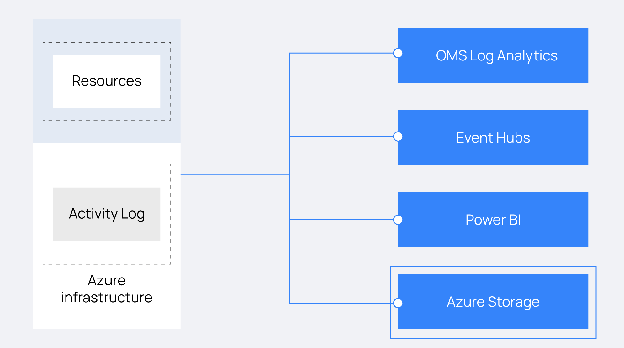
As an alternative to the Azure Log Analytics REST API, Wazuh offers access to a Microsoft Azure Storage account. You can export the audit logs of the Microsoft Azure infrastructure to the storage account.
This section explains how to use the Azure portal to archive your Microsoft Azure activity logs in a storage account.
Configuration
Configure the audit log export on Microsoft Azure
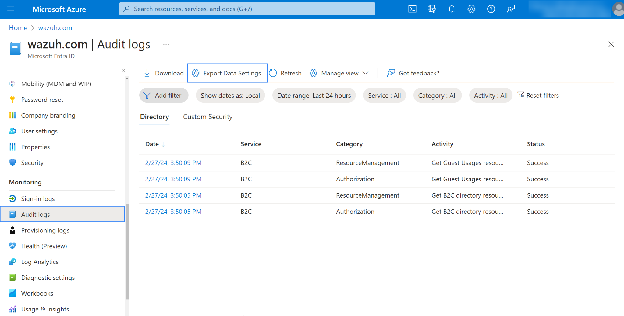
Select the Audit Logs option from the Monitoring section within Microsoft Entra ID and click on Export Data Settings.
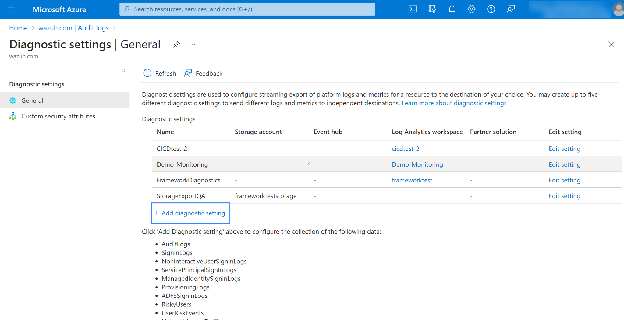
Click Add diagnostic setting.
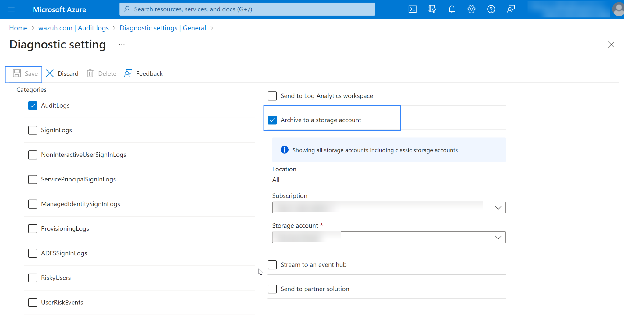
Select the AuditLogs and Archive to the storage account checkboxes, then select the subscription and storage account to which you want to export the logs from the drop-down menu.
Note
Starting from October 1st, 2025, configuring Azure activity logs requires an additional configuration step for Azure Storage lifecycle management. Follow the official guide to migrate from diagnostic settings storage retention to Azure Storage lifecycle management.
Wazuh agent
Apply the following configuration to the local configuration file
/var/ossec/etc/ossec.confof the Wazuh agent:<wodle name="azure-logs"> <disabled>no</disabled> <interval>1d</interval> <run_on_start>yes</run_on_start> <storage> <auth_path>/var/ossec/wodles/credentials/<STORAGE_CREDENTIALS></auth_path> <tag>azure-activity</tag> <container name="insights-logs-auditlogs"> <blobs>.json</blobs> <content_type>json_inline</content_type> <time_offset>24h</time_offset> </container> </storage> </wodle>
Where
<auth_path>is the full path of the file holding the storageaccount_nameandaccount_key. Check the credentials section for guidance on configuring Microsoft Azure Storage credentials. Replace<STORAGE_CREDENTIALS>with the name of the credentials file you configure.<container>contains useful parameters while fetching blob storage contents.<container name="insights-logs-auditlogs">is the log container that is streamed.<blobs>.json</blobs>is the blob format that is downloaded.<time_offset>is the timeframe dated backward. In this case, it downloads all logs within a 24-hour timeframe.<content_type>is the format for storing blob content.
Check the Wazuh module for Azure reference page to learn more about the parameters available and how to use them.
Restart the Wazuh agent to apply the configuration changes:
# systemctl restart wazuh-agent
Use case
Here is an example of Microsoft Entra ID activity monitoring using the above configuration.
Monitor a new user creation
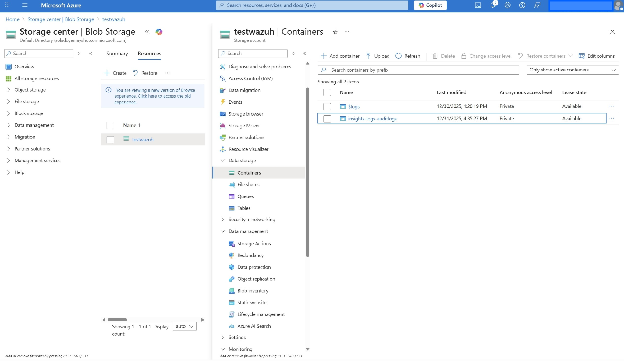
Create a new user in your Microsoft Azure environment using Microsoft Entra ID. A few minutes after creating the user, a new log is made available in a container named insights-logs-auditlogs inside the Storage account specified when configuring the Activity log export.
Refer to the creating a user section under the Azure Log Analytics use case and follow the steps.
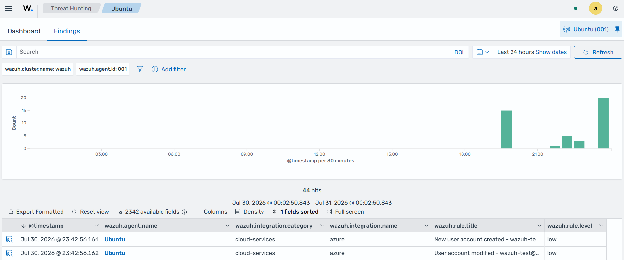
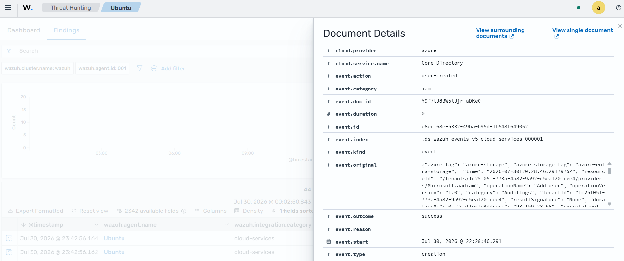
You can check the results in the Wazuh dashboard.