HIPAA § 164.308(a)(5)(ii)(B) - Protection from malicious software
The HIPAA § 164.308(a)(5)(ii)(B) requirement states, "Procedures for guarding against, detecting, and reporting malicious software."
This requirement mandates covered entities and business associates to implement policies and procedures for guarding against, detecting, and reporting malicious software.
Wazuh supports this requirement by providing several capabilities that support malware detection. They include the following:
Malware detection dashboard
Threat detection ruleset
Rootkit detection
The Wazuh malware detection capability meets this requirement using out-of-the-box rules, threat intelligence enrichments, and KVDBs.
Use case: Rootkit detection
In this example, the Wazuh Rootcheck component detects abnormal behavior on monitored endpoints, including potential rootkits and other indicators of compromise. This supports HIPAA § 164.308(a)(5)(ii)(B) by detecting malicious software that can compromise the security of systems and electronic protected health information. Follow these steps to detect the Diamorphine rootkit on an Ubuntu 26.04 endpoint.
Configuration
Follow these steps on the Ubuntu 26.04 endpoint to emulate rootkit-like process-hiding behavior. The Wazuh agent runs a RootCheck scan based on the set <frequency> and detects the rootkit behavior.
Switch to the root user and refresh package lists:
$ sudo su
# apt update
Install the packages required for building the rootkit:
# apt -y install gcc git make
For the purpose of this POC, configure the Wazuh agent to run rootcheck scans every 2 minutes. In the
/var/ossec/etc/ossec.conffile, set the frequency option in the<rootcheck>section to 120:<rootcheck> <disabled>no</disabled> <check_dev>yes</check_dev> <check_sys>yes</check_sys> <check_pids>yes</check_pids> <check_ports>yes</check_ports> <check_if>yes</check_if> <!-- Frequency that rootcheck is executed - every 12 hours --> <frequency>120</frequency> <skip_nfs>yes</skip_nfs> <ignore>/var/lib/containerd</ignore> <ignore>/var/lib/docker/overlay2</ignore> </rootcheck>
Restart the Wazuh agent to apply the changes:
# systemctl restart wazuh-agent
Attack emulation
We performed the following emulation on the monitored Ubuntu 26.04 endpoint:
Fetch the Diamorphine rootkit source code from GitHub:
# git clone https://github.com/m0nad/Diamorphine
Navigate to the Diamorphine directory, replace the outdated
PROC_ROOT_INOsymbol with the Ubuntu 26.04 equivalent, and compile the source code:# cd Diamorphine # sed -i 's/PROC_ROOT_INO/PROCFS_ROOT_INO/g' diamorphine.c # make
Load the rootkit kernel module:
# insmod diamorphine.ko
Run the kill signal
63with the PID of a random process running on the Ubuntu endpoint. This unhides the Diamorphine rootkit. By default, Diamorphine hides itself so we do not detect it by running thelsmodcommand. Try it out:# lsmod | grep diamorphine # kill -63 509 # lsmod | grep diamorphine
The command output looks similar to this:
diamorphine 16384 0
Run the following commands to see how the
rsyslogdprocess is first visible and then no longer visible. This rootkit allows you to hide selected processes from thepscommand. Sending a kill signal31hides or unhides any process:# ps auxw | grep rsyslogd | grep -v grep
The command output looks similar to this:
syslog 1371 0.0 0.0 220548 5292 ? Ssl 15:15 0:00 /usr/sbin/rsyslogd -n -iNONE
# kill -31 <PID_OF_RSYSLOGD>
# ps auxw | grep rsyslog | grep -v grep
Replace
<PID_OF_RSYSLOGD>with the PID retrieved from the previous command.When using this last command, you can expect an empty output. The next rootcheck scan runs and triggers a finding about the
rsyslogdprocess, which was hidden with the Diamorphine rootkit.Unload the rootkit kernel module:
# rmmod diamorphine
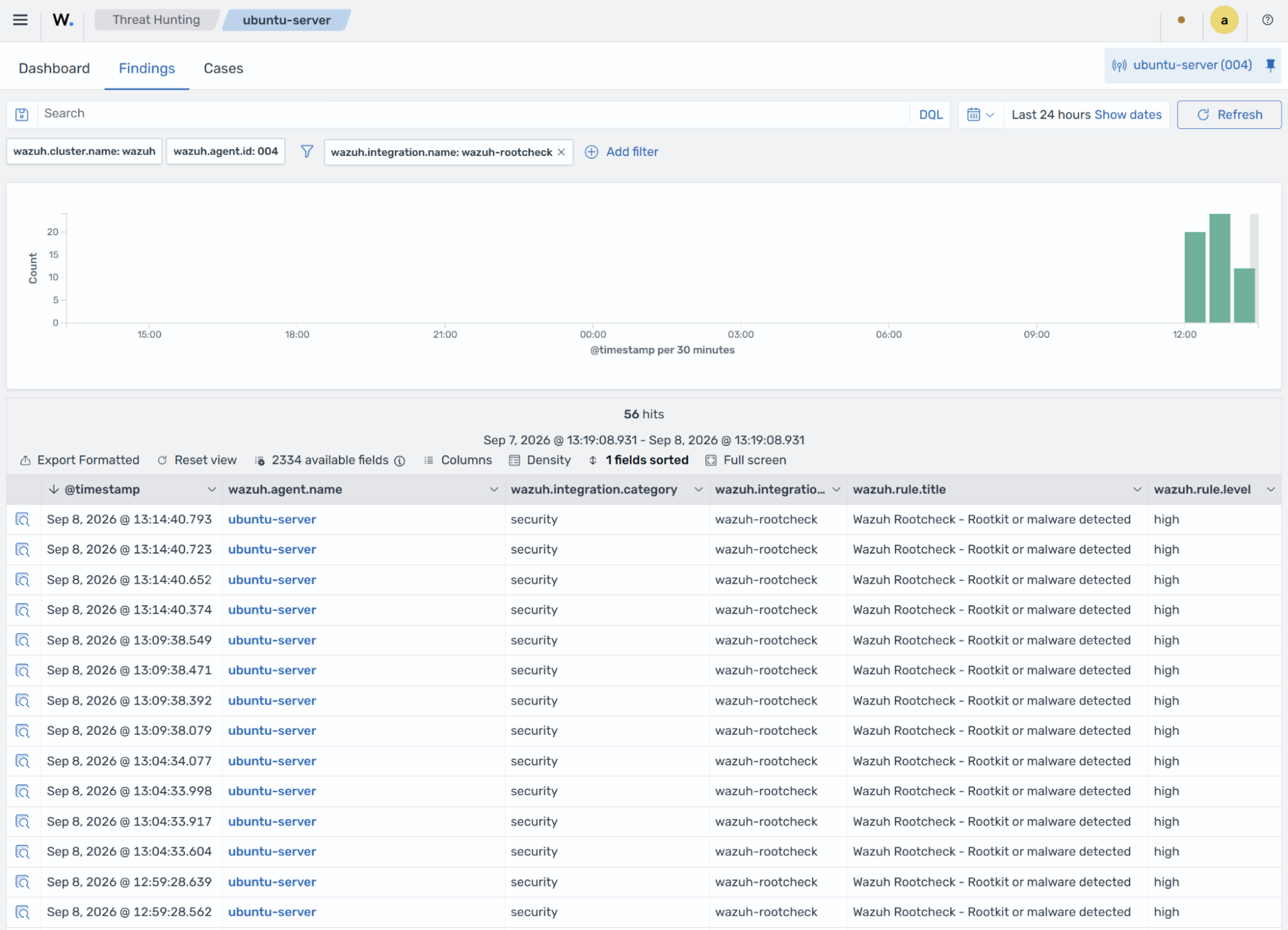
Navigate to the Threat intelligence > Threat Hunting dashboard and add the following filter in the search bar to query the findings:
wazuh.integration.name: wazuh-rootcheck